
The mobile app
The Freesbe app for iPhone and Android keeps you in your channels and DMs when you’re away from your computer. It signs in to the same account and shows the same workspaces, messages and unread counts as the desktop app and the browser.
Sign in
Section titled “Sign in”Open the app and sign in the same way you do on your computer:
- Scan a QR code signs you in with a code from Freesbe on your computer, with nothing to type. See Sign in with a QR code.
- Continue with Google or Continue with Microsoft opens a sign-in sheet in the app, then brings you back signed in.
- Email and Password, or Email me a sign-in code instead for a code to type in.
- Sign in with a passkey uses your fingerprint, face or phone PIN with a passkey you already have, such as one saved in iCloud Keychain or Google Password Manager. See Passkeys.
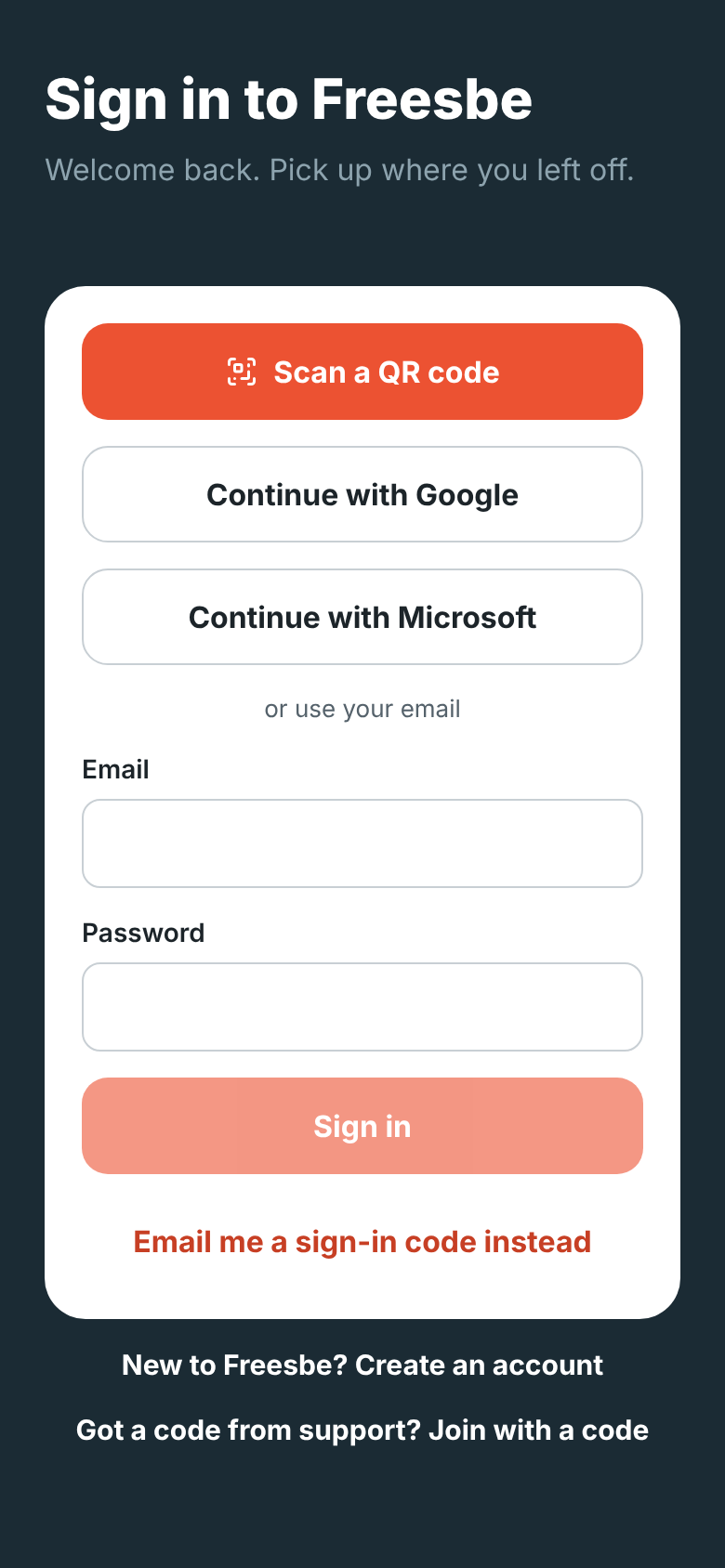
If your workspace requires single sign-on, the app sends you through your company’s sign-in page. If it requires a second step, the app asks for it right after you sign in, with a passkey, your authenticator app or an emailed code, just as on the web. The same rules apply on every device.
New to Freesbe? Tap New to Freesbe? Create an account, or open the invite link a teammate sent you. See Create an account.
Sign in with a QR code
Section titled “Sign in with a QR code”If you’re signed in to Freesbe on your computer, you can sign the app in without typing your email or password:
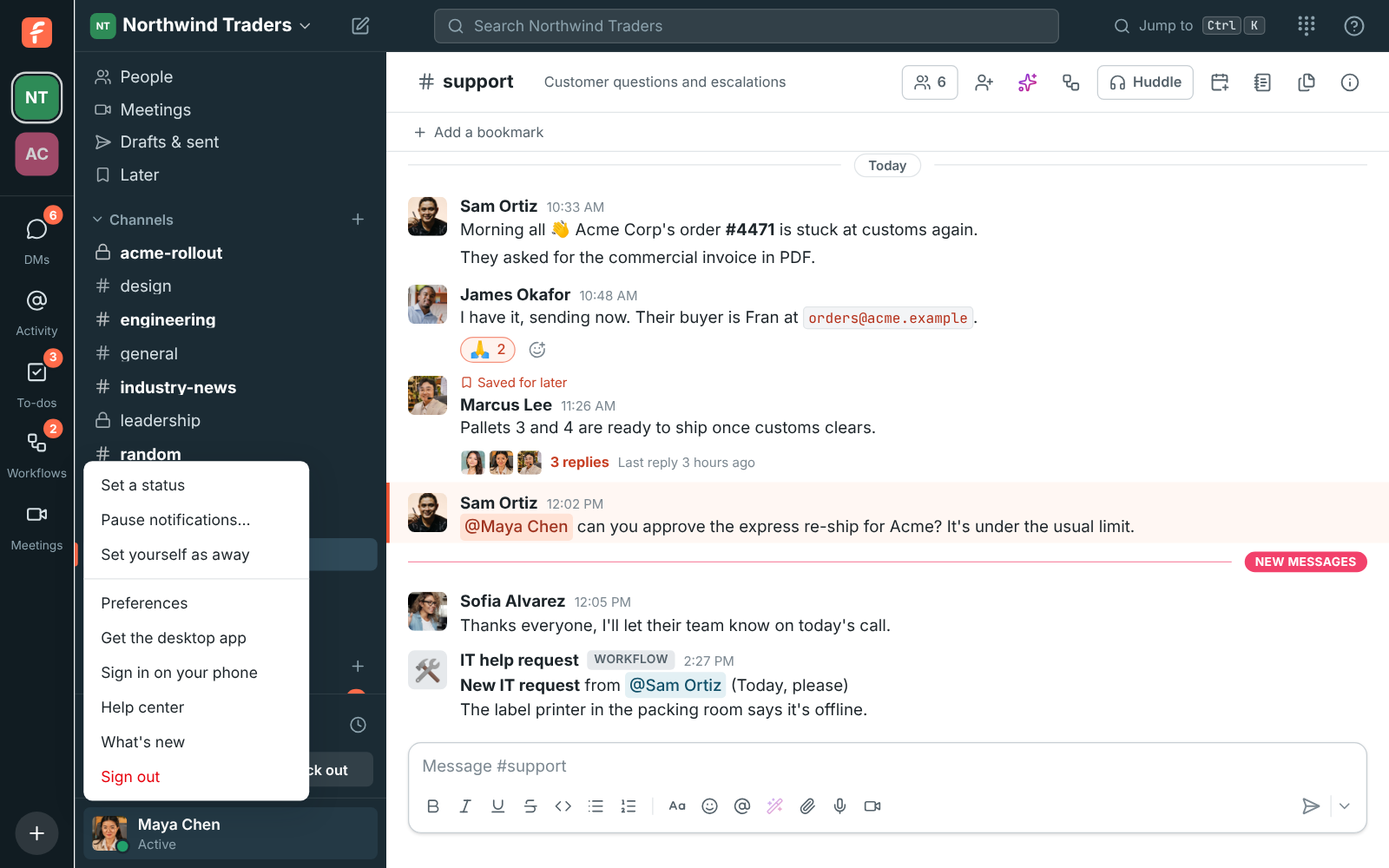
- On your computer, click your name at the bottom of the sidebar and choose Sign in on your phone. You’ll also find it in Preferences → My account → Sign-in.
- In the app on your phone, tap Scan a QR code and allow the camera.
- Point your phone at the code on your computer’s screen. The app opens your workspace.
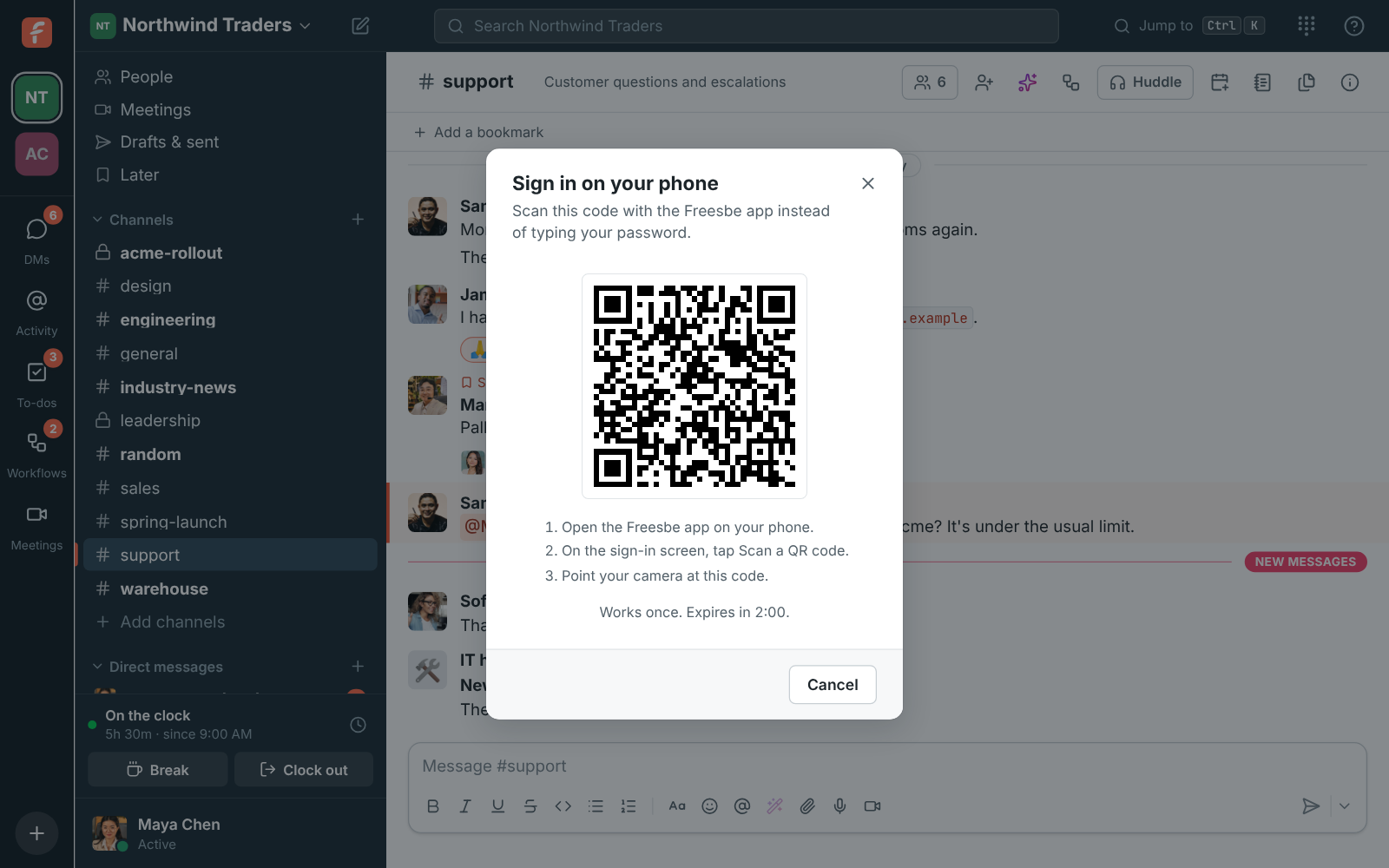
You can also scan the code with your phone’s camera app, which opens it in Freesbe.
Each code works once and stops working after two minutes, or as soon as you close the dialog. Your phone signs in the same way your computer did, so it already counts as verified for workspaces that require a second step. Your computer confirms when your phone is signed in, and the phone appears in Your sessions.
Create an account
Section titled “Create an account”You can start Freesbe for your team from your phone, with no computer needed. On the sign-in screen, tap New to Freesbe? Create an account:
-
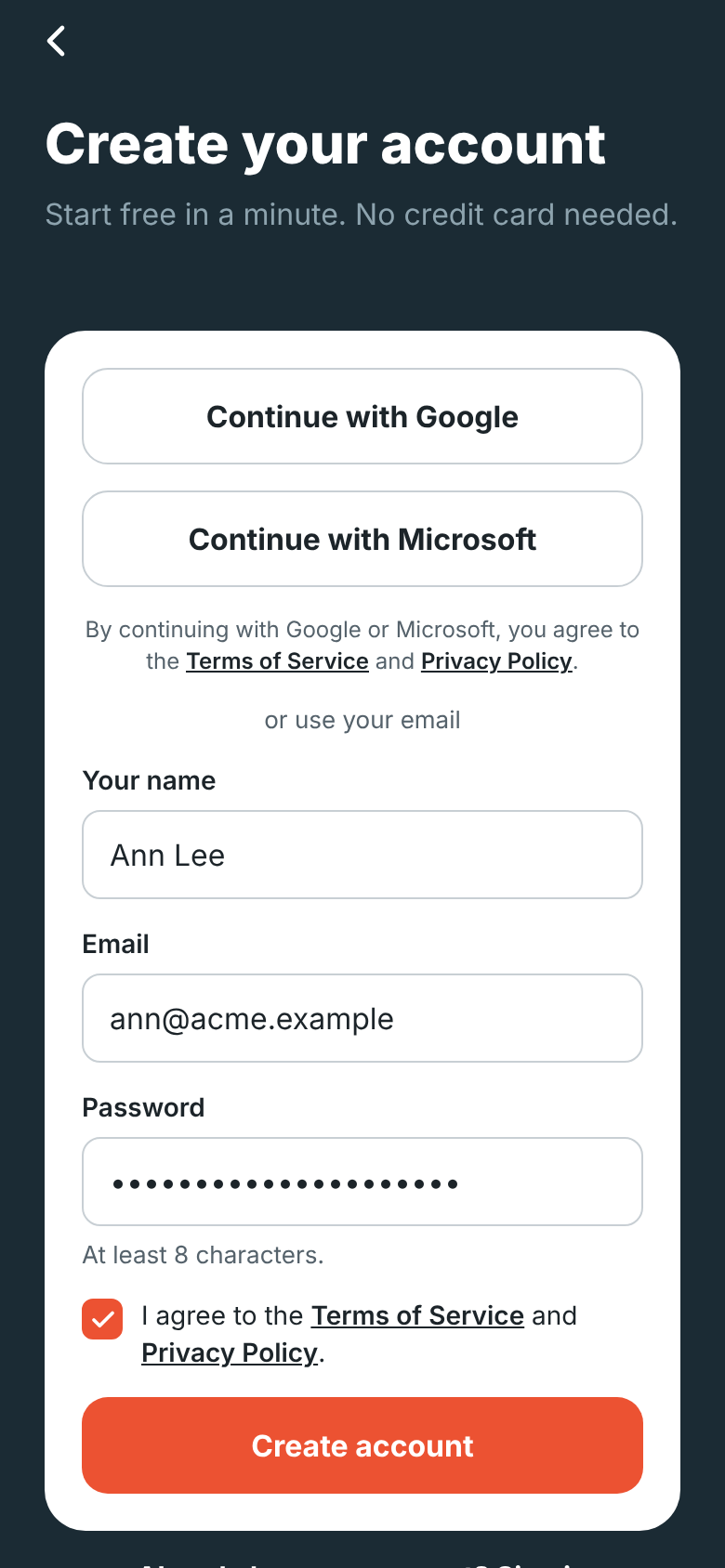
Tap Continue with Google or Continue with Microsoft, or enter your name, email and a password. Tick I agree to the Terms of Service and Privacy Policy; tap either name to read it. A quick check that you’re a person runs under the box, then tap Create account.
-
If you used a password, enter the 6-digit code Freesbe emailed you. Google and Microsoft accounts are confirmed already. If your company already has a workspace that takes people from your email domain, it shows under Join your team: tap Join and you’re in.

-
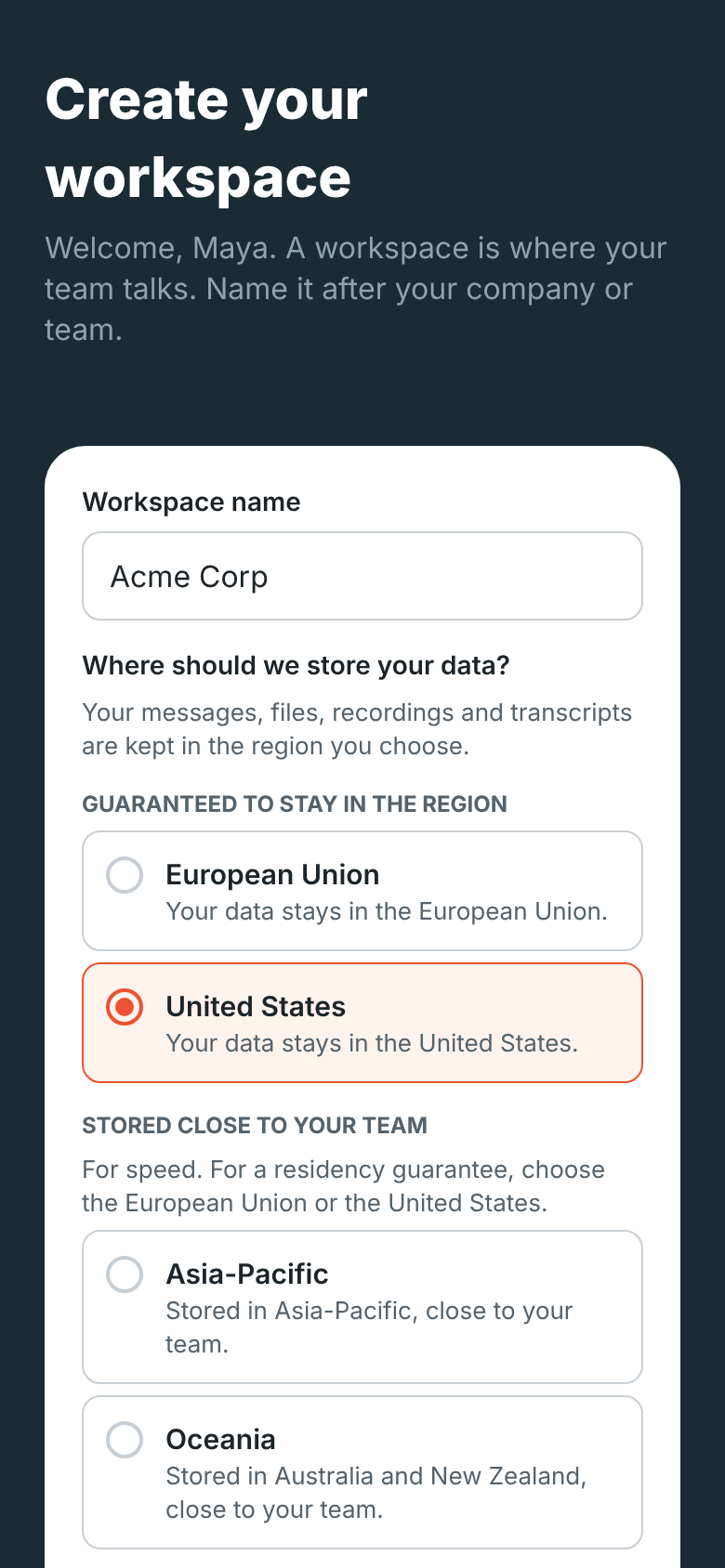
Name your workspace and choose where its data is stored. The region closest to your phone’s time zone is already picked. See Data residency.
-
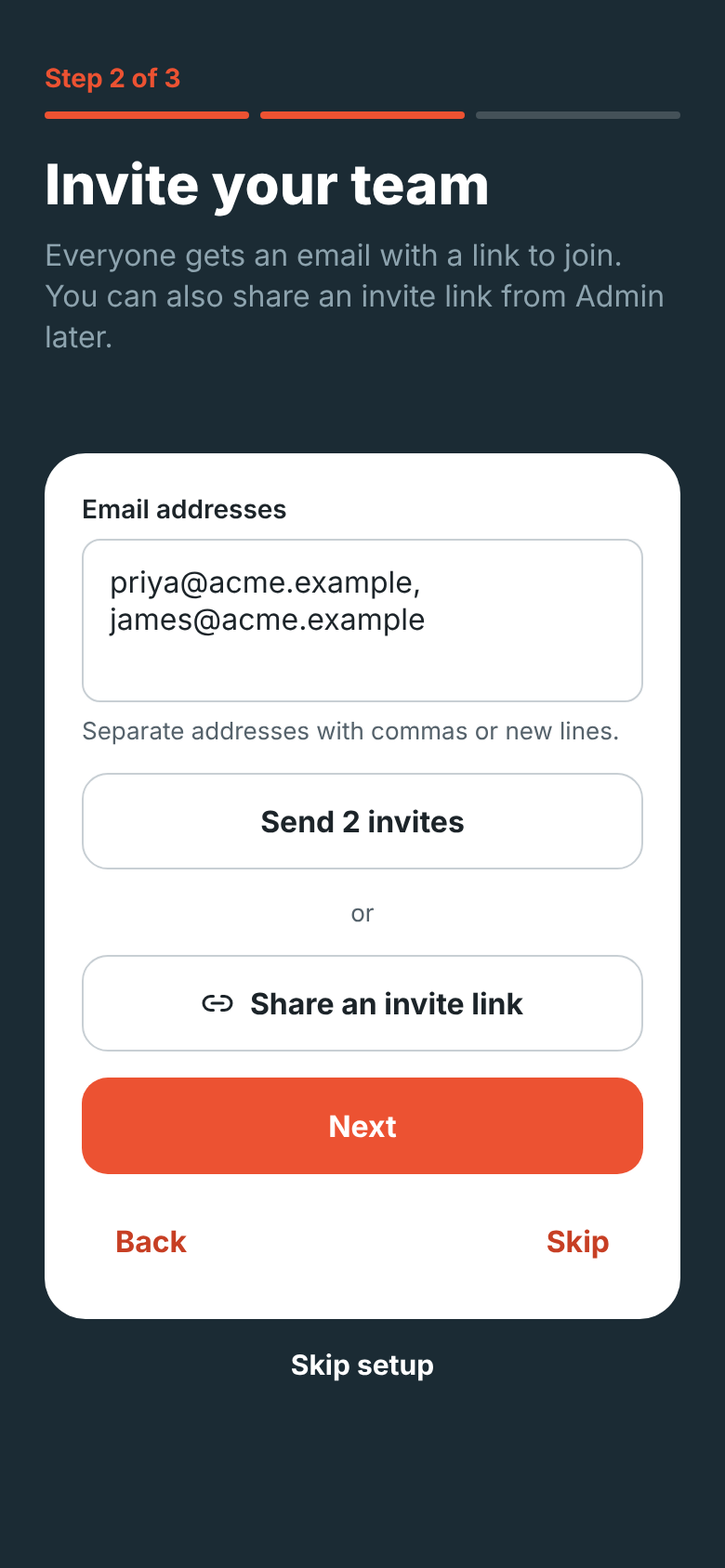
Three short steps follow, and you can skip any of them:
- Add your logo from your photos.
- Invite your team: type their email addresses, or tap Share an invite link to send a link by text message, WhatsApp or any app on your phone.
- Get Freesbe on your computer: Send me the download link shares the download page so you can open it on your computer later.
Your first workspace gets the same free 14-day trial of Business as on the web, with no credit card needed. To make another workspace later, tap the workspace name at the top of Home and choose Create a workspace.
Join with an invite link
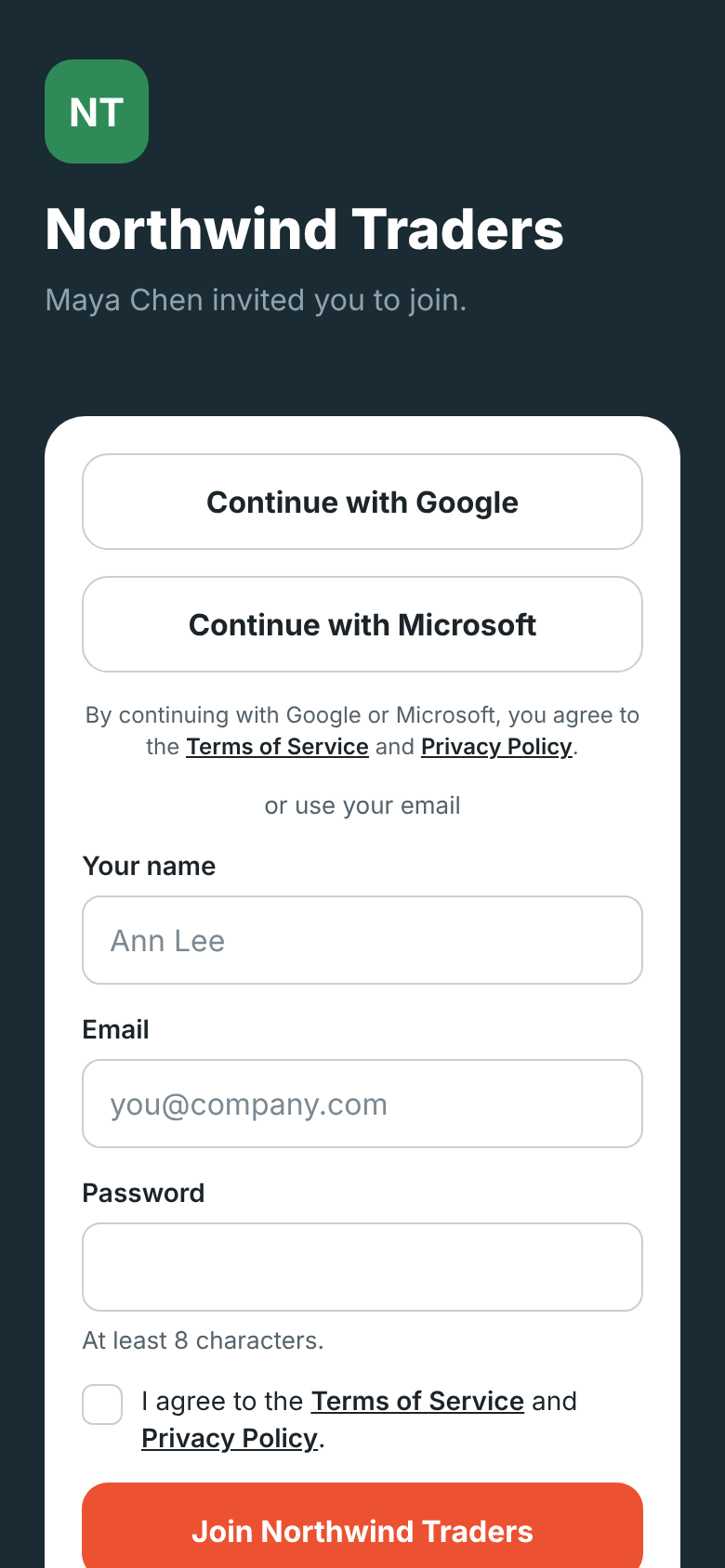
Section titled “Join with an invite link”Open the invite link a teammate sent you on your phone. With the app installed, the link opens the app on the invite: who invited you and to which workspace. Create your account right there, continue with Google or Microsoft, or tap Already have an account? Sign in to accept. If you’re already signed in, tap Join.
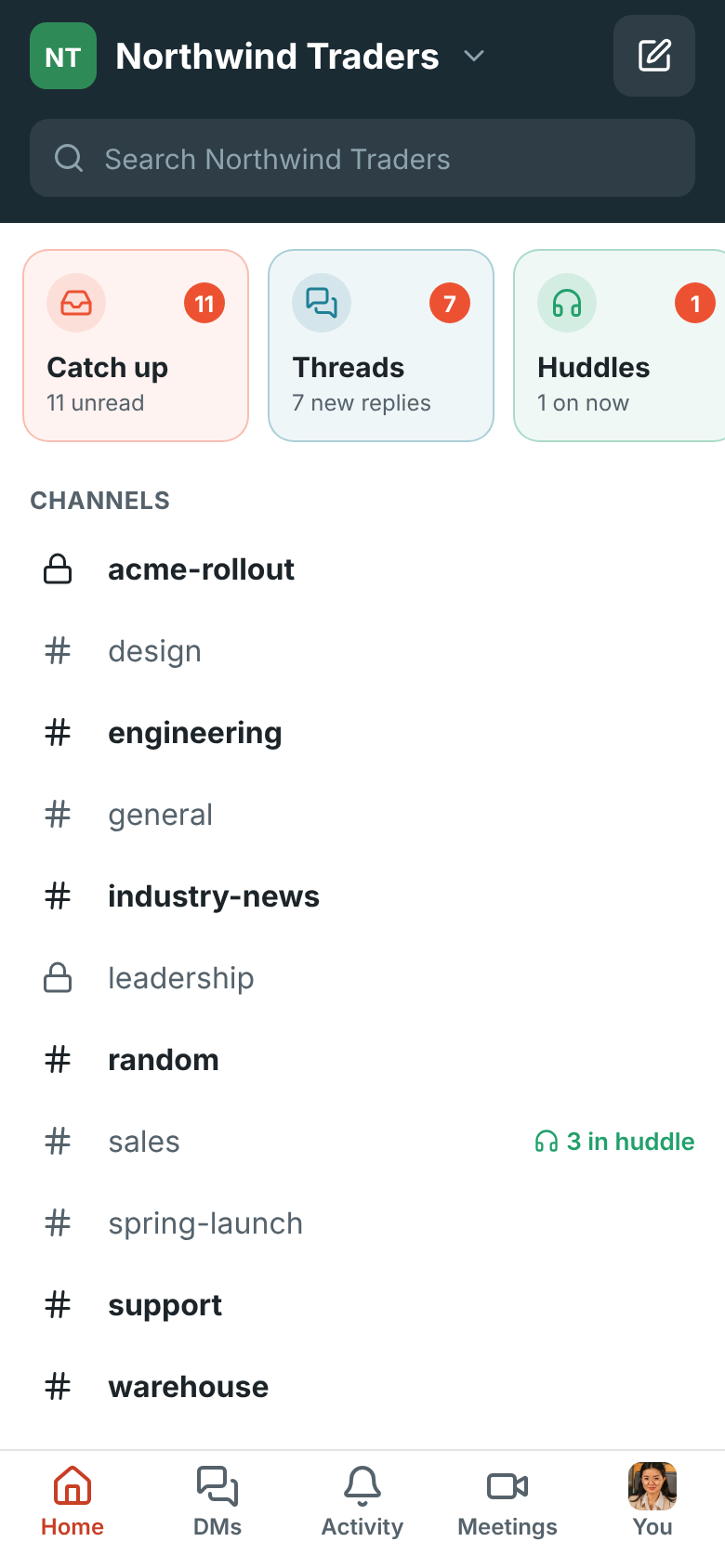
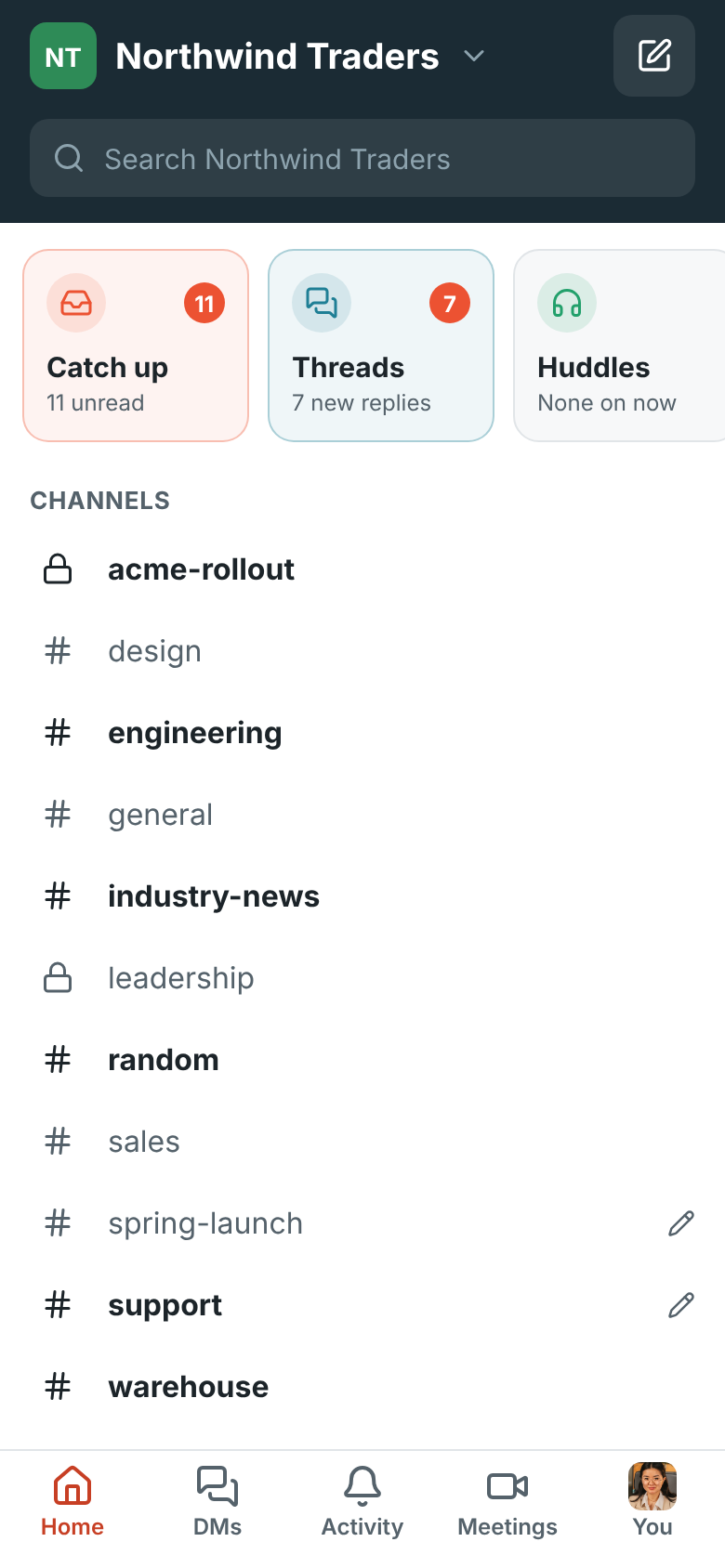
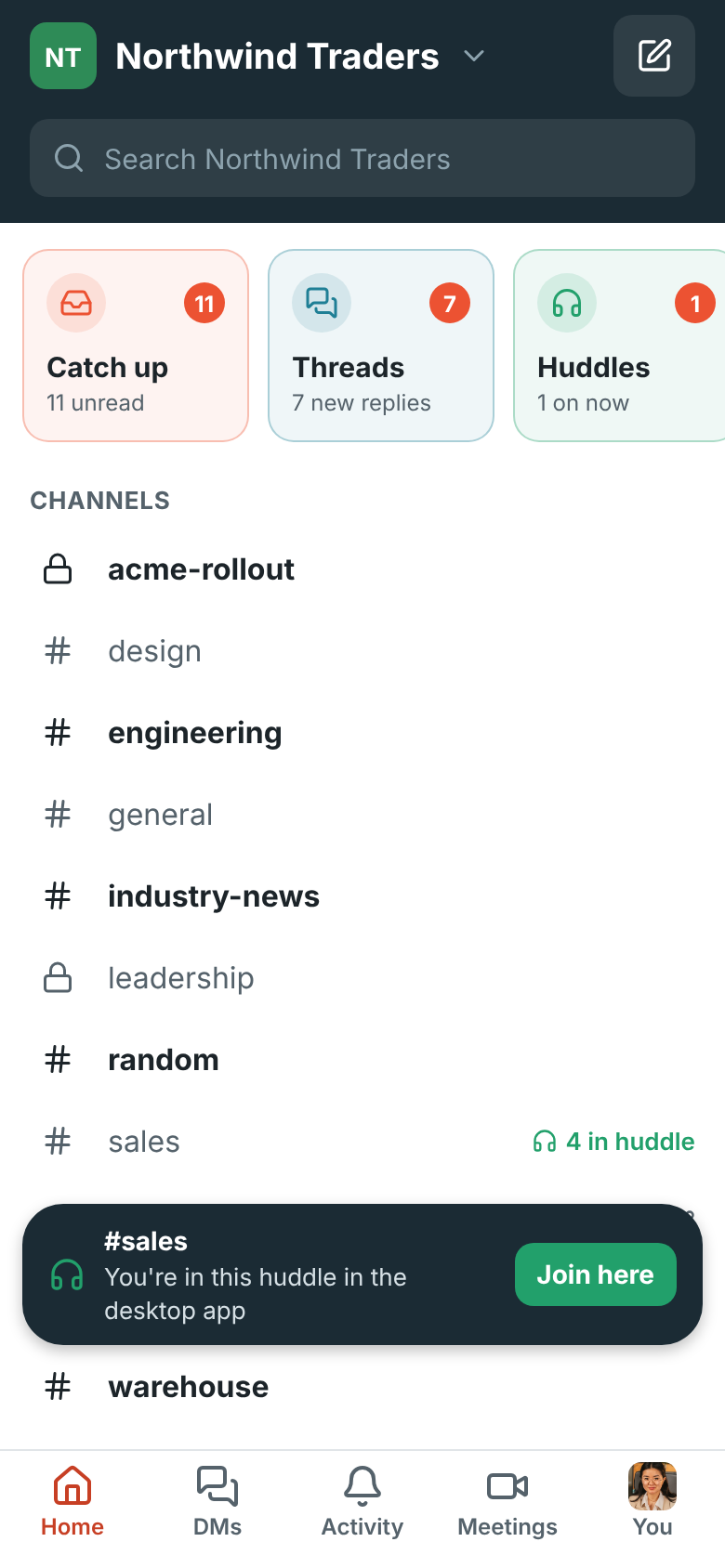
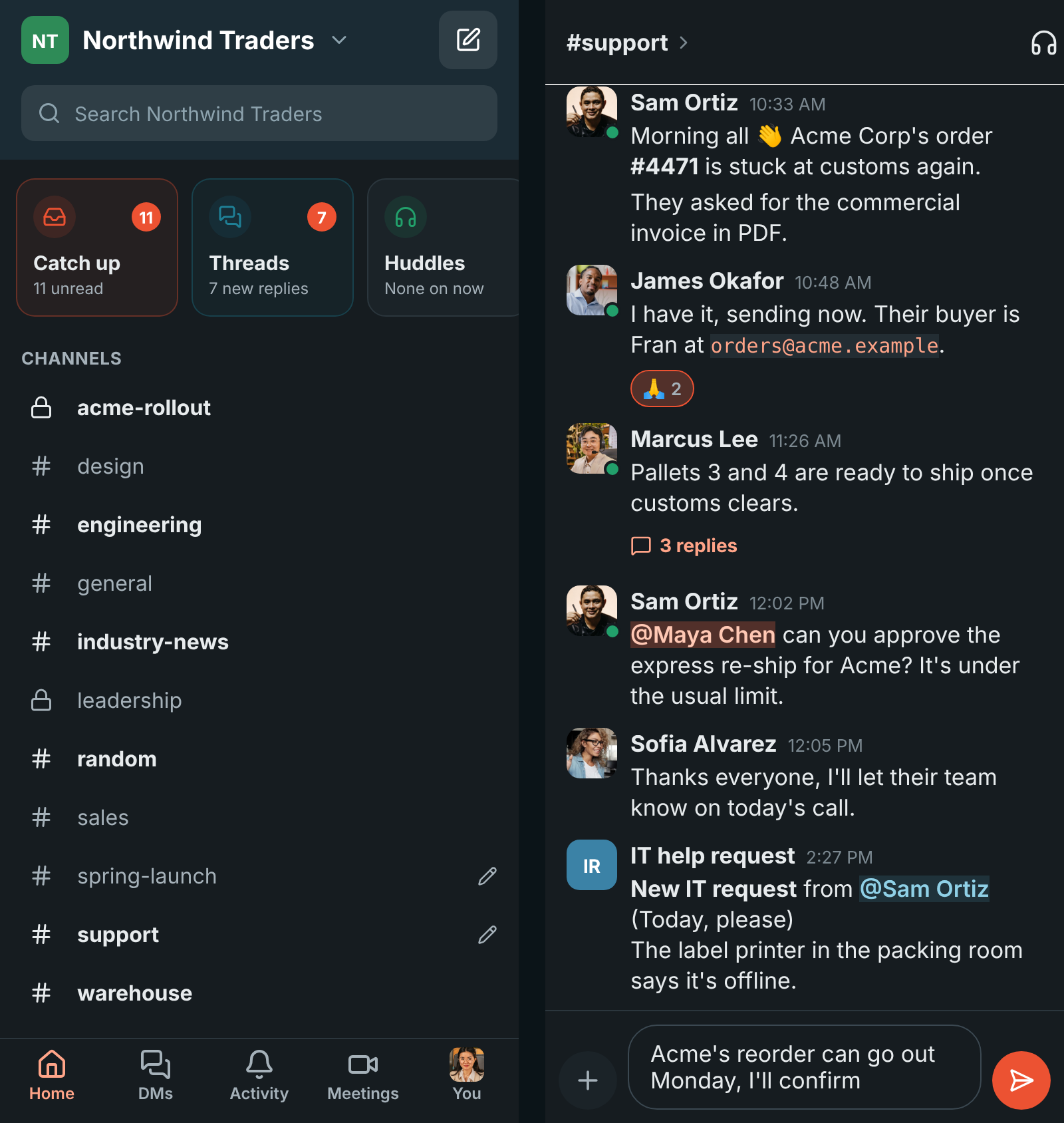
At the top of Home, a row of tiles shows what needs you, so you can see what’s going on without opening every conversation. Swipe it sideways for more. A coral number means something’s waiting there:
- Catch up: conversations with unread messages. See Catch up.
- Threads: new replies in threads you started or replied in. See Threads.
- Huddles: huddles going on right now in your channels and DMs. See Huddles going on now.
- Meetings: meetings that are on now or about to start. It opens the Meetings tab.
- To-dos: your to-dos due today or earlier. See To-dos.
- Later: reminders that went off. See Later.
- Drafts & sent: messages you started and didn’t send, and scheduled ones, in grey. See Drafts.
Under the tiles, Home lists your channels and direct messages, like the sidebar on your computer:
- Bold names have unread messages, and a coral badge counts mentions and DMs.
- 3 in huddle next to a channel means people are talking in it right now.
- Tap the search bar to search the workspace.
- Tap the pencil to start a new direct message.
- Tap Browse channels under your channels to find and join others, or create one. See Browse and create channels.
- Tap People under your direct messages to find anyone in the workspace. See People and profiles.
- Tap the workspace name to switch workspaces.
Pull down on Home or Activity to refresh it.
Catch up
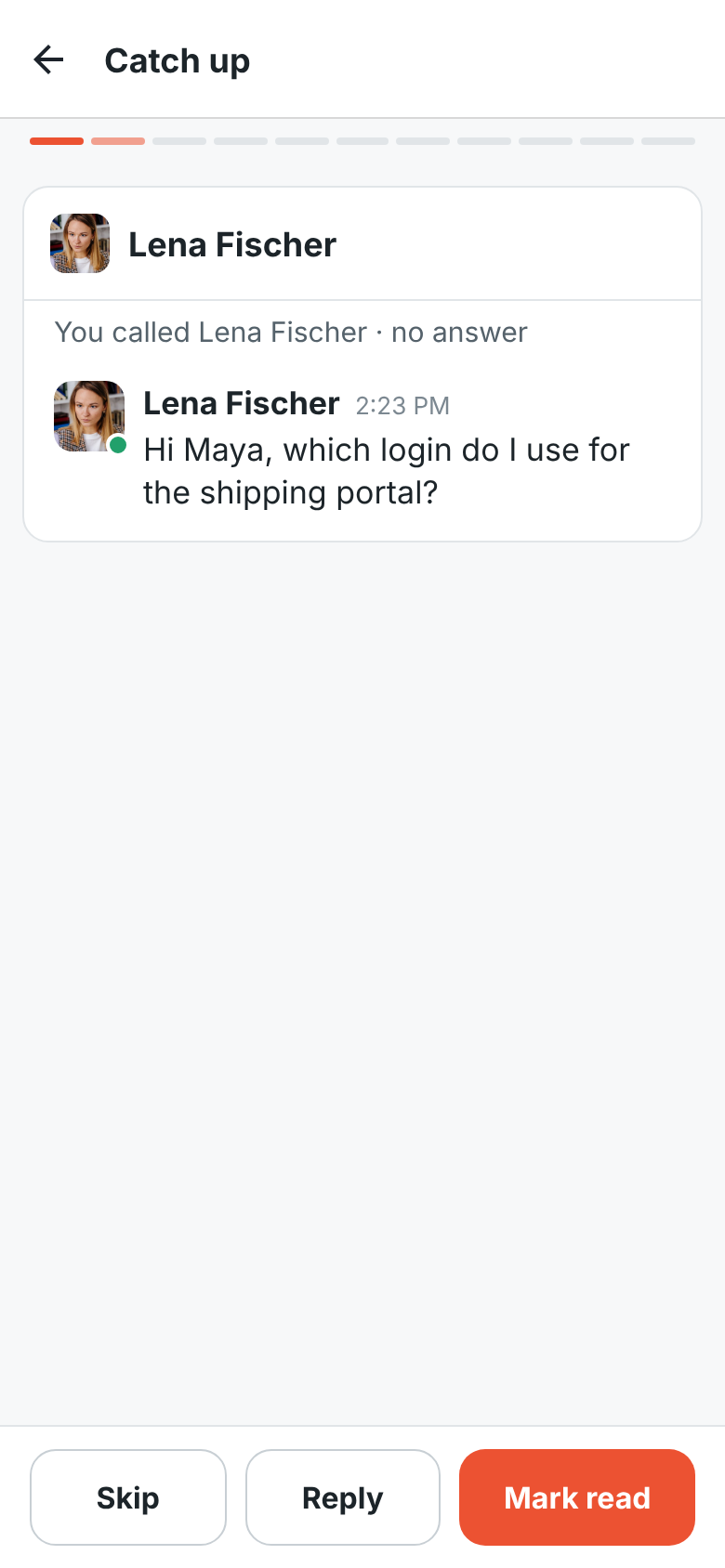
Section titled “Catch up”Catch up goes through your unread conversations one at a time, DMs and the ones that mention you first. Each shows its newest unread messages:
- Mark read marks the conversation read and moves on to the next.
- Reply opens the conversation so you can answer; when you come back, Catch up is on the next one.
- Skip leaves it unread for now.
Muted conversations aren’t included. When you’ve been through them all, you’re caught up.
Threads
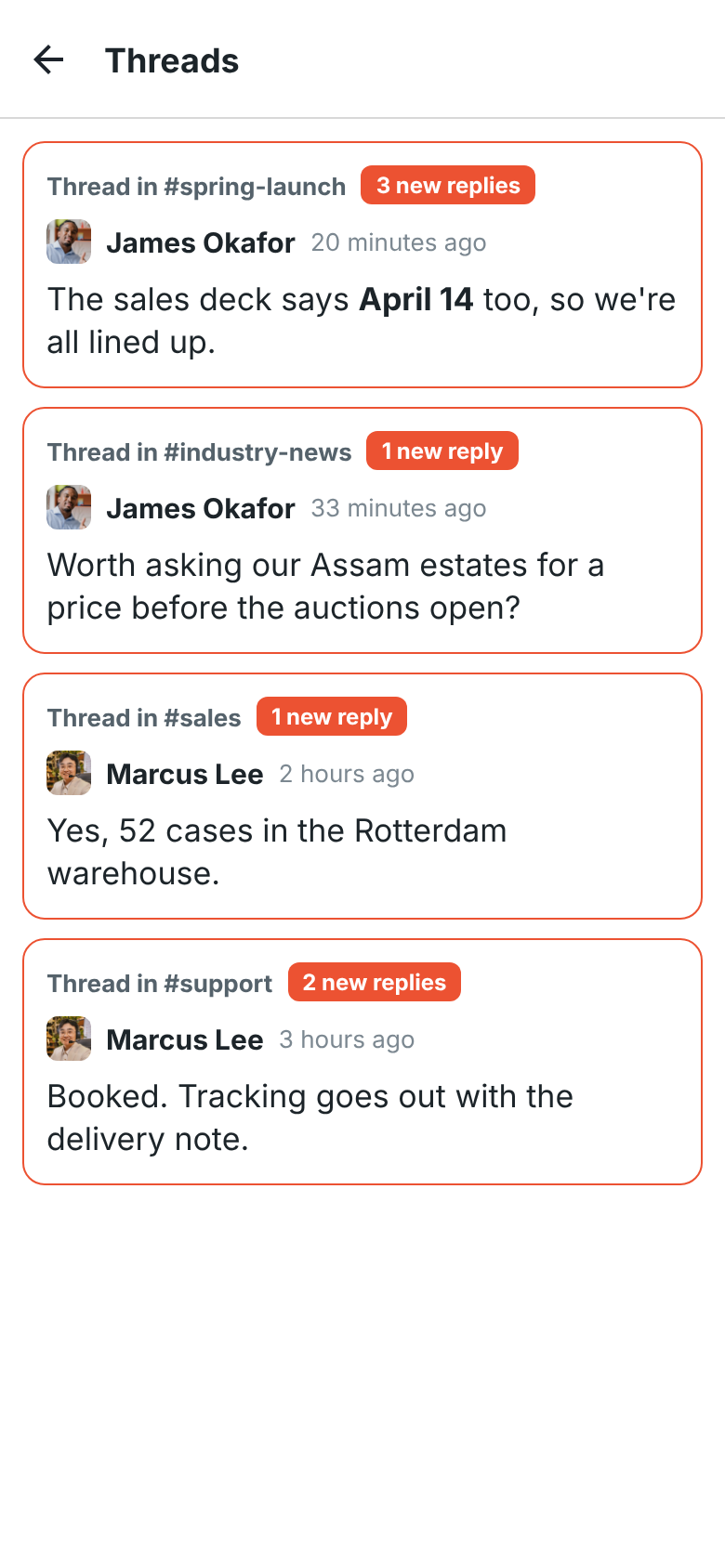
Section titled “Threads”Threads lists the threads you started or replied in that have replies, newest first, with the latest reply in each. Threads with replies since you last looked are outlined, with how many are new. Tap one to open the thread. Opening Threads clears the count on its tile; the phone remembers when you last looked, so your computer keeps its own count.
Huddles going on now
Section titled “Huddles going on now”Huddles shows the huddles going on in your channels and DMs, who’s in each and how long ago it started. Tap Join to jump in, or the conversation’s name to read it first. See Huddles.

Conversations and threads
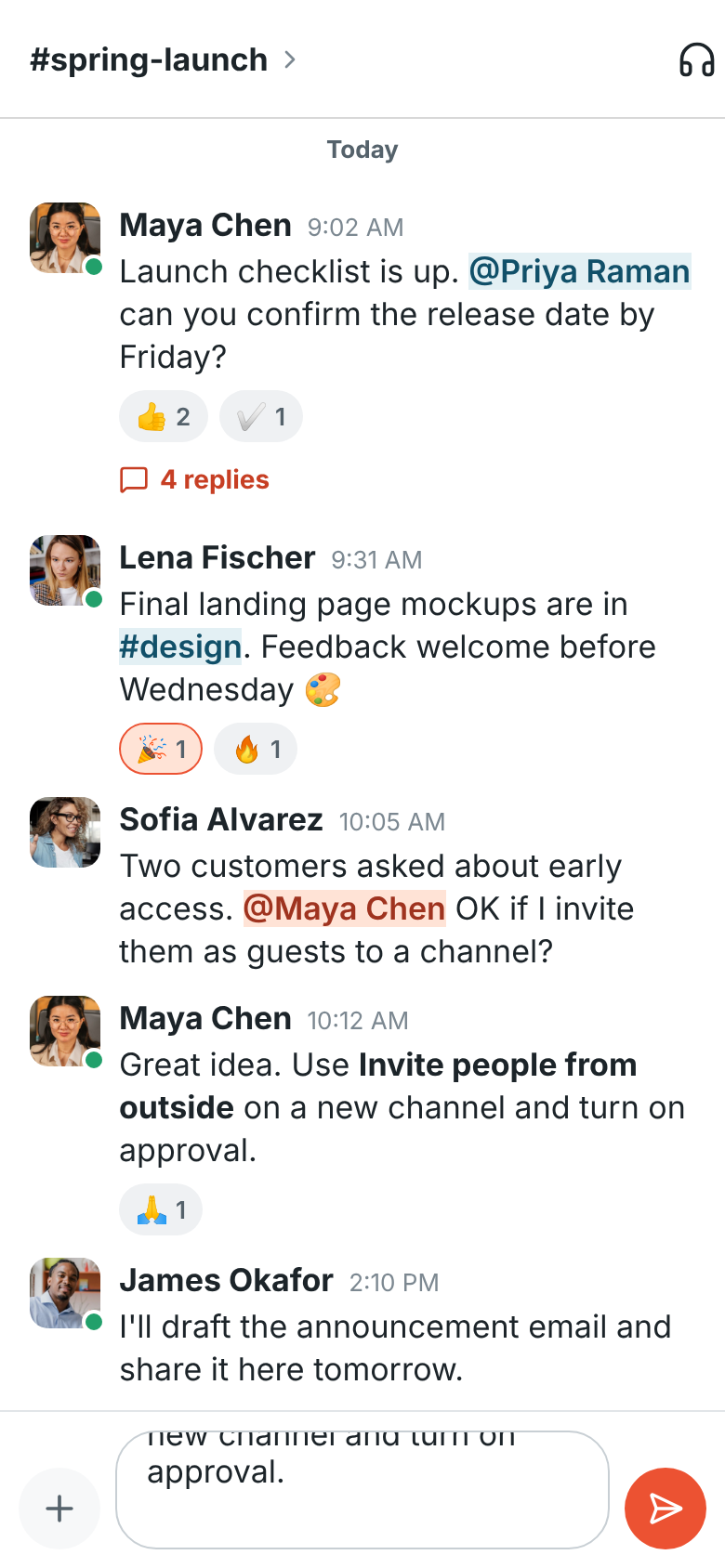
Section titled “Conversations and threads”Tap a channel or DM to open it. Messages, reactions, mentions, code and links look the same as on your computer, and the conversation is marked read as you open it.
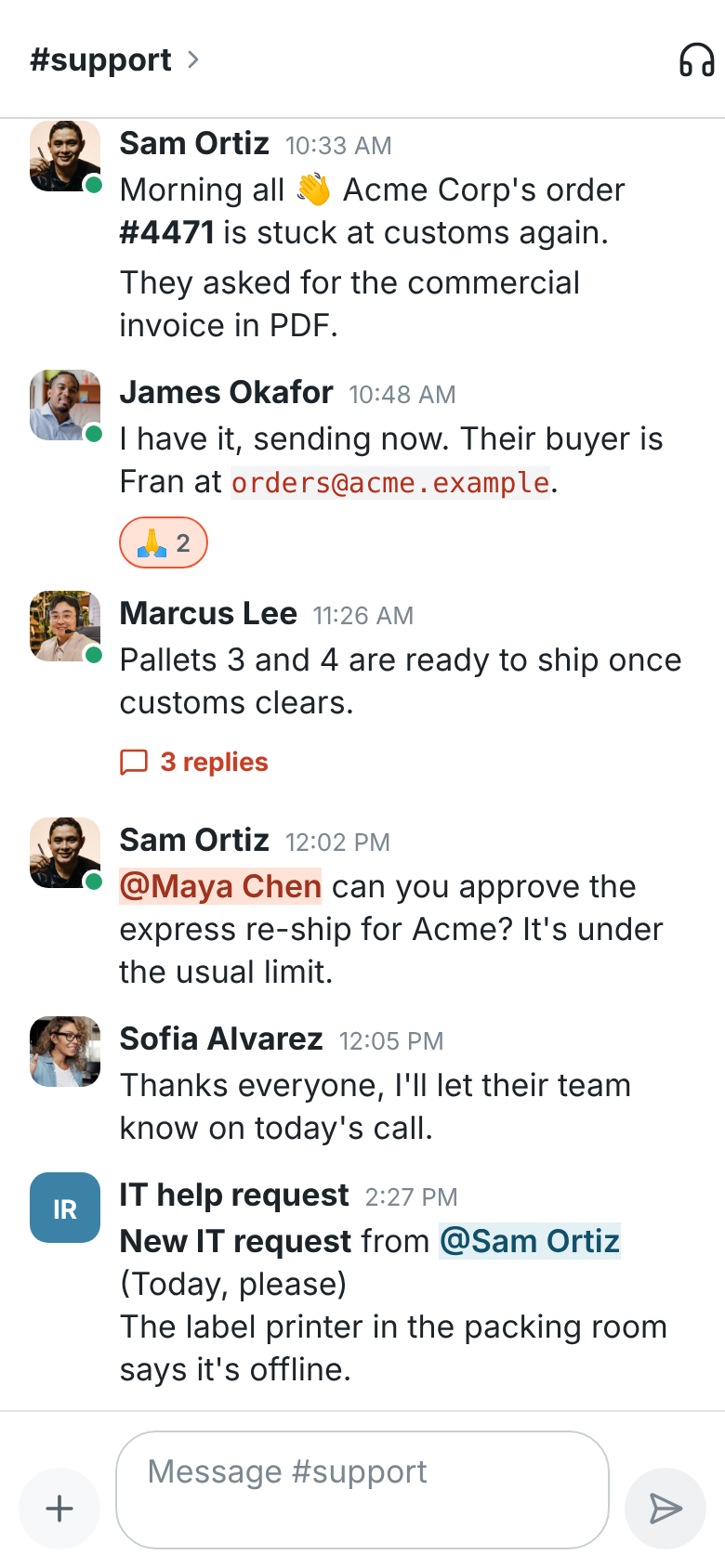
Type in the box at the bottom and tap the send button. Type @ to mention someone: pick them from
the list that appears. If a message can’t be sent, for example because you lost signal, it stays
in the conversation with Try again.
Bulleted and numbered lists, underlines and the rest of the formatting
show as they do on your computer. To write a list, start a line with - or 1. : the dash
becomes a bullet, each new line starts the next item, and a new line on an empty item ends the list. A
list you paste from another app keeps its bullets and numbers.
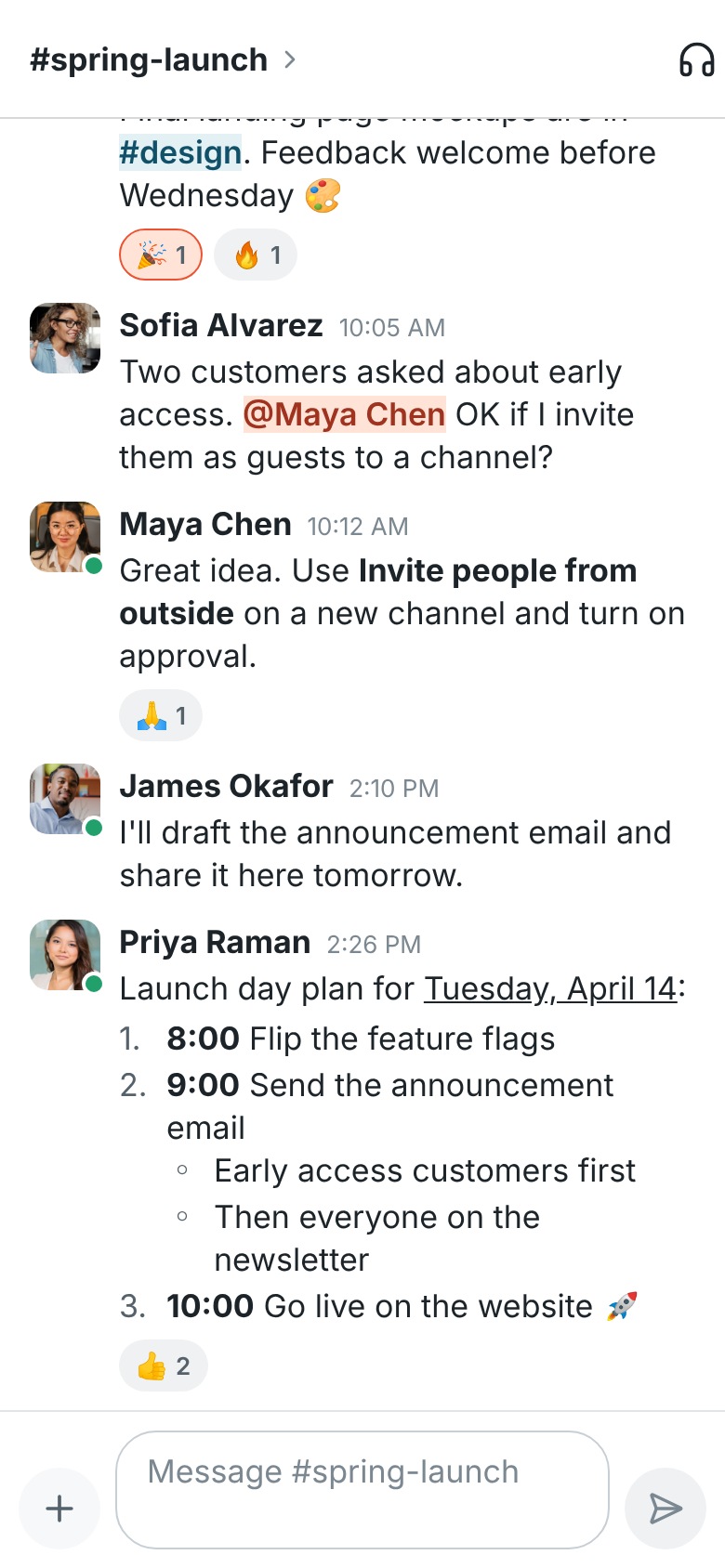
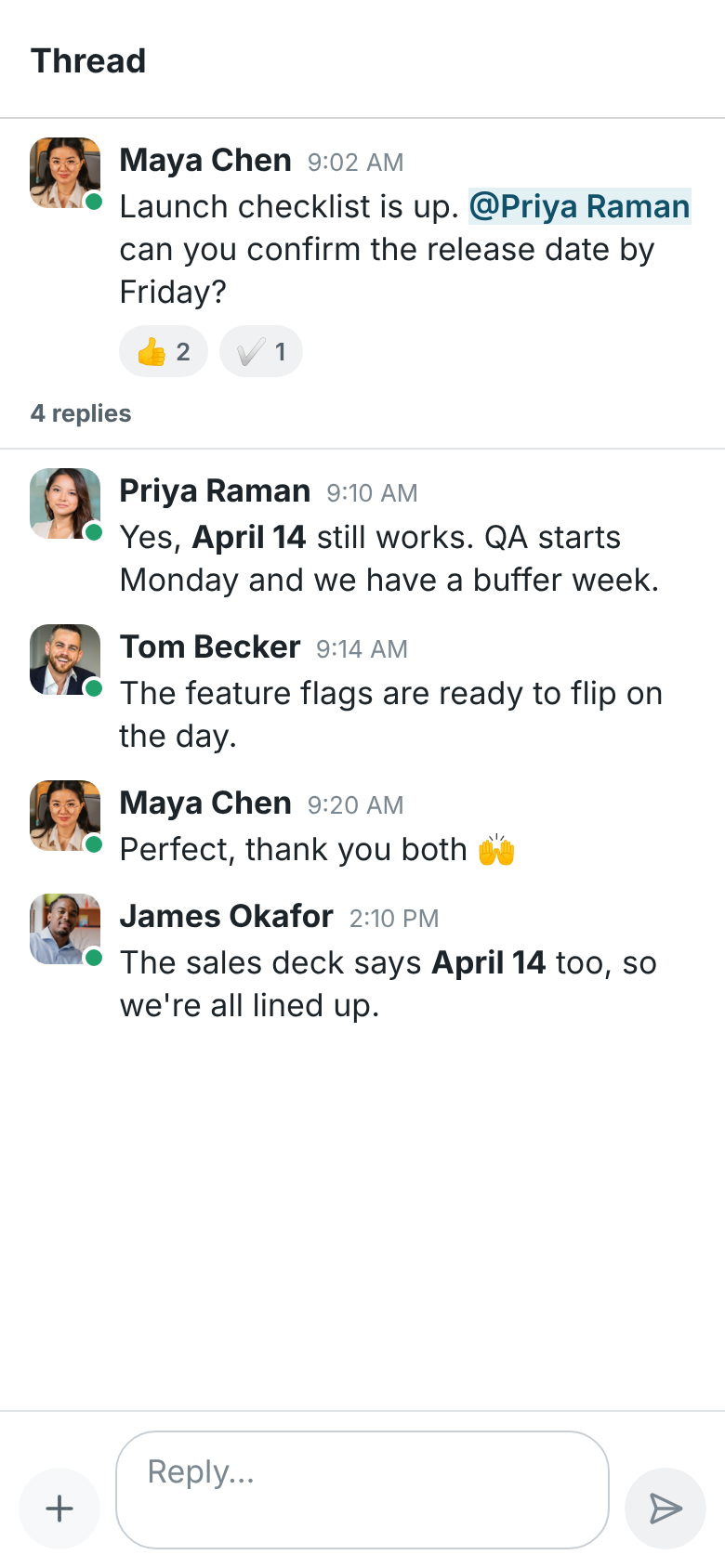
Tap 3 replies under a message to open its thread, and reply at the bottom.
Conversation details
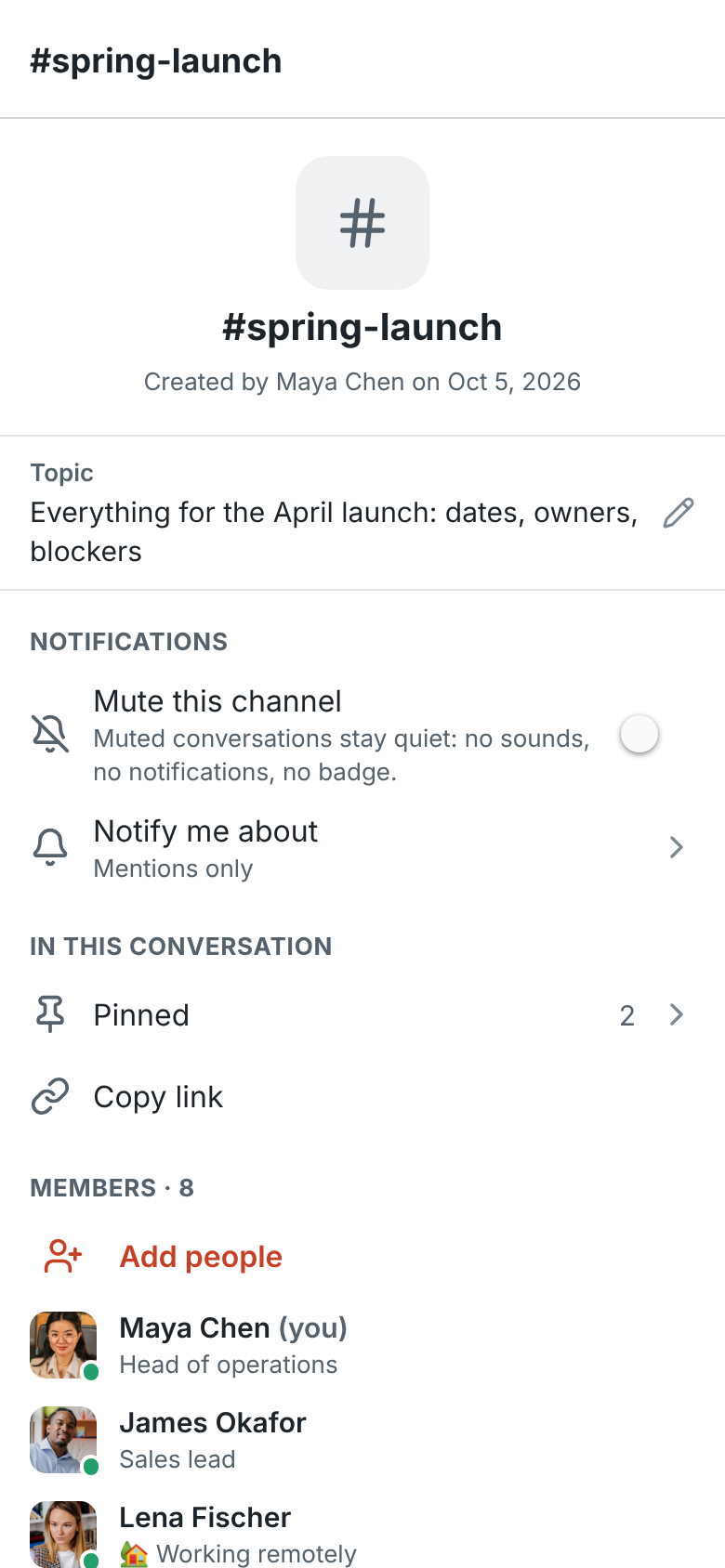
Section titled “Conversation details”Tap the name at the top of a conversation to see its details, the same ones as the details panel on your computer:
- The channel’s Topic. Tap it to change it.
- Mute this channel keeps it quiet: no sounds, no notifications, no badge.
- Notify me about picks what notifies you here: Every message, Mentions only, Nothing, or your default.
- Pinned lists the messages pinned in the conversation, newest first. Tap one to go to it; press and hold it to unpin it.
- Copy link copies a link to the conversation.
- Members (or People in a DM) lists who’s in it. Tap someone to open their profile, and tap Add people to add more. People who run the channel can press and hold someone to remove them.
- Leave channel at the bottom.

Browse and create channels
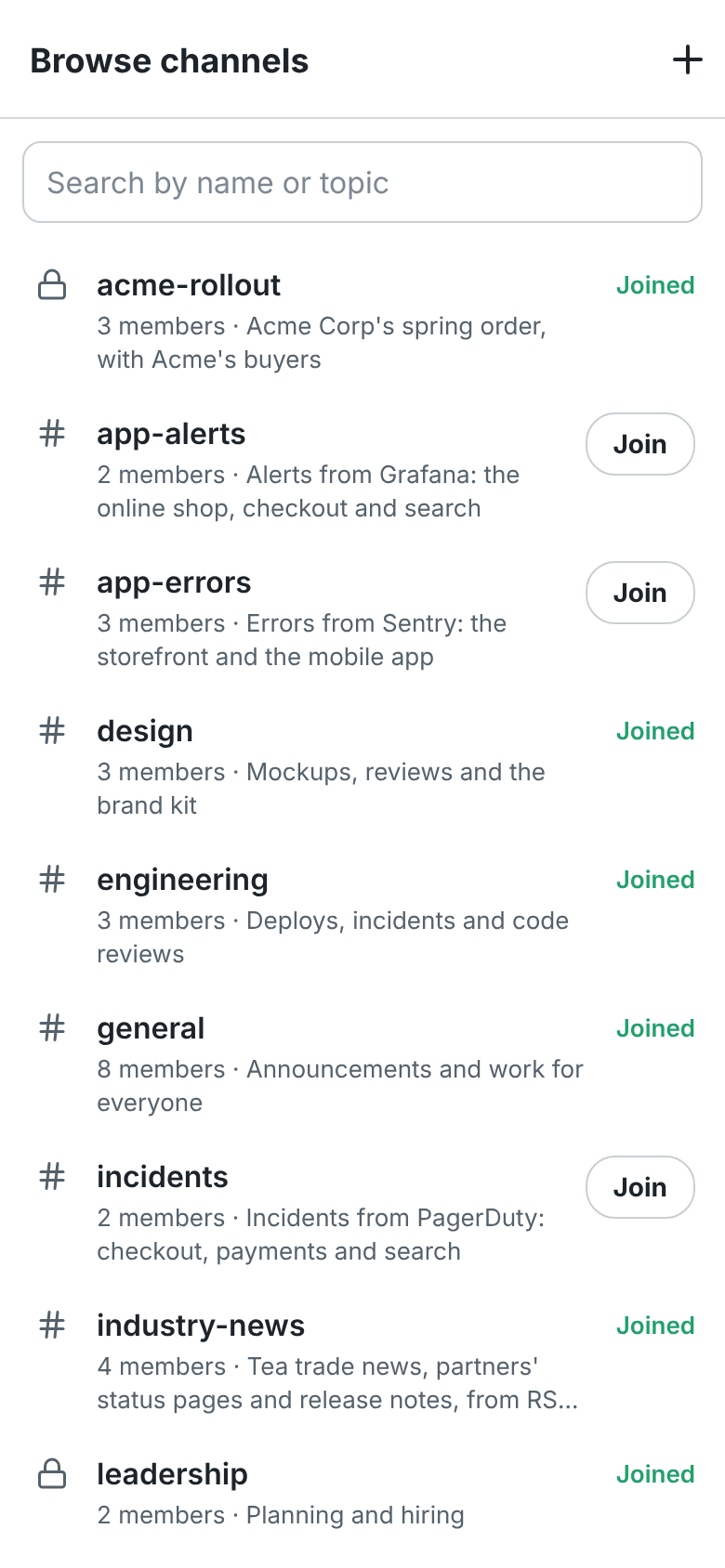
Section titled “Browse and create channels”Tap Browse channels on Home to see every channel you can join, with how many people are in it and its topic. Search by name or topic, and tap Join to join one and open it. Channels you’re already in say Joined.
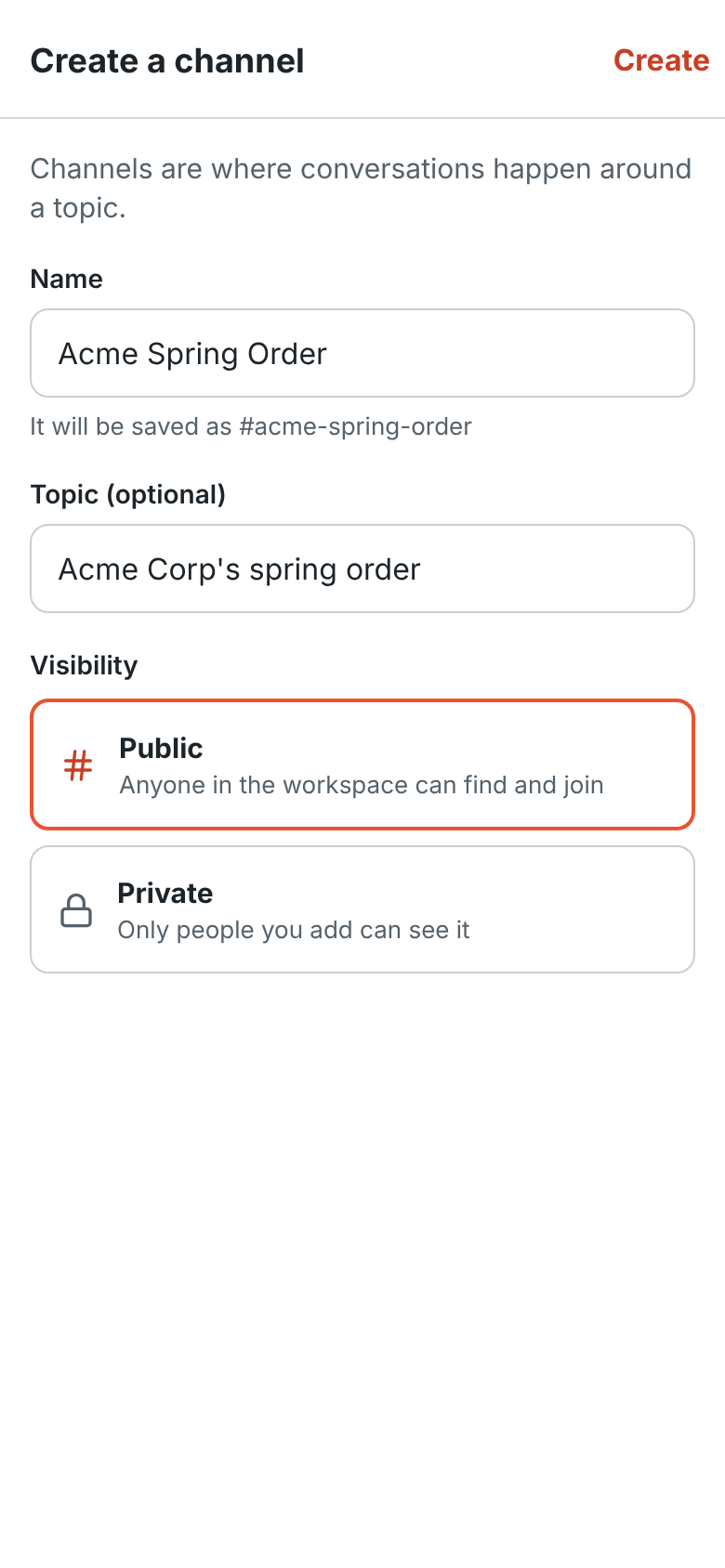
To make a new channel, tap + at the top, give it a name and, if you like, a topic, and choose Public (anyone in the workspace can find and join it) or Private (only people you add can see it). Tap Create. Guests can’t create channels.
Saved on your phone
Section titled “Saved on your phone”Your phone keeps the newest messages of the conversations you opened lately, so they open right away, even before the app has reconnected or when you have no signal, and catch up a moment later. Unread conversations and the ones you used most recently load as soon as the app opens, so they’re ready before you tap them.
What’s saved is encrypted with a key that only your account can get from Freesbe, kept in your phone’s secure storage. It’s deleted when you sign out, and can no longer be read once you leave the workspace or are removed from it. In a workspace that asks for a second factor each time Freesbe opens, nothing saved shows until you’ve confirmed it’s you. On Android, nothing Freesbe keeps on your phone, drafts included, goes into your Google backups.
Drafts
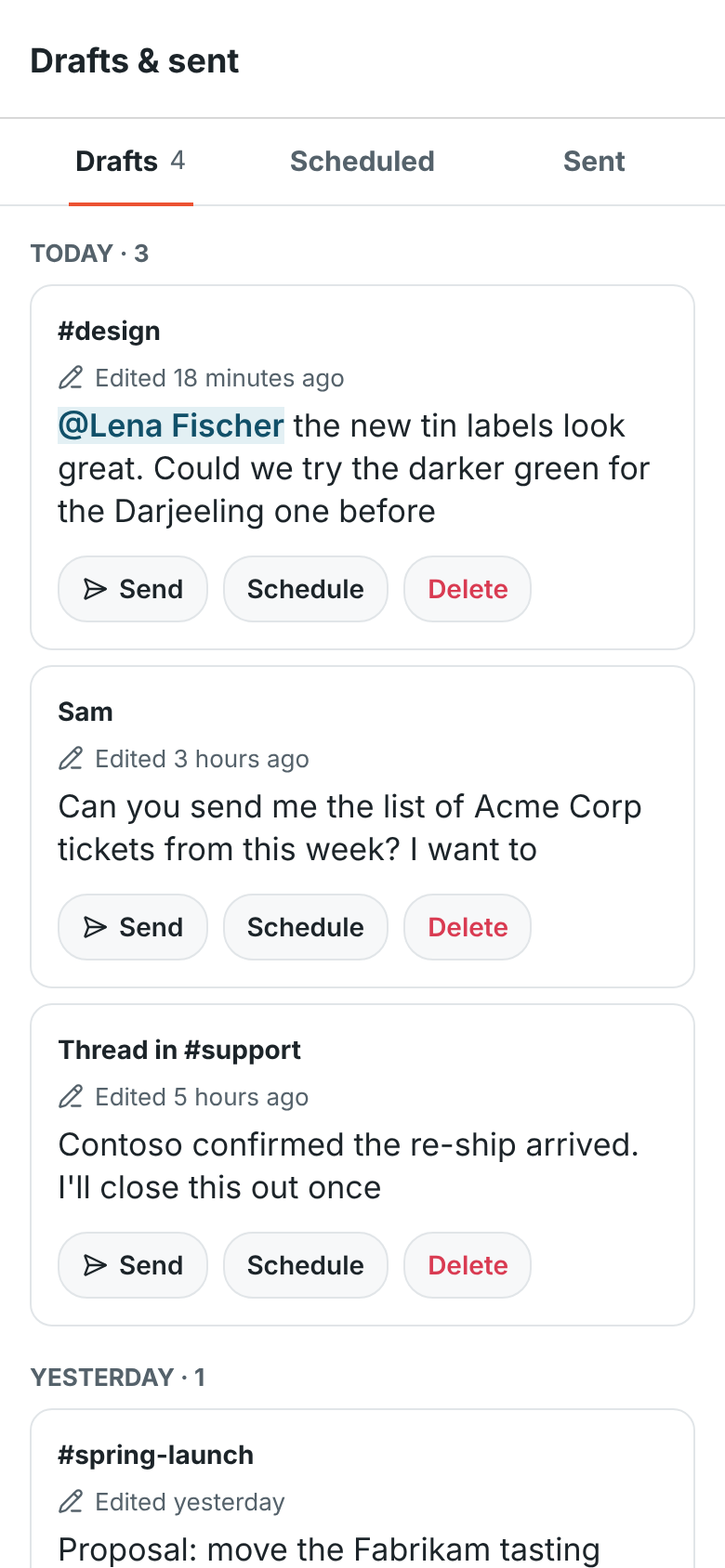
Section titled “Drafts”Anything you type and don’t send stays as a draft for that conversation or thread, even after you switch conversations or close the app. Drafts are kept for your account, so one you start on the phone is waiting on your computer too, and the other way round. Conversations with a draft show a pencil in your lists.
You → Drafts & sent lists them all on its Drafts tab, newest first. Tap one to finish it in its conversation, or use Send, Schedule or Delete right there. See Drafts for more.
Alerts and cards from other apps
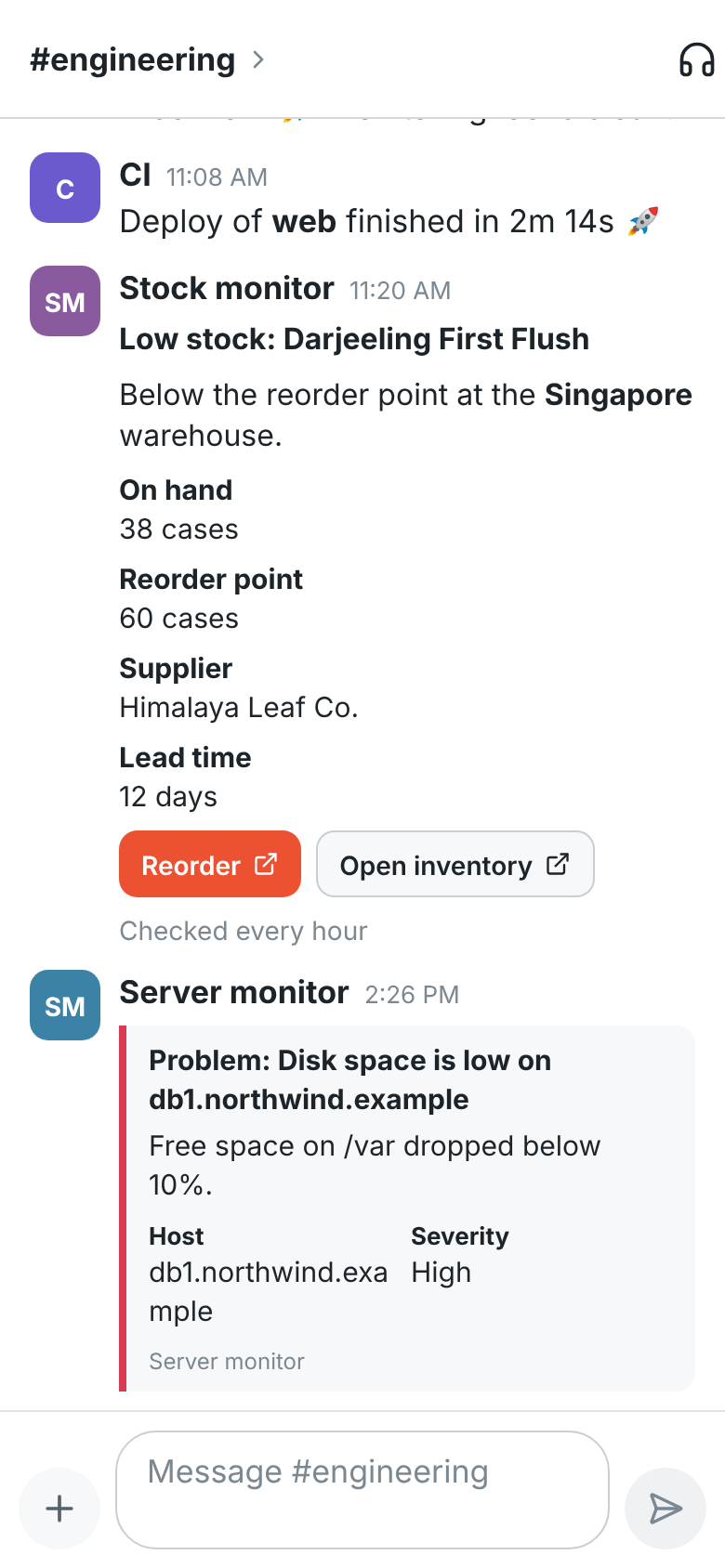
Section titled “Alerts and cards from other apps”Messages that other apps post through webhooks, such as monitoring alerts, deploy notices and stock warnings, show the same way as on your computer: headings, facts, coloured alert boxes, pictures and buttons. Tap a button or a link to open it.
Read receipts
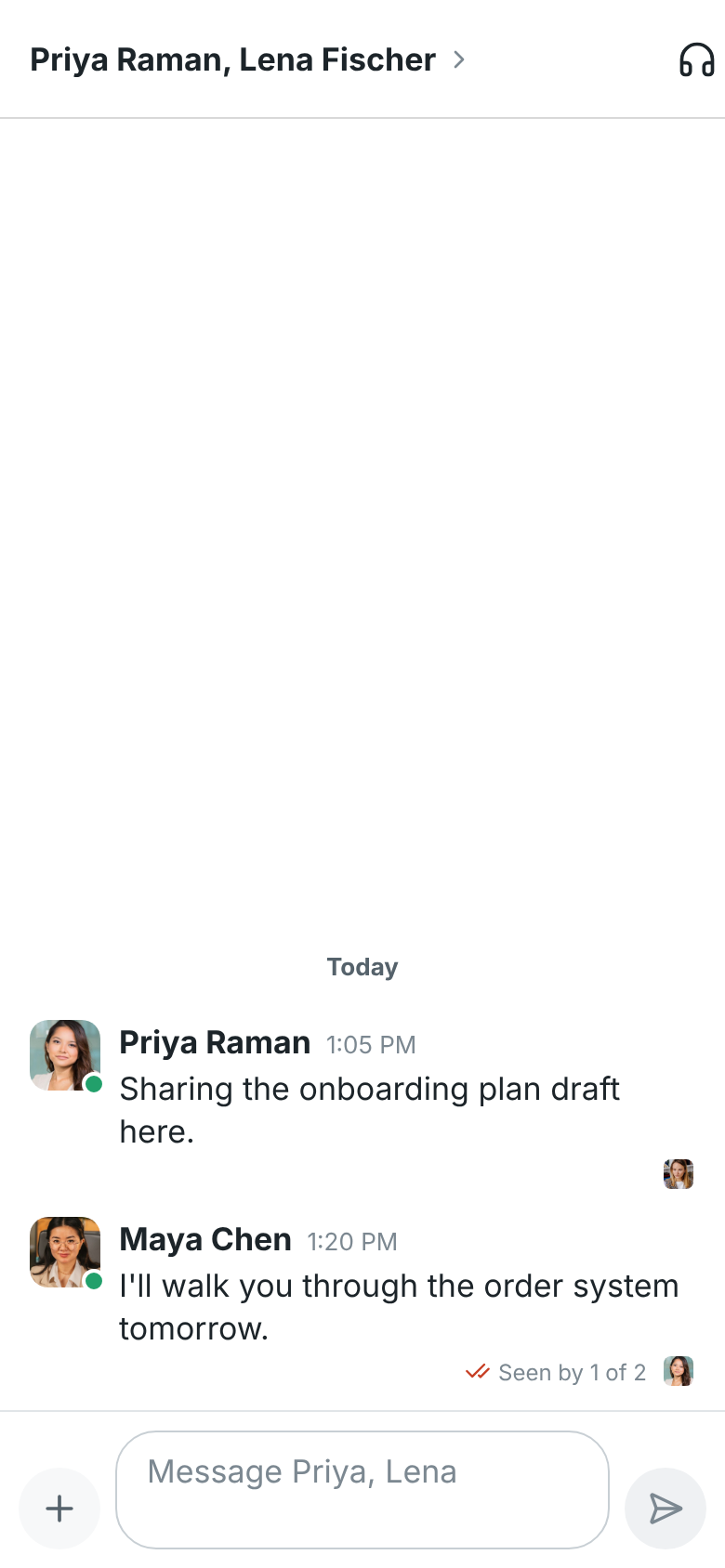
Section titled “Read receipts”When your workspace shows read receipts, small pictures under a message show who has read up to it, and your newest message says Seen by 1 of 2. Tap it to see who. To stop sharing them, if your admins let you, turn Read receipts off on the You tab. Off works both ways: you won’t see who read yours either.
React, edit and delete
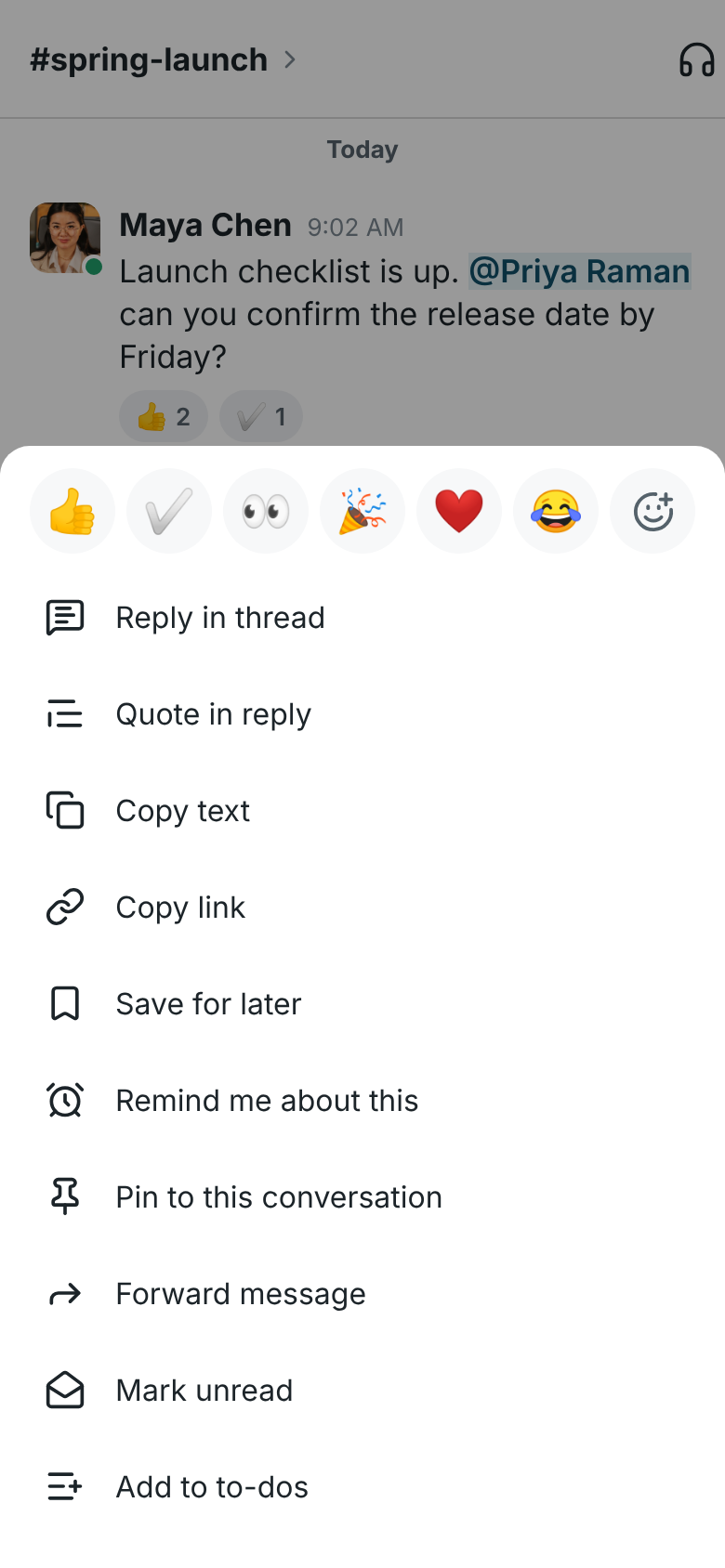
Section titled “React, edit and delete”Press and hold a message to see what you can do with it. It’s the same list as the right-click menu on your computer:
- Tap an emoji at the top to react. The menu stays open, so you can tap several; the ones you’ve left are highlighted, and tapping one again takes it away. Tap outside the menu when you’re done. You can also tap a reaction under a message to add yours, or tap it again to take yours away.
- For any other emoji, tap the smiley with the + at the end of the row. Search by name (try tea or rocket) or scroll, and tap as many as you like, then tap Done. The arrow at the top takes you back to the menu. Your workspace’s own emoji come first, and show as their pictures in messages and reactions.
- Reply in thread, Copy text and Copy link. The link opens the message in the app or a browser, the same as Copy link on your computer.
- Quote in reply puts the message in the box at the bottom as a quote, after anything you’d already typed, ready for your answer.
- Save for later and Remind me about this (in 20 minutes, in an hour, in 3 hours, later today, tomorrow or Monday) add it to your Later list, the same one as on your computer. See Later below.
- Pin to this conversation, Forward message (pick the conversation, then tap Forward) and Mark unread, which keeps the conversation bold until you leave it and come back.
- Add to to-dos makes a to-do from the message. See To-dos below.
- Translate shows the message in your language under the original, when your workspace has AI turned on. Tap Hide to put it away.
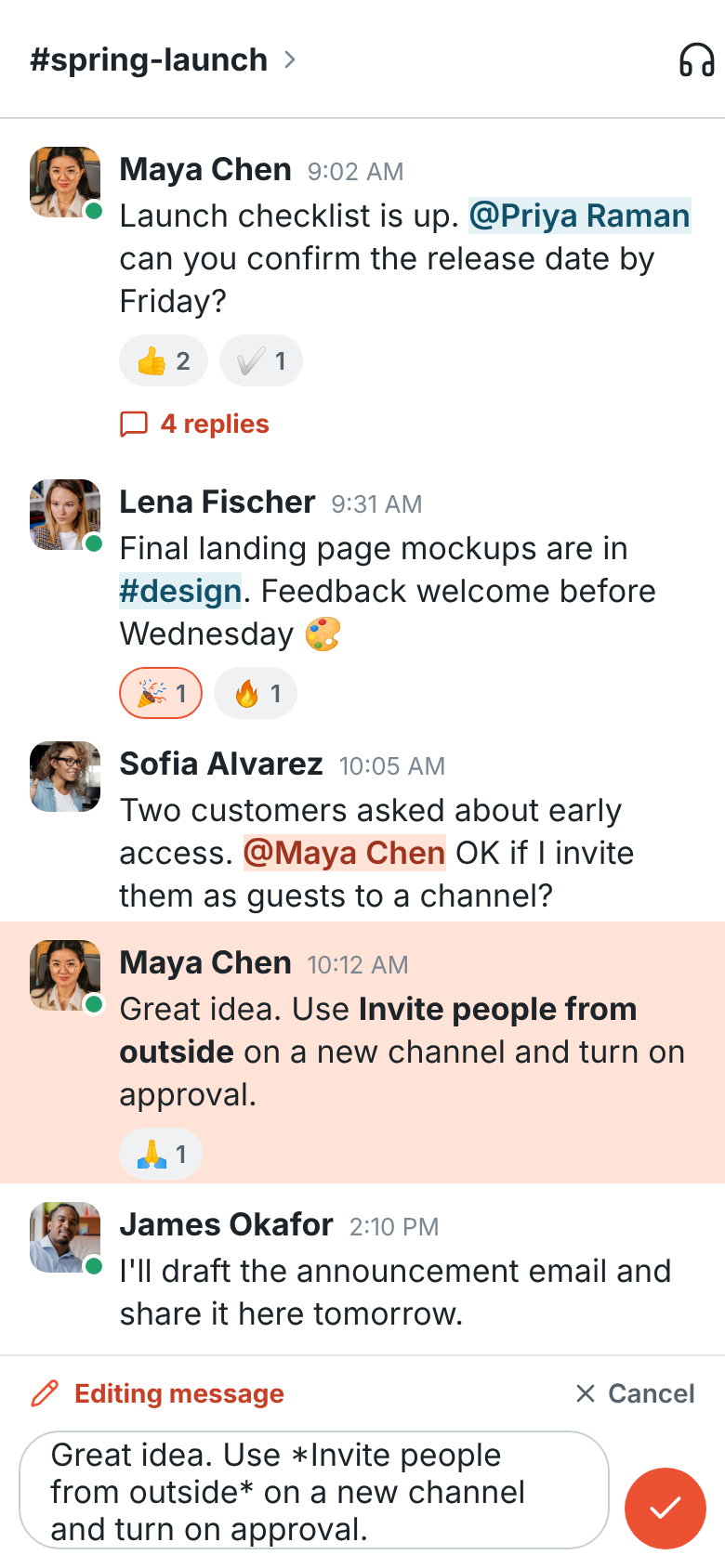
- On your own messages, Edit message and Delete message, as your workspace’s message settings allow. Workspace owners and admins can delete anyone’s message in a channel, which leaves Message deleted by an admin in its place. See Deleting someone else’s message.

Press and hold other things for their own menus:
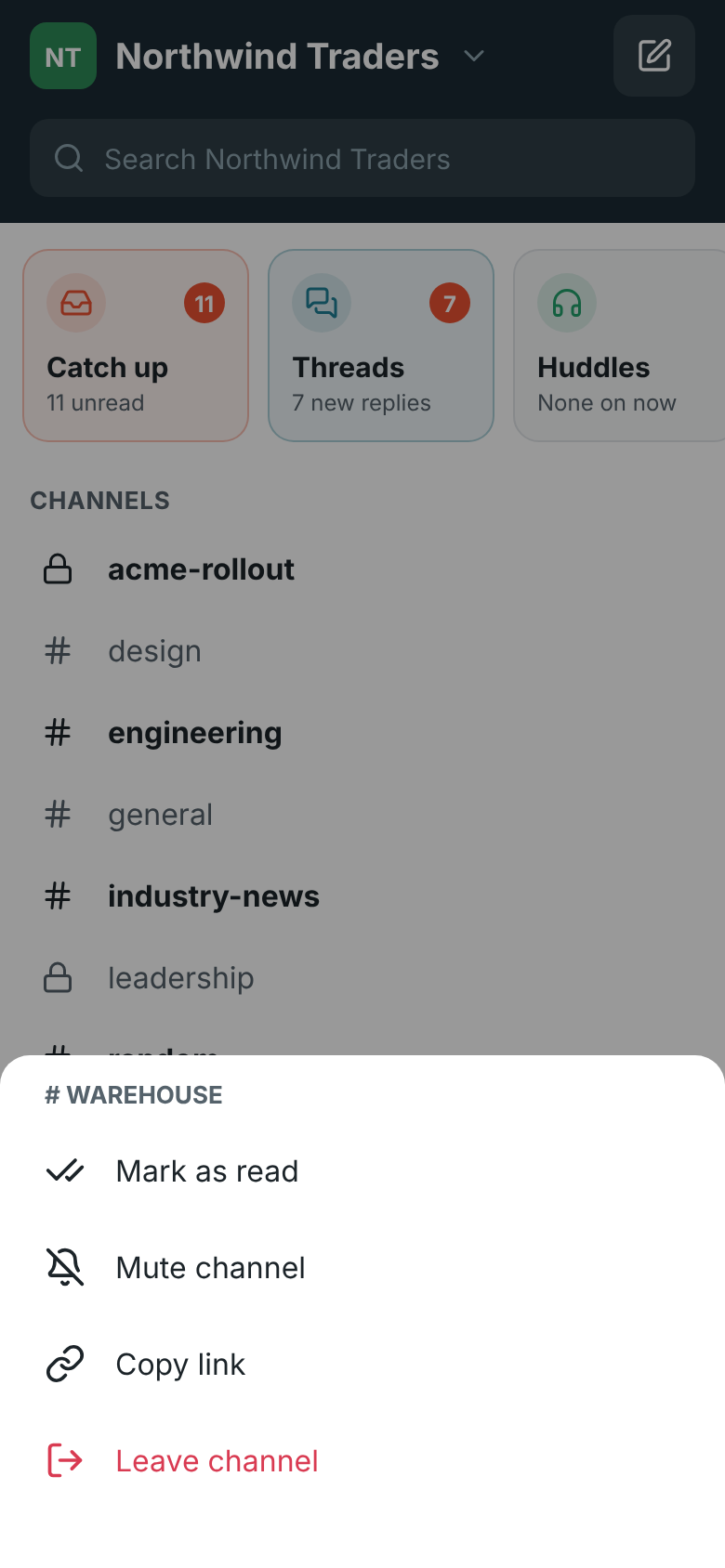
- A conversation in your lists: Mark as read, Mute channel (or Unmute), Copy link and Leave channel.
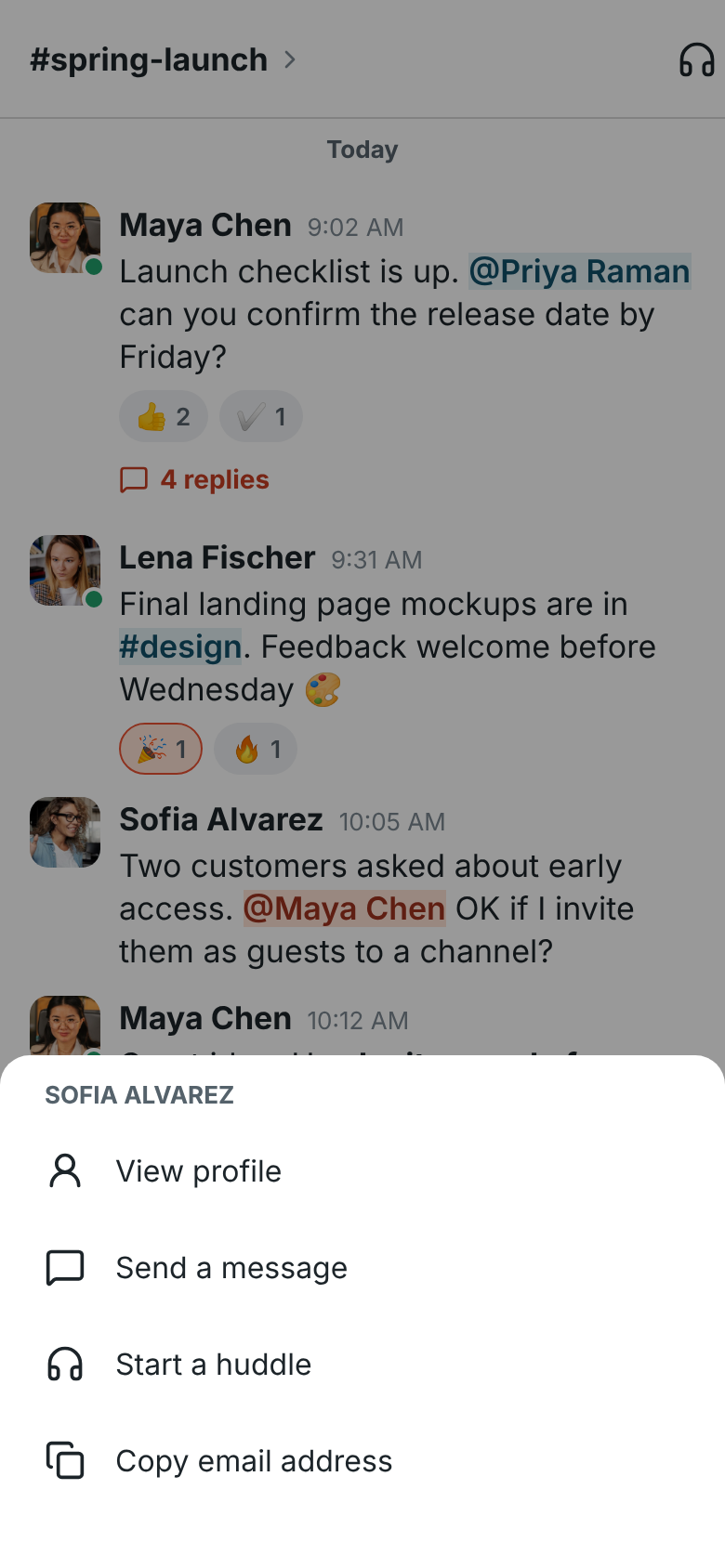
- Someone’s name or picture on a message: View profile, Send a message, Start a huddle and Copy email address. Tap a name or picture to go straight to the profile.
Selecting text inside a message works the way it always does on your phone.
When you edit, the message moves into the box at the bottom. Change it and tap the check mark to save, or tap Cancel. Edited messages show (edited).
Send photos, files and screenshots
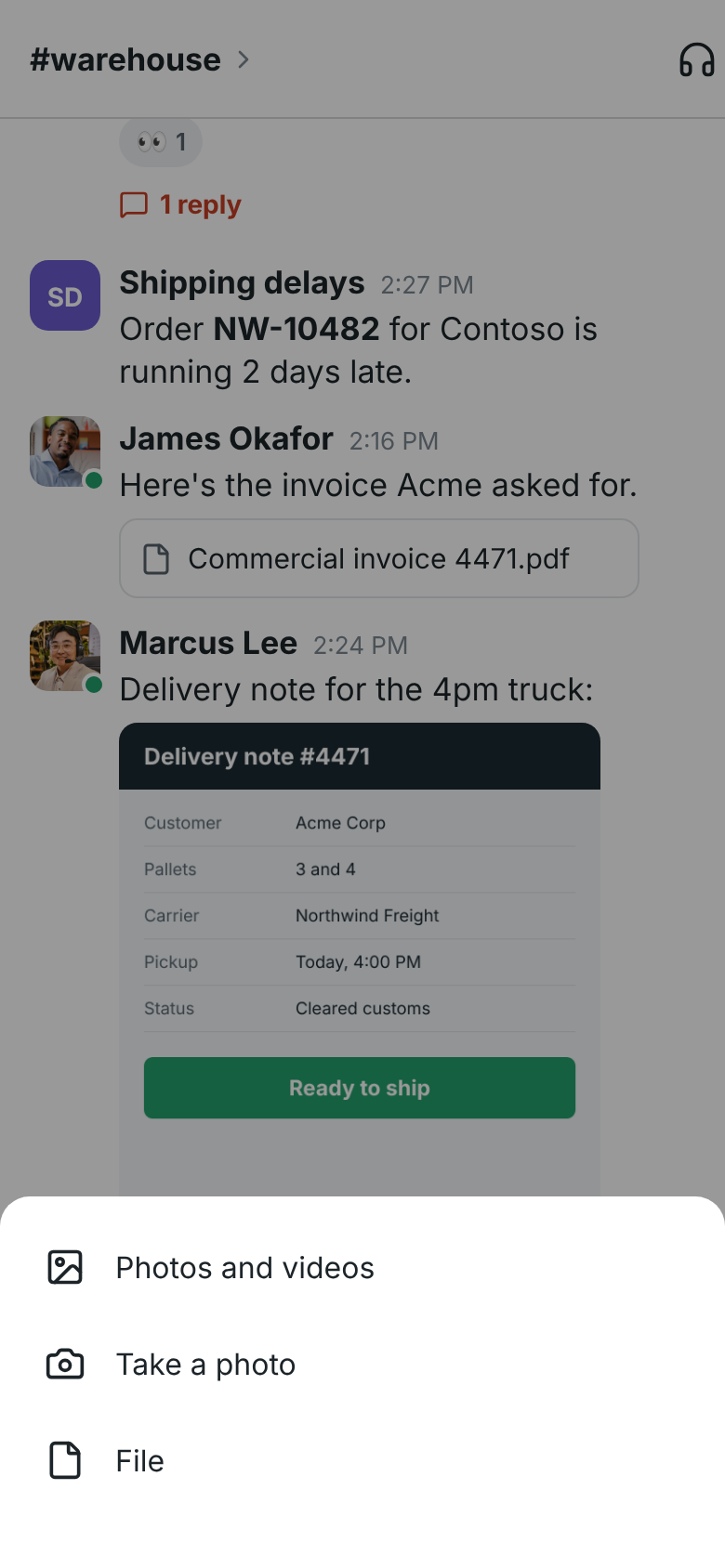
Section titled “Send photos, files and screenshots”Tap + next to the message box and choose:
- Photos and videos to pick from your gallery, several at once.
- Take a photo to use the camera.
- File to pick any file on your phone, such as a PDF.
- Paste image to send the picture you just copied, such as a screenshot.
When you’ve copied a screenshot or another picture, a Paste image button also appears above the message box when you tap into it. Each file shows above the box while it uploads; tap the X to take one out. Add a message if you like, or send the files on their own, up to 10 at a time.
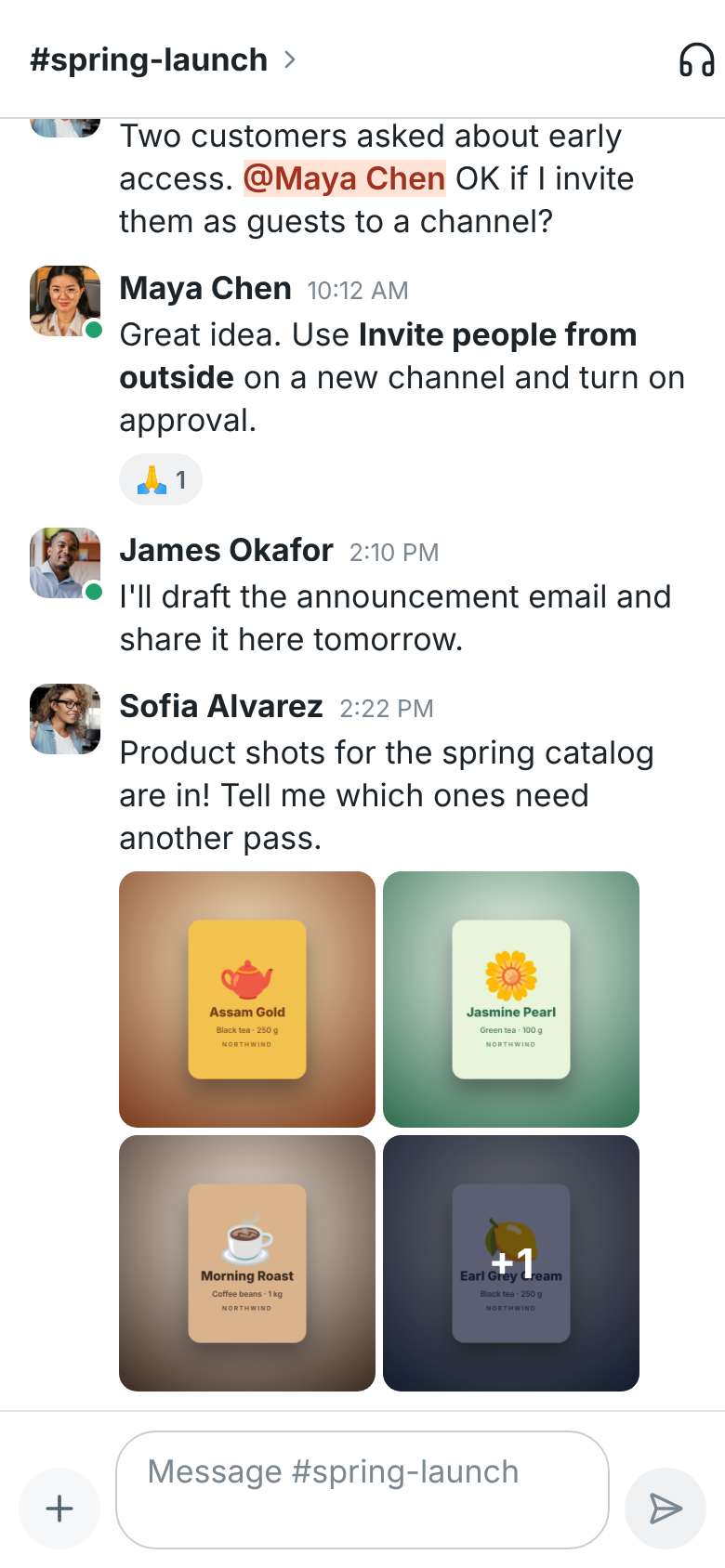
Pictures show in the conversation. To send several photos at once, tap Photos and videos and select up to 10 of them in the picker. Several pictures in one message show as a gallery; tap +N on the last tile to see them all.
Tap a picture to see it full screen in Freesbe:
- Swipe sideways to go through the other pictures in the same message. The top shows which one you’re on, such as 2 of 5.
- Pinch or double tap to zoom in, and drag to look around. Double tap again to zoom back out.
- Tap the picture to hide or show the bar at the top.
- Share sends the picture to another app, such as your email, WhatsApp or Photos.
- Close (the X), Back or dragging the picture down takes you back to the conversation.
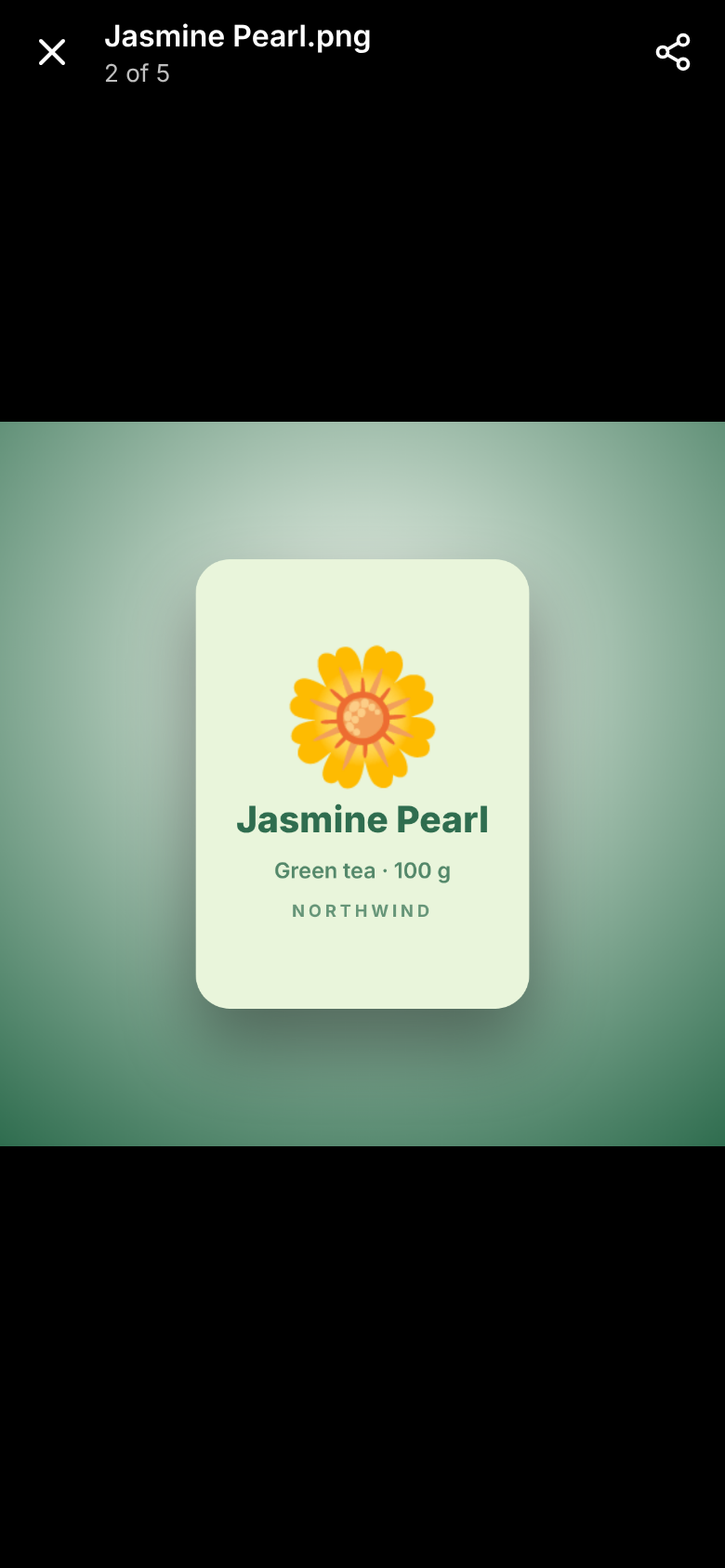
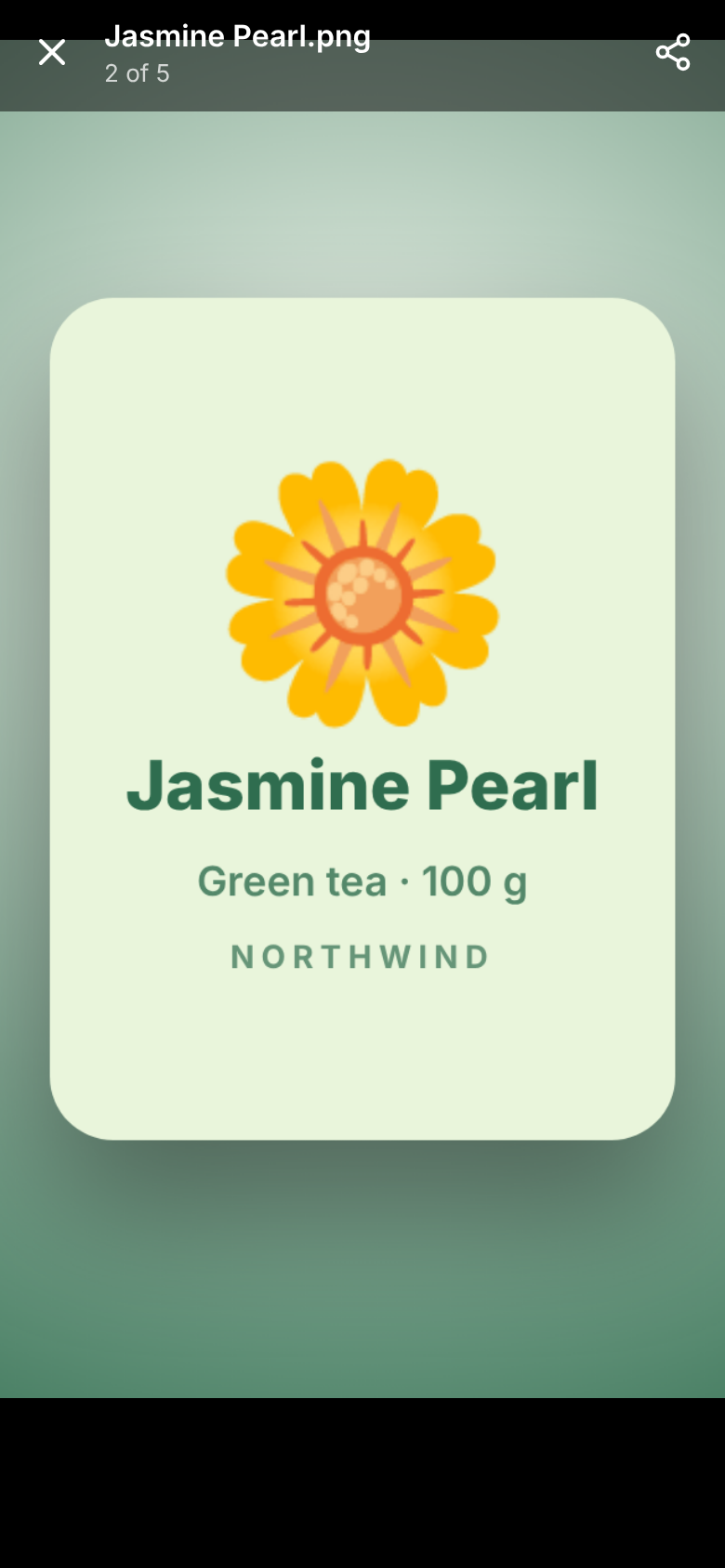
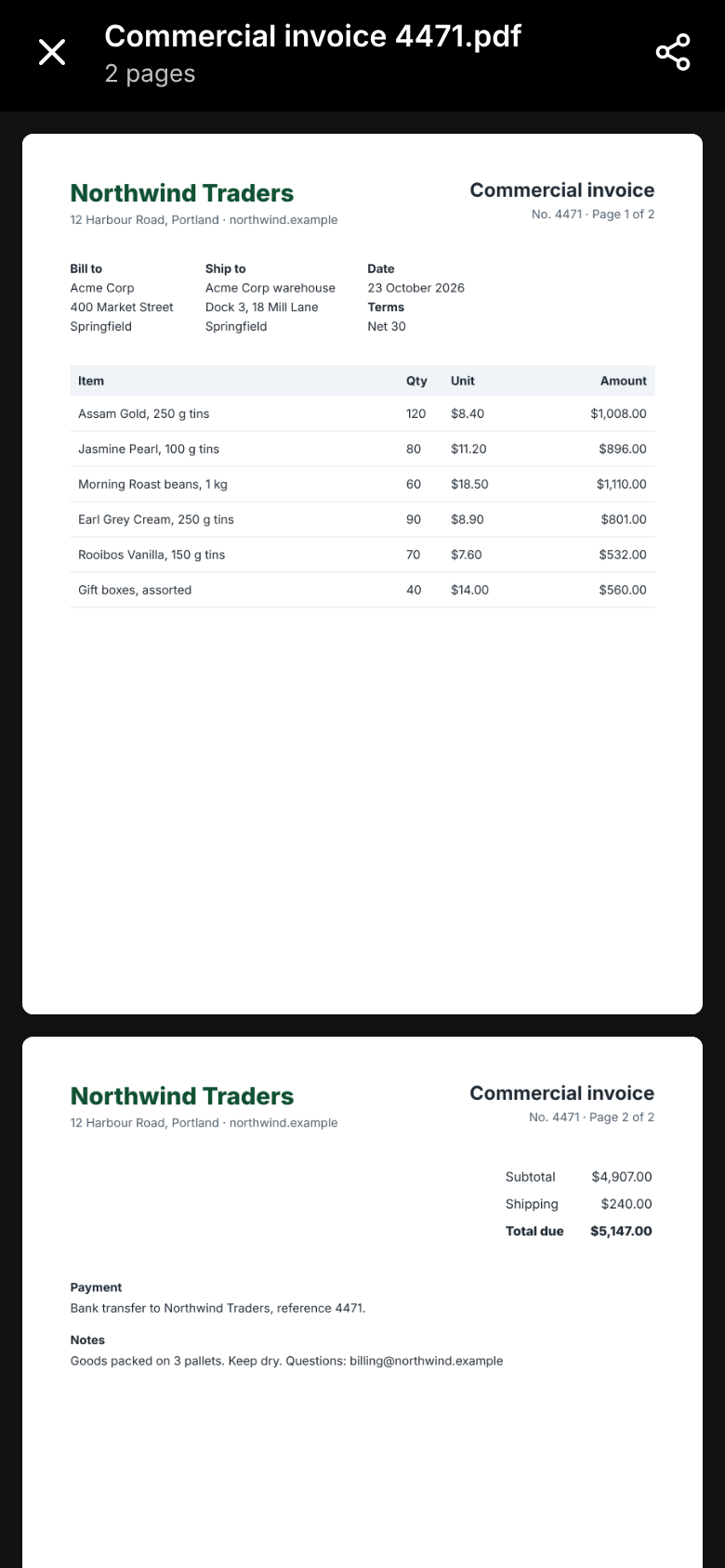
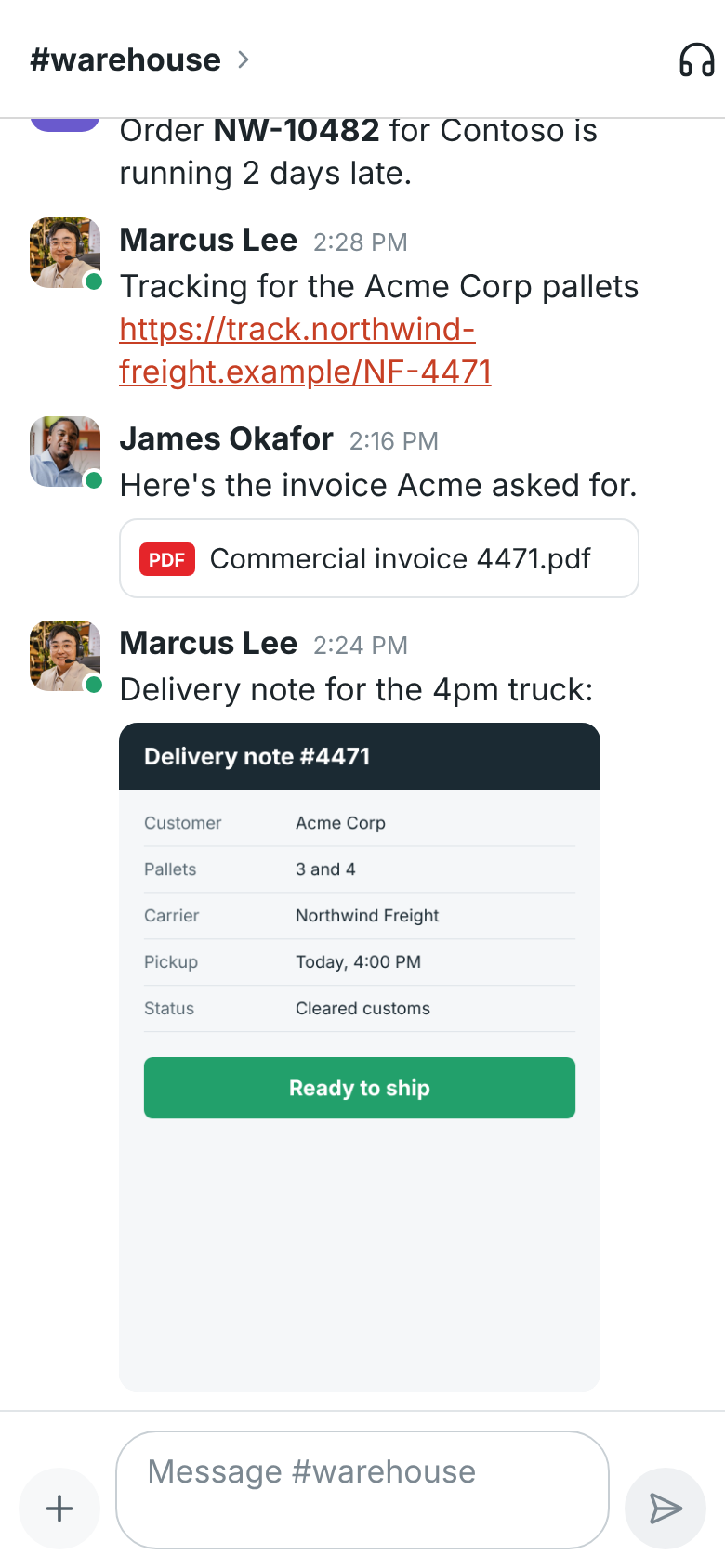
On Android, PDFs open in Freesbe too, the same way they do on the web and in the desktop app: the pages show one under another, with Share and Close at the top. Tap a page to pinch and zoom into it, and swipe sideways to the next page. Freesbe shows the first 30 pages of a long PDF; Open in another app at the end opens the whole file. On iPhone, PDFs open in the phone’s own viewer.

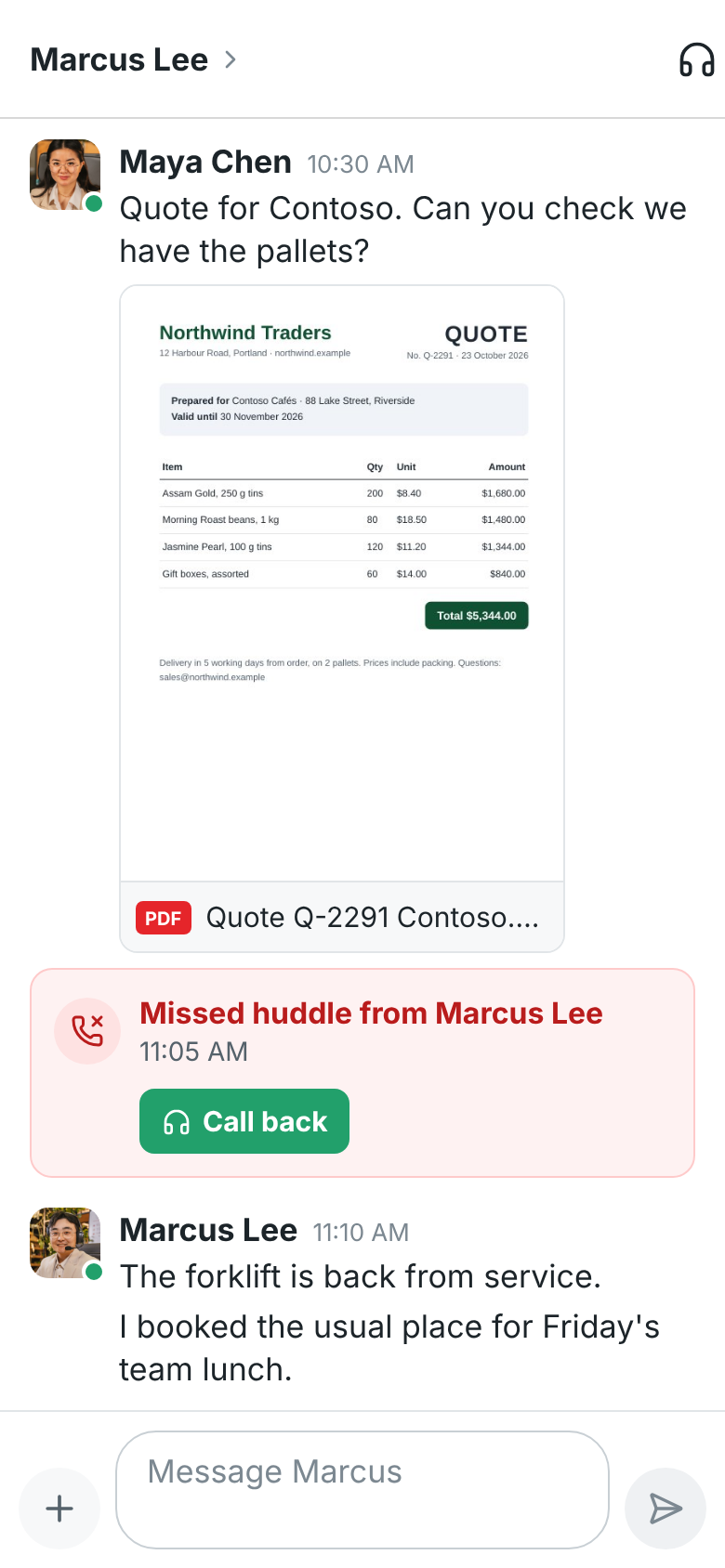
A PDF shows its first page in the conversation, with a red PDF label and its name under it. When you send one from Android, the phone draws the page as it uploads. PDFs without a page show the PDF label.
Other files, such as a spreadsheet, open in an app on your phone that can show them.
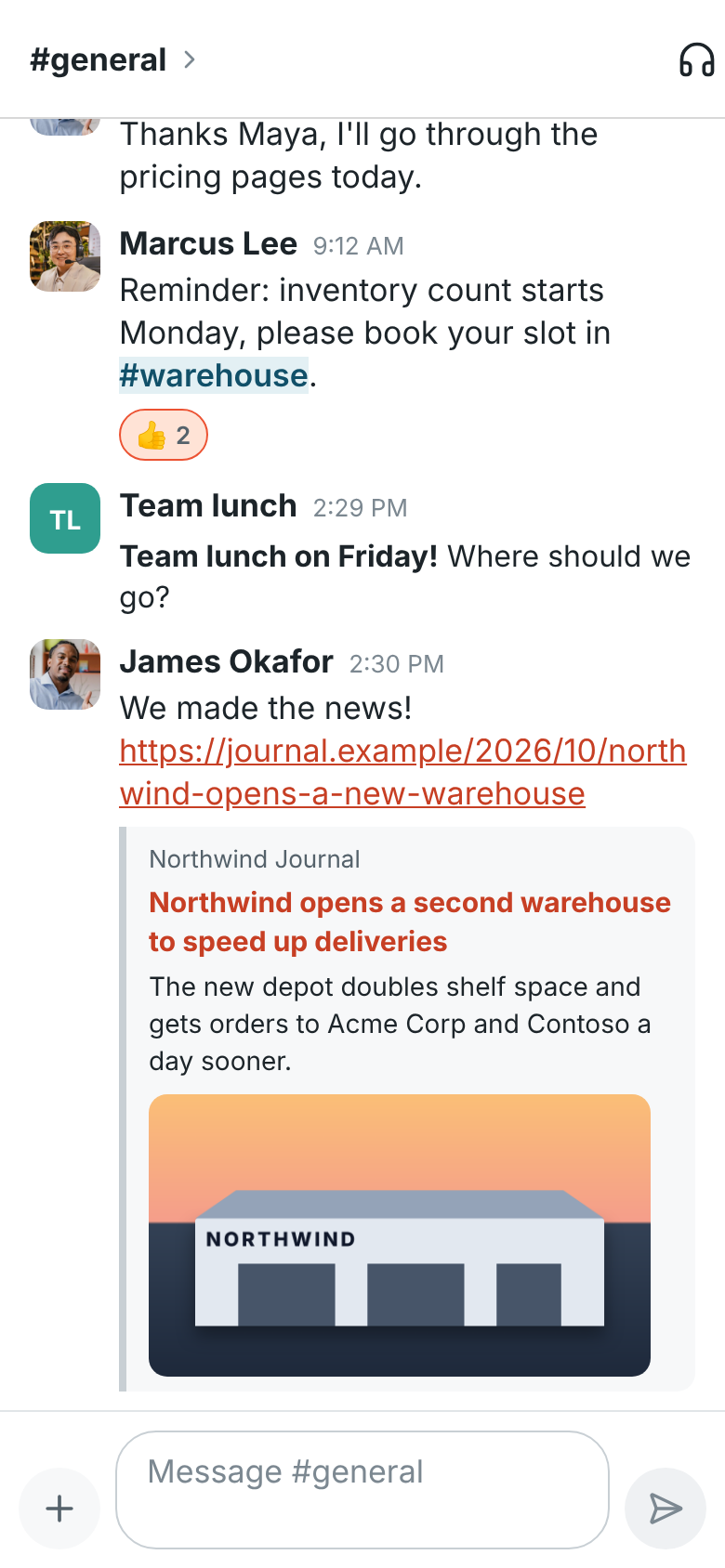
Links to web pages get a preview under the message, as on the web: the site, the page’s title and a line or two, and its picture. Tap it to open the page.
Share from other apps
Section titled “Share from other apps”On Android, Freesbe is in the share menu of every app. Share photos from your gallery, a page from your browser, a PDF from your files, or any text, and pick Freesbe:
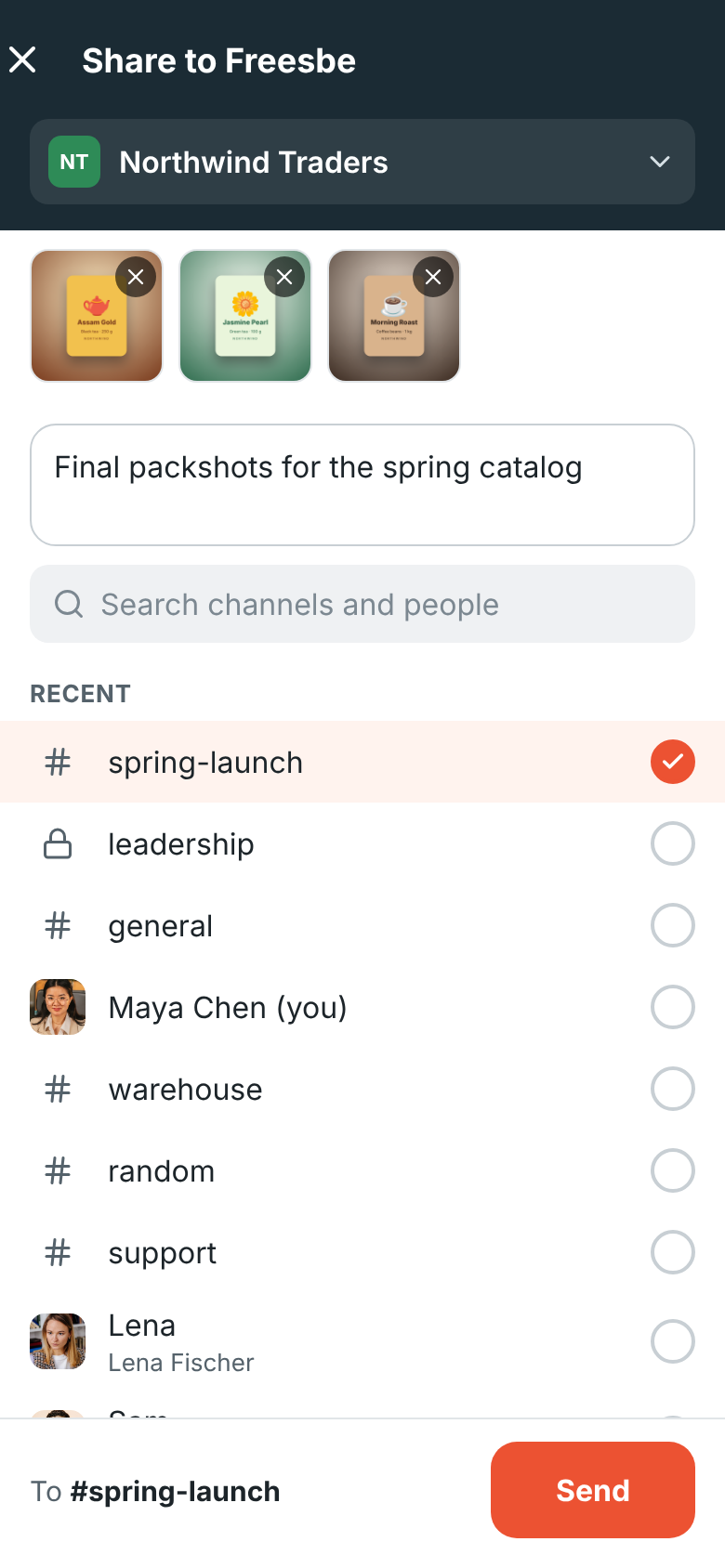
- Share to Freesbe opens with what you’re sharing at the top. Tap the X on a file to leave it out.
- Add a message if you like. A shared link starts out in the box with the page’s title.
- Pick a channel or direct message: your most recent ones are at the top, or search for any other. With more than one workspace, tap the workspace’s name to send it to another one.
- Tap Send. Freesbe opens the conversation with your message in it.
Your four most recent conversations also show in the share menu itself, so you can send something to one of them in a single tap. Each file can be up to the usual size limit, and up to 10 go in one message. Sharing into Freesbe from other apps needs the Android app; on iPhone it’s coming later.
Schedule a message
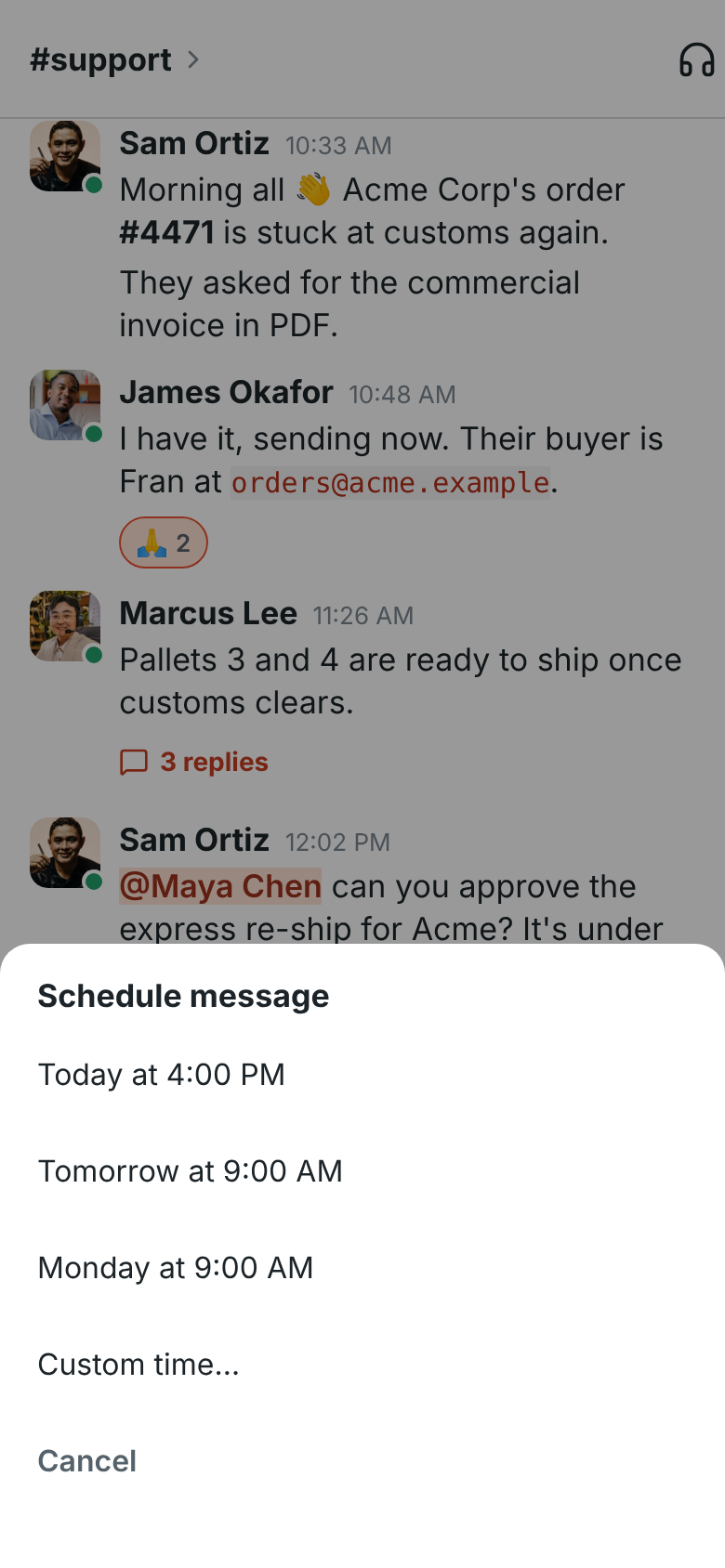
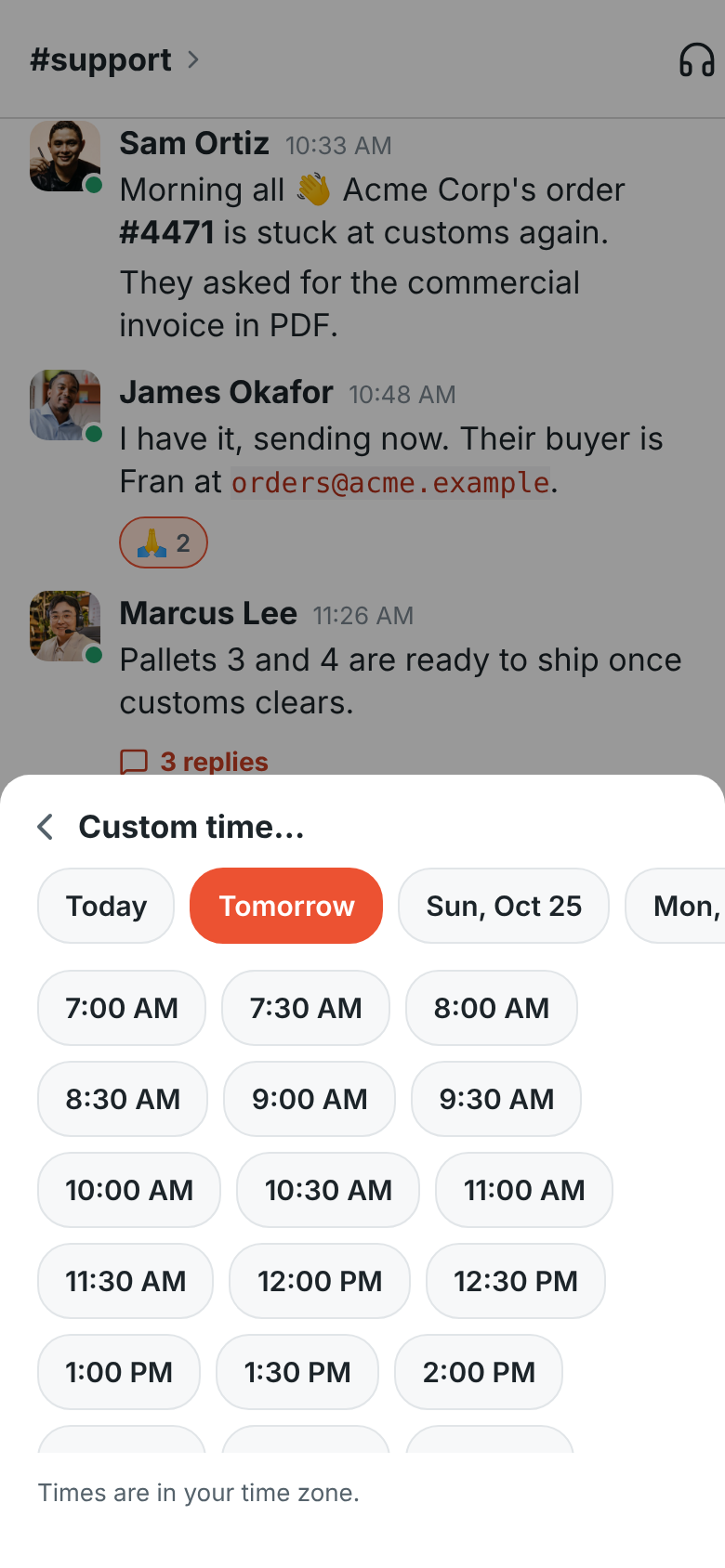
Section titled “Schedule a message”To send a message later, write it, then press and hold Send. Pick later today, tomorrow morning, Monday morning, or Custom time… to choose a day in the next two weeks and a time on the half hour. It works in channels, DMs and threads, with files too.
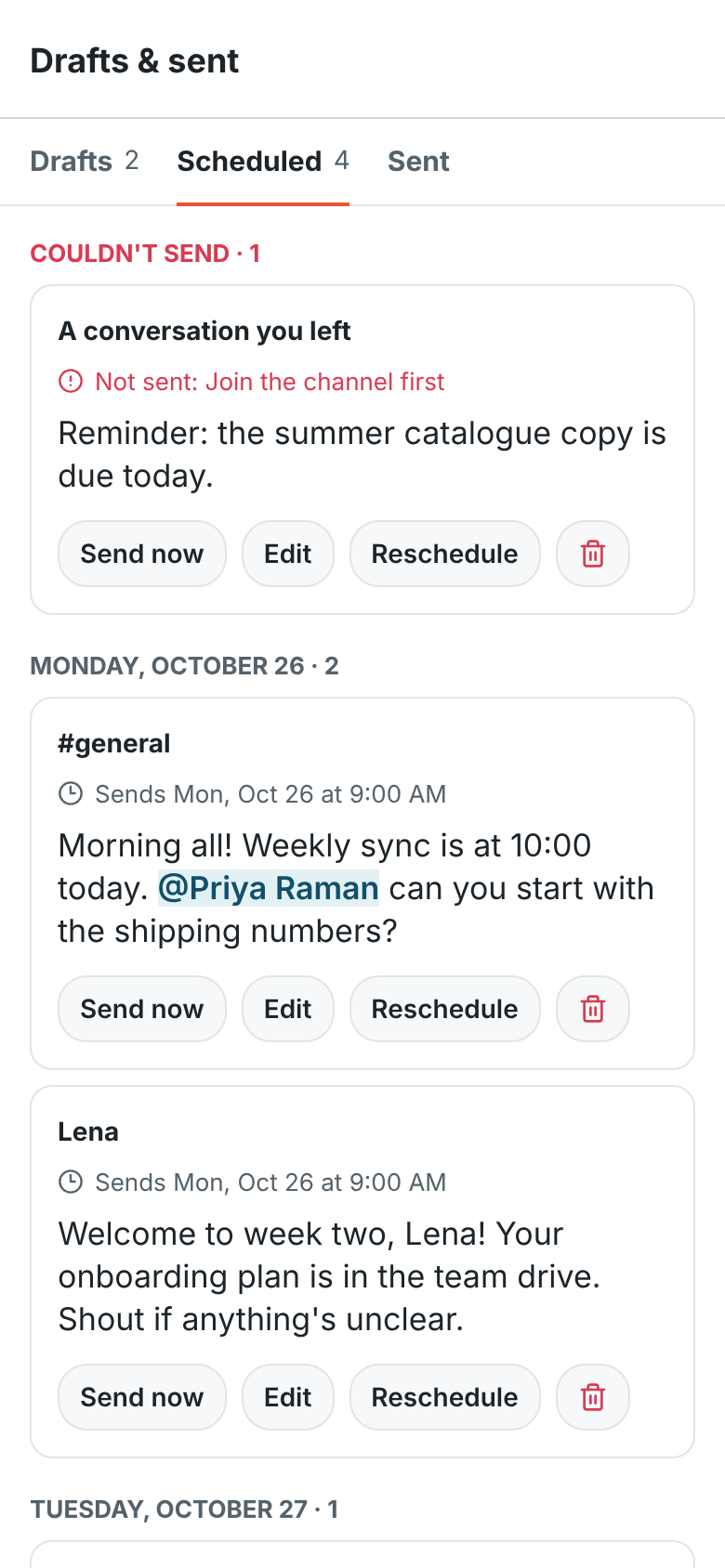
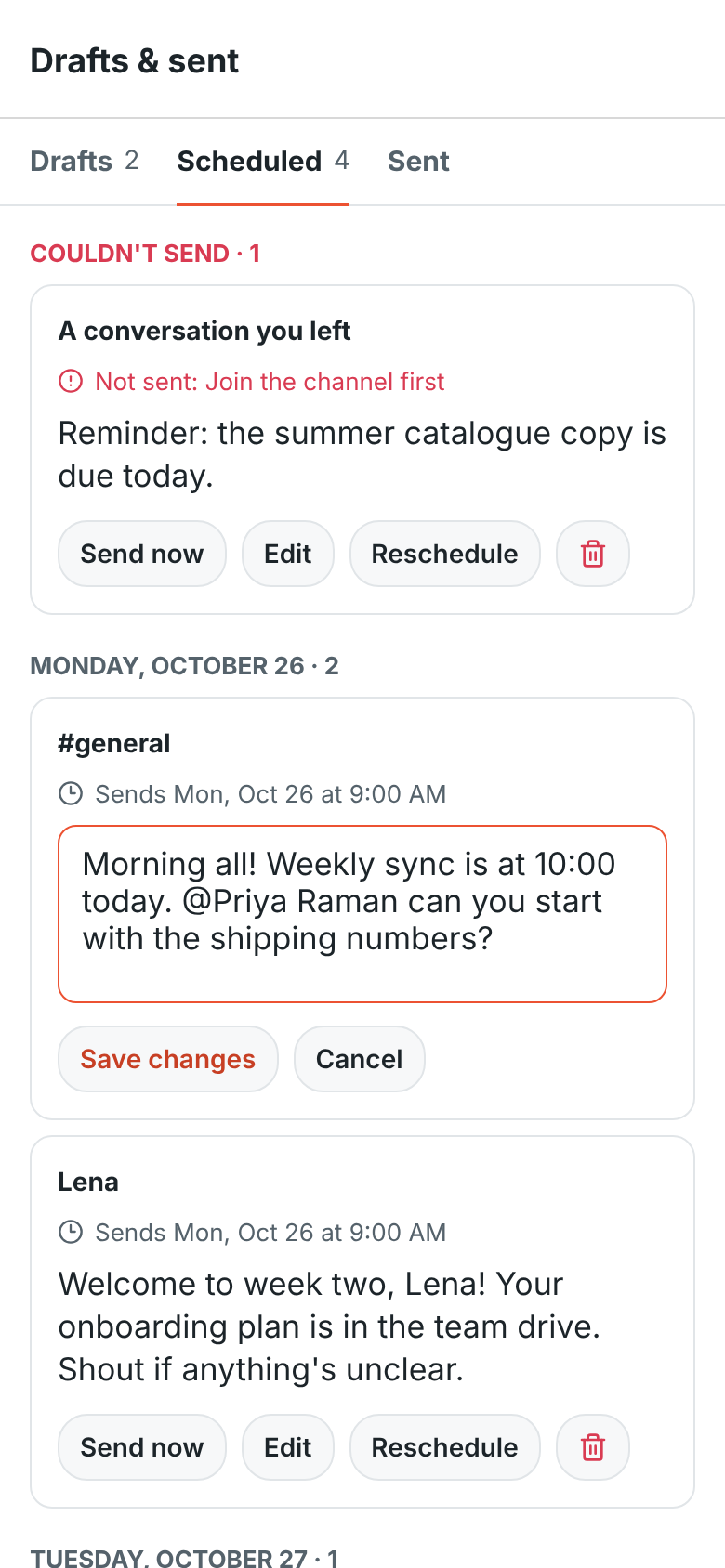
A note above the message box shows when a conversation has a message waiting. Tap it, or You → Drafts & sent → Scheduled, to see them all. Each one can be sent now, edited, rescheduled or deleted (the bin). Edit opens the words in place: change them and tap Save changes. It still goes out at the time you picked.
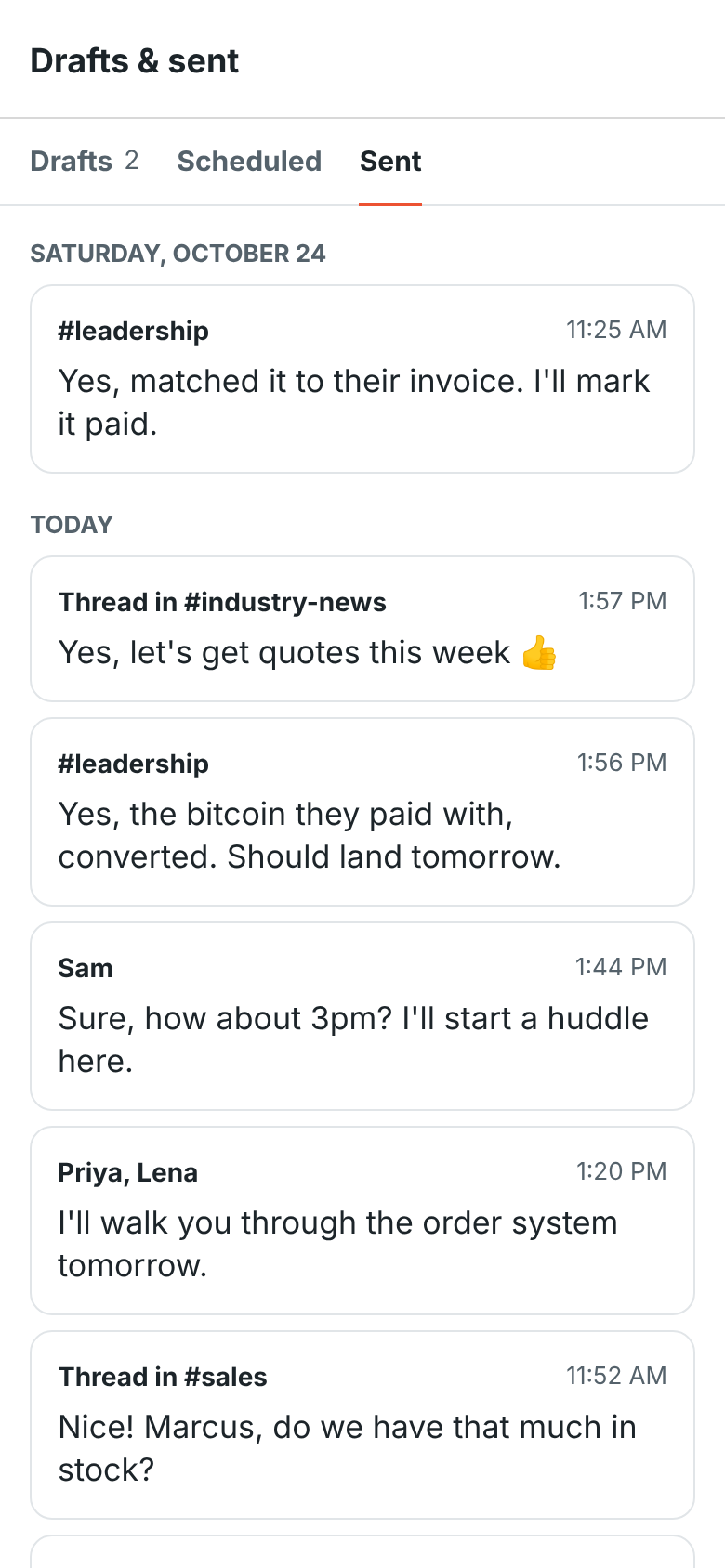
The Sent tab of You → Drafts & sent lists your own messages and replies, newest first. Tap one to go back to its conversation or thread.
Huddles
Section titled “Huddles”Talk with people in a channel or DM from your phone, the same huddles as on your computer.
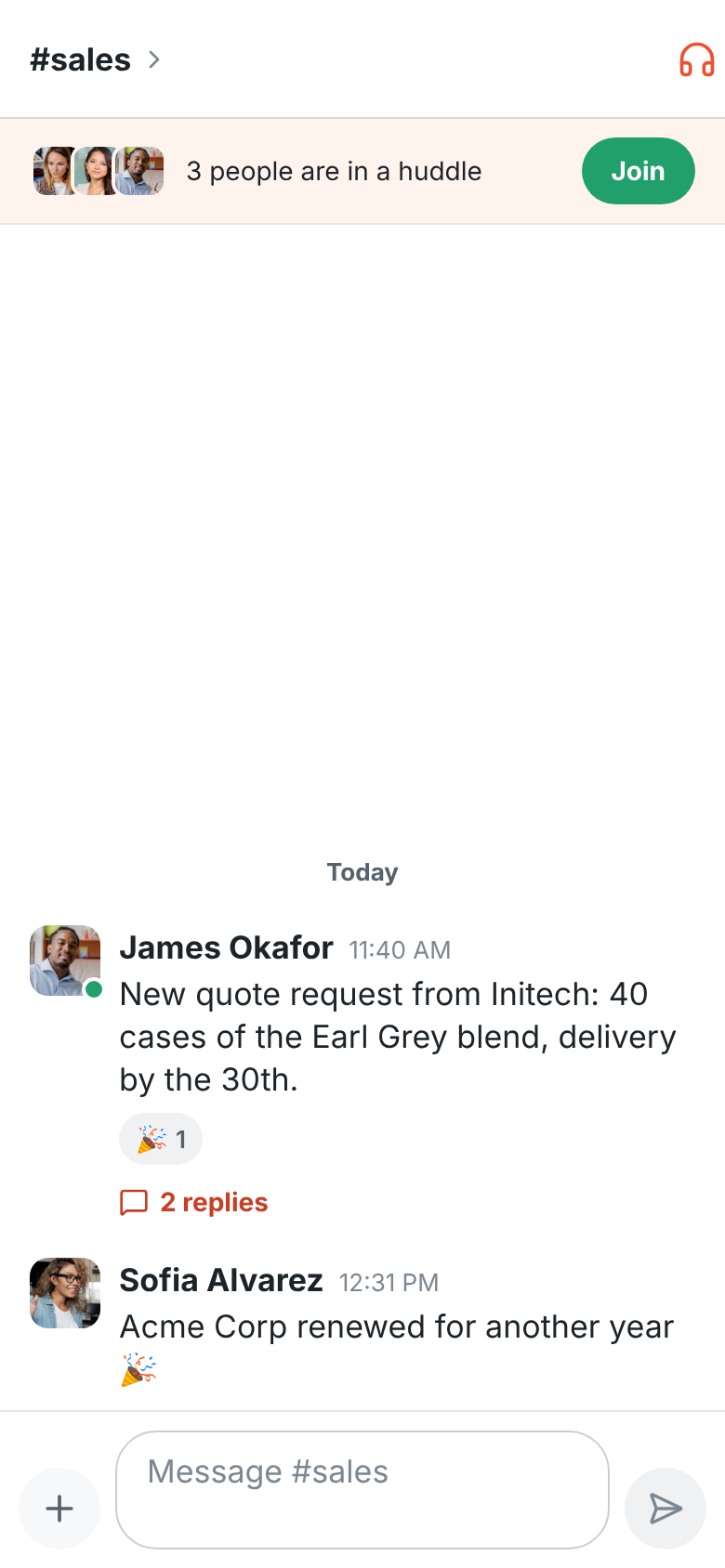
- Join a huddle: when people are talking in a conversation, a bar at the top shows who’s in it. Tap Join.
- Start a huddle: tap the headphones at the top right of a channel or DM. In a DM, the other person’s devices ring.
The app asks to use your microphone the first time you join a huddle or a meeting. If you don’t allow it, you can still listen, and the microphone button stays crossed out. Tap it to be asked again. On Android, if you picked Don’t allow more than once, the app offers Open Settings instead: turn on Permissions → Microphone for Freesbe there, come back and tap the microphone button.
During a huddle
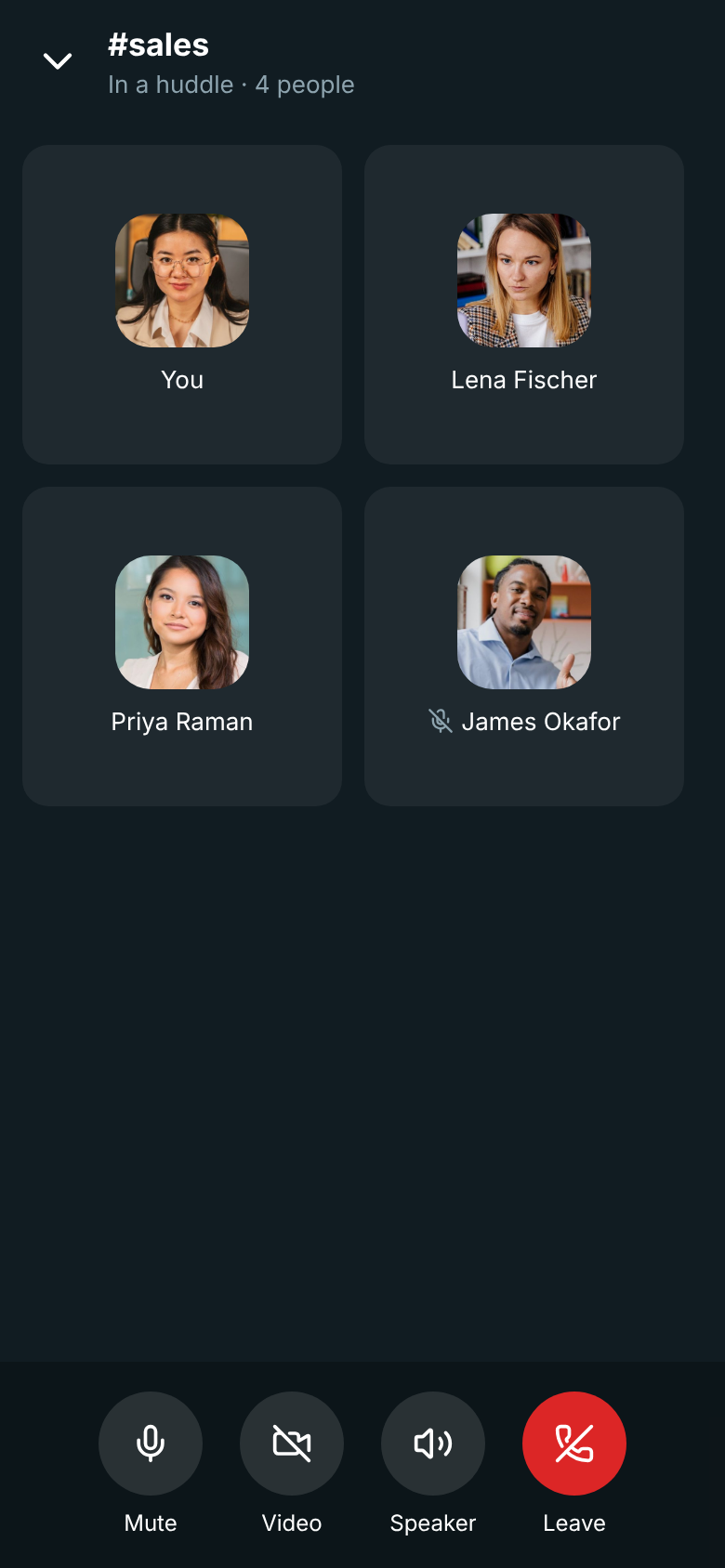
Section titled “During a huddle”The call screen shows everyone in the huddle, their cameras and shared screens. The buttons at the bottom:
- Mute / Unmute your microphone. A crossed-out microphone next to a name means that person is muted.
- Video turns your camera on and off, and Flip switches between the front and back camera.
- Share screen (Android) shares your whole screen. Your phone asks you to confirm with Start now, and shows that it’s sharing until you tap Stop sharing.
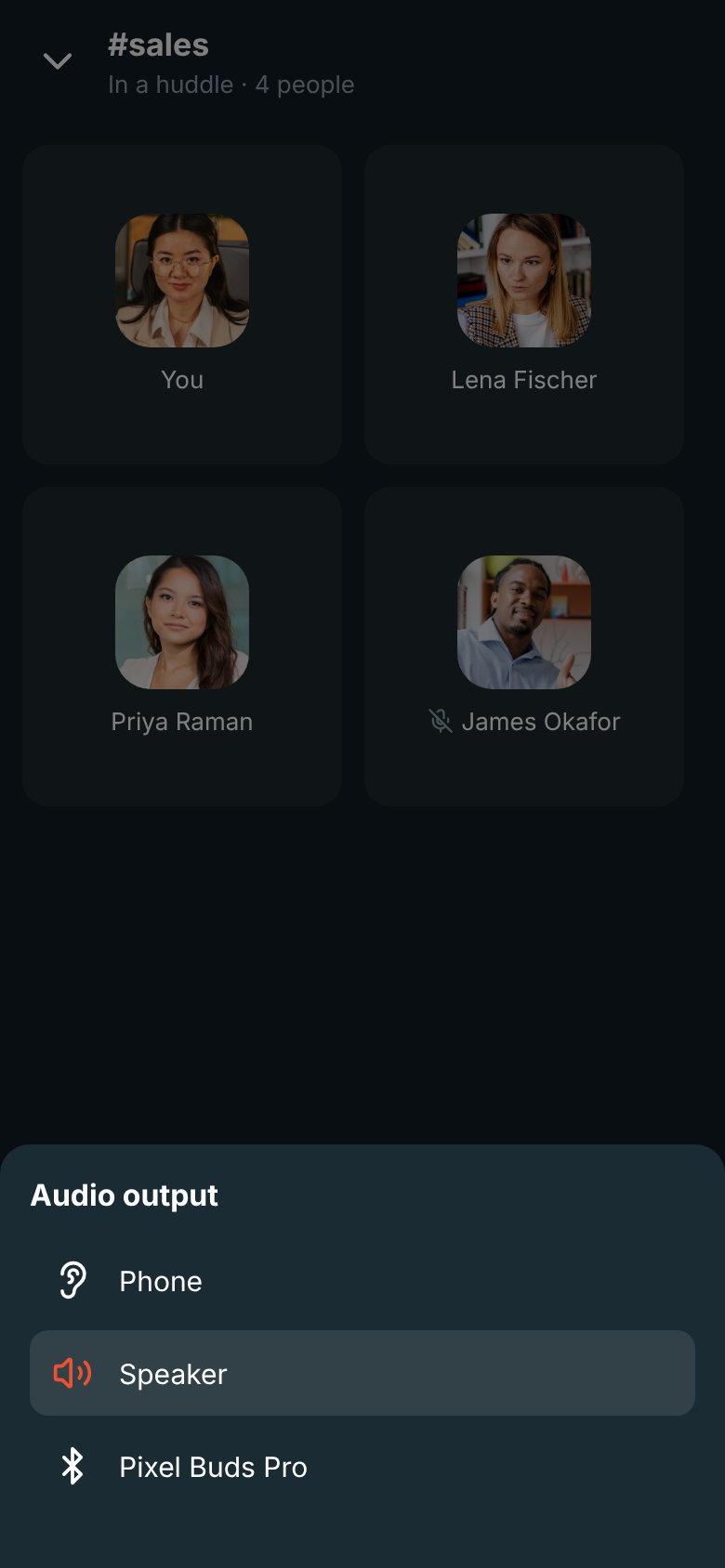
- Speaker picks where you hear the call (Android): the loudspeaker, the phone’s earpiece, wired headphones or a Bluetooth headset. When headphones or a headset are connected, the huddle uses them.
- Leave hangs up.
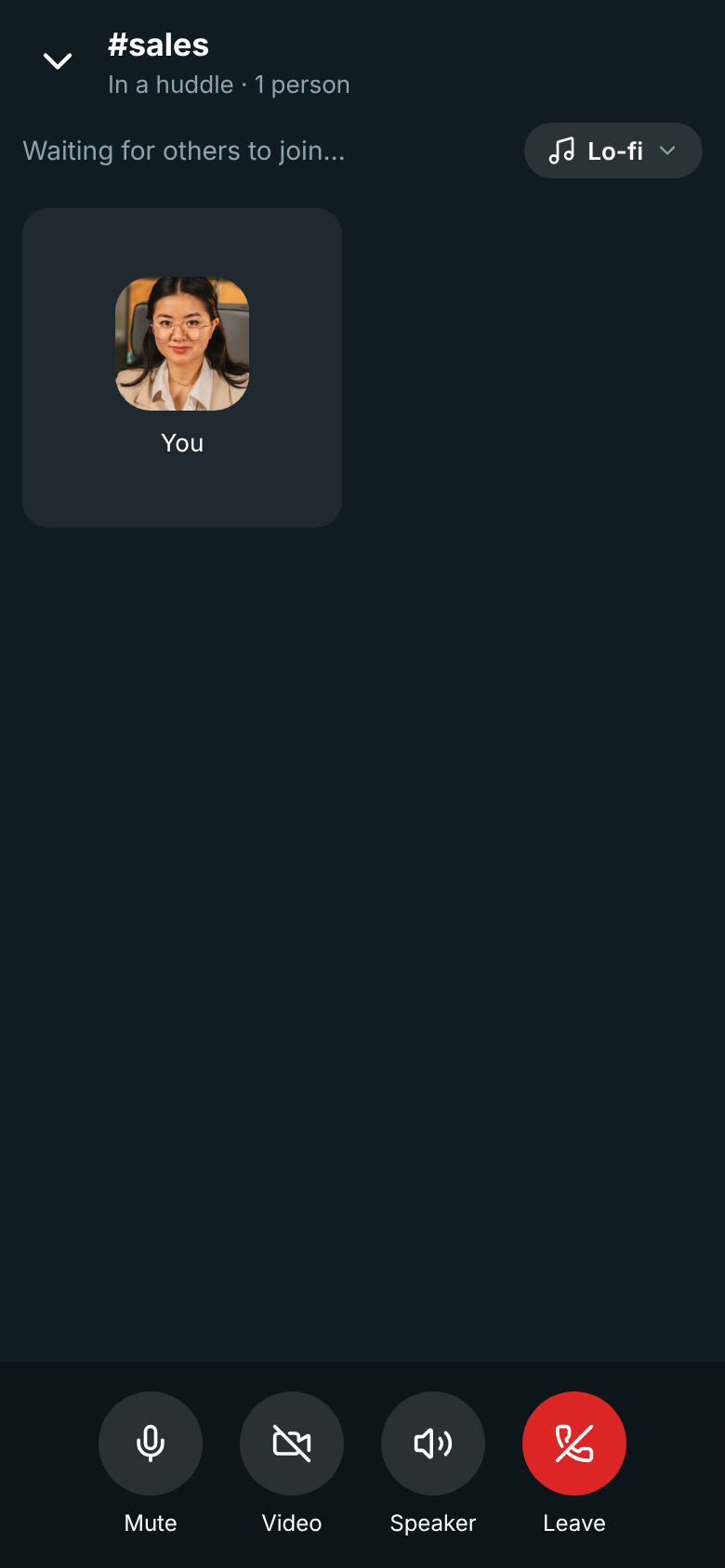
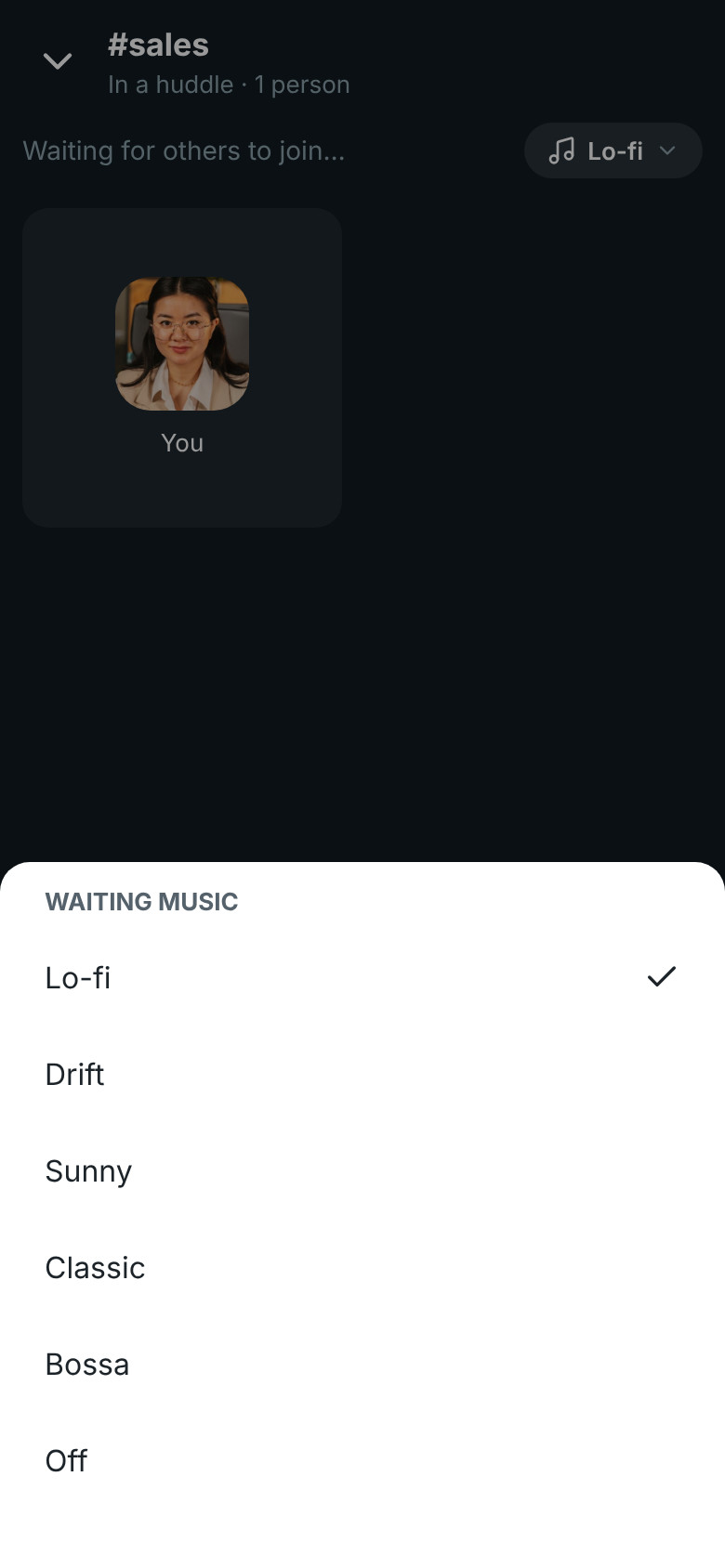
While you’re alone in a huddle, waiting music plays until someone joins (Android). It plays where you hear the call and never goes into it. Tap the music button next to Waiting for others to join… to pick Lo-fi, Drift, Sunny, Classic, Bossa or Off. Your phone remembers your pick, separately from your computer.
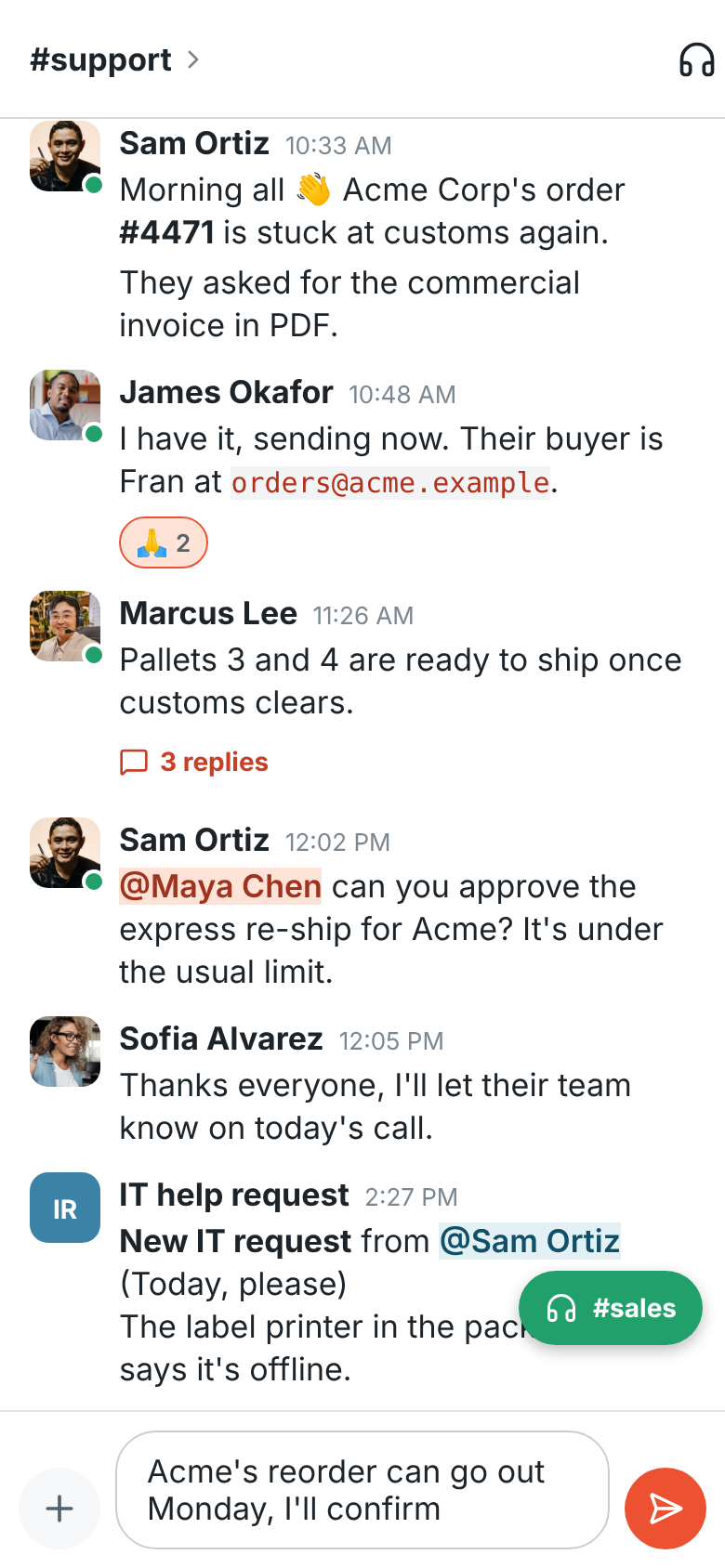
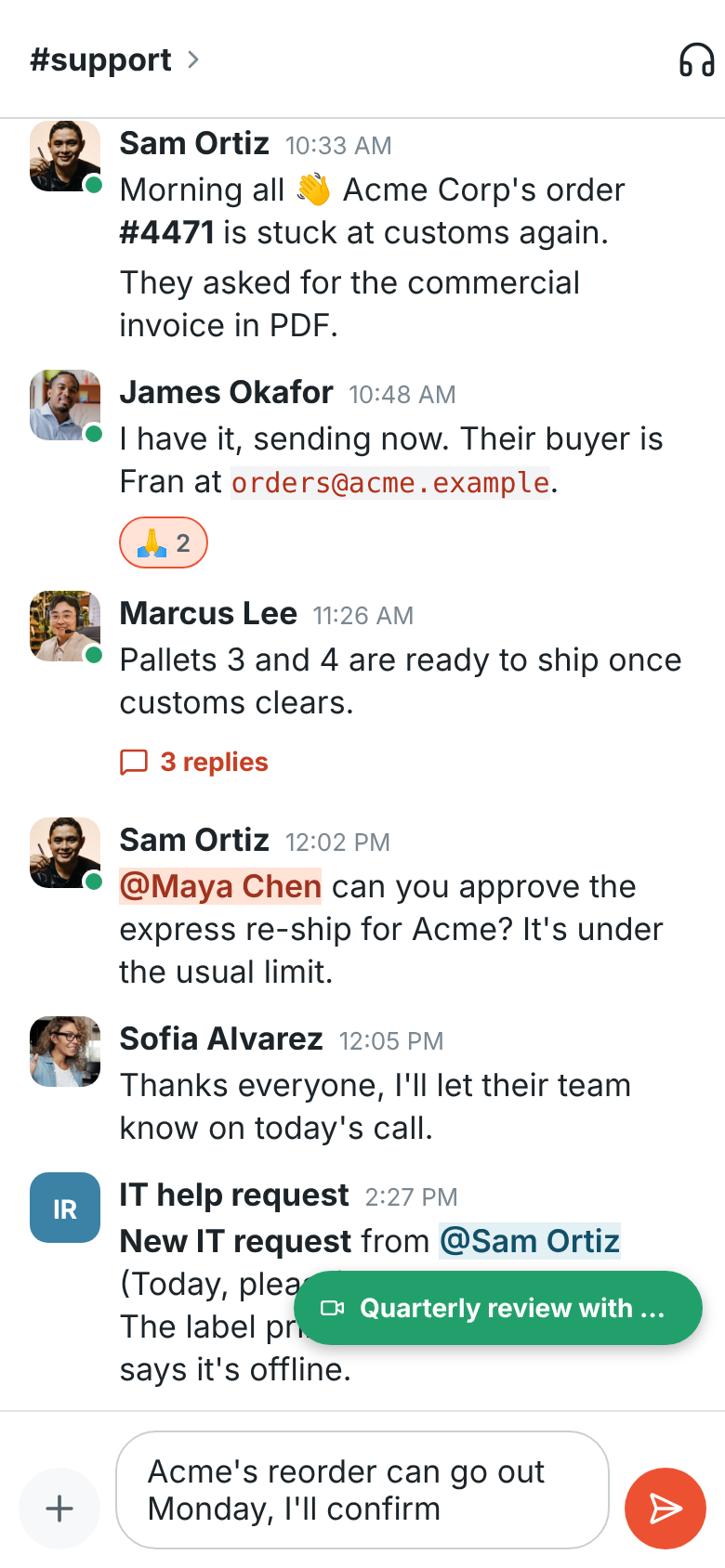
Tap the arrow at the top left to go back to your messages while you keep talking. A green bubble with the conversation’s name takes you back to the call. On Android, a In a huddle notification stays while you’re in the call, so you can switch to another app and keep talking; tap it to come back to Freesbe.
Answer a call
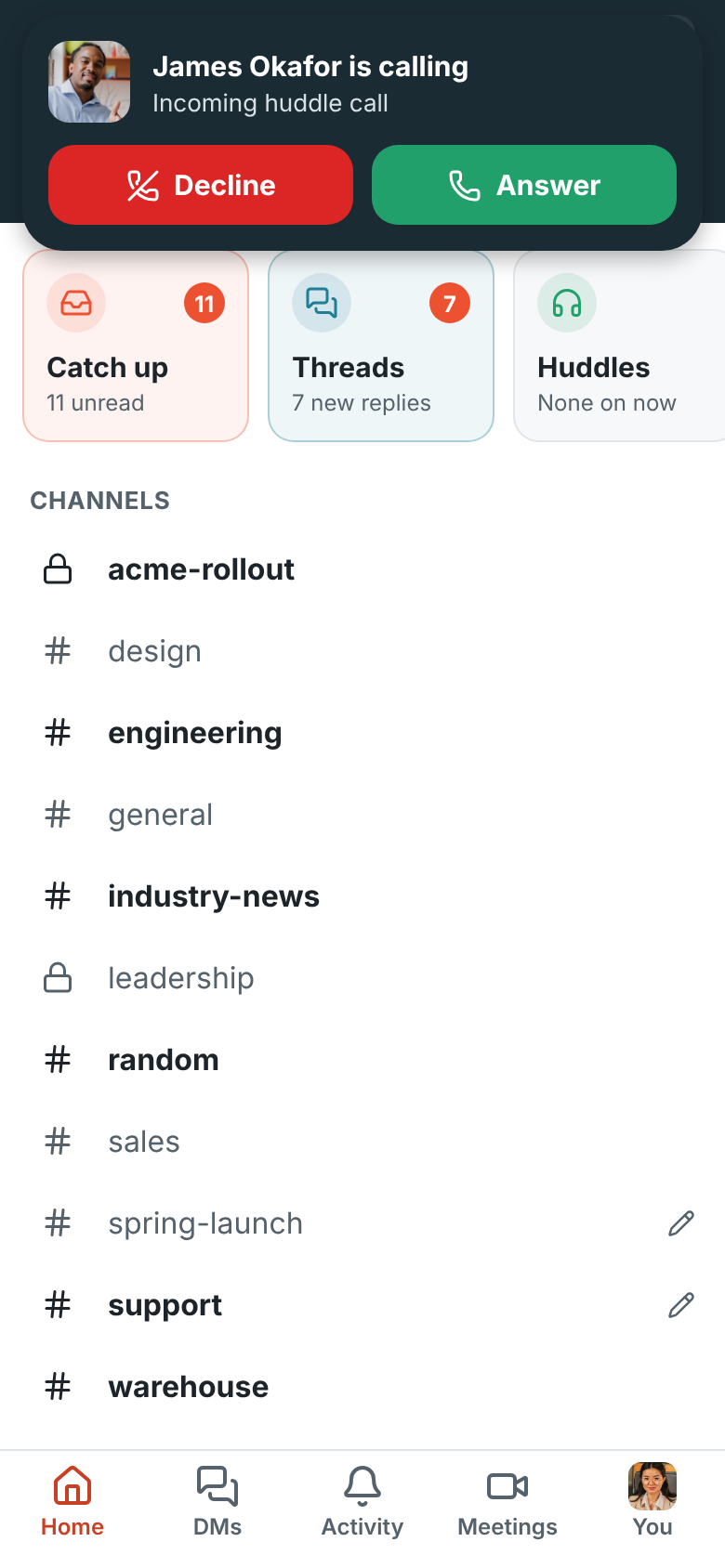
Section titled “Answer a call”When someone calls you in a DM while the app is open, a card shows who’s calling: tap Answer or Decline. Your phone rings and vibrates until you do. When the app is closed, the call comes as a notification: tap it to open the conversation and join the call.
Declining on your phone stops the call ringing on your other devices too. In Quiet mode, calls don’t ring.
A call notification only rings while the call is still ringing. If your phone was offline or asleep and gets back online after that, you get the Missed huddle notification instead of a late ring.
Missed calls
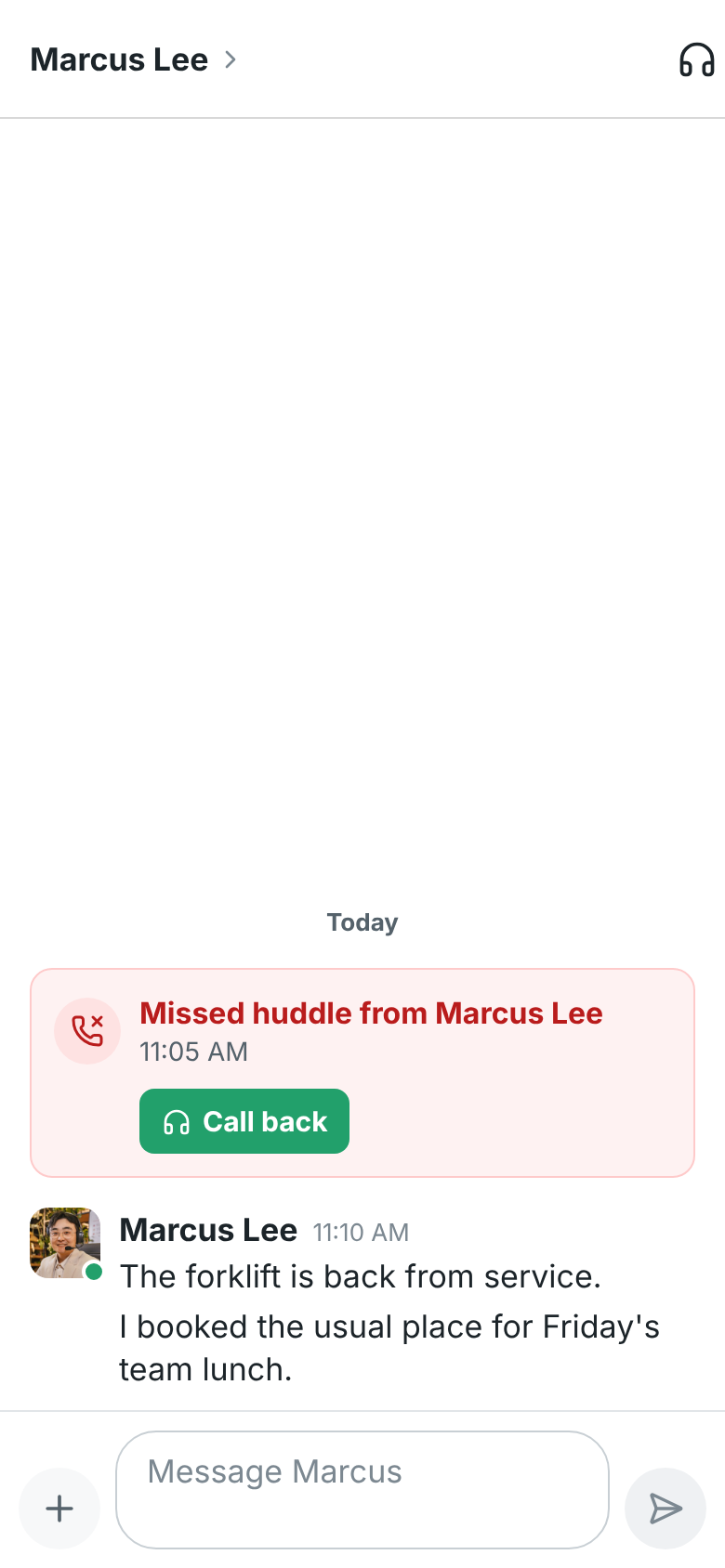
Section titled “Missed calls”If you don’t pick up, the DM shows Missed huddle from … with Call back, and it counts as unread. When the app is closed, the ringing notification gives way to Missed huddle with Call back (it opens the DM and calls them) and Message. Missed calls are in Activity too. See Missed calls.
Meetings
Section titled “Meetings”The Meetings tab lists the meetings you organize or are invited to, today’s first and then by day. A meeting that’s on, or starts within 15 minutes, shows who’s already in the call and anyone waiting to join.
- Join opens the meeting. Start now starts a meeting straight away, like on your computer, and Join with a code takes the code from someone’s meeting link.
- The share button next to Join sends the meeting’s link to anyone, by text, email or another app.
- Someone waiting in the lobby shows on the meeting with Deny and Admit, so you can let them in without joining.
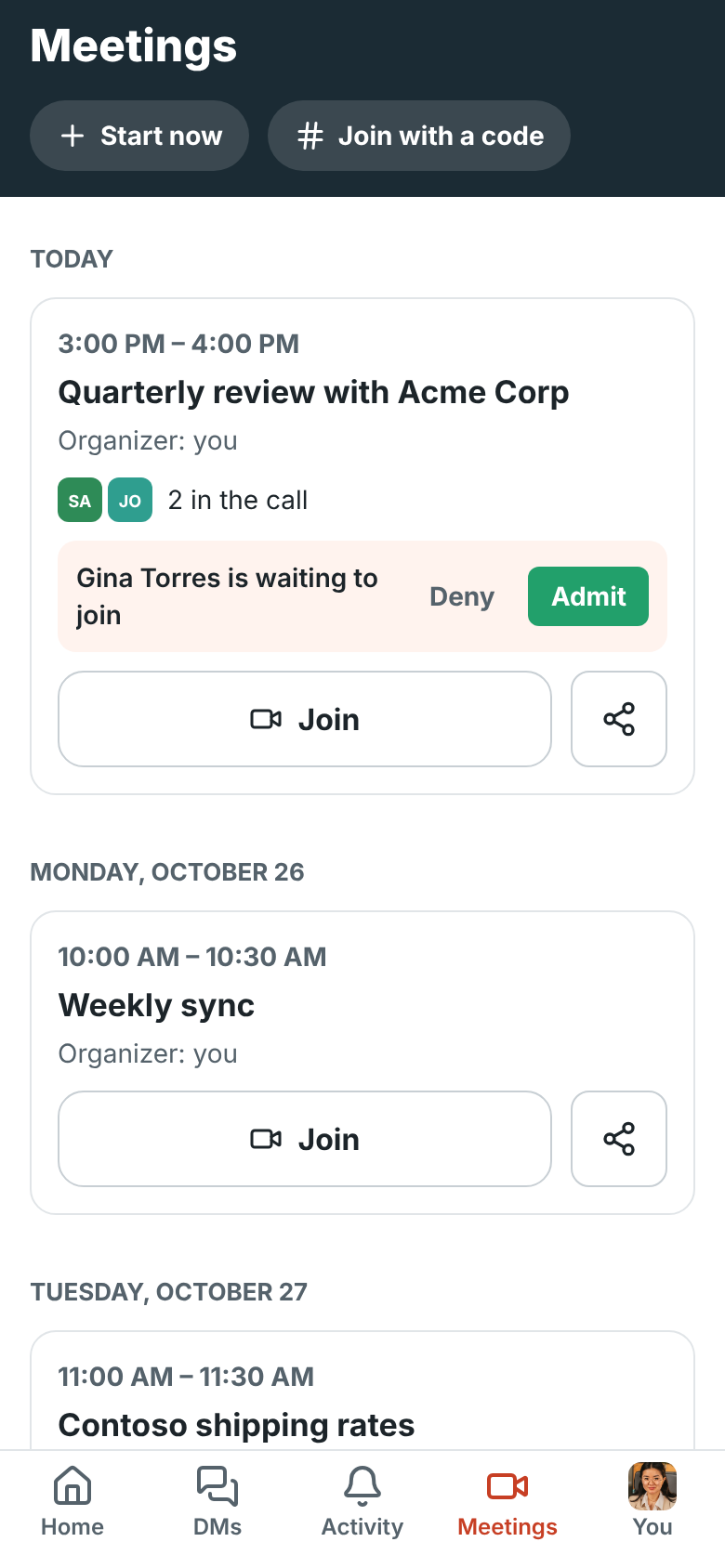
To schedule or edit a meeting, use the desktop app or a browser.
Join a meeting
Section titled “Join a meeting”Tap Join on the Meetings tab, or open a meeting link (meet.freesbe.net/…) on your phone. On Android the link asks whether to
Open in the Freesbe app or Continue in the browser.
Before you go in, turn your microphone and camera on or off. People in the workspace go straight in
with Join now; guests tap Ask to join and wait until someone lets them in.

In the call you have the same buttons as in a huddle: Mute, Video and Flip, Share screen (Android), Speaker and Leave. Everyone’s cameras and shared screens show above the people in the call.
When someone asks to join, a card at the top says who, with Deny and Admit.
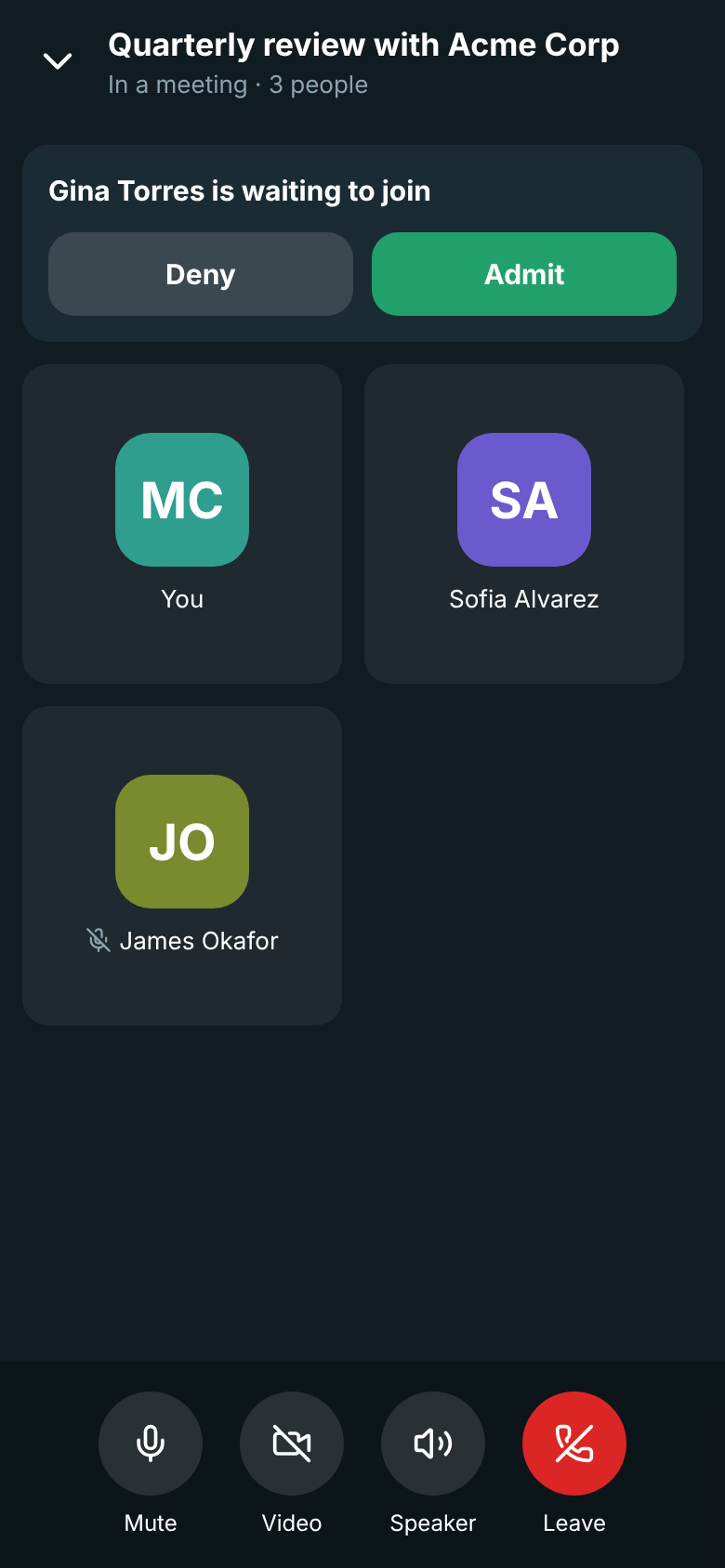
Tap the arrow at the top left to go back to your messages while you keep talking. A green bubble with the meeting’s name takes you back to the call. Starting a huddle leaves the meeting, and joining a meeting leaves a huddle.
Someone’s waiting to join
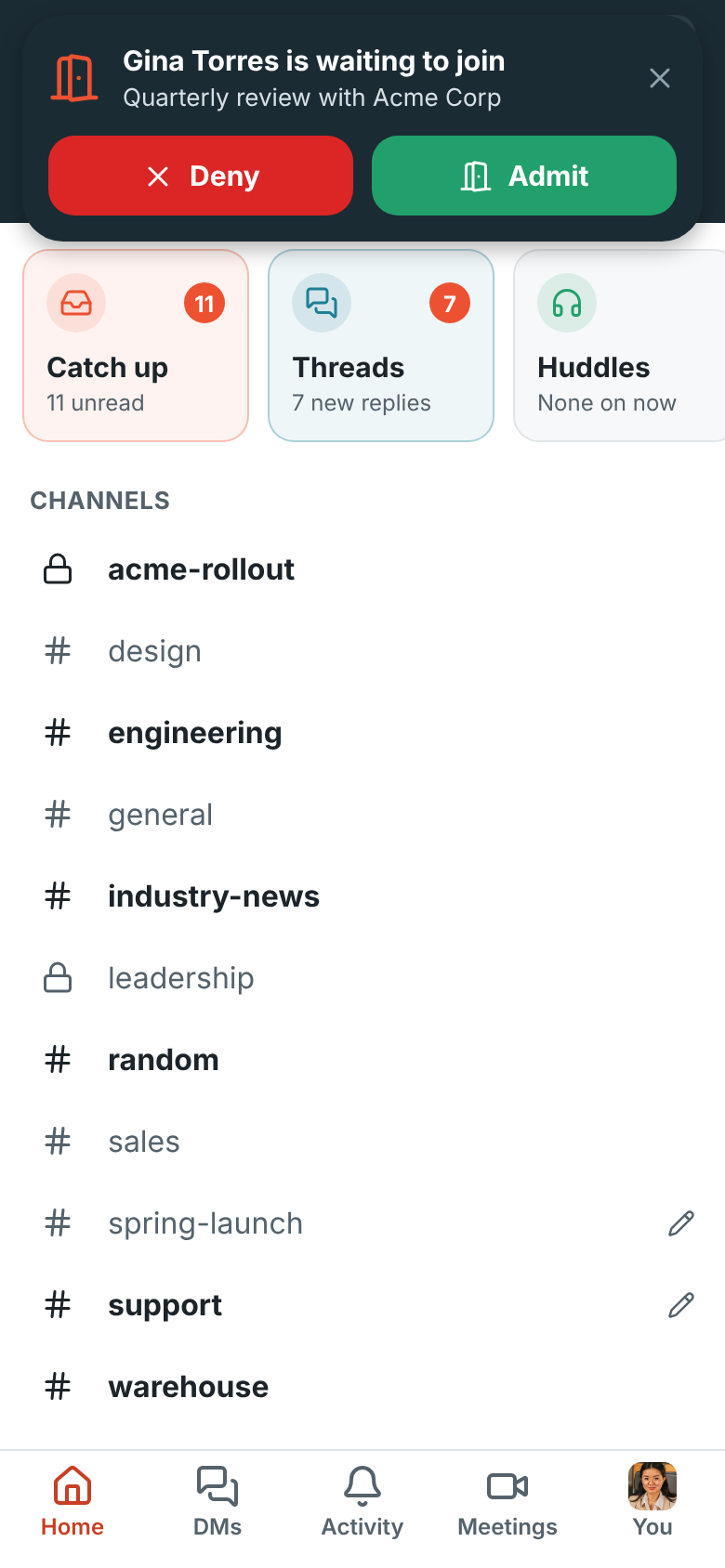
Section titled “Someone’s waiting to join”When a guest waits in the lobby of a meeting you host and nobody who can let them in is in the call, a card shows on any screen of the app, with a knock and a buzz. Tap Admit or Deny, or tap the card to open the meeting. After a couple of minutes you also get a notification. See Waiting room alerts.
Phone calls
Section titled “Phone calls”When your workspace has a phone system from Freesbe, the Meetings tab becomes Calls, with Phone and Meetings at its top. Your phone signs in as a phone of its own, so a call to your number or extension rings on your phone and your computer together, and you answer on either. The tab’s badge counts new voicemails.
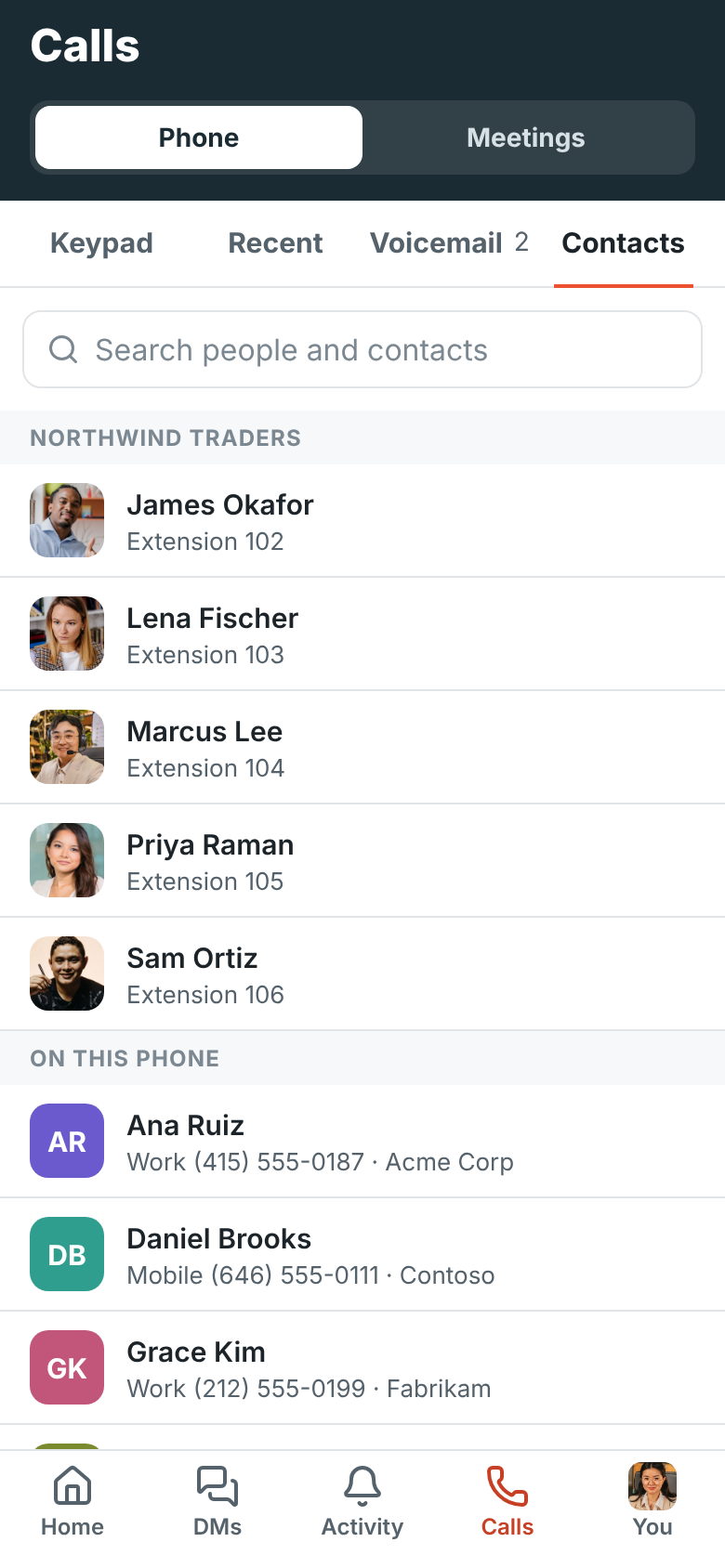
The phone has four tabs:
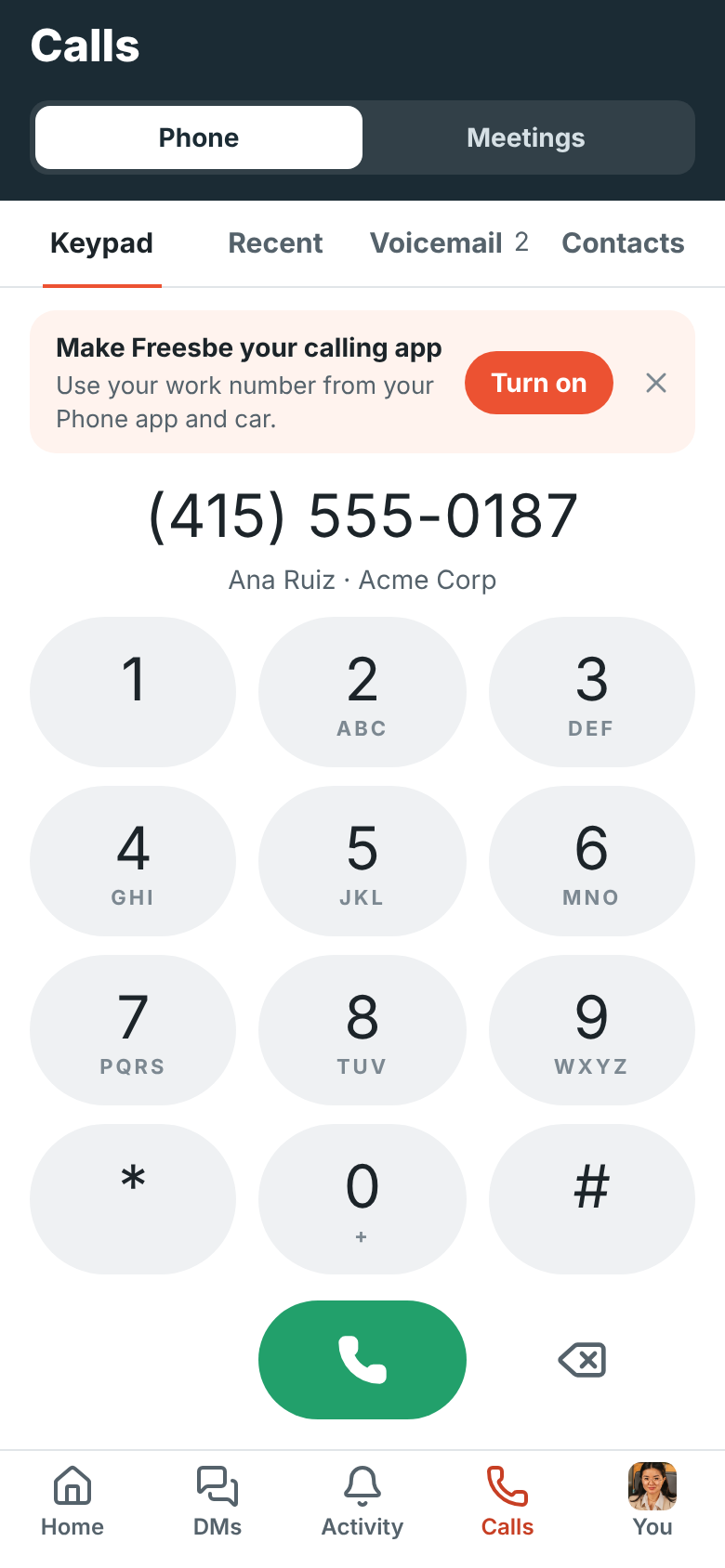
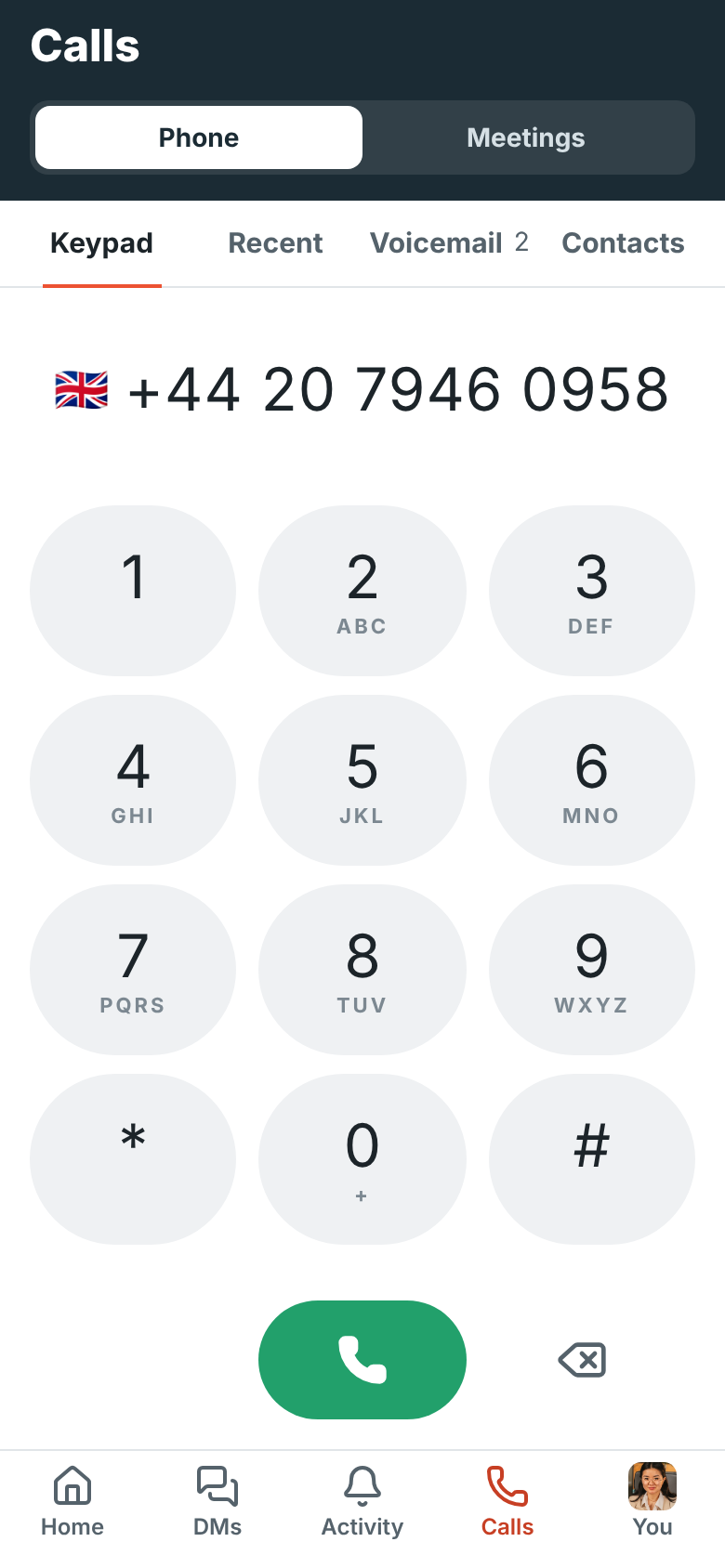
- Keypad: type a number or a colleague’s extension and tap the green button. The keys fill
the screen like your phone’s own dialer. Under the number it says who it is when it’s a
colleague or one of your contacts. Numbers are formatted as you type, the way your phone’s
country writes them ((415) 555-0142 in the US); start with + (hold 0) for a number
abroad, which is written the international way with that country’s flag, as in
🇬🇧 +44 20 7946 0958. Extensions and codes with
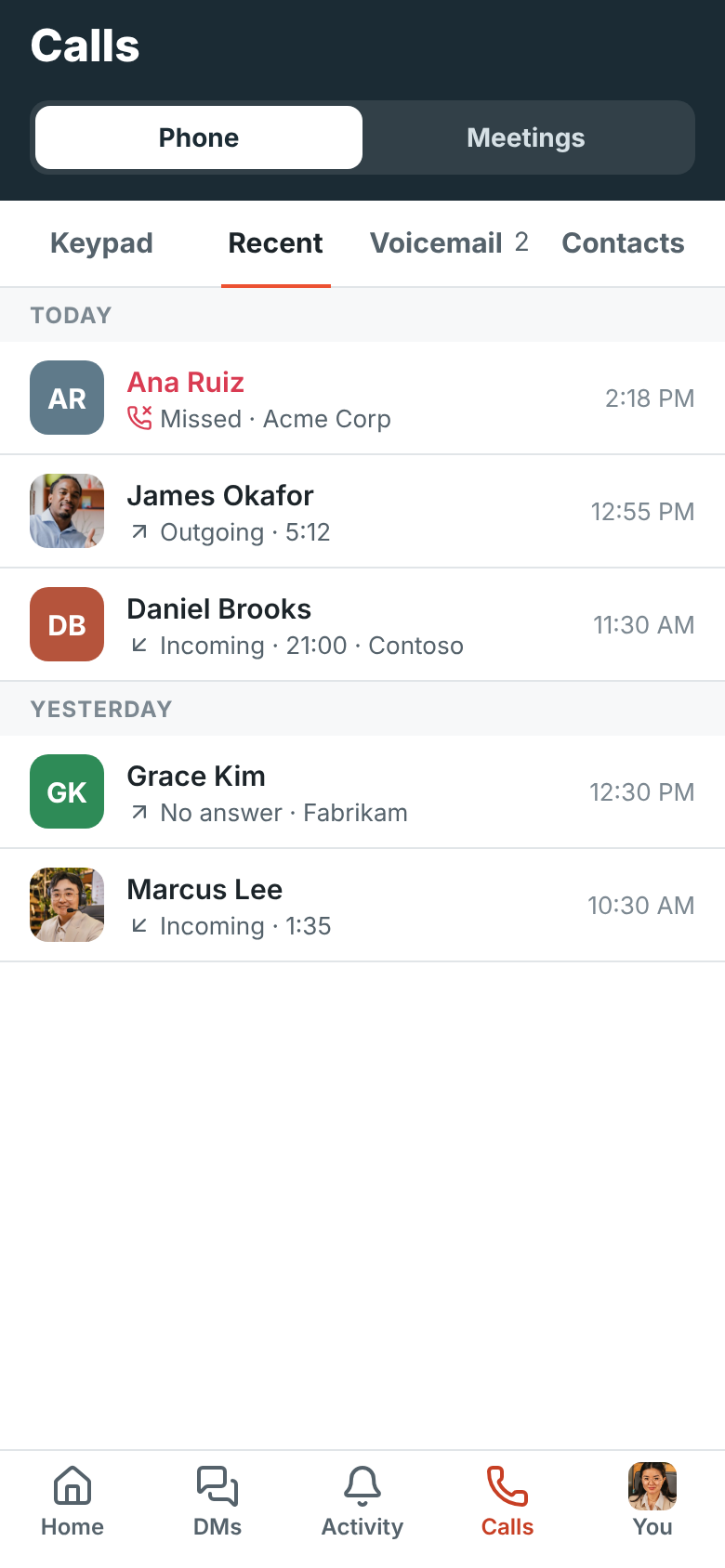
*or#stay as you type them. - Recent: your calls from the last 30 days, from every device, by day. Missed calls are red. Tap a call to call back. A call is there the moment you hang up, and calls on your other devices show up a few seconds after they end.
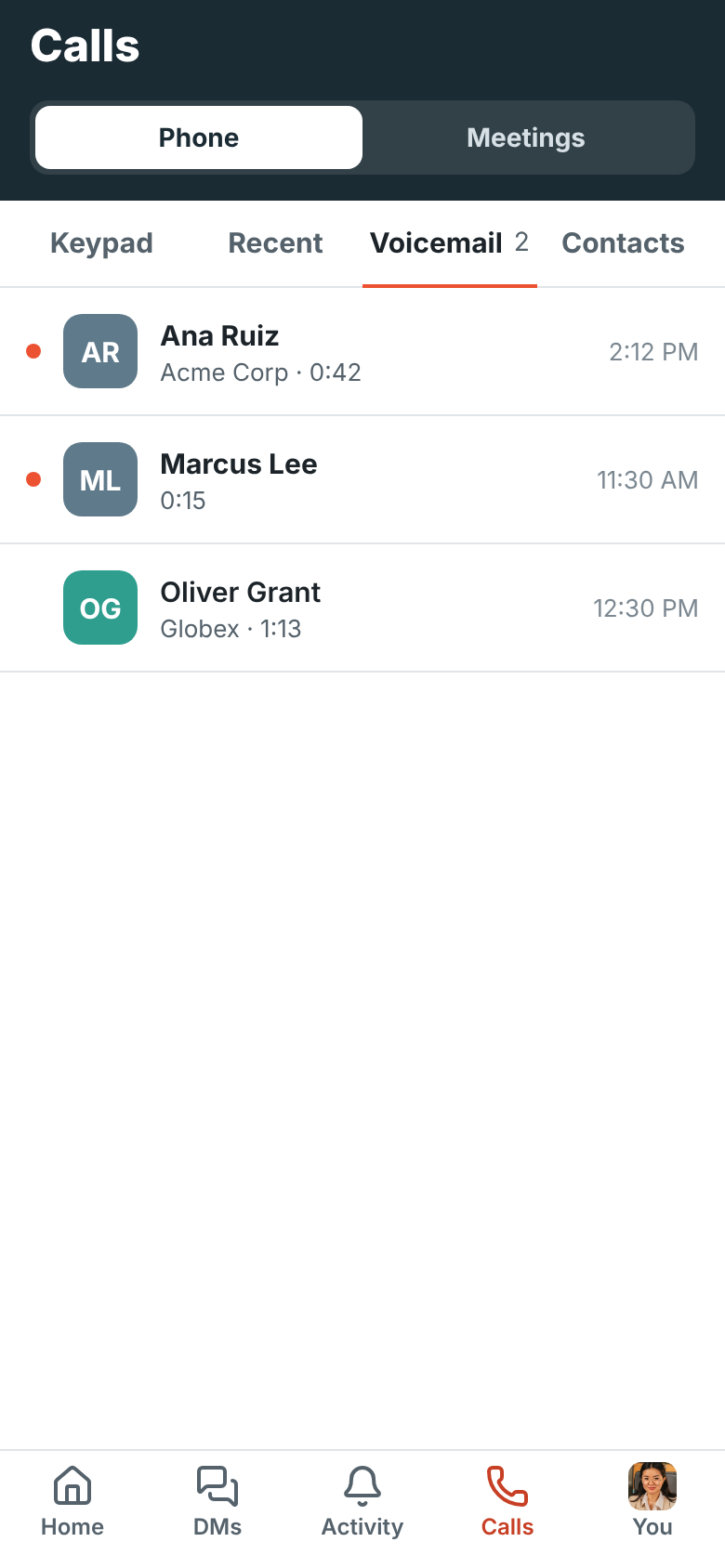
- Voicemail: your messages, newest first, with new ones in bold. Tap one to play it on your phone; it’s marked as heard. Call back or delete it from the same row.
- Contacts: colleagues with their extensions, and the contacts saved on your phone. Tap Use my contacts once to let Freesbe read them. Your contacts stay on your phone: Freesbe searches them and names who’s calling, and never sends them anywhere.
Phone numbers on someone’s profile call from Freesbe too, with your work number.
Call with Freesbe from your Phone app
Section titled “Call with Freesbe from your Phone app”On Android, Freesbe can be one of your phone’s calling accounts, like a second SIM. Then your phone’s own Phone app and Contacts can call through Freesbe (it asks Call with which account), incoming calls show on the lock screen like any call, and Freesbe calls go in your phone’s call history.
Tap Turn on on the card at the top of the keypad, or You → Calling account, allow Freesbe to make and manage phone calls, then switch Freesbe on under Calling accounts in your phone’s settings. Back in Freesbe, the card goes away and You → Calling account says On. Until then, Freesbe calls ring and show in the app itself.
Freesbe doesn’t need to be open: when you call through Freesbe from the Phone app, Freesbe starts in the background, connects and places the call, which shows on the Phone app’s own call screen.
Take a call
Section titled “Take a call”A call rings with your ringtone and shows who’s calling: the name from your contacts or the caller ID, and their number. When the caller is in your contacts, the caller ID name shows under it too. In the app, a card at the top has Decline and Answer. With the phone locked, the call fills the screen.
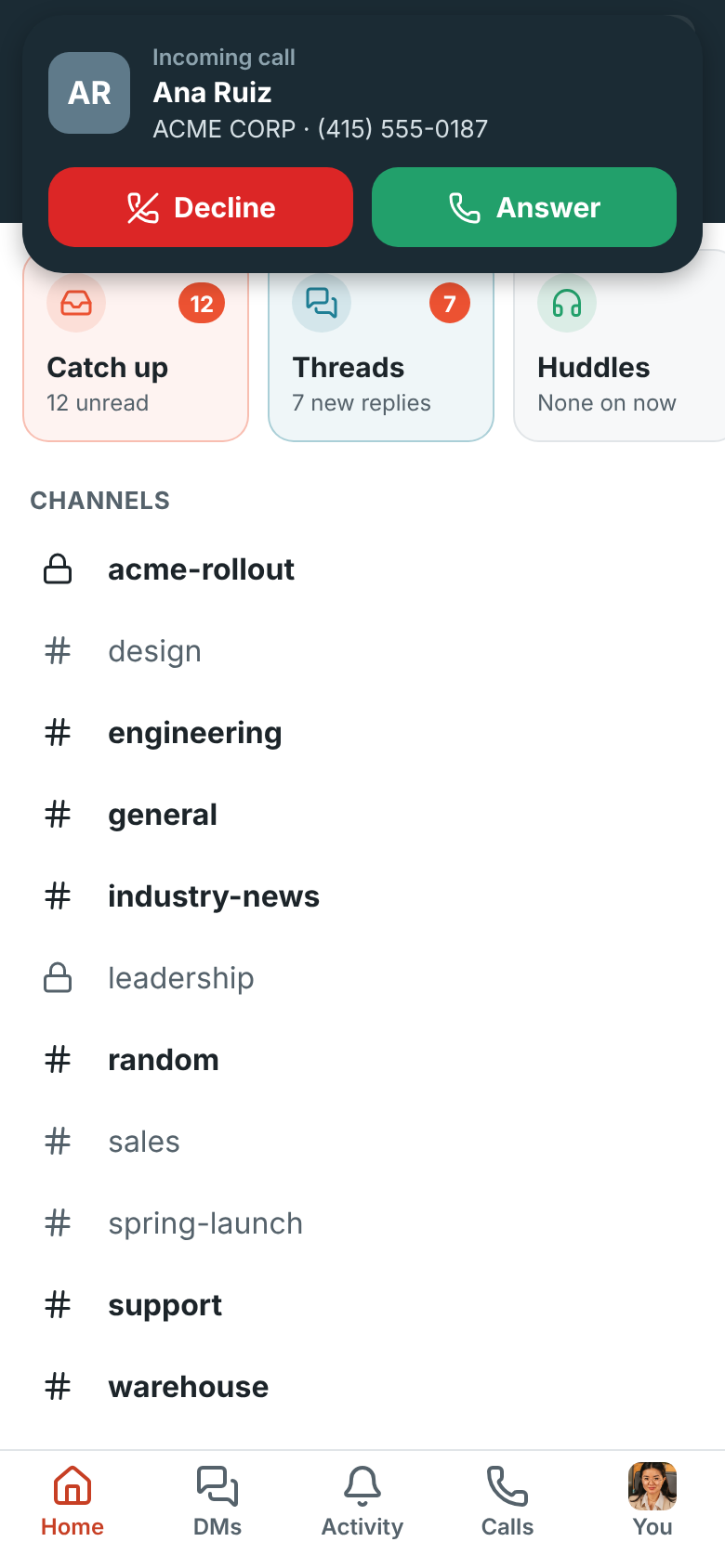
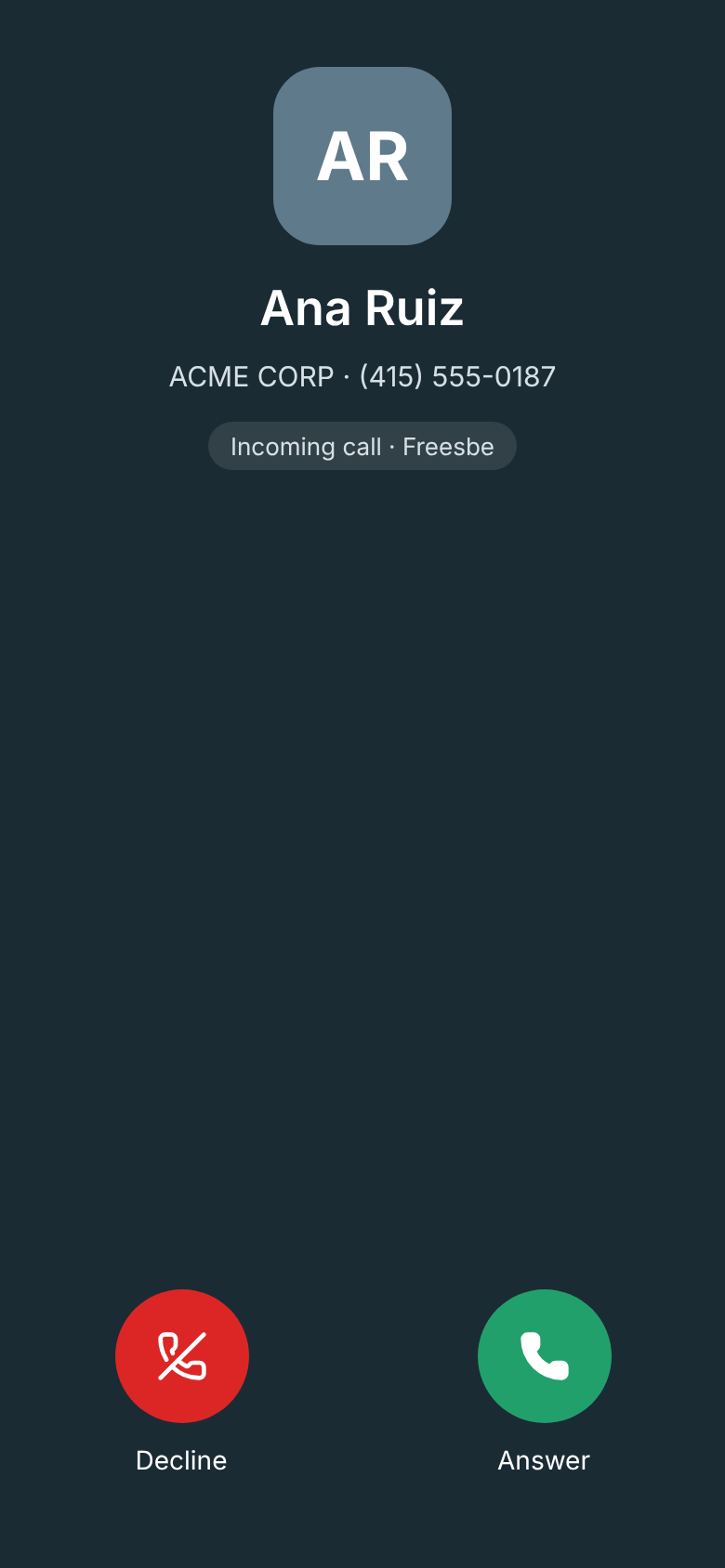
A call you miss gets a notification; tap it to open Recent. A call that comes in while you’re already on one isn’t put through, so it goes on as if you didn’t answer.
During a call
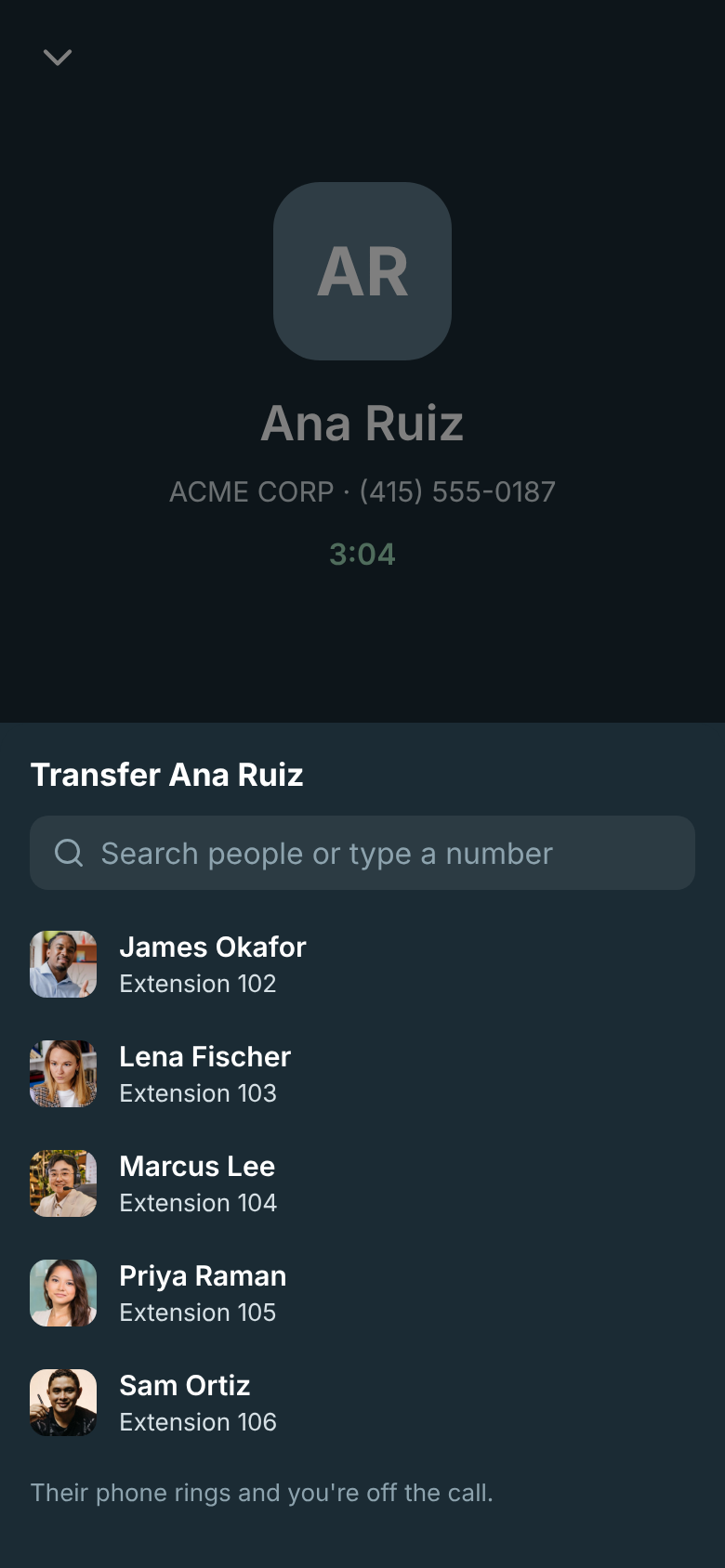
Section titled “During a call”The call screen shows who you’re talking to and for how long, with Mute, Keypad (for menus that say “press 1”), the speaker or Bluetooth headset, Hold, Transfer and the red button to hang up. Tap the arrow at the top to go back to the app while you talk: a green bar takes you back to the call.
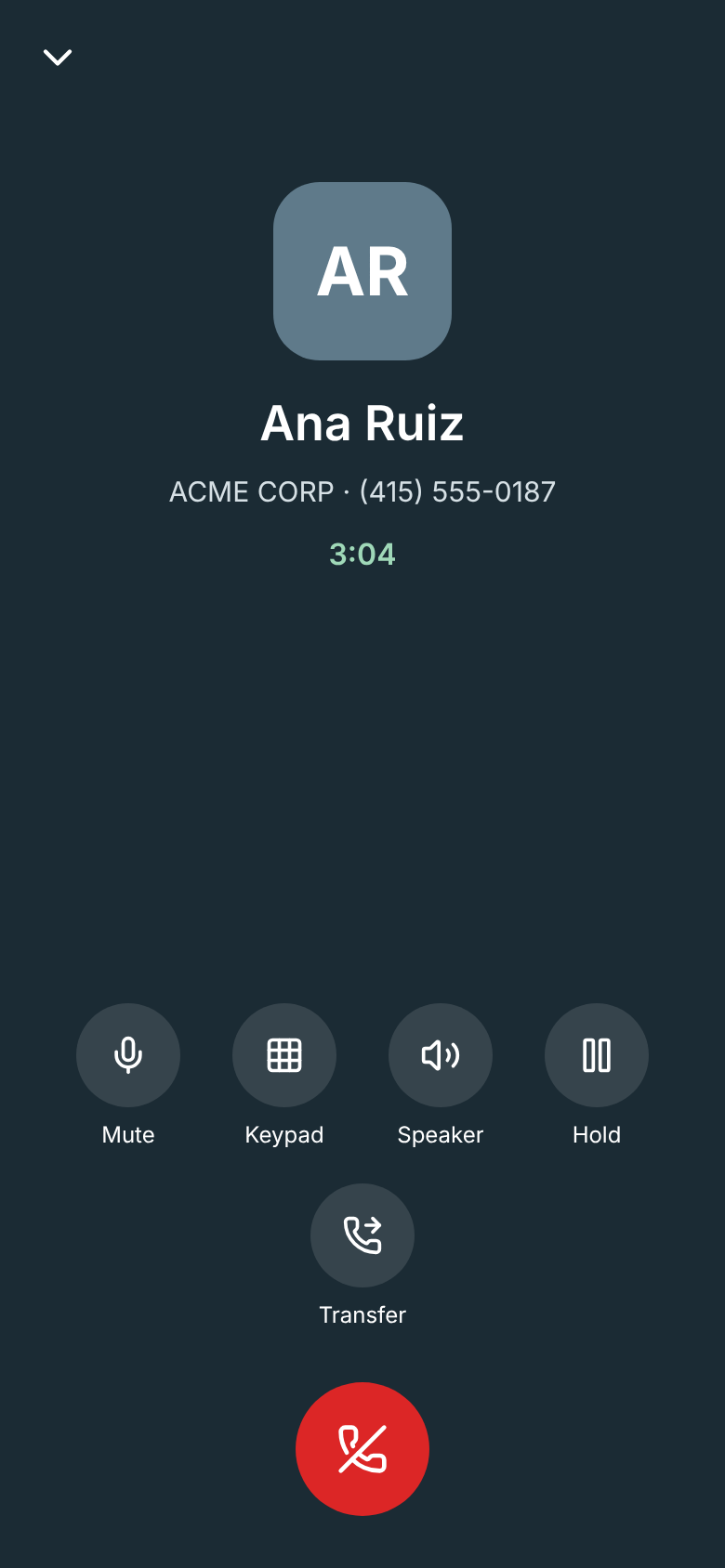
Transfer passes the call on: pick a colleague or a contact, or type a number. Their phone rings and you’re off the call.
Ready for calls
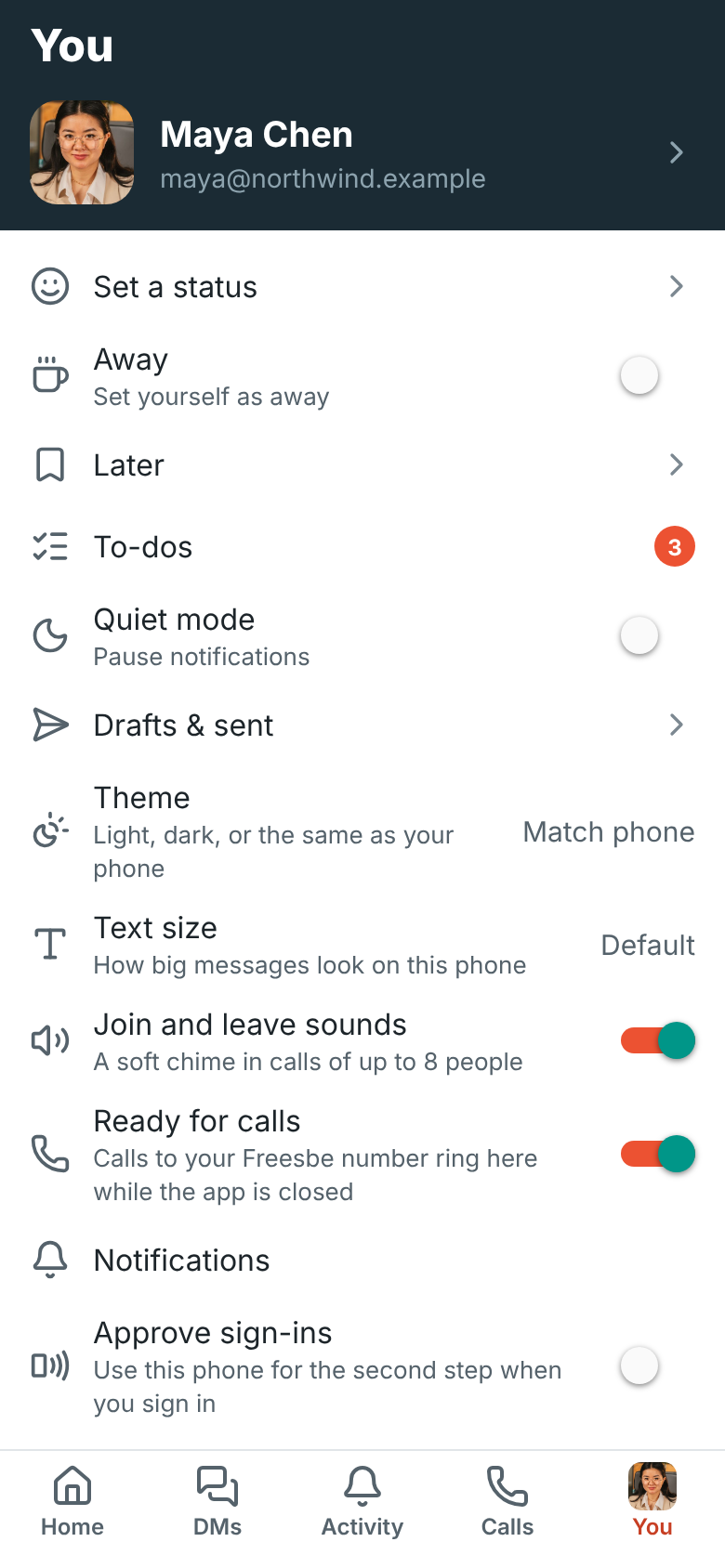
Section titled “Ready for calls”You → Ready for calls keeps Freesbe signed in to the phone while the app is in the background, so calls ring even when you aren’t using it. Android shows a quiet Ready for calls notification while it’s on, as it does for any app that stays running. Switch it off and your phone only rings while Freesbe is open; your computer still rings.
On iPhone, calls ring while Freesbe is open. Ringing when it’s closed, on Android and iPhone, is coming next.
Move a call to your phone
Section titled “Move a call to your phone”Need to leave your desk during a huddle or meeting? When you’re in a call in the desktop app or a browser, the app shows a bar with You’re in this huddle in the desktop app and Join here. Tap it and the call moves to your phone, with no drop for the others. Meetings show the same Join here in the Meetings tab. To move back, use Join here on your computer. See Huddles.
Direct messages
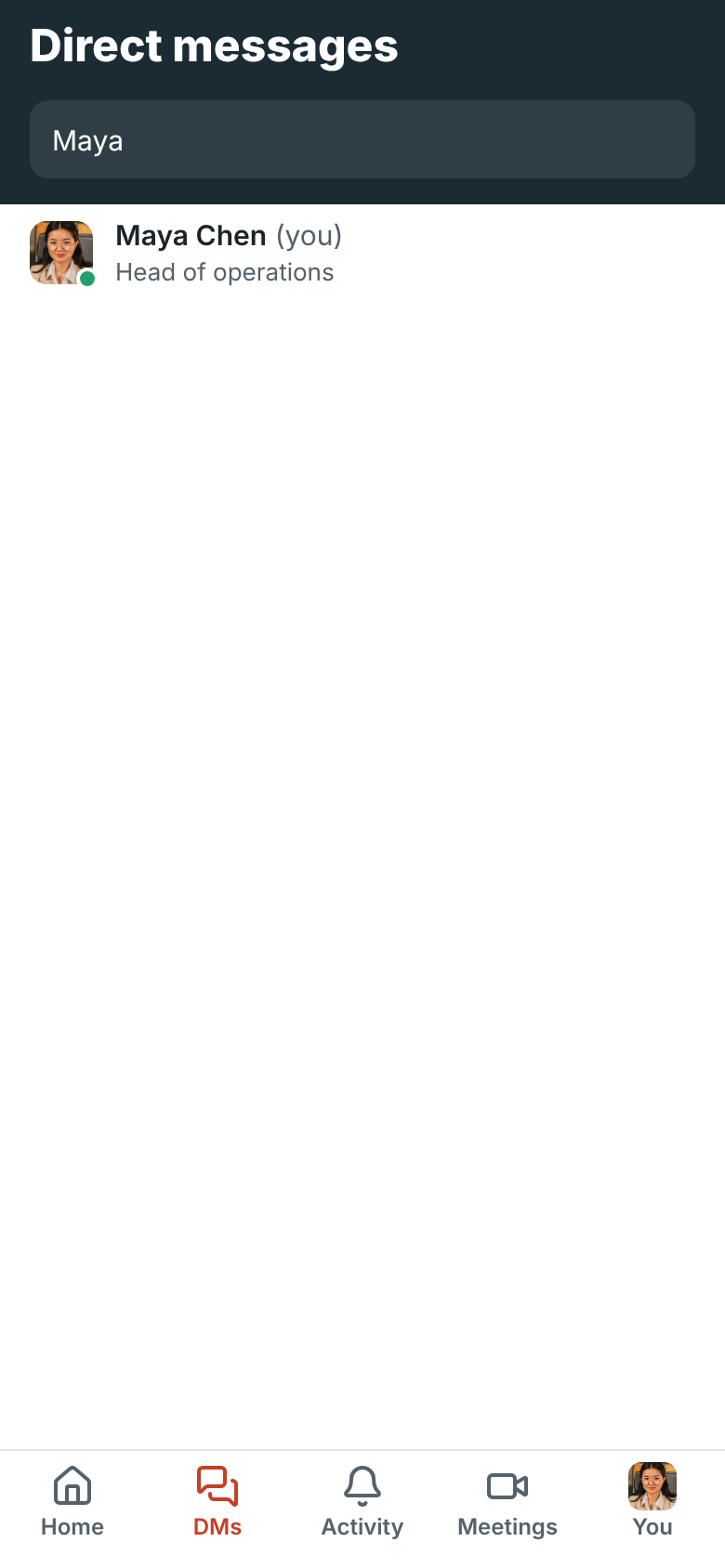
Section titled “Direct messages”The DMs tab lists your recent direct messages, with a badge for unread ones. Search by name or email to find anyone in the workspace, and tap them to message them.
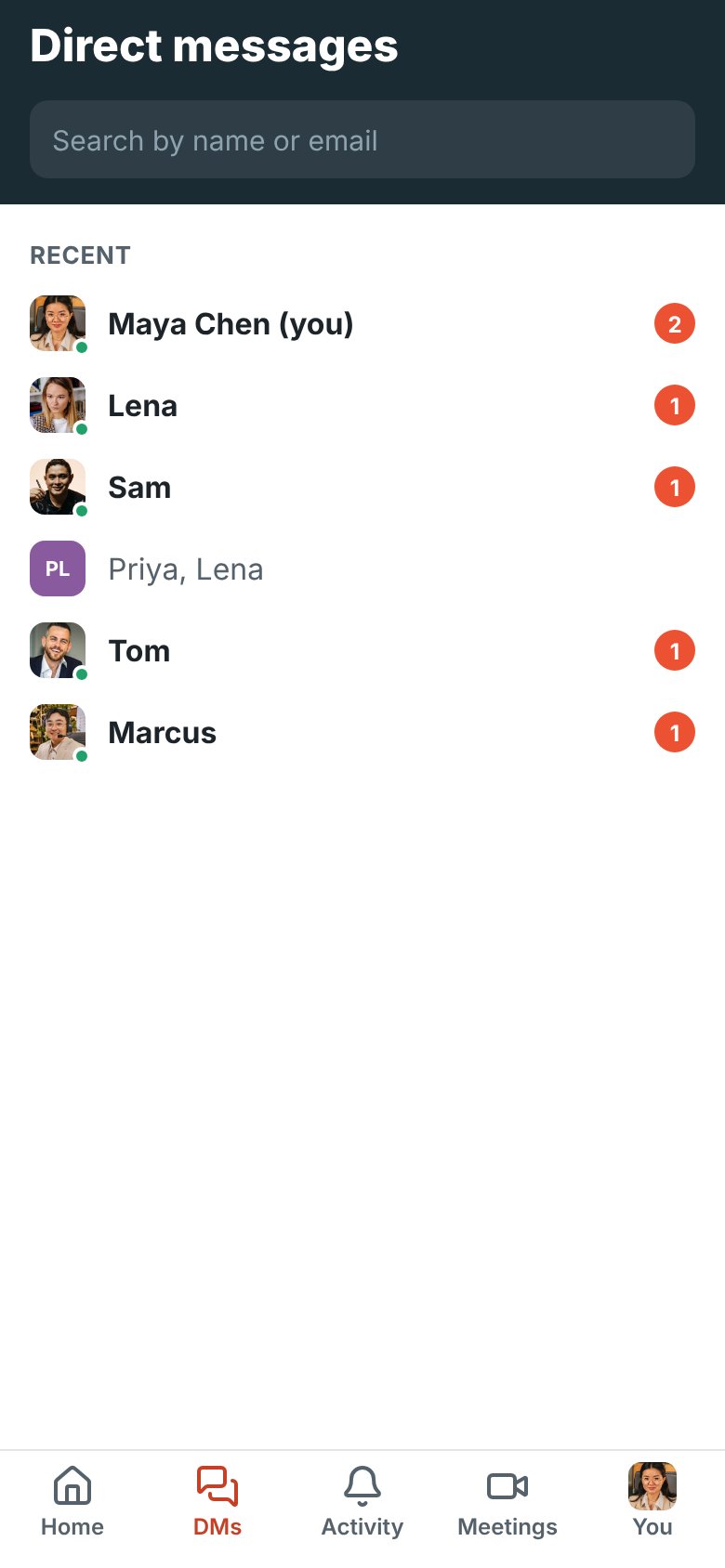
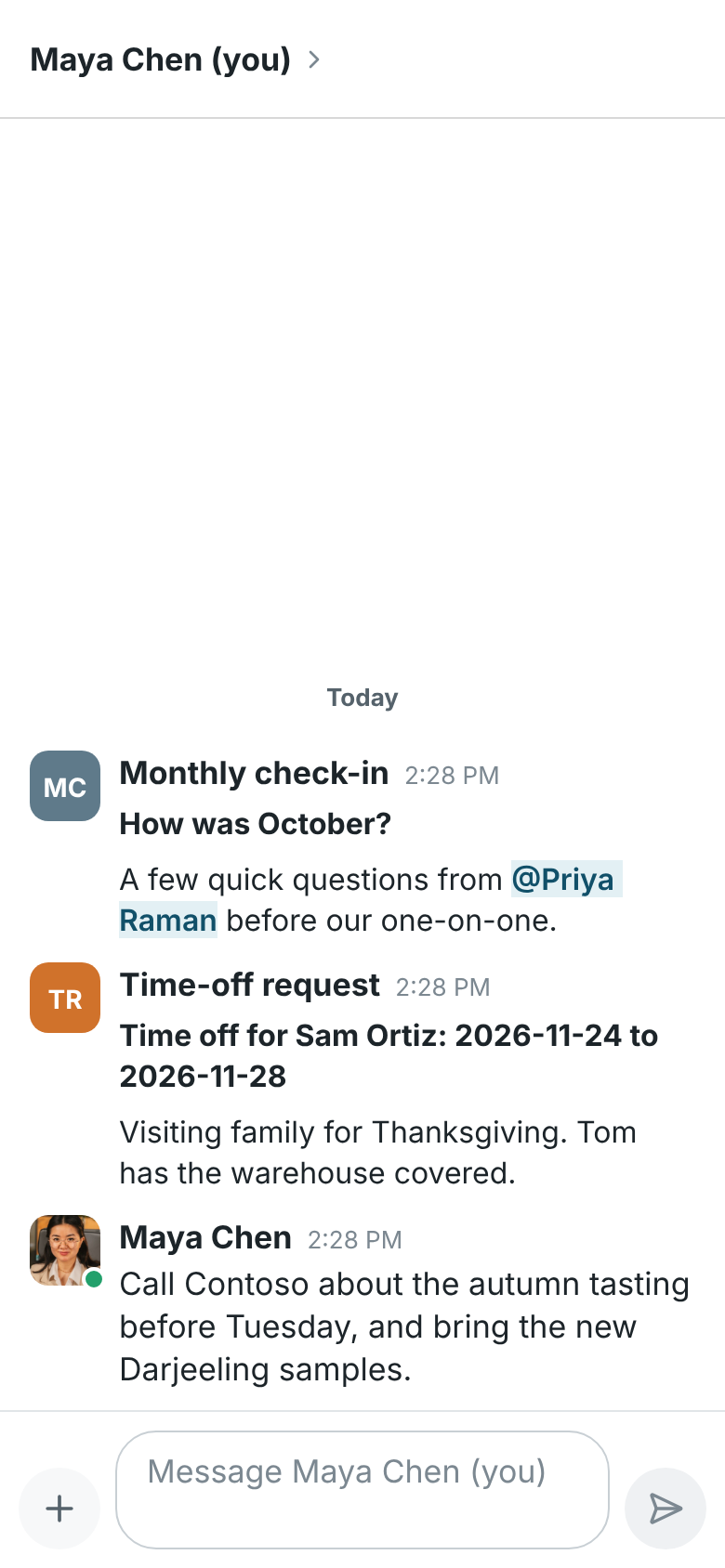
To message yourself, search for your own name (it shows (you)) or tap Message on your own profile. Your notes stay private to you.
Activity
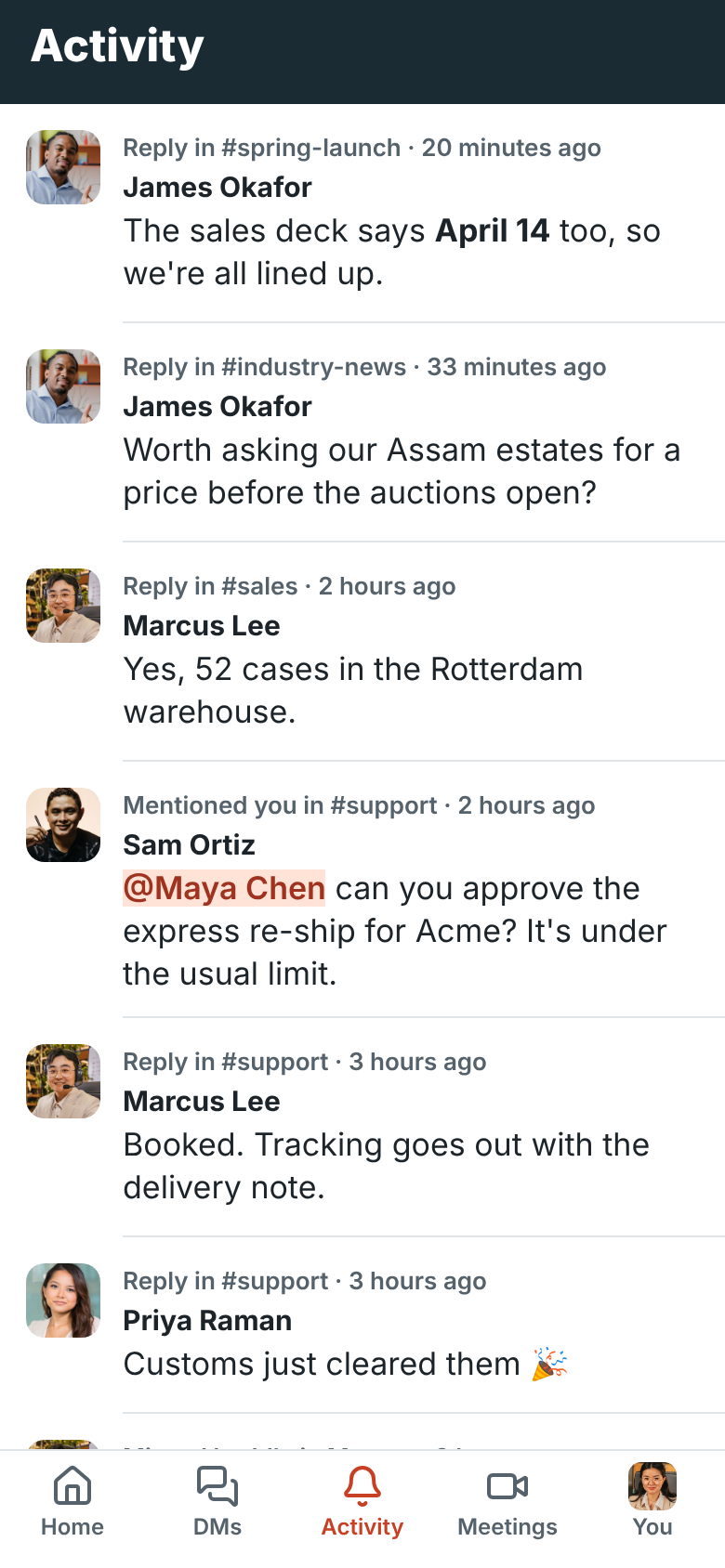
Section titled “Activity”Activity collects what’s meant for you: mentions of you (including @channel and @here),
huddles you missed and replies in threads you started or replied in, newest first. Tap one to open the conversation or
thread it’s in.
To-dos
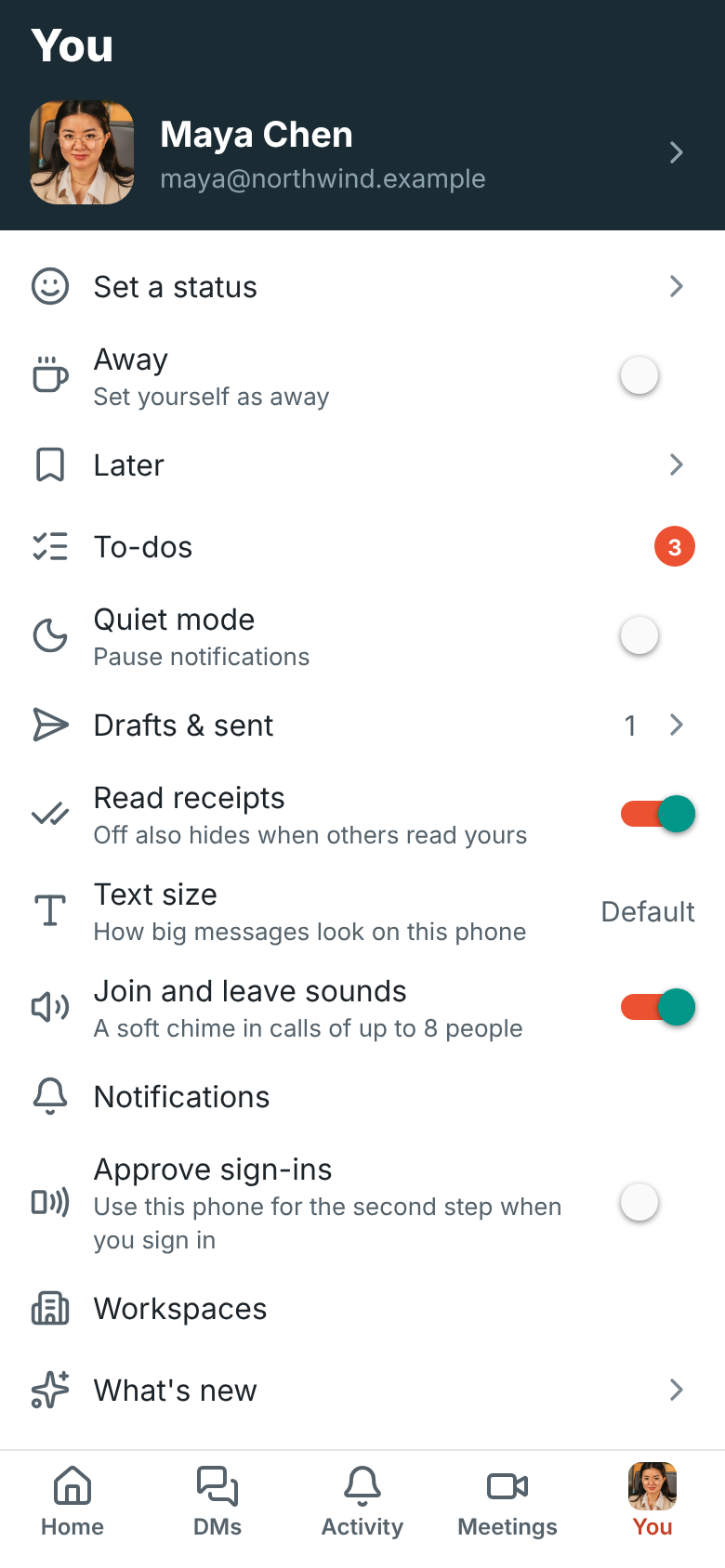
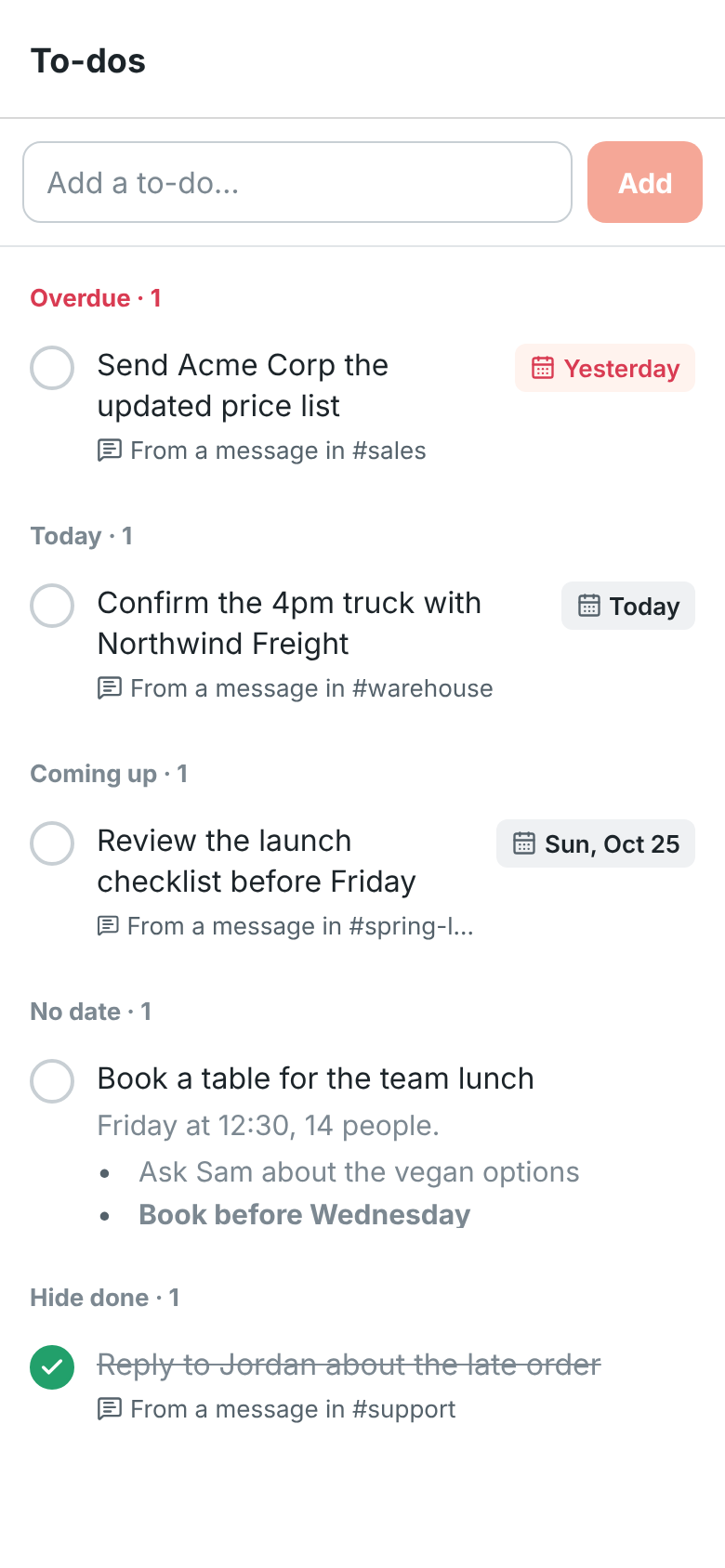
Section titled “To-dos”Tap You → To-dos to see the same private to-do list you have on your computer. Only you see it. The number next to To-dos counts the ones due today or overdue.
- Type in the box at the top and tap Add to add one.
- Tap the circle to mark a to-do as done. Show done lists the ones you’ve finished.
- Tap a to-do to give it a due date (Today, Tomorrow, End of this week or Next week), take the date away, or delete it.
- A to-do made from a message has a From a message in … link. Tap it to open that conversation.
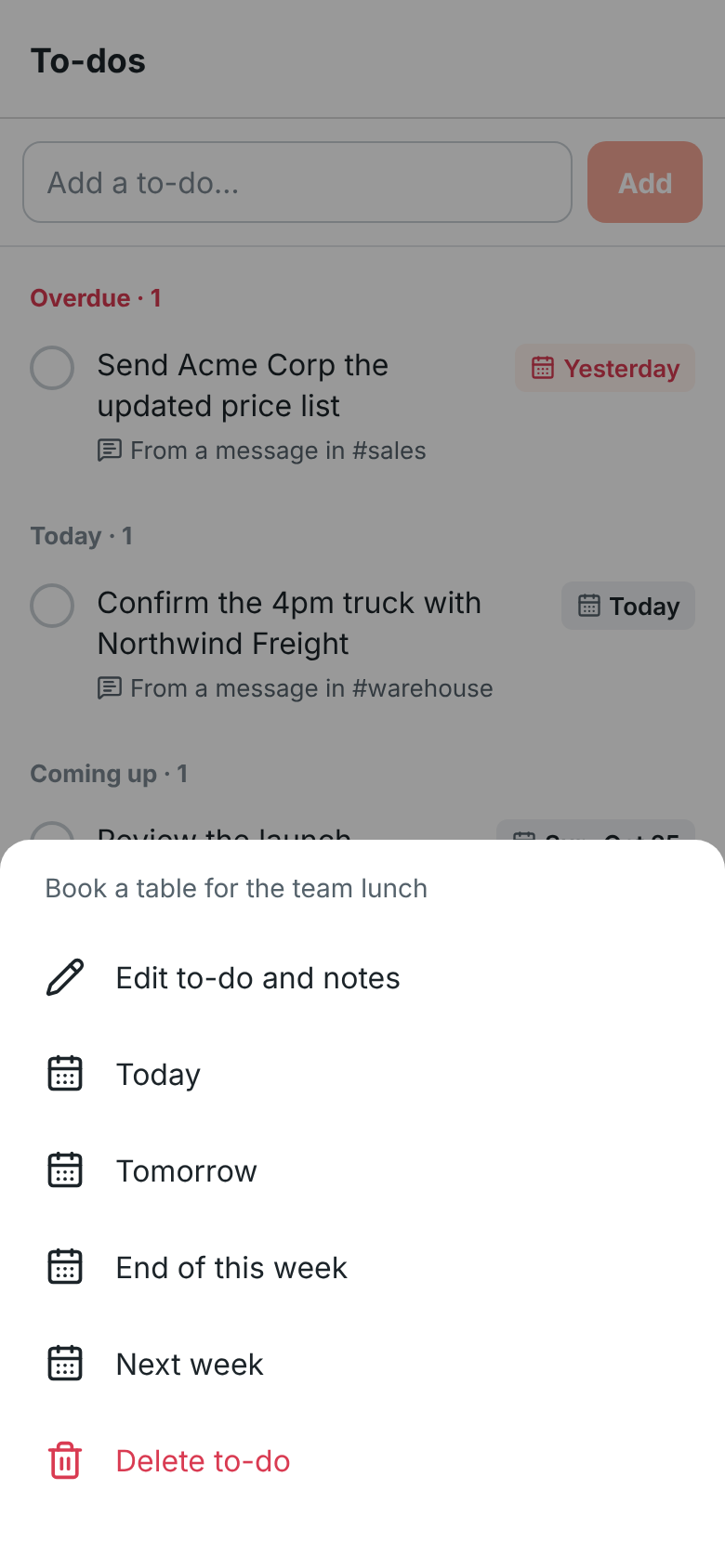
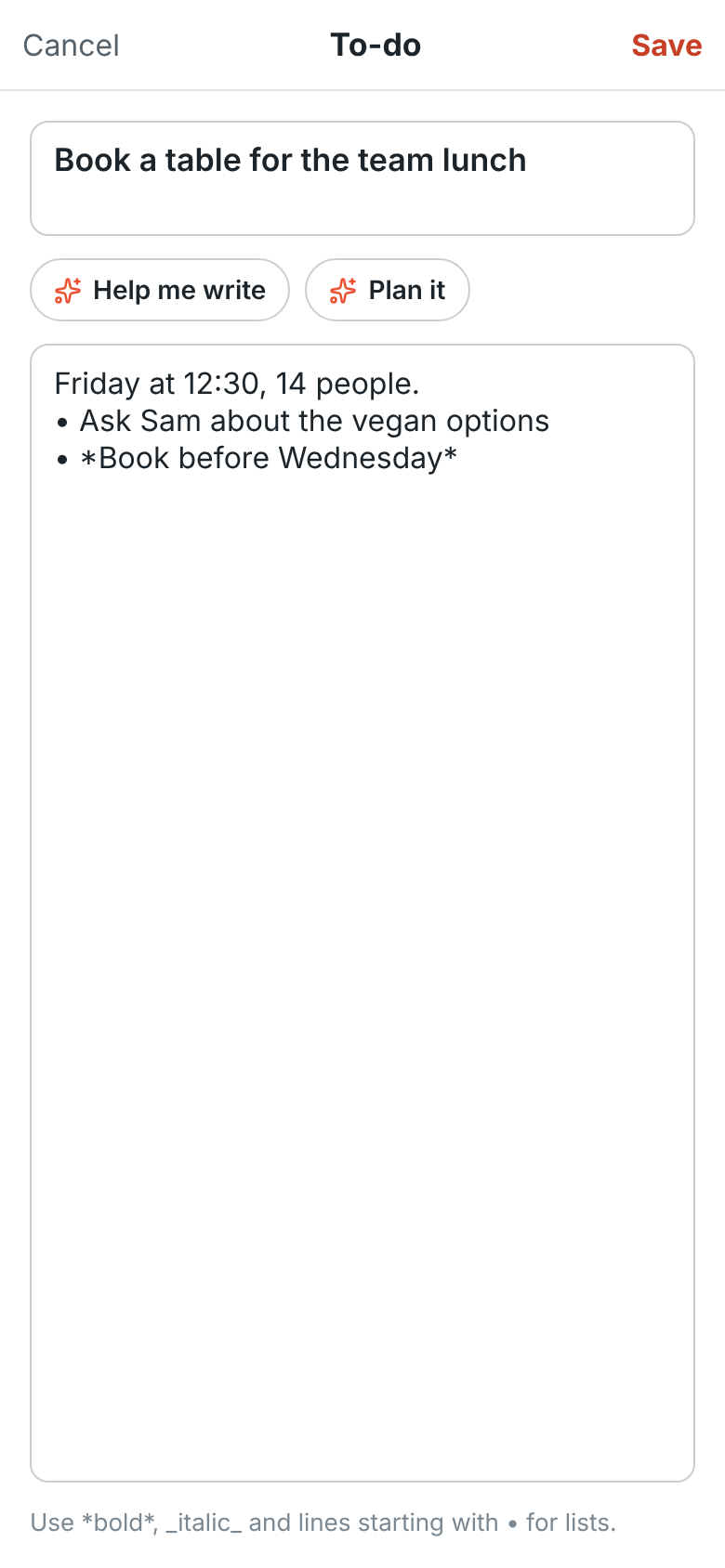
To change a to-do or add notes to it, tap it and tap Edit to-do and notes (or Edit or add
notes). The title is on top and the notes underneath; tap Save when you’re done. Notes take
message formatting, such as *bold*, _italic_ and lines starting with • for a list, and show
under the to-do’s title in the list.
When your workspace has AI, the editor also has Help me write, Plan it and, for a to-do made from a message, Sum up the conversation. See Help with your to-dos.
To turn a message into a to-do, press and hold it and tap Add to to-dos. The to-do takes the message’s text. On Android a short note says it was added. On iPhone you can tap View to open the list.
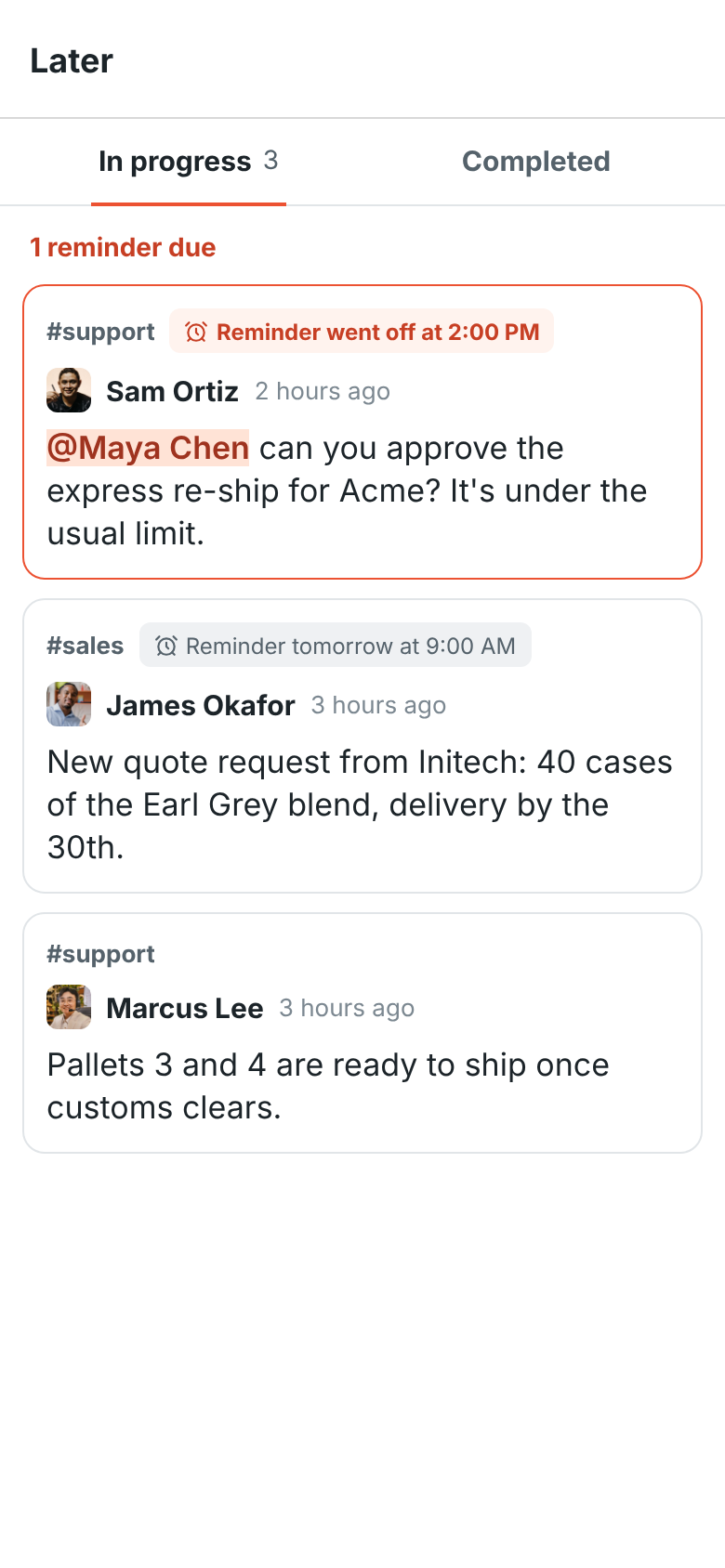
You → Later has the messages you saved for later and the ones you asked to be reminded about, the same Later list as on your computer. The number next to Later counts reminders that have gone off.
- In progress lists reminders that went off first, then upcoming ones, then the rest. A reminder that went off has a coral border.
- Tap a message to open it in its conversation or thread.
- Press and hold one for Mark as done, Remind me about this (pick a new time), Remove reminder and Remove from Later.
- Completed lists the ones you marked as done. Press and hold one to move it back.
When a reminder goes off and you aren’t using Freesbe elsewhere, your phone gets a notification.
Search
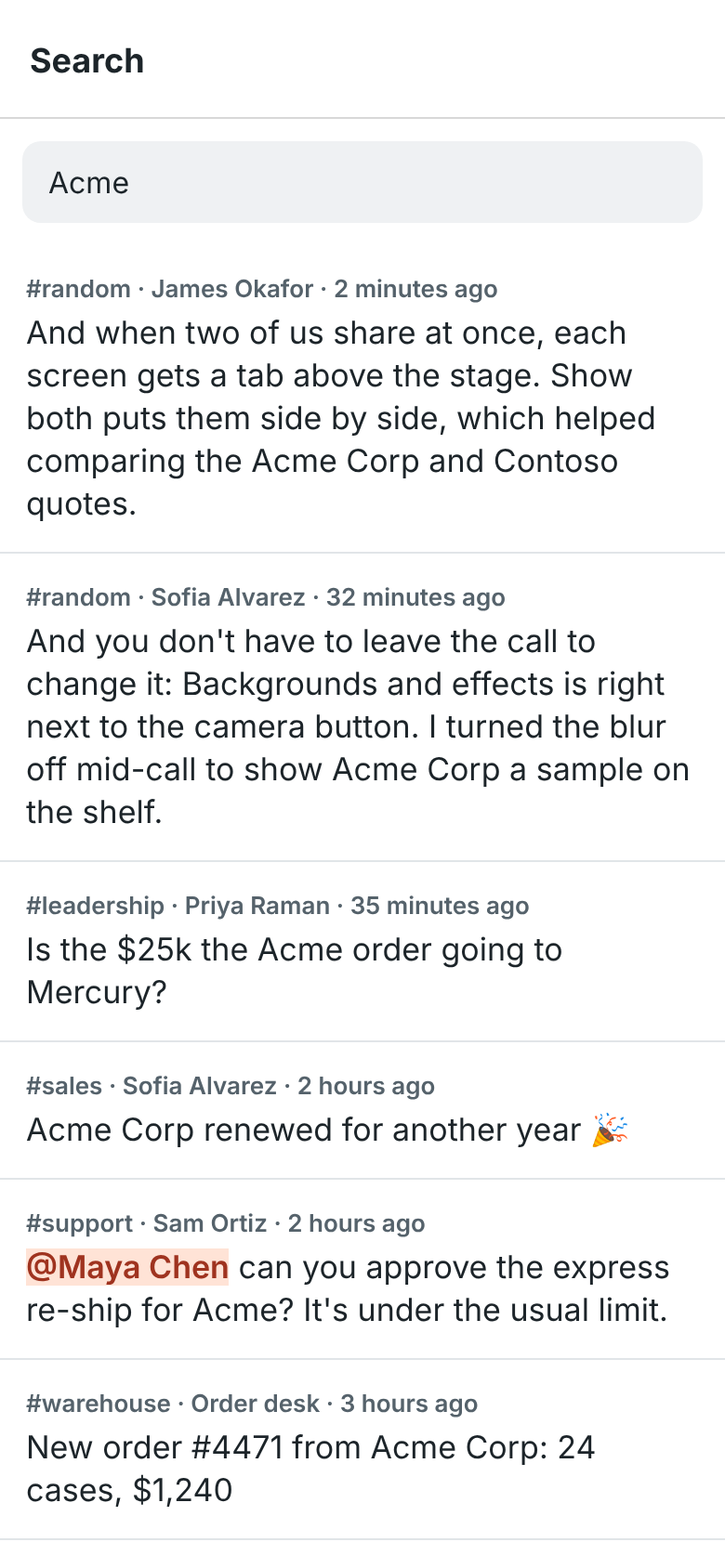
Section titled “Search”Tap the search bar on Home and type at least two letters. Results show the channel or person, who wrote it and when. Tap a result to open the conversation or thread it’s in. Part of a word is enough, the same as on the computer: see What counts as a match.
Your status
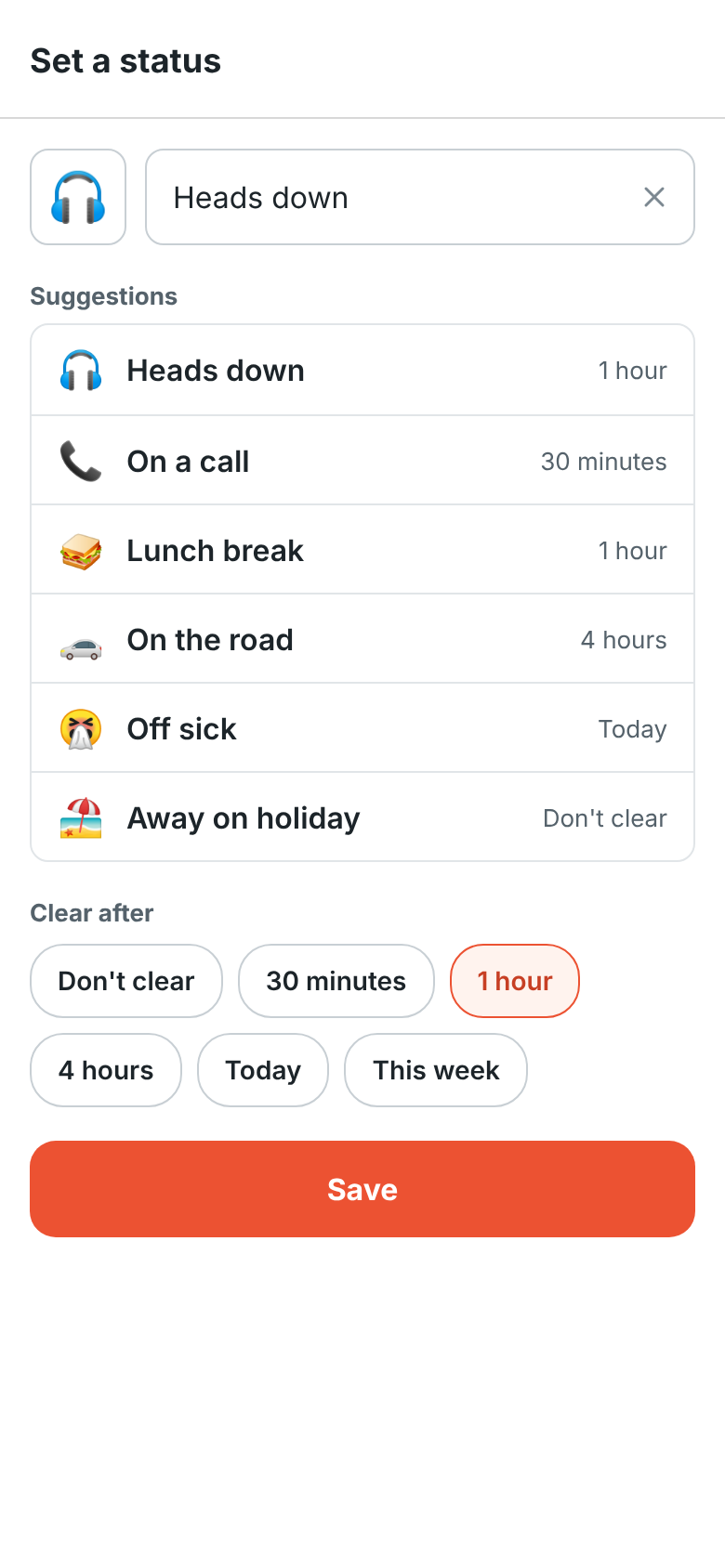
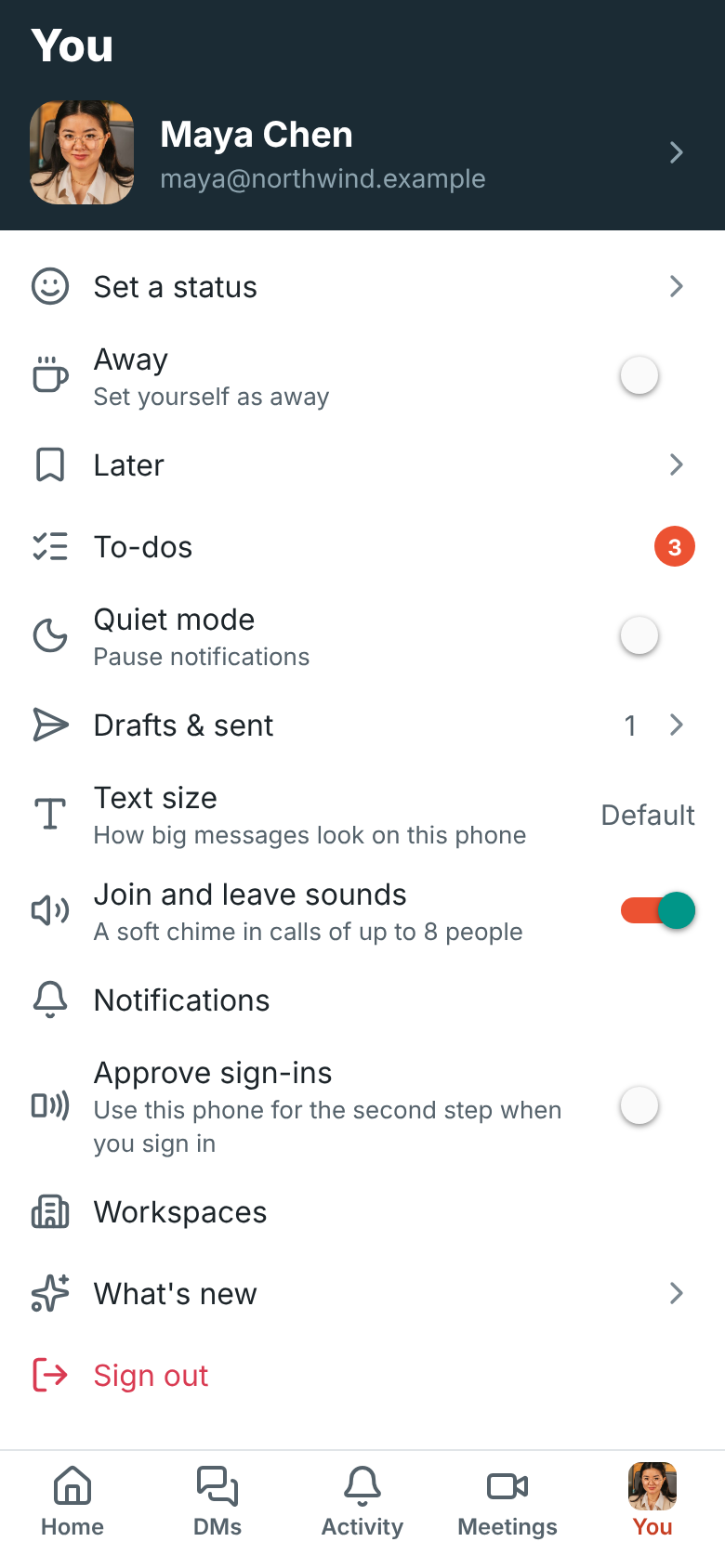
Section titled “Your status”On the You tab, tap Set a status to tell people what you’re up to. Pick a suggestion such as Heads down, or tap the smiley to choose an emoji and type a few words. Under Clear after, choose when it goes away by itself: in 30 minutes, 1 or 4 hours, at the end of today or this week, or never. Tap Save. Your status shows next to your name on every device, the same as one you set on your computer. To take it off, open it again and tap Clear status.
Turn on Away to show as away even while you have Freesbe open. Turn it off to show as active again.
People and profiles
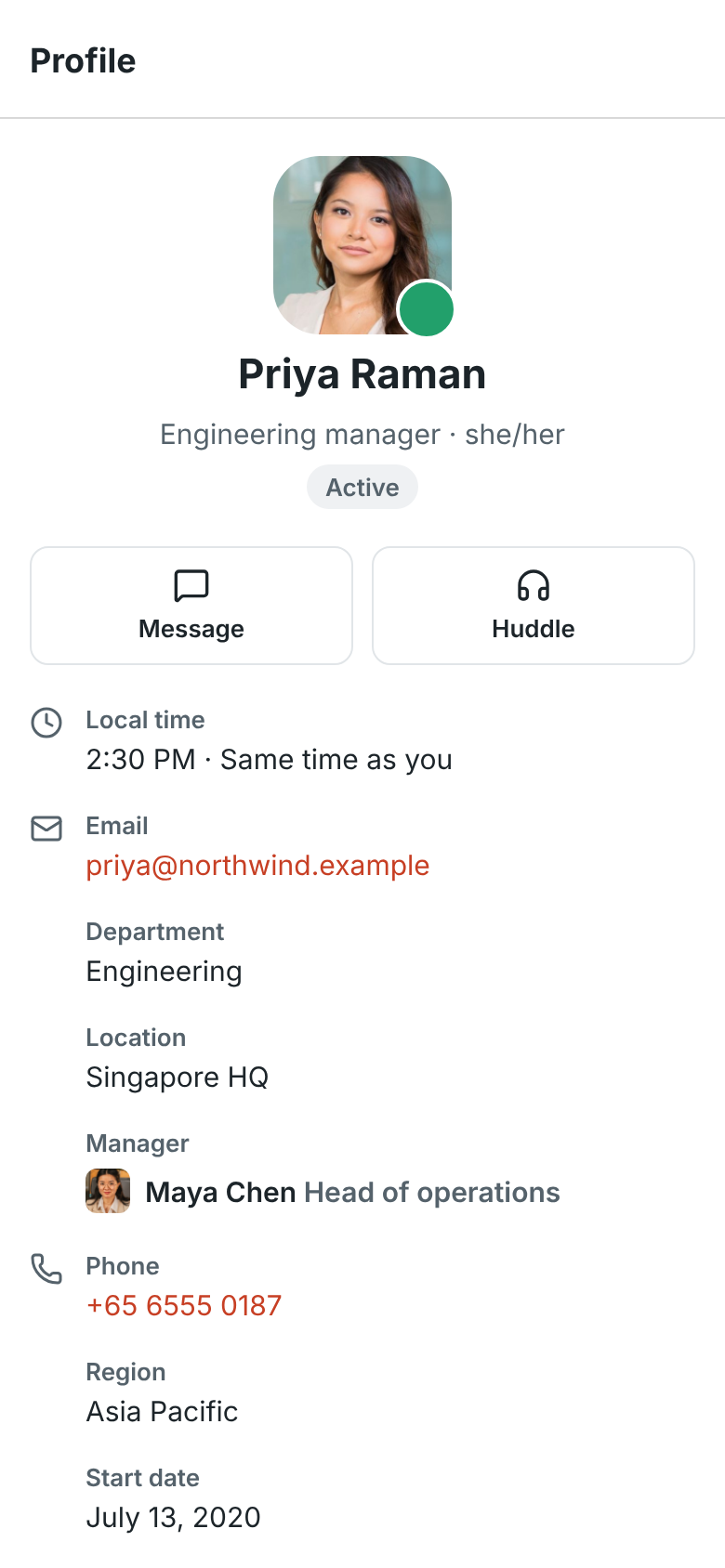
Section titled “People and profiles”Tap someone’s name or picture on a message, or anyone under Home → People, to see their profile: their picture, title, status, whether they’re active, their local time and how far it is from yours, their email, and the workspace’s profile fields such as phone, department and manager. Tap Message or Huddle to talk to them, a phone number to call it, or their manager to open theirs.
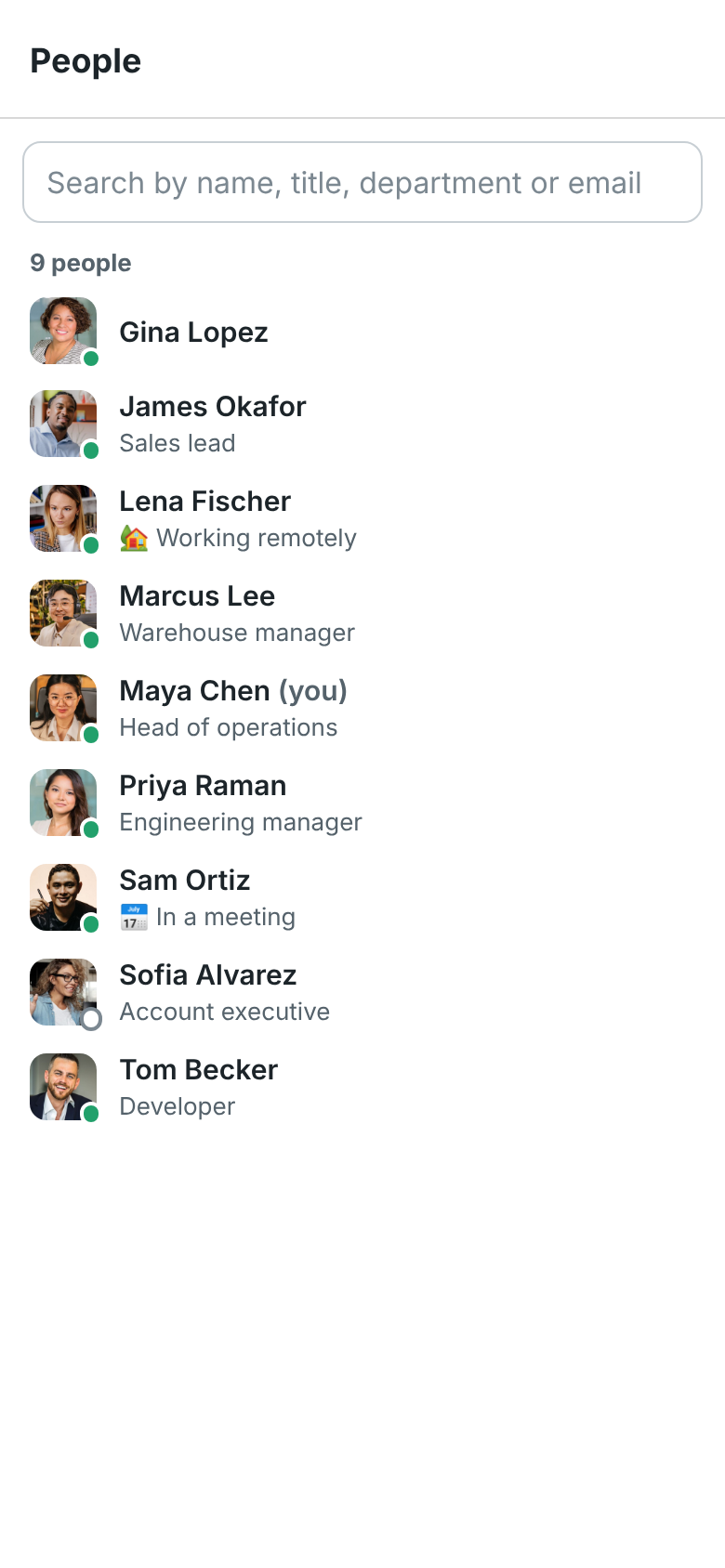
People lists everyone in the workspace. Search by name, title, department or email.
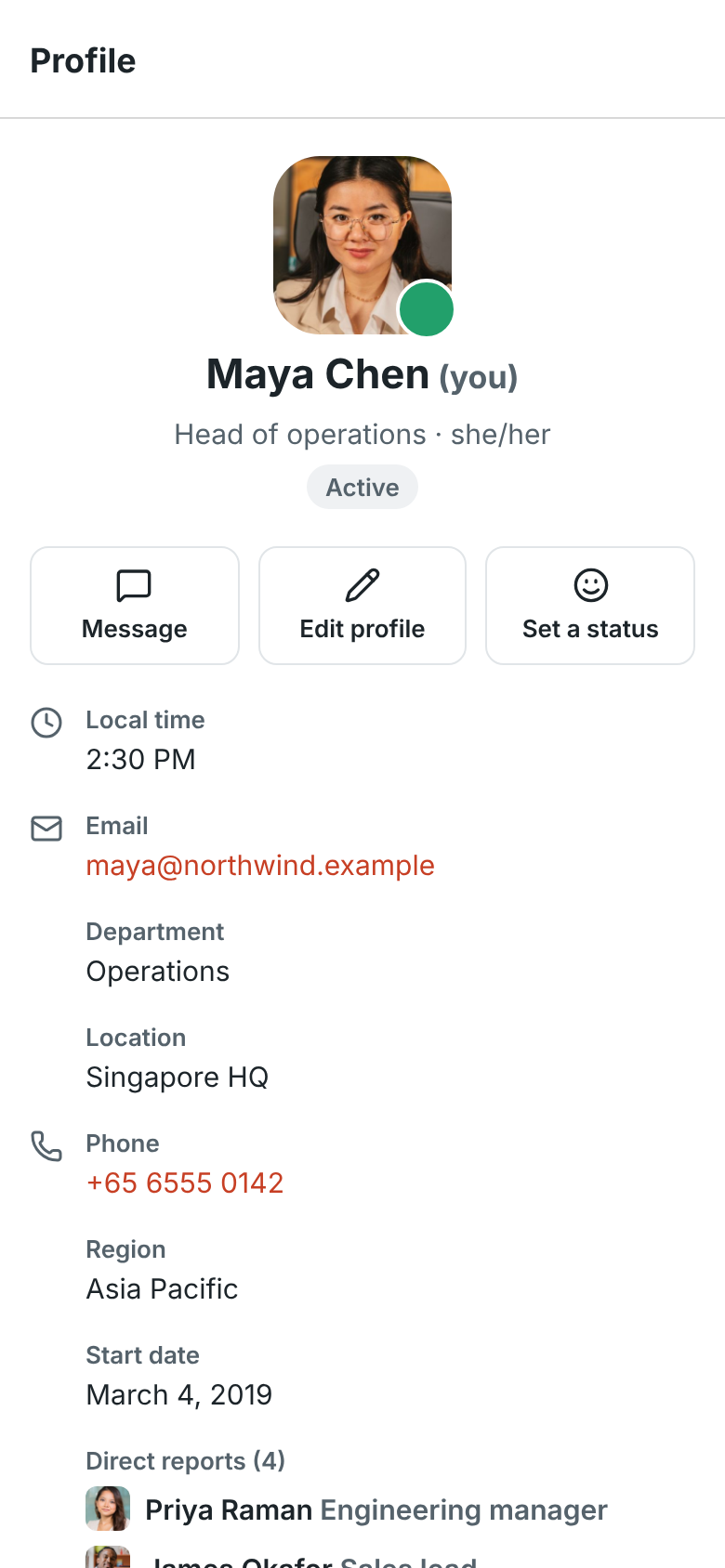
On your own profile, tap Edit profile to change your name, title and the profile fields you fill in yourself, Set a status, or Message to open your notes. Change your photo, and fields like dates and your manager, in Preferences on your computer. Tap your name on the You tab to open your profile.
Notifications
Section titled “Notifications”The app asks to send notifications after you sign in. Allow it to get a notification on your phone for:
- Messages in your DMs and group DMs.
- Mentions of you.
- Replies in threads you started or replied in.
- Channels you’ve set to Every message.
- A guest who has been waiting a couple of minutes in the lobby of a meeting you host. Tap it to open the meeting. See Waiting room alerts.
These follow the same rules as desktop notifications, including muted channels and each channel’s own setting. A huddle call to you rings your phone too: see Answer a call.
Your phone only gets notifications while you aren’t using Freesbe somewhere else. While you’re active in the desktop app or a browser, those alert you instead; when you step away from your computer, your phone takes over. A note to yourself written on your computer reaches your phone right away, and one written on your phone doesn’t notify it.
Tap a notification to open the message, or its thread. Press and hold it (or swipe it down) for two more choices that don’t open the app:
- Reply: type an answer and tap Send. It goes to the conversation, or to the thread when the notification was about a thread.
- Mark as read: marks the conversation read up to its newest message, on every device, and takes the notification away. For a thread, it only takes the notification away.
On iPhone, the number on Freesbe’s icon counts your unread direct messages and mentions, and goes up with each notification while the app is closed. Android shows Freesbe’s notifications on its icon the way it does for every app.
Links to Freesbe conversations and messages, such as ones a teammate pasted in an email, open straight in the app.
Alerts and other app messages show their title first; on Android, expand the notification to see details like the host and severity. See What a notification says.
While you have the app open, a new message that would notify you plays your phone’s notification sound instead, with a short buzz, and a huddle call rings with your phone’s ringtone. Both follow your phone’s volume and silent mode.
On Android, each conversation and thread gets one notification, which shows its newest messages and how many came. It rings for the first new message, and stays quiet as more arrive in the same burst. Read the conversation anywhere, on your phone, your computer or in a browser, and its notification goes away. If your phone was offline for a while, what you missed comes in quietly when it’s back, instead of ringing once for every message.
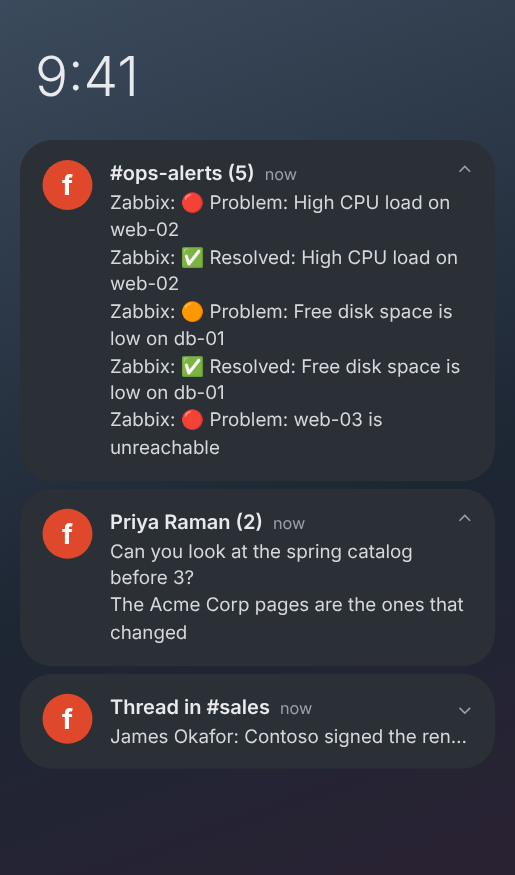
On Android, Freesbe’s notifications come in three kinds: Messages, Earlier and follow-up messages (the quiet ones) and Calls. To give one a different sound, or turn it off, tap Notifications on the You tab and pick the kind.
Quiet mode
Section titled “Quiet mode”On the You tab, turn on Quiet mode and choose how long to stop notifications, on every device: 30 minutes, 1 or 2 hours, or until 9 tomorrow morning. Turn it off to get them again straight away. Notifications on the same tab opens your phone’s settings for Freesbe, where you can turn them off or change how they show.
Passkeys
Section titled “Passkeys”Sign in faster with a passkey: tap Add a passkey on the You tab and confirm with your fingerprint, face or phone PIN. Your phone saves it in iCloud Keychain or Google Password Manager, so it also works on your other devices signed in to the same account. Next time, tap Sign in with a passkey on the sign-in screen.
Passkeys you add on your phone are listed with your others in Preferences → My account → Sign-in → Passkeys. See Sign-in and security.
Approve sign-ins
Section titled “Approve sign-ins”Your phone can give the second step when you sign in on a computer. On the You tab, turn on Approve sign-ins and confirm with your fingerprint or face. When a computer asks you to verify it’s you, a notification asks Is this you signing in? with where the sign-in is from. Tap the number your computer shows and confirm. Tap Deny if it wasn’t you.
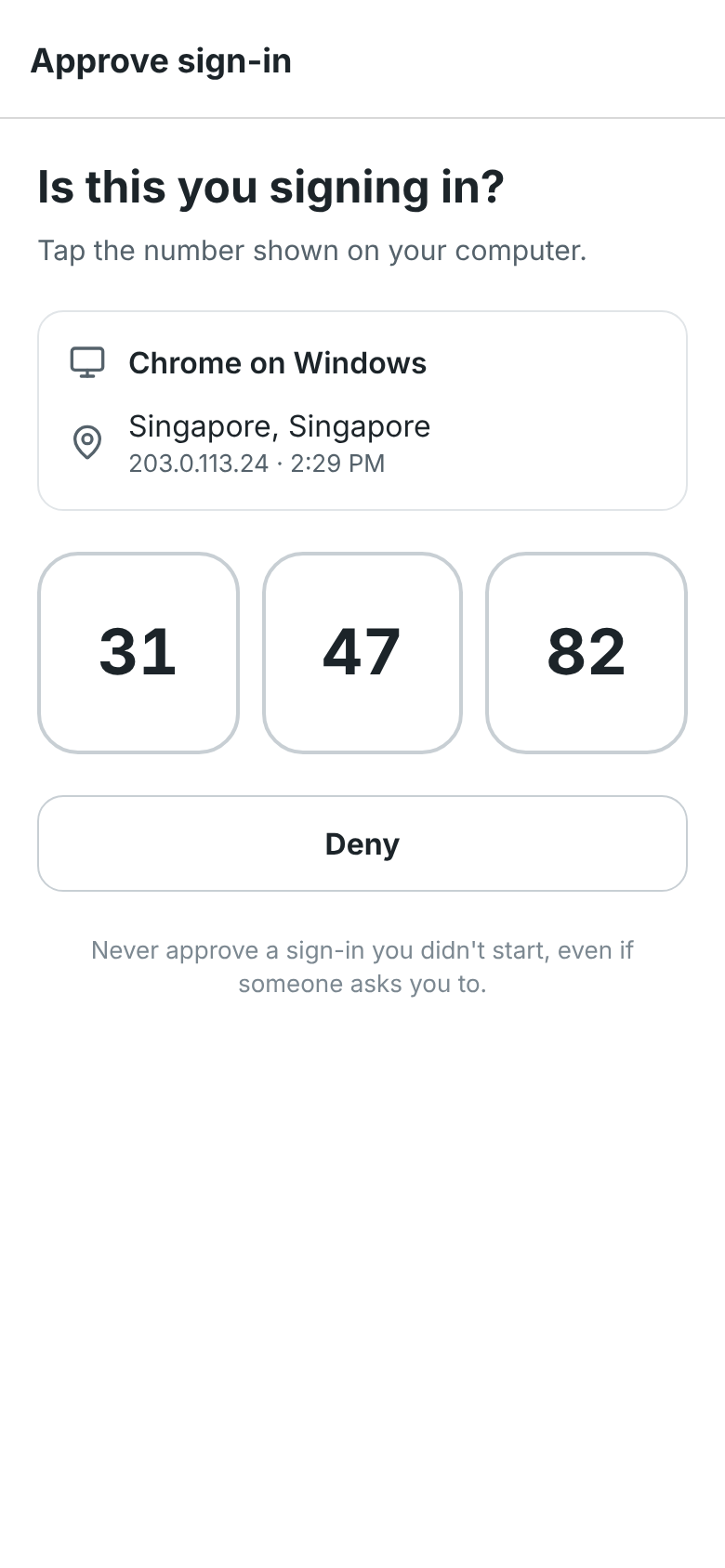
See Approve sign-ins on your phone.
More than one workspace
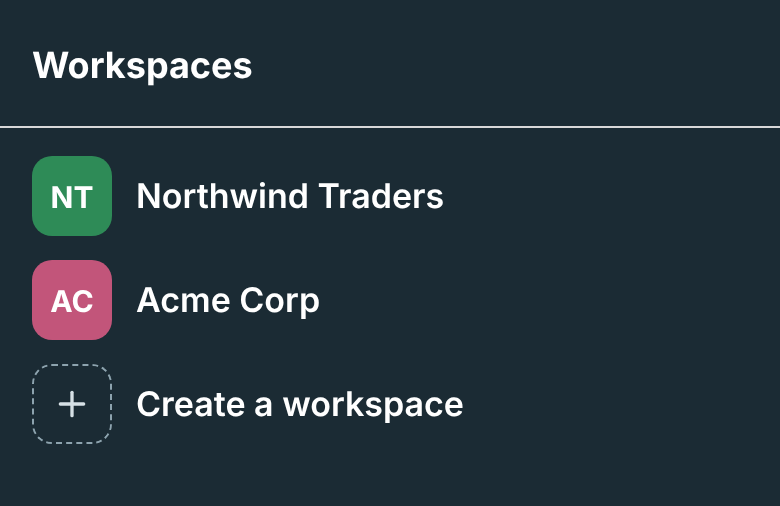
Section titled “More than one workspace”Tap the workspace name on Home, or Workspaces on the You tab, and pick another workspace. The app opens the one you used last next time.
Text size
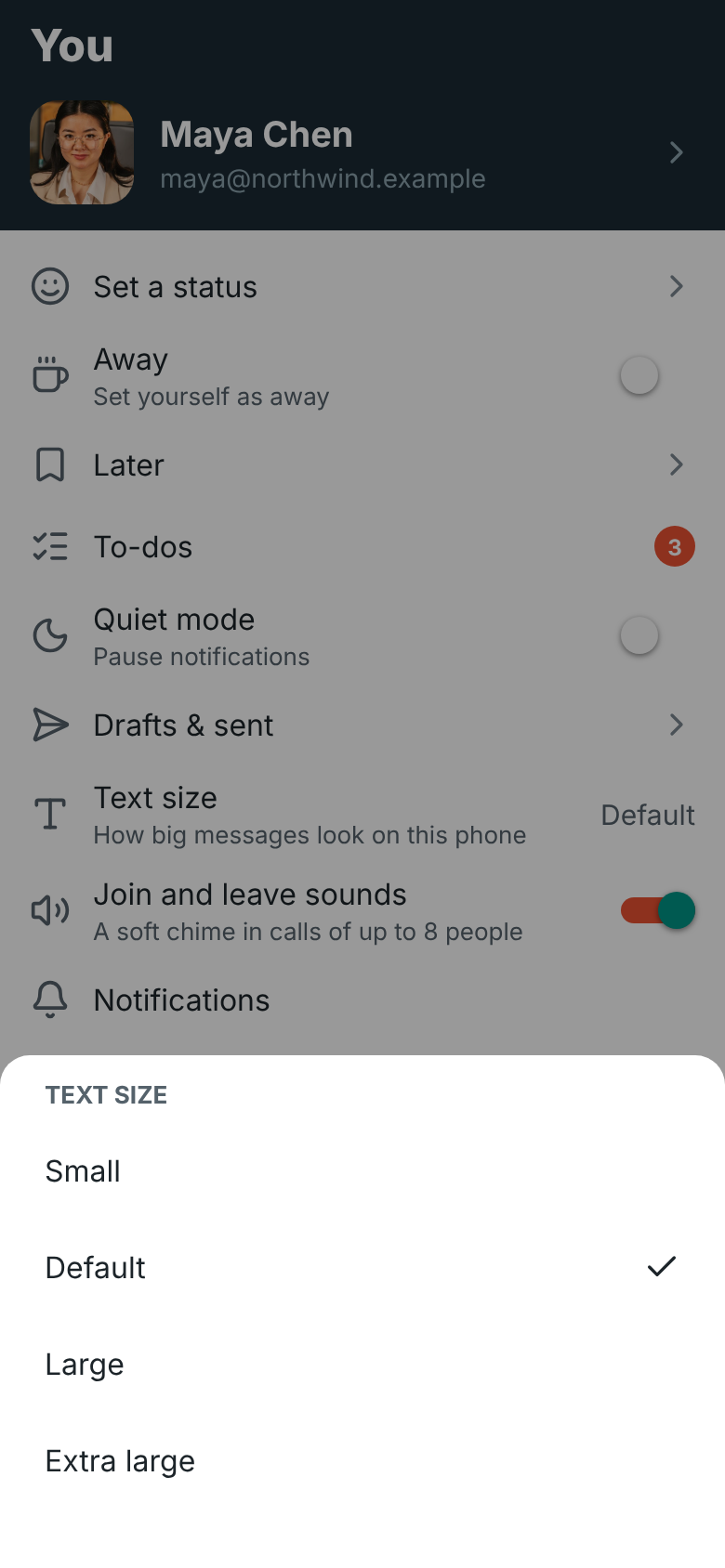
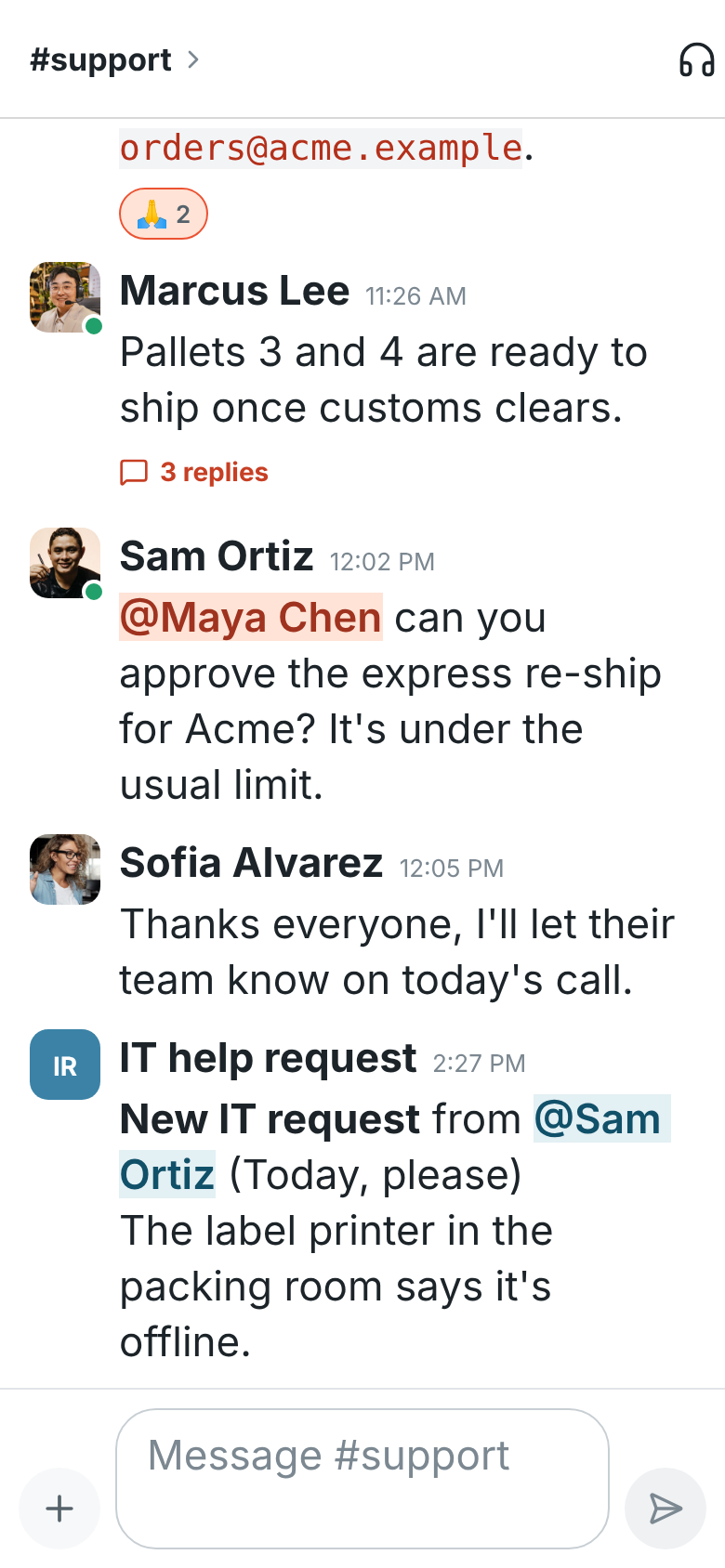
Section titled “Text size”Messages are drawn a little bigger on phones than on a computer, to be easy to read. To make all of the app’s text bigger or smaller, tap You → Text size. A short conversation at the top shows how text will look, and tapping Small, Default, Large, Extra large or Largest changes it right away, so you can try each one before you go back. It changes every screen of the app (messages, names, lists, menus and the message box), on this phone only. Your phone’s own text size setting still applies on top.
Join and leave sounds
Section titled “Join and leave sounds”On Android, huddles and meetings play a soft chime when someone joins and a quieter one when someone leaves, like on your computer, in calls of up to 8 people. It plays with the call, on the loudspeaker, earpiece or headset you’re using. To turn it off on this phone, switch off You → Join and leave sounds.
Light and dark
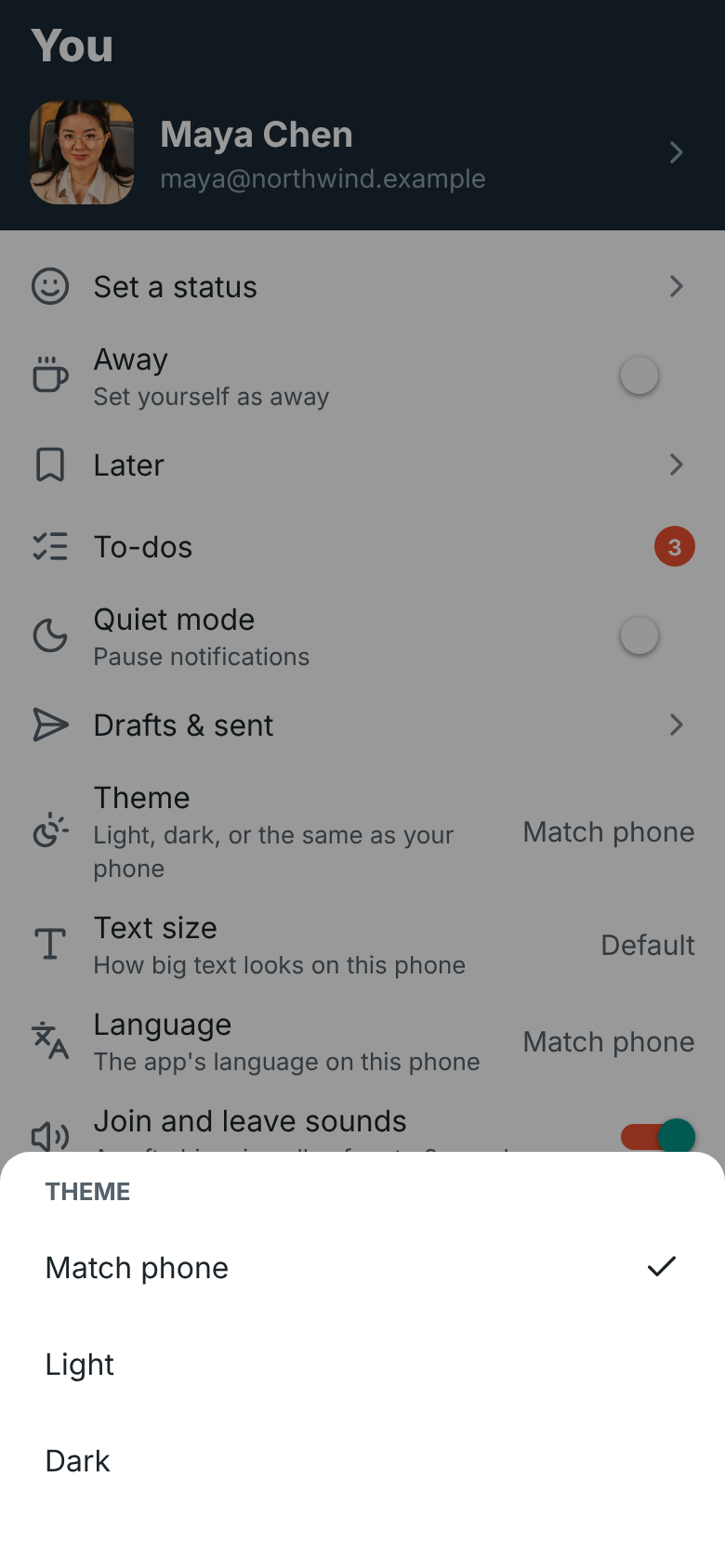
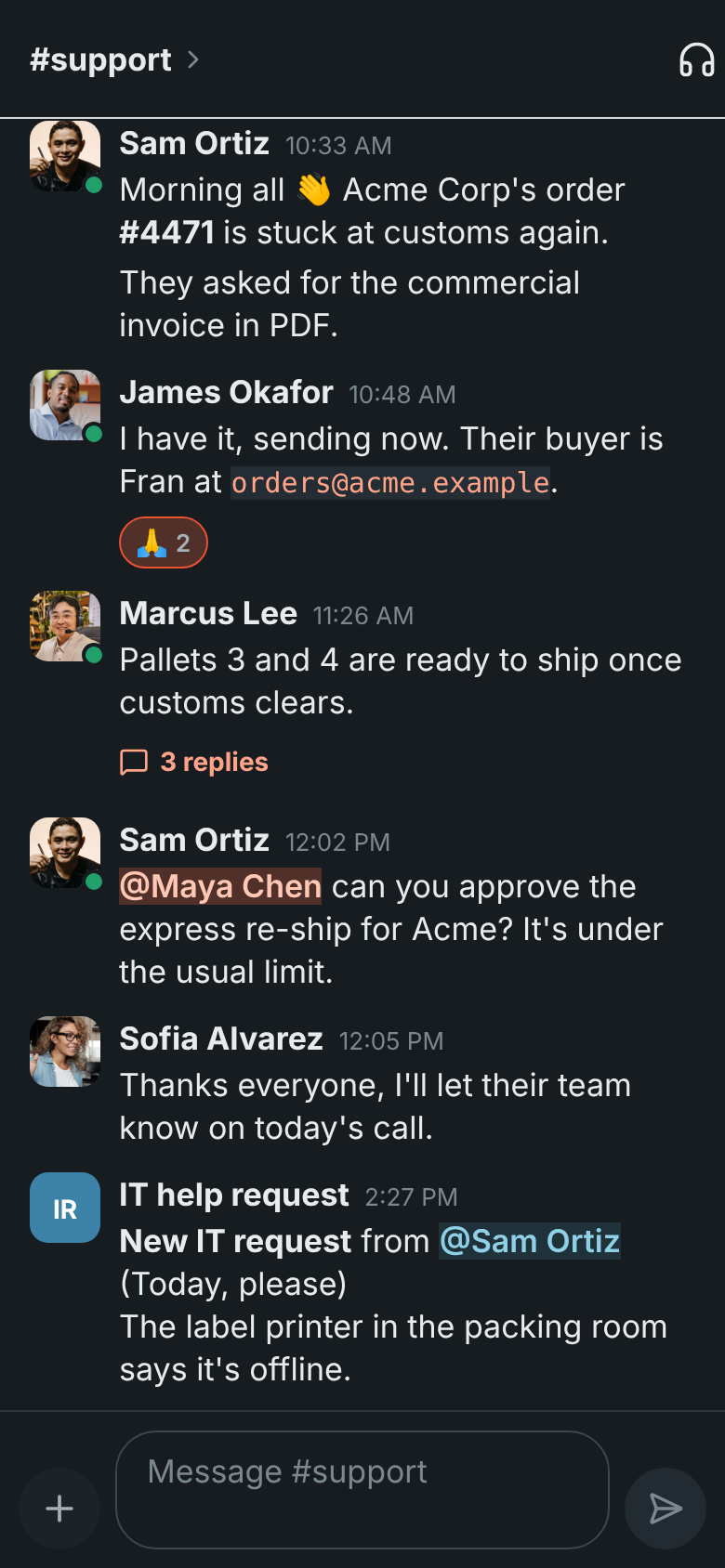
Section titled “Light and dark”The app starts out matching your phone: light when your phone is light, dark when it’s dark, and it switches with your phone if that changes at sunset. To keep it one way, tap You → Theme and pick Light or Dark. Match phone goes back to following your phone. The choice is kept on this phone only, so your computer keeps its own theme (see Appearance).
Your language
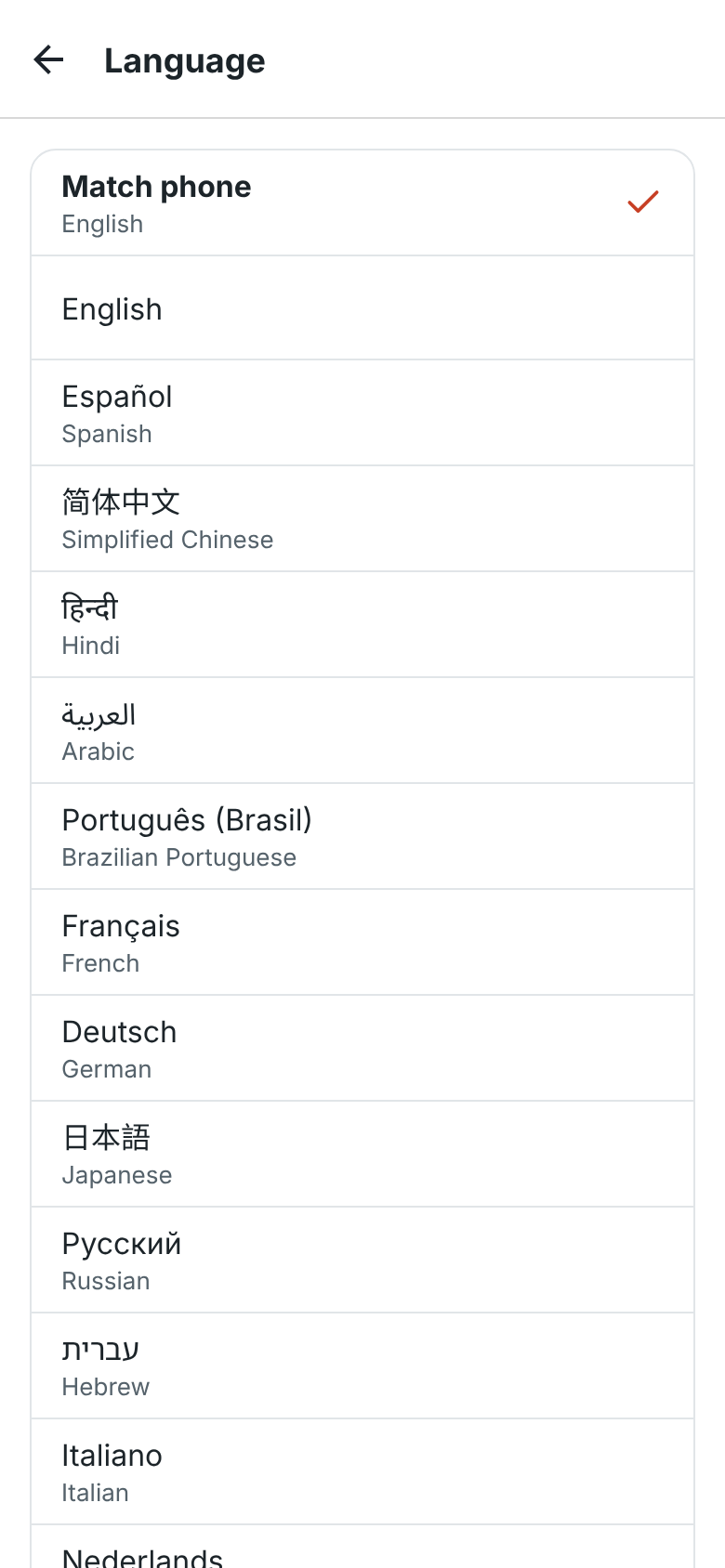
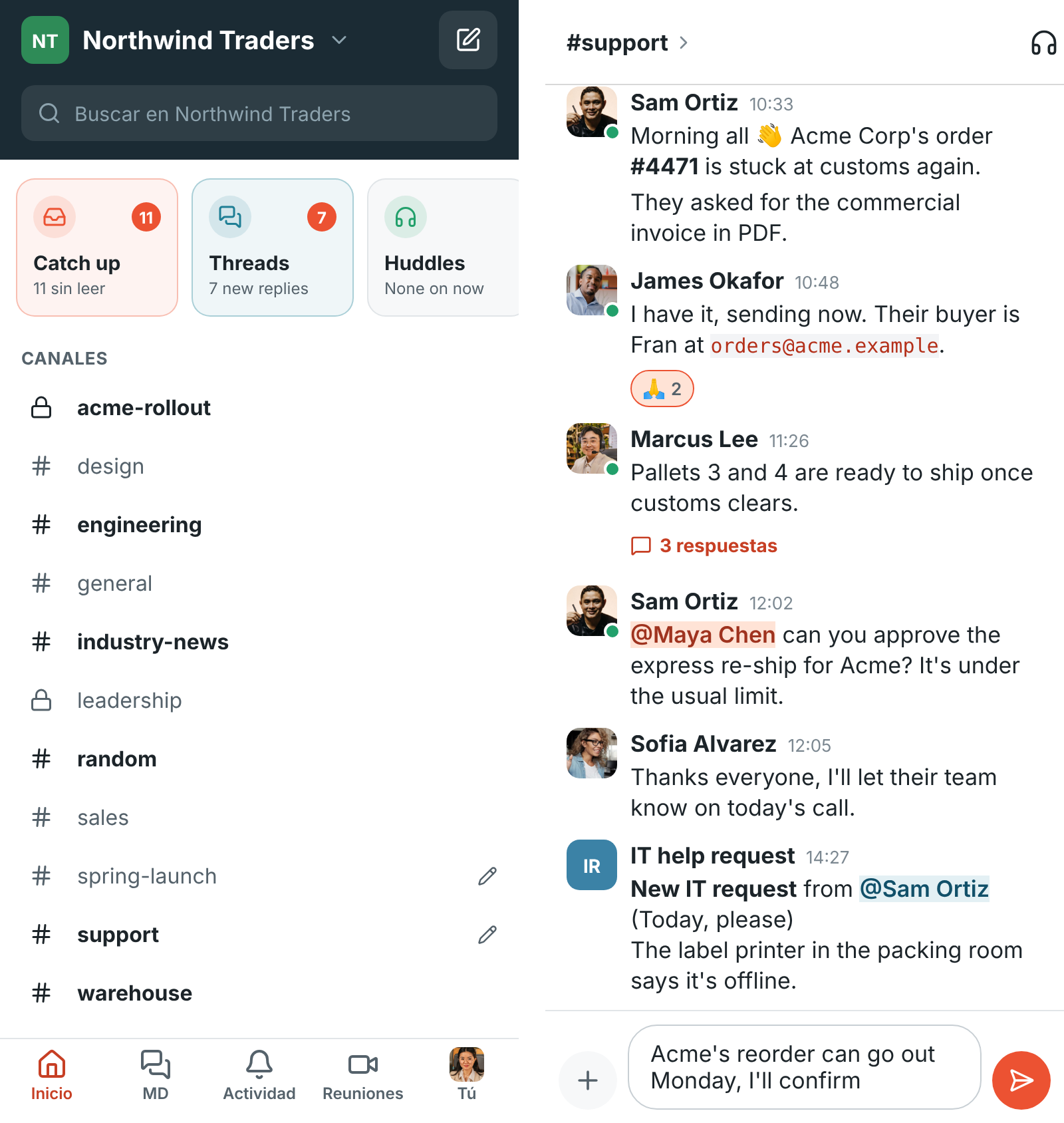
Section titled “Your language”The app starts out in your phone’s language. In Hebrew and Arabic it’s laid out right to left. See Language for the languages Freesbe speaks.
To use Freesbe in another language than the rest of your phone, tap You → Language:
- On Android 13 and newer, and on iPhone, Freesbe says it restarts in the language you pick, then opens its own Language screen in your phone’s settings. Pick a language there. You can also find it in your phone’s settings: on Android under Settings → System → Languages → App languages → Freesbe, and on iPhone under Settings → Freesbe → Language.
- On Android 12 and older, pick from the list in the app: Match phone, or any of the languages, each in its own name. Freesbe asks before it restarts in the new language.
The language is kept on this phone only, so your computer keeps its own. Match phone goes back to following your phone.
What’s new
Section titled “What’s new”The first time you open the app after an update, a card slides up with what changed since you last looked. You → What’s new shows the latest changes any time. See What’s new after an update.
Get help from support
Section titled “Get help from support”A company that uses Freesbe can help you in a support session: open the link they sent on your phone, or tap Got a code from support? Join with a code on the sign-in screen. You don’t need an account. On Android you can share your screen, and let them control the phone once you allow it. See On an Android phone.
Sign out
Section titled “Sign out”Tap Sign out on the You tab. Your phone stops getting notifications at once.
You can also sign the app out from your computer: it’s listed as Freesbe for iOS or Freesbe for Android in Your sessions. Signing it out there signs out the app and stops its notifications too.
Answers come from the Freesbe guides and are written by AI, so check the linked guide before relying on one. Please don't include personal details such as emails or passwords.