
Share a channel on Telegram
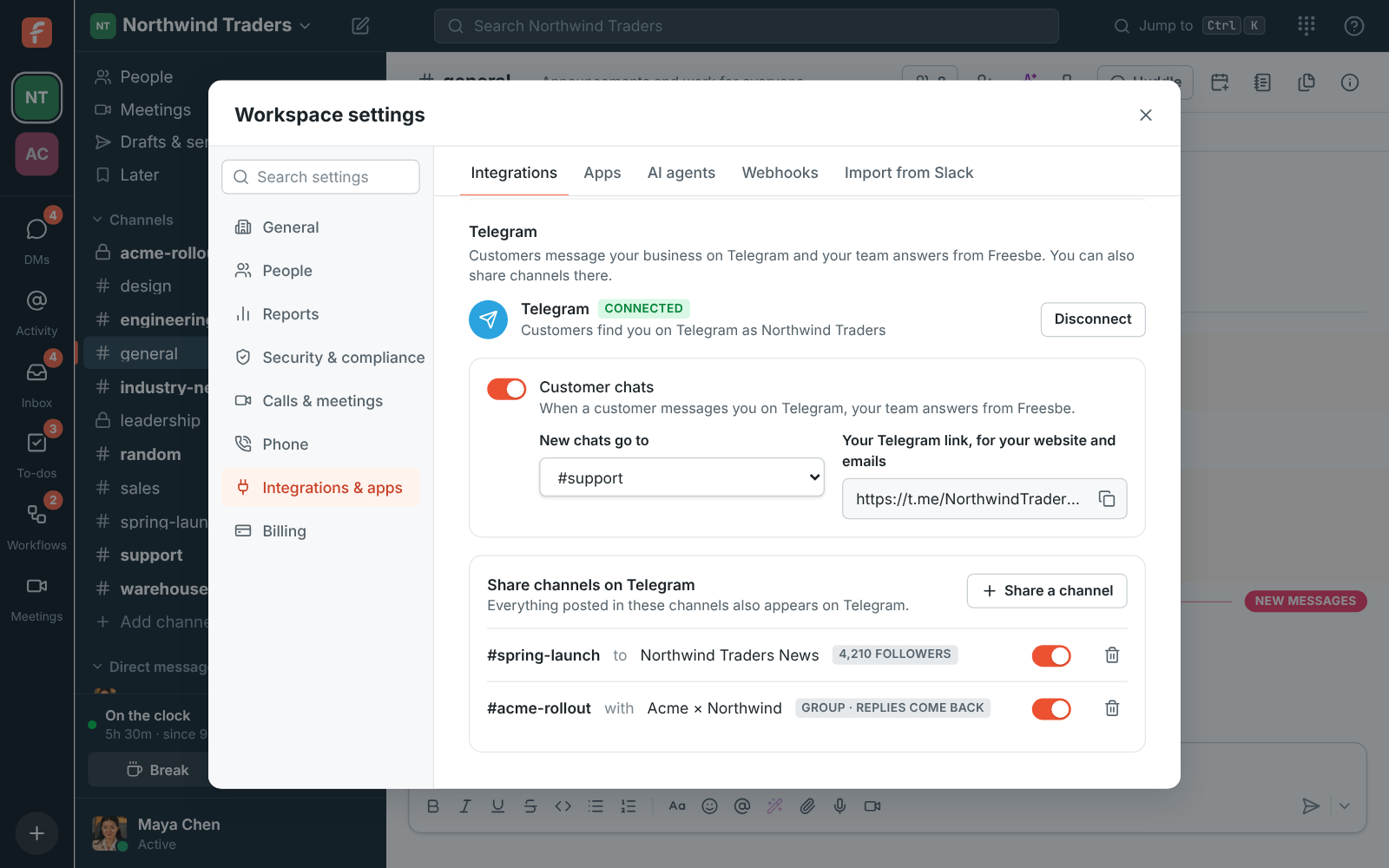
Share a Freesbe channel on Telegram, and every post in it also appears on your Telegram channel or group, with edits and deletes following. A group can talk back: what people write there comes into the channel. You need Telegram connected first (see Answer Telegram messages in Freesbe).
1. Add your business’s account on Telegram
Section titled “1. Add your business’s account on Telegram”- A Telegram channel: open the channel in Telegram, go to Administrators → Add Admin, find your business’s account (its username, like NorthwindTradersBot) and let it post messages.
- A group: open the group and add your business’s account as a member.
2. Share the channel
Section titled “2. Share the channel”- Open Workspace settings → Integrations → Customer inbox and, under Telegram → Share channels on Telegram, click Share a channel.
- Pick the Freesbe channel, and where it appears on Telegram. A Telegram channel your account isn’t an admin of shows make it an admin first.
- For a group, leave Replies come back on to bring what people write there into the channel.
- Click Share, then post something in the channel: it shows up on Telegram under your name.
Good to know
Section titled “Good to know”- Posts from people show. Posts from apps and workflows, and messages that came from Telegram, don’t go back out.
- Thread replies go to groups shared both ways, as replies to the post. Telegram channels only get the posts themselves.
- The switch next to a share pauses it; the bin stops it. What’s already on Telegram stays.
- A workspace can share up to 50 channels on Telegram.
Answers come from the Freesbe guides and are written by AI, so check the linked guide before relying on one. Please don't include personal details such as emails or passwords.