
What's new
The newest changes are at the top. After an update, Freesbe shows you the changes you haven’t seen yet, and you can open them any time from ? → What’s new in the app (You → What’s new on your phone). To follow along without opening Freesbe, subscribe to the RSS feed in any feed reader. freesbe.net/changelog brings you here too.
October 2026
Section titled “October 2026”PDFs show their first page
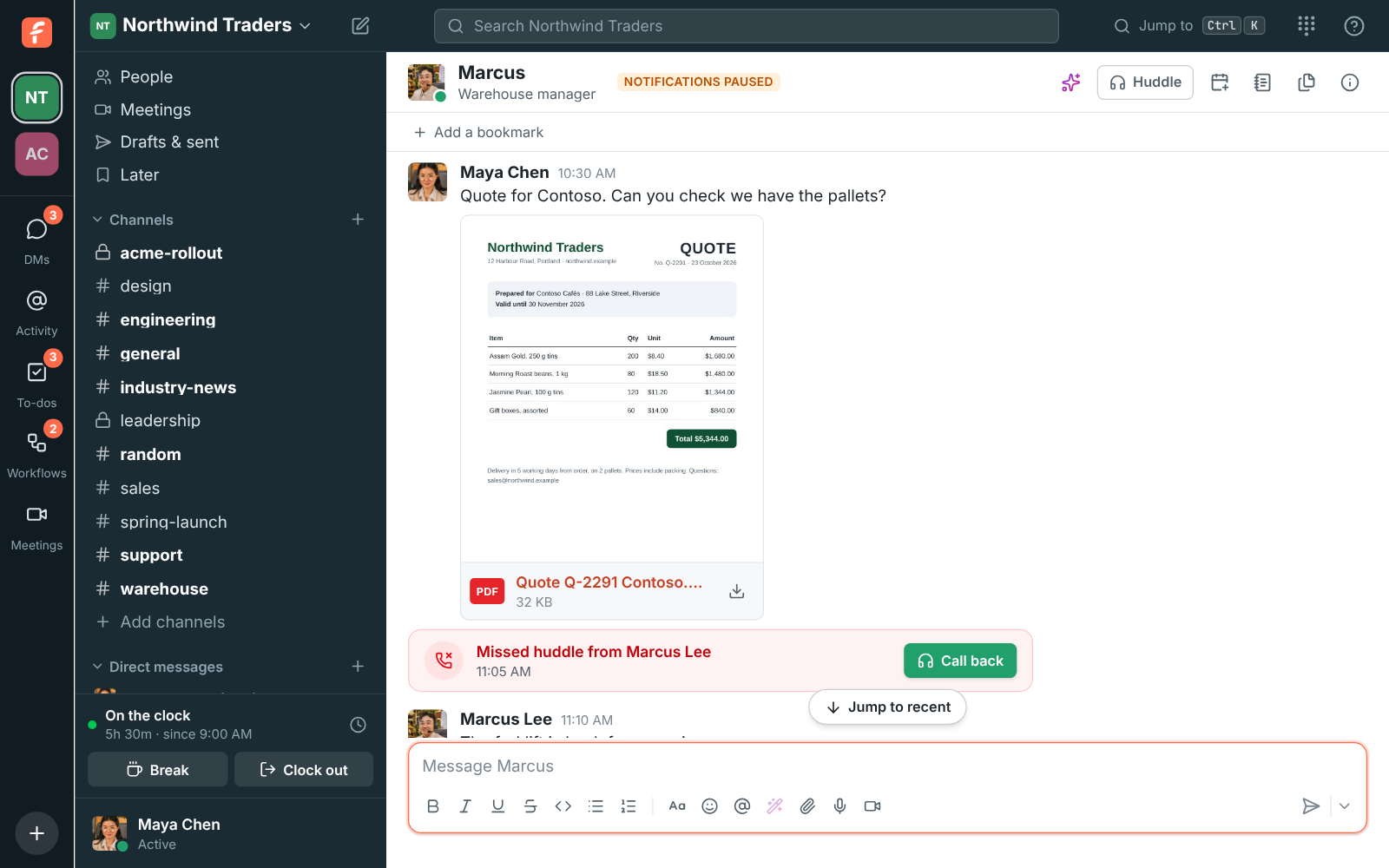
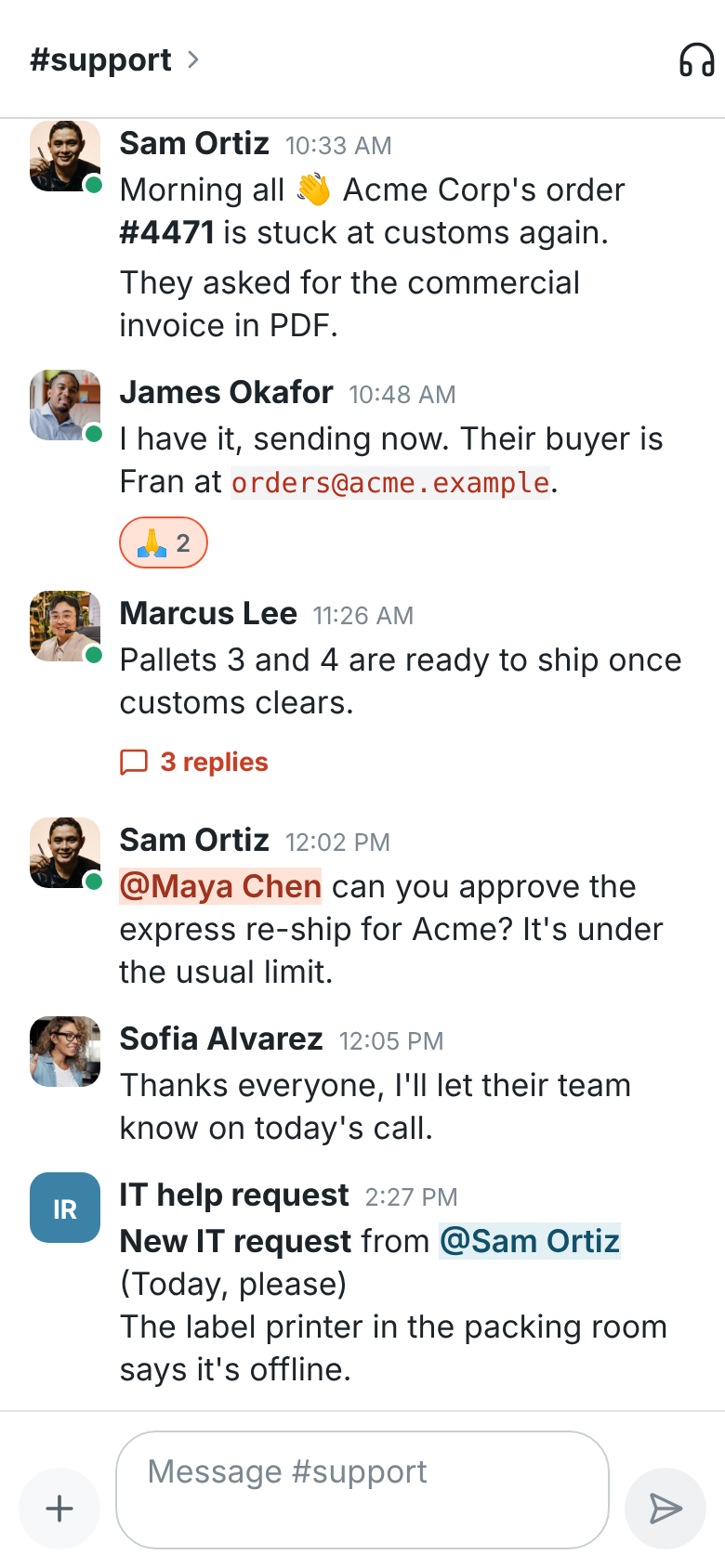
Section titled “PDFs show their first page”- A PDF you send shows its first page in the conversation, with its name and size under it, so you can tell the quote from the invoice at a glance. Click it to open it. Sending from the web, the desktop app or Android draws the page. See PDFs show their first page.
- PDFs without a page picture show a red PDF label instead of a plain file icon.
- On Android, link previews now show the page’s picture and its site, as on the web.
Admin Center: tabs on the page, one strip of icons
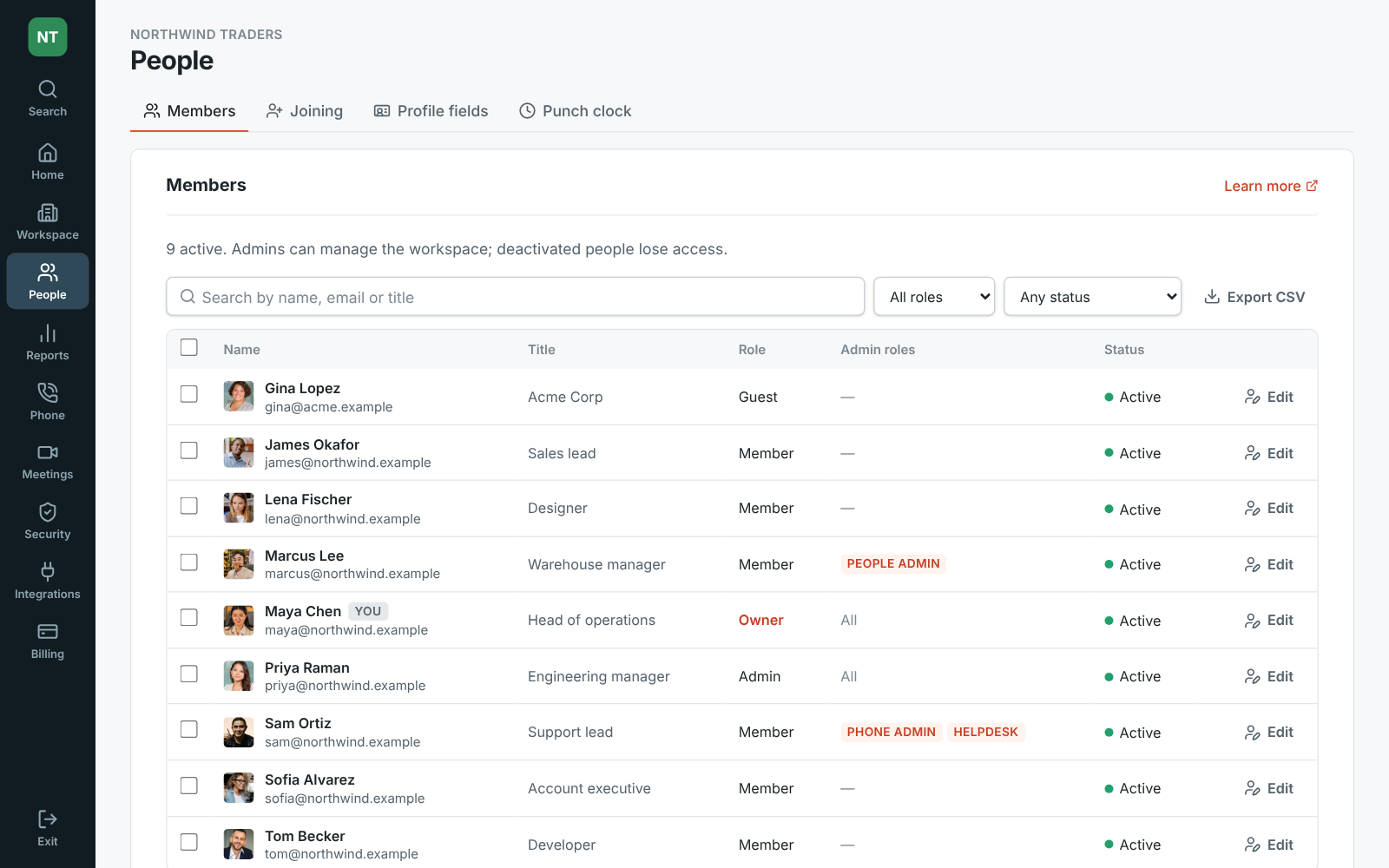
Section titled “Admin Center: tabs on the page, one strip of icons”- The Admin Center has one strip of icons on the left. Each area’s pages are tabs across the top of the page, like People → Members, Joining, Profile fields, Punch clock, so the page gets the whole screen.
- The magnifying glass at the top of the strip (or Ctrl K, ⌘K on a Mac) finds any page, tab or setting. Exit at the bottom goes back to the app.
- Switch workspace or sign out from your workspace’s icon at the top of the strip. See the Admin Center.
Pick the app’s language on your phone
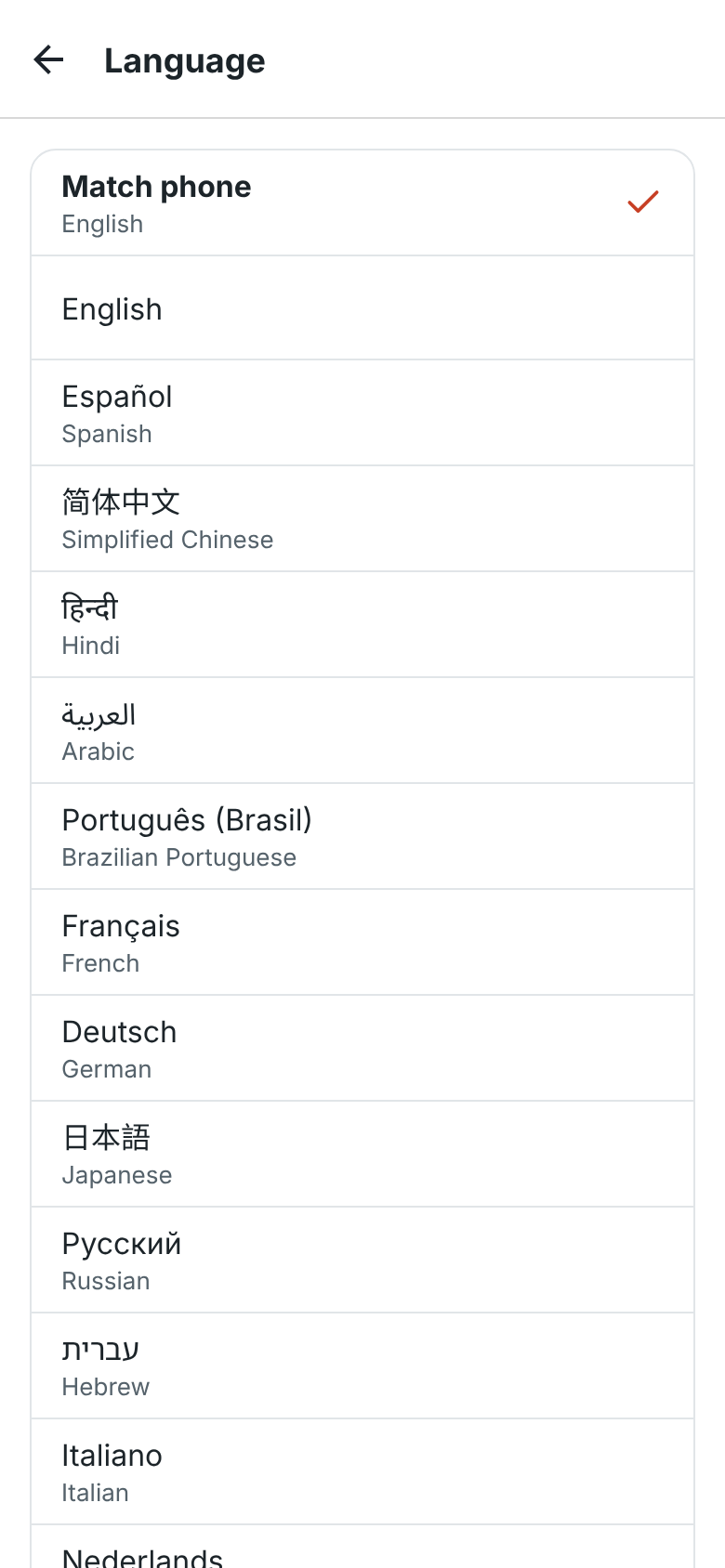
Section titled “Pick the app’s language on your phone”- You → Language in the iPhone and Android apps sets Freesbe’s language apart from the rest of your phone. On Android 13 and newer and on iPhone it opens Freesbe’s Language screen in your phone’s settings; on older Android phones you pick from a list in the app.
- Freesbe asks before it restarts in the new language. See Your language.
Answer customers on Telegram, and share channels there
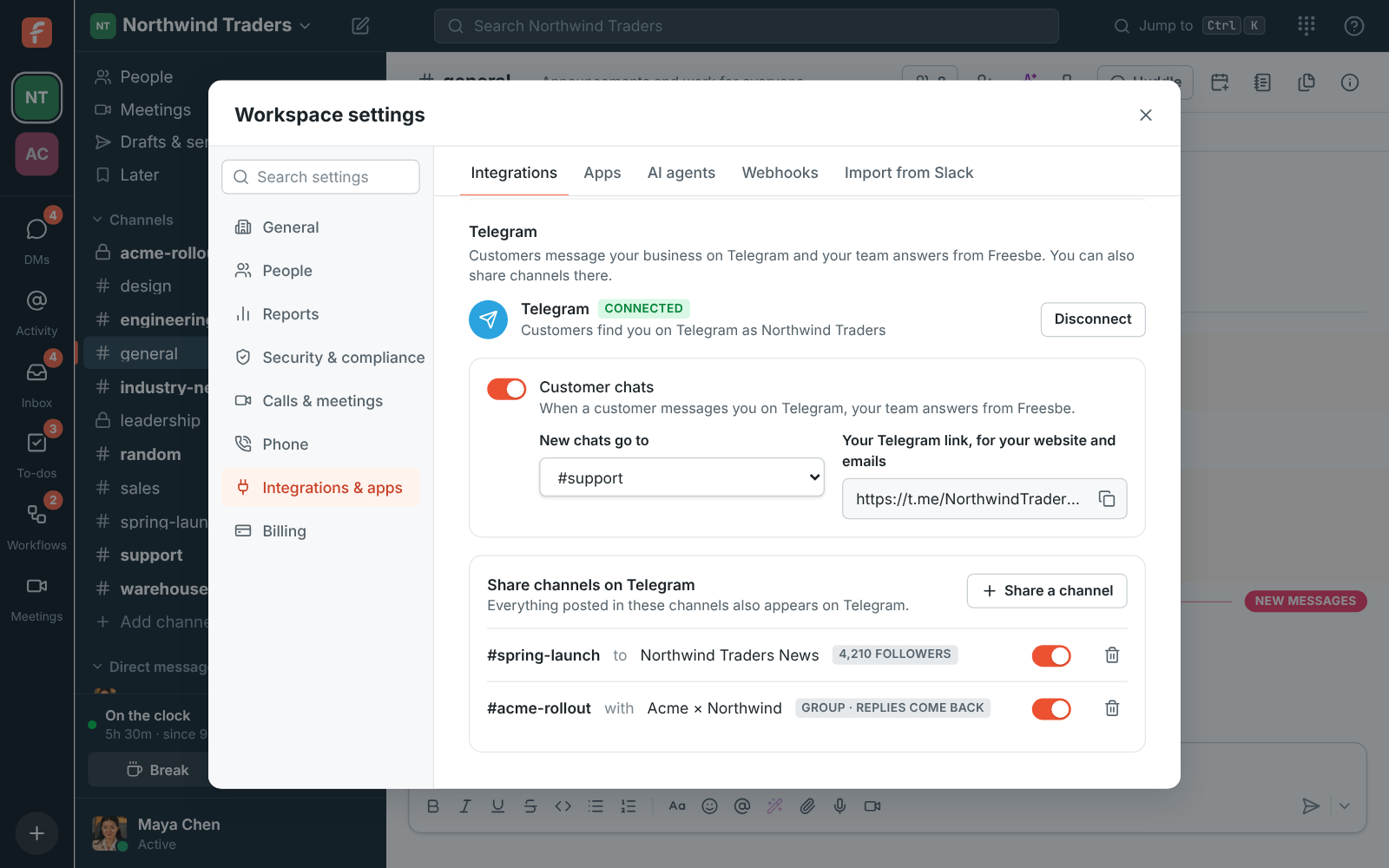
Section titled “Answer customers on Telegram, and share channels there”- Connect your business’s Telegram in Workspace settings → Integrations → Customer inbox, and customers who message you there land in a channel, one thread per customer. Replies, photos and files go back on Telegram, with no 24-hour limit and no message fees.
- Share channels on Telegram posts what’s said in a channel on your Telegram channel or group, edits and deletes too. A group can talk back into the channel. See Telegram.
Longer, easier-to-read notifications
Section titled “Longer, easier-to-read notifications”- Notifications show up to 400 characters of a message instead of cutting it off after 120, as far as your computer or phone has room. See What a notification says.
- On Windows, a message in Hebrew or Arabic now has the sender as its title, instead of “New notification”, and the message in regular-size text, right-aligned. Needs desktop app 0.1.13.
Choose how your calls ring
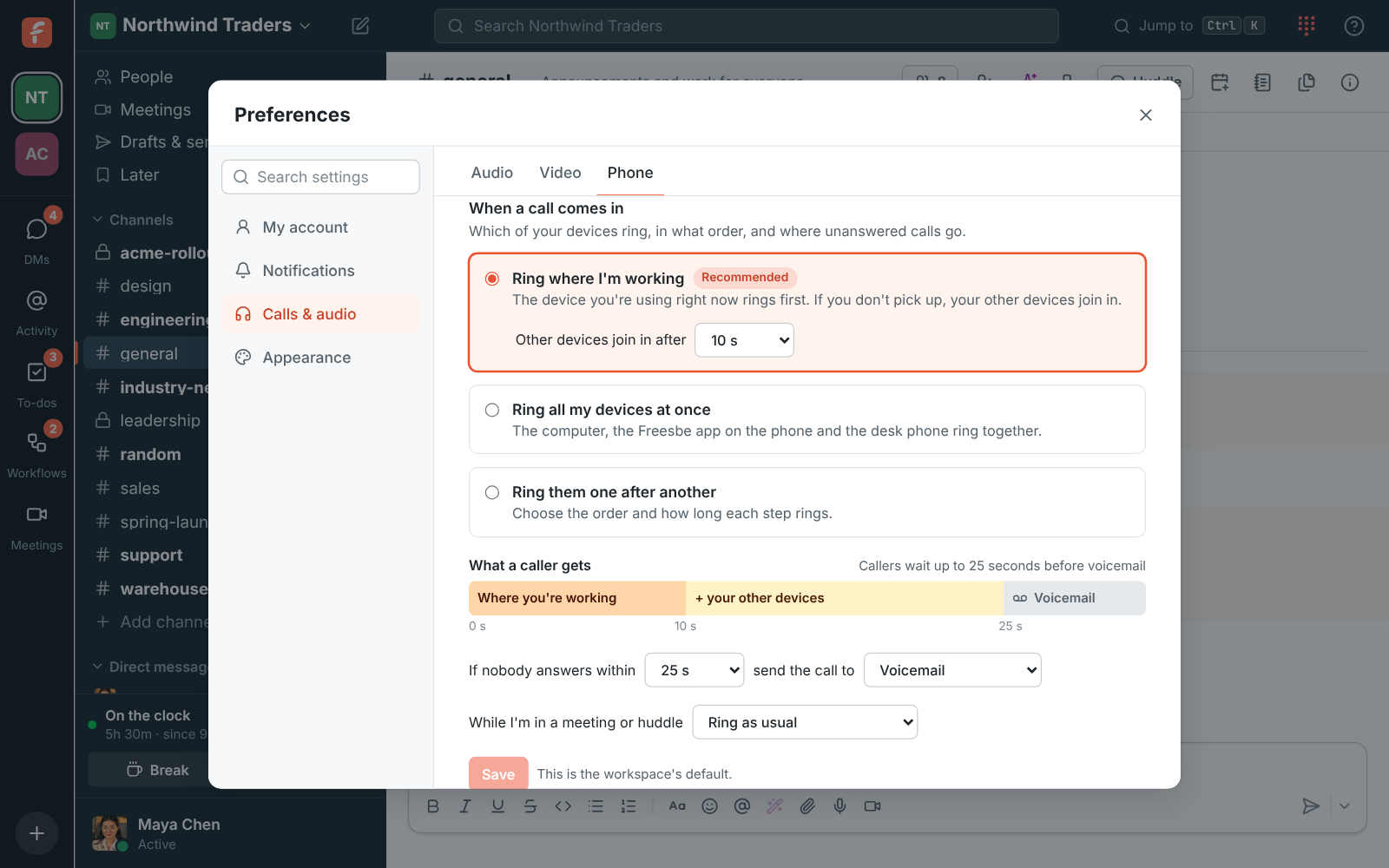
Section titled “Choose how your calls ring”- Follow-Me: your calls now ring the device you’re using right now first, and your other devices join in 10 seconds later. After 25 seconds the caller reaches your voicemail.
- Change it in Preferences → Calls & audio → Phone → When a call comes in: ring everything at once, or one device after another with how long each rings. Unanswered calls can go to voicemail, a teammate or your mobile number (press 1 to take the call). See Follow-Me.
- Admins and Phone admins can set it up for someone, lock it, and turn off a device that shouldn’t ring, in the Admin Center under Phone → Extensions → Call handling.
The phone button shows how your phone is doing
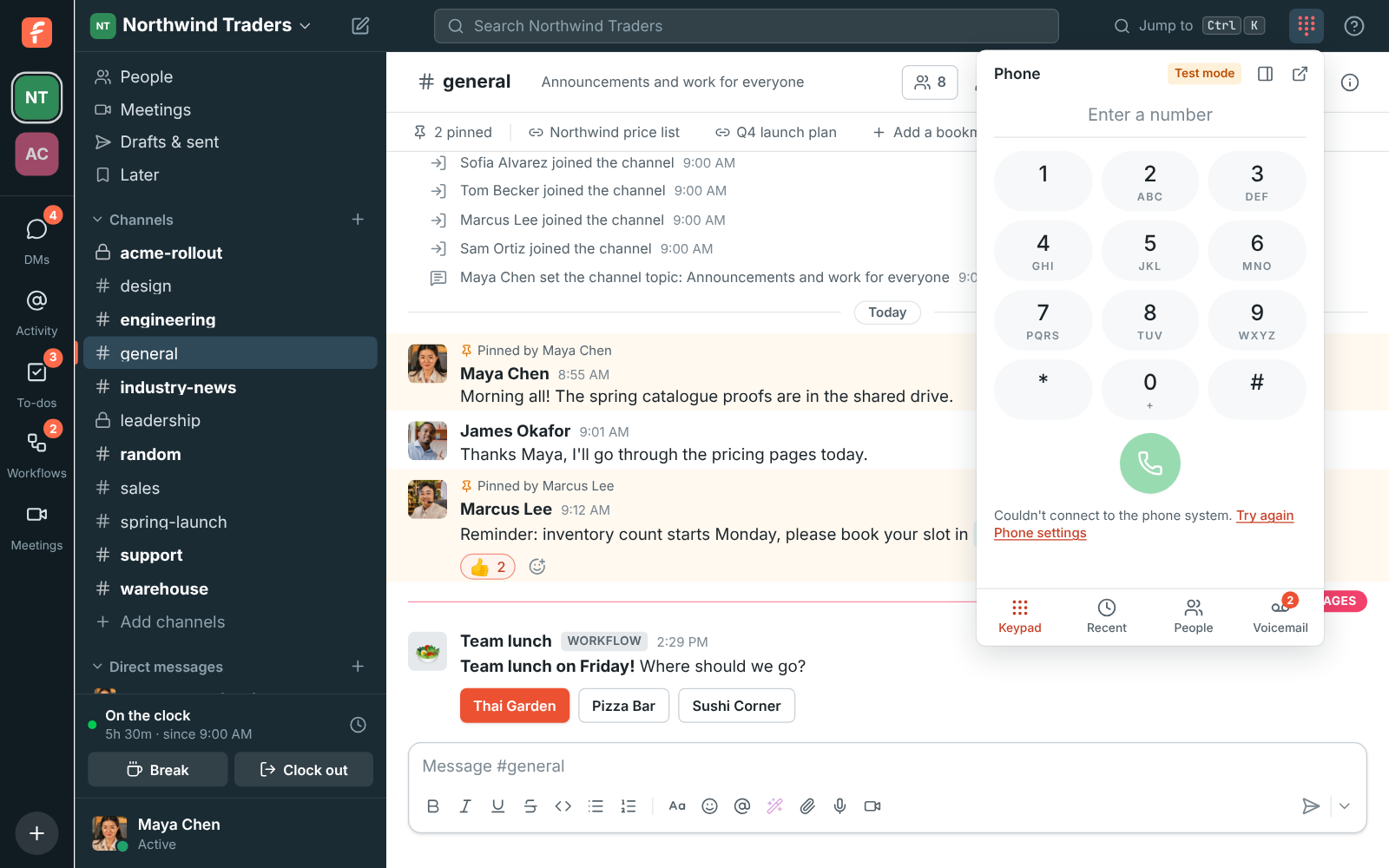
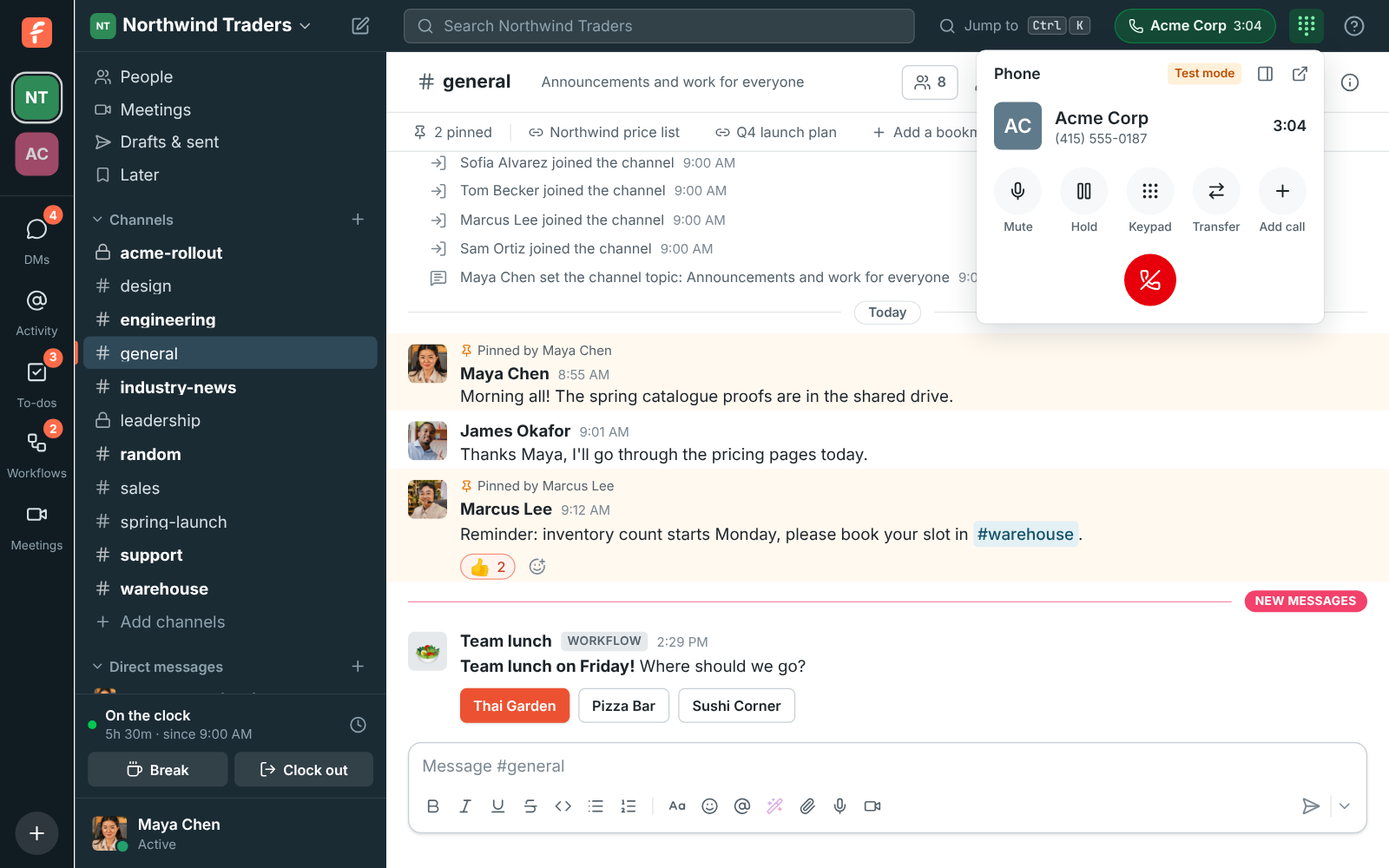
Section titled “The phone button shows how your phone is doing”- The phone button in the top bar turns green while you’re on a call: click it to see the call from anywhere in Freesbe.
- It turns red when Freesbe loses its connection to the phone system, so you know calls can’t reach you. Open the phone and click Try again, or wait for it to reconnect by itself. See The phone.
Notes to yourself reach your other devices
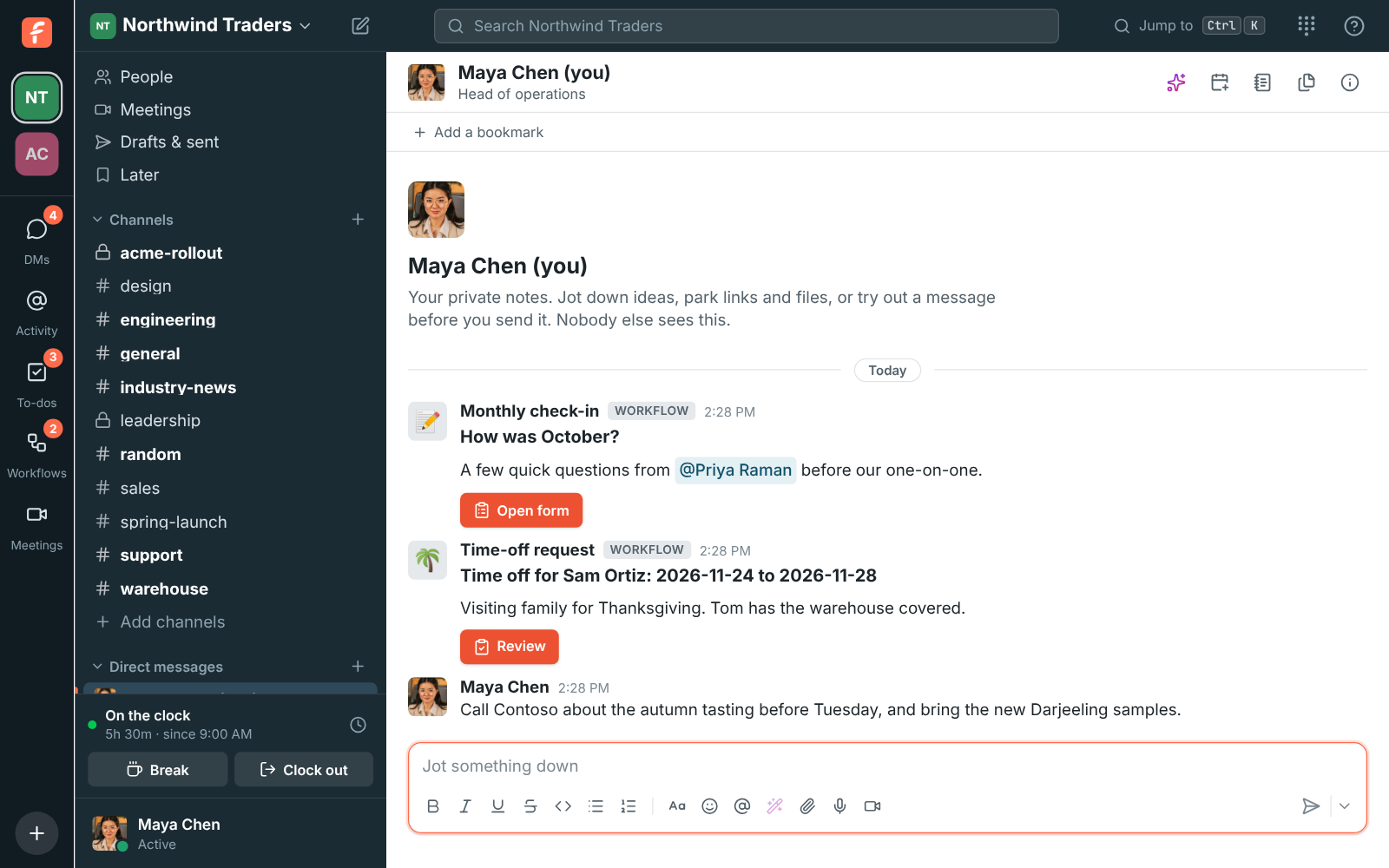
Section titled “Notes to yourself reach your other devices”- A message to yourself now notifies your other devices: type a link on your computer and your phone shows it, even while you’re still at your computer. The device you wrote it on stays quiet. See Message yourself.
Sign in with Freesbe has its own page
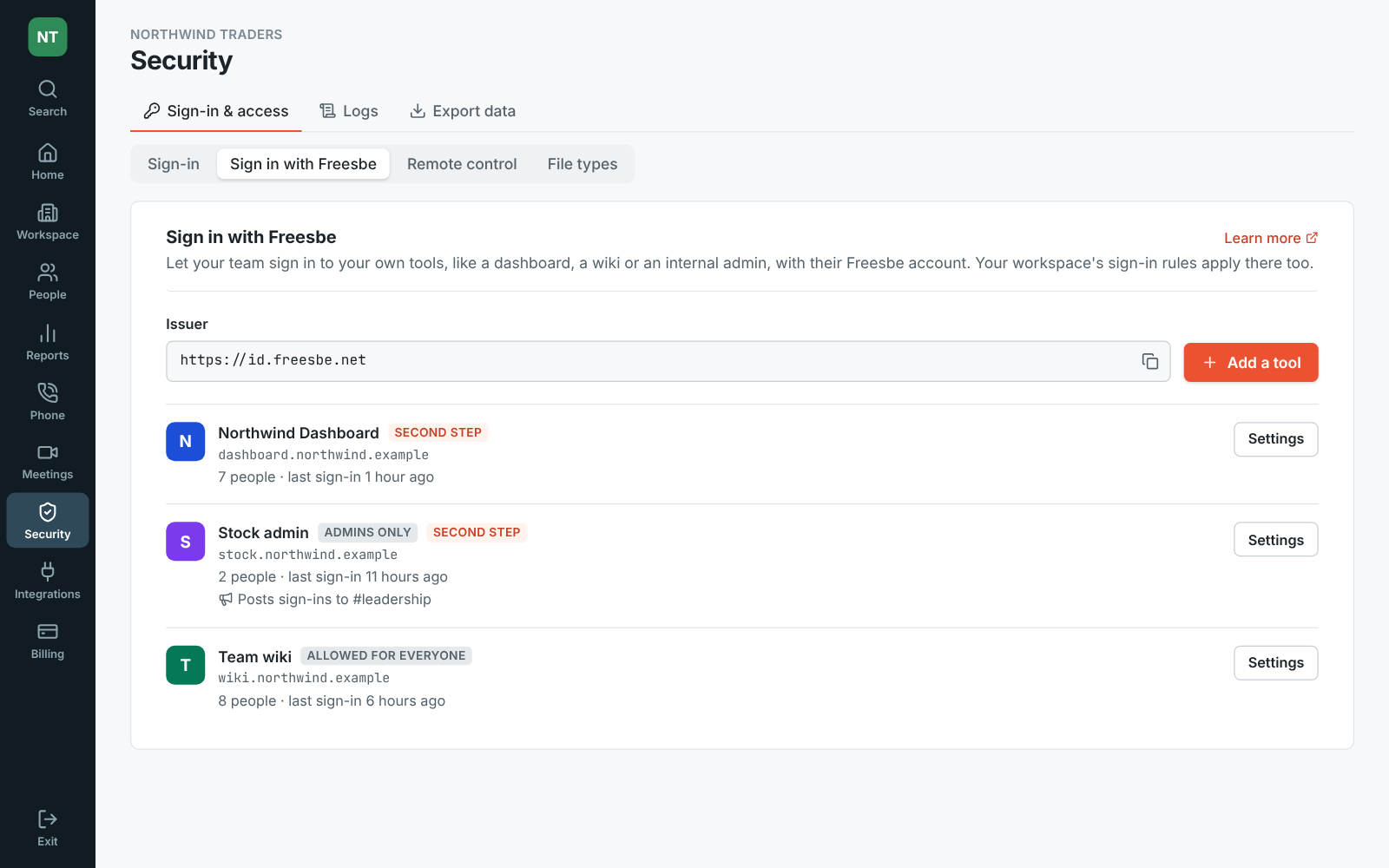
Section titled “Sign in with Freesbe has its own page”- The tools your team signs in to with Freesbe are now in one list in the Admin Center, under Security & compliance → Sign in with Freesbe, with who can sign in to each, how many people have and when someone last did.
- Post sign-ins to a channel: the tool’s bot posts there each time someone signs in to it.
- Add a tool sets one up from there, as a new app or one you already have. See Sign in with Freesbe.
Voicemail for everyone, by email if you like
Section titled “Voicemail for everyone, by email if you like”- Everyone on the phone system from Freesbe now has voicemail from the moment they’re on it, free and with nothing to set up.
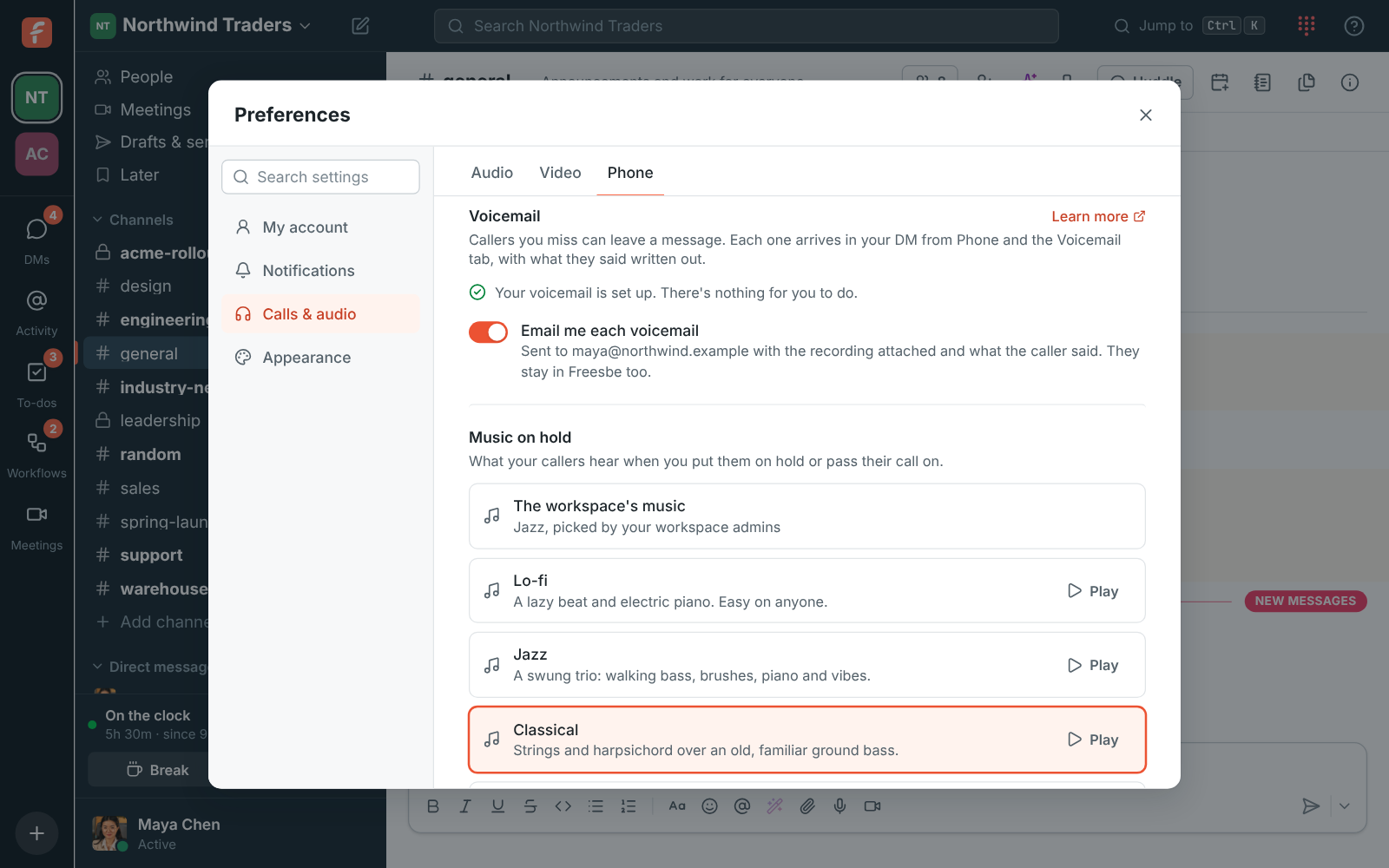
- To get voicemails by email too, turn on Email me each voicemail in Preferences → Calls & audio → Phone. Each email has the recording attached and what the caller said written out. Voicemails stay in your DM from Phone and the Voicemail tab either way. See Get voicemails by email.
Earlier
Section titled “Earlier”Writing help shows its suggestion as it writes
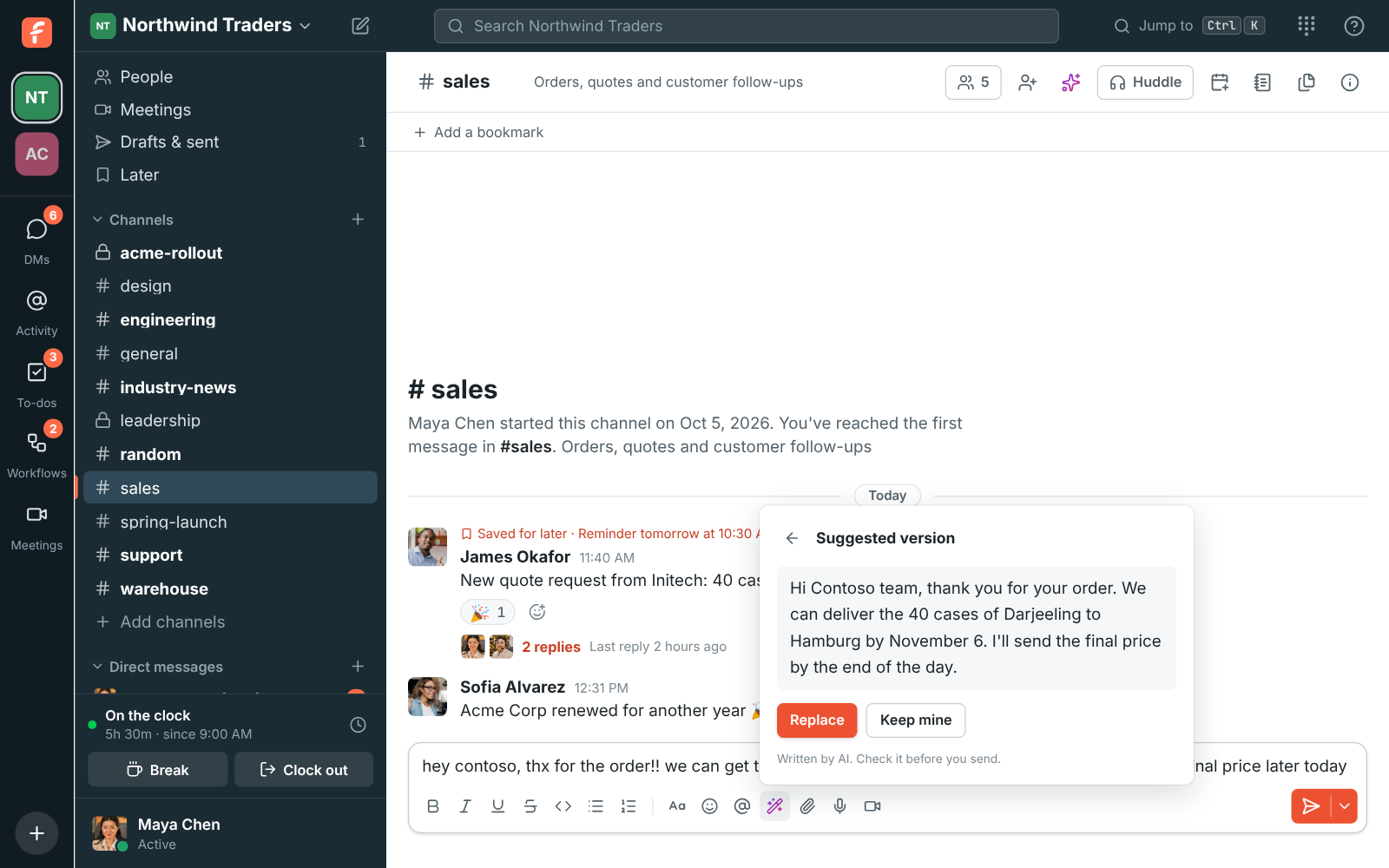
Section titled “Writing help shows its suggestion as it writes”- Improve writing now shows the suggested version as the AI writes it, so it starts appearing straight away instead of after a wait. See Improve what you write.
- It no longer gets stuck on “Writing…”: if the AI doesn’t answer within half a minute, you see that it took too long and can try again.
Edit everything about a member in the Admin Center
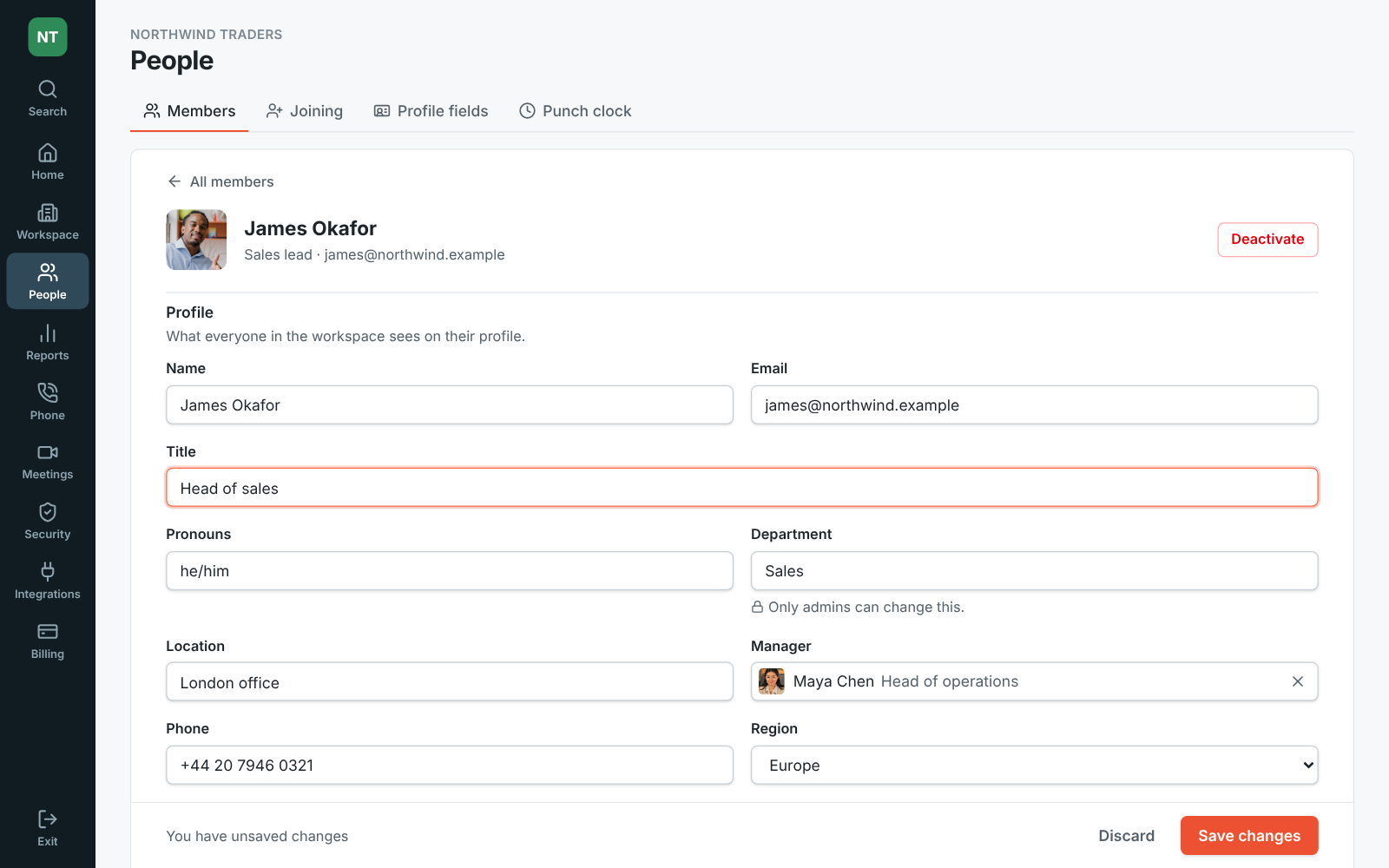
Section titled “Edit everything about a member in the Admin Center”- In the Admin Center, People → Members now opens a page for each person: their name, email, title and profile fields, their role and admin roles, and on the phone system their extension, what rings them and whether they supervise the call center. One Save changes saves it all.
- Roles no longer change from a dropdown in the table, so nobody changes one by accident.
- Names and emails can be changed for your company’s own people, at your verified email domains. See Edit a member.
A bigger keypad, and numbers written your country’s way
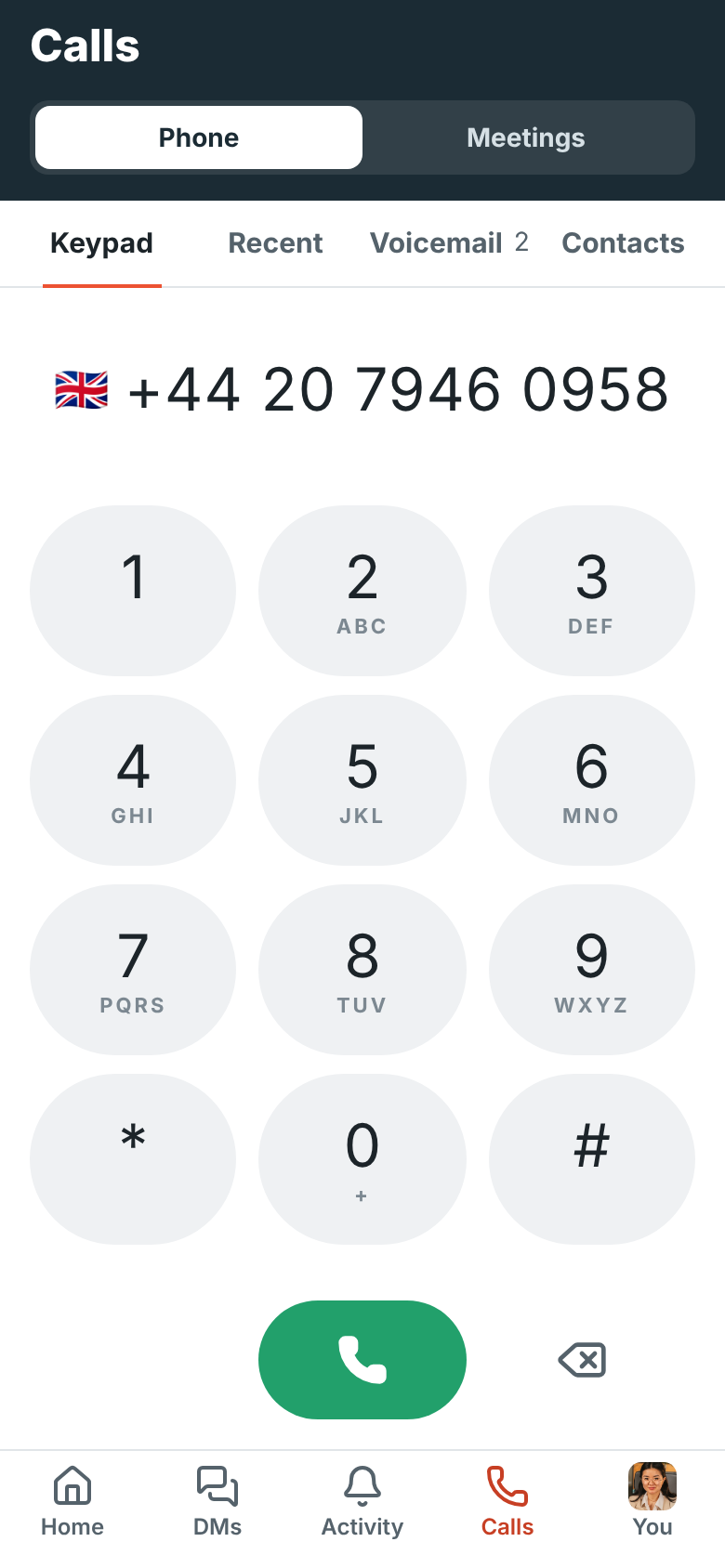
Section titled “A bigger keypad, and numbers written your country’s way”- The keypad in the phone app’s Calls tab is bigger: the keys fill the screen like your phone’s own dialer, and Keypad, Recent, Voicemail and Contacts spread evenly across the top.
- Numbers are formatted as you type, the way your country writes them, on the phone and on the computer: (415) 555-0142 in the US. Start with + for a number abroad and it’s written the international way with that country’s flag, as in 🇬🇧 +44 20 7946 0958. Recent calls and call screens show numbers the same way. See Phone calls.
Pictures and PDFs open in the phone app
Section titled “Pictures and PDFs open in the phone app”- In the Android app, tapping a picture in a conversation now opens it full screen in Freesbe instead of asking which app to open it with.
- Swipe sideways through the other pictures in the message, pinch or double tap to zoom in, and tap Share to send the picture to another app. Close it with the X, Back, or by dragging it down.
- PDFs open in the app too, looking the same as on the web and the desktop app: scroll through the pages, tap one to zoom in, and Share or Close at the top. See Send photos, files and screenshots.
A home for each part of the Admin Center
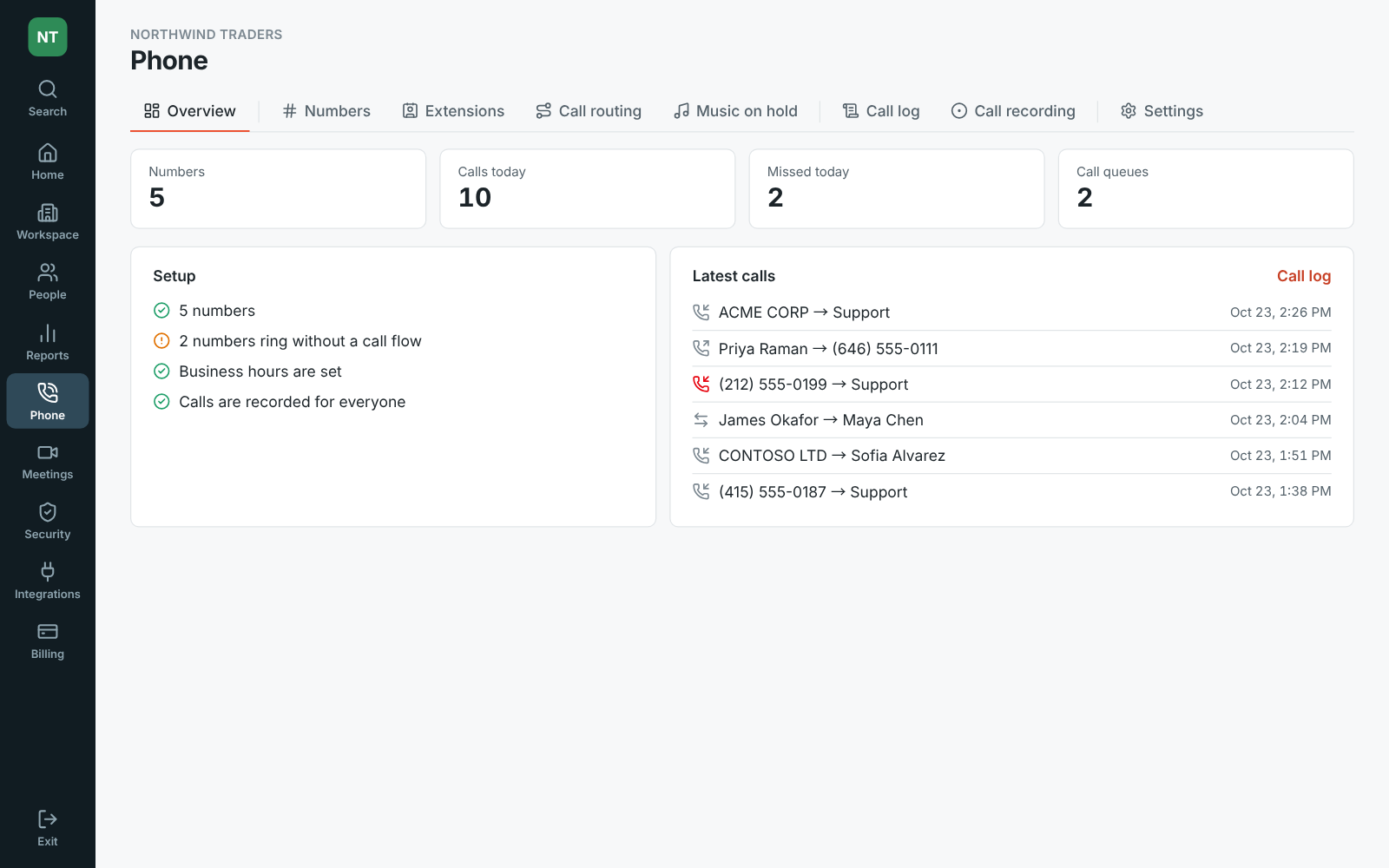
Section titled “A home for each part of the Admin Center”- The Admin Center has a rail of areas on the left: Home, Workspace, People, Reports, Phone, Meetings, Security, Integrations and Billing. Each one lists only its own pages, so the list stays short however much Freesbe grows.
- Pages that belong together are now tabs of one page, like Phone → Call routing with call flows, phone menus, call queues and business hours.
- Home shows what you spent today and in the last 30 days; click it for Billing → Overview, with your plan, add-ons, metered usage and invoices broken down.
- Phone opens on an overview of your numbers, today’s calls and missed calls, and what’s left to set up.
- Search settings (Ctrl K or ⌘K) finds any page, tab or setting. Old links and bookmarks still open the same page. See the Admin Center.
Transcripts and notes from your phone calls
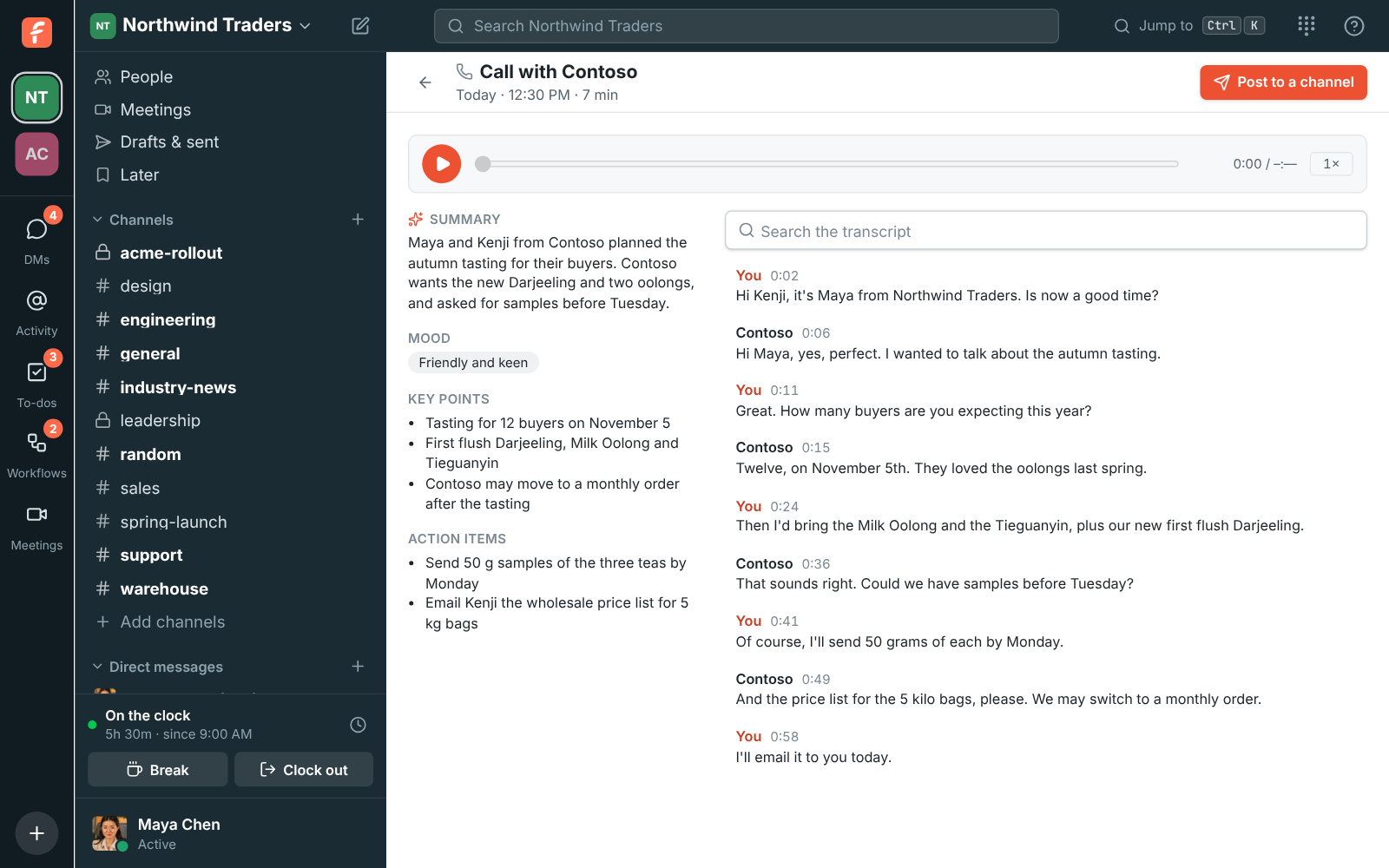
Section titled “Transcripts and notes from your phone calls”- Phone calls get transcripts and AI notes like meetings. When your admin allows it, click Transcribe during a call; when it ends, you and your colleagues on it get the summary and action items from Phone, with a link to every line of the call.
- Post to a channel shares a call’s notes with your team, and transcribed calls have a transcript button in Recent. See Call transcripts.
- Admins: Let people transcribe their own calls is under Phone → Call recording in the Admin Center. Call transcripts share the plan’s transcript hours with huddles and meetings.
Desk phones move to the Admin Center
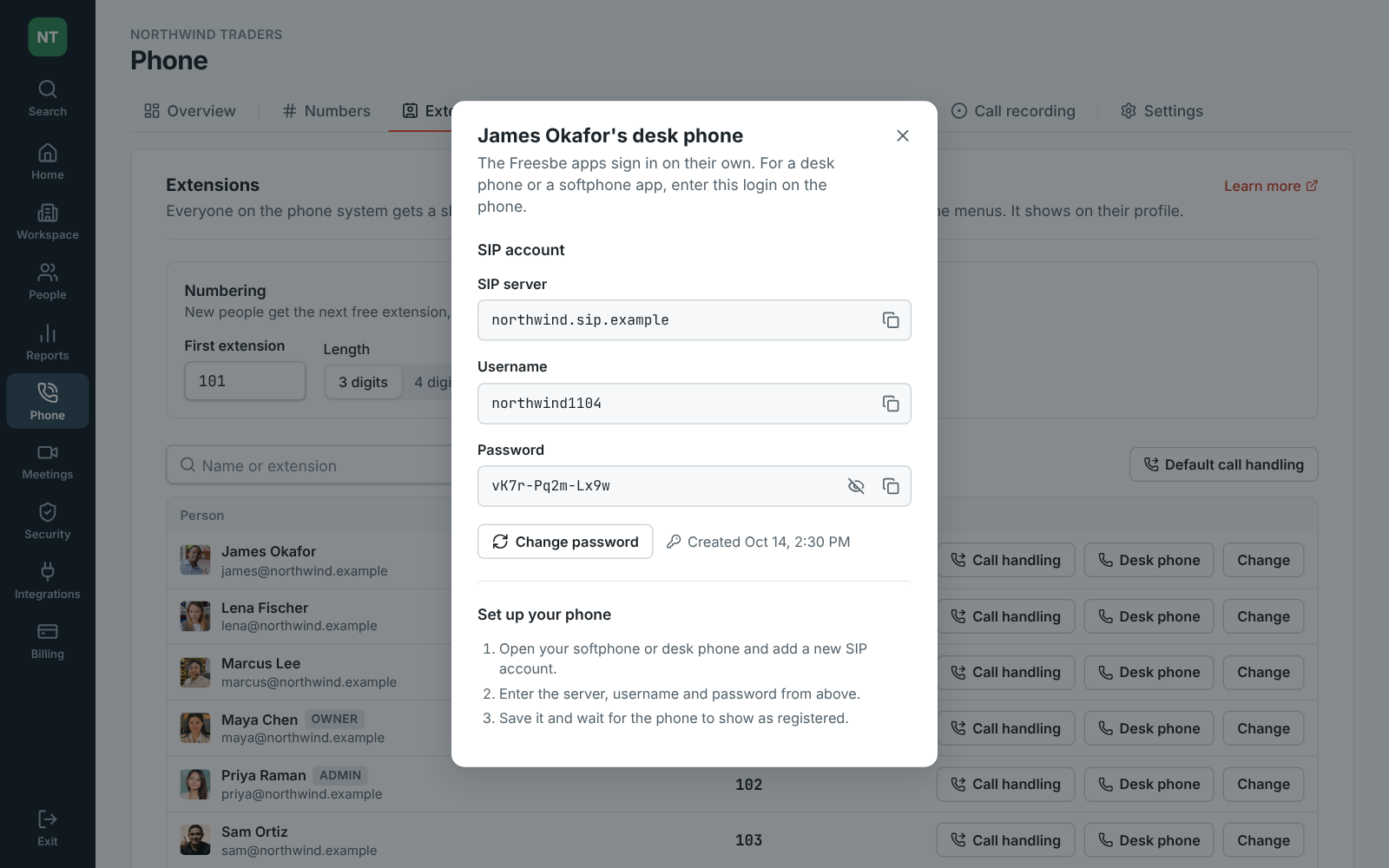
Section titled “Desk phones move to the Admin Center”- On the phone system from Freesbe, Preferences → Calls & audio → Phone no longer shows a SIP login: calls ring in the Freesbe apps, which sign in on their own.
- Admins set up desk phones and softphone apps for people in the Admin Center, under Phone → Extensions → Desk phone: show and copy the login, or change its password. The audit log records each time. See Desk phones.
A microphone test you can trust
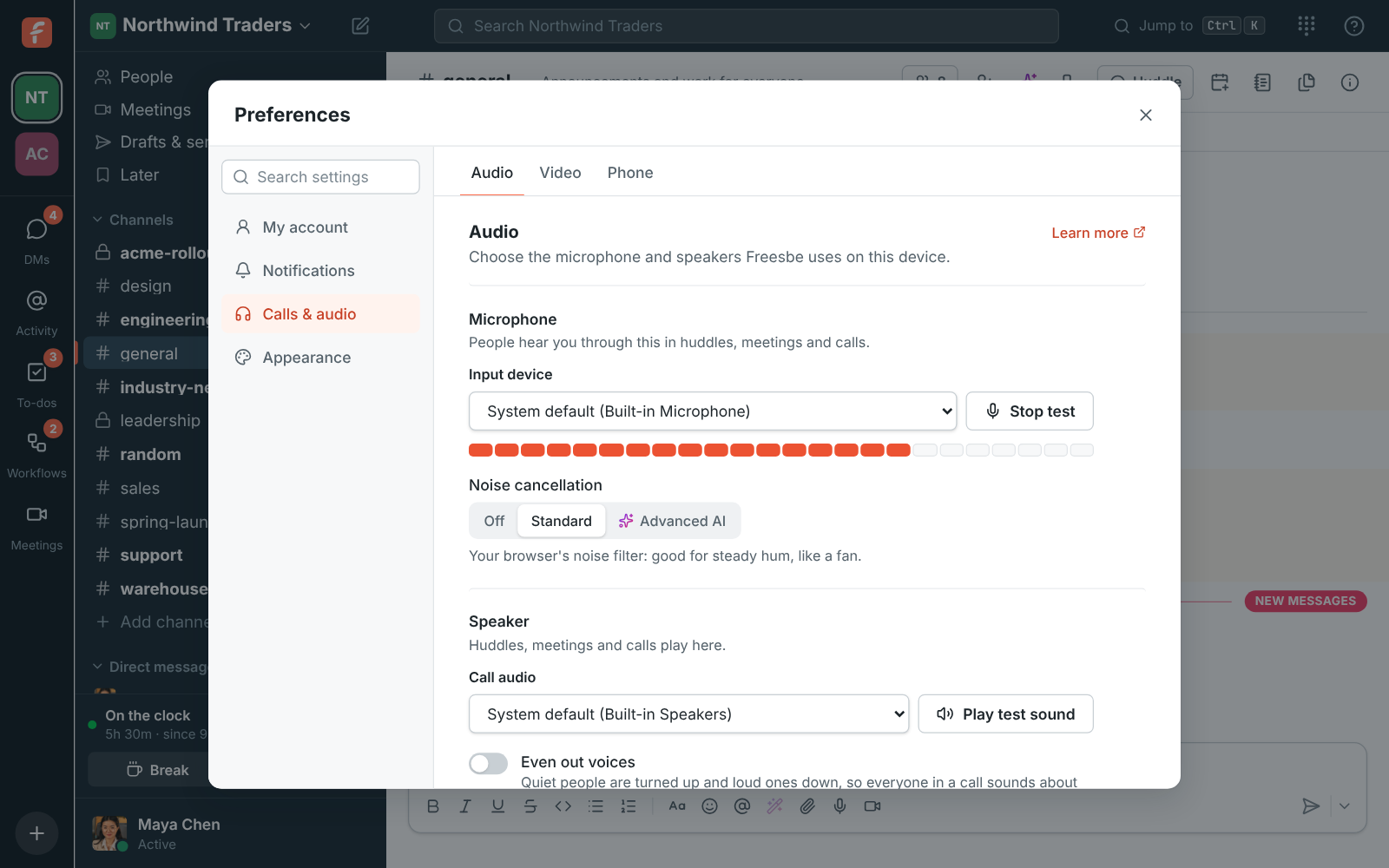
Section titled “A microphone test you can trust”- Test microphone in Preferences → Calls & audio now shows a level meter that moves with any sound, even on webcam microphones whose hiss used to keep the bar empty. The loudest moment stays marked for a second. See Audio.
- With noise cancellation Off you can see the room’s background noise, and you can watch Standard or Advanced AI pull it down.
- If no sound comes in at all, or the microphone is very quiet, a line under the meter tells you what to check.
Pick the music callers hear on hold
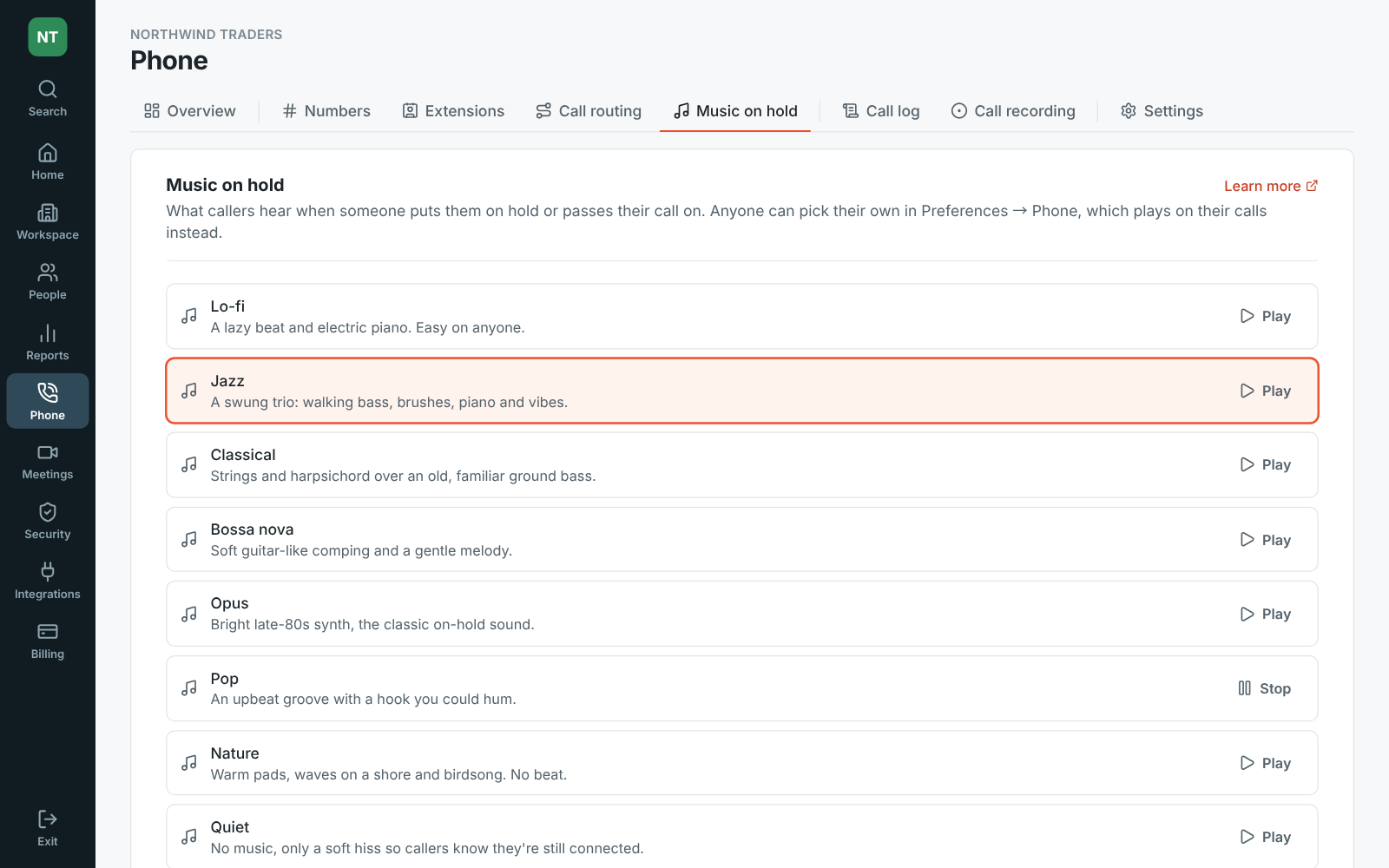
Section titled “Pick the music callers hear on hold”- Callers on hold now hear music composed for Freesbe: Lo-fi, Jazz, Classical, Bossa nova, Opus, Pop or Nature, with Lo-fi until you pick. Quiet plays only a soft hiss so callers know they’re still connected. Or upload your own, like a jingle.
- Admins pick the workspace’s track in the Admin Center under Phone → Music on hold, and can play each one first. See Music on hold.
- Anyone can pick their own in Preferences → Calls & audio → Phone, which plays on their calls instead. See Your music on hold.
Listen, whisper or barge in on queue calls
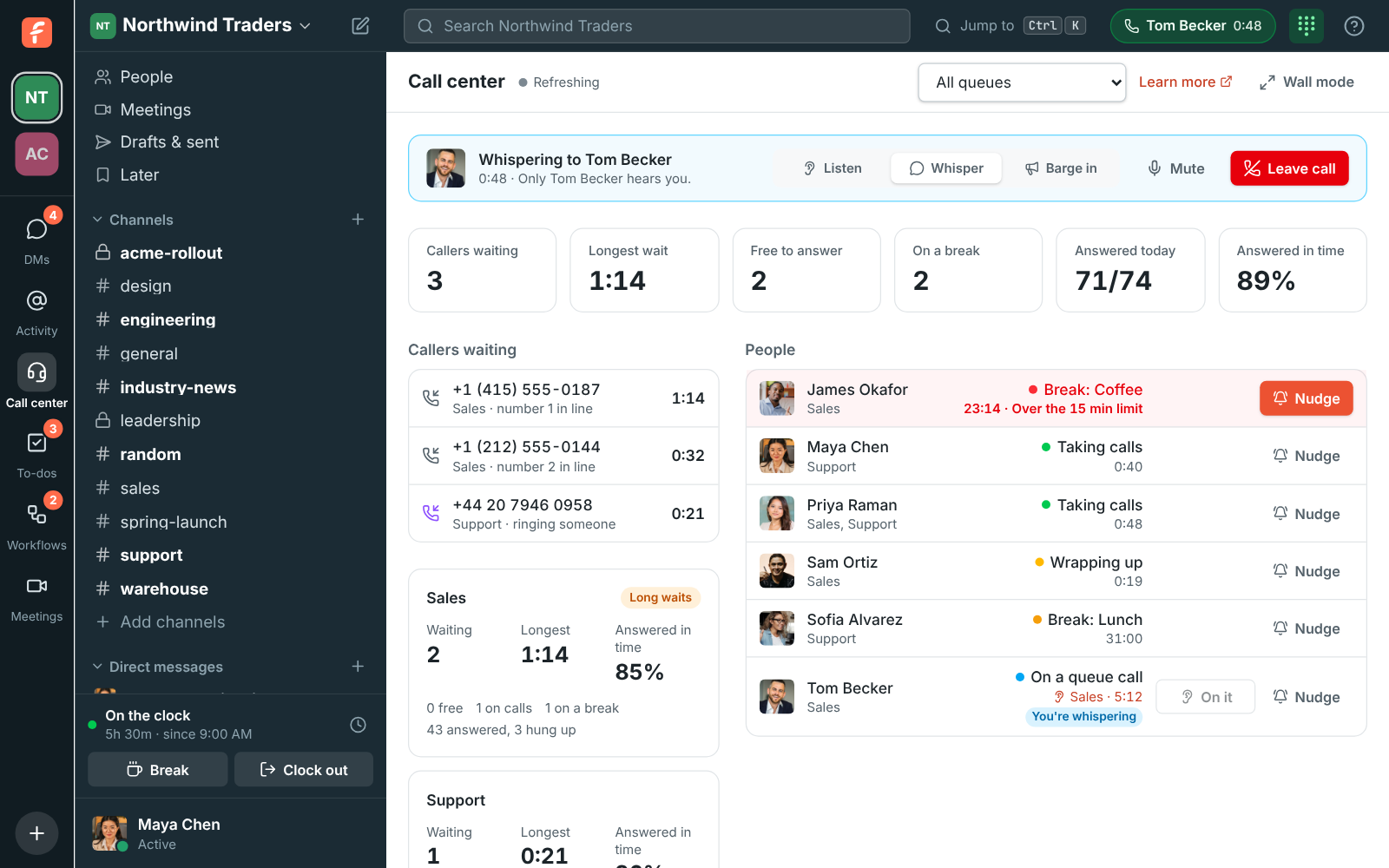
Section titled “Listen, whisper or barge in on queue calls”- On the Call center board, admins and supervisors click Listen next to someone on a queue call to hear it: nobody hears you. Your Freesbe phone picks up on its own.
- From there, switch to Whisper (only your colleague hears you) or Barge in (everyone hears you) and back without leaving the call, mute yourself, and Leave call when you’re done. See Listen, whisper or barge in.
Call through Freesbe from your Phone app, even with Freesbe closed
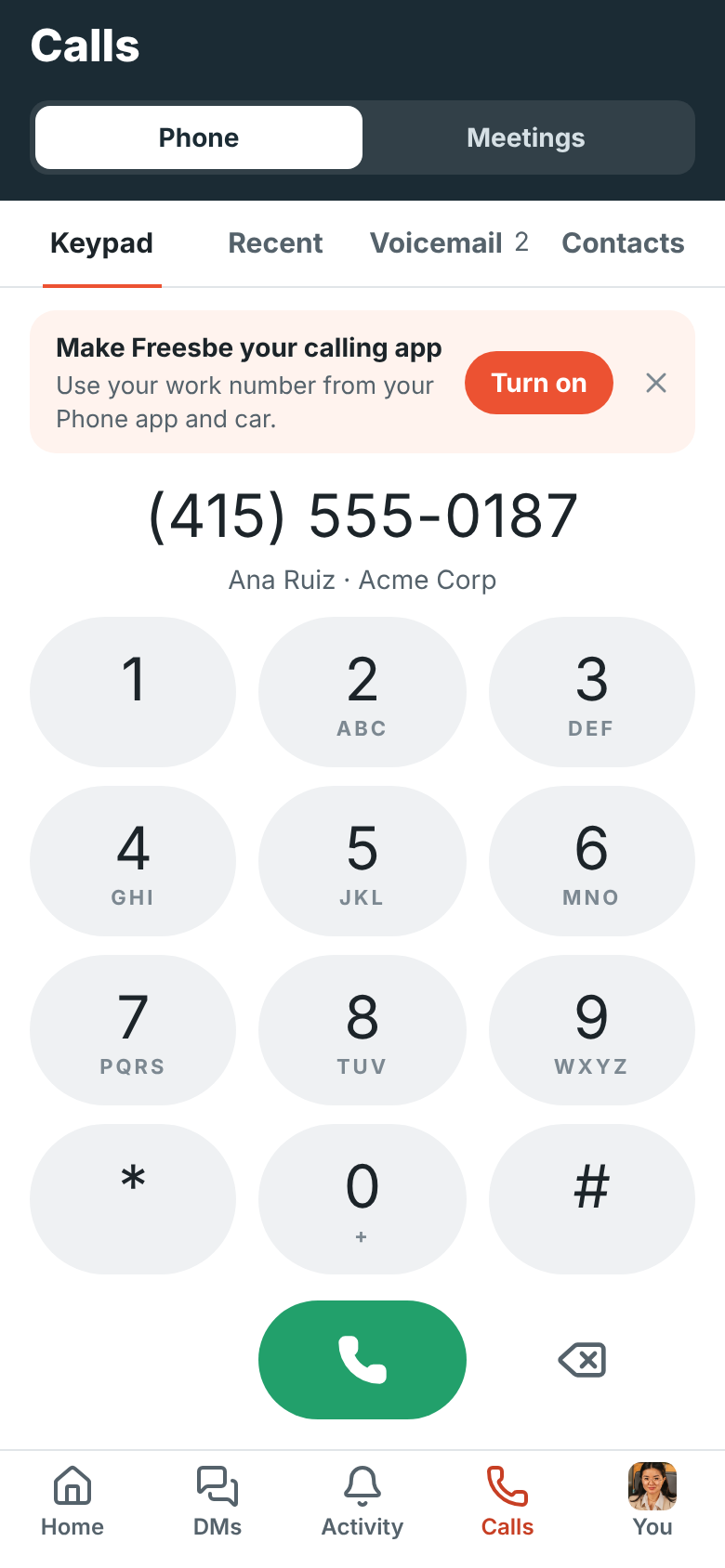
Section titled “Call through Freesbe from your Phone app, even with Freesbe closed”- On Android, calling through Freesbe from your phone’s own Phone app or Contacts works when Freesbe is closed too: it starts in the background, connects and places the call.
- Once you switch Freesbe on as a calling account, the Set up card on the keypad goes away and You → Calling account says On. See Call with Freesbe from your Phone app.
Message yourself
Section titled “Message yourself”- Message yourself: a private DM for notes, reminders and links to come back to. Click Message yourself on your own profile, right-click your name, or find yourself with Ctrl+K or in People.
- On Android, search for your name under DMs or tap Message on your own profile. See Message yourself.
Recent calls show up right away
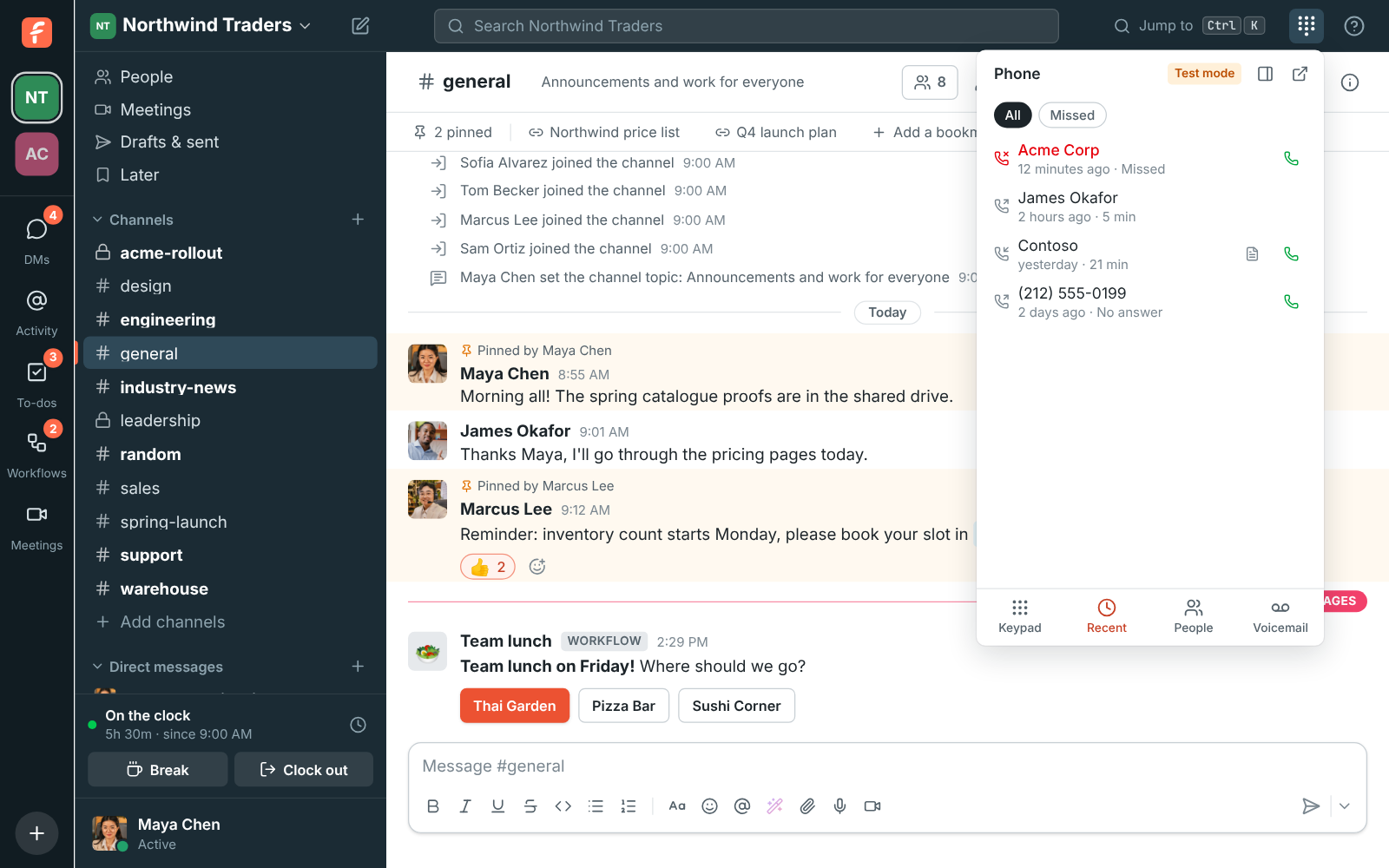
Section titled “Recent calls show up right away”- A call is in the phone’s Recent tab the moment you hang up, and Recent opens without waiting for your calls to load.
- Calls you made or took on your other devices, like the mobile app, show up there a few seconds after they end, and so do new voicemails. See Your calls.
Phone calls in the mobile app
Section titled “Phone calls in the mobile app”- With a phone system from Freesbe, the mobile app’s Meetings tab is now Calls: a keypad, your recent calls, voicemail you can play on your phone, and your colleagues and phone contacts to call.
- Your phone rings with your computer: answer a call on either.
- On Android, switch Freesbe on as a calling account and your phone’s own Phone app and Contacts can call through it, with Freesbe calls on the lock screen and in your call history.
- Ready for calls keeps your phone ringing while the app is in the background. See Phone calls.
Everyone on the phone system gets an extension
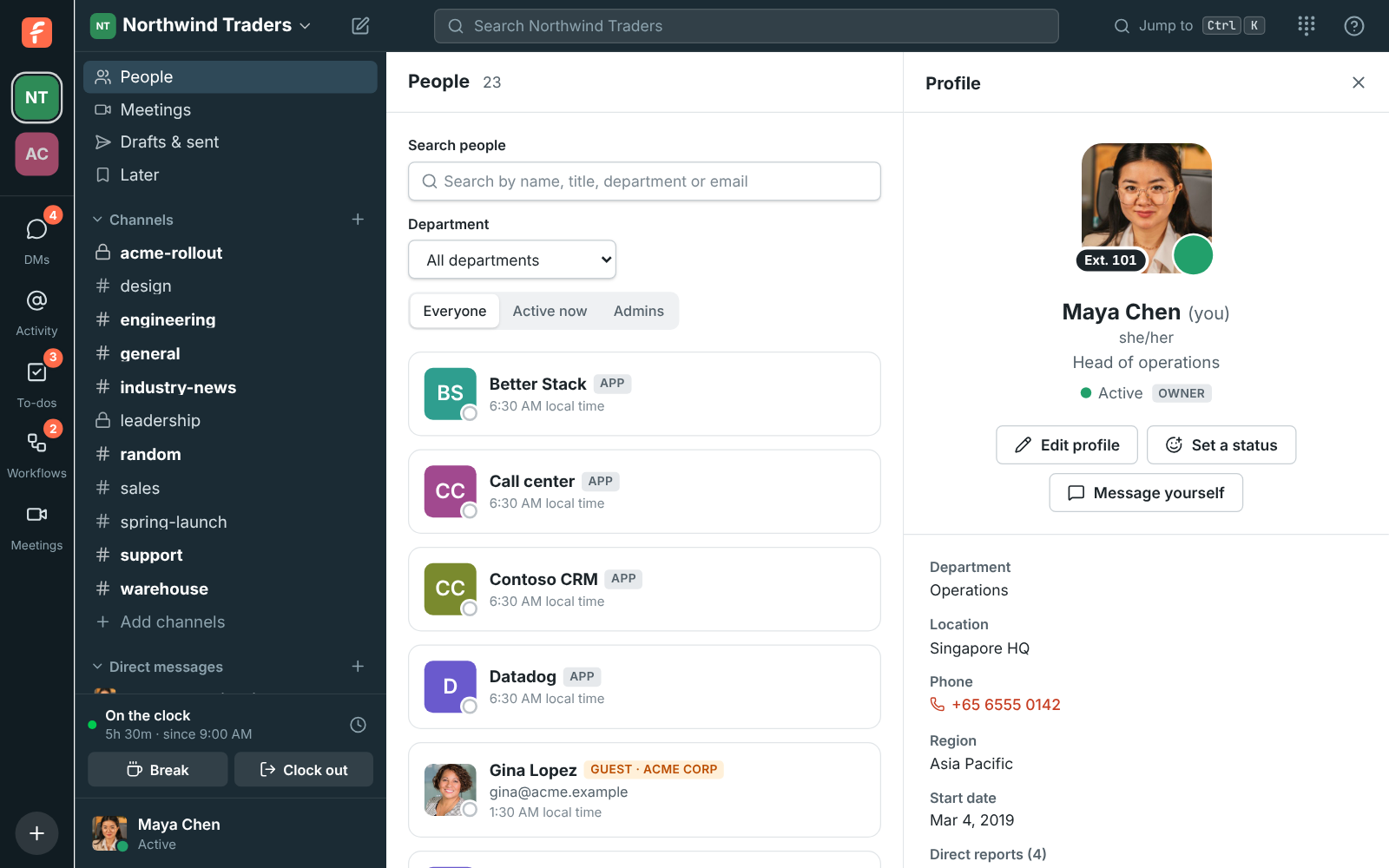
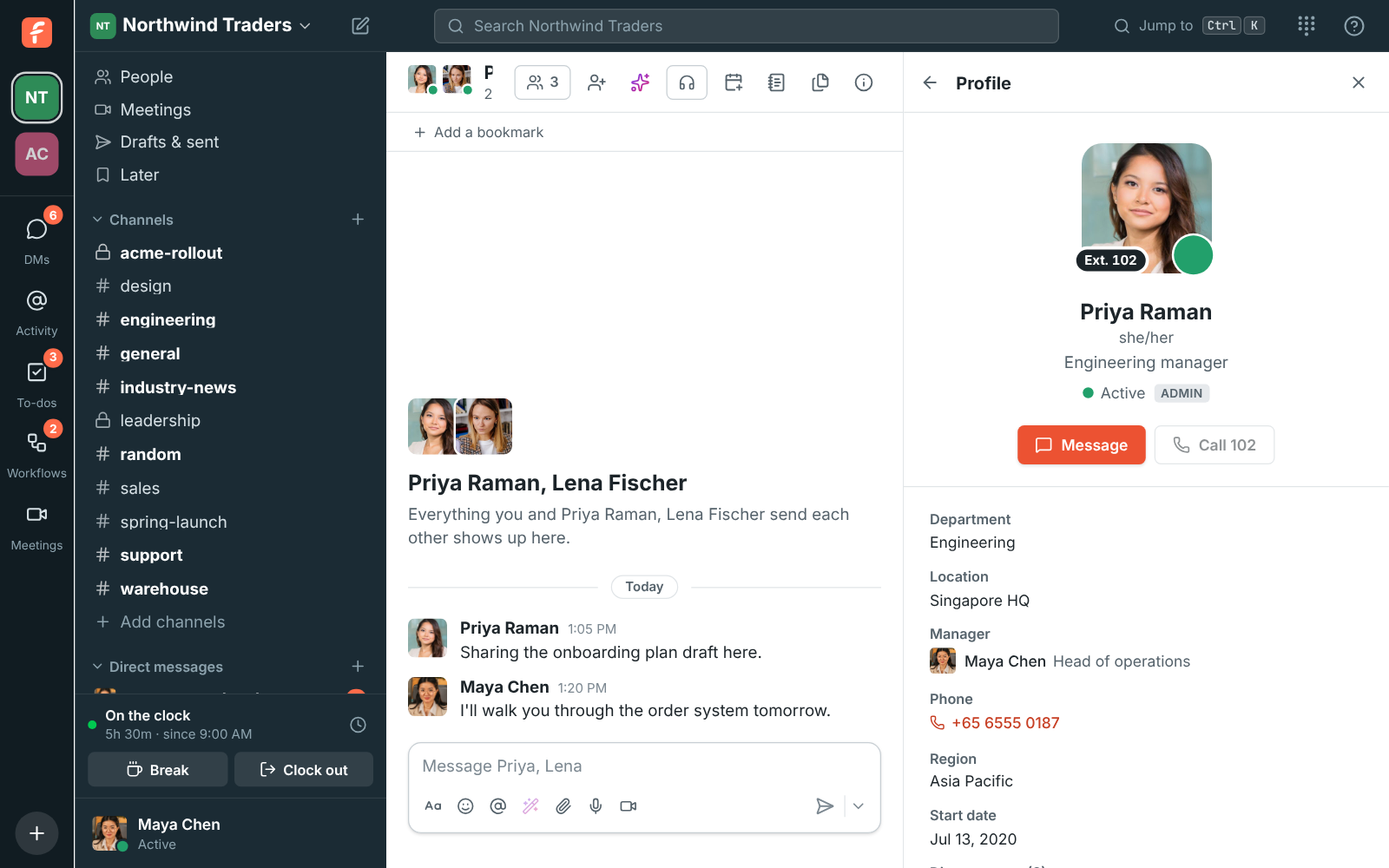
Section titled “Everyone on the phone system gets an extension”- On a phone system from Freesbe, everyone now has an extension, starting at 101. New people get the next free one.
- It’s on each person’s profile, on their picture, and Call with the number on it calls them.
- Admins change extensions, and where new ones start, in the Admin Center under Phone → Extensions.
- Phone menus can Let callers dial an extension during the greeting: everyone’s, or only some people’s. See Extensions.
Pick light or dark on your phone
Section titled “Pick light or dark on your phone”- The iOS and Android app has a Theme setting under You: keep it Light or Dark, or leave it on Match phone to follow your phone’s own setting, as before. See Light and dark.
Pick your text size on your phone
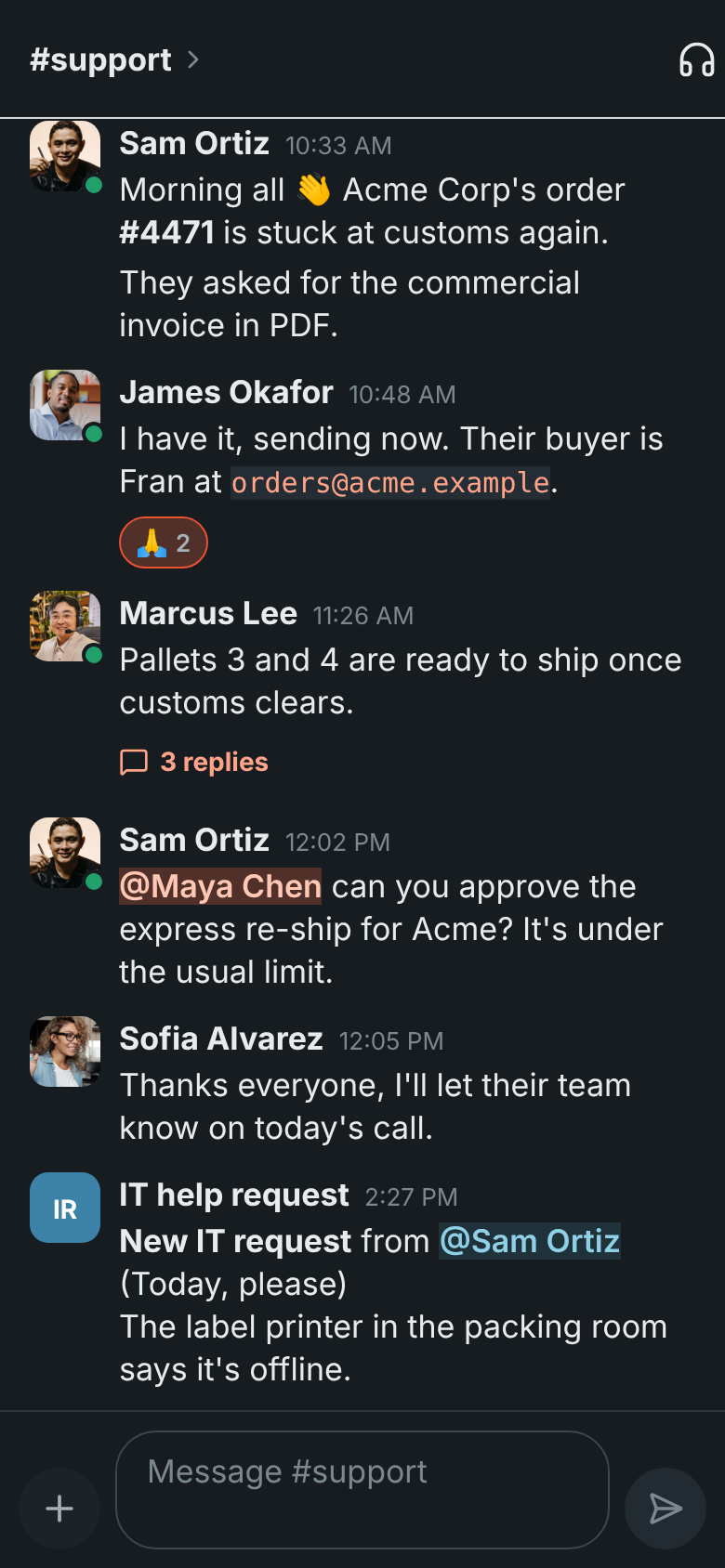
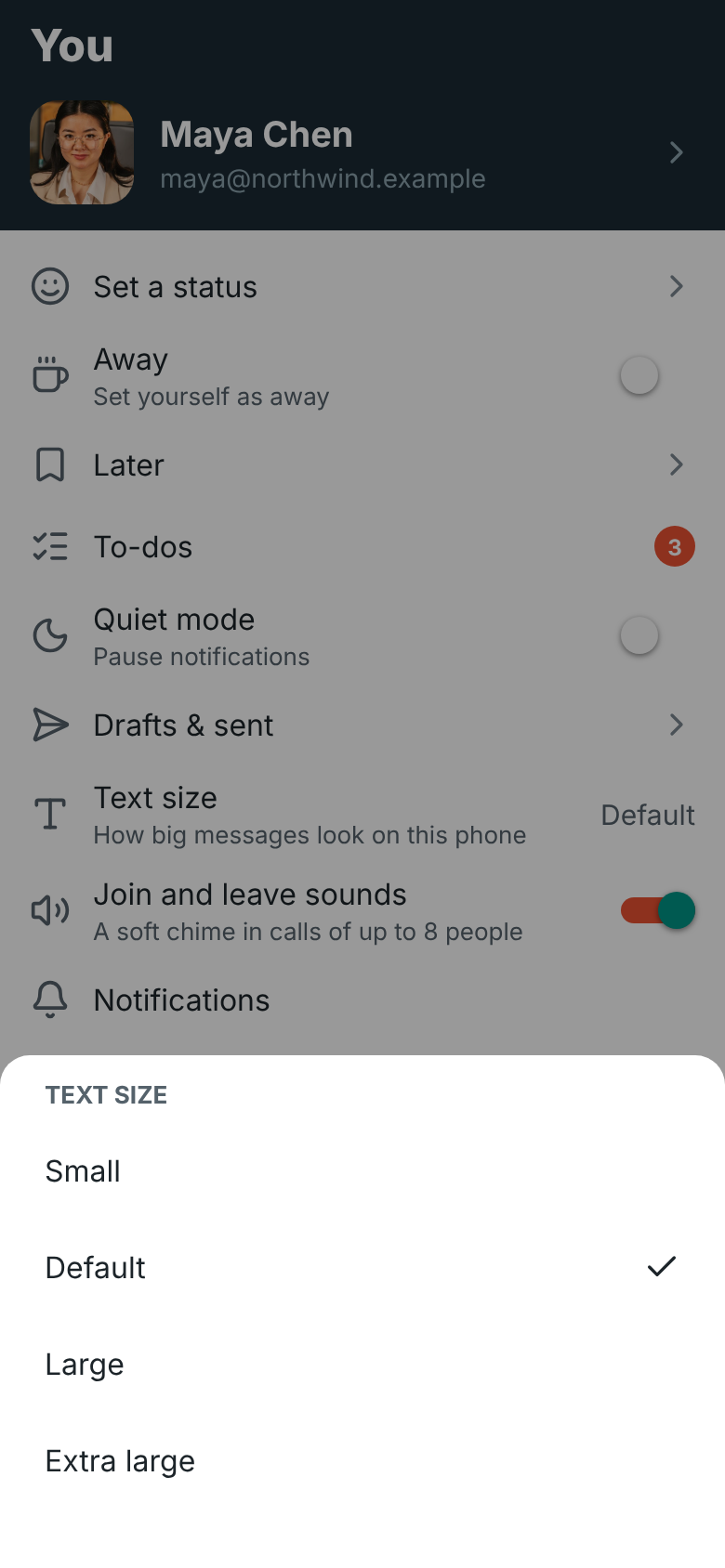
Section titled “Pick your text size on your phone”- You → Text size on the phone app now changes every screen, not only messages in a conversation: lists, menus, buttons and the message box too.
- It opens its own page with a preview. Tap a size and the preview and the app change right away, so you can try each one. There’s a fifth, bigger size: Largest. See Text size.
Share to Freesbe from other apps on Android
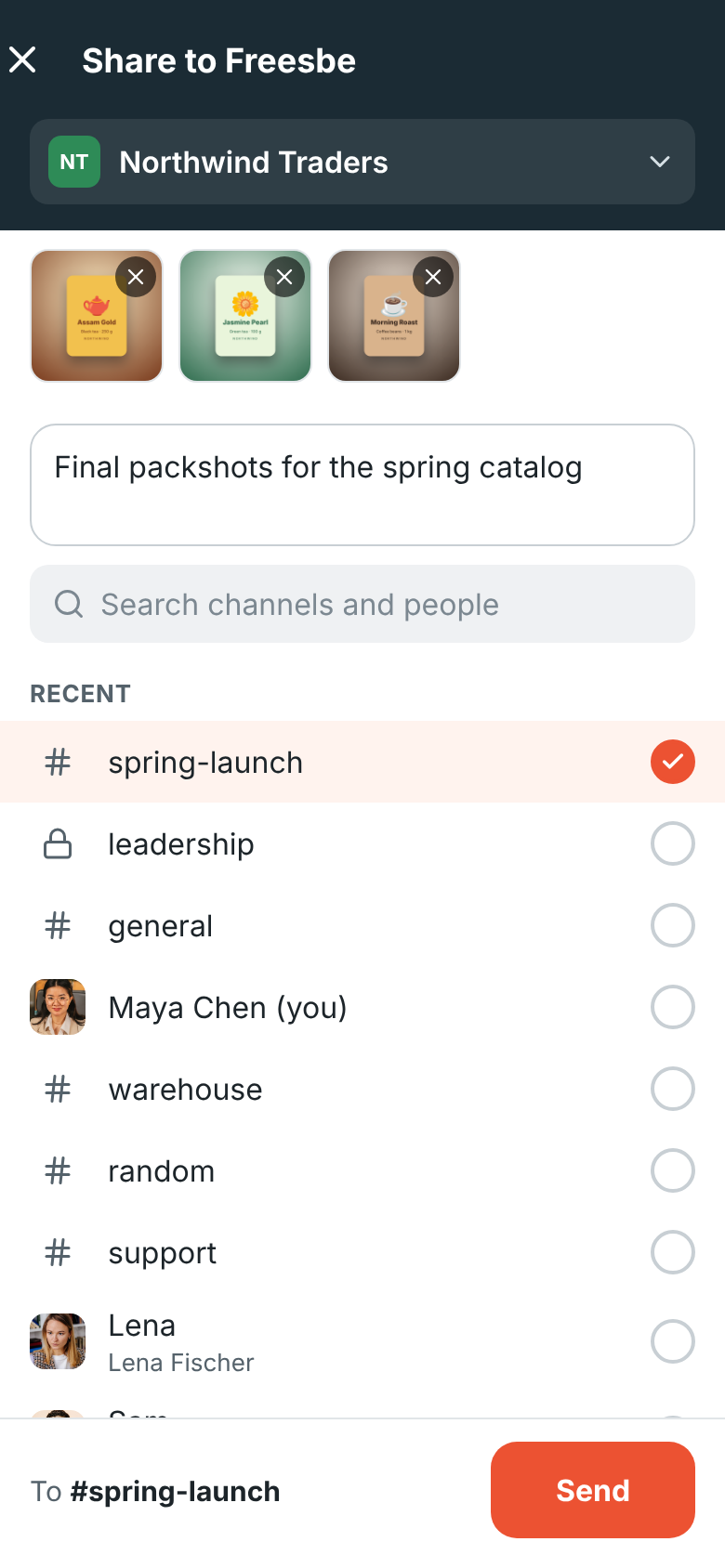
Section titled “Share to Freesbe from other apps on Android”- Freesbe is in Android’s share menu: send photos, videos, files, links and text from any app to a channel or direct message, with a message of your own if you like. See Share from other apps.
- Your four most recent conversations show in the share menu too, for sending in one tap.
- Needs the latest Android app.
Admin roles for billing, phones and people
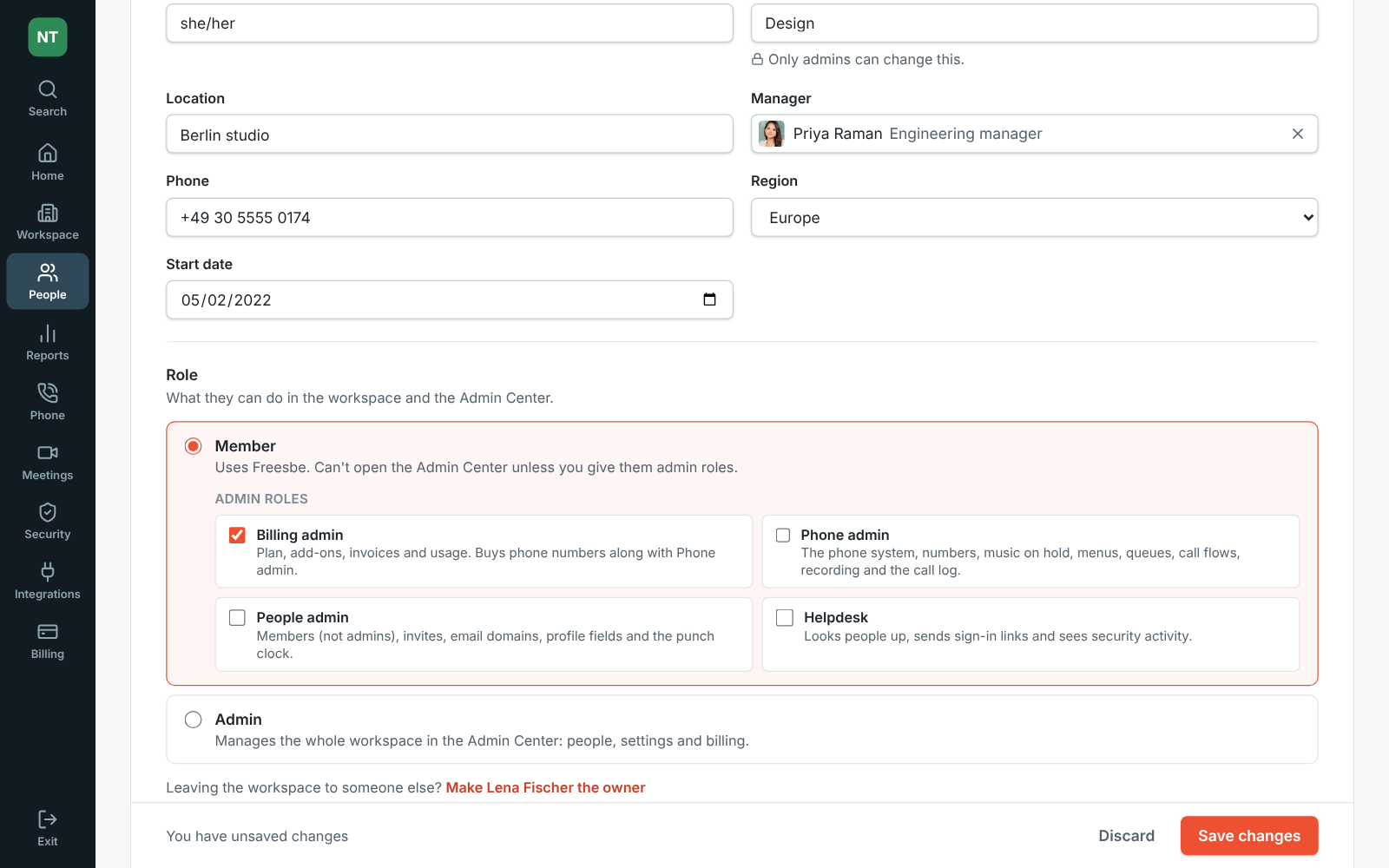
Section titled “Admin roles for billing, phones and people”- On Corporate and Enterprise, give a member admin roles in the Admin Center, under People → Members: Billing admin, Phone admin, People admin or Helpdesk.
- Each role opens only its own Admin Center pages, so your finance lead, phone lead or helpdesk can do their part without being a full admin. See Admin roles.
A shorter Workspace settings in the app
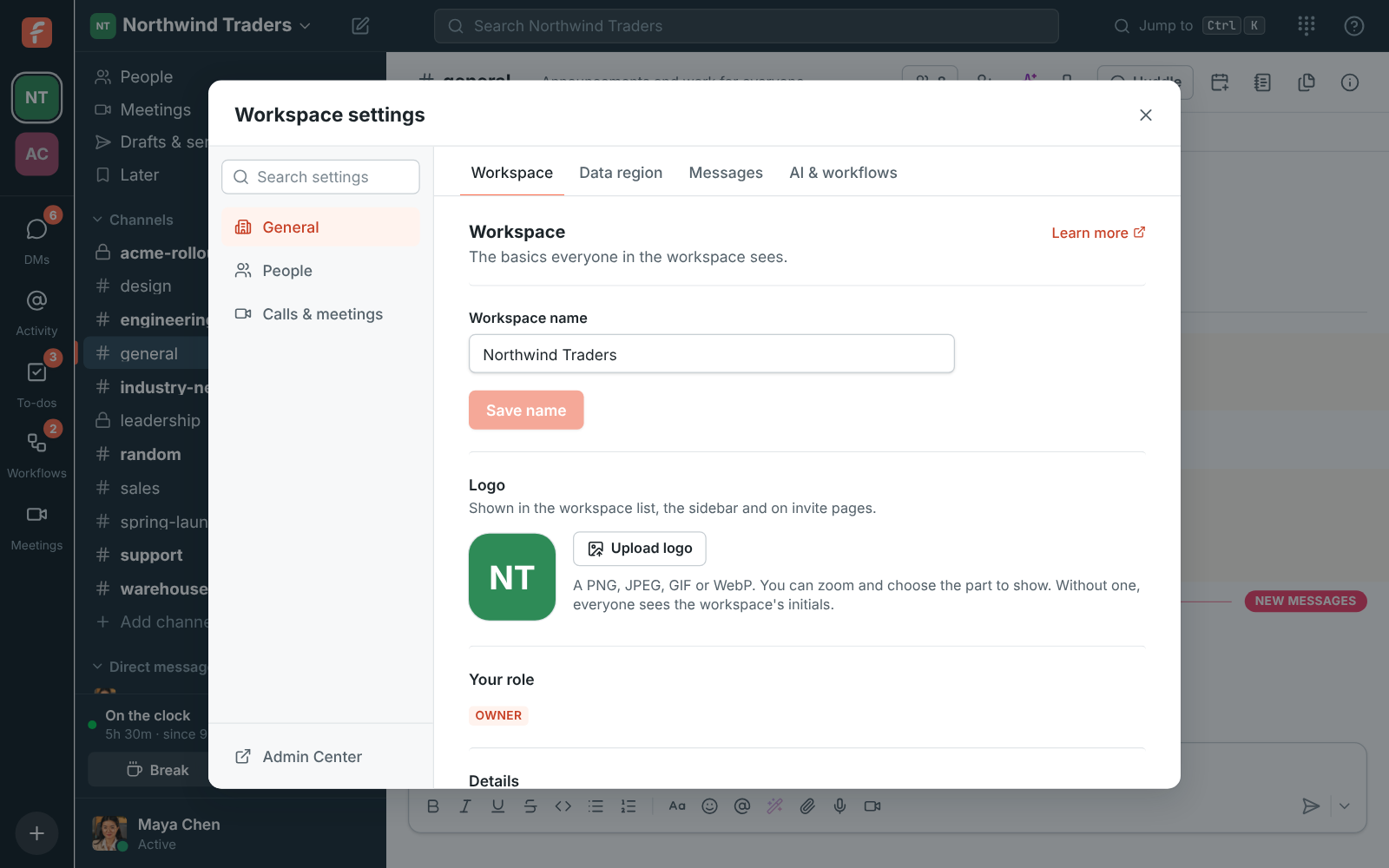
Section titled “A shorter Workspace settings in the app”- Workspace settings in the app now lists only what you set there: General, People (Members and Invites) and Calls & meetings.
- Everything else, like security, integrations, the phone system and billing, is one click away with the new Admin Center link at the bottom of the list. Search still finds every setting. See Managed in the Admin Center.
Settings for each phone number
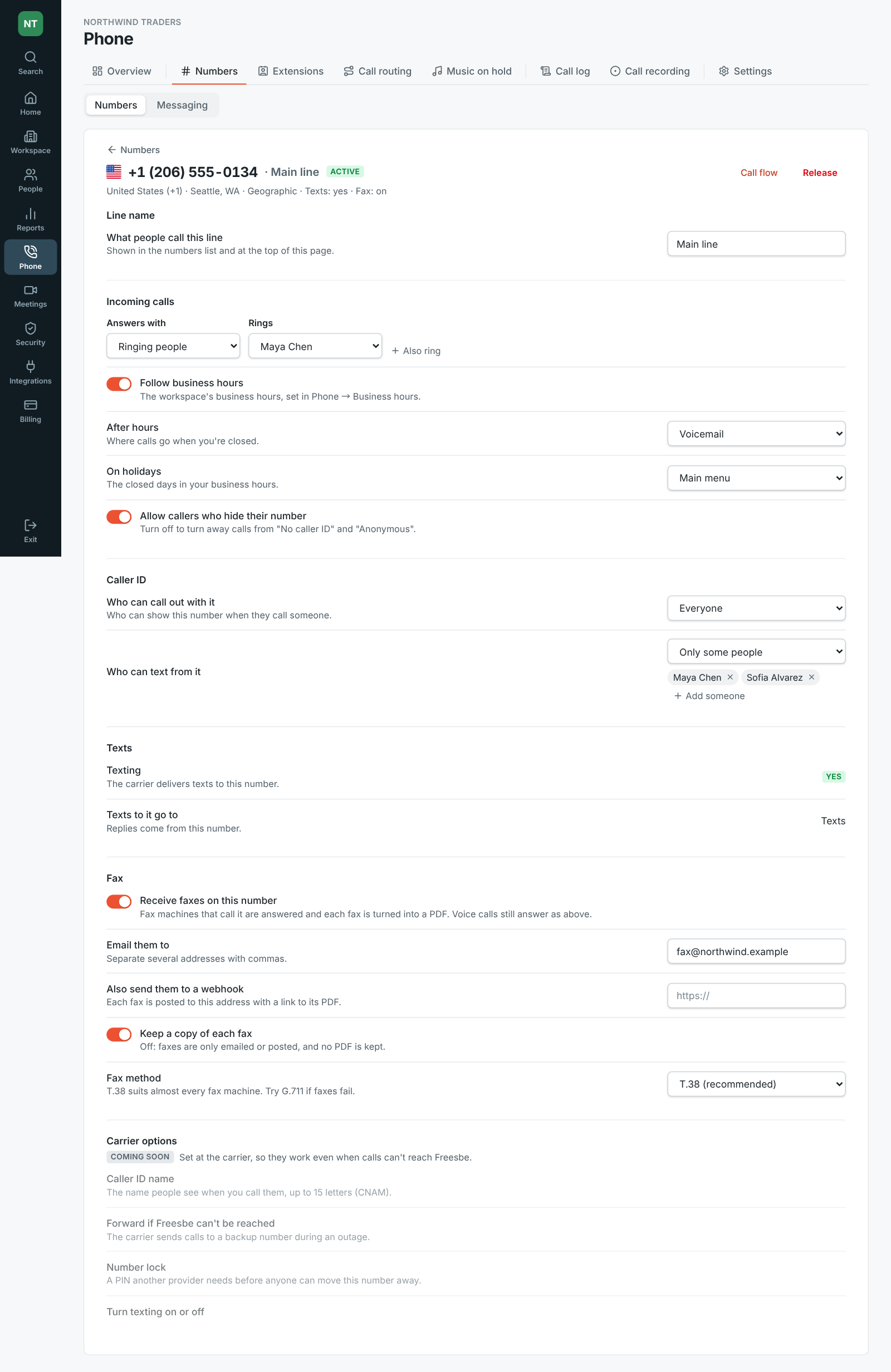
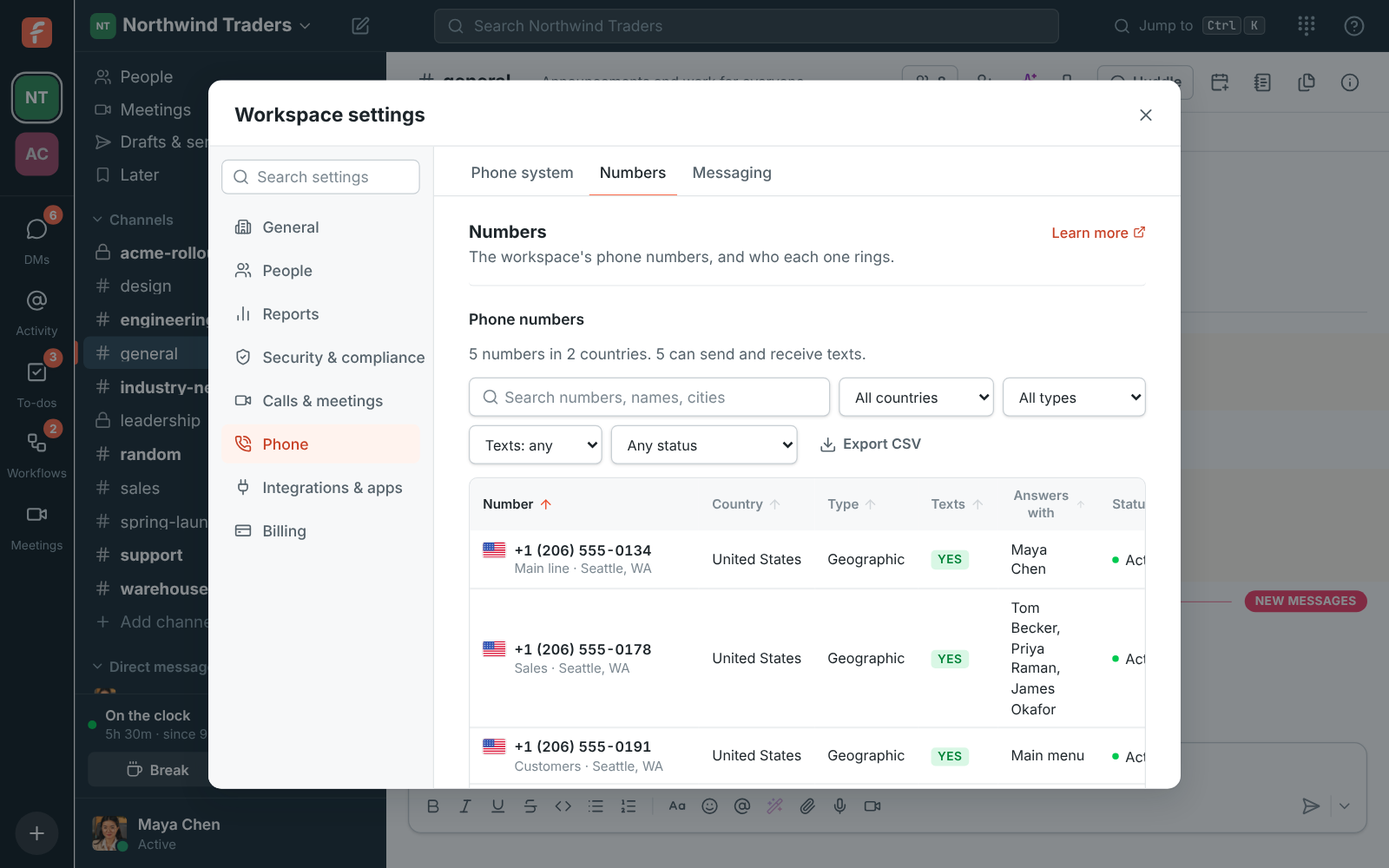
Section titled “Settings for each phone number”- Phone → Numbers in the Admin Center is now a table: each number with its flag and country code, its type (geographic, toll-free, national or mobile) and whether it takes texts. Search, filter, sort by any column, page through hundreds of numbers 25, 50 or 100 at a time, and export to CSV.
- Click a number for its own settings: a name, where calls go after hours and on holidays, blocking callers who hide their number, who can call or text out with it, and receiving faxes by email or webhook. See a number’s settings.
- Business hours now has its own page under Phone, with named holidays: closed all day or open special hours, like 9 to 1 on Christmas Eve. Import holidays adds a country’s public holidays for the next 12 months in one go. See holidays.
Bring your numbers from another provider
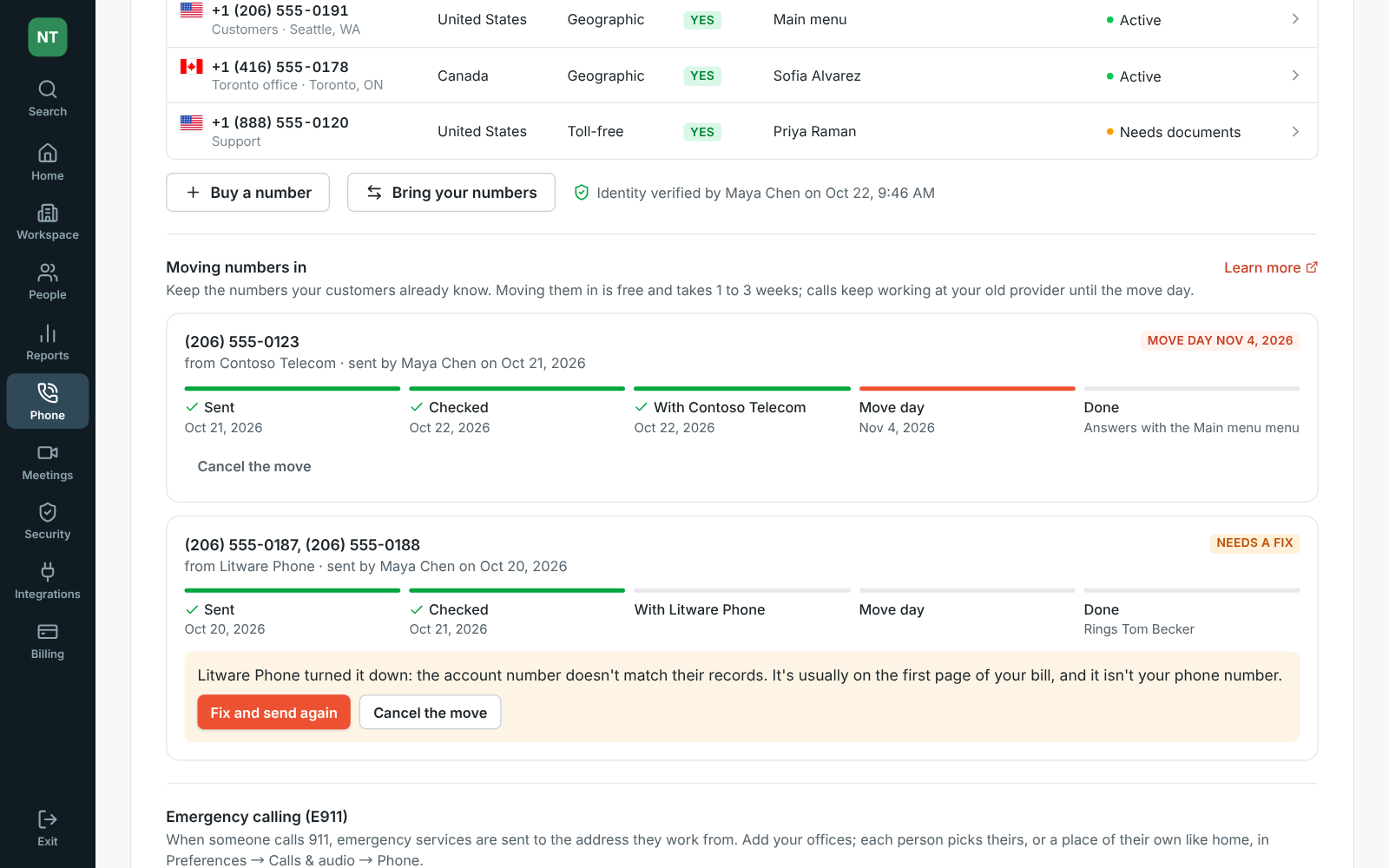
Section titled “Bring your numbers from another provider”- Keep the numbers your customers already know: Bring your numbers under Phone → Numbers in the Admin Center moves US and Canadian numbers from your current provider to Freesbe. It’s free. See Bring your numbers.
- Fill in the account details from your bill, add the bill, choose what answers the numbers once they arrive (a phone menu, a call queue or people), and sign the letter of authorization right in the form.
- Moving numbers in shows each request’s steps up to the move day, and admins get an email at each one. If the old provider turns it down, Fix and send again. On the move day the numbers answer as you chose, on their own.
Reply and Mark as read from Android notifications
Section titled “Reply and Mark as read from Android notifications”- Reply and Mark as read on a message notification work again on Android while the app is in the background or closed. Mark as read marks the conversation read everywhere and takes the notification away. See Notifications.
Admin Center: a message log of every customer message
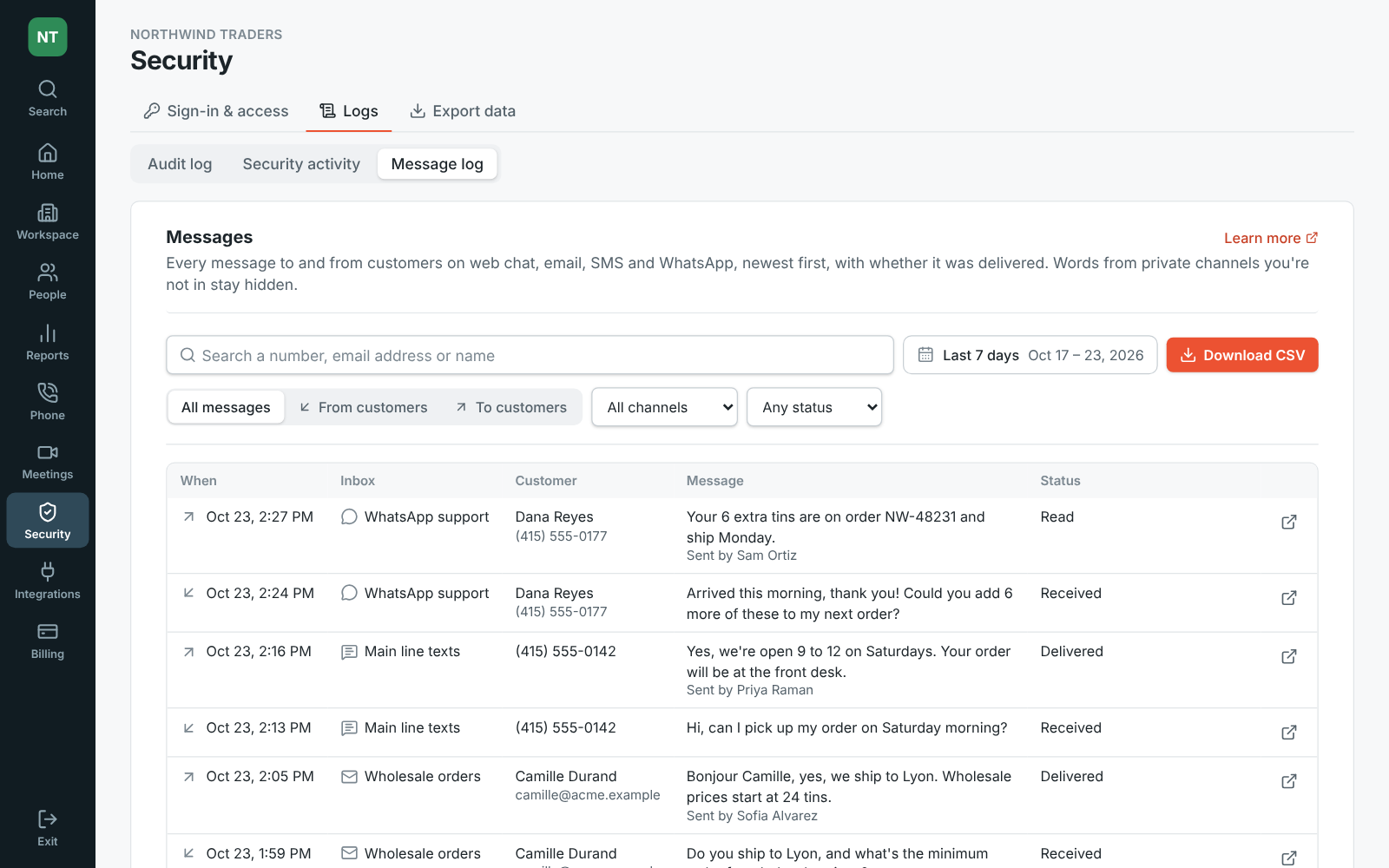
Section titled “Admin Center: a message log of every customer message”- Security & compliance → Message log in the Admin Center lists every message to and from customers on web chat, email, SMS and WhatsApp, with whether it was sent, delivered, read or failed, and why. See Message log.
- Search a number, address or name, pick dates, narrow to one channel, direction or status, and Download CSV.
Call flows
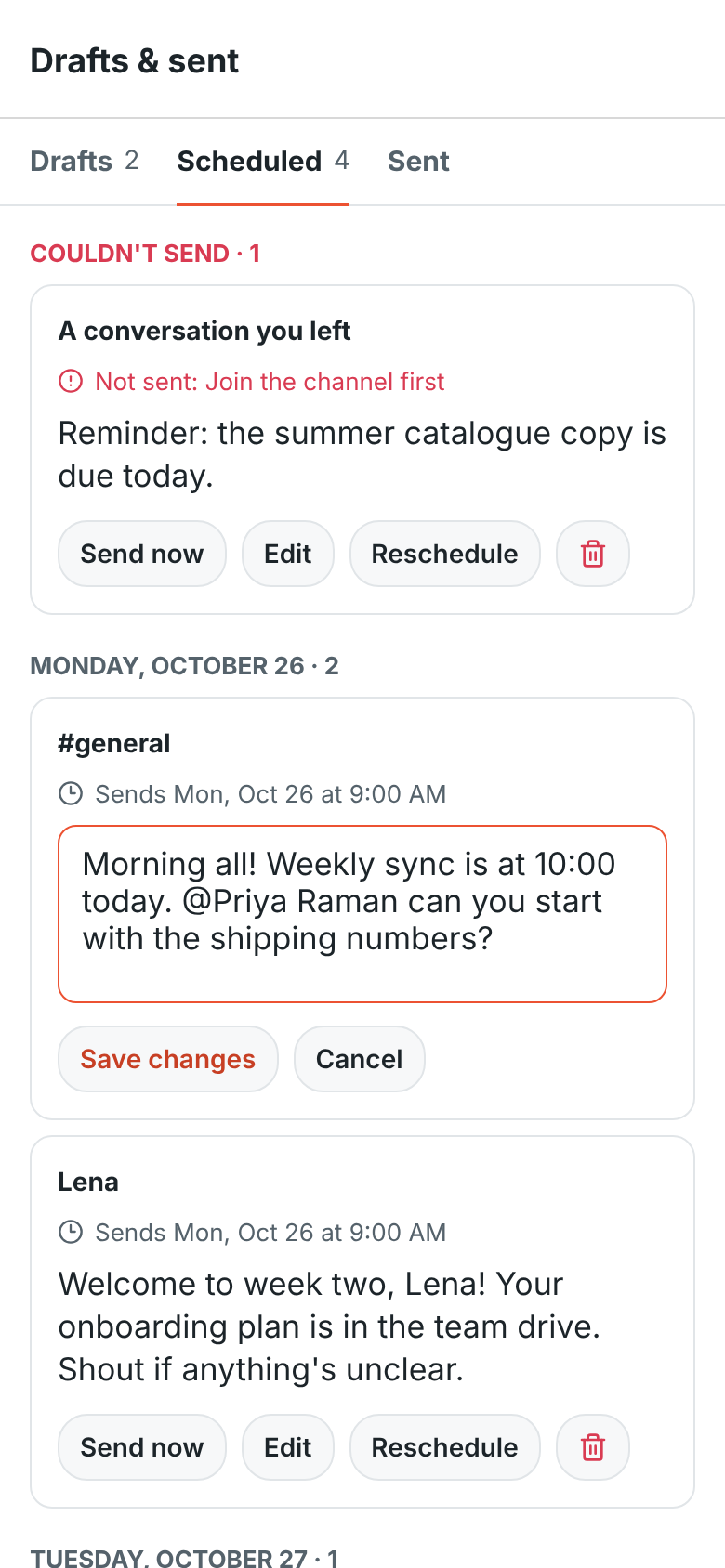
Section titled “Call flows”- Phone → Call flows in the Admin Center draws what happens when someone calls each of your numbers: business hours, phone menus, call queues, who rings, messages and voicemail, joined by lines. See Call flows.
- Change where calls go by drawing: drag a line from an exit, like Key 1 or No answer, to the next step. Add menus and queues you’ve made, ring people, play a typed message in a voice you pick, take a voicemail or hang up.
- Click Save and the changes are live right away. Call flow next to each number under Phone → Numbers opens its flow.
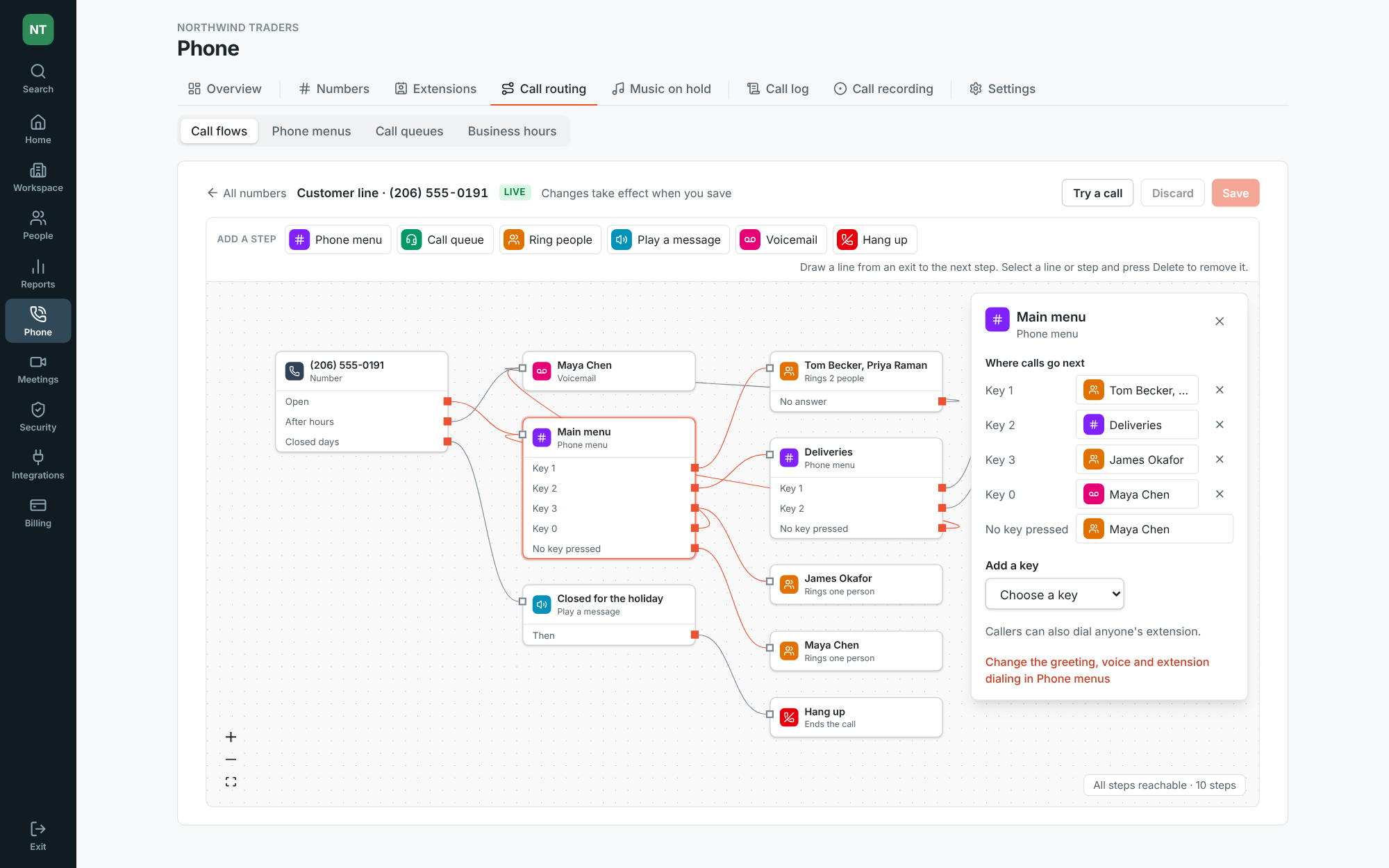
Calls play everyone’s voice directly again
Section titled “Calls play everyone’s voice directly again”- Even out voices now starts off, for everyone. In some meetings it could leave people hearing silence while everyone’s voice was arriving, so huddles and meetings play each voice directly until it’s proven safe. You can still turn it on in Preferences → Calls & audio → Audio.
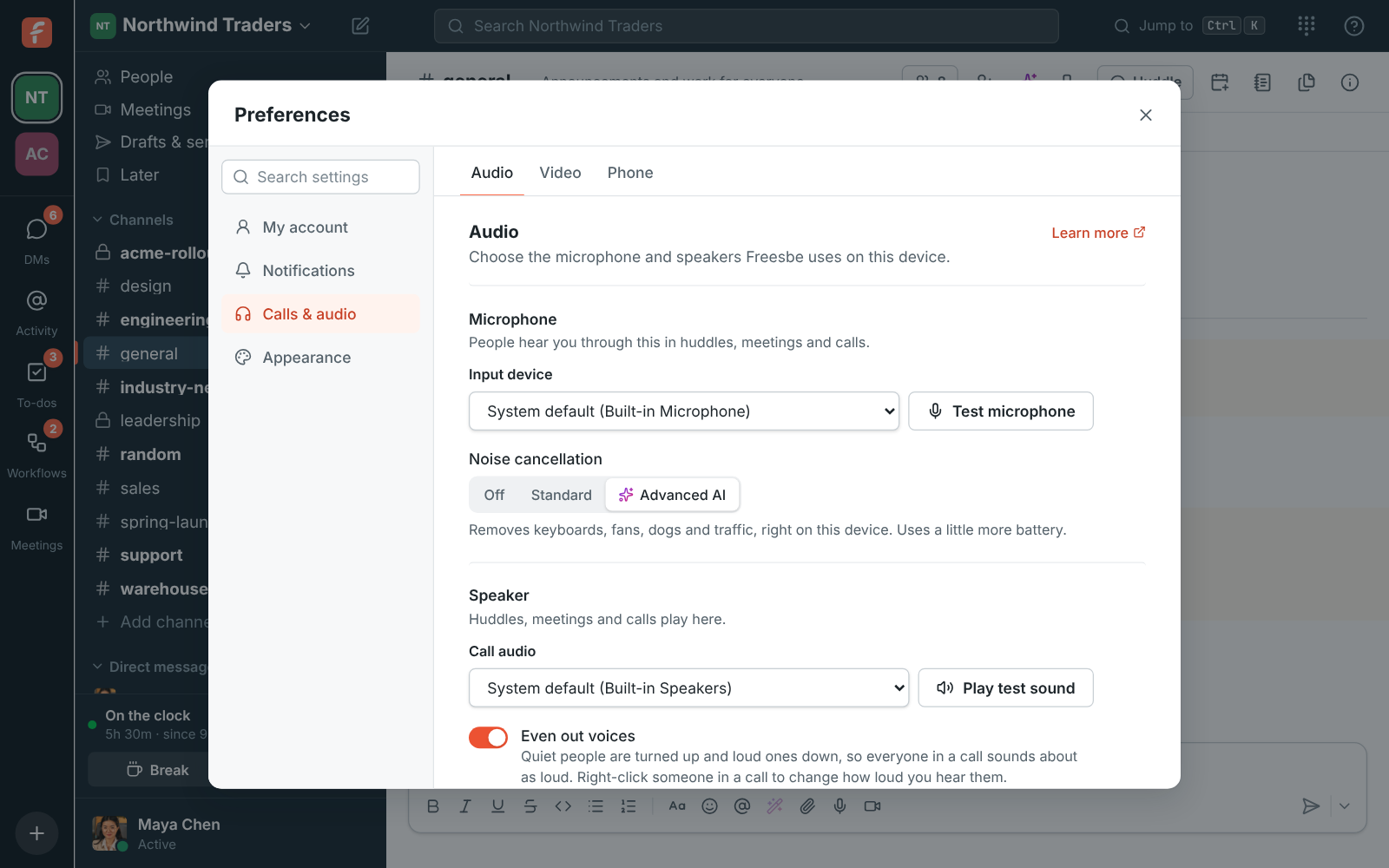
Admin Center: invites table and quicker searches
Section titled “Admin Center: invites table and quicker searches”- People → Invites in the Admin Center is a table: search by email or creator, filter by emailed or link and by active, used up or expired, revoke several invites at once, and export CSV. See Manage invites.
- Search Webhooks and Apps by name, address, channel or scope, and search On the clock now in the Punch clock by name or status.
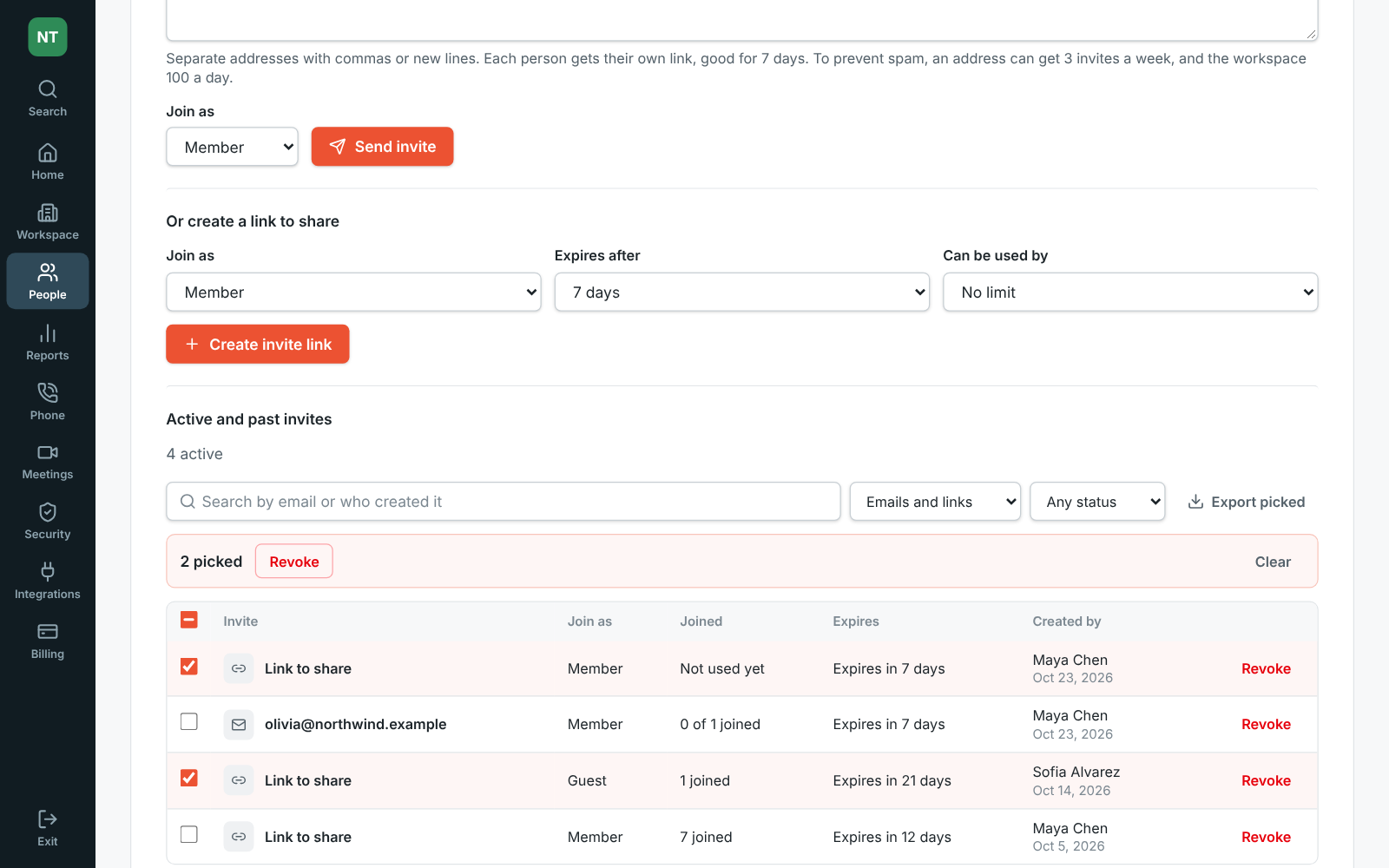
Edit scheduled messages on your phone
Section titled “Edit scheduled messages on your phone”- In the phone app, Edit on a scheduled message changes its words before it goes out, like on the web and desktop. See Scheduled messages.
- Text that’s both underlined and in italics (
___like this___) now shows that way, instead of with the underscores left in.
Call recording
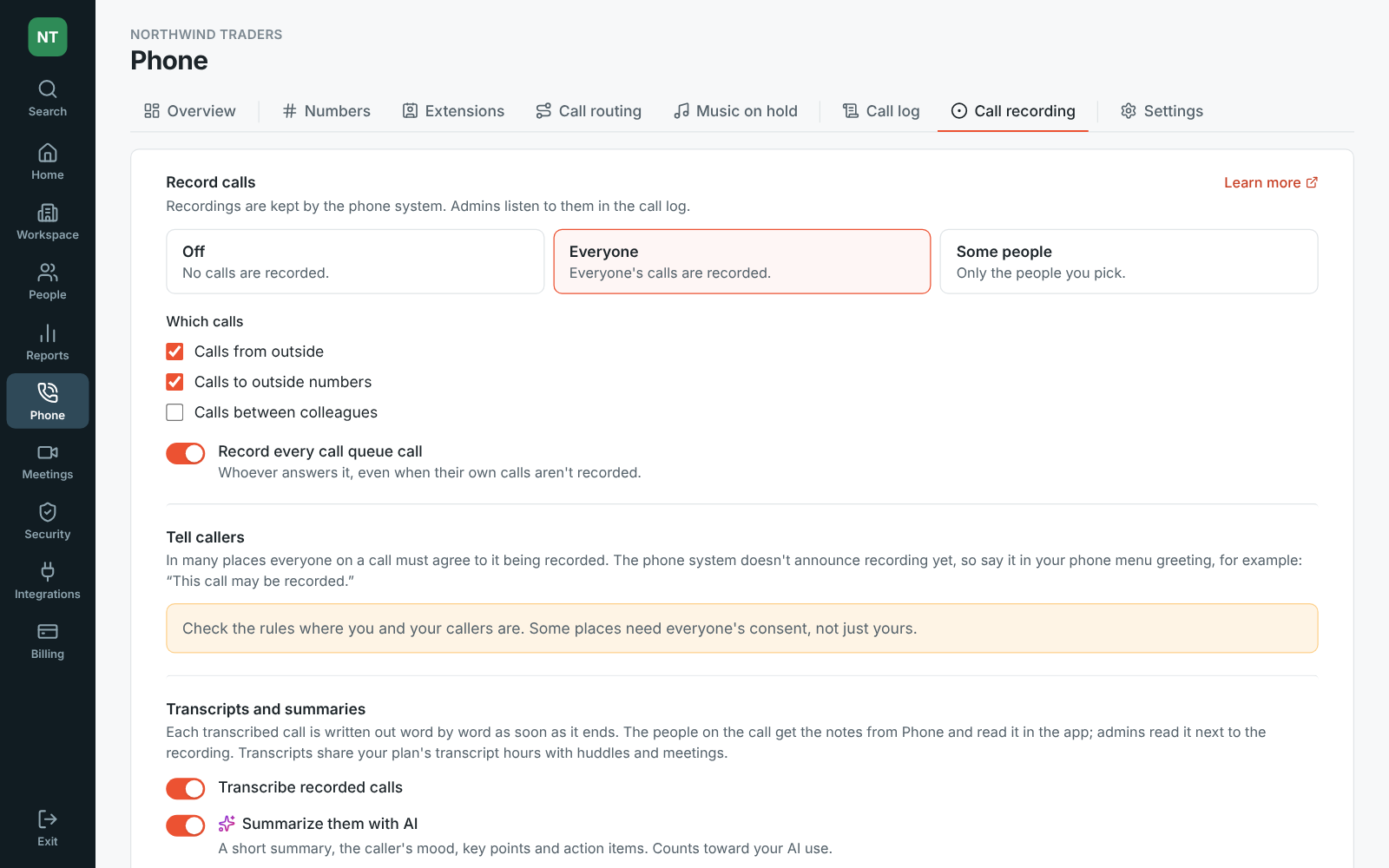
Section titled “Call recording”- Phone → Call recording in the Admin Center records calls on your phone system: everyone’s, or only the people you pick, and which calls: from outside, to outside numbers and between colleagues. You can also record every call queue call. See Call recording.
- Turn on transcripts to write each recorded call out word by word, and AI summaries for a short summary, the caller’s mood, key points and action items.
- Choose how long recordings are kept: 30 or 90 days, 1 or 2 years, or until someone deletes them.
Admin Center: a call log of every call
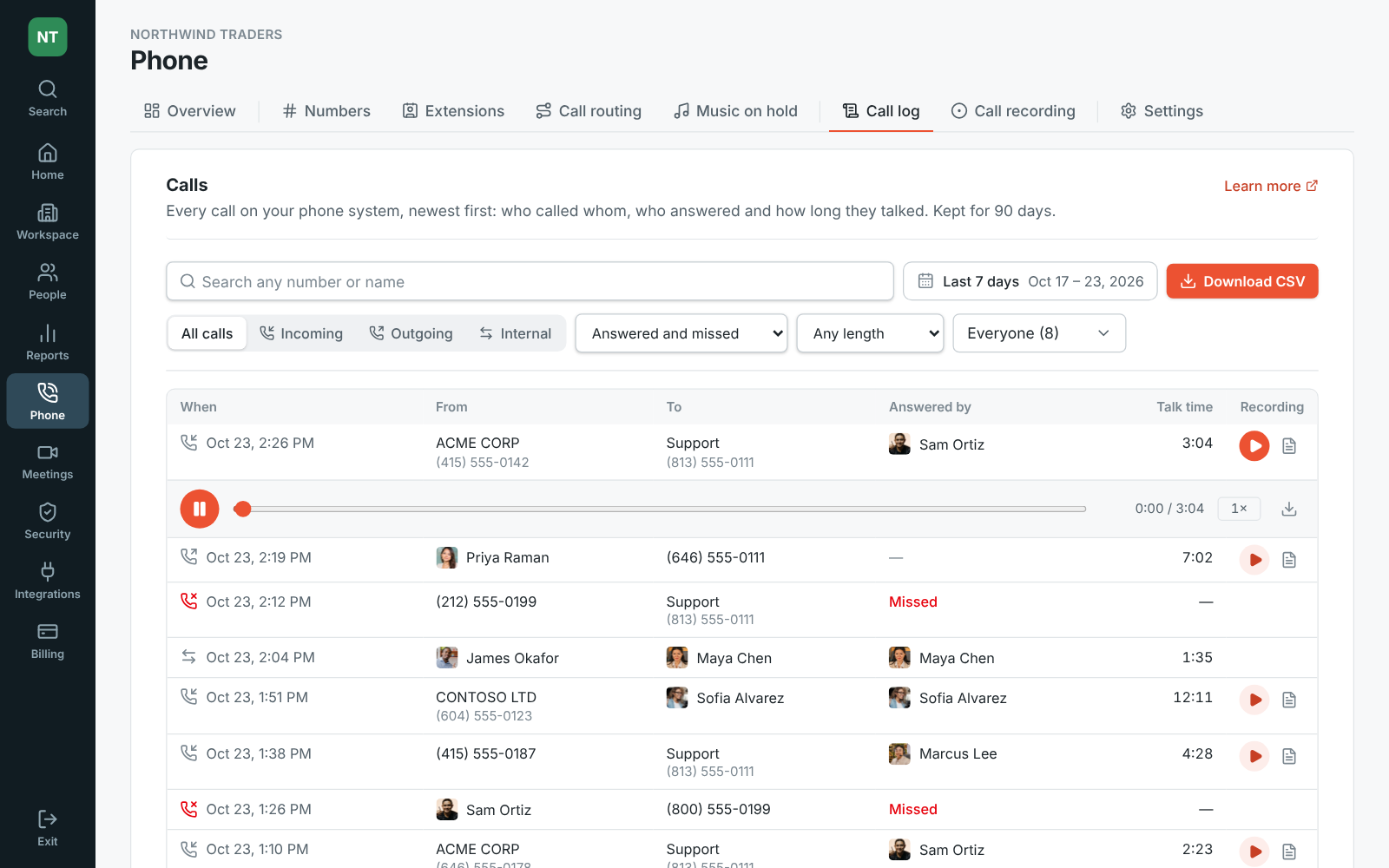
Section titled “Admin Center: a call log of every call”- Phone → Call log in the Admin Center lists every call on your phone system: in, out and between colleagues, with who called, who it rang, who answered, how long they talked, and missed calls in red. See Call log.
- Search for any number or name, pick dates on a calendar, and narrow to calls in, out or between colleagues, answered or missed, longer calls, or certain people. Download CSV saves the calls you see.
- Recorded calls have a play button: listen right under the call, at up to 2× speed, and open the transcript with a summary, the caller’s mood, key points and next steps.
Admin Center: members table and audit log filters
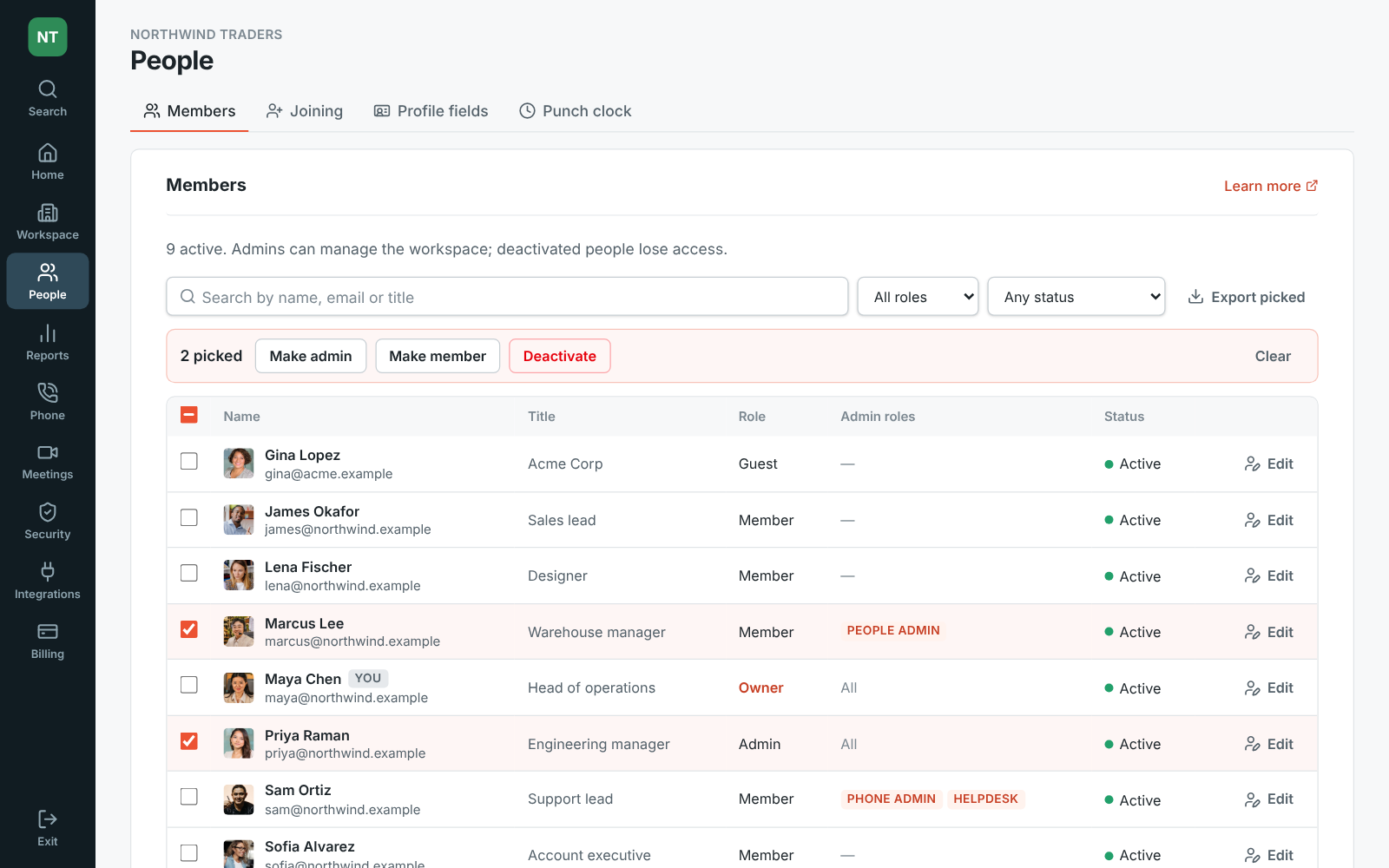
Section titled “Admin Center: members table and audit log filters”- People → Members in the Admin Center is now a table. Search it, filter by role or status (active, not signed in yet, deactivated), and tick people to make them admins or members, deactivate or reactivate them, or copy their sign-in links, all at once. See Manage members.
- Export CSV saves the members you see, or only the ones you picked.
- The Audit log filters by who made a change, what kind of change and month, and Export CSV saves what it shows. See Audit log.
Missed calls, ringing and cancelling a transfer
Section titled “Missed calls, ringing and cancelling a transfer”- The phone’s Recent tab has All and Missed, to see only the calls you missed. See Your calls.
- Calling out, the phone says Ringing… once their phone rings, instead of Calling… the whole time.
- Passing a call on, Cancel stops the transfer while their phone rings and keeps the caller with you. A 3-way call after Talk first lists both people on it. See Passing a call on.
Make a shared screen bigger
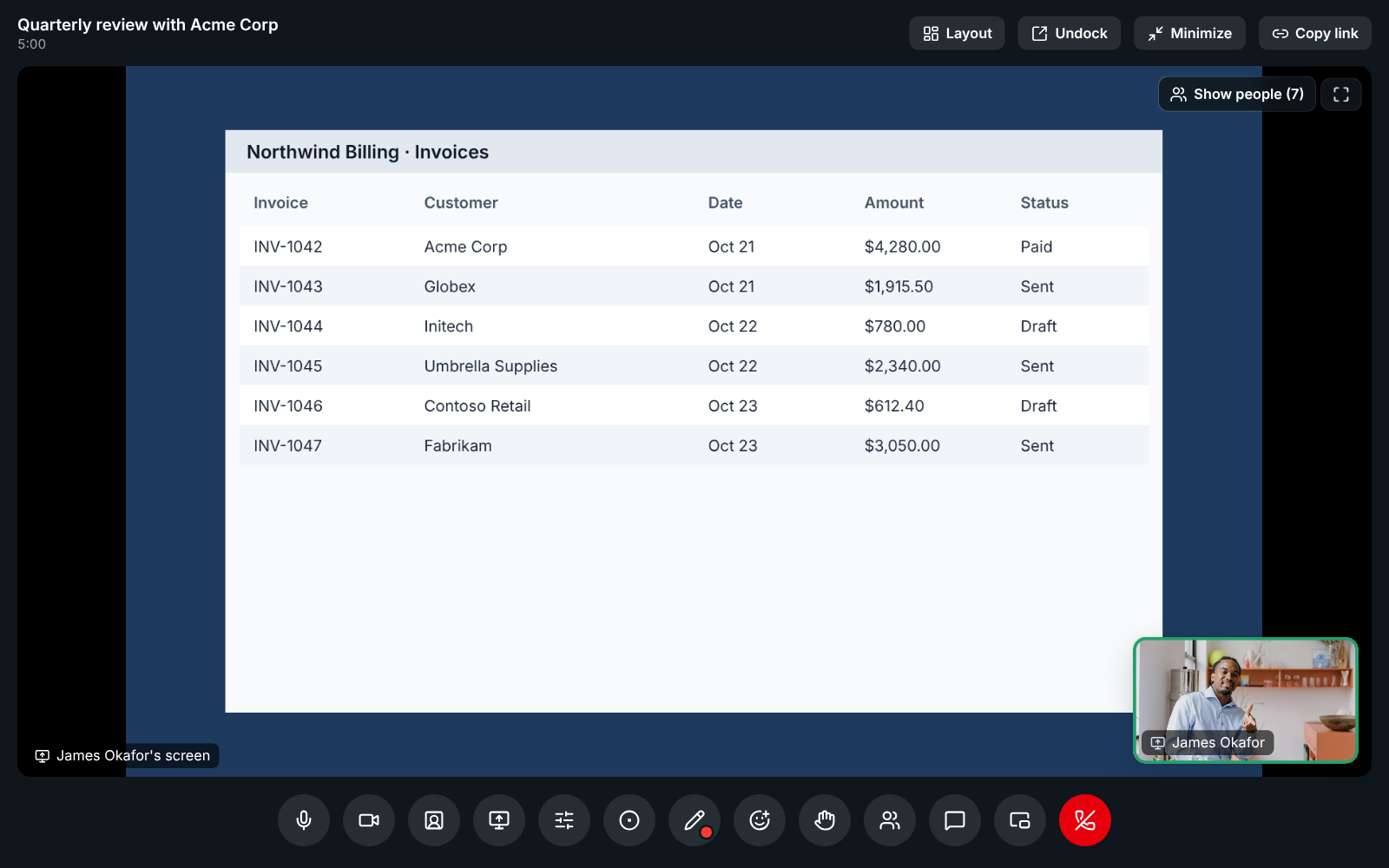
Section titled “Make a shared screen bigger”- A shared screen now fills the call, with people in a narrow column beside it. Layout at the top moves them into a row under it, or hides them with Screen only: whoever is talking stays small in a corner. People size makes the tiles smaller, and F goes full screen.
- When two people share at once, each screen gets a tab above it to switch between them, and Show both puts them side by side. The same works in a huddle made bigger. See Make the shared screen bigger.
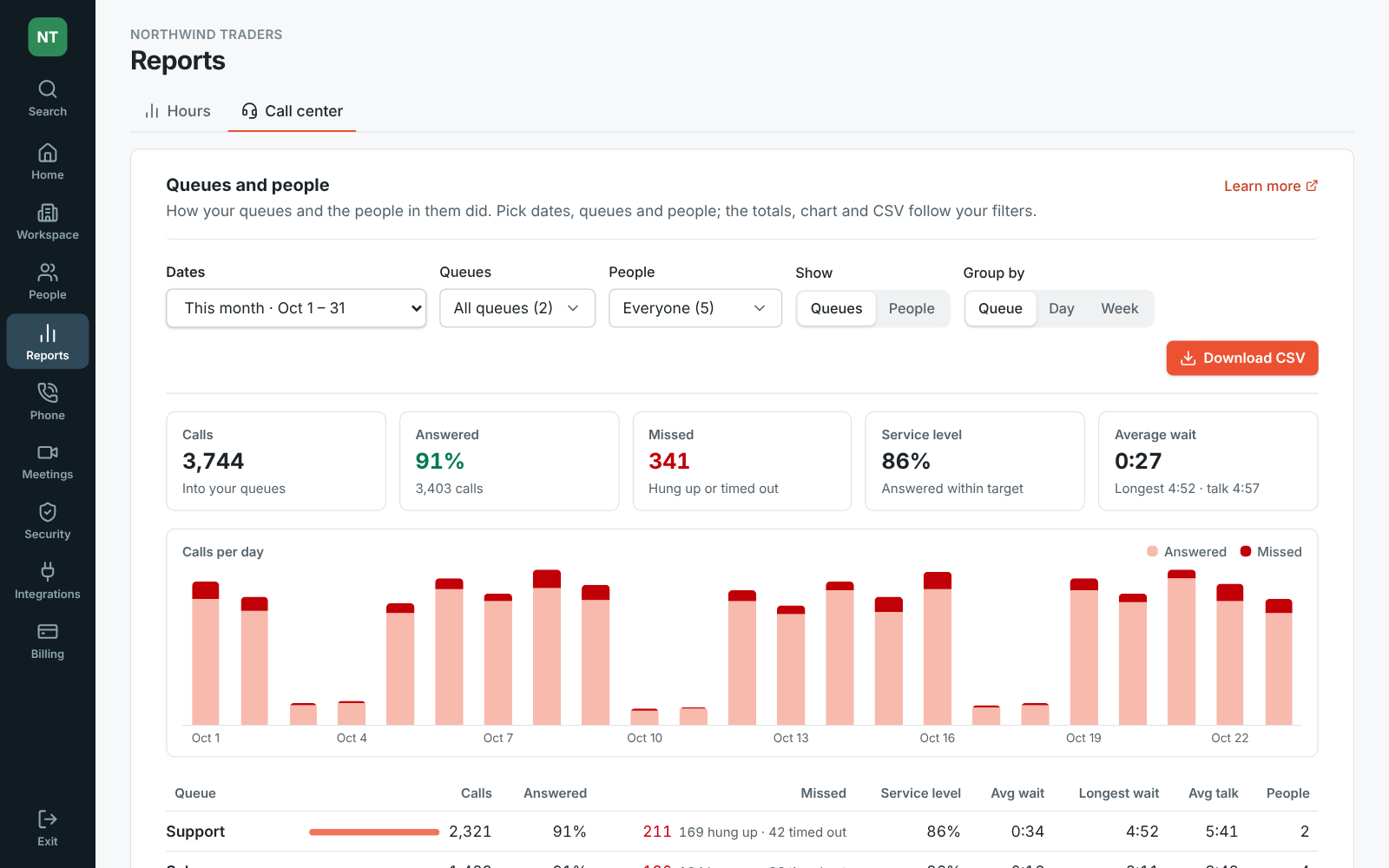
Reports: call center
Section titled “Reports: call center”- Reports → Call center in the Admin Center shows how your call queues did over any dates you pick: calls, answered and missed, service level, waits and talk time, per queue and per day or week. It comes with the Call center add-on. See Reports.
- Switch to People for each person’s answered and missed calls, talk time, breaks (with breaks past their time limit marked), time signed in and how busy they were, with break time added up by reason.
- Filter by queues and people, and Download CSV saves what the table shows.
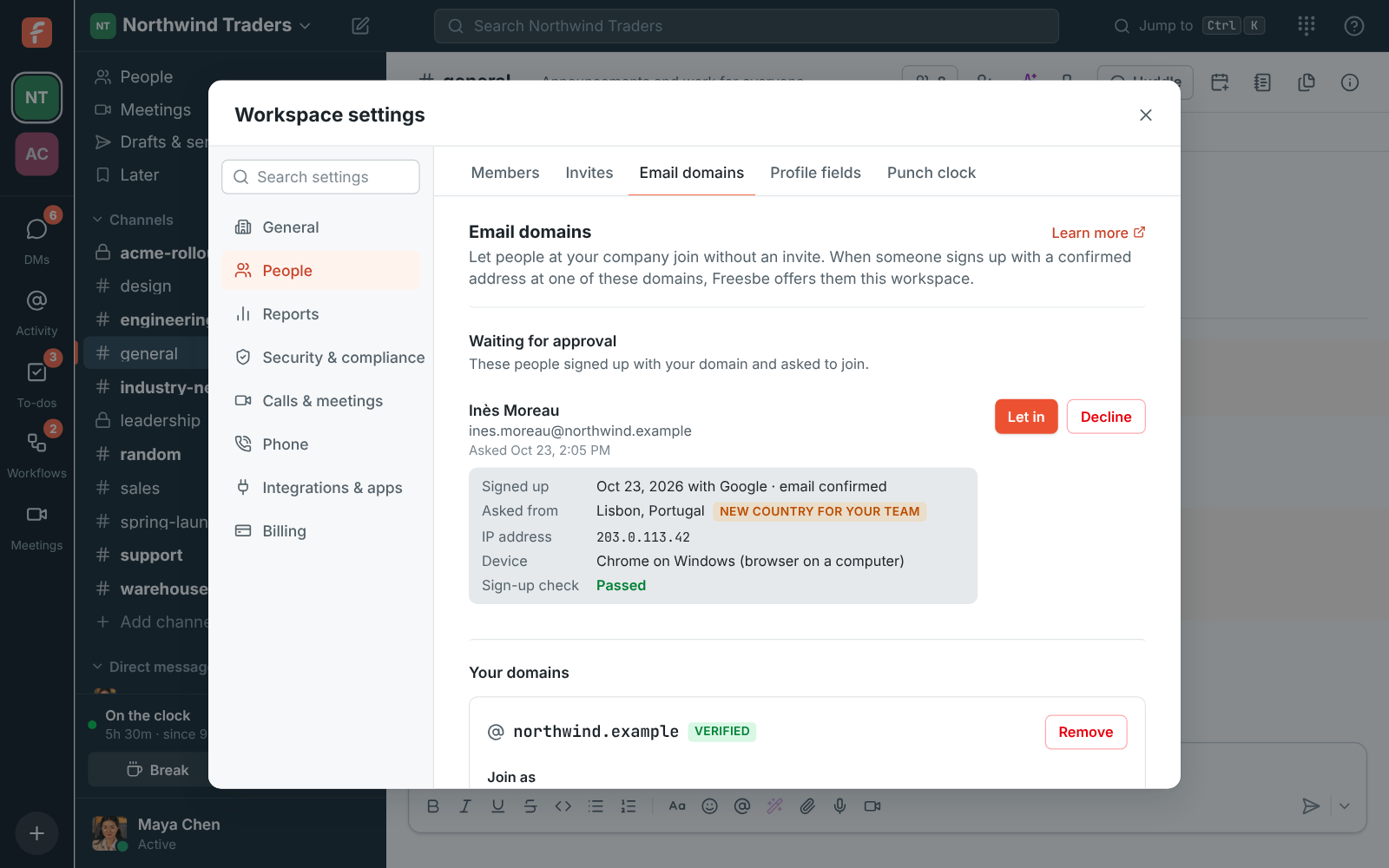
See who’s asking to join
Section titled “See who’s asking to join”- When an admin approves each person who joins by email domain, the email and the request under Waiting for approval now show who is asking: when and how they signed up, the city and country they asked from (flagged when it’s new for your team), their browser or app and device, and whether they passed Freesbe’s sign-up checks. The IP address is in Freesbe only, never in the email. See Approve people.
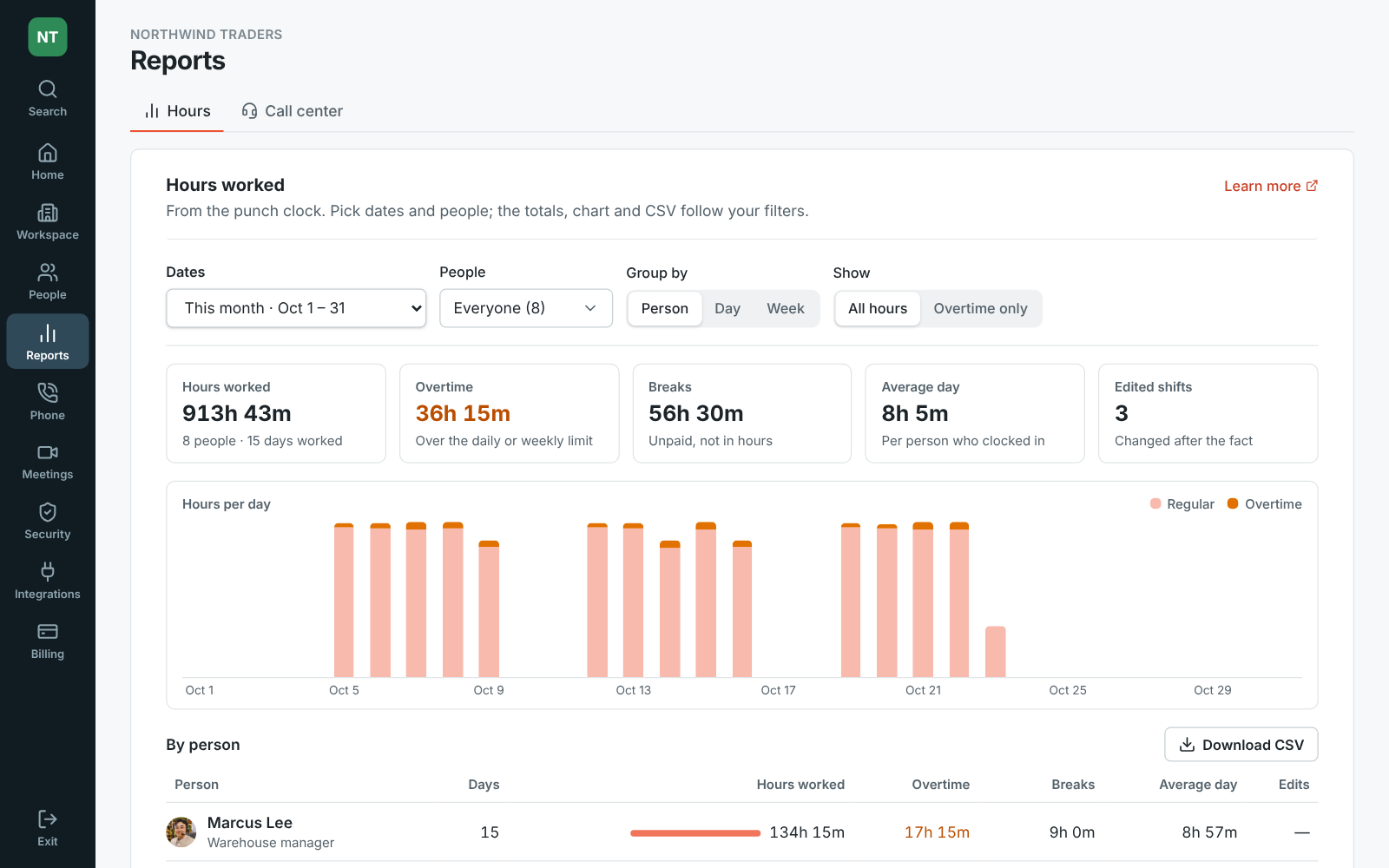
Reports: hours worked
Section titled “Reports: hours worked”- The Admin Center has a new Reports section under People, starting with Hours: hours worked from the punch clock, with overtime, breaks, the average day and shifts edited after the fact. See Reports.
- Pick the dates (this week, last week, this month, last month or your own), everyone or a few people, and group the table by person, day or week. Overtime only shows just the people and days that went over.
- Download CSV saves exactly what the table shows, with decimal hours ready for payroll.
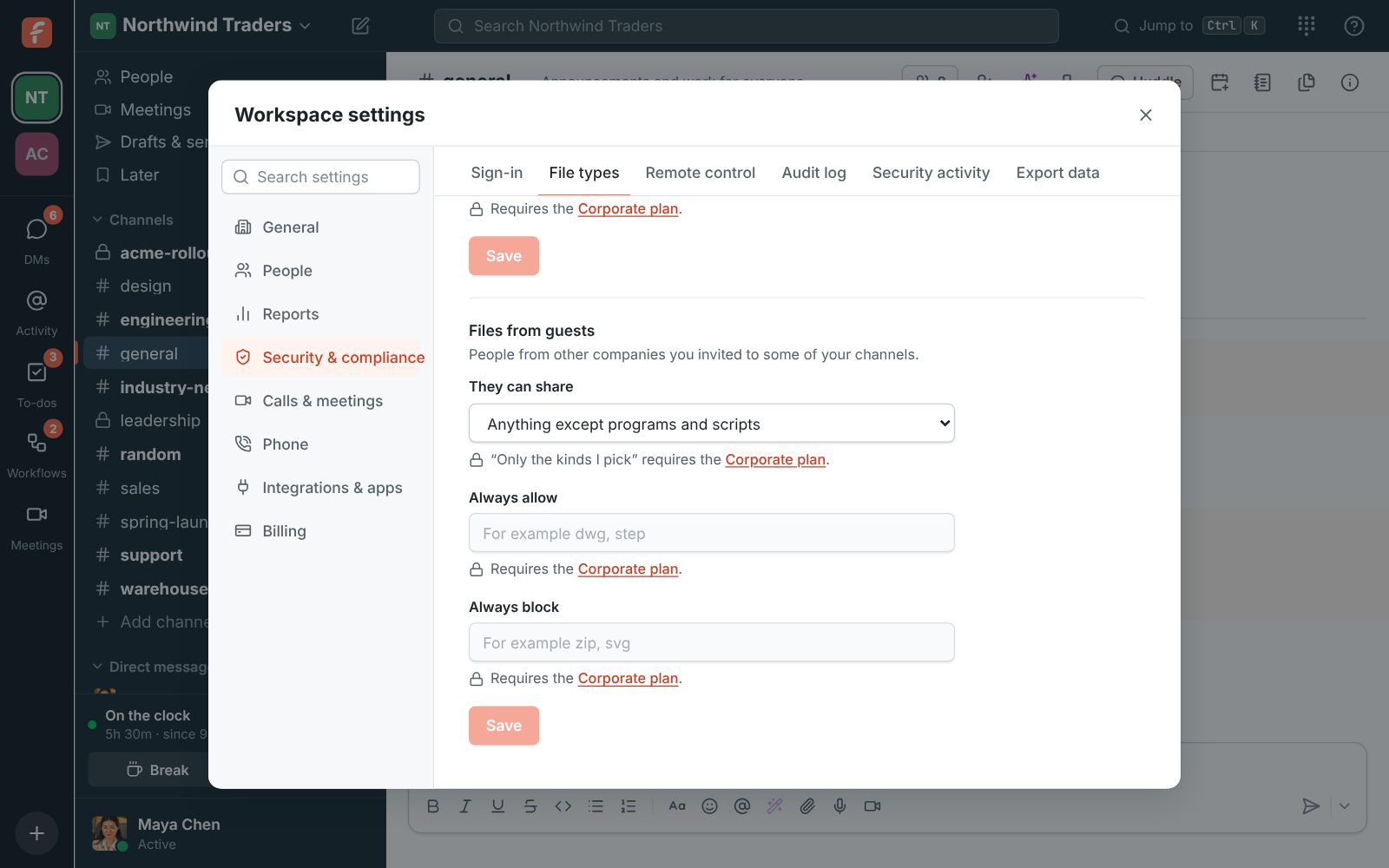
Locked settings say which plan they need
Section titled “Locked settings say which plan they need”- A setting your plan doesn’t include no longer just sits there greyed out. It now says which plan it needs, like Requires the Corporate plan, and the plan’s name takes admins straight to Billing → Plans to upgrade. This covers file types, profile fields, remote control, data export, the custom domain, Salesforce and WhatsApp. See Plans.
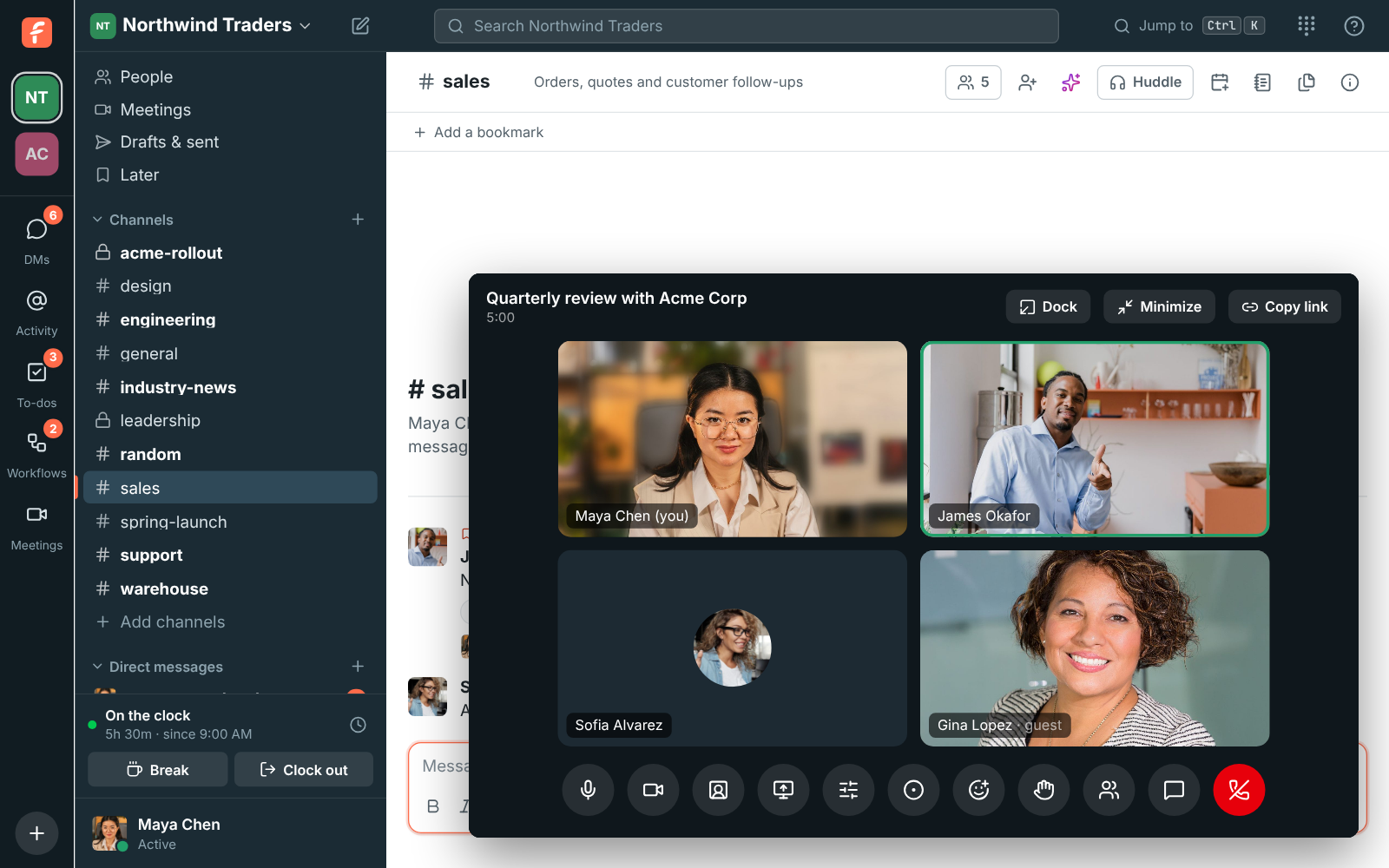
Undock a meeting into its own window
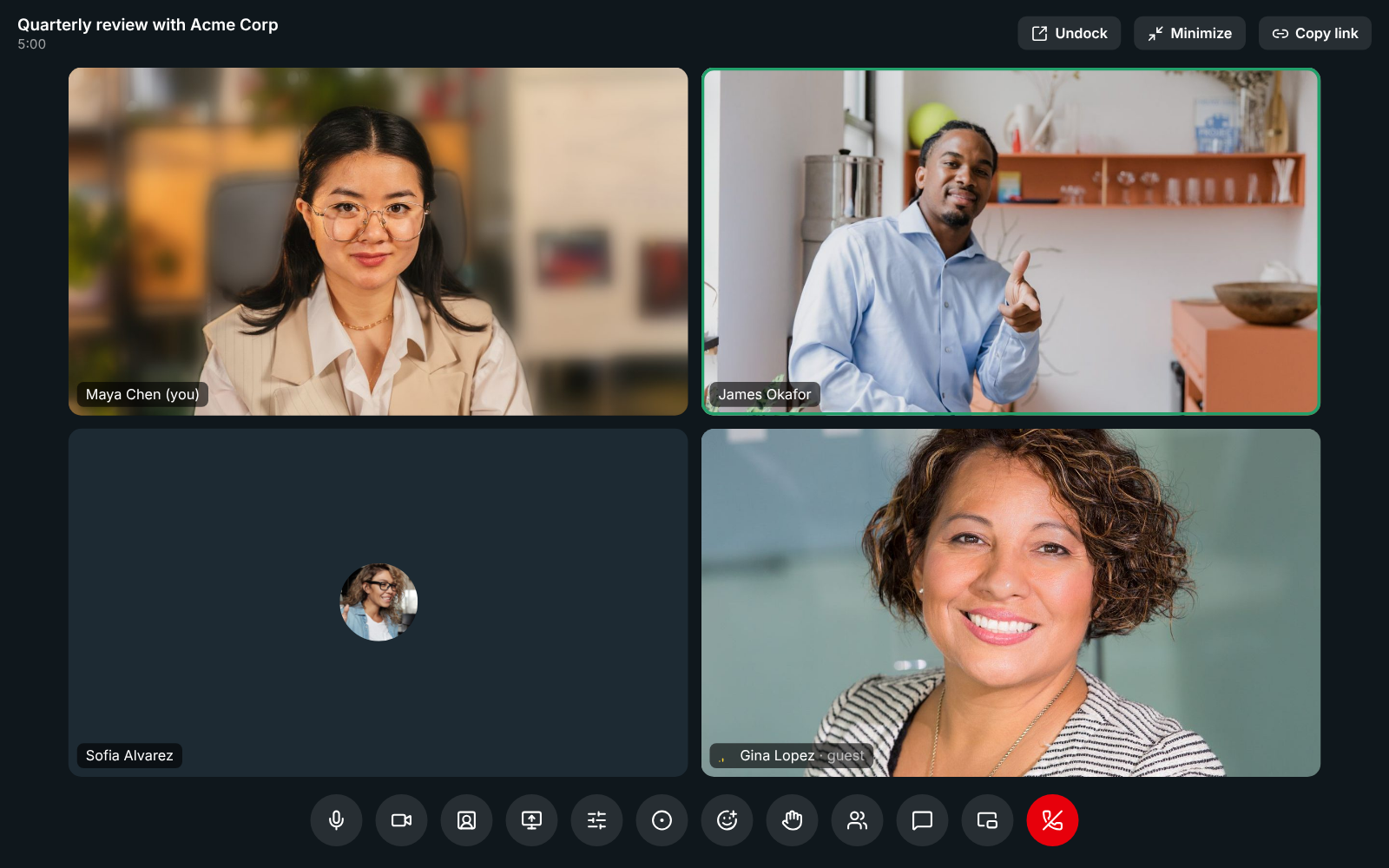
Section titled “Undock a meeting into its own window”- Undock at the top of a meeting moves it to a window of its own, so you can watch it beside Freesbe or on another screen while you keep working in your channels. Dock brings it back.
- Minimize and Maximize now do just that: Minimize shrinks the meeting to a card in the corner, and Maximize on the card brings back the full meeting, as it was. In the desktop app, undocking needs version 0.1.12. See Undock the meeting into its own window.
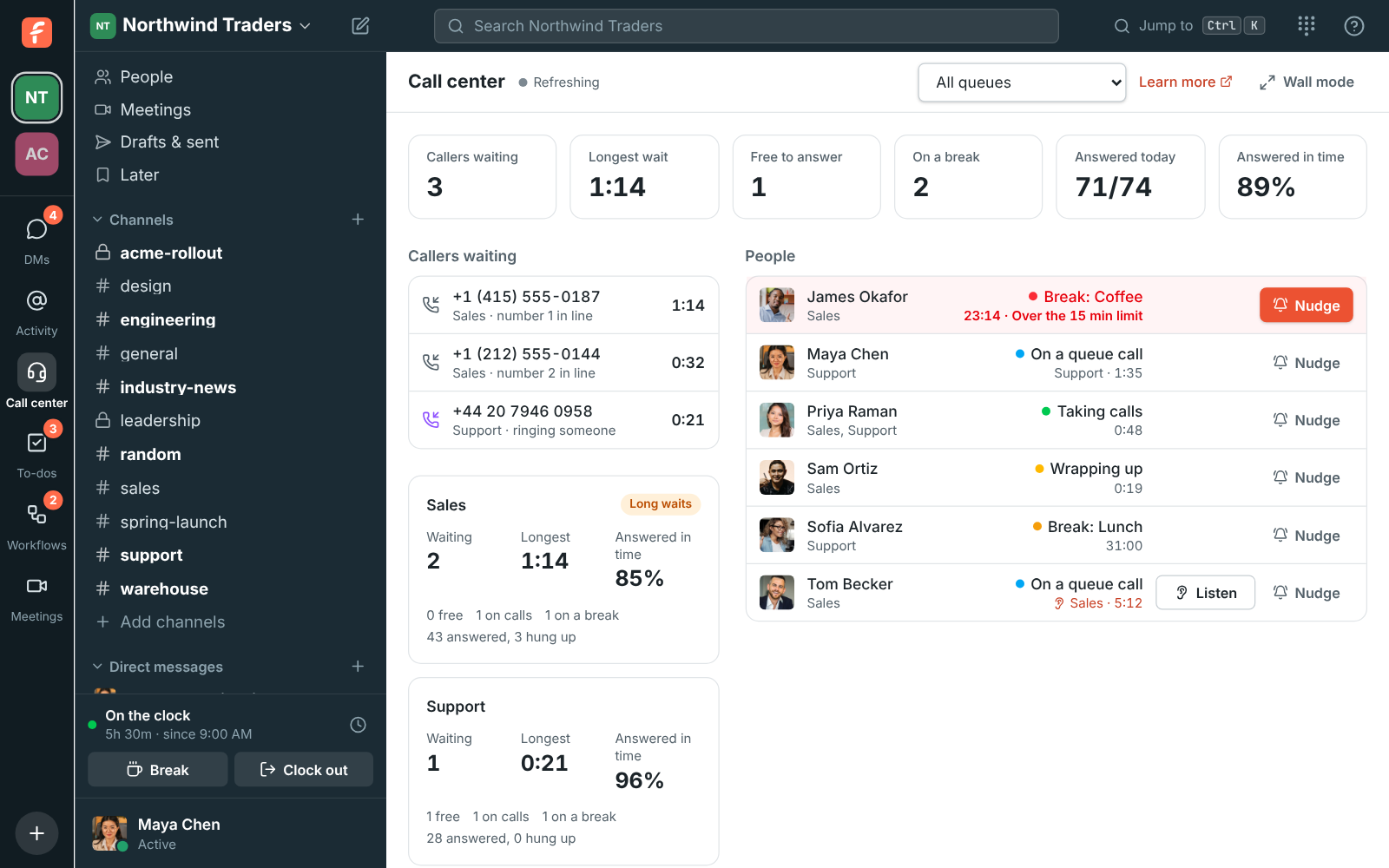
A live Call center board
Section titled “A live Call center board”- With the Call center add-on, admins and the supervisors they pick get a Call center page: callers waiting and for how long, each queue’s numbers for today, and who’s taking calls, on a call or on a break. A break past its time limit turns red.
- Nudge sends someone a direct message from you or from the Call center bot, and Wall mode puts the board on a TV in large type. See Call center board.
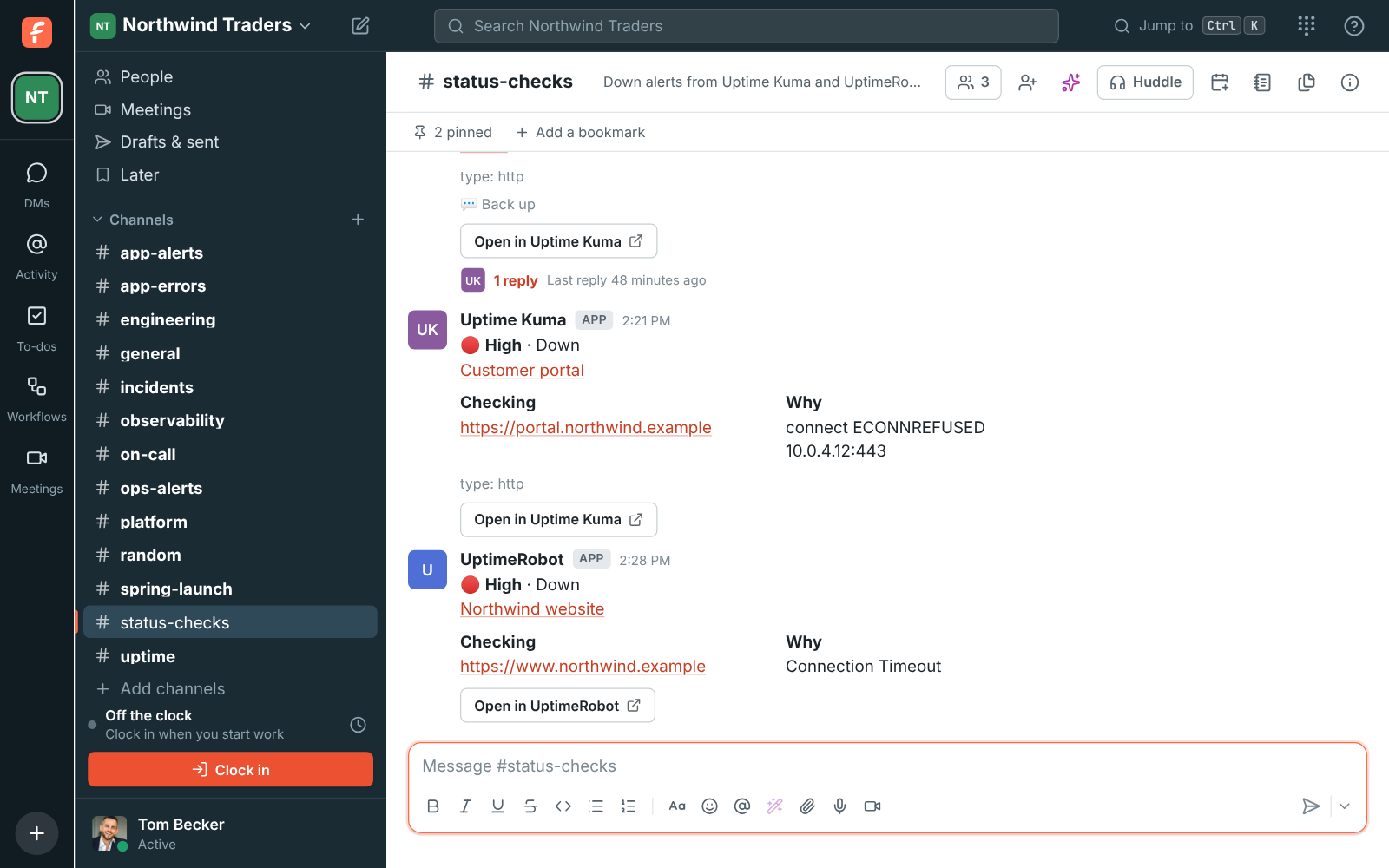
Uptime Kuma and UptimeRobot alerts in a channel
Section titled “Uptime Kuma and UptimeRobot alerts in a channel”- Admins can connect Uptime Kuma and UptimeRobot in Workspace settings → Integrations → Monitoring. Each monitor that goes down then posts into the channel you pick as one card with what it checks and why, and turns green when it’s back up. See Uptime Kuma and UptimeRobot.
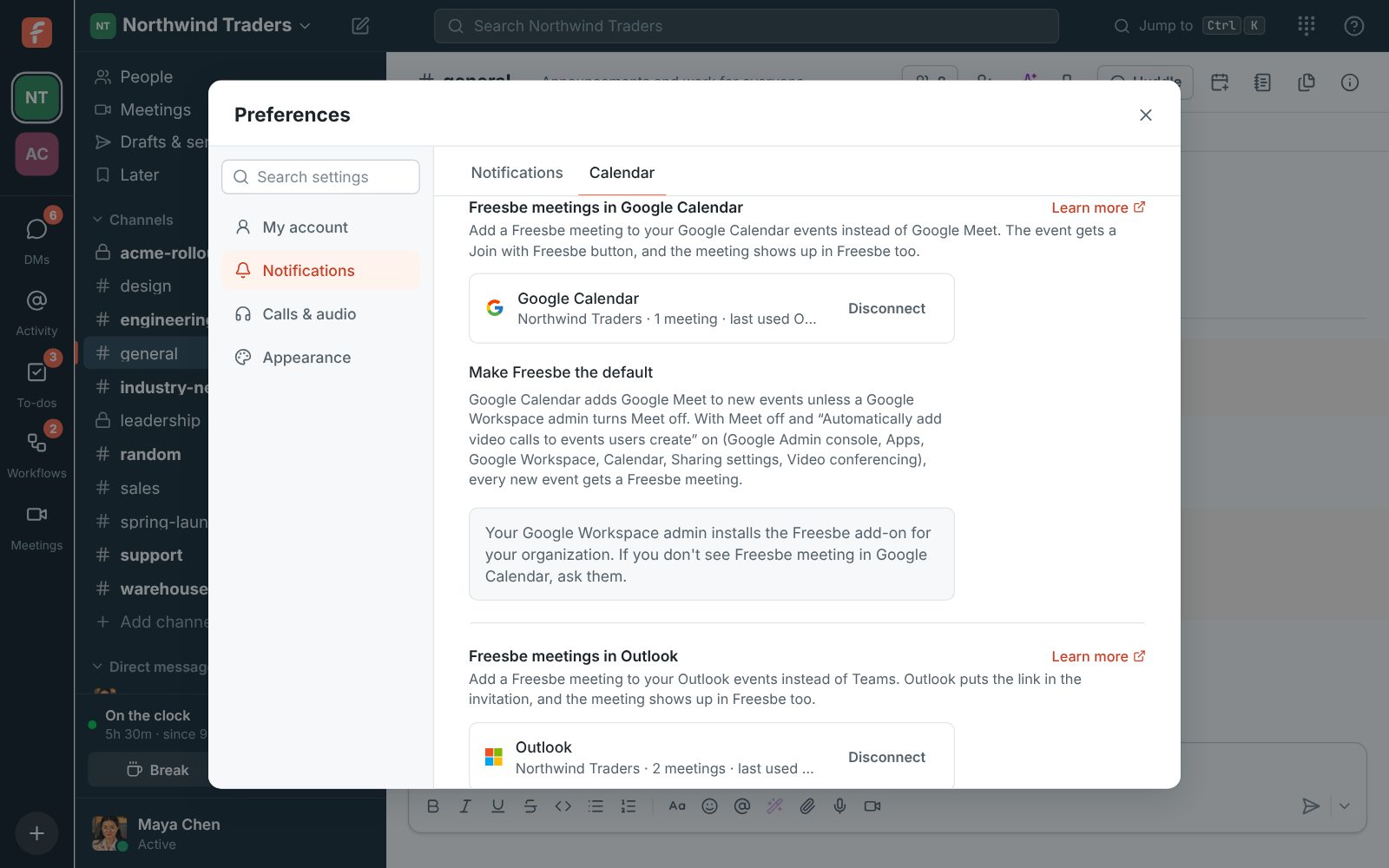
Freesbe meetings in Google Calendar
Section titled “Freesbe meetings in Google Calendar”- The new Freesbe add-on for Google Calendar puts Freesbe meeting next to Google Meet in an event’s video conferencing menu. The event gets a Join with Freesbe button, and the meeting shows up in Freesbe marked From Google Calendar. Change the event and the meeting follows.
- Google Workspace admins can make it everyone’s default by turning off Google Meet. Install it from the files in the Admin Center, under Integrations → Calendar, while its Marketplace listing is on its way. See Freesbe meetings in Google Calendar.
Android notifications: one per conversation
Section titled “Android notifications: one per conversation”- On Android, each conversation now has one notification that shows its newest messages and how many came, instead of one per message. It rings once for a burst, and stays quiet for messages that arrive late after your phone was offline.
- Read a conversation on your computer and its notification on your phone goes away. See Notifications.
Cleaner edges around you on camera
Section titled “Cleaner edges around you on camera”- Behind a blur or a picture, a second AI model now looks at the whole frame a few times a second and puts back into the room what the first one took for part of you: the chair, shelf, plant or window right behind your head or shoulder. Your hair, hands and headset stay in.
- It works in Chrome, Edge, Safari and Firefox on computers with WebGPU (most from the last few years); the first time, it downloads about 20 MB, kept for next time. The Mac app uses the Mac’s own person detection instead, from its next update. See Video.
New Relic issues in a channel
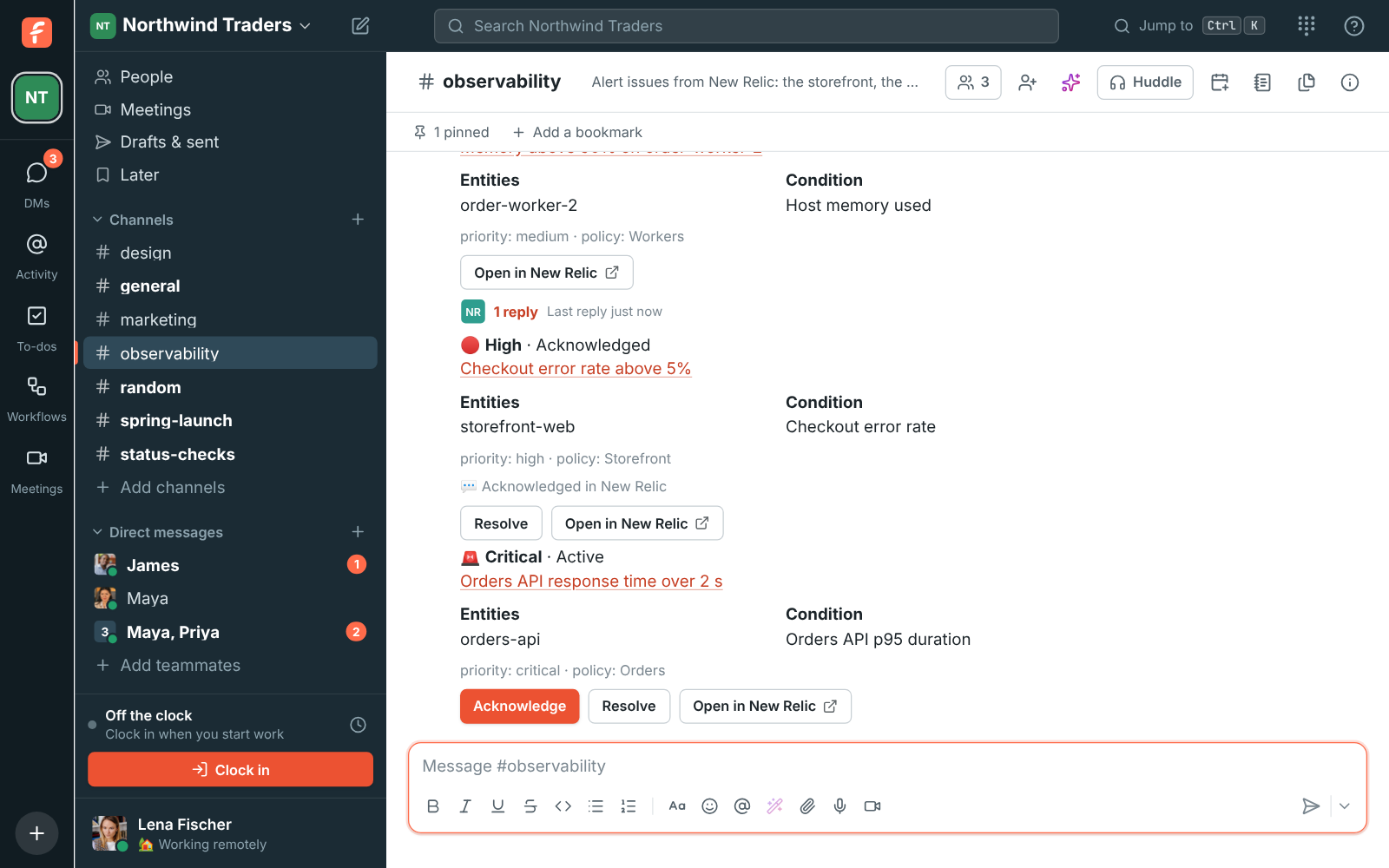
Section titled “New Relic issues in a channel”- Admins can connect New Relic in Workspace settings → Integrations → Monitoring. Each alert issue from a workflow then posts into the channel you pick as one card with its priority, entities and condition, and turns green when it closes.
- With a user key, Acknowledge and Resolve on the card change the issue in New Relic. See New Relic.
Transfer calls, talk first, or make it a 3-way call
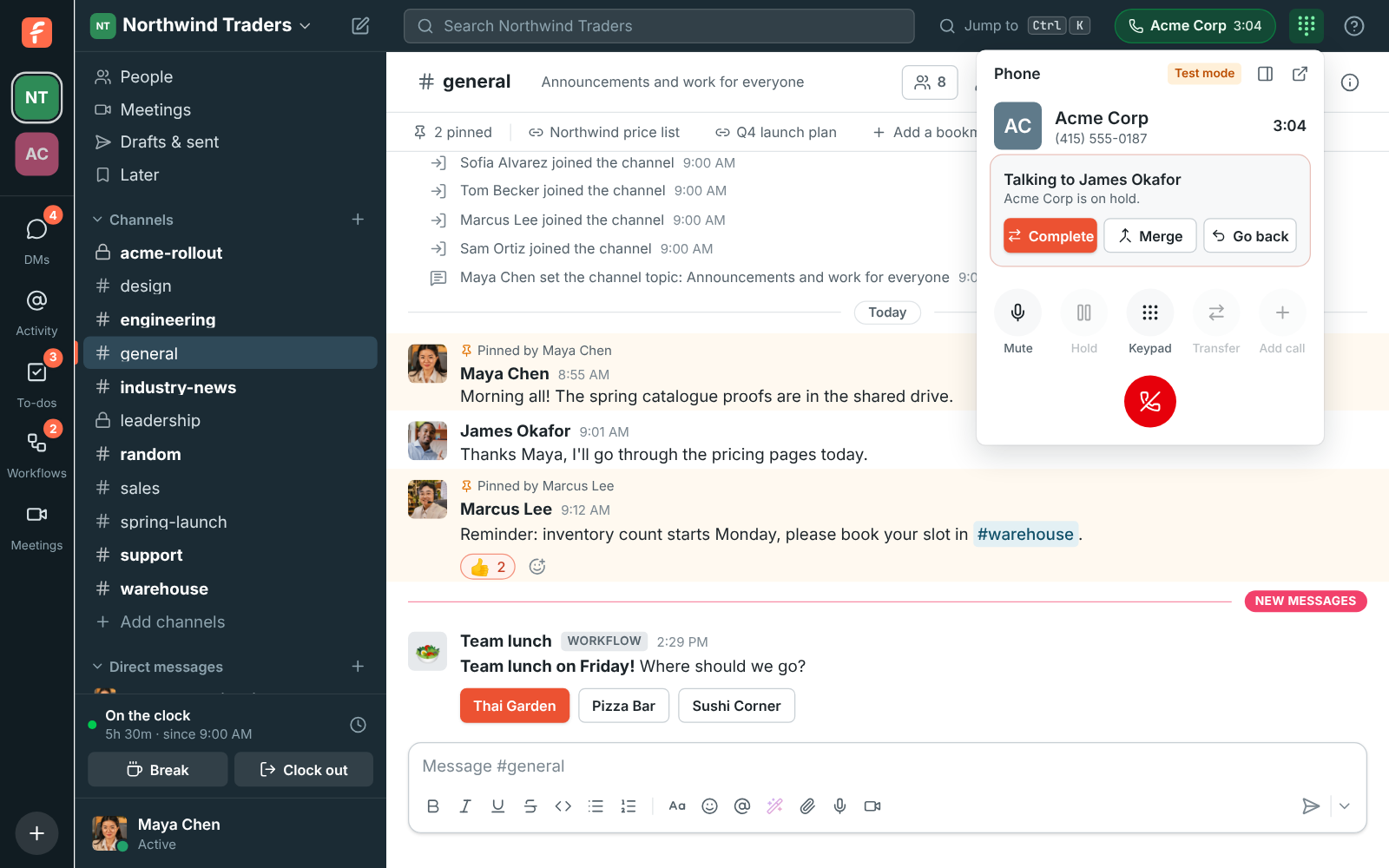
Section titled “Transfer calls, talk first, or make it a 3-way call”- Transfer during a call now finds colleagues by name, extensions, call queues and numbers. Pass the call on as soon as they answer, or Talk first while the caller waits on hold, then Complete, Merge everyone into a 3-way call, or Go back to the caller. See Passing a call on.
- Add call puts a call on hold and calls someone else. Click the call on hold to switch, then Transfer to connect the two, or Merge them into a 3-way call. See Two calls at once.
- The phone has two new tabs: People, your colleagues with their extensions, and Voicemail, to play your voicemails, call back and delete them. See Your colleagues and Voicemail.
Better Stack incidents in a channel
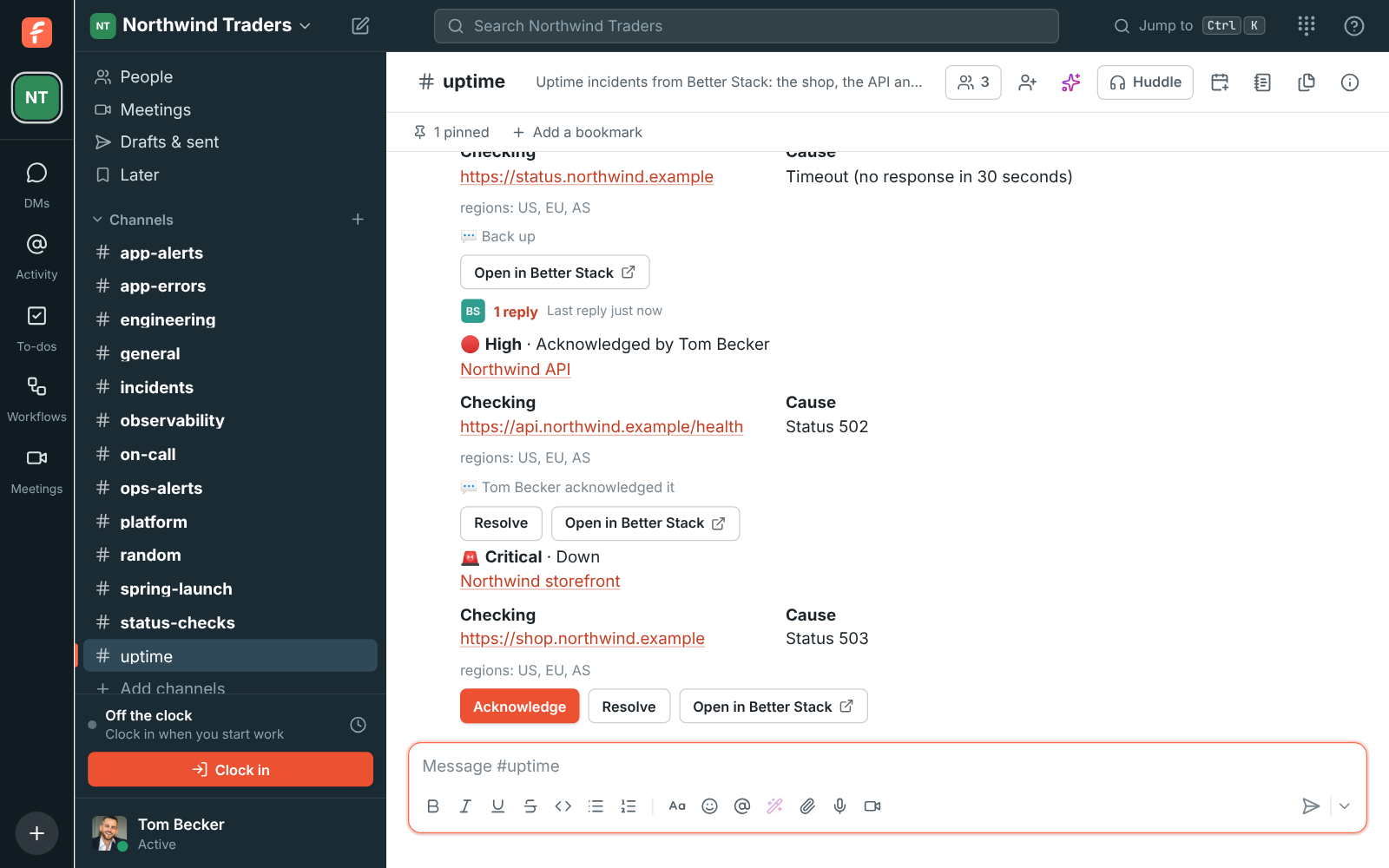
Section titled “Better Stack incidents in a channel”- Admins can connect Better Stack in Workspace settings → Integrations → Monitoring. Each uptime incident then posts into the channel you pick as one card with the monitor, what it checks and why it failed, and turns green when the monitor is back up.
- With an API token, Acknowledge and Resolve on the card change the incident in Better Stack. See Better Stack.
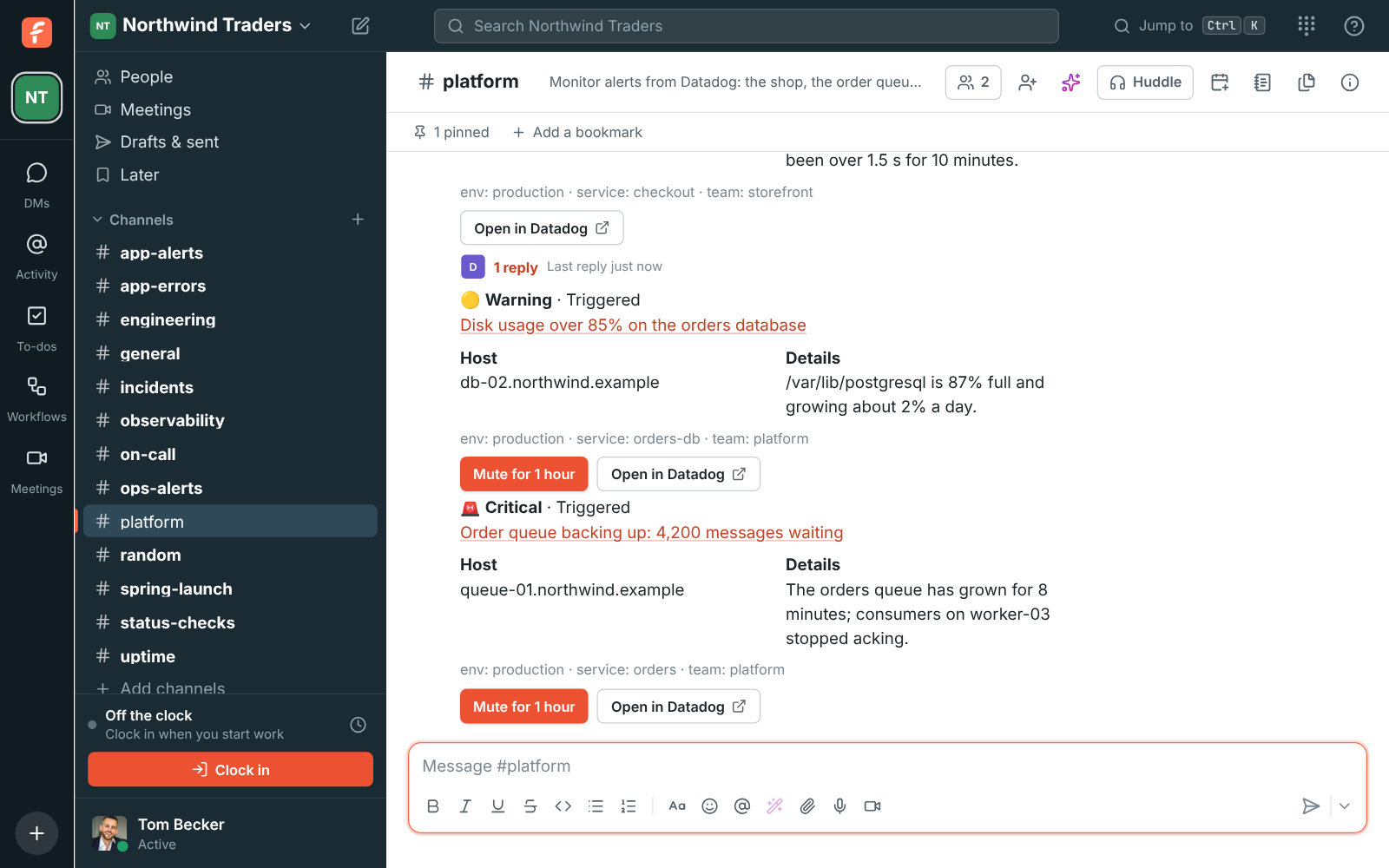
Sentry issues in a channel
Section titled “Sentry issues in a channel”- Admins can connect Sentry in Workspace settings → Integrations → Monitoring. Each issue then posts into the channel you pick as one card with its level, project and where it happened, and turns green when it’s resolved. Issue and metric alerts post too.
- With the integration’s token, Resolve and Archive for 1 hour on the card change the issue in Sentry. See Sentry.
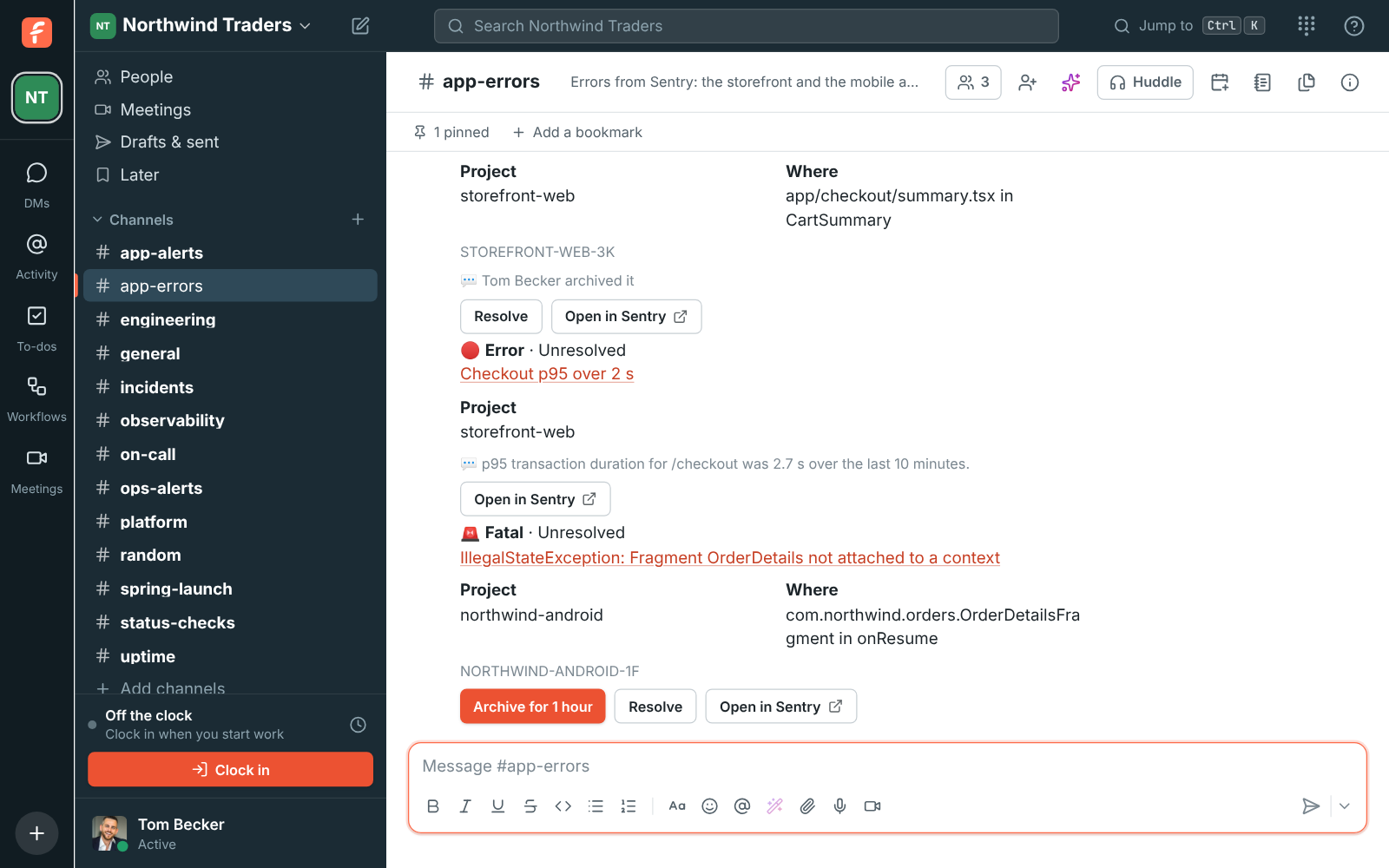
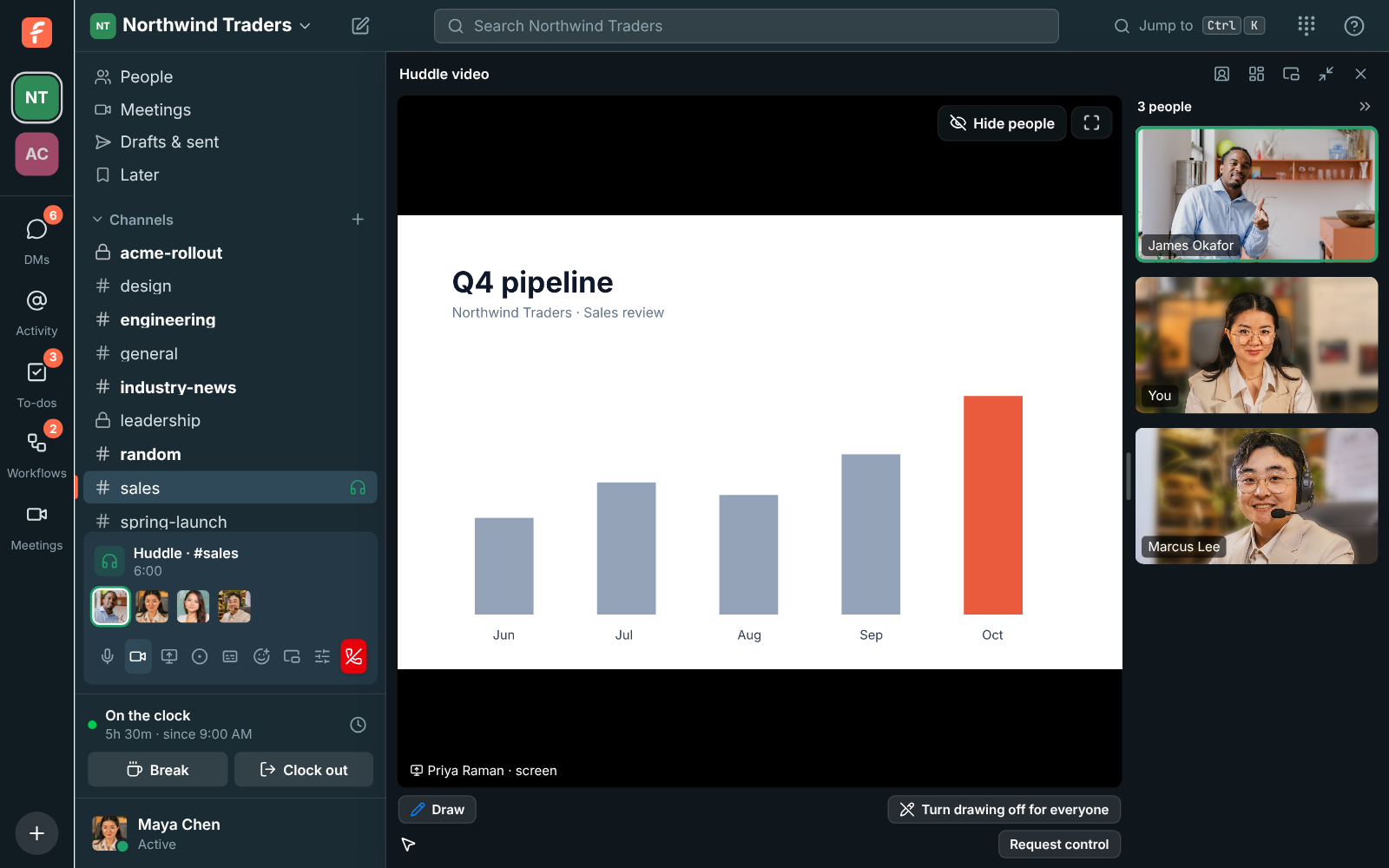
Draw on a shared screen
Section titled “Draw on a shared screen”- While someone shares their screen in a meeting or huddle, anyone in the call, guests included, can click the pencil and draw over it to point something out. Lines fade away about 2 seconds after you let go.
- Everyone draws in their own colour, with their name next to the line, and keeps it for the whole call. Several people can draw at once, and the person sharing sees the lines too.
- Hosts can turn drawing off for everyone for the rest of the call, and back on. See Draw on a shared screen.
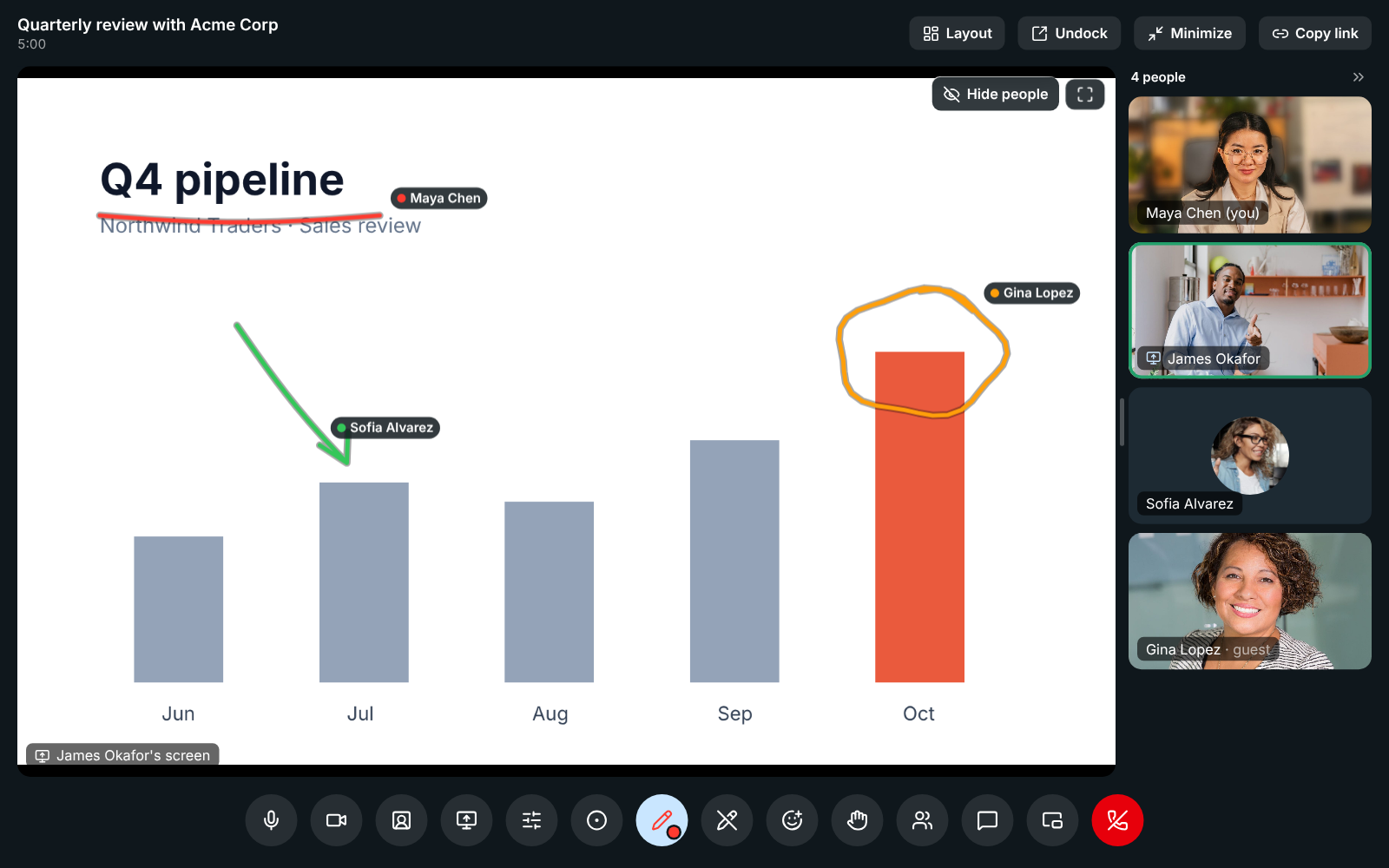
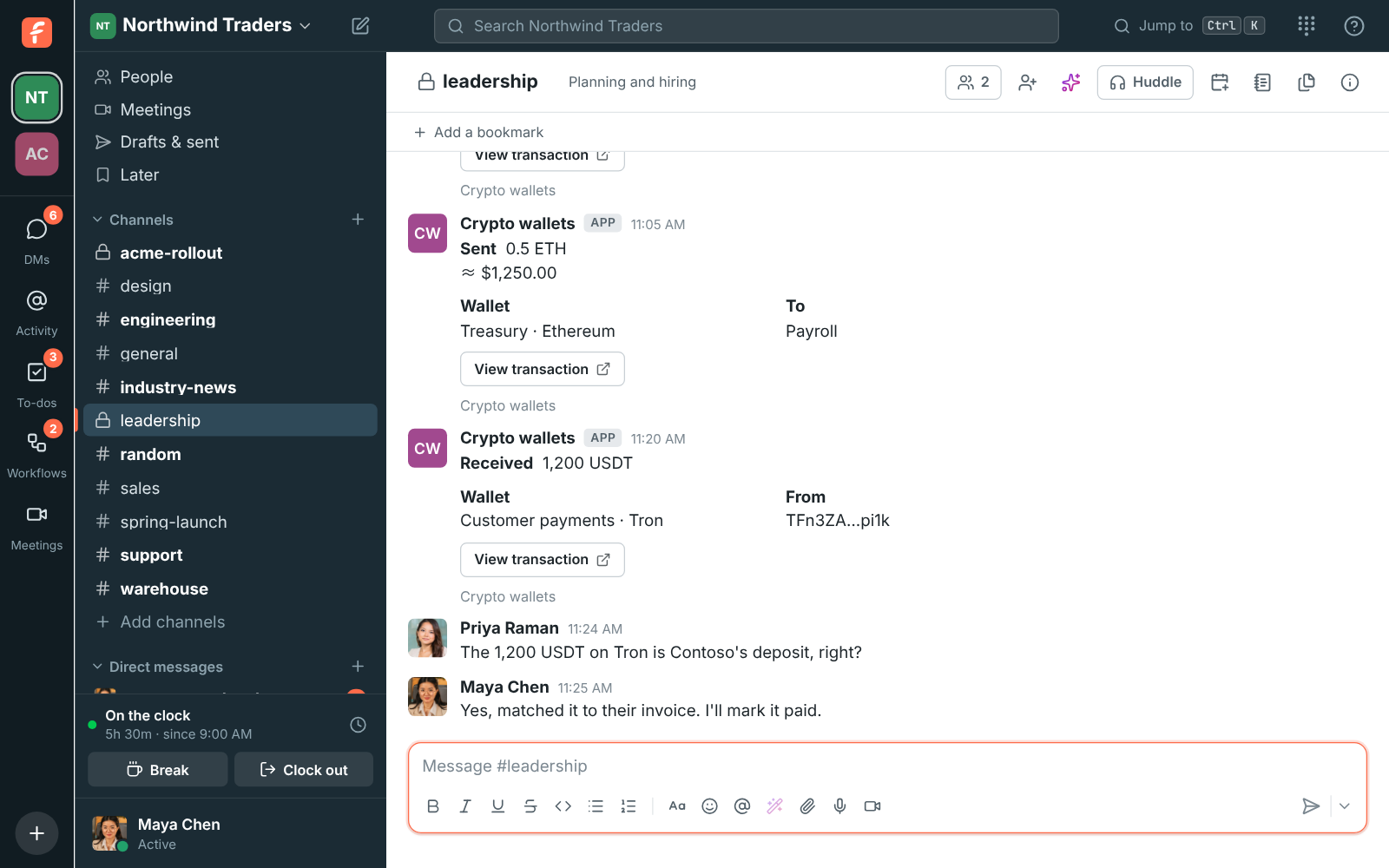
Crypto wallets in a channel
Section titled “Crypto wallets in a channel”- Admins can watch the company’s wallets in Workspace settings → Integrations → Finance → Crypto wallets, with just the public address: Bitcoin, Ethereum, Base, Arbitrum, Optimism, Polygon, BNB Chain, Avalanche, Solana and Tron. Money in and out posts into the channel you pick, with its dollar value and a button to the transaction.
- USDC and USDT count as dollars, spam tokens stay out, and money moved between your own wallets shows their names. Add balance alerts and a daily summary of every wallet. See Crypto wallets.
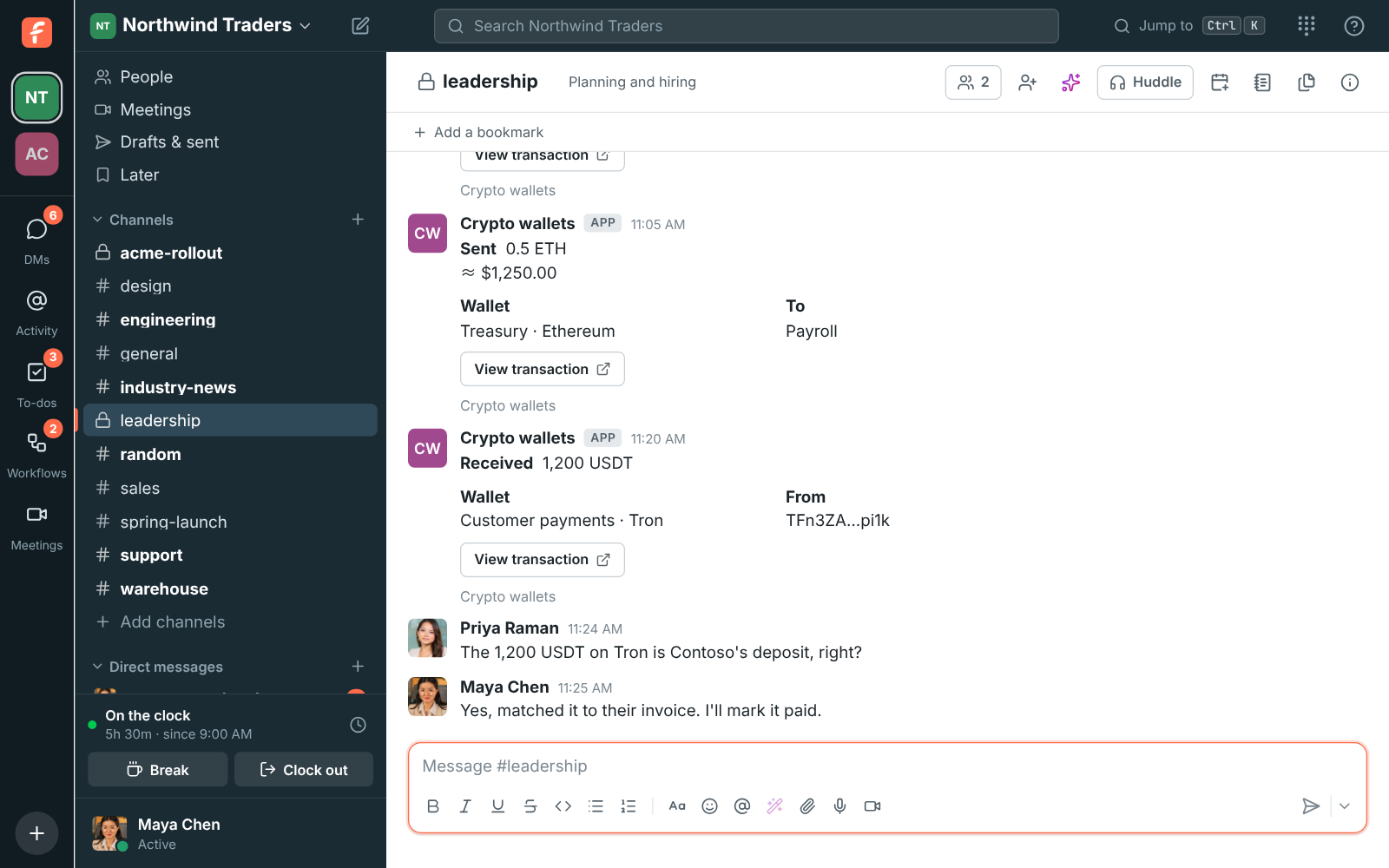
Datadog alerts in a channel
Section titled “Datadog alerts in a channel”- Admins can connect Datadog in Workspace settings → Integrations → Monitoring. Each monitor alert then posts into the channel you pick as one card with its severity, host, message and tags, and turns green when the monitor recovers.
- With an API key and an application key, Mute for 1 hour on the card mutes the monitor for the host that alerted. See Datadog.
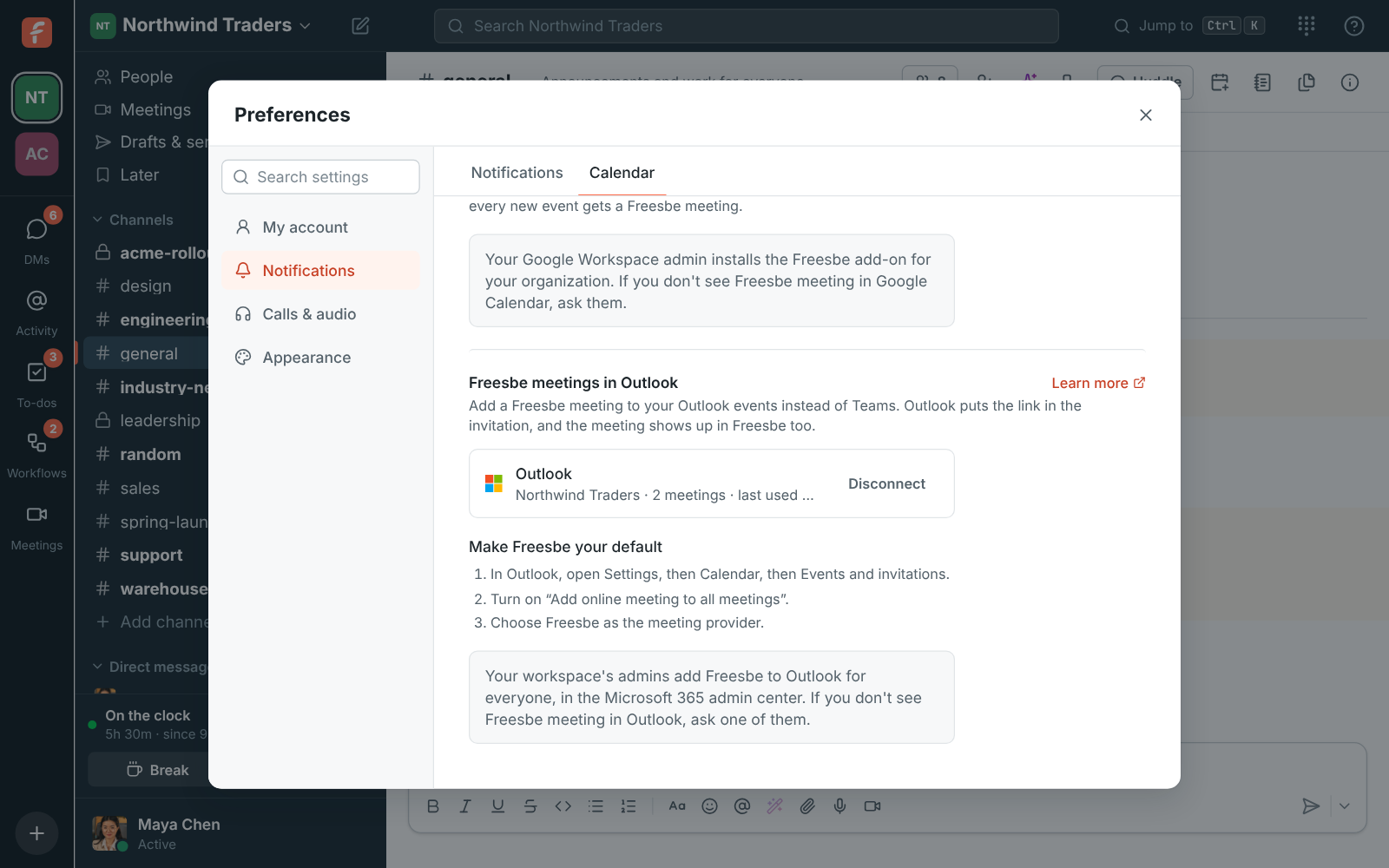
Freesbe meetings in Outlook
Section titled “Freesbe meetings in Outlook”- With the new Outlook add-in, Freesbe meeting sits where Teams usually does when you create an event, in Outlook on the web, Windows, Mac, iPhone and Android. Turn it on and Outlook puts the Freesbe link in the invitation; the meeting shows up in Freesbe marked From Outlook.
- Make it your default in Outlook’s settings, and every new event gets a Freesbe meeting. Admins add the add-in for everyone from the Microsoft 365 admin center, with the link in the Admin Center under Integrations → Calendar. See Freesbe meetings in Outlook.
Come back to a meeting’s link for 30 days
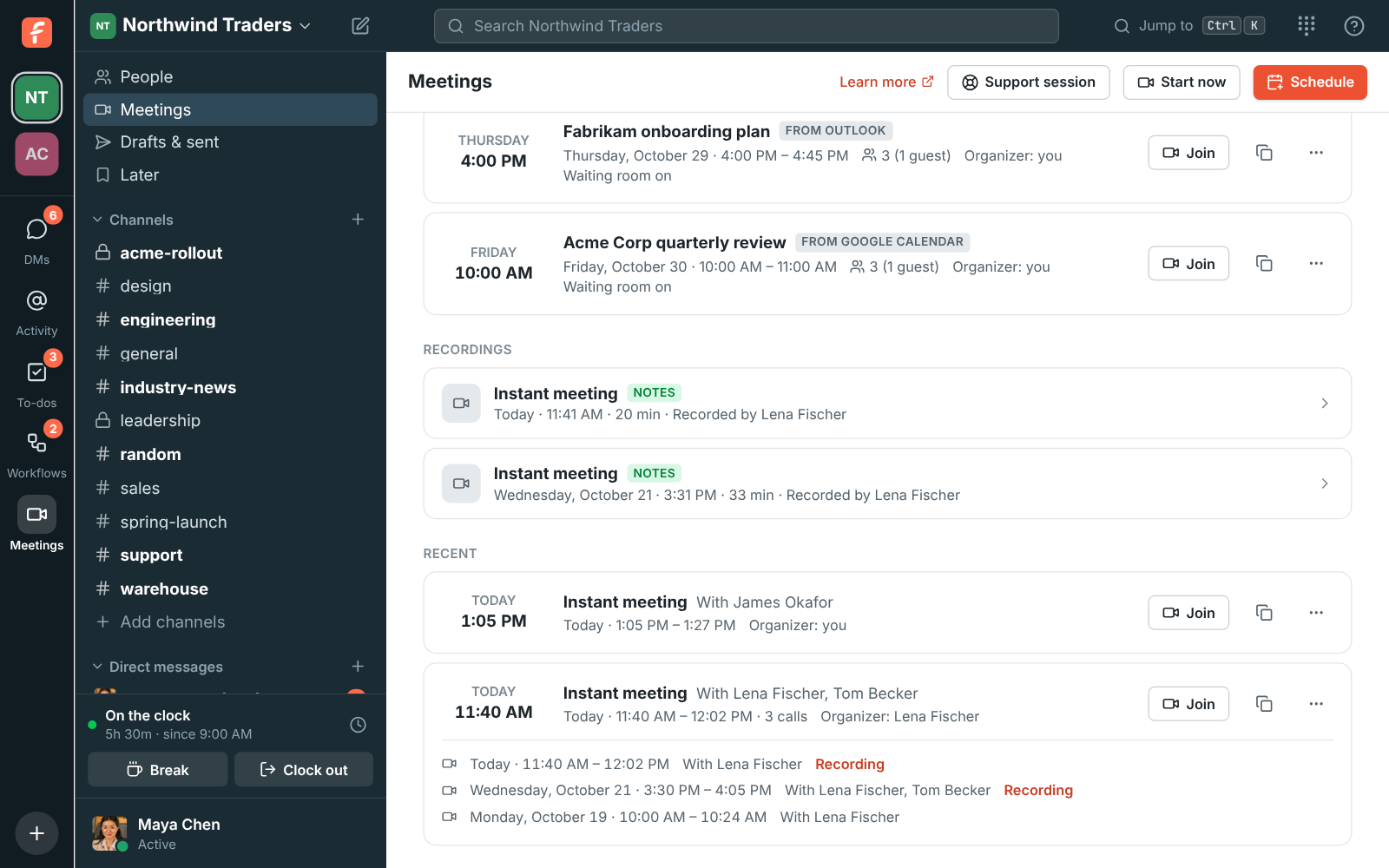
Section titled “Come back to a meeting’s link for 30 days”- A meeting’s link now keeps working until 30 days after its last call, like Zoom and Teams. Opening it again, or Join on the meeting under Recent, starts a new call of the same meeting.
- Recent lists each call under the meeting: when it was, who was in it, and its Recording. See Joining.
WhatsApp templates, photos and files
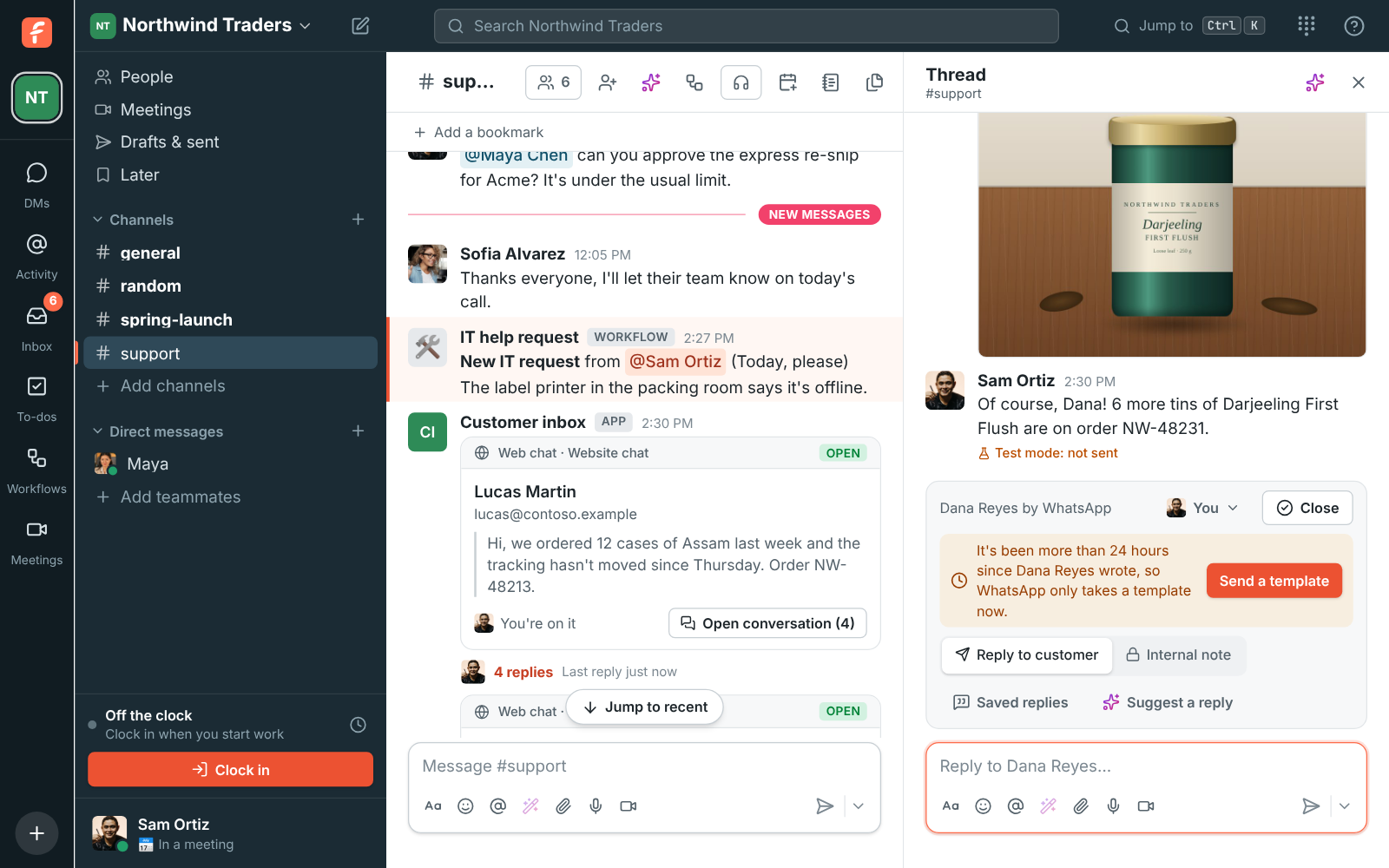
Section titled “WhatsApp templates, photos and files”- Reach a WhatsApp customer after the 24 hours, or write to someone first: Send a template on the bar over the box, or Message on WhatsApp on the Inbox page, sends one of your approved templates with its blanks filled in.
- Admins can make templates under Phone → Messaging and send them to Meta for review, and see which ones are approved.
- Photos, videos, voice messages and files customers send now show in the thread, and the ones you attach to a reply go to the customer on WhatsApp. See WhatsApp.
- WhatsApp comes with the Business plan and up.
The phone stays open while you work
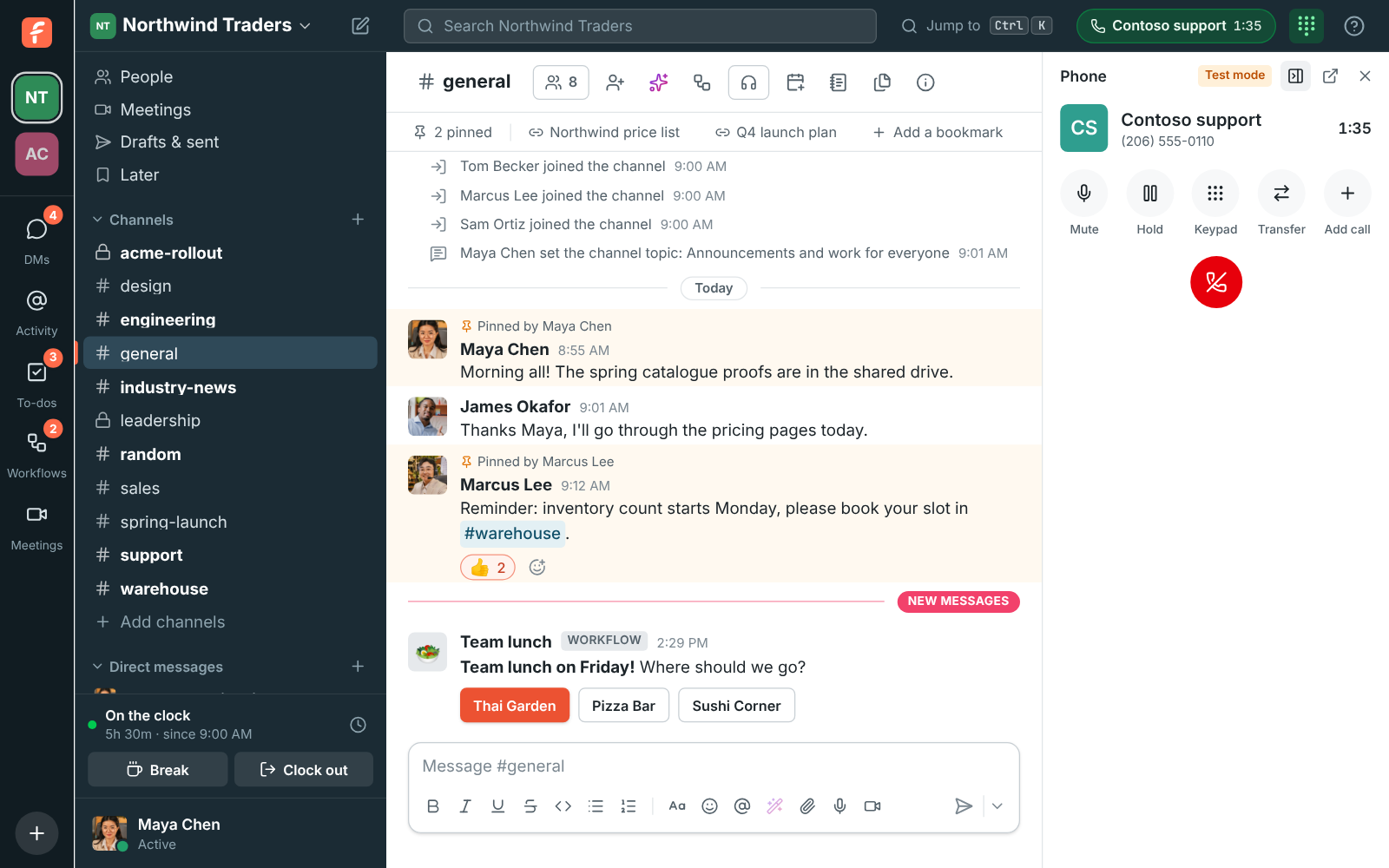
Section titled “The phone stays open while you work”- The phone in the top bar is now a panel you can keep open: pin it to the side of Freesbe, or pop it out into a small window that stays on top of your other apps. Make that window short during a call and it shrinks to one line with mute, hold and hang up. See Keep the phone open.
- During a call the phone becomes the call, and the top bar shows who you’re talking to and for how long. Your calls moved to a Recent tab next to the Keypad. See Calls in Freesbe.
Never miss a call
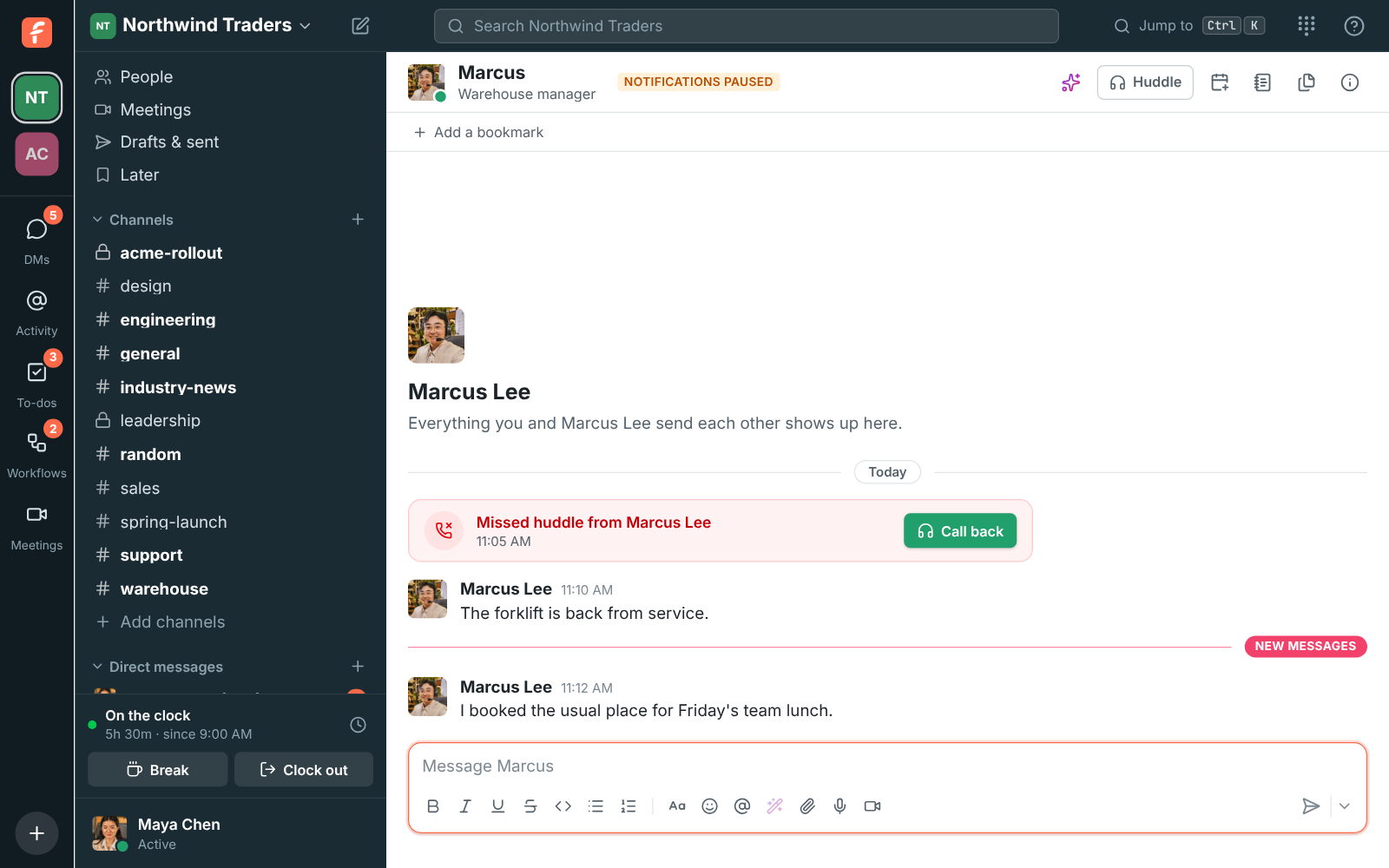
Section titled “Never miss a call”- When someone calls you in a DM and you don’t pick up, the DM now shows a red Missed huddle from … card with Call back. It makes the DM unread and counts on your badge, like a mention, and the caller sees You called … · no answer with Call again.
- A Missed huddle notification stays until you deal with it, with Call back and Message in Chrome and Edge. On Android, the ringing notification turns into a missed one with the same buttons.
- Activity → Calls lists the huddles in your DMs, missed, taken and made, with your phone system calls if you have them. See Missed calls.
Lists stay lists when you paste them
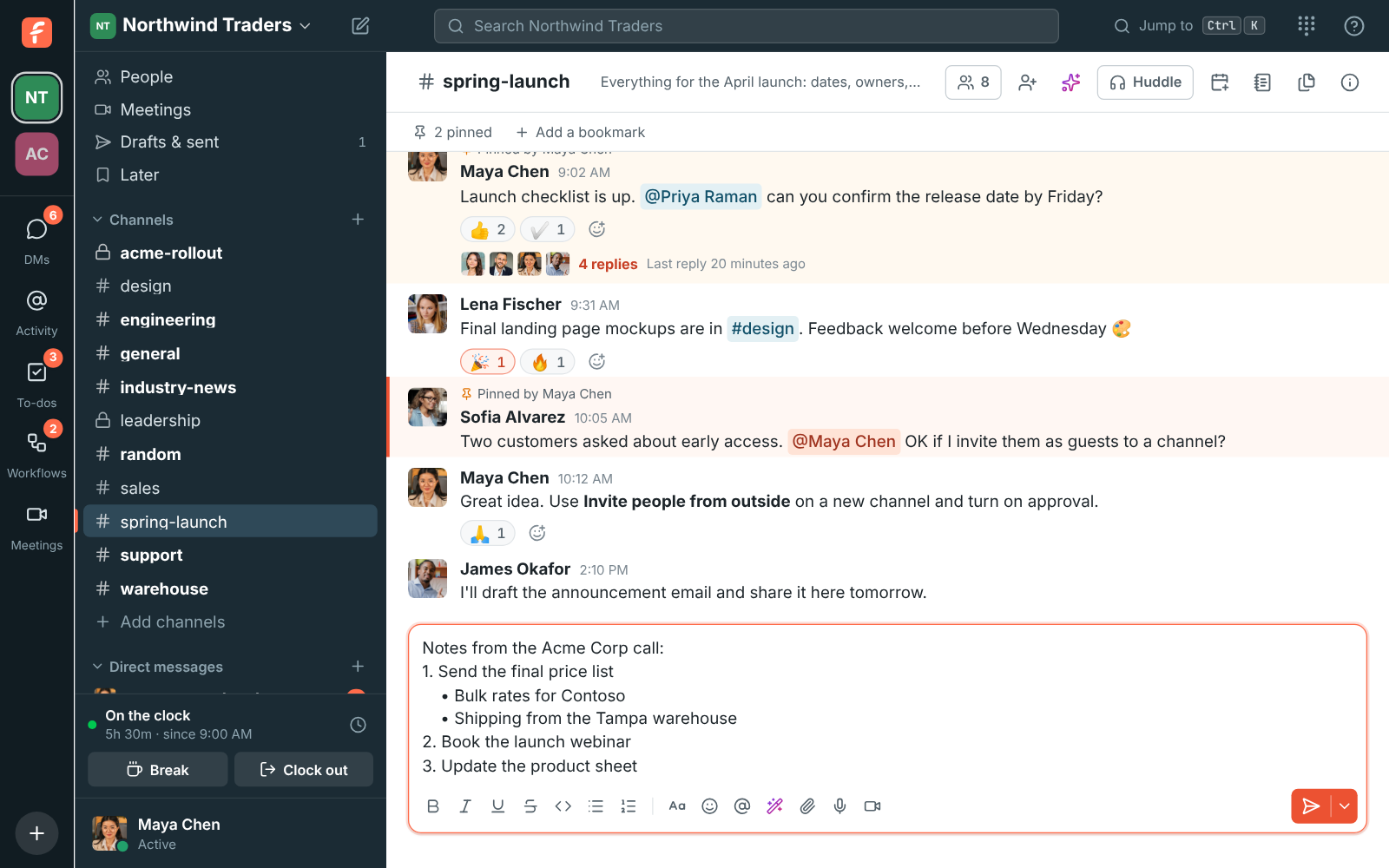
Section titled “Lists stay lists when you paste them”- Bulleted and numbered lists you copy from Word, Google Docs, Outlook, Notion, Slack or a web page now paste into the message box as lists, nested items included, instead of plain lines. See Lists.
- It works in threads, when you edit a message, in to-do notes, in the desktop app and on your phone.
Take a break from queue calls in two clicks
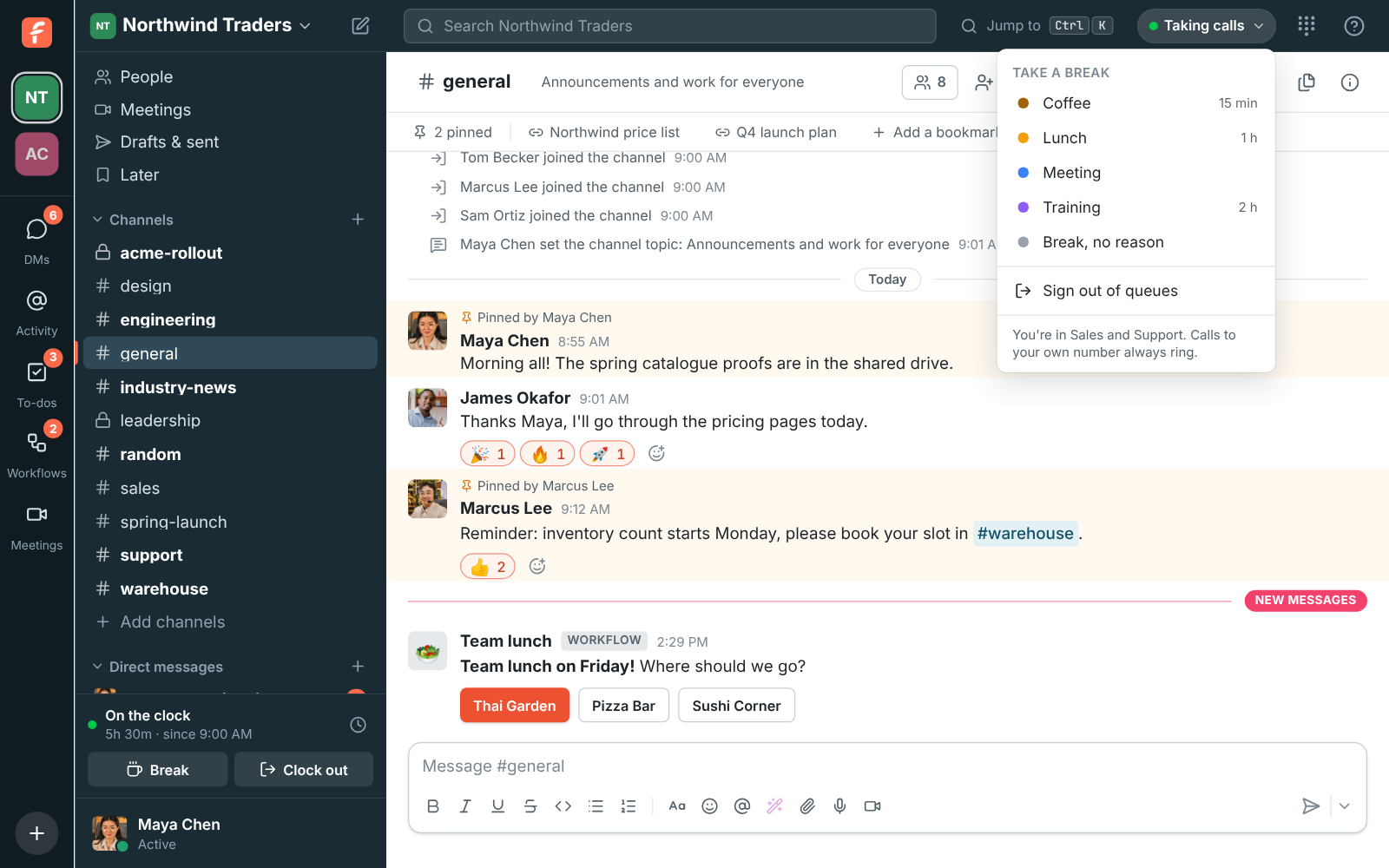
Section titled “Take a break from queue calls in two clicks”- People in a call queue now see their status in the top bar: Taking calls, a break, or Signed out. Click it and pick a reason, like Lunch, and queue calls stop until you click I’m back. Calls to your own number still ring. See Queue calls.
- Admins add break reasons with an optional time limit under Phone → Call queues in the Admin Center. When a break runs over, Freesbe tells the person and their pill turns red. See Breaks. Part of the Call center add-on.
Change your background during a call, with sharper edges
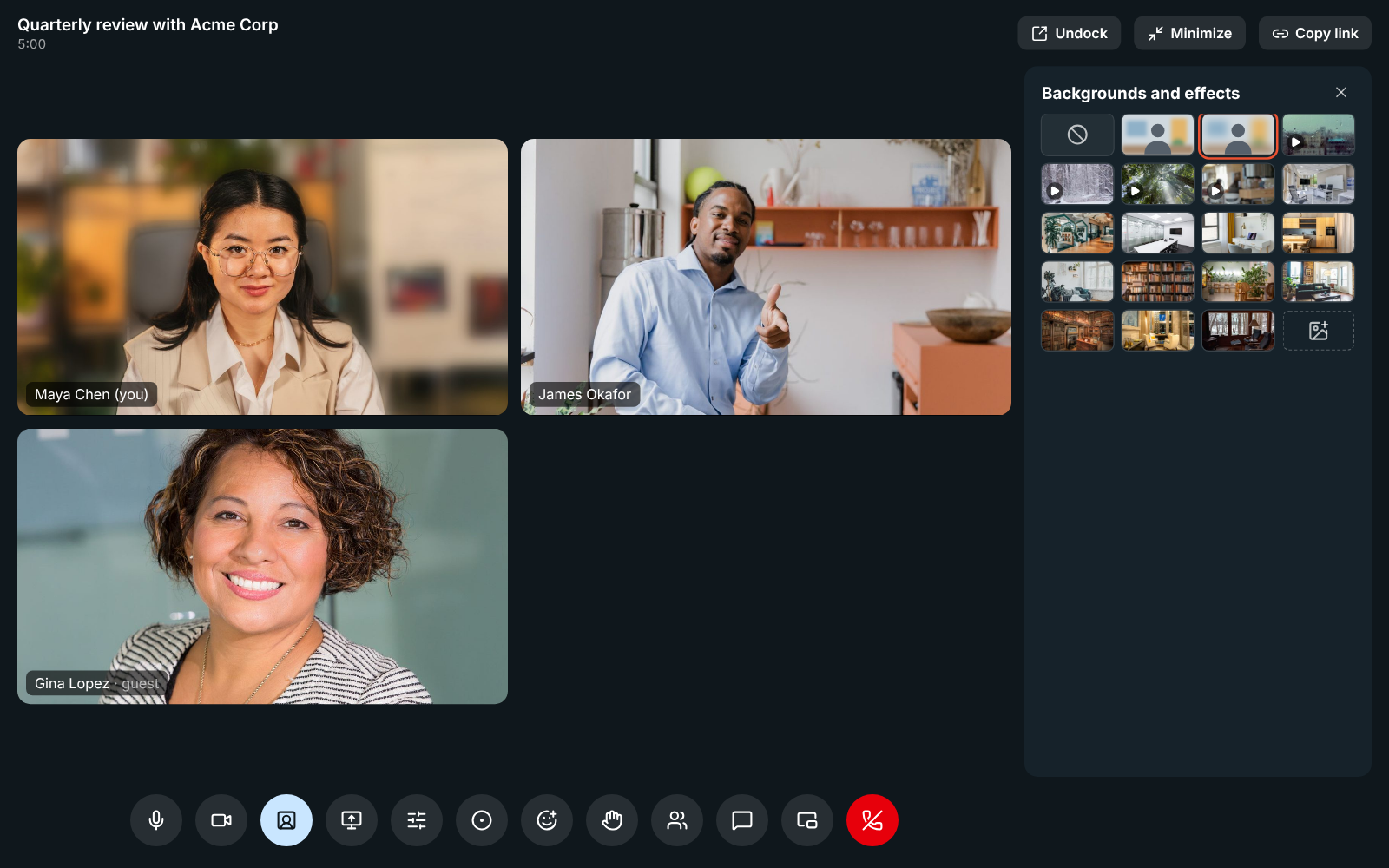
Section titled “Change your background during a call, with sharper edges”- Backgrounds and effects is now a button in a meeting’s controls, on your own tile and in the huddle video’s header. Turn a blur off or pick another picture without leaving the call. See In the call.
- Backgrounds run on your graphics card on every frame, and their edges follow your hair and shoulders closely, so a window behind you no longer shows through and the outline keeps up when you move. See Video.
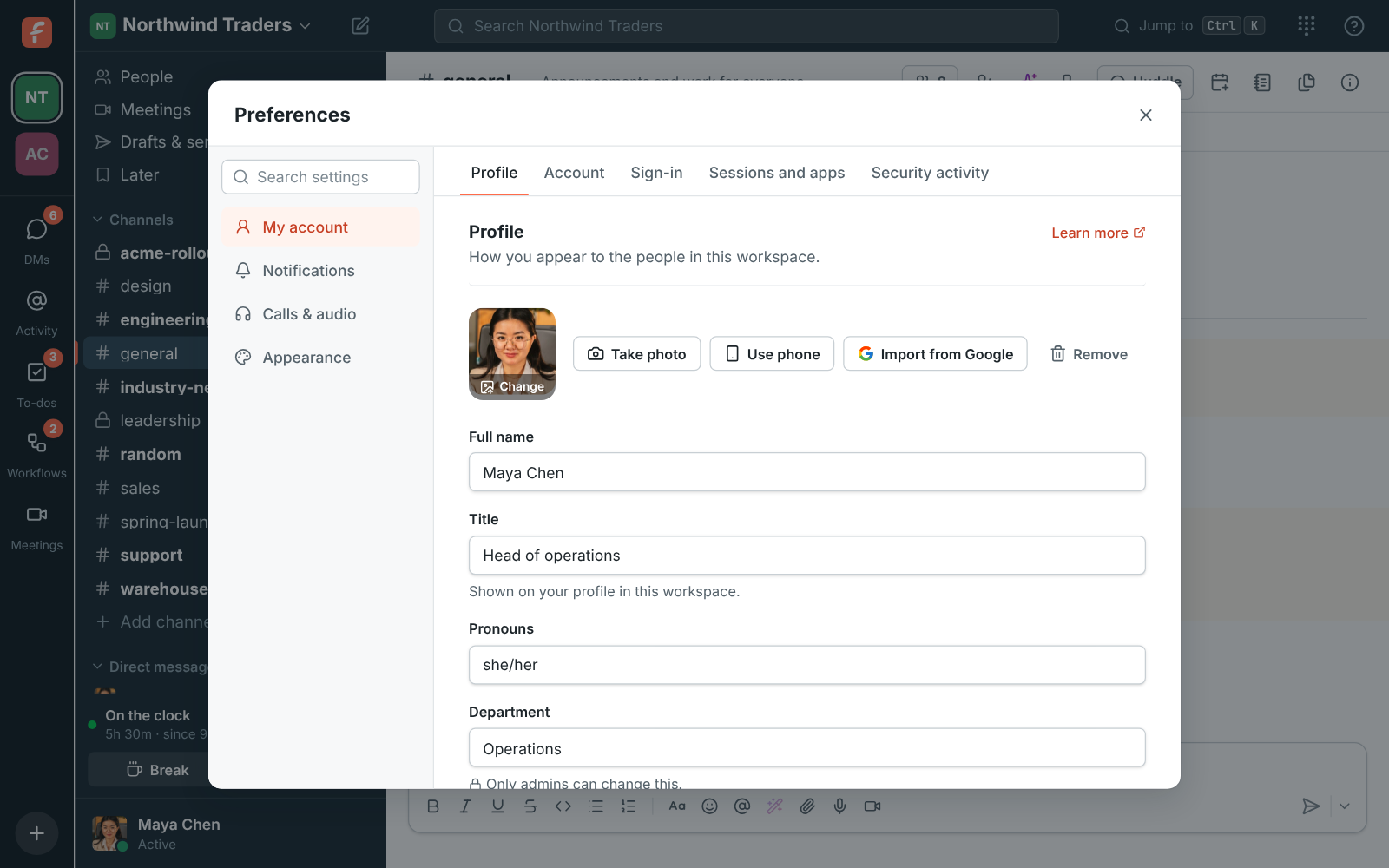
Bring in your Google or Microsoft photo
Section titled “Bring in your Google or Microsoft photo”- Signed in with Google or Microsoft? Preferences → My account → Profile now has Import from Google (or Import from Microsoft) next to Take photo and Use phone, and clicking your picture uploads a new one. It opens that account’s photo in the crop step, even if you use another picture now. If Freesbe doesn’t have the photo yet, it goes through Google or Microsoft for it and comes straight back, and if that account still sends none, it says why.
- Signing in with Google picks up your photo more reliably when you don’t have a picture yet. See Your profile picture.
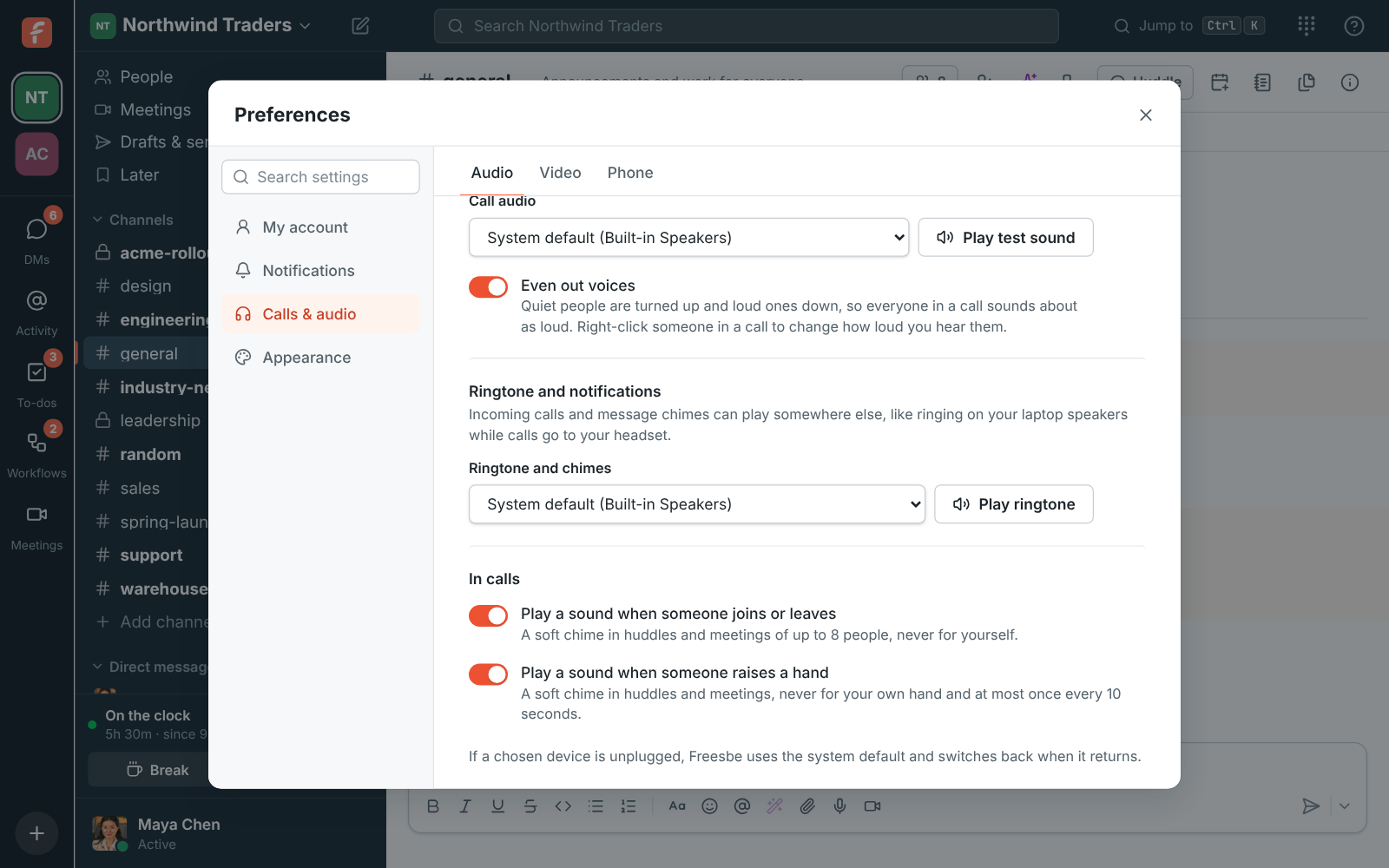
Hear when someone joins a call
Section titled “Hear when someone joins a call”- Huddles and meetings now play a soft chime for everyone else when someone joins, member or guest, and a quieter one when someone leaves, so you know who just arrived without looking.
- It’s quiet for your own comings and goings and in calls of more than 8 people, and a few people joining together make one chime. Turn it off in Preferences → Calls & audio → Audio → In calls, or on Android with You → Join and leave sounds. See Audio.
Everyone in a huddle can share their screen
Section titled “Everyone in a huddle can share their screen”- In a huddle, only the first person to share their screen could be seen. When someone else shared after them, the others saw nothing. Now anyone can share, one after another, as often as they like.
- If a shared screen or camera doesn’t come through, Freesbe asks for it again by itself until it shows.
- Copy call details in a huddle now lists the cameras and screens showing on your device, and any it’s still waiting for. See If you can’t hear or be heard.
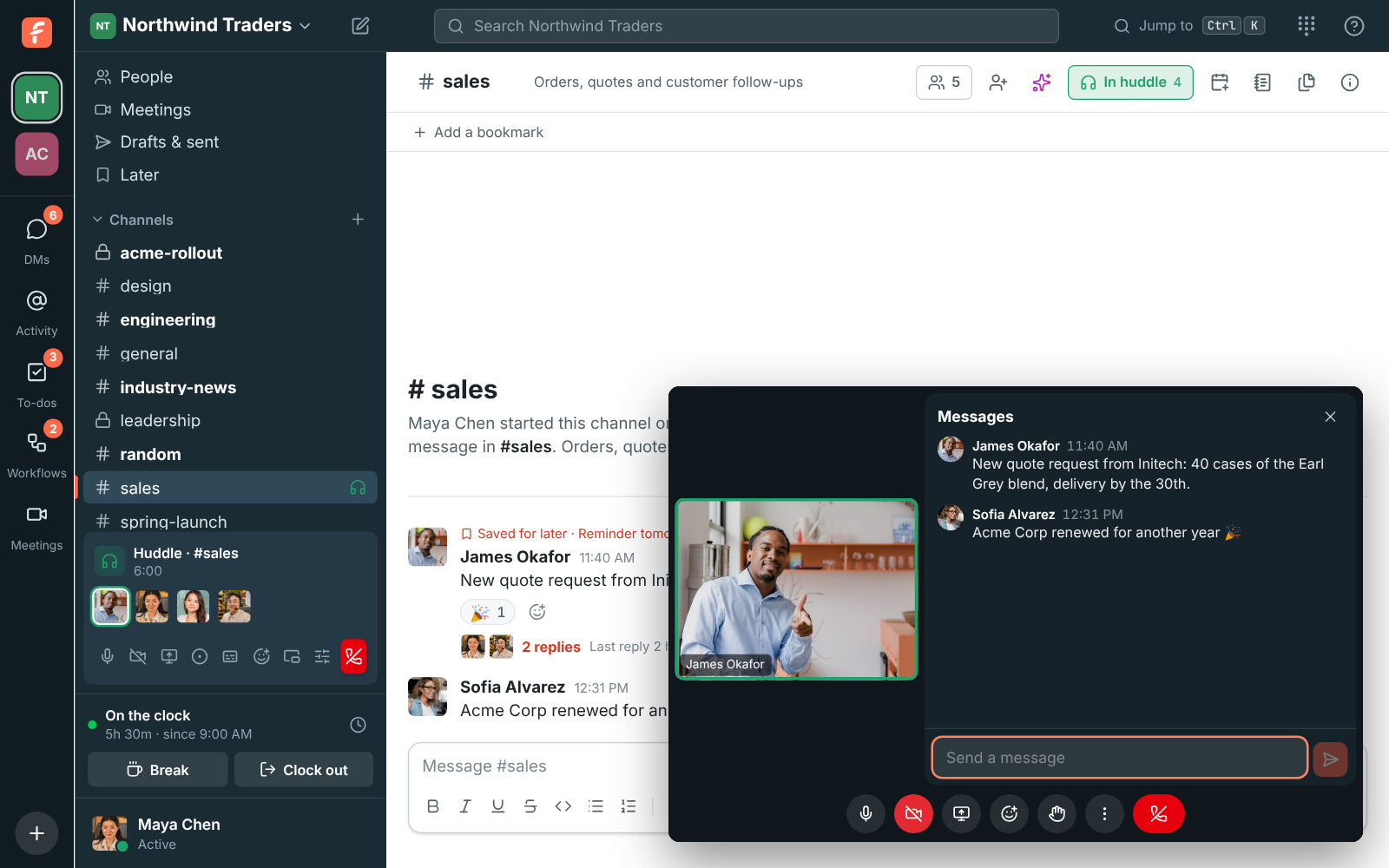
Floating call window with all the controls
Section titled “Floating call window with all the controls”- When a huddle or meeting floats in its own window, the video inside Freesbe now steps aside, so you see one call window instead of two.
- The floating window has the call’s controls: share screen, reactions and raise hand next to mute, camera and leave, and a More options (⋯) menu with In-call messages, Backgrounds and effects, Copy joining info for meetings and Transcribe the call.
- In-call messages opens the conversation beside the video, which shrinks to one tile so you can read and reply without going back to Freesbe.
- The desktop app floats the call on its own when you minimize or hide it, so it no longer has a pop-out button. See Keep the call in view.
Share a whole screen from the Mac app
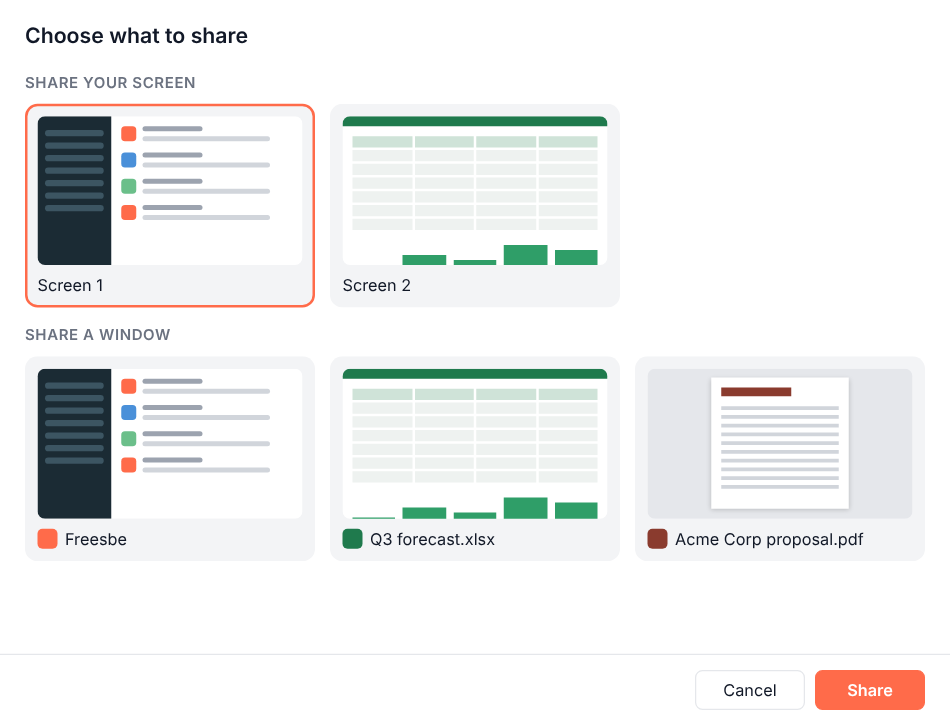
Section titled “Share a whole screen from the Mac app”- On a Mac, Share screen in the desktop app only let you pick a single window. It now shows the same picker as on Windows, with a picture of each screen and window, so you can share a whole screen again. See Choose what to share.
News from any site, in a channel
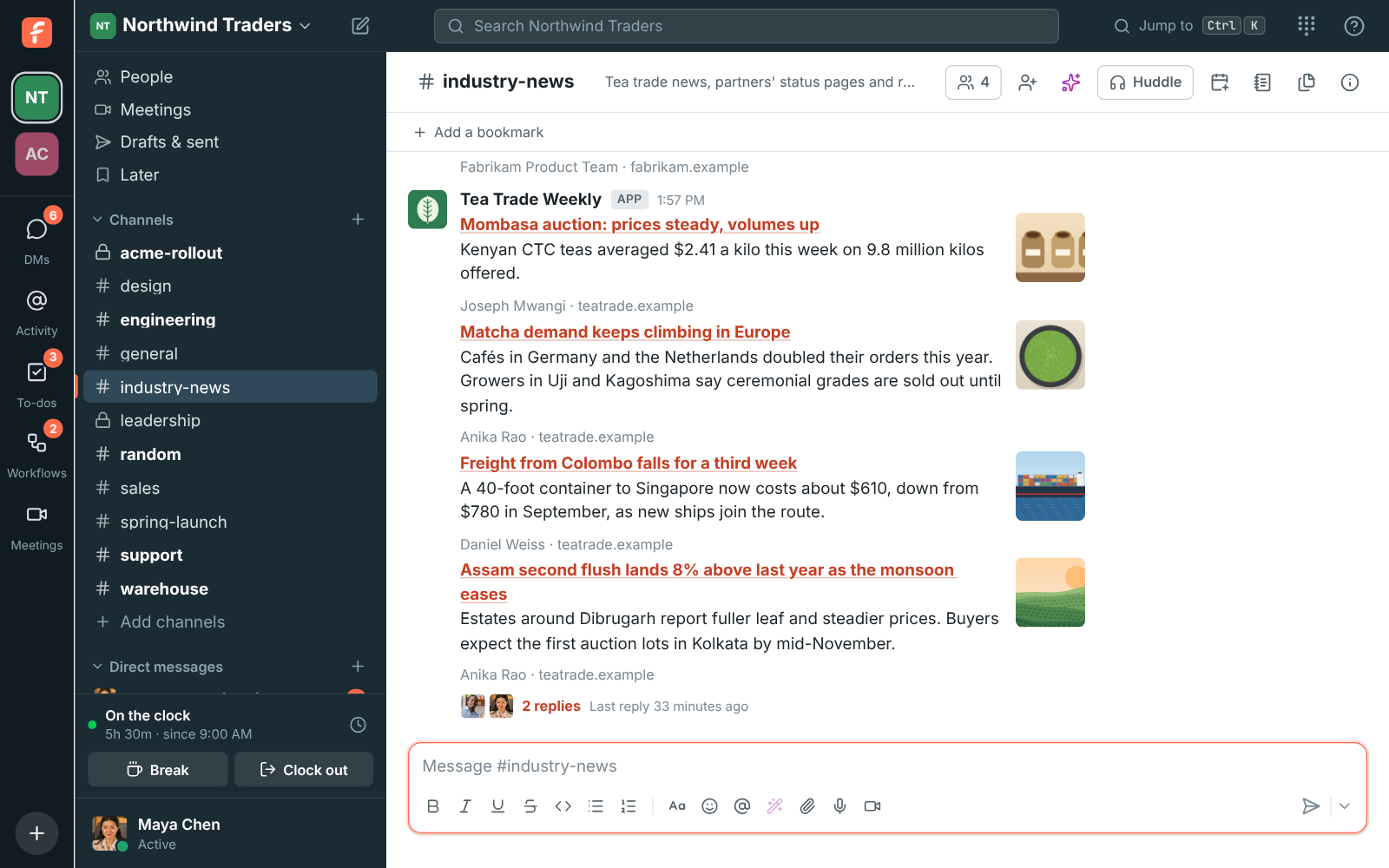
Section titled “News from any site, in a channel”- Add a blog, a news site, a partner’s status page or release notes as a news feed, and its new items post into a channel as cards with the headline, a short summary and the picture. Freesbe reads RSS, Atom and JSON Feed, and finds the feed from a site’s address.
- Keep busy feeds quiet with keywords: only items about them post. Admins add feeds in Workspace settings → Integrations & apps → Integrations → News feeds. See News feeds.
Call queues: callers wait their turn
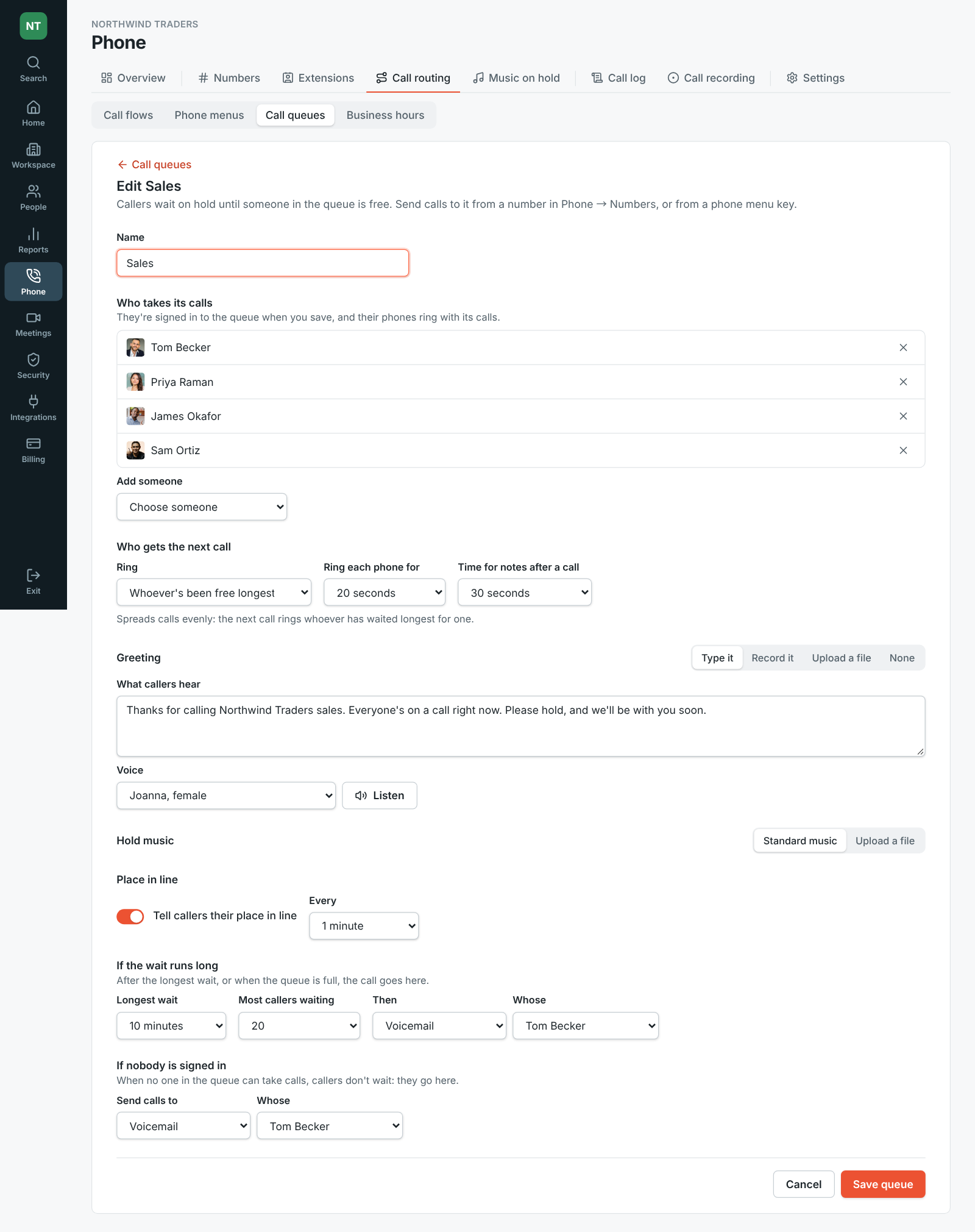
Section titled “Call queues: callers wait their turn”- Admins can now set up call queues in the Admin Center under Phone → Call queues. Callers hear a greeting, then hold music and their place in line, until someone in the queue is free.
- Choose who takes the calls and how they’re shared out: whoever’s been free longest, everyone at once, in turns or from the top of the list. Set the longest wait and where callers go after it, and where calls go when nobody is signed in.
- Answer a number with a queue under Answers with, or send a phone menu key to one. Queues come with the Call center add-on. See Call queues.
Conversations open instantly on your phone
Section titled “Conversations open instantly on your phone”- The iPhone and Android apps now keep the newest messages of your recent conversations on your phone, encrypted, like the desktop app does. Tapping a conversation or a notification shows it right away, and new messages arrive a moment later.
- Unread conversations load as soon as the app opens, so they’re ready before you tap them. See Saved on your phone.
See what needs you on your phone
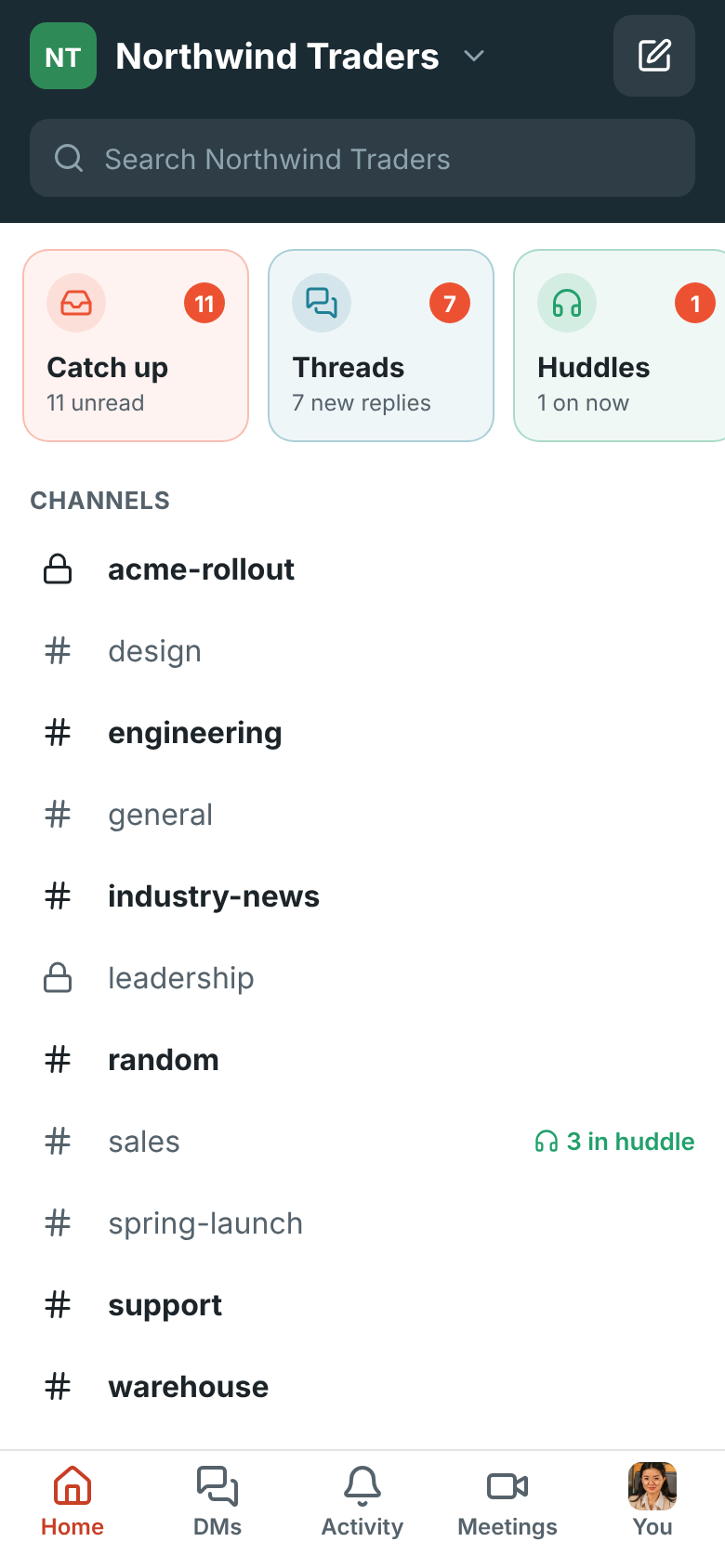
Section titled “See what needs you on your phone”- Home on your phone now starts with a row of tiles for what needs you: Catch up, Threads, Huddles, Meetings, To-dos, Later and Drafts & sent, each with a count. Swipe it sideways and tap one to go there.
- Catch up goes through your unread conversations one at a time, DMs and mentions first: read the newest messages, then mark it read, reply or skip.
- Threads lists replies in threads you started or joined, with the new ones outlined, and Huddles shows who’s talking right now with a Join button.
- Messages are a little bigger on phones, and You → Text size makes them bigger or smaller. See Mobile app.
Pay for Business or Corporate by card
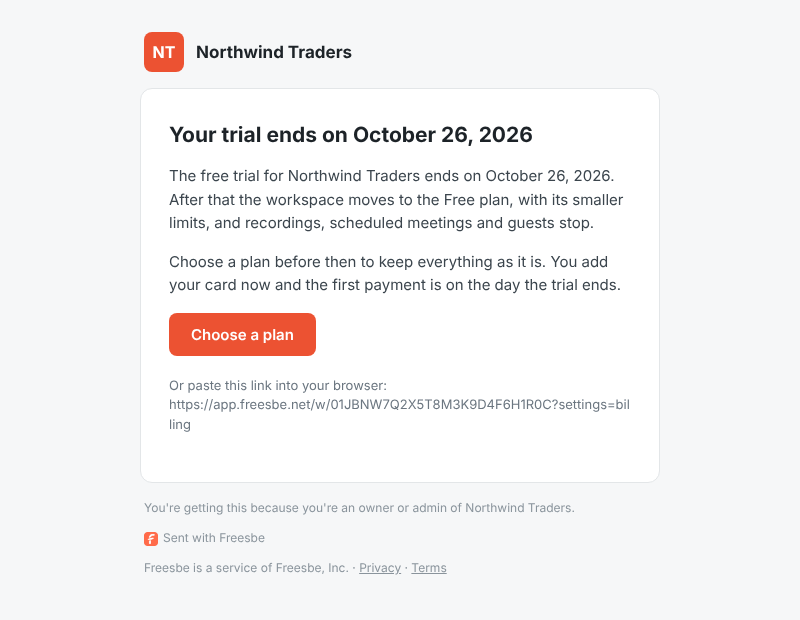
Section titled “Pay for Business or Corporate by card”- Admins can now pay for Business or Corporate under Workspace settings → Billing, monthly or yearly, through Stripe’s secure checkout. Tax is added where it applies, and every invoice is on the Billing page. See Pay for a plan.
- Paying during a free trial keeps the rest of the trial free: your card is first charged on the day the trial would have ended.
- Owners and admins get an email three days before a trial ends, and another when it has ended, so a workspace doesn’t move to Free by surprise. See Free trial.
Phone menus: “press 1 for sales”
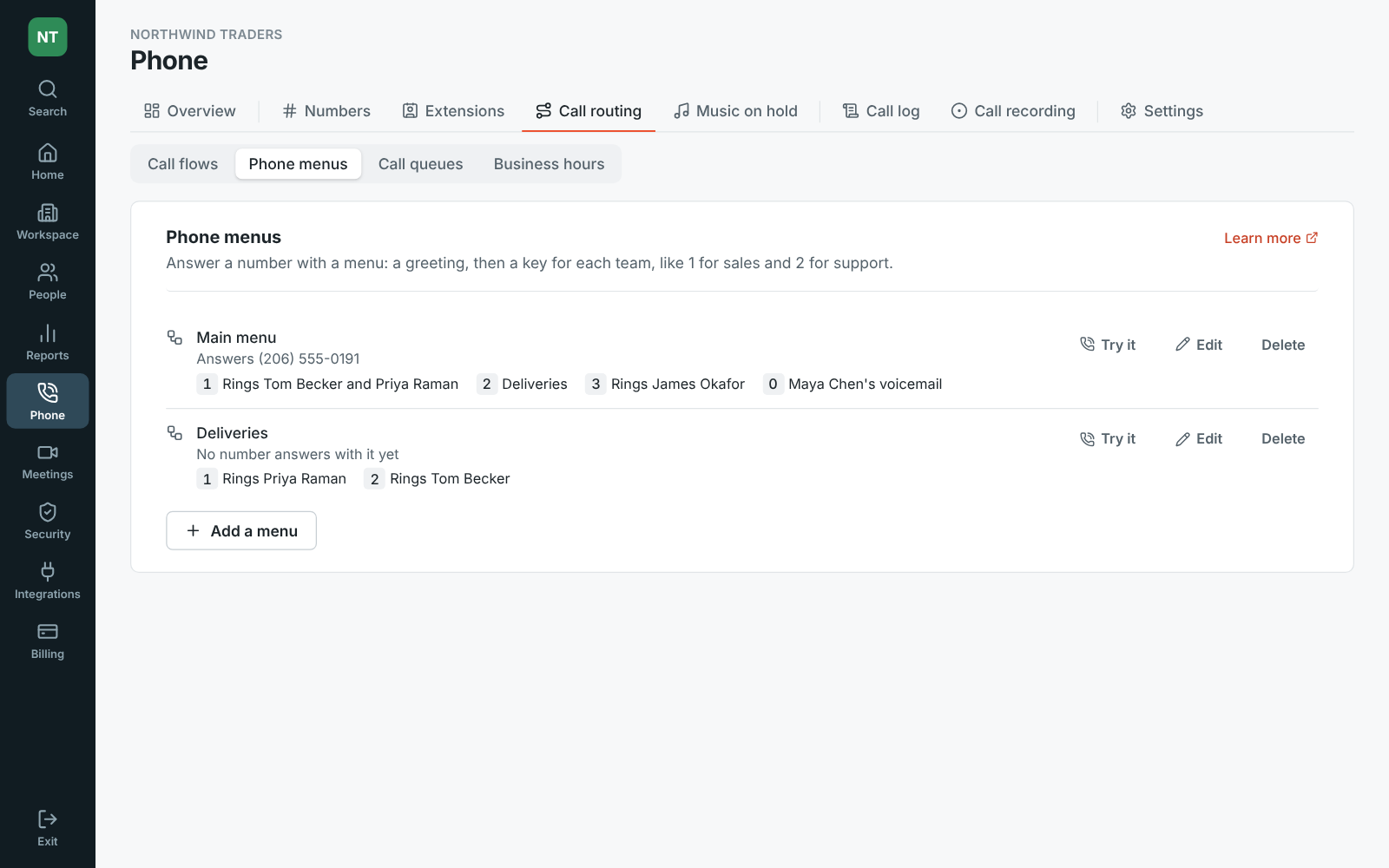
Section titled “Phone menus: “press 1 for sales””- Admins can answer a Freesbe phone number with a menu: a greeting, then a key for each team. Build menus in the Admin Center under Phone → Phone menus. Type the greeting and pick a voice to read it, record it with your microphone, or upload a file.
- Try it calls a menu without a phone: hear the greeting, press keys, and see where the call goes.
- Each key rings people, takes a voicemail, opens another menu or hangs up, and you choose where callers go when they don’t press anything. Then pick the menu under Answers with next to the number. See Phone menus.
Blur your background or put a picture behind you
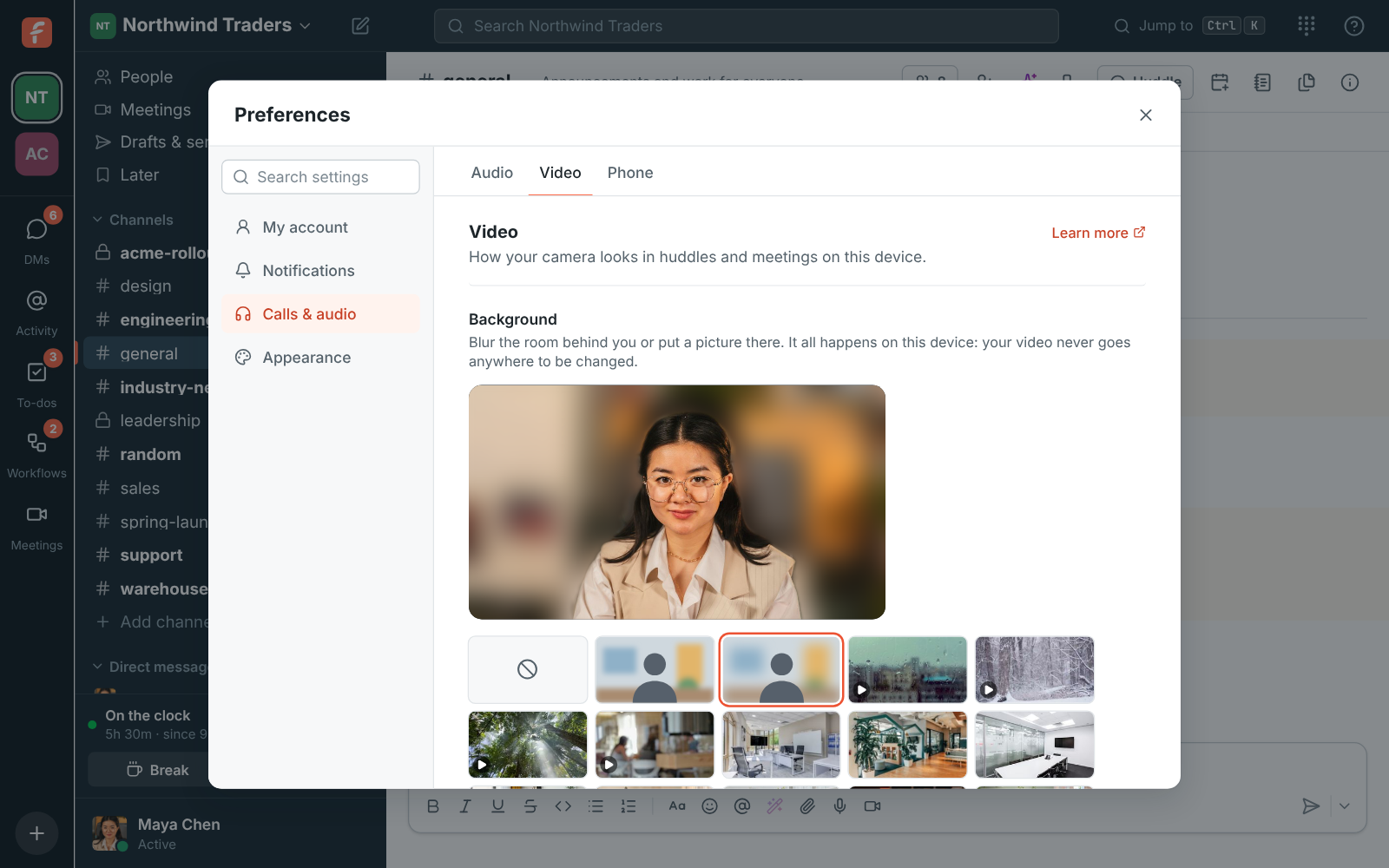
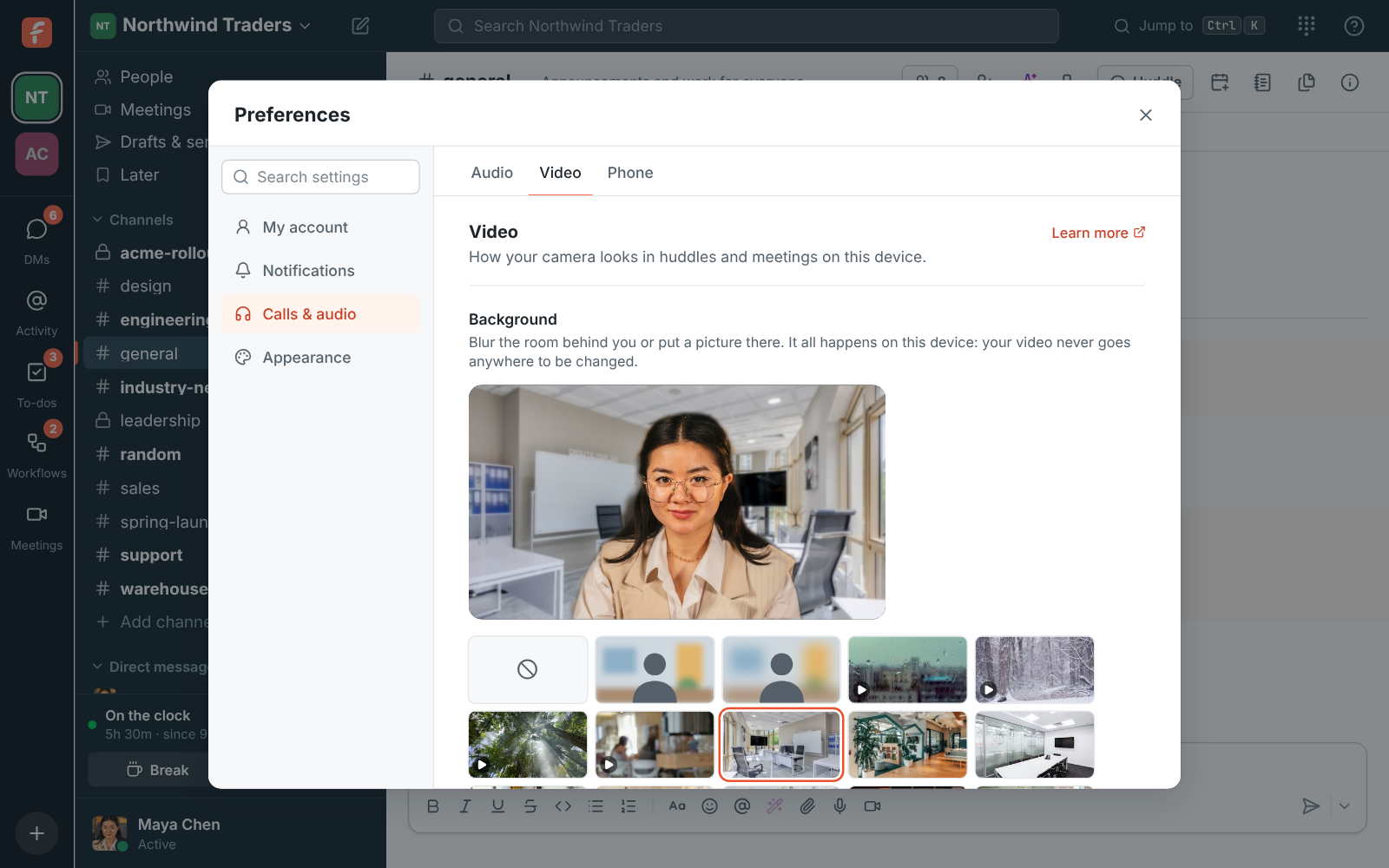
Section titled “Blur your background or put a picture behind you”- In huddles and meetings, your camera can blur the room behind you or show something else instead: rain on a window, falling snow, a forest or a busy office moving behind you (you can pause it), one of twelve places like a coworking space, a home office or a kitchen, or one of your own pictures.
- Pick one in Preferences → Video with a live preview, during a call from the call’s settings button, or before you join a meeting with Check your camera and background.
- It runs on your computer, in the browser and the desktop app, so your video isn’t sent anywhere to be changed. See Video.
Ended meetings and recordings show up right away
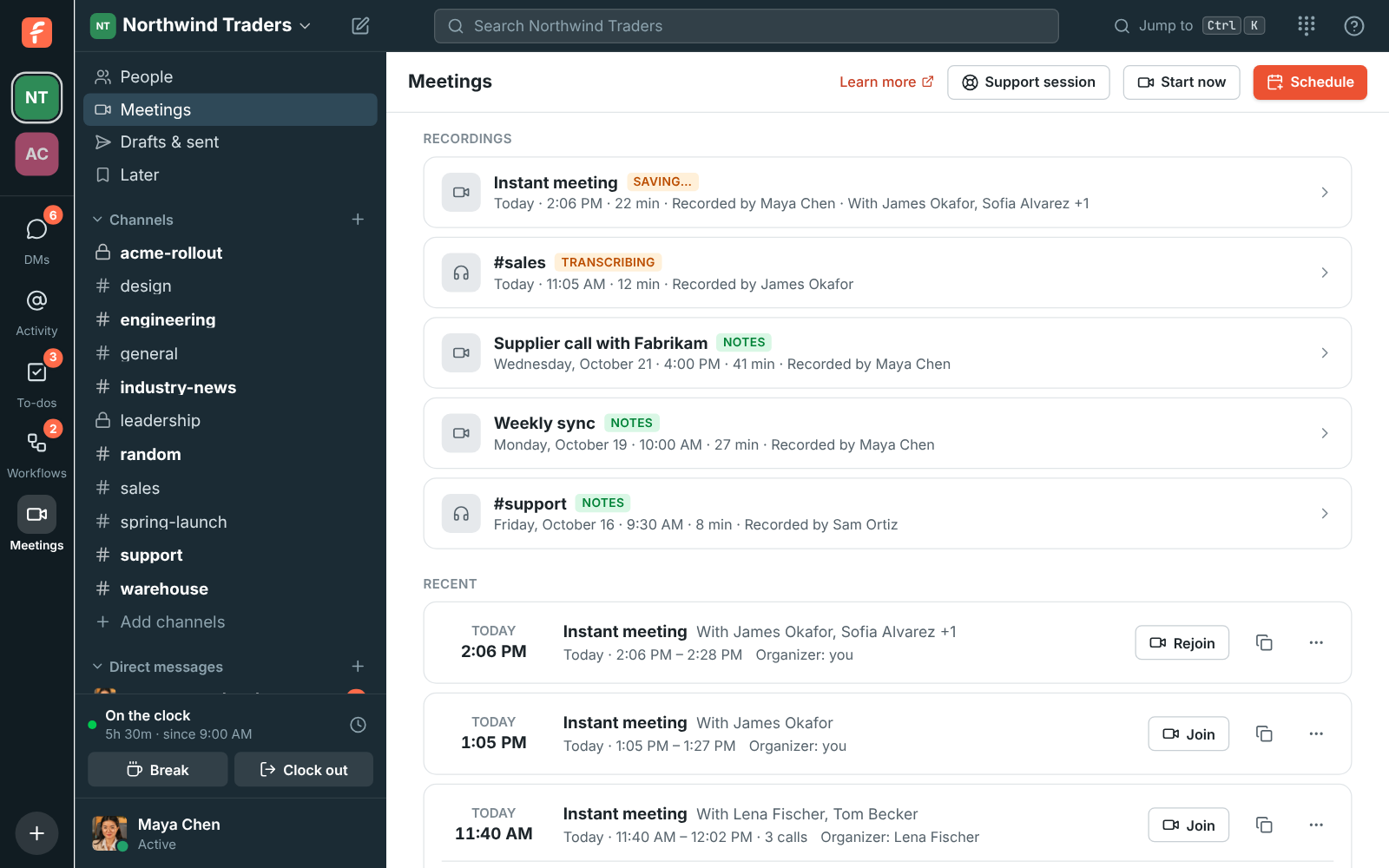
Section titled “Ended meetings and recordings show up right away”- When everyone leaves a call, the meeting moves to Recent on the Meetings page at once, instead of a few minutes later. Its link still works for 5 minutes, and Rejoin takes you back into the same call.
- Meetings and their recordings say who else was in the call, like With James Okafor, Sofia Alvarez +1, so you can tell one instant meeting from another. A meeting you joined by its link shows under your Recent too.
- A meeting’s recording is listed the moment it stops, marked Saving…, then Transcribing and Notes, and the page updates by itself. If a recording couldn’t be saved, it’s listed as Couldn’t save instead of not showing up. See Where recordings go.
Kraken alerts in a channel
Section titled “Kraken alerts in a channel”- Admins can connect Kraken in Workspace settings → Integrations → Finance with a read-only API key. Deposits (on the way, then received), withdrawals and trades post into the channel you pick, each with what it’s worth in dollars, within a minute of happening.
- Add balance alerts, like BTC dropping below 0.5, and a daily balance summary at the hour you choose. See Kraken.
Setup, security and billing in the Admin Center
Section titled “Setup, security and billing in the Admin Center”- The Admin Center at manage.freesbe.net is now where admins manage setup, security, logs and billing: custom domain, email domains, profile fields, punch clock rules and timesheets, every Security & compliance tab, integrations, apps, webhooks, the phone system (numbers, business hours, 911 and texts) and billing.
- In the app, those tabs of Workspace settings show Open in the Admin Center. Quick switches, like who can edit messages, AI, recordings, invites and member roles, stay in the app too. Plan still shows your plan, with an Upgrade button. See Managed in the Admin Center.
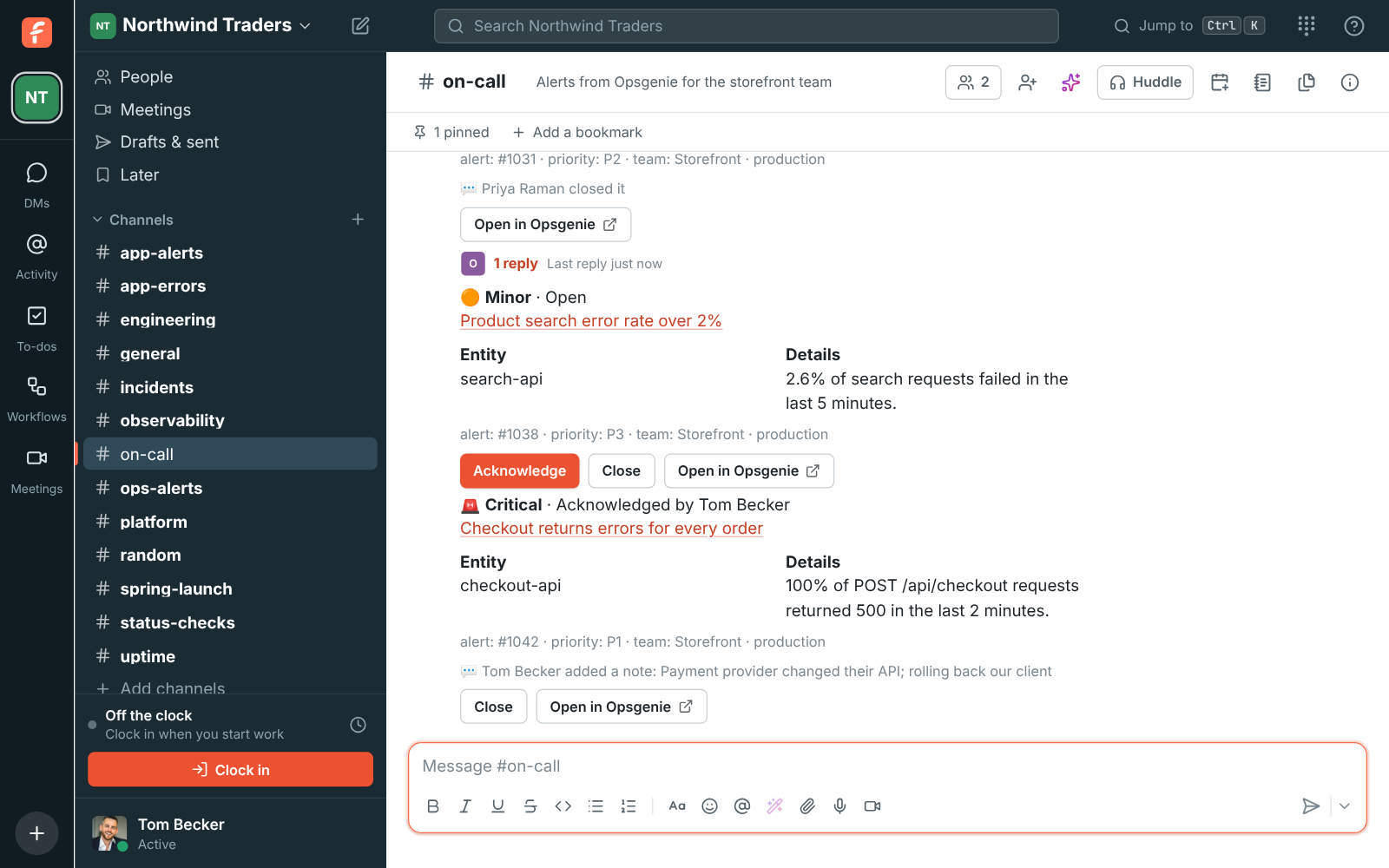
Opsgenie alerts in a channel
Section titled “Opsgenie alerts in a channel”- Admins can connect Opsgenie in Workspace settings → Integrations → Monitoring. Each alert then posts into the channel you pick as one card with its priority, message, entity and tags, and the card keeps up with acknowledgements and notes until it’s closed.
- With an API key, Acknowledge and Close on the card act in Opsgenie, with your name in the alert’s log. See Opsgenie.
Noise cancellation: Off, Standard or Advanced AI
Section titled “Noise cancellation: Off, Standard or Advanced AI”- The noise cancellation choices are now Off, Standard and Advanced AI, from least to most filtering, in Preferences → Calls & audio → Audio and in a call’s Audio and video devices. Advanced AI is the option that was called AI: a small neural network that runs on your computer and removes keyboards, dogs and traffic as well as steady hum. See Noise cancellation.
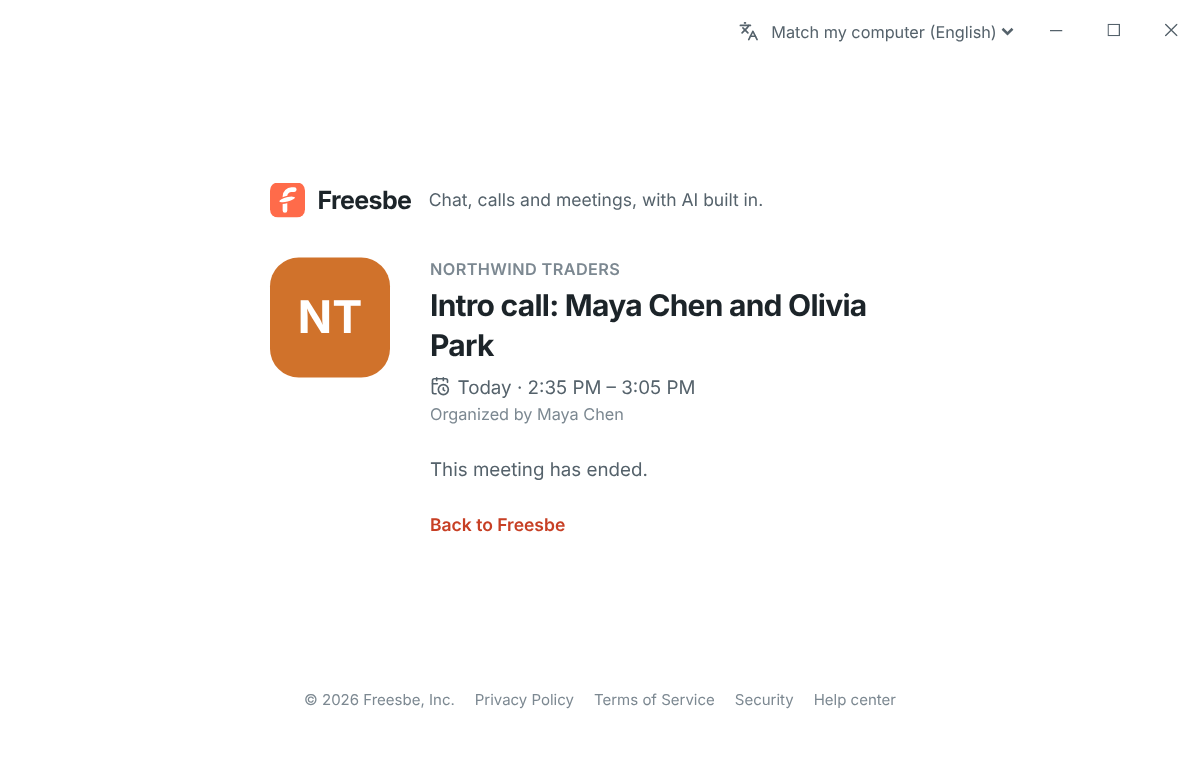
A way back from a meeting that’s over
Section titled “A way back from a meeting that’s over”- A link to a meeting that has ended, was canceled or can’t be found now shows Back to Freesbe, so the desktop app no longer gets stuck on that page. The join page has it too.
- In the desktop app, Alt+← (⌘+[ on a Mac) and your mouse’s back button go back a page, in the next version of the app. See Go back.
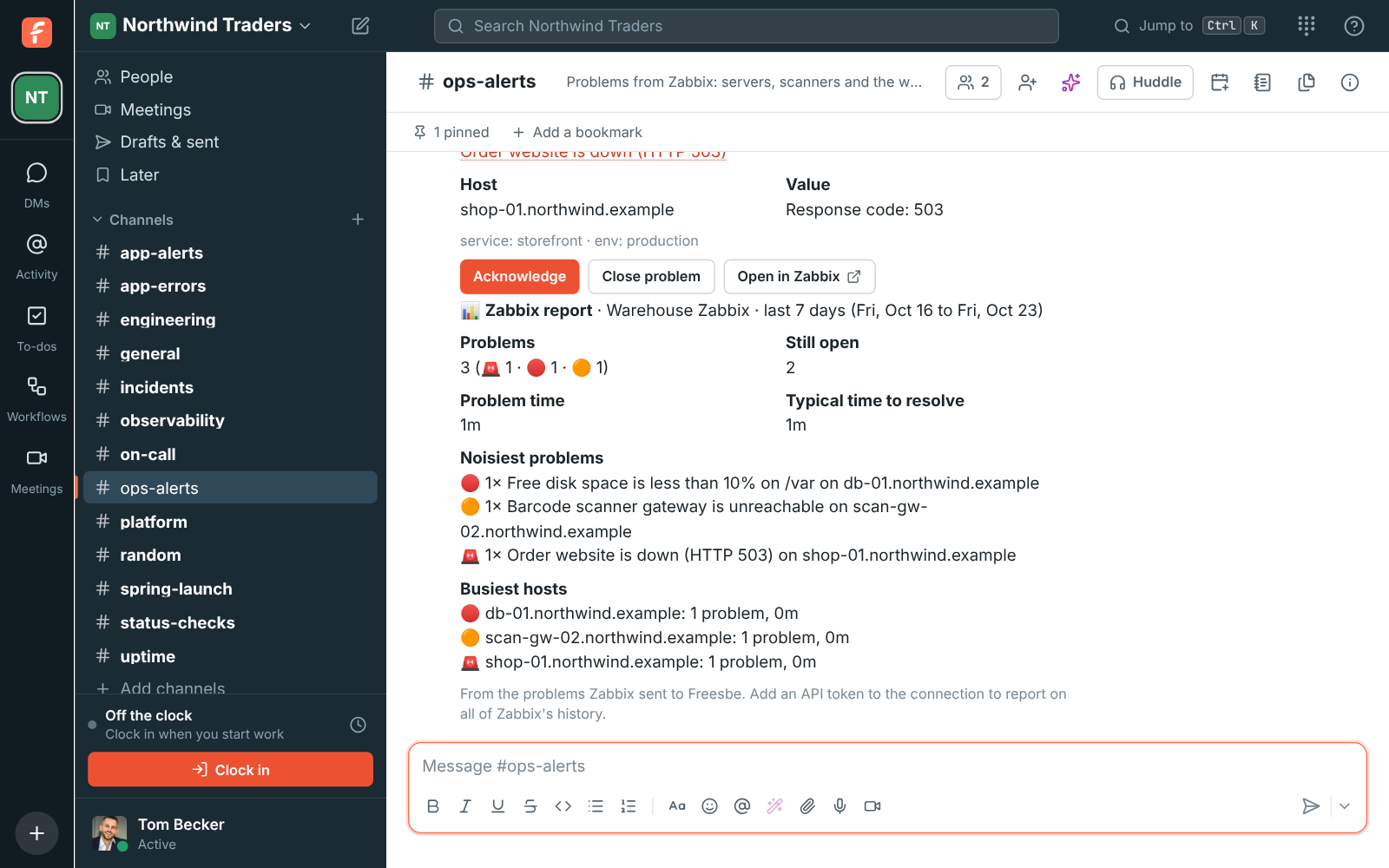
Alerts read clearly in notifications
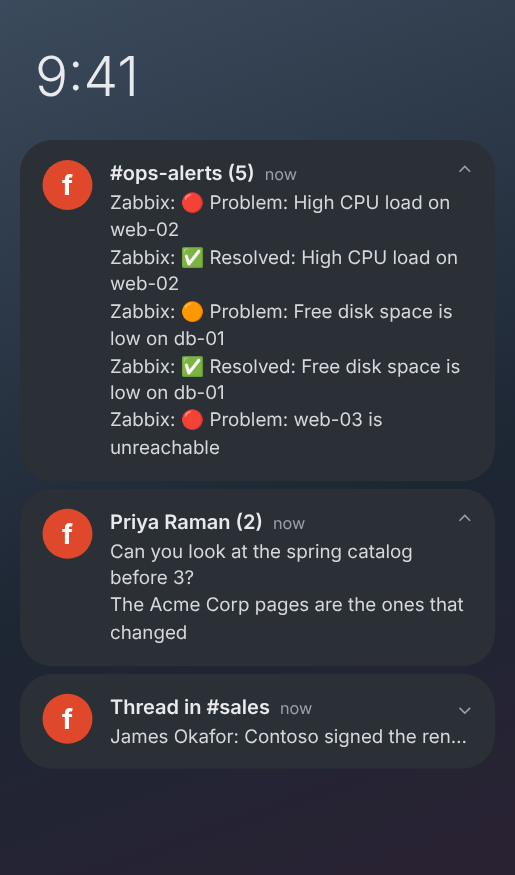
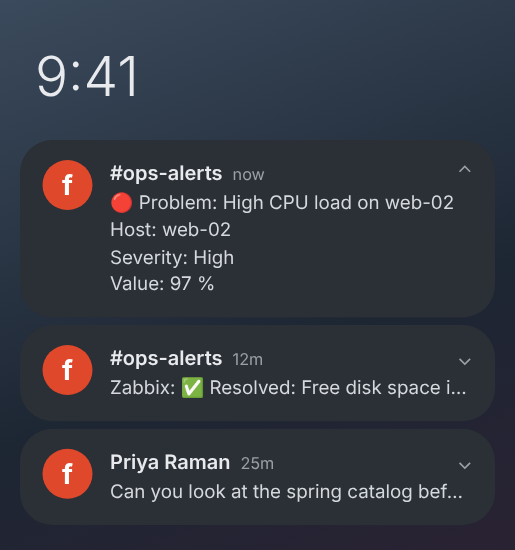
Section titled “Alerts read clearly in notifications”- Notifications for alerts and other app messages now say what happened. An alert that a monitoring tool posts as a coloured box, with no text of its own, used to arrive on your phone with just the sender’s name. Now it leads with the alert’s title, with a 🔴, 🟠, 🟡, 🔵 or ✅ for its colour, followed by details such as the host and severity.
- On Android, expand the notification to see the details. Cards from apps like Zabbix show their fields the same way, and desktop and browser notifications show the details too.
- An app named after its channel, such as ops-alerts posting in #ops-alerts, no longer has its name repeated in front of every alert. See What a notification says.
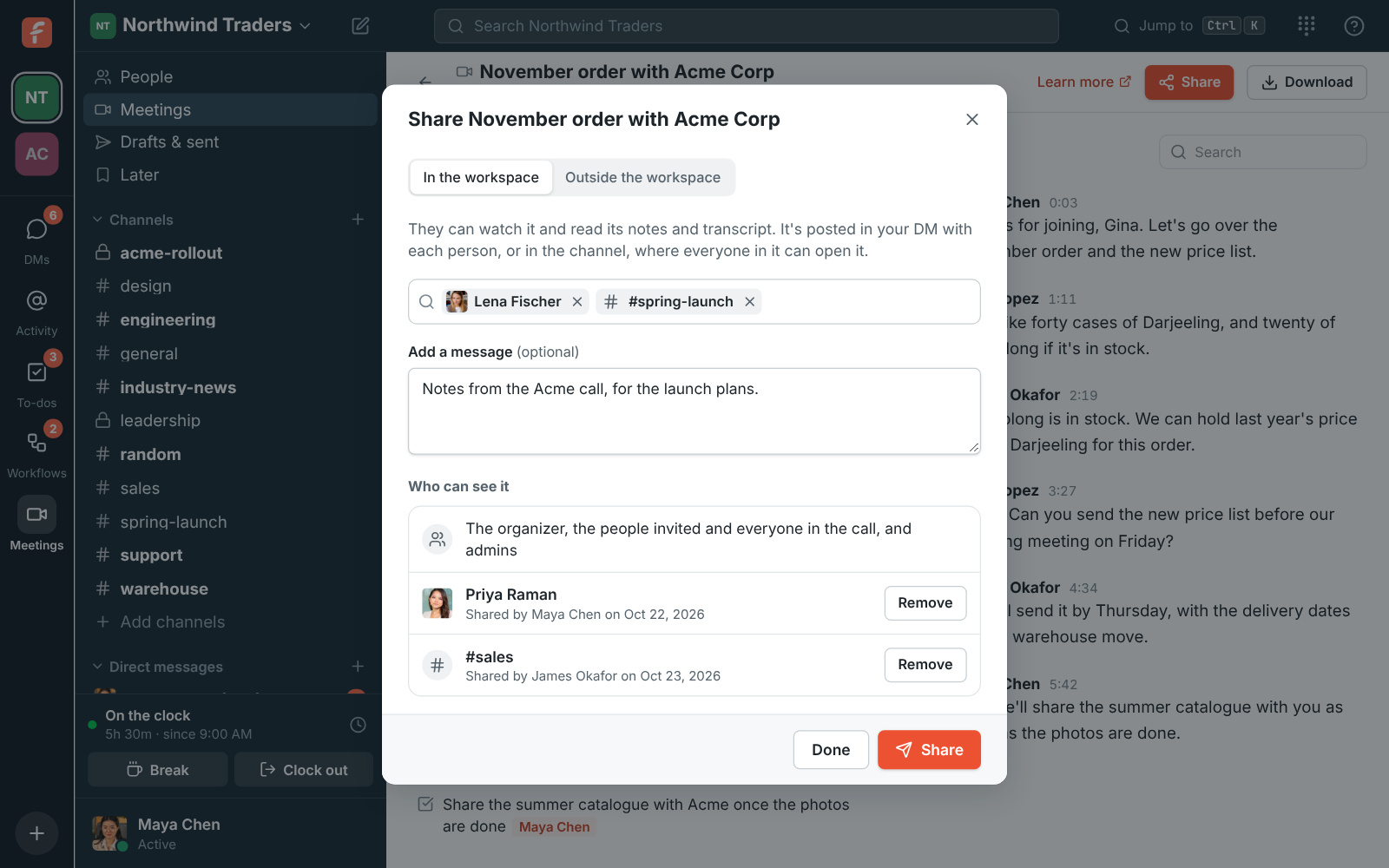
Share a meeting’s recording and notes
Section titled “Share a meeting’s recording and notes”- Share on a recording’s page sends it to teammates who weren’t in the call: pick people or channels, add a message, and it’s posted in your DM with each person or in the channel, as a card with the summary and a Watch button. They get the video, notes and transcript.
- With an admin’s OK, a meeting’s organizer, the recorder and admins can share its notes and transcript outside the workspace too: a link for anyone who has it, or emailed to an address, with the video if you like. Links run out, show how often they were opened, and can be revoked. See Share a recording.
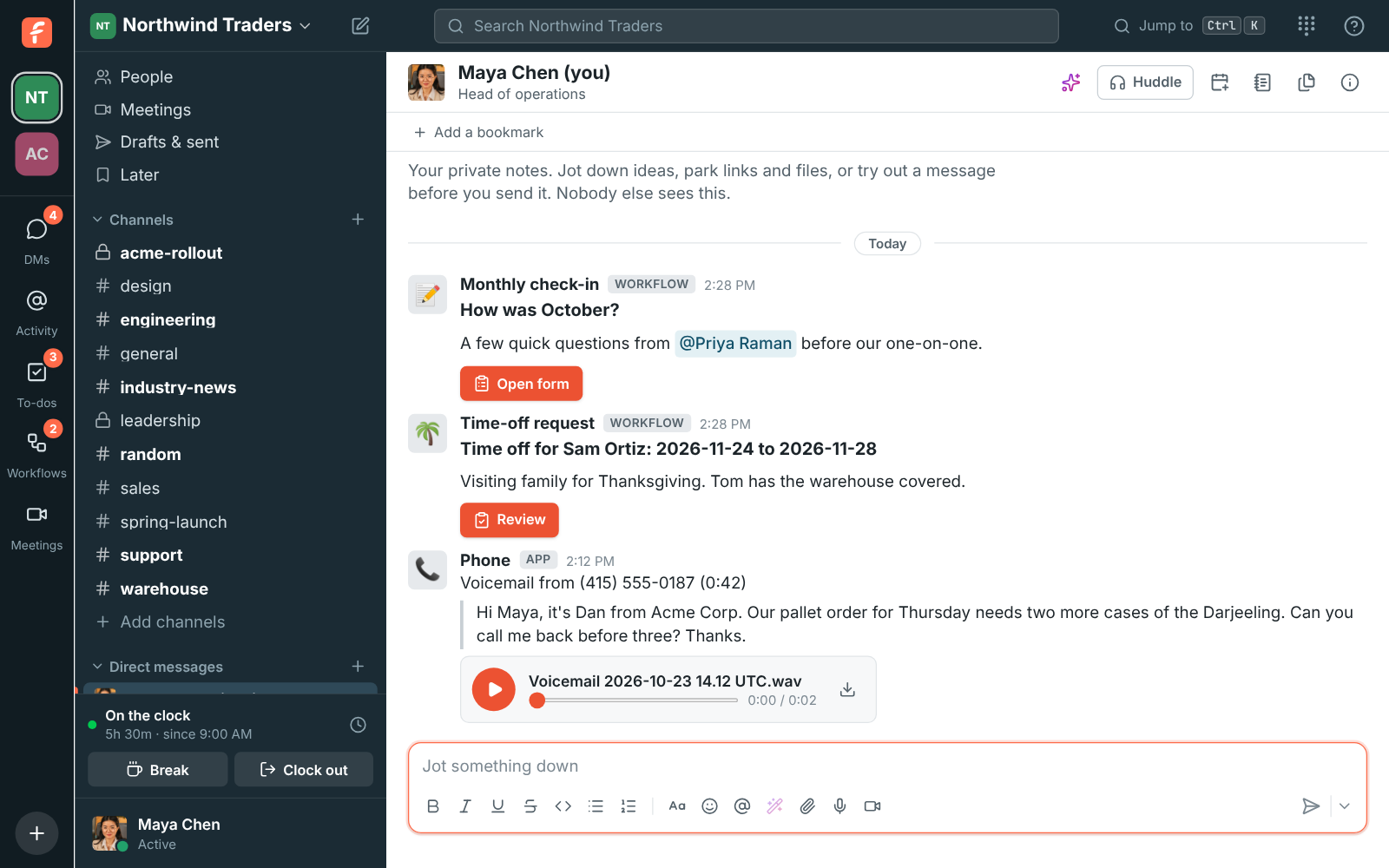
Voicemails written out
Section titled “Voicemails written out”- Voicemails now come with what the caller said, written out under the recording, so you can read them in a meeting or on the go without playing them. See Voicemail.
More of Freesbe on your phone
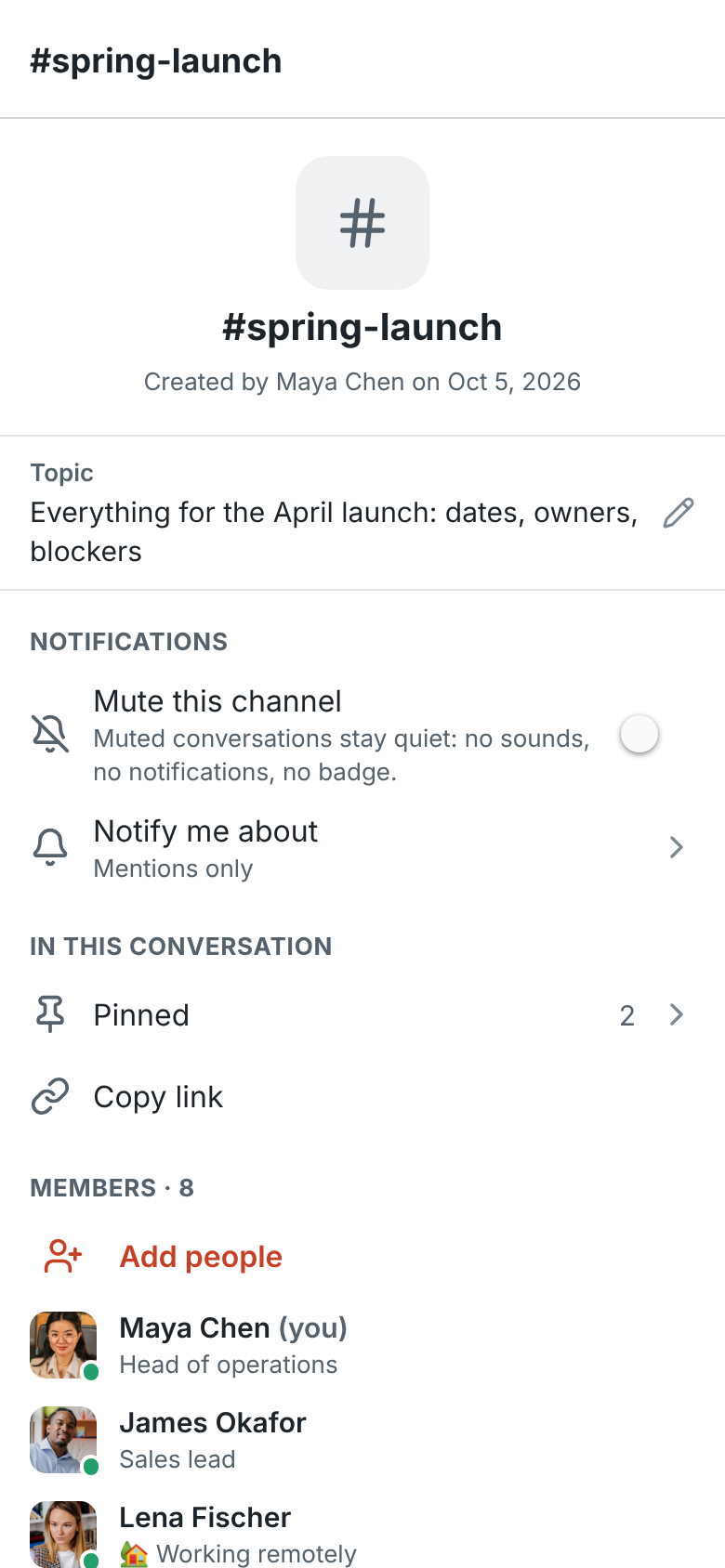
Section titled “More of Freesbe on your phone”- You → Later lists the messages you saved and your reminders, the same as Later on your computer. Mark them done, change a reminder or take one off.
- Tap a conversation’s name for its details: the topic, Mute and Notify me about, its pinned messages, who’s in it, Add people and Leave. Browse channels on Home finds channels to join, and + creates one.
- Tap someone’s name or picture for their profile, with their local time, status and profile fields, and Home → People lists everyone. Edit your own name, title and profile fields from your profile.
- Reply to a message, or mark it read, right from its notification. On iPhone, the app’s icon counts your unread DMs and mentions, and links to Freesbe messages open in the app.
- Your workspace’s own emoji show as pictures in messages and reactions, and you can react with them. See Mobile app.
PagerDuty incidents in a channel
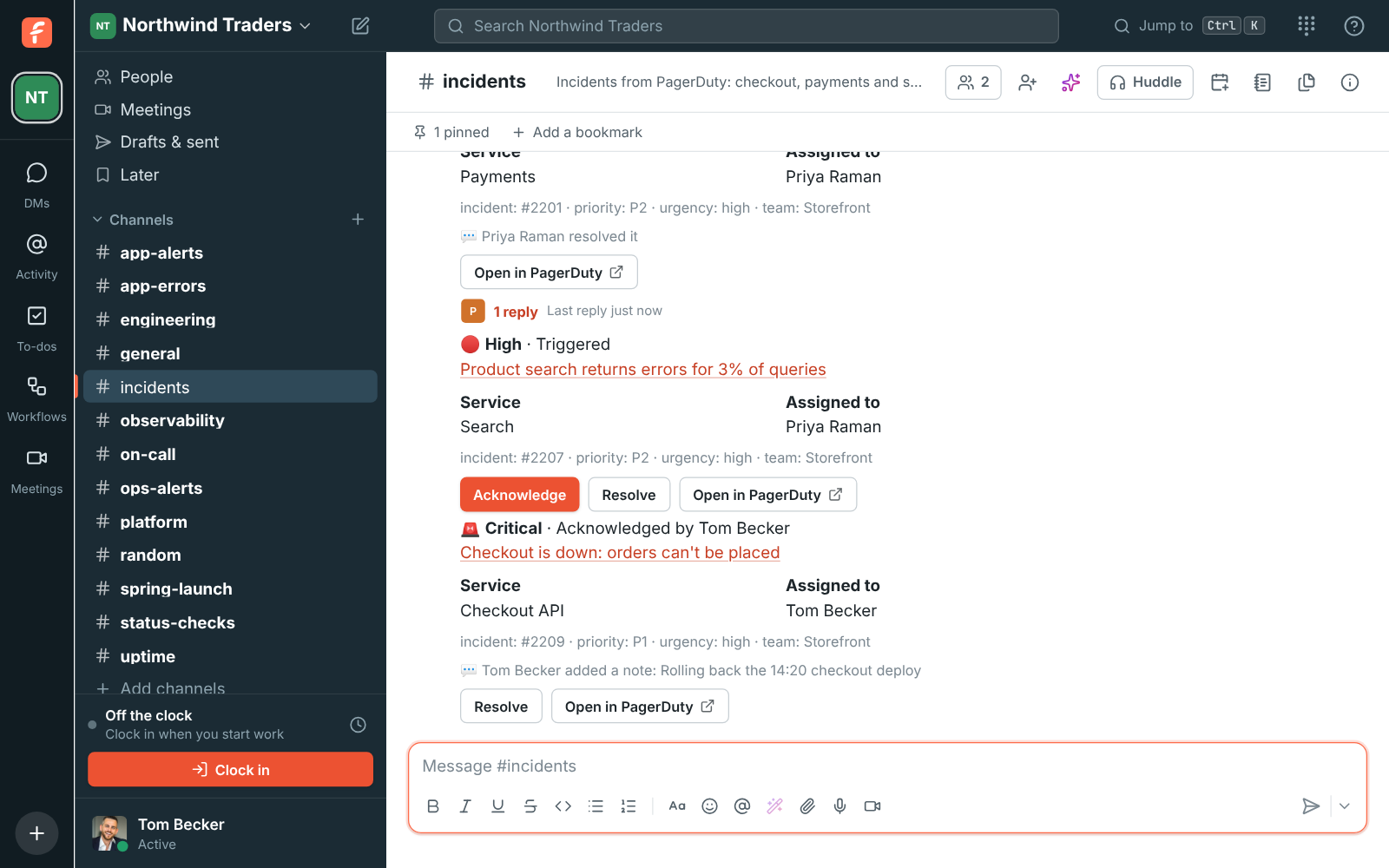
Section titled “PagerDuty incidents in a channel”- Admins can connect PagerDuty in Workspace settings → Integrations → Monitoring. Each incident then posts into the channel you pick as one card with its severity, service, who it’s assigned to and its priority, and the card keeps up with acknowledgements, escalations and notes until it turns green.
- With an API key, Acknowledge and Resolve on the card act in PagerDuty as the person who pressed them. See PagerDuty.
Our terms, in plain words
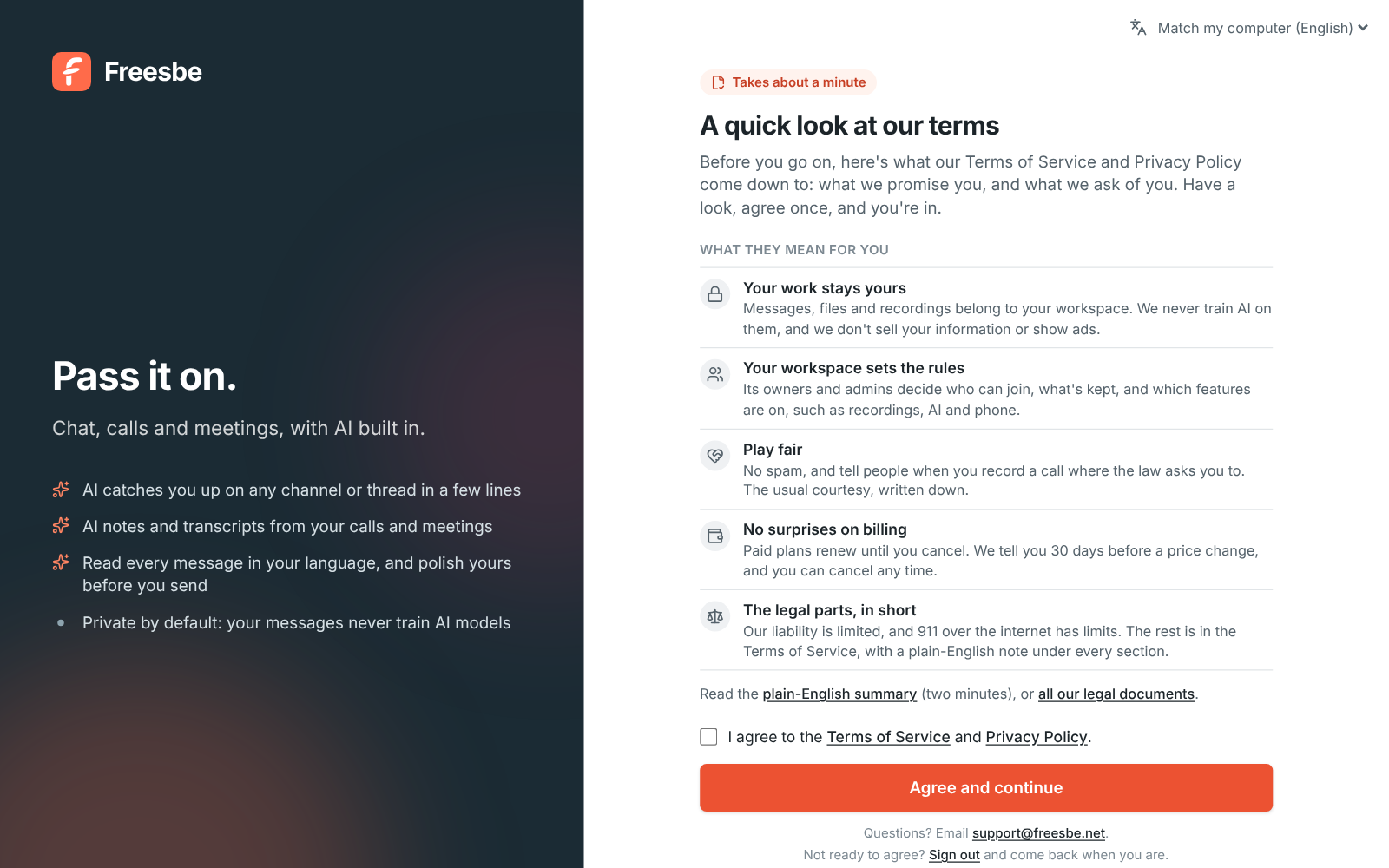
Section titled “Our terms, in plain words”- The one-time A quick look at our terms screen now says what the terms mean for you day to day before it asks you to agree: your work stays yours, your workspace sets its rules, play fair, no surprises on billing, and the legal parts in one line. When the terms change, it says what changed and when.
- Every legal document now opens with The short version, and each section of the Terms of Service has an In plain English note. freesbe.net/legal has the two-minute summary of all of them and lists every change. See Agreeing to the terms.
See which screen you’re sharing
Section titled “See which screen you’re sharing”- In the desktop app, Share screen now shows a picture of each of your screens and windows, like Google Meet, so you know which screen is which before you share. Pick one and click Share. See Choose what to share.
Sign up on your phone
Section titled “Sign up on your phone”- Start Freesbe for your team from the iPhone or Android app: create your account with Google, Microsoft or an email and password, confirm your email, then name your workspace and choose where its data is stored, all without leaving the app.
- Invite your team from your phone by email, or share an invite link by text, WhatsApp or any app. Invite links opened on your phone now show the workspace and let you join right in the app. See Create an account.
Phone numbers stay safe when you downgrade
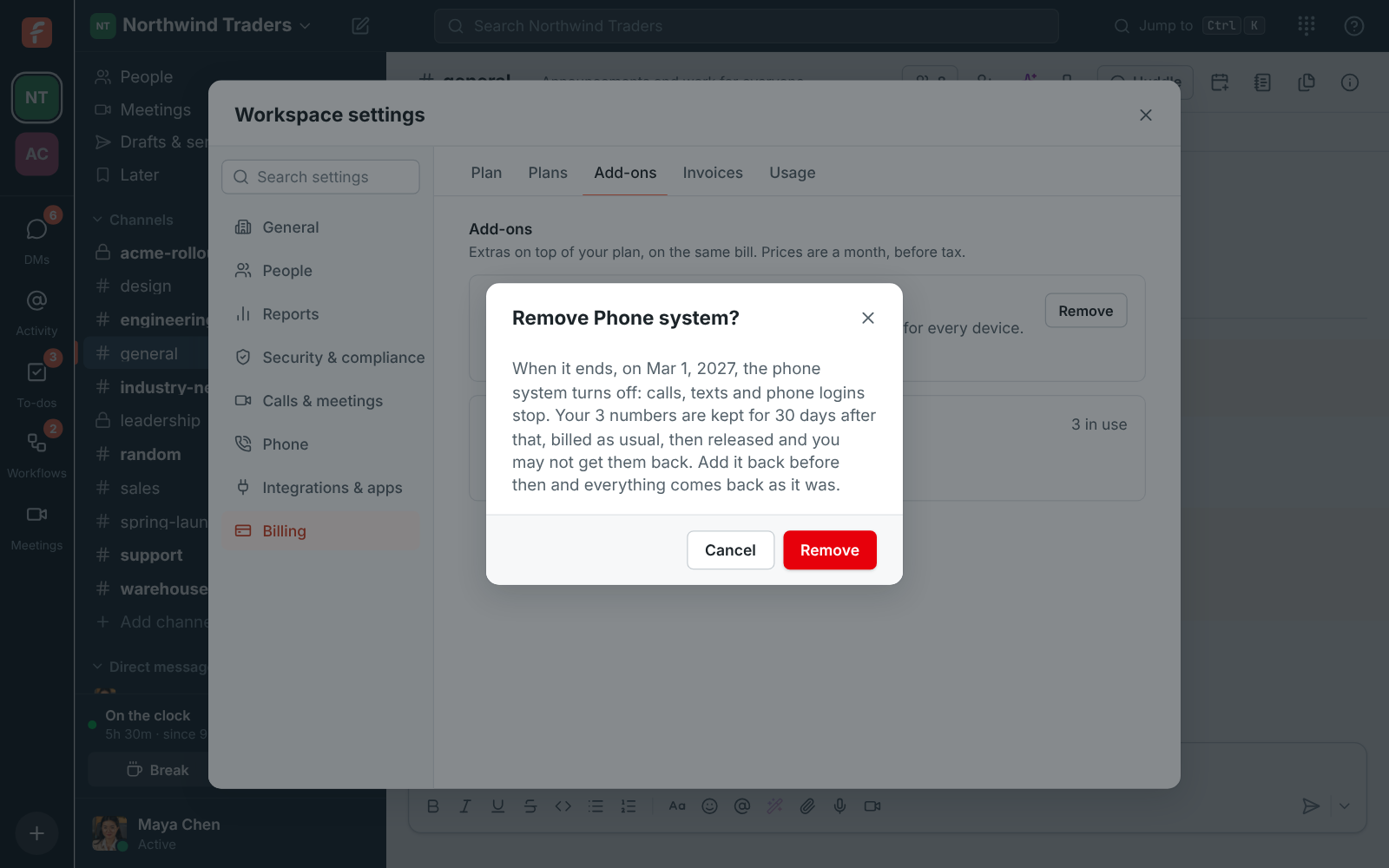
Section titled “Phone numbers stay safe when you downgrade”- You can now remove the Phone system add-on, or move to Free, while you still have numbers. Freesbe says first what happens to them: the phone system turns off when the add-on ends, and the numbers are kept for 30 days before they’re released.
- Phone system shows the date the add-on ends, and adding it back turns the phone system on by itself, as it was.
- Deactivate says what it adds a month when it leaves more local numbers than people. See When the Phone system add-on ends.
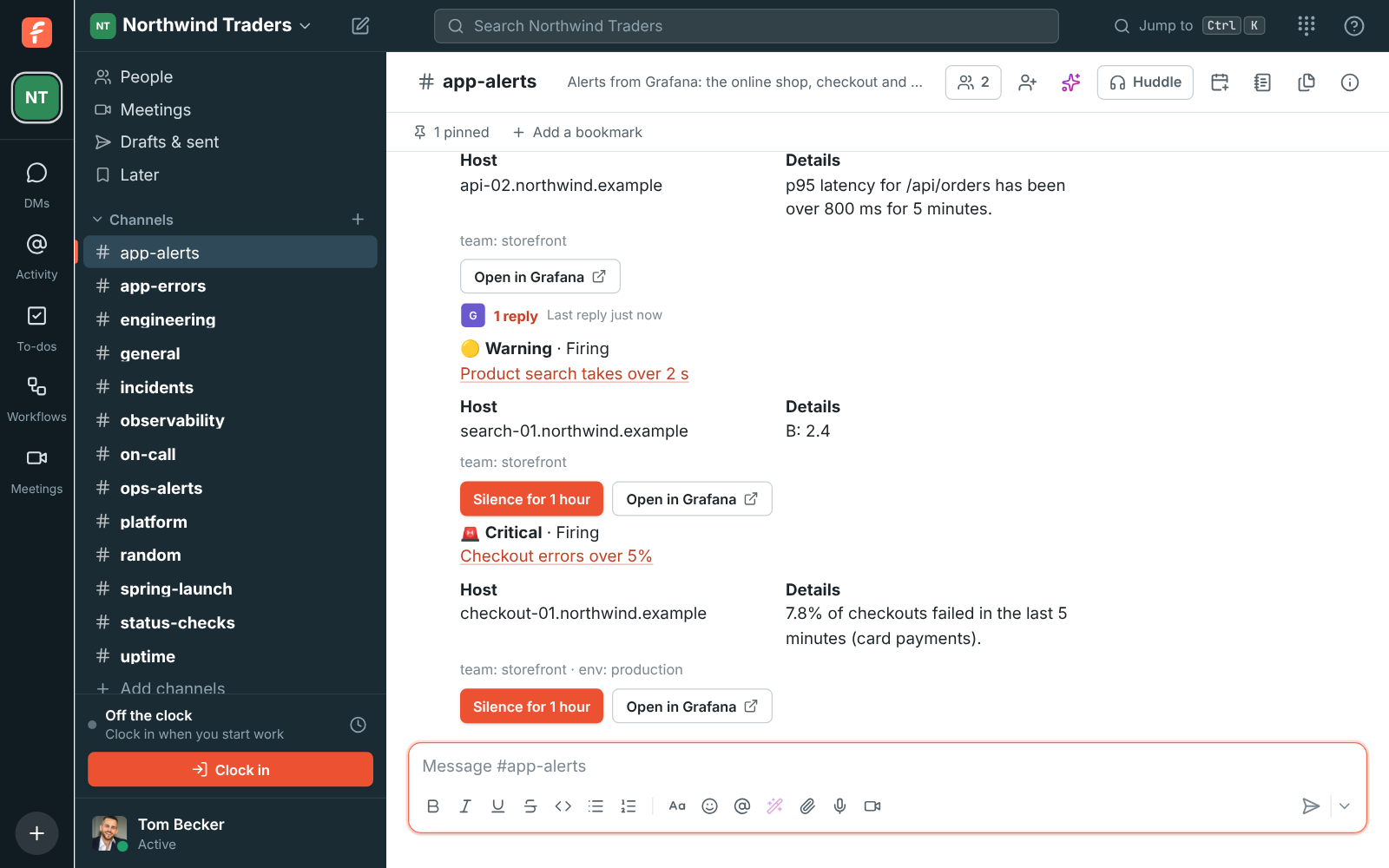
Grafana and Prometheus Alertmanager alerts
Section titled “Grafana and Prometheus Alertmanager alerts”- Admins can connect Grafana and Prometheus Alertmanager in Workspace settings → Integrations → Monitoring. Each alert then posts into the channel you pick as one card with its severity, summary, where it’s firing and its labels, and turns green when it resolves.
- With an API token, Silence for 1 hour on the card silences the alert, saying who pressed it.
- The live problems board and daily or weekly reports work for them too. See Grafana and Alertmanager.
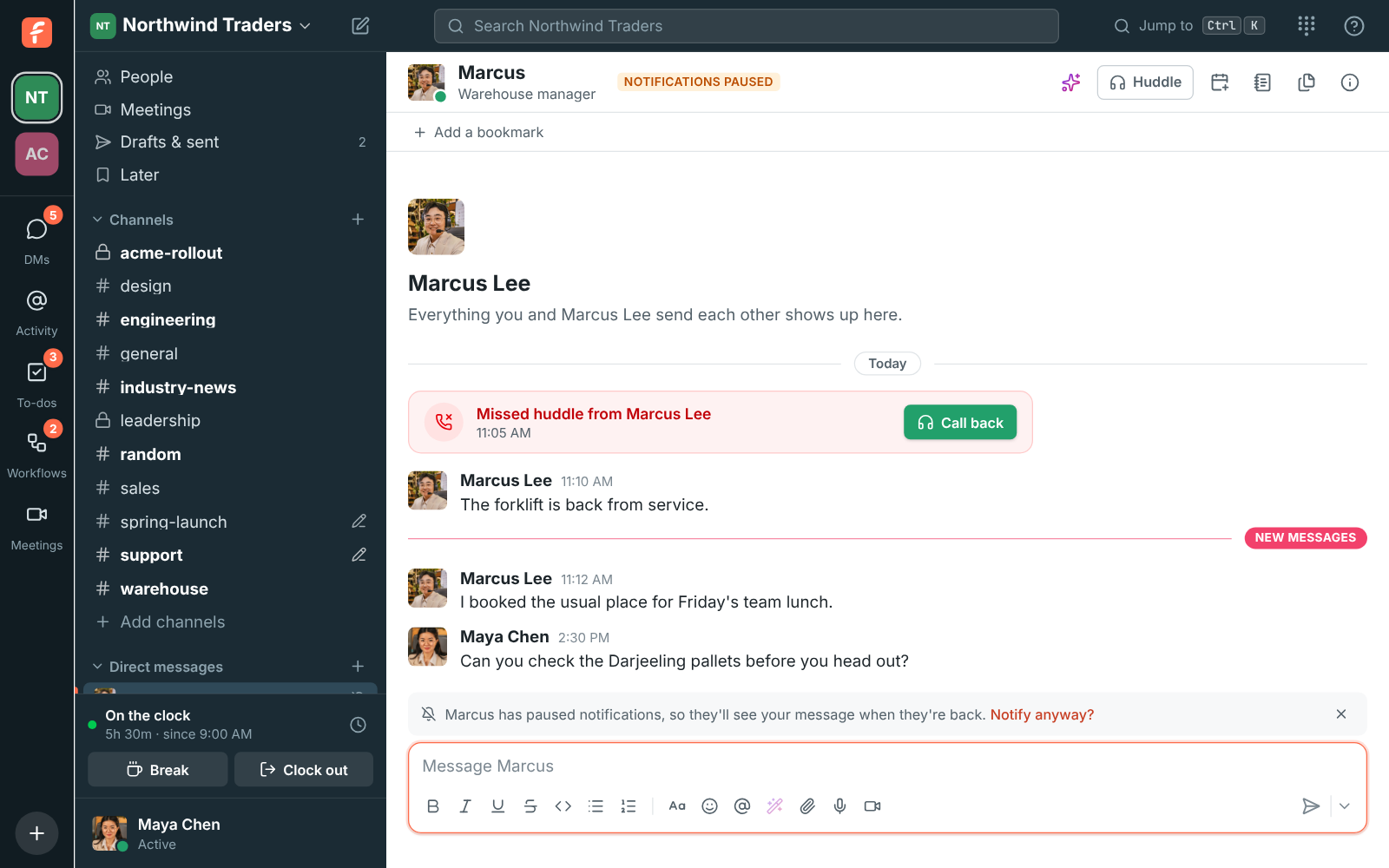
Know when someone won’t see your DM yet
Section titled “Know when someone won’t see your DM yet”- After you send a direct message to someone who has paused notifications, a line above the message box says they’ll see it when they’re back. Click Notify anyway? if it can’t wait: they get the notification even though they’re paused.
- It also tells you when they’re away or offline, so you know not to expect an answer right away. See When the person you message is away.
Talk in huddles and meetings from your Android phone
Section titled “Talk in huddles and meetings from your Android phone”- The Android app now asks to use your microphone when you join a huddle or a meeting. Before, the microphone stayed off and others couldn’t hear you.
- If the microphone is off, tap it to be asked again. If you turned it down for good, the app takes you to Settings to allow it. See Mobile app.
Notifications on Android phones
Section titled “Notifications on Android phones”- The Android app now gets push notifications, with your phone’s notification sound: new DMs, mentions and thread replies, and a ring when someone calls you in a huddle. Messages and calls are separate kinds of notification, so you can give each its own sound in your phone’s settings. See Notifications.
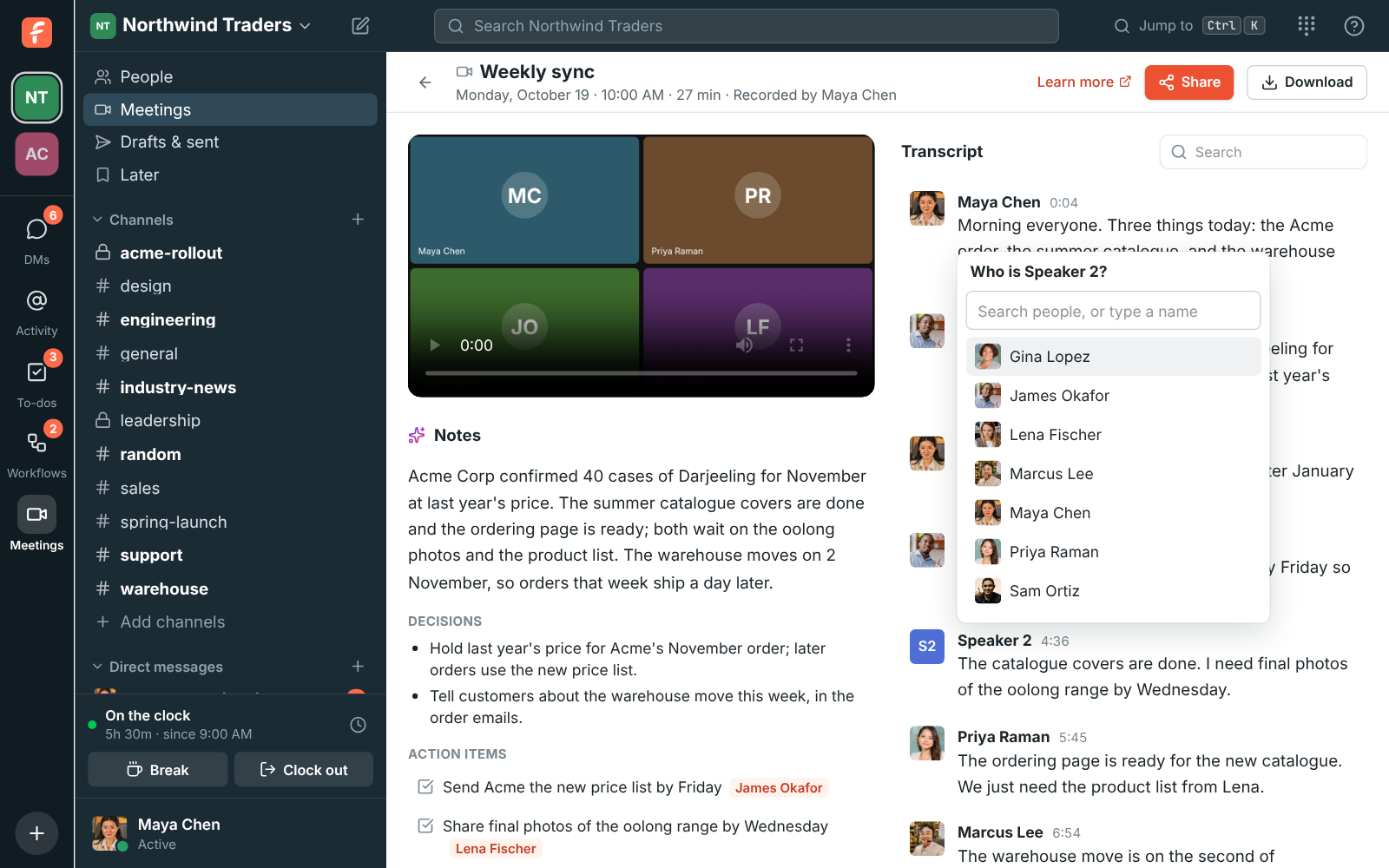
Say who’s talking in a transcript
Section titled “Say who’s talking in a transcript”- Click Speaker 1, Speaker 2 or any name in a recording’s transcript to say who it is: someone from your workspace, or a name you type. Every line that voice said, and the action items for it, take the new name. See Say who a speaker is.
- Speakers’ names are kept even when the recorder closes the app right after the meeting.
Waiting music in huddles on your phone
Section titled “Waiting music in huddles on your phone”- While you’re alone in a huddle on your Android phone, the same waiting music as on your computer plays until someone joins. It plays through the call, never into it.
- Tap the music button under the huddle’s name to pick Lo-fi, Drift, Sunny, Classic, Bossa or Off. Your phone remembers your pick. See During a huddle.
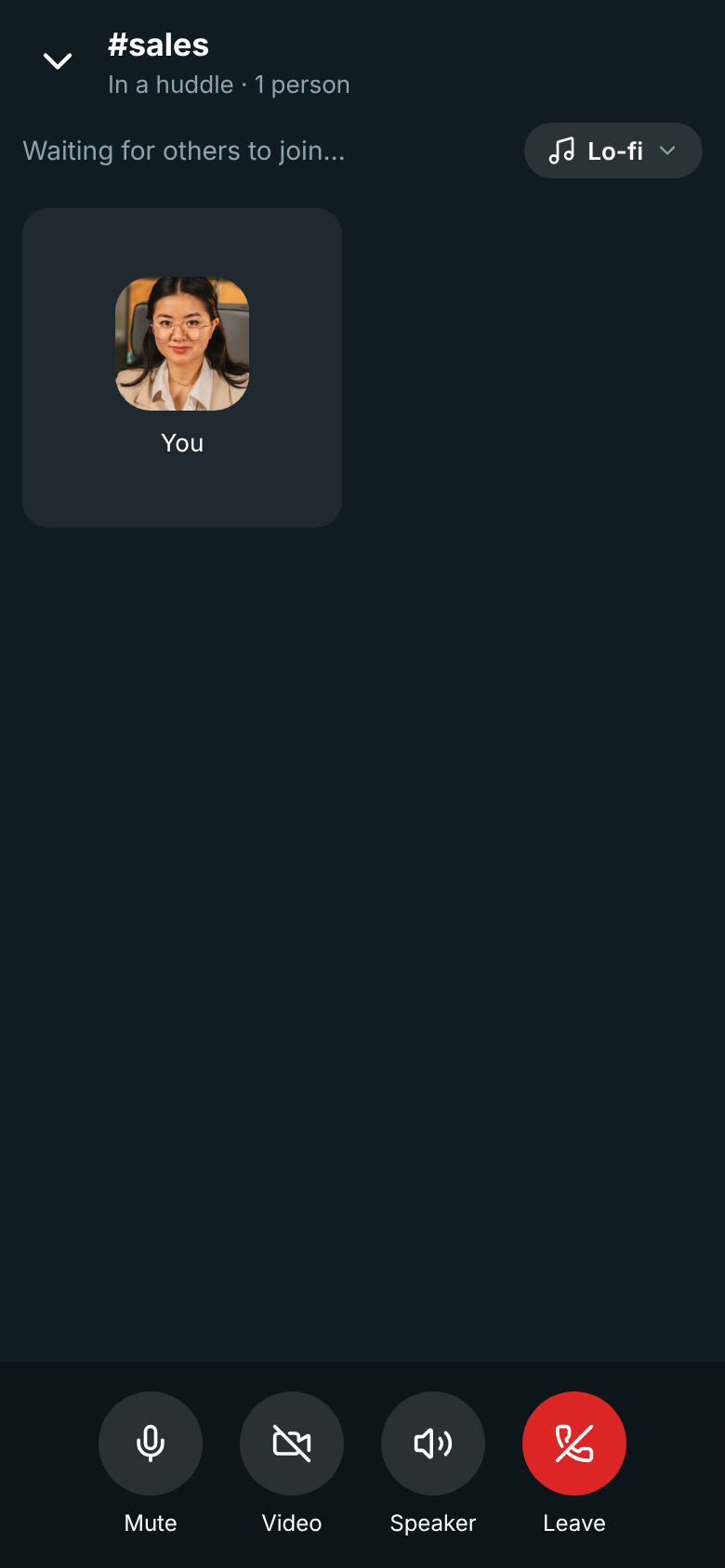
Calls make sure you’re heard
Section titled “Calls make sure you’re heard”- If you’re talking in a huddle or meeting but your microphone sends the others silence, Freesbe now notices within about 10 seconds and repairs it. With Advanced AI noise cancellation on, the call switches to Standard for the rest of the call and tells you. Your setting stays as you chose it.
- Advanced AI noise cancellation now works as it should. Before this fix, it could send the others silence while you talked.
- If someone’s sound arrives but doesn’t play on your side, Freesbe plays it the plain way.
- The ring around your name now shows the sound the others get, not just what your microphone hears. See If you can’t hear or be heard.
Terms of Service and a legal center
Section titled “Terms of Service and a legal center”- Freesbe now has full Terms of Service, Website Terms of Use and a more detailed Privacy Policy, all in one place at freesbe.net/legal.
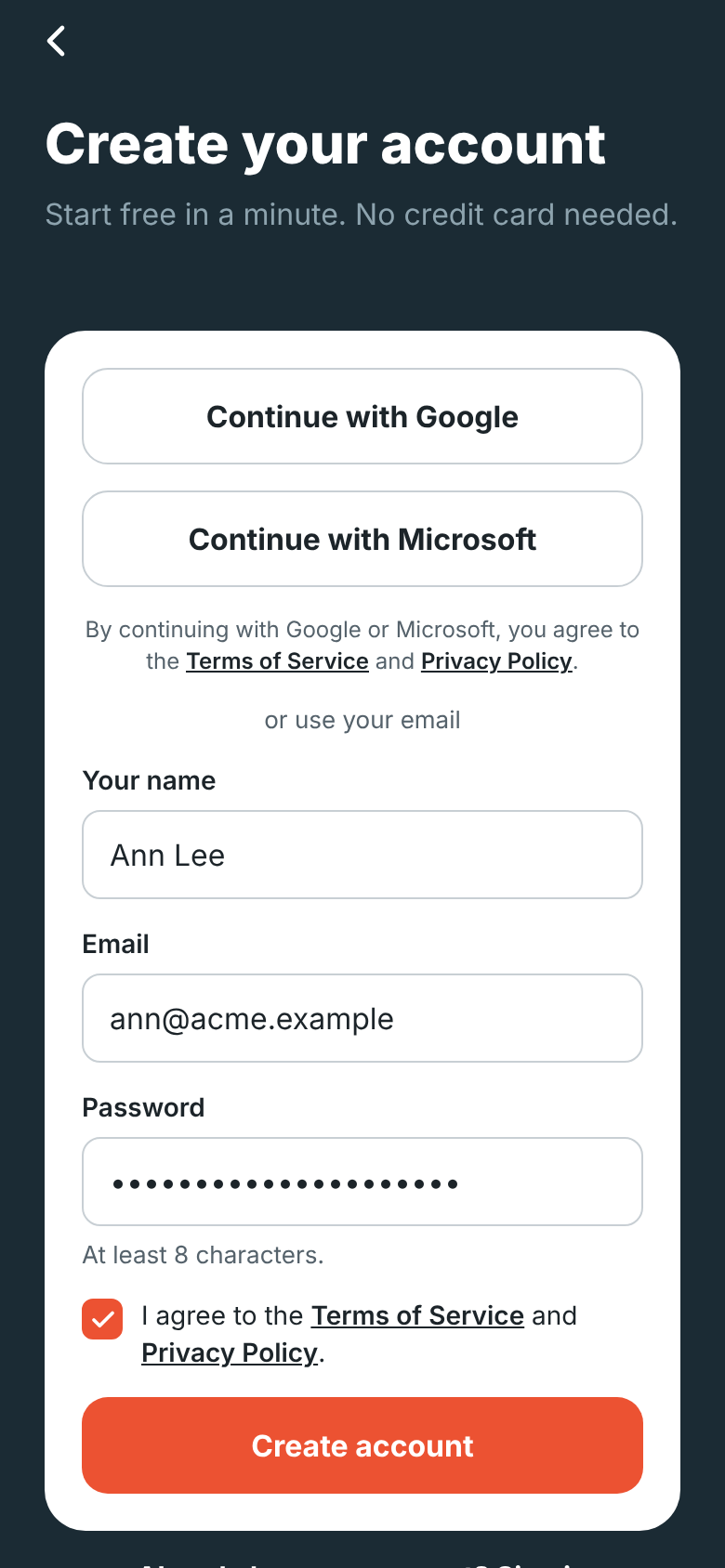
- Creating an account now needs a tick in I agree to the Terms of Service and Privacy Policy. If you already have an account, Freesbe asks you to agree once, the next time you open it. See Agreeing to the terms.
Zabbix: a live problems board, /zabbix and reports
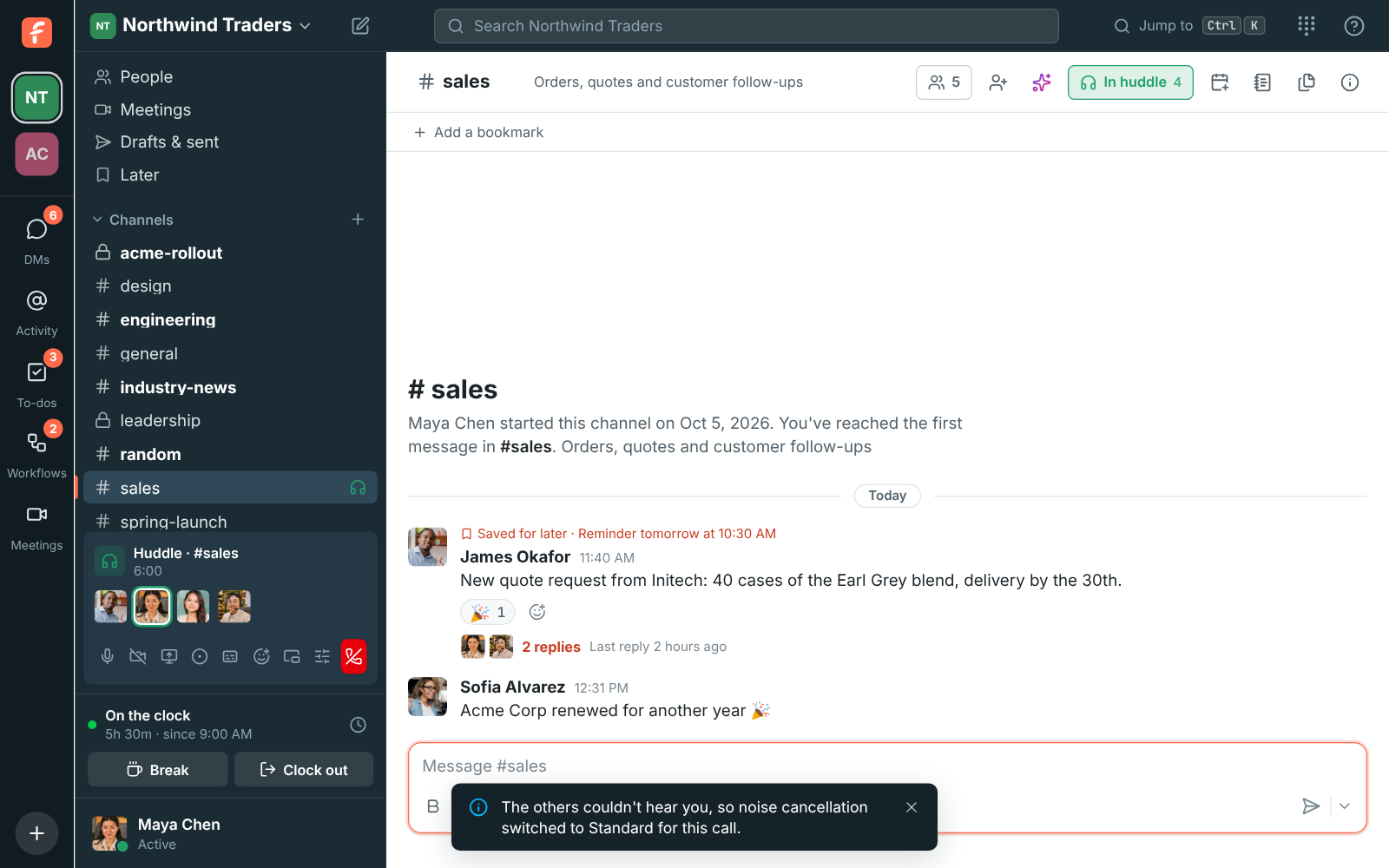
Section titled “Zabbix: a live problems board, /zabbix and reports”- A live problems board is pinned in your Zabbix alert channel: one card listing everything open right now, worst first, with how long and who’s on it. It changes as problems come and go.
- Type /zabbix to see what’s open,
/zabbix host web-02for a host’s health, or/zabbix askand a question, like how was CPU on db-01 this week?, for an answer from Zabbix’s data. - Daily or weekly reports of problems, problem time and the busiest hosts post on their own. See Zabbix.
Security activity
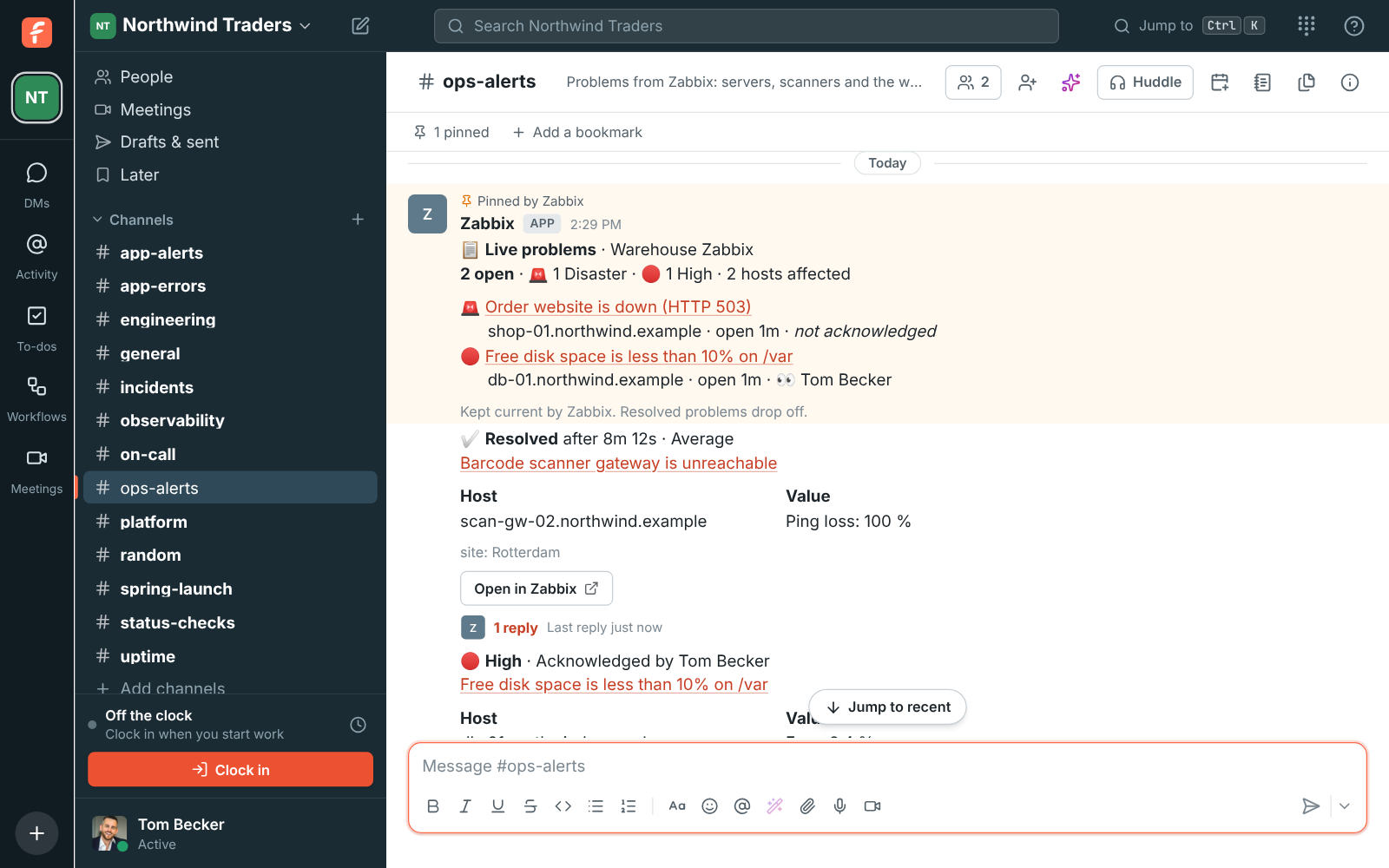
Section titled “Security activity”- Preferences → My account → Security activity shows every sign-in to your account, every wrong password or code, and every change to how you sign in, with the browser or app and the address and country it came from.
- Owners and admins see the whole team’s in Workspace settings → Security activity and in the Admin Center, filter it by member, event or month, and export it as a CSV file. See Security activity.
Freshdesk app
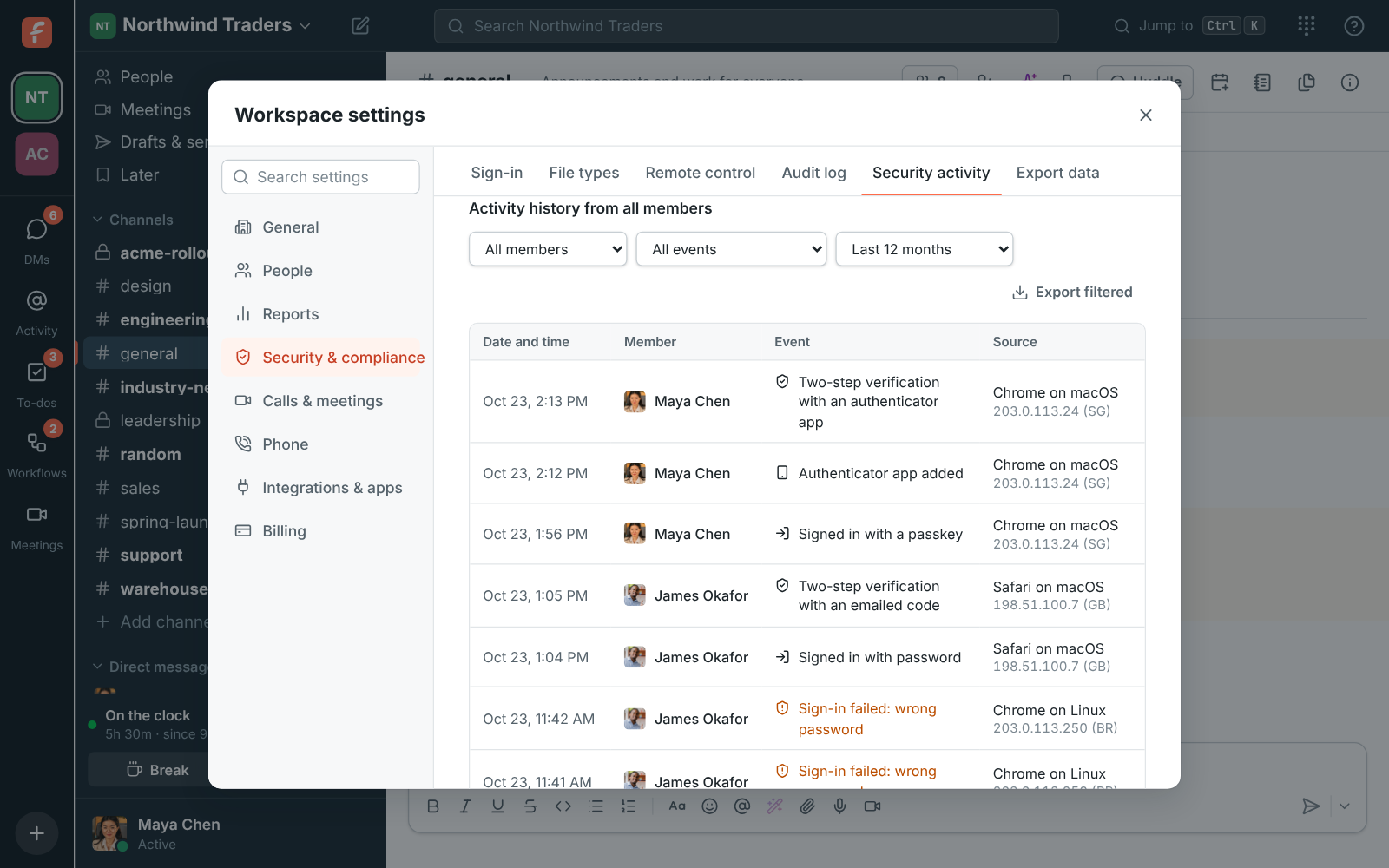
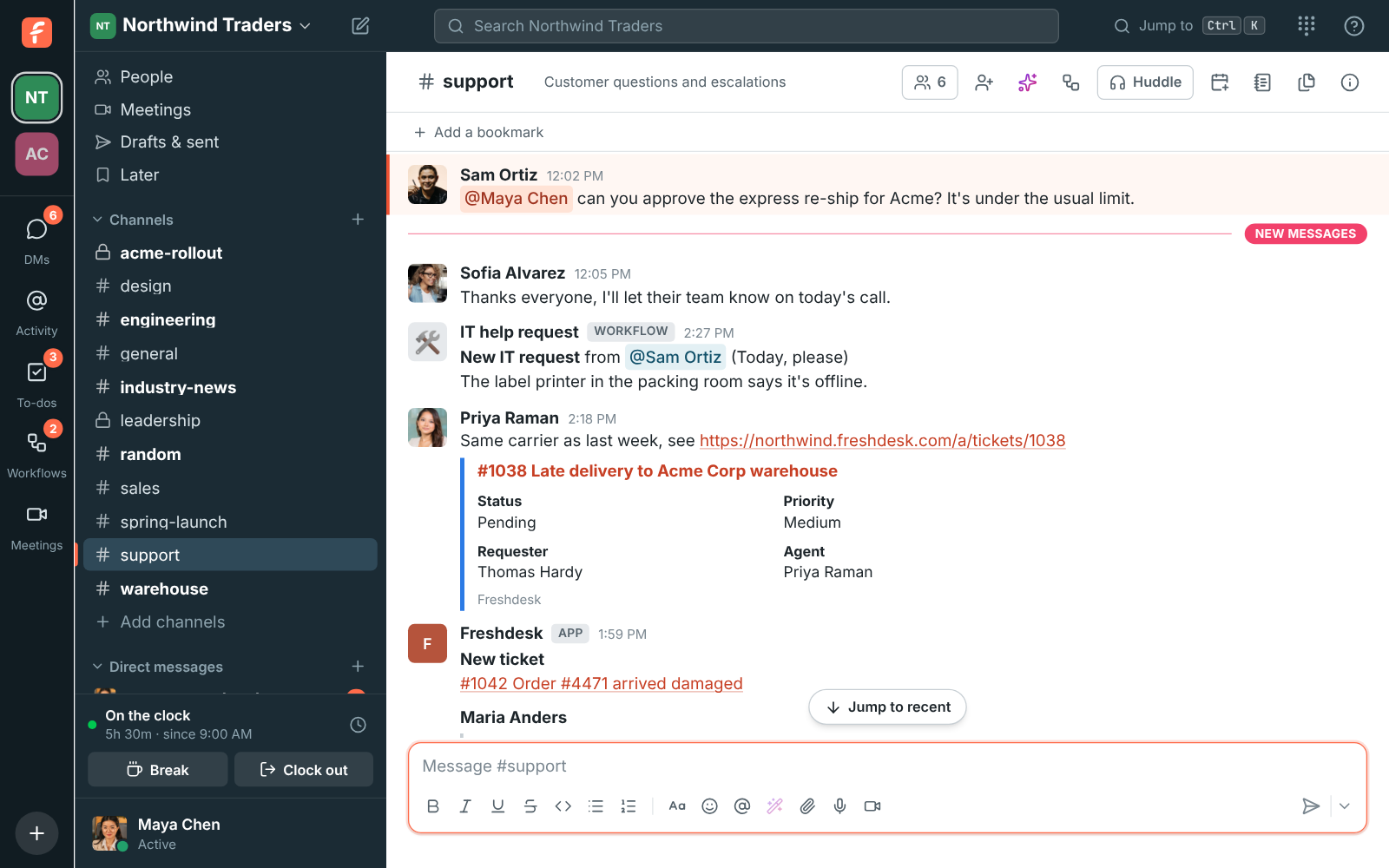
Section titled “Freshdesk app”- Admins can connect Freshdesk in Workspace settings → Integrations → Support with an agent’s API key. Freesbe then posts new tickets, status changes, replies, priority changes and new agents into the channels you pick, with Assign to me and Resolve right on the card. See Freshdesk.
- Freshdesk ticket links show as cards, and
/freshdeskfinds a ticket by number, email or name. - Create Freshdesk ticket on any message makes a ticket, and Add to Freshdesk ticket adds the message to a ticket as a private note.
Emergency addresses for 911 calls
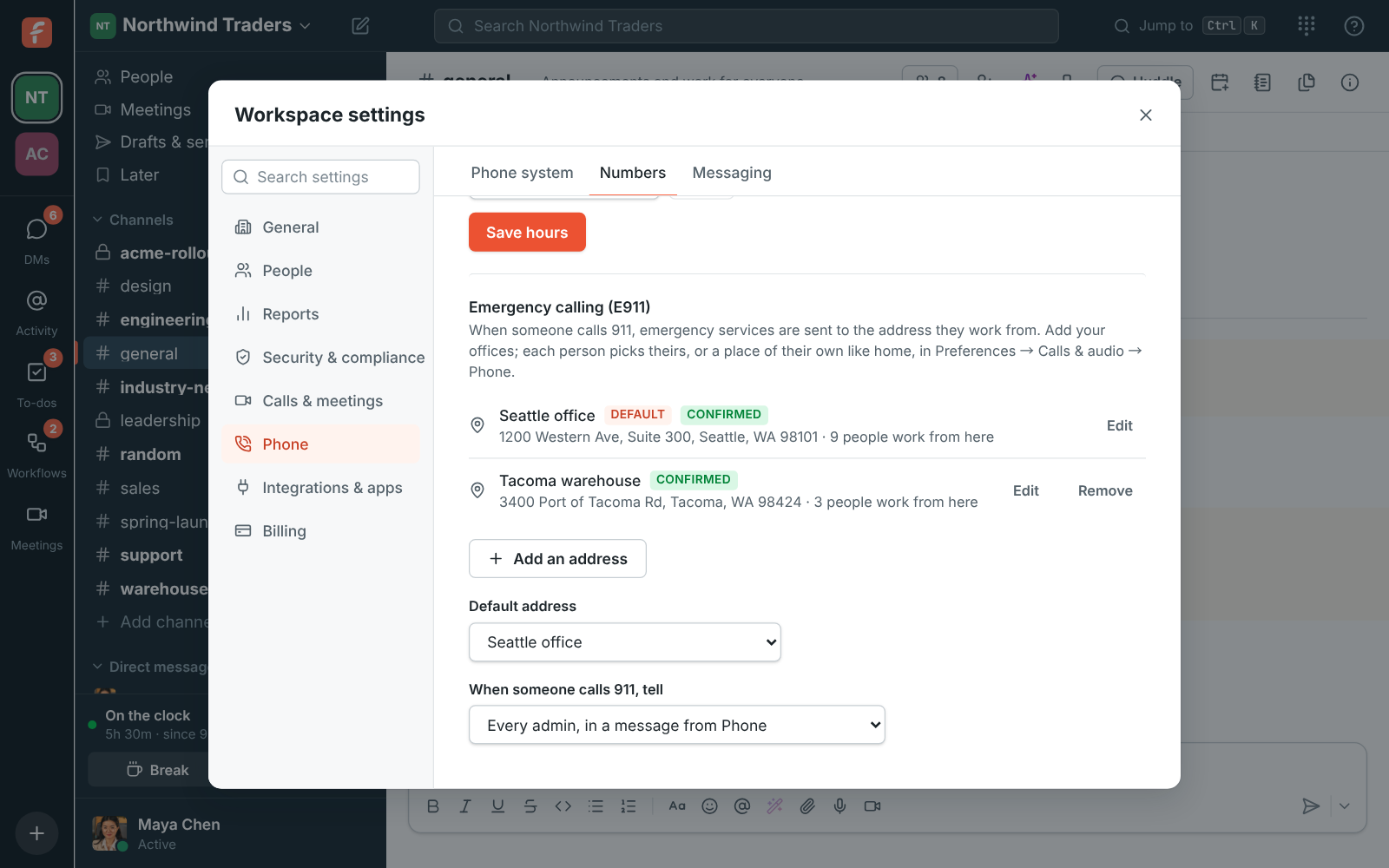
Section titled “Emergency addresses for 911 calls”- Admins can now add the workspace’s emergency addresses under Phone → Numbers → Emergency calling (E911), pick the default, and choose a channel to tell when someone dials 911.
- Everyone picks where they work from in Preferences → Calls & audio → Phone: an office, or a place of their own like home. Addresses are sent to the carrier as soon as emergency registration turns on. See Emergency calling.
Long-press menus on your phone
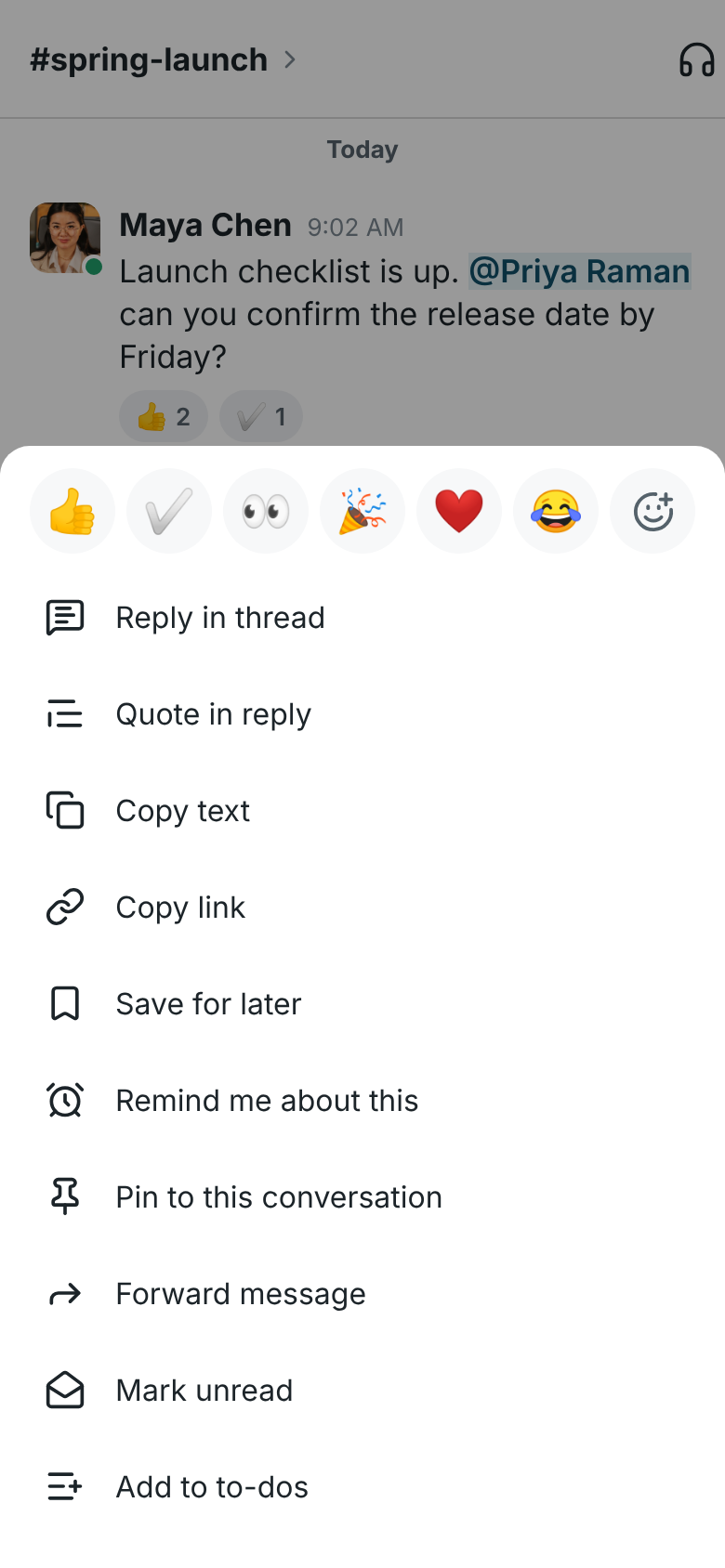
Section titled “Long-press menus on your phone”- Press and hold a message on your phone for the same actions as the right-click menu on your computer: Quote in reply, Save for later, Remind me about this, Pin, Forward, Mark unread and Translate join reply, copy, to-dos, edit and delete.
- Press and hold a conversation to mark it read, mute it, copy its link or leave it, and press and hold someone’s name or picture to message them or start a huddle. See React, edit and delete.
Right-click menus
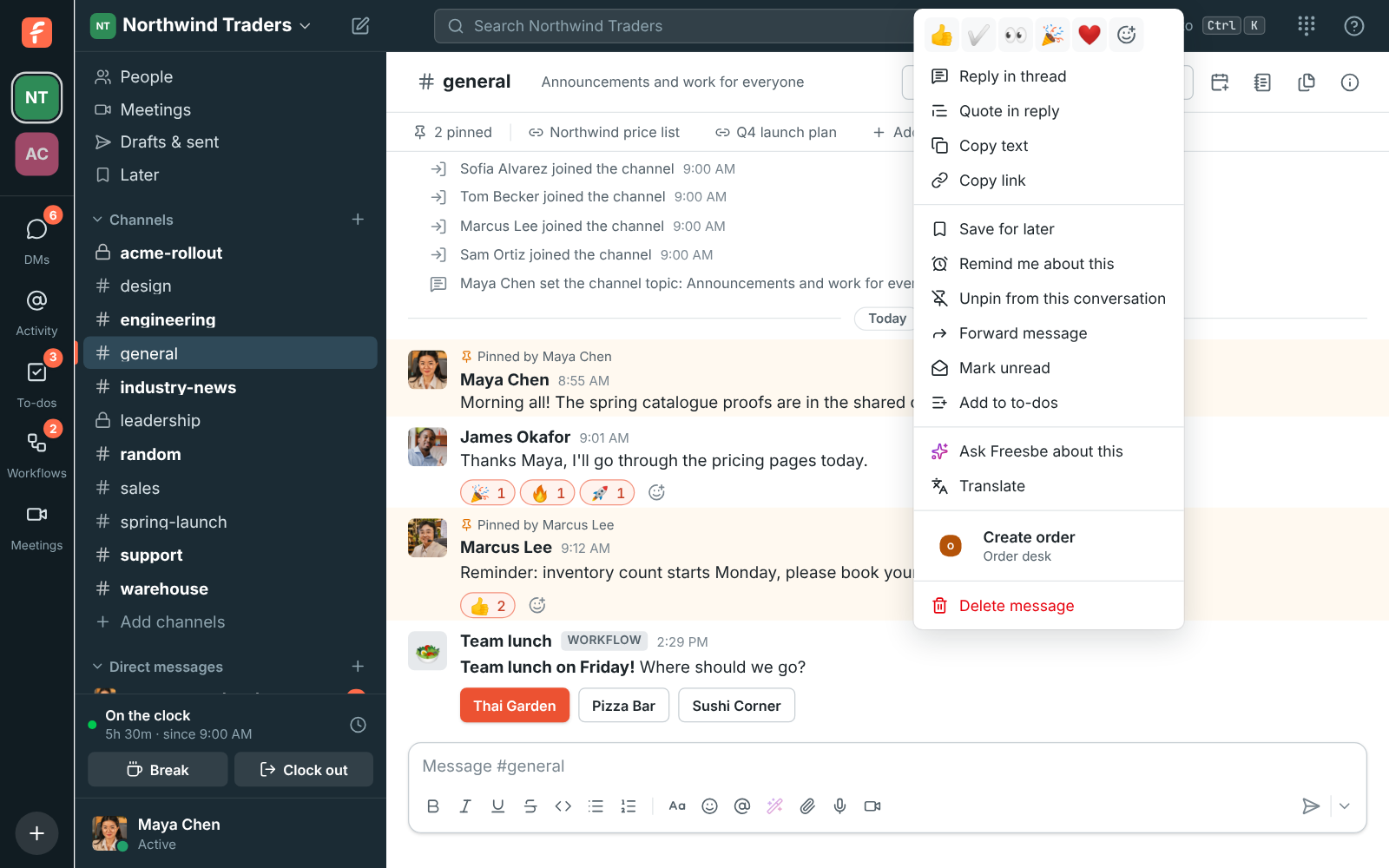
Section titled “Right-click menus”- Right-click a message for all its actions in one menu: quick reactions, reply, quote, copy, save, remind, pin, forward, Mark unread, Ask Freesbe about this and more. Select some text first and Copy, Quote selection and Search come to the top.
- Names, links, pictures, files and the conversations in your sidebar have menus of their own. See Right-click menus.
Zabbix problems in a channel
Section titled “Zabbix problems in a channel”- Admins can connect Zabbix in a new Workspace settings → Integrations → Monitoring category. Each problem posts as one card with its severity, host and value, and the card keeps up: it shows who acknowledged it and turns green when the problem is resolved.
- Add a Zabbix API token, and Acknowledge and Close problem buttons on the card act in Zabbix. See Zabbix.
Click-to-call for your CRM and other apps
Section titled “Click-to-call for your CRM and other apps”- A Call button in your CRM or your own app can now call through Freesbe: your Freesbe phone rings first, and once you answer, Freesbe dials the customer from your workspace’s number. Apps use the new phone:call permission, and AI agents can call for you when you allow it.
- When the call ends, the
phone.call_endedevent tells the app whether the customer answered and how long you talked, so it can log the call. See Click-to-call from your CRM.
Click a phone number to call it
Section titled “Click a phone number to call it”- On a phone system from Freesbe, clicking a phone number on someone’s profile or a phone link in a message now calls it right in Freesbe, with no dialpad and no other app. See Calls in Freesbe.
Make the sidebar and threads wider or narrower
Section titled “Make the sidebar and threads wider or narrower”- Drag the divider beside the sidebar, or beside a thread or any side panel, to resize it, like in Slack. Double-click a divider to go back to the default width.
- Freesbe remembers your widths on each computer, and the dividers work with the keyboard too. See Resize the sidebar and side panel.
Hover buttons no longer cover Hebrew and Arabic messages
Section titled “Hover buttons no longer cover Hebrew and Arabic messages”- When a message reads the other way from your Freesbe language, like a Hebrew message in English Freesbe, the buttons that show when you point at it now sit on the side where its text ends, so they don’t hide its first words.
- The buttons also go away as soon as you move the pointer off the message. Before, they stayed on after you reacted to a message or clicked one of them.
Calls keep the sound first on a weak connection
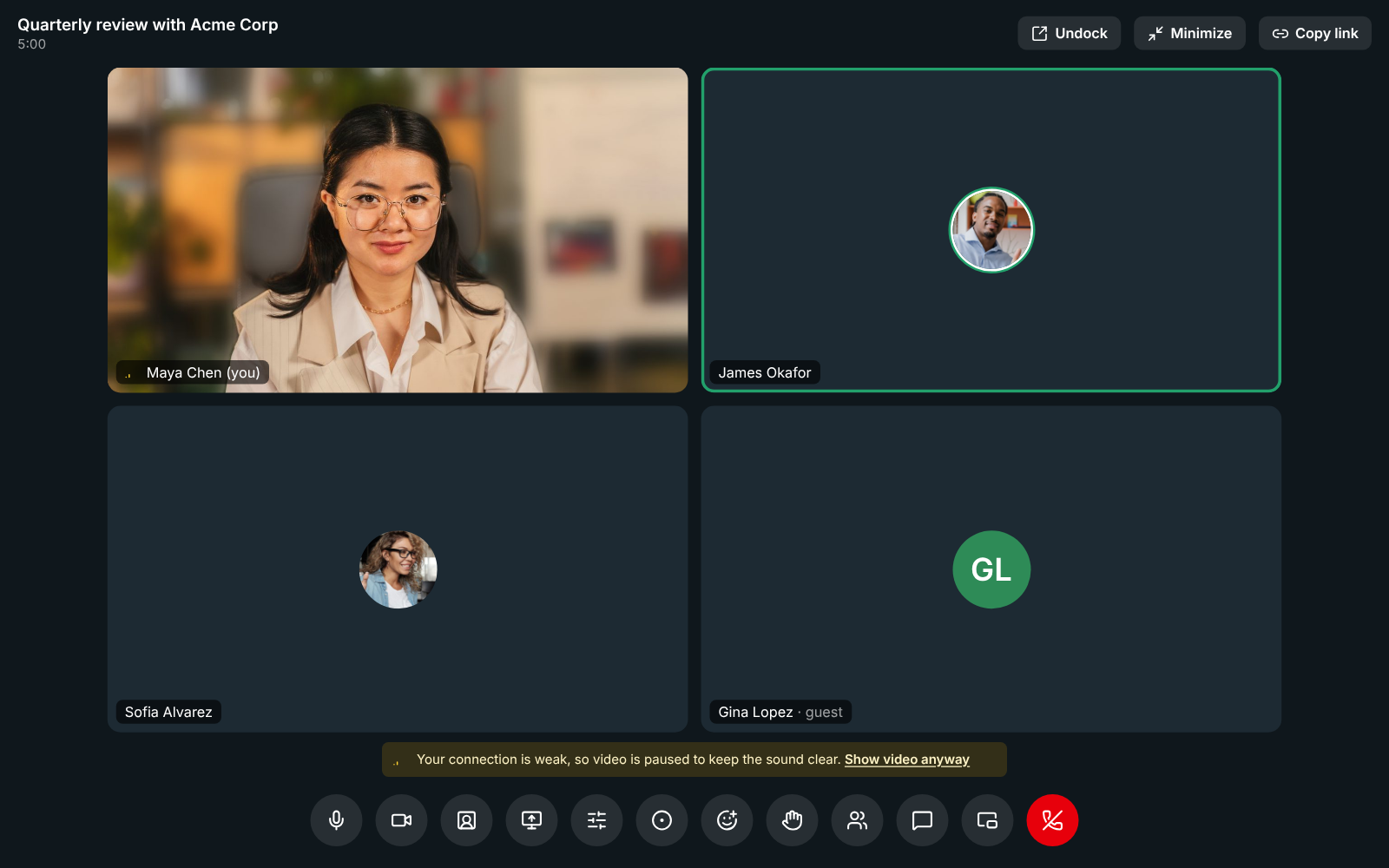
Section titled “Calls keep the sound first on a weak connection”- When your connection stays weak in a huddle or meeting, Freesbe pauses other people’s cameras and sends your camera and sound leaner, so voices keep getting through. Shared screens keep showing, and Show video anyway brings the cameras back. Everything returns by itself once your connection recovers. See Call quality.
A tidier reply box in threads
Section titled “A tidier reply box in threads”- The reply box in a thread no longer spills its buttons onto a second row. Emoji, mentions, Improve writing, files and clips sit on one row with Send.
- The formatting buttons are behind Aa there: click it to show them above what you’re typing. The main message box keeps them in view when it’s wide enough. See Formatting.
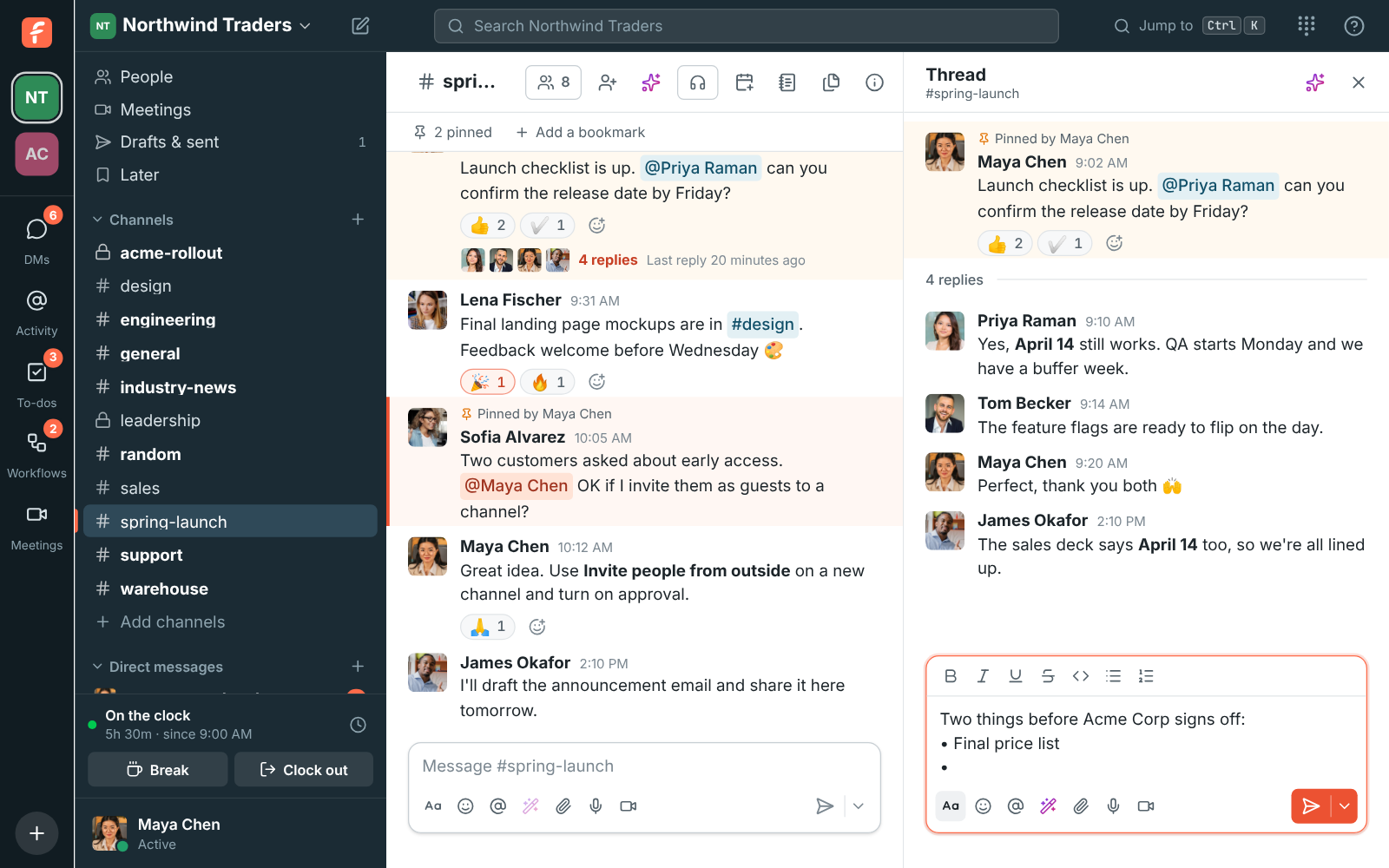
The Admin Center: your workspace settings on a full screen
Section titled “The Admin Center: your workspace settings on a full screen”- Owners and admins can now manage a workspace in the browser at manage.freesbe.net, with every settings page in one list on the left. Choose Admin Center in the workspace menu to open it on the workspace you’re in.
- It has its own sign-in with a second step, and switches between the workspaces you manage. Workspace settings in the app work as before.
Zoho Recruit app
Section titled “Zoho Recruit app”- Admins can connect Zoho Recruit in a new Workspace settings → Integrations → Recruiting category, whichever Zoho data center your account is in. Freesbe then posts new candidates, status changes, hires, new job openings and scheduled interviews into the channels you pick, as they happen.
- Links to a candidate, job opening or interview show its status and owner. See Zoho Recruit.
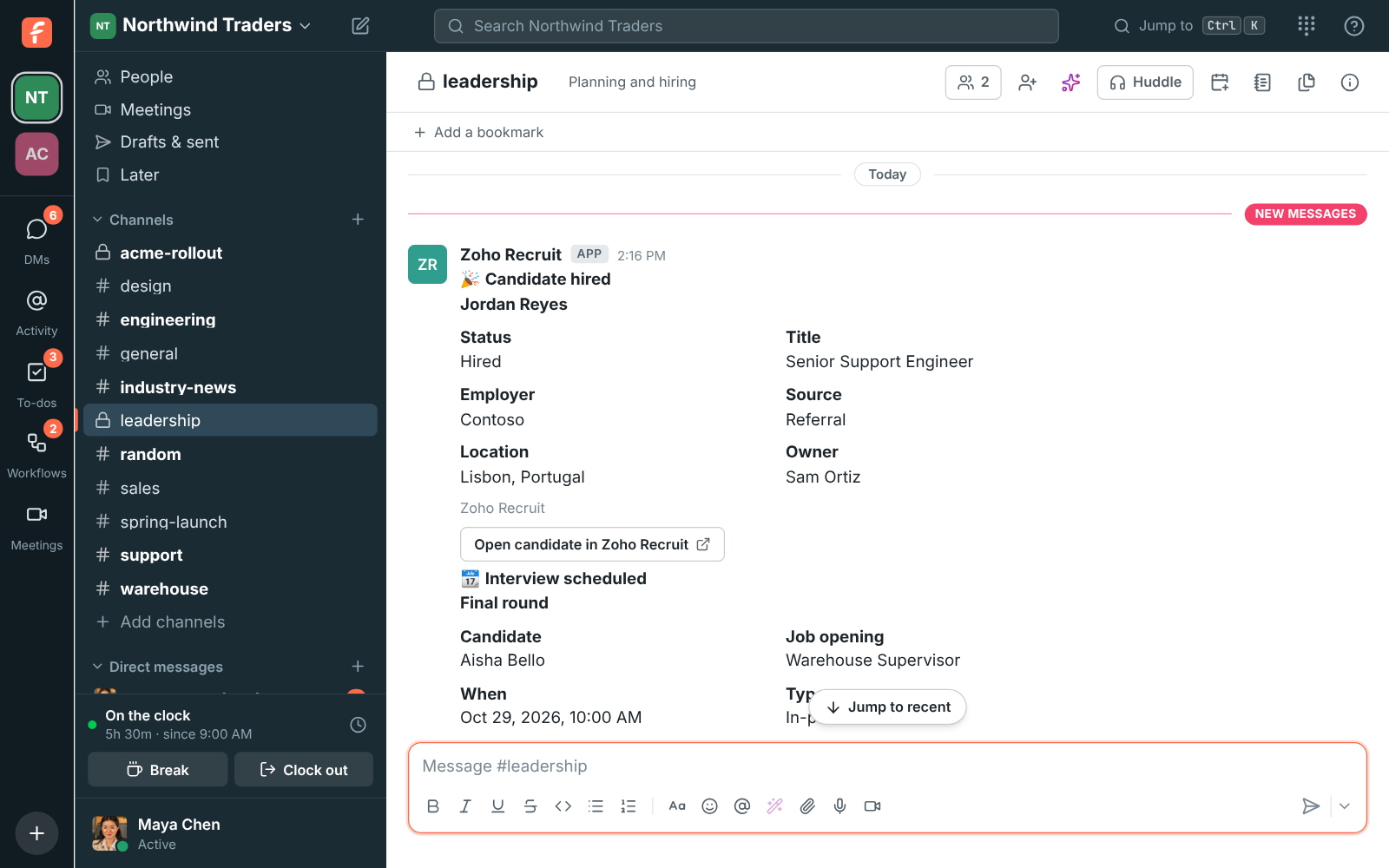
Answer WhatsApp messages in Freesbe
Section titled “Answer WhatsApp messages in Freesbe”- Add your WhatsApp Business number in Workspace settings → Phone → Messaging, and WhatsApp messages to it land in a channel, one thread per customer. Replies in the thread go back on WhatsApp, with Delivered and Read under each one.
- It starts in test mode with made-up messages. Connect WhatsApp signs you in with Facebook to pick your WhatsApp Business account, and takes it live. See WhatsApp.
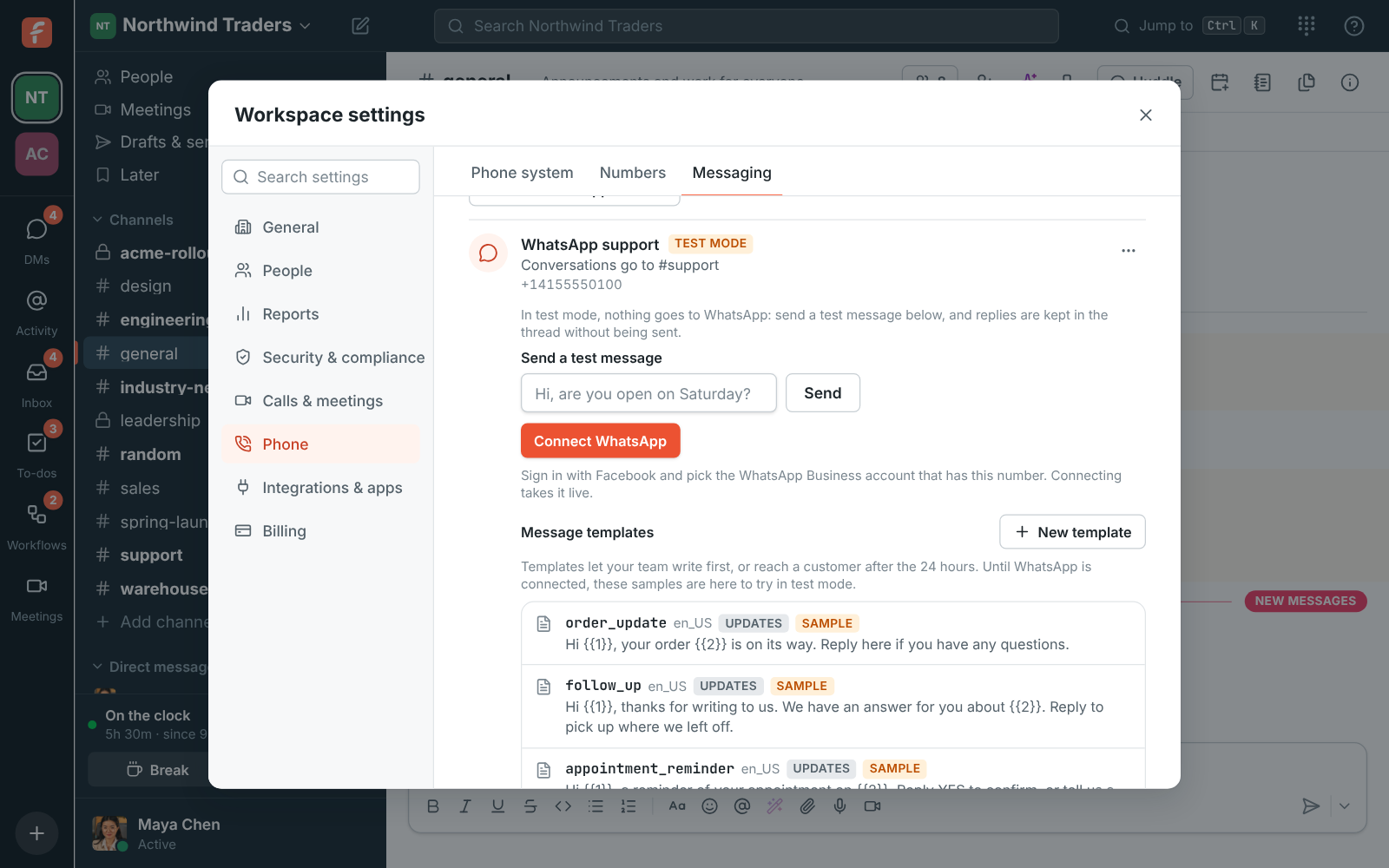
Pin messages and bookmark links in every conversation

Section titled “Pin messages and bookmark links in every conversation”- Pin a message from its More actions menu so everyone in the channel or DM can find it again. The strip under the conversation’s name counts the pins and opens them beside it.
- Keep links at the top of a conversation with Add a bookmark: the price list, the launch plan, the shared drive. See Pins and bookmarks.
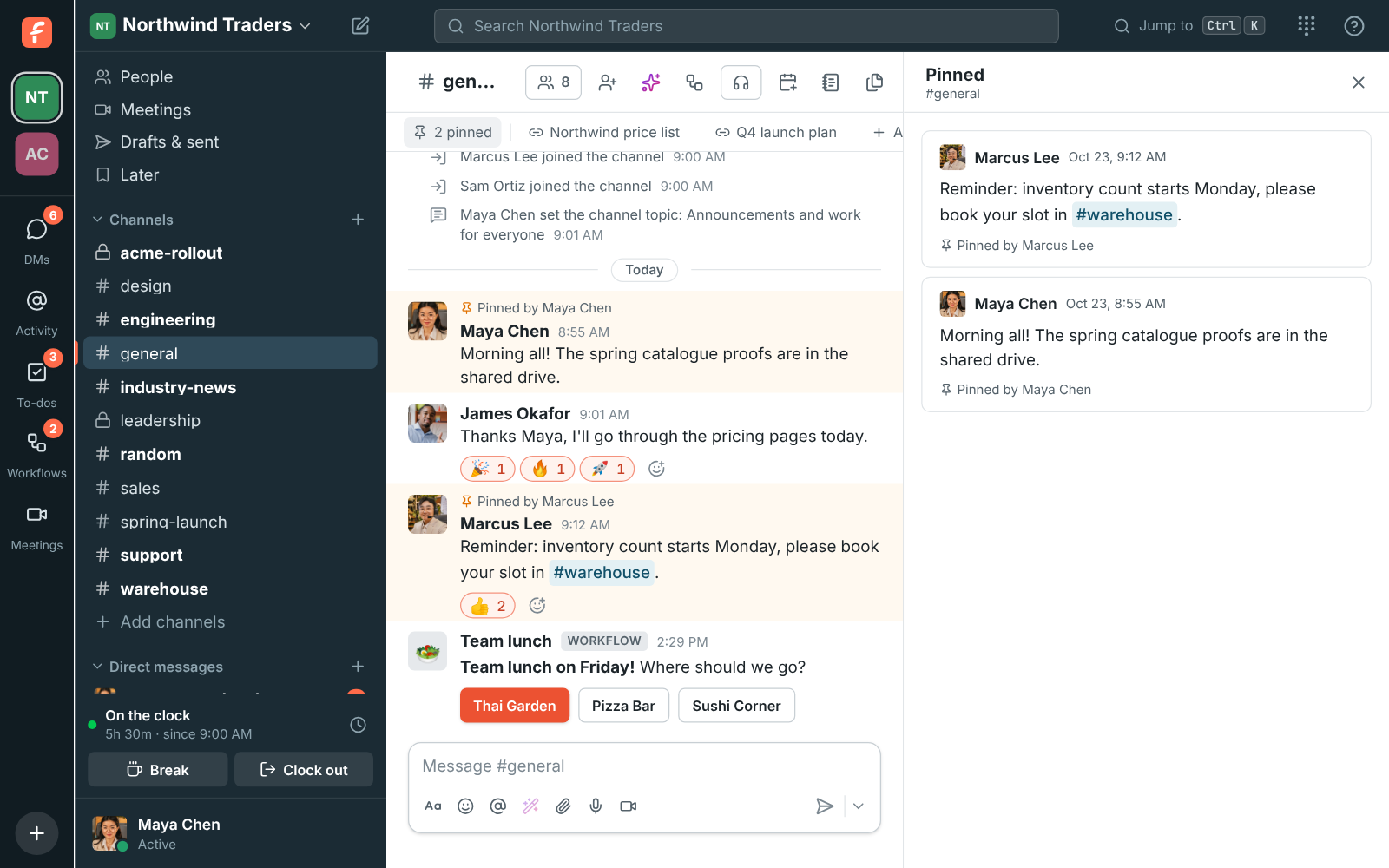
Business hours for your phone numbers
Section titled “Business hours for your phone numbers”- Set when your phones are answered in Workspace settings → Phone → Numbers → Business hours: a time zone, hours for each day and closed days like holidays.
- Turn on Voicemail after hours for a number and, outside those hours, callers leave a voicemail instead of ringing everyone. It comes to you in Freesbe. See Business hours.
Zoho Flow
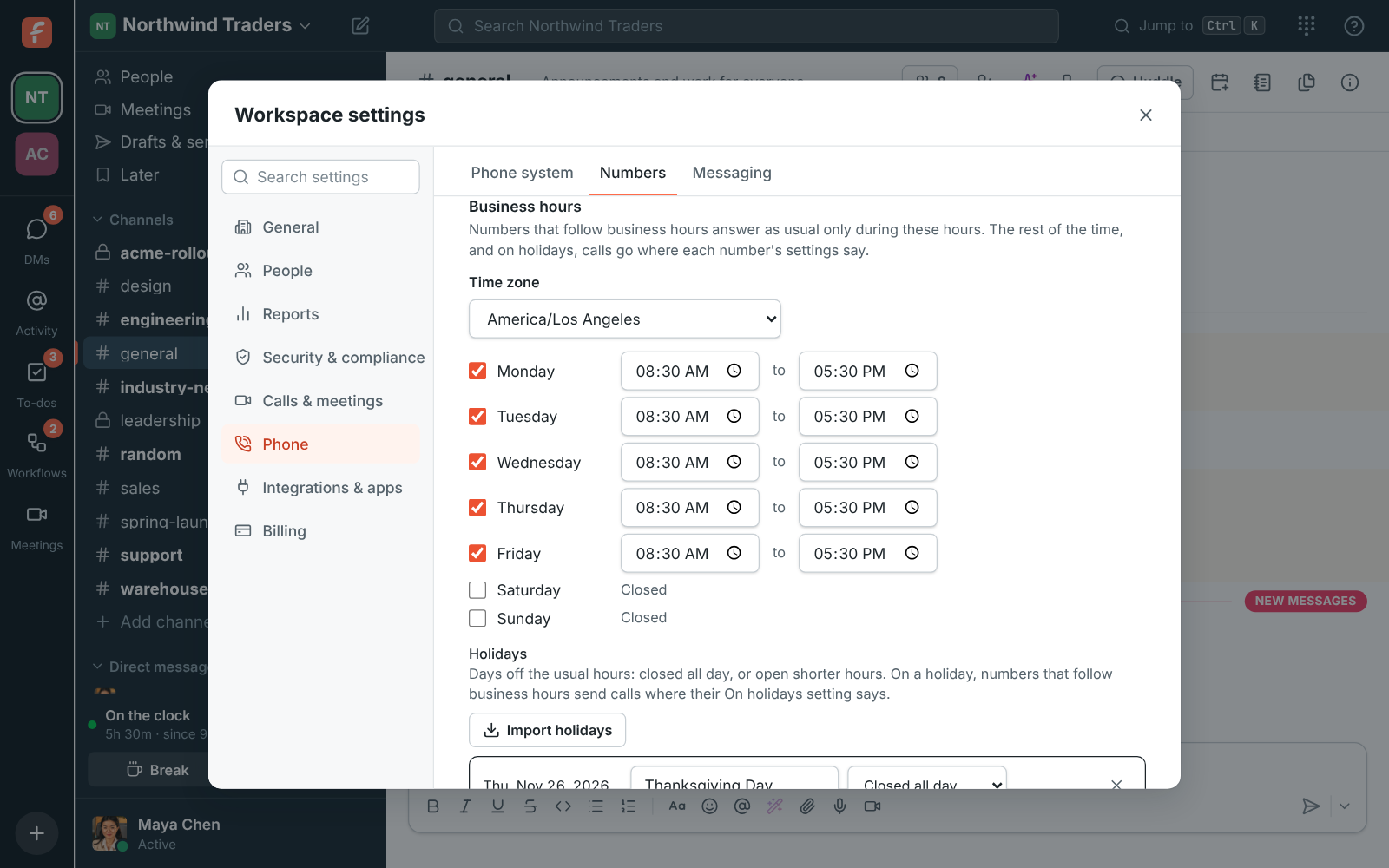
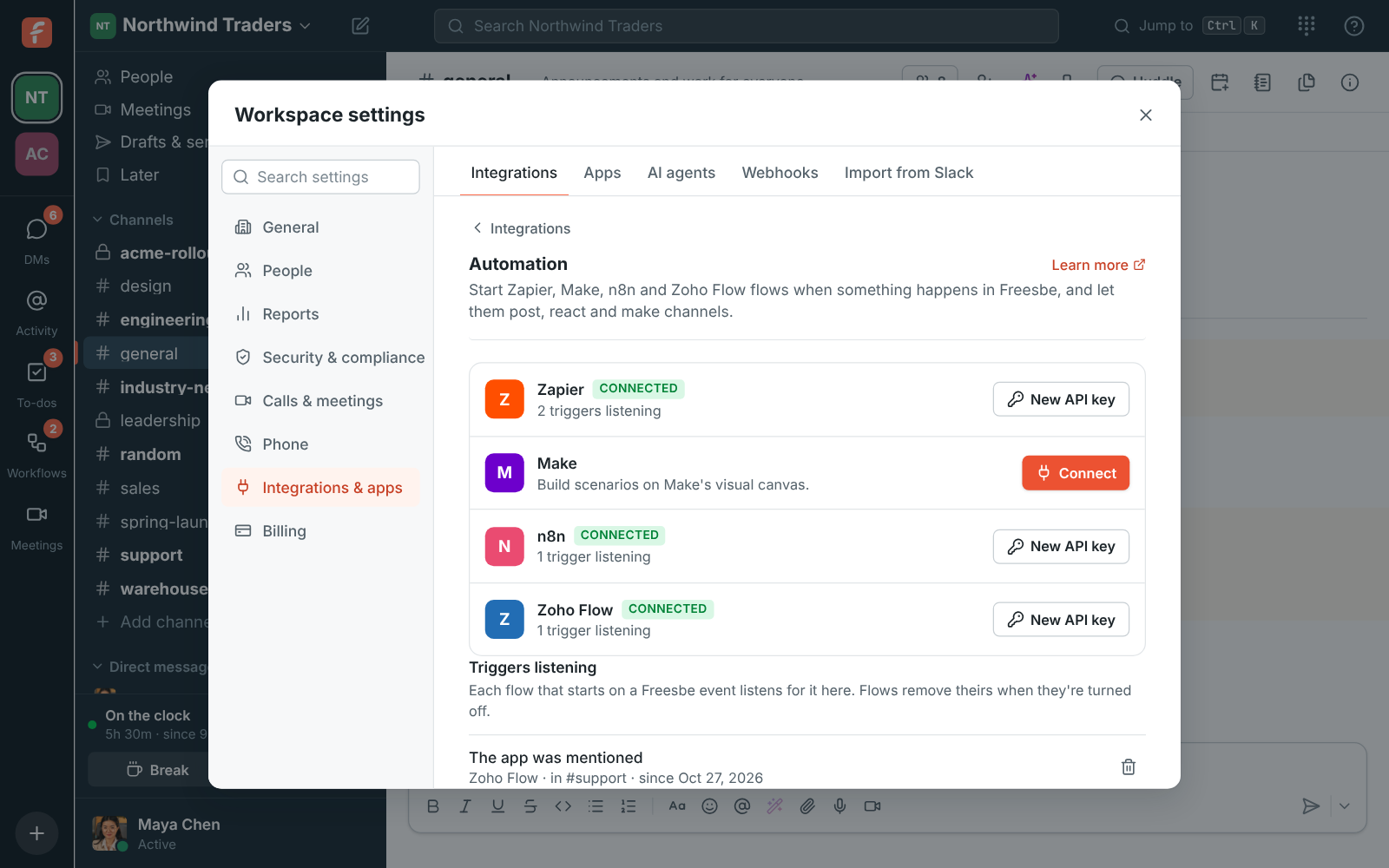
Section titled “Zoho Flow”- Admins can connect Zoho Flow in Workspace settings → Integrations → Automation, next to Zapier, Make and n8n. Flows can start when something happens in Freesbe, and post messages, send DMs, add reactions and make channels, linking Freesbe with Zoho CRM, Zoho Books, Zoho People and hundreds of other apps. See Connect Freesbe to Zoho Flow.
AI noise cancellation in calls
Section titled “AI noise cancellation in calls”- Turn on AI noise cancellation in Preferences → Calls & audio → Audio, or from Audio and video devices during a call. It takes keyboards, fans, barking dogs and traffic out of your sound in huddles and meetings.
- It runs on your own computer, so nothing extra is sent anywhere. Standard keeps your browser’s own filter, and Off is there for music. See Audio.
Zoho Calendar
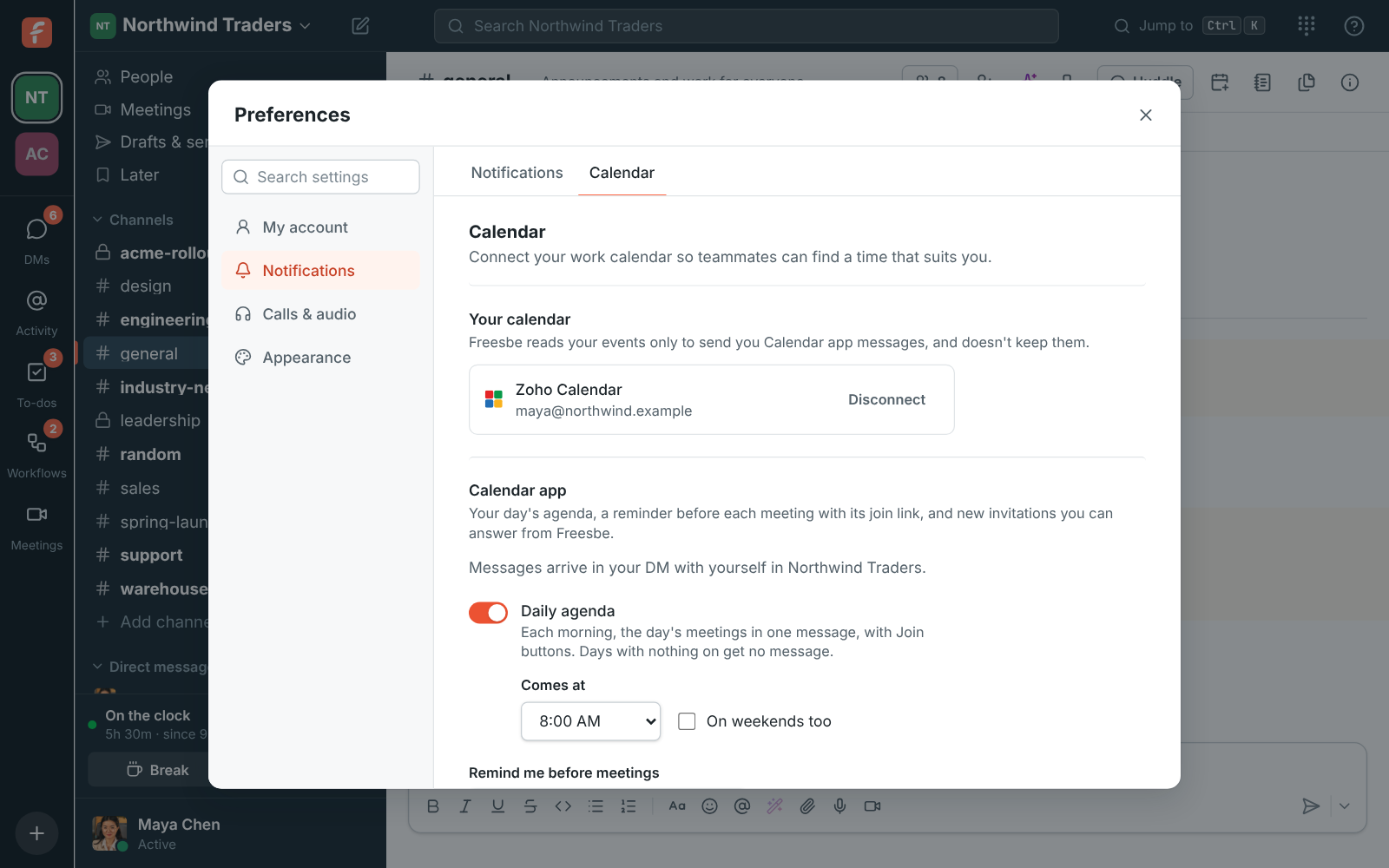
Section titled “Zoho Calendar”- Connect your Zoho Calendar in Preferences → Notifications → Calendar, next to Google and Microsoft, whichever Zoho data center your account is in. Teammates then see when you’re busy while they find a time, and your status says 📅 In a meeting while you’re in one.
- Turn on the Calendar app for your day’s agenda, reminders with the join link, and new invitations, which open in Zoho Calendar to answer. See Zoho Calendar.
Keyword alerts
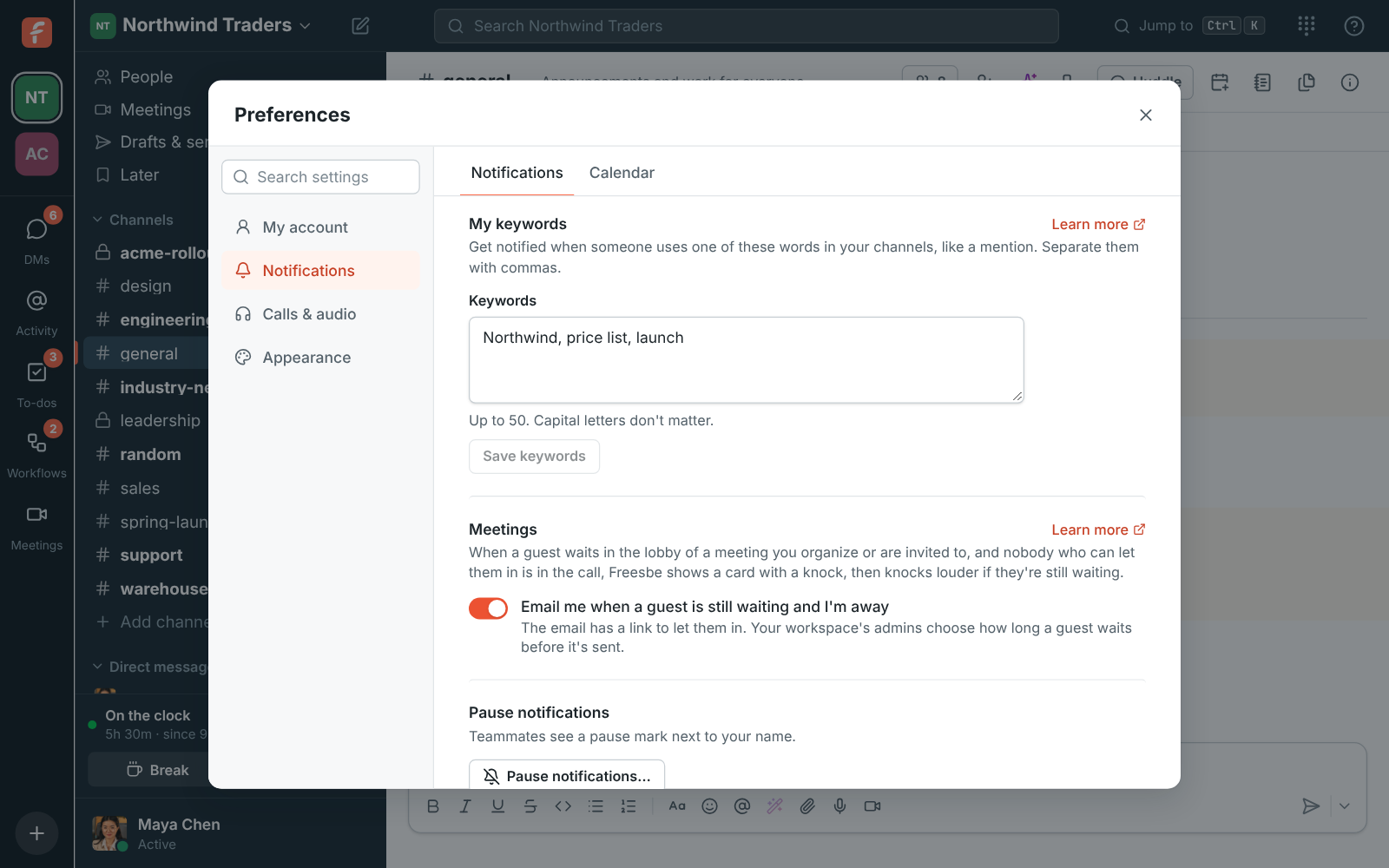
Section titled “Keyword alerts”- Add words you care about, like a customer’s name or “price list”, in Preferences → Notifications → My keywords. A message with one of them in your channels notifies you, counts toward the mention badge and shows in Activity, as if you’d been mentioned. See Keyword alerts.
Voicemail in Freesbe
Section titled “Voicemail in Freesbe”- On a phone system from Freesbe, callers you don’t answer can leave a voicemail, and it comes to you in Freesbe as a message from Phone in your own DM, with the recording to play right there. See Voicemail.
Phone numbers that ring several people
Section titled “Phone numbers that ring several people”- A number on Freesbe’s phone system can now ring up to 20 people at once, for a sales or support line. In Workspace settings → Phone → Numbers, choose the first person in Rings, then Also ring to add more. Whoever answers first takes the call. See A phone system from Freesbe.
A gentle chime for raised hands
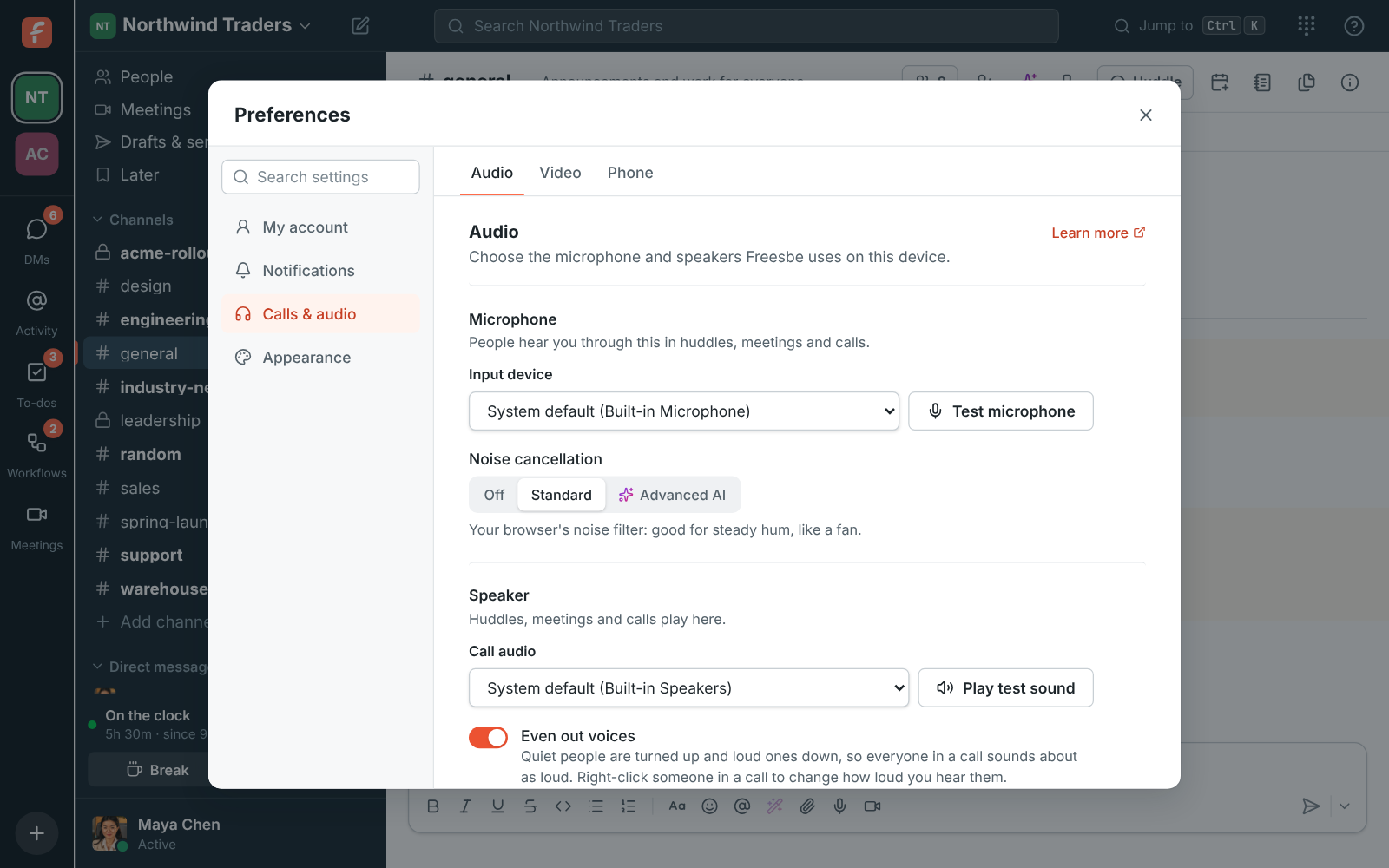
Section titled “A gentle chime for raised hands”- When someone raises a hand in a huddle or meeting, everyone else now hears a soft chime, so you notice even while looking at a document. Your own hand stays silent, and a room full of hands chimes once, not over and over.
- Prefer quiet? Turn off Play a sound when someone raises a hand in Preferences → Calls & audio → Audio. See Reactions and raised hands.
Zoho Books and Zoho Invoice apps
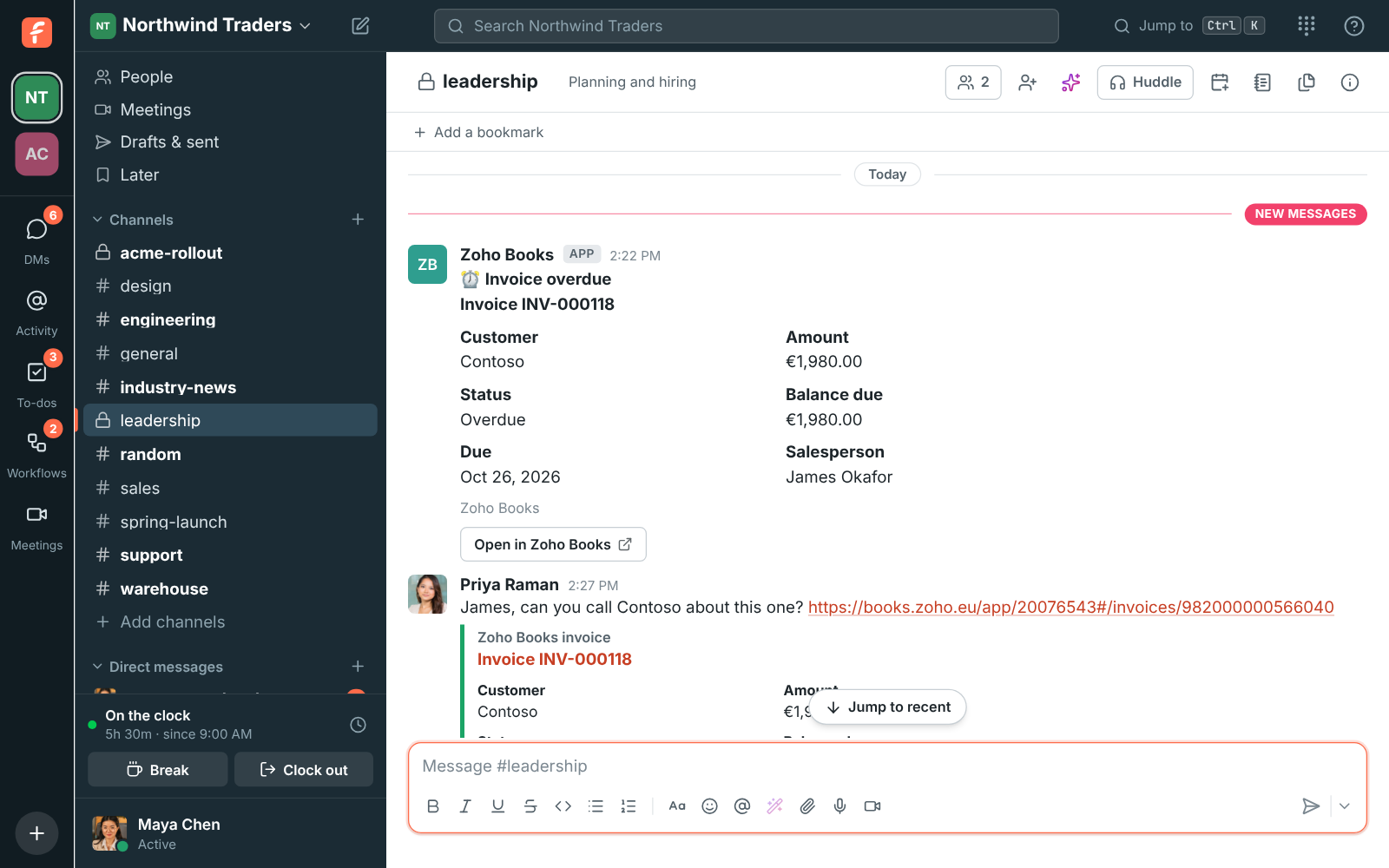
Section titled “Zoho Books and Zoho Invoice apps”- Admins can connect Zoho Books or Zoho Invoice in Workspace settings → Integrations → Finance, whichever Zoho data center your account is in. Freesbe then posts invoices sent, payments received, invoices paid in full and overdue invoices into the channels you pick, with a smallest amount for each alert.
- Links to an invoice show its customer, amount, status and due date. See Zoho Books and Zoho Invoice.
Everyone at the same volume in calls
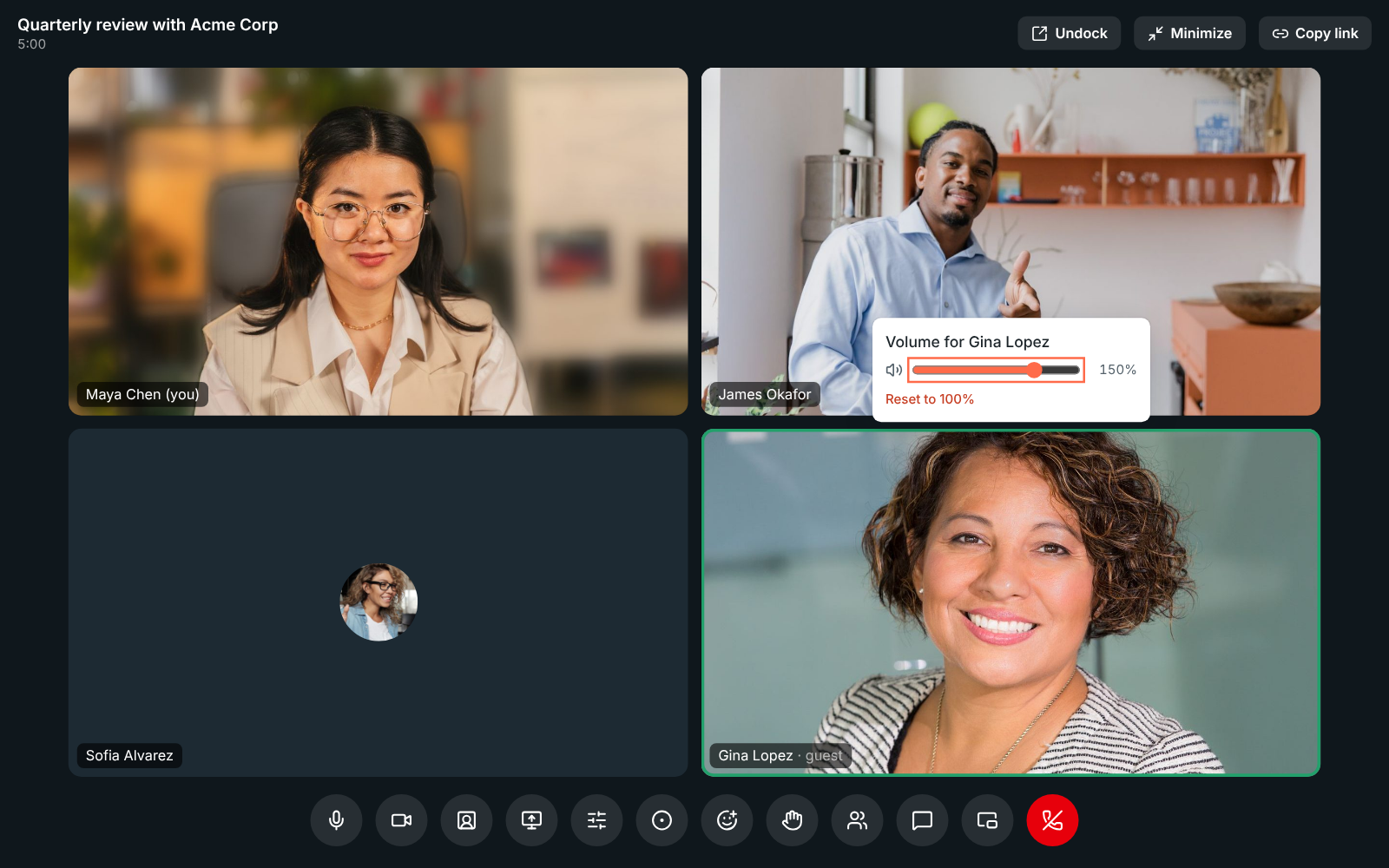
Section titled “Everyone at the same volume in calls”- Huddles and meetings now even out voices: someone on a quiet laptop microphone is turned up and someone shouting into a headset turned down. Recordings and transcripts get the same even levels.
- Right-click anyone in a call to hear them louder or quieter, from 0% to 200%. Freesbe remembers it for that person. See Everyone at the same volume.
See when someone’s connection is weak in a call
Section titled “See when someone’s connection is weak in a call”- In huddles and meetings, a small signal icon now shows next to the name of anyone whose sound reaches you choppy. On your own face or tile it means the call is losing some of your sound, so you know to move closer to the Wi-Fi before people ask you to repeat yourself.
- After some calls, Freesbe asks How did the call sound? One click answers it, and it helps us find what makes calls sound bad. See Call quality.
Find a time that works for everyone
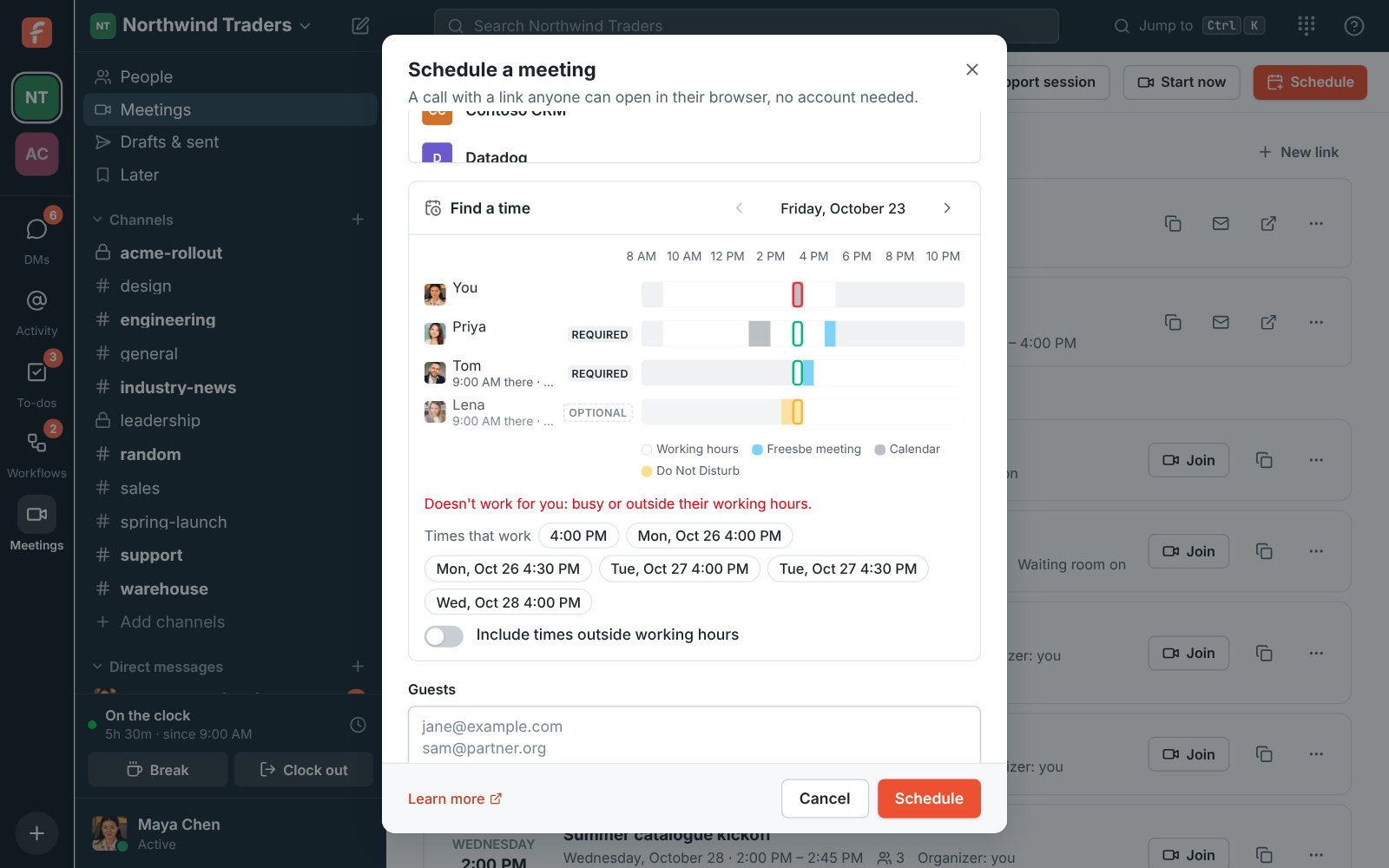
Section titled “Find a time that works for everyone”- Click the calendar button at the top of any DM, group DM or channel to schedule a meeting with its people, and post the time and link there when it’s scheduled.
- Find a time lines up everyone’s day: working hours in their own time zone, their Freesbe meetings, their connected calendar and Do Not Disturb. Freesbe suggests times over the next week that suit everyone.
- Mark people Optional: they’re invited, but times don’t have to suit them, and their calendar invite says so. Set your own Working hours in Preferences → Profile. See Find a time that works.
See what you’re sharing
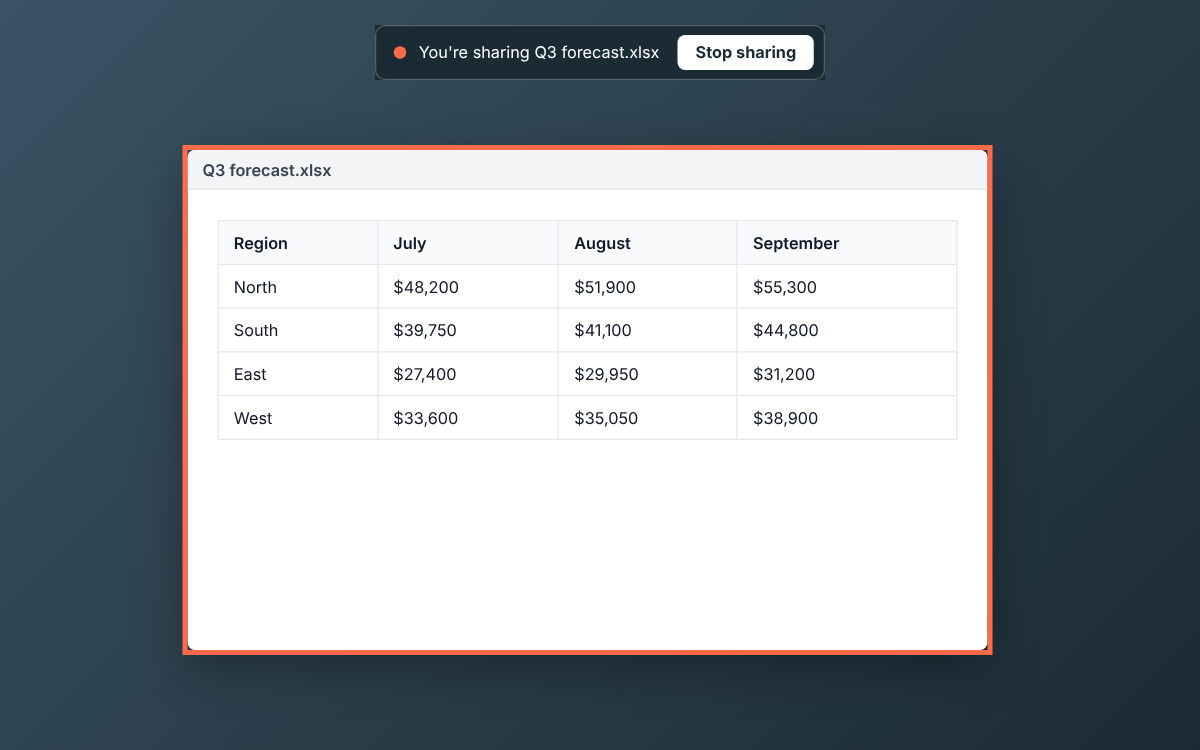
Section titled “See what you’re sharing”- When you share your screen or a window from the desktop app, a coral frame now goes around what everyone sees, and a You’re sharing bar at the top of the screen has a Stop sharing button. On Windows the frame follows a shared window as you move it, and neither shows up in the share itself. See See what you’re sharing.
Forward messages
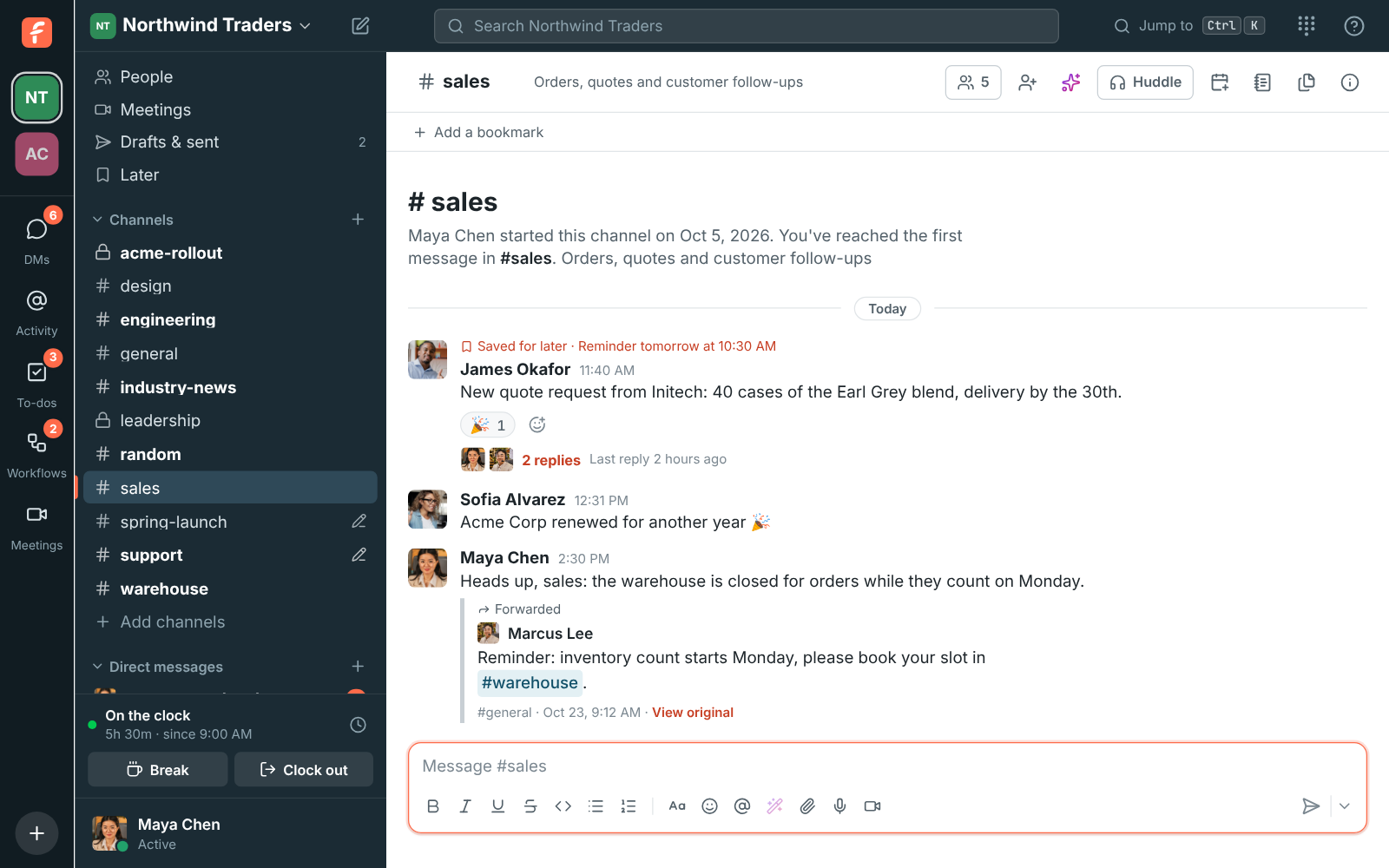
Section titled “Forward messages”- More actions → Forward message sends a copy of any message to another channel, a group DM or a person, with a note of your own above it. The copy shows who wrote it and where, with a link back. See Forward a message.
Zoho Desk app
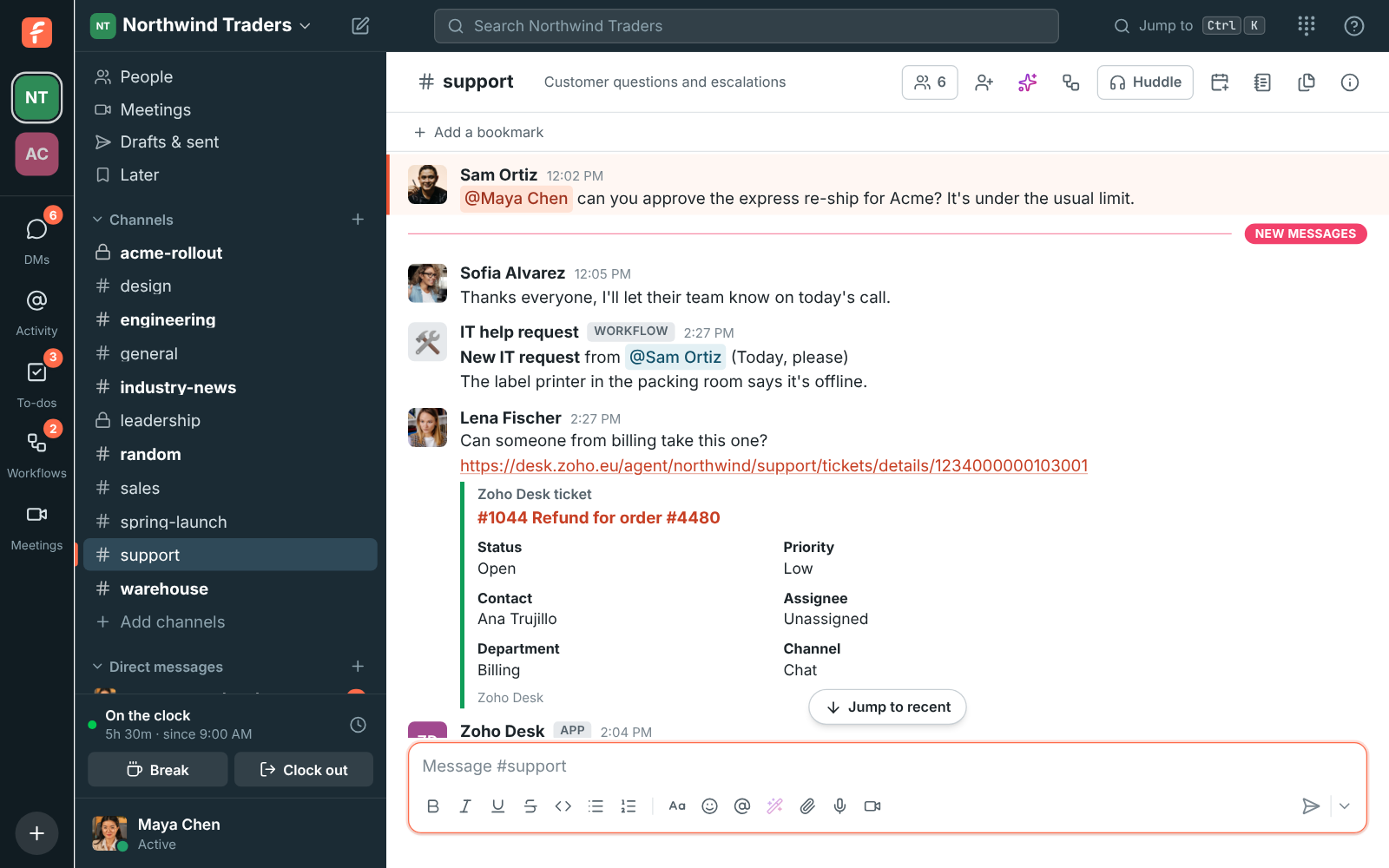
Section titled “Zoho Desk app”- Admins can connect Zoho Desk in Workspace settings → Integrations → Support, whichever Zoho data center your account is in. Freesbe then posts new tickets, status changes, customer replies, and priority and assignment changes into the channels you pick as they happen, for every department or one, and shows a preview under Zoho Desk ticket links.
- Choose Create Zoho Desk ticket in any message’s ⋯ menu to turn it into a ticket, with a link back to the message. See Zoho Desk.
AI agents can ask your teammates for you
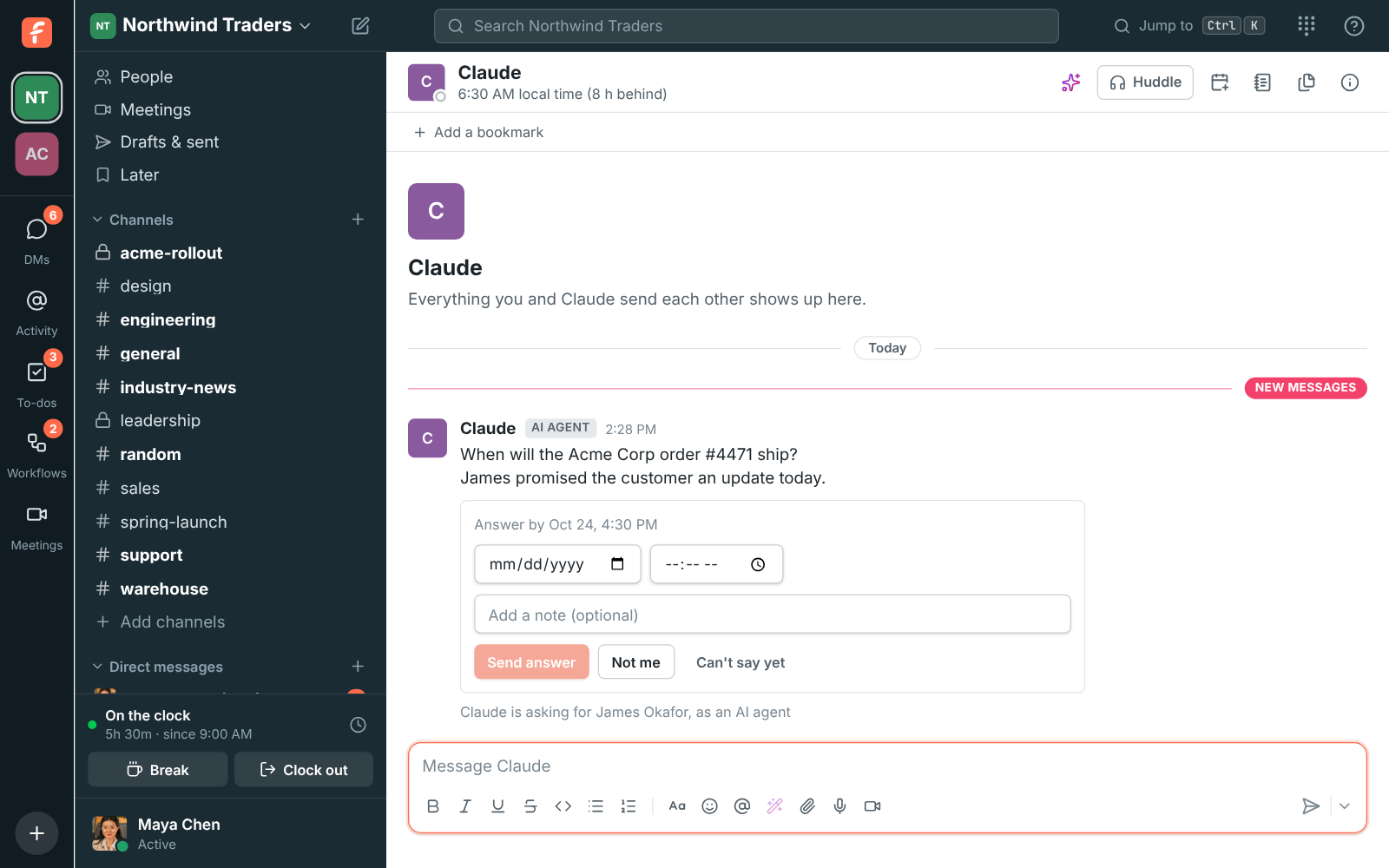
Section titled “AI agents can ask your teammates for you”- An AI agent like Claude can now ask someone a question for you, such as when an order ships, and wait for the answer. They get a direct message from the agent with a date picker, choices, Yes or No, a number or a text box.
- Questions wait for the person’s working hours, can remind them, and move on to someone else when they choose Not me or don’t answer in time. The agent tells you what they said.
Shorter settings, in groups with tabs
Section titled “Shorter settings, in groups with tabs”- Workspace settings now has seven groups instead of eighteen sections: General, People, Security & compliance, Calls & meetings, Phone, Integrations & apps and Billing. Each group opens with tabs across the top, and long pages are split up, so recordings, the waiting room, file types and remote control each have a tab of their own, and the phone system has its own group with Phone system and Numbers tabs. See Workspace settings.
- Preferences has four groups: My account, Notifications, Calls & audio and Appearance. Sign-in methods and your sessions moved out of Account into tabs of their own. See Profile and preferences.
- Search settings works as before and now says where each result is, like Security & compliance › Sign-in. Links to a section still open it.
AI agents can read, search and post for you
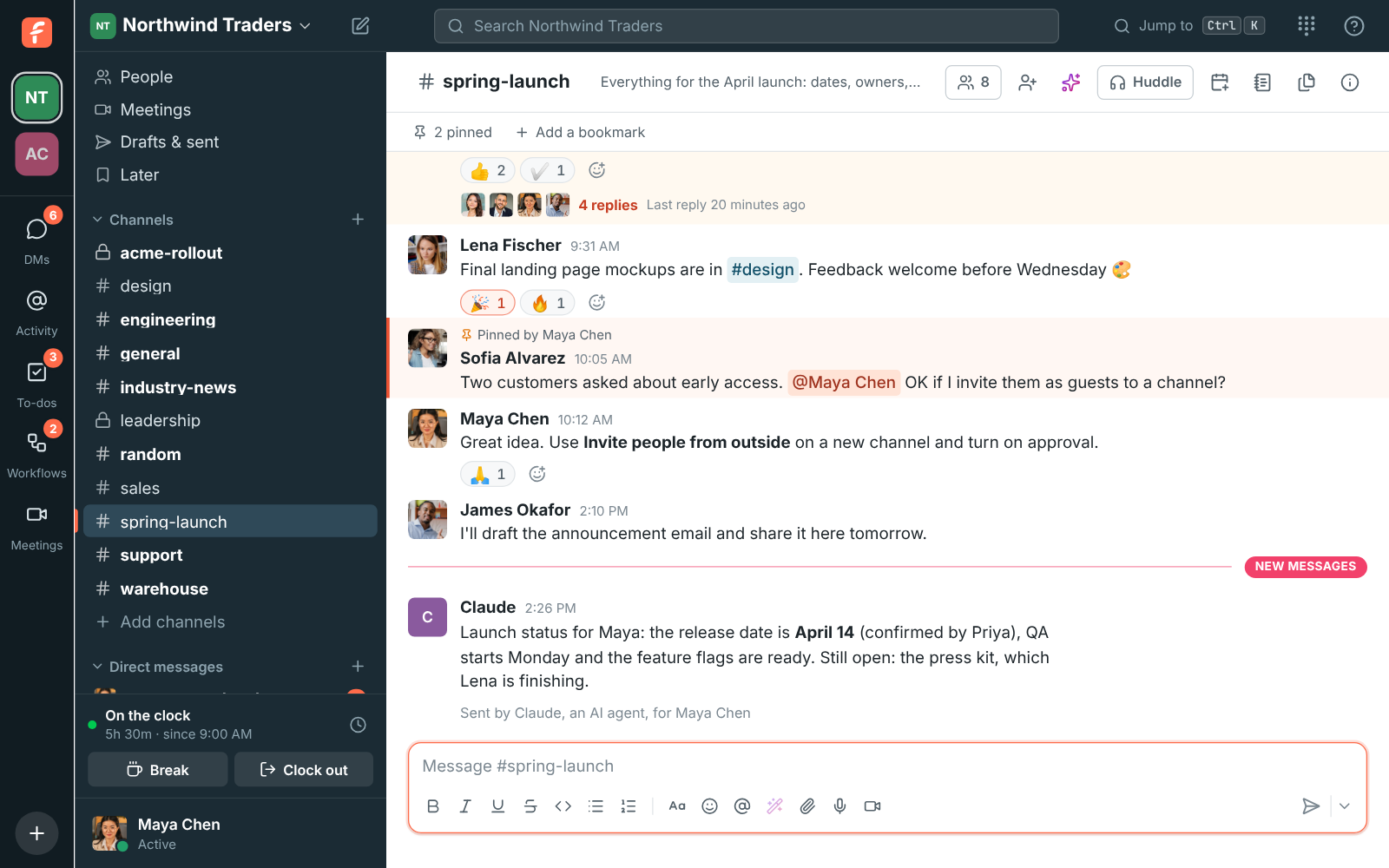
Section titled “AI agents can read, search and post for you”- An AI tool you connected to Freesbe, like Claude, can now search and read the conversations you can see, post in channels, threads and direct messages, add reactions, find people, see who’s around and find a time everyone is free.
- It only sees what you could see yourself, and everything it posts says it’s from an AI agent and who it’s for. See AI agents.
Previews for any link
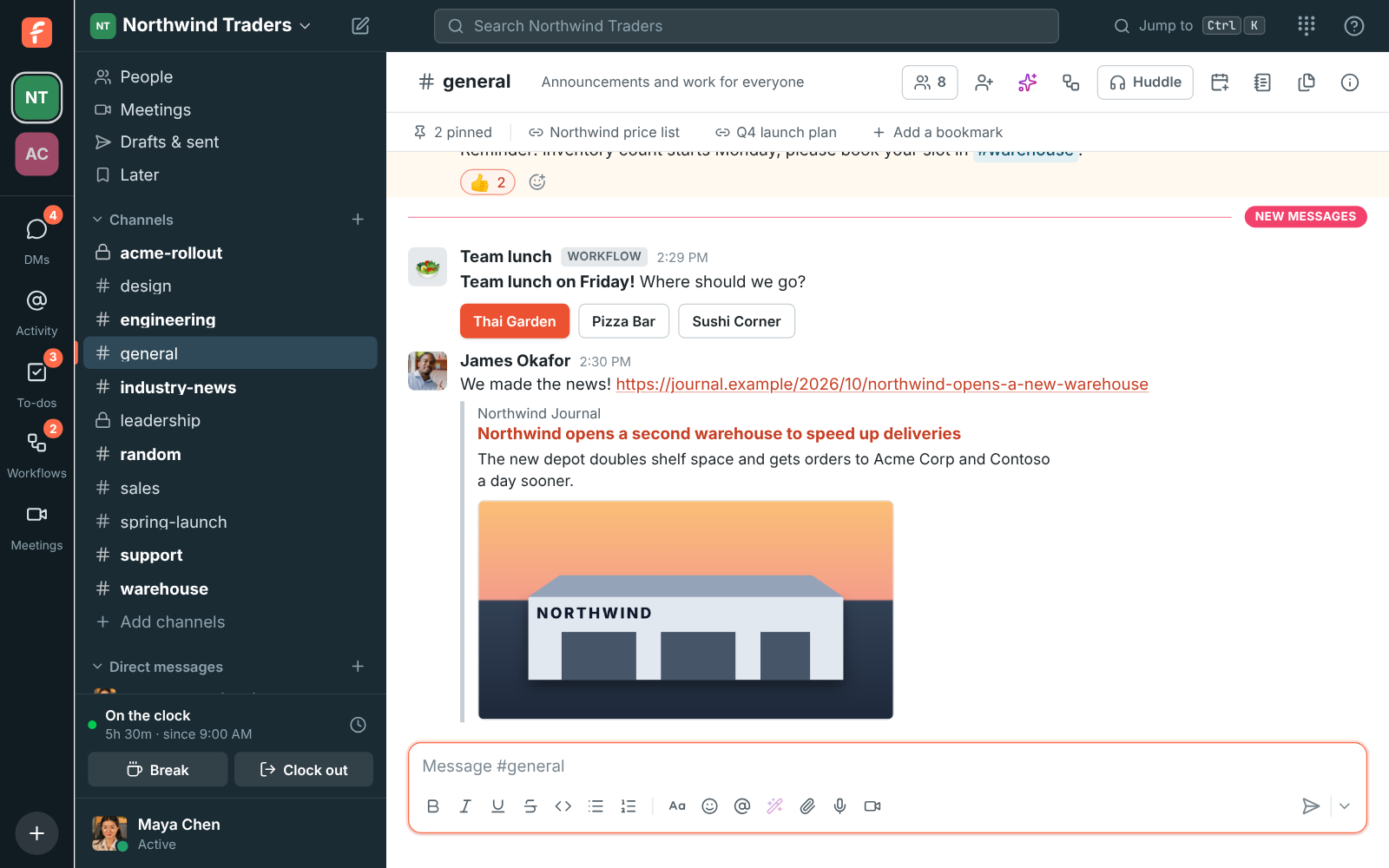
Section titled “Previews for any link”- Paste a link to a web page and a preview shows under your message: the site, the title, a short description and the page’s picture. Links to pictures show the picture.
- Point at a preview on your own message and click × to remove it. See Link previews.
See whether Freesbe is up at freesbe.net/status
Section titled “See whether Freesbe is up at freesbe.net/status”- freesbe.net/status shows whether everything is working right now, the last 90 days for the app and messages, files, calls and meetings, AI features, and email, and any incident our team is working on, with updates as it goes. Planned maintenance shows there ahead of time.
- Open it from ? → Freesbe status in the app, or from the site’s footer. See Freesbe isn’t loading or something stopped working.
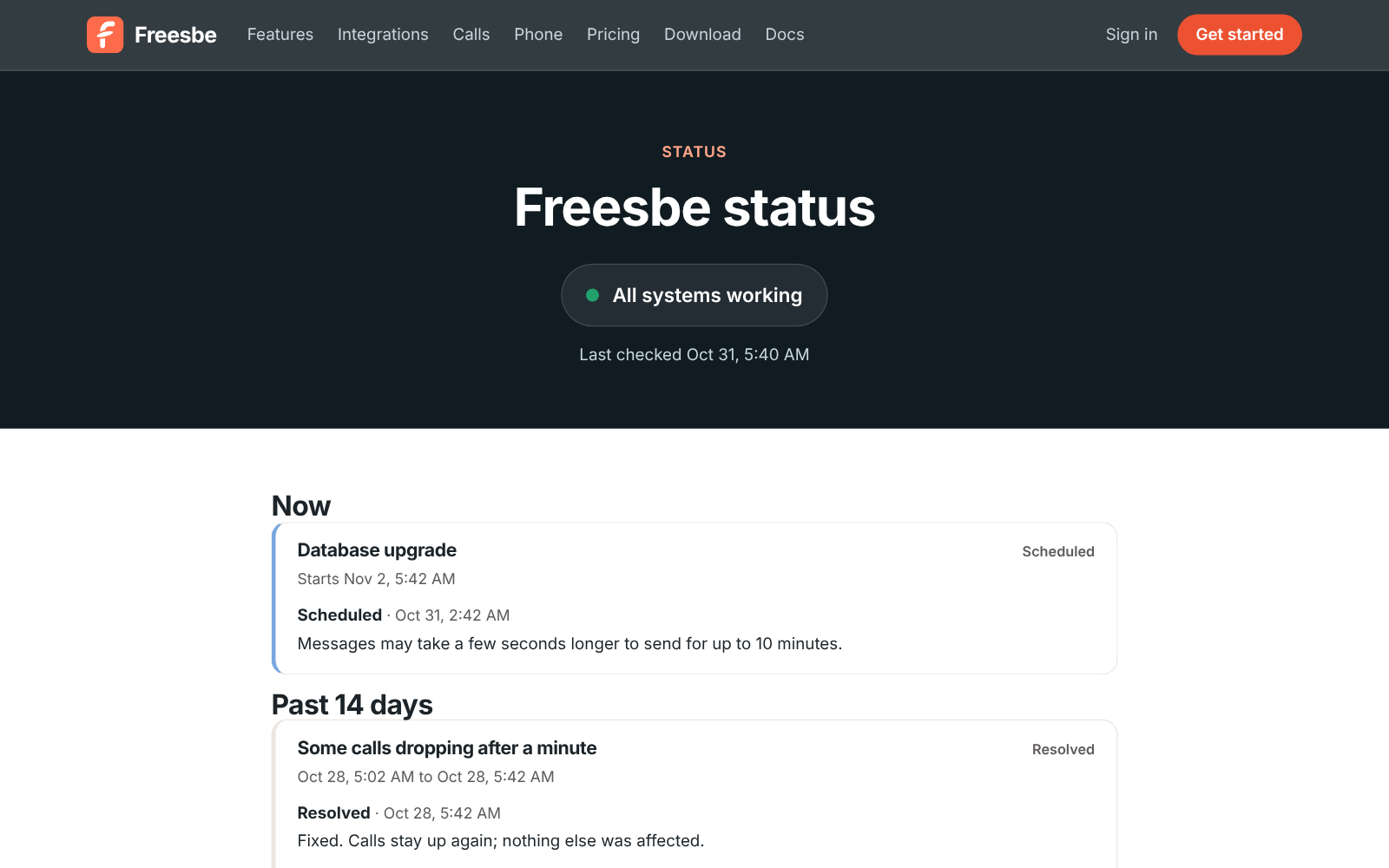
Ask Freesbe: answers with sources, right in search
Section titled “Ask Freesbe: answers with sources, right in search”- Type a question into the search box, like When is the spring launch?, and Freesbe answers it from the messages you can see, with a numbered link after each sentence to the message it came from. When the messages don’t say, it tells you instead of guessing.
- Ask in plain words, in your own language: files Dana shared in #sales last week looks in #sales, from Dana, with files, last week, and shows what it understood.
- Search also takes filters you type:
from:@maya,in:#sales,after:,before:,on:andhas:file. See Search and shortcuts.
Your own custom emoji
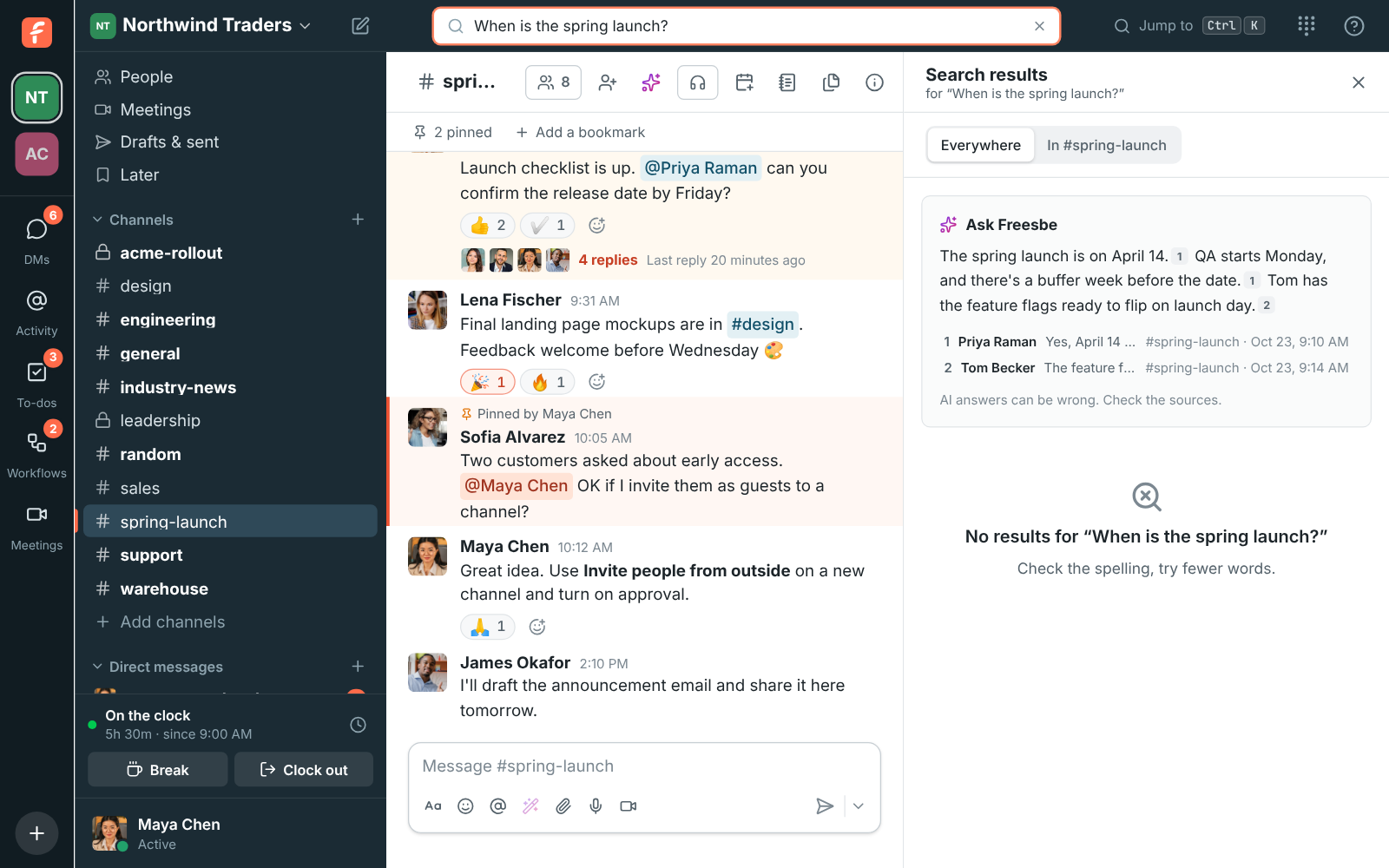
Section titled “Your own custom emoji”- Add your logo, your team’s faces or an inside joke as an emoji: open the emoji picker and click
Add emoji. Everyone in the workspace can use it in messages and as a reaction, and it comes
up first when you type
:and its name. - Admins can remove any of them in Workspace settings → Messages → Custom emoji. See Custom emoji.
Zoho CRM app
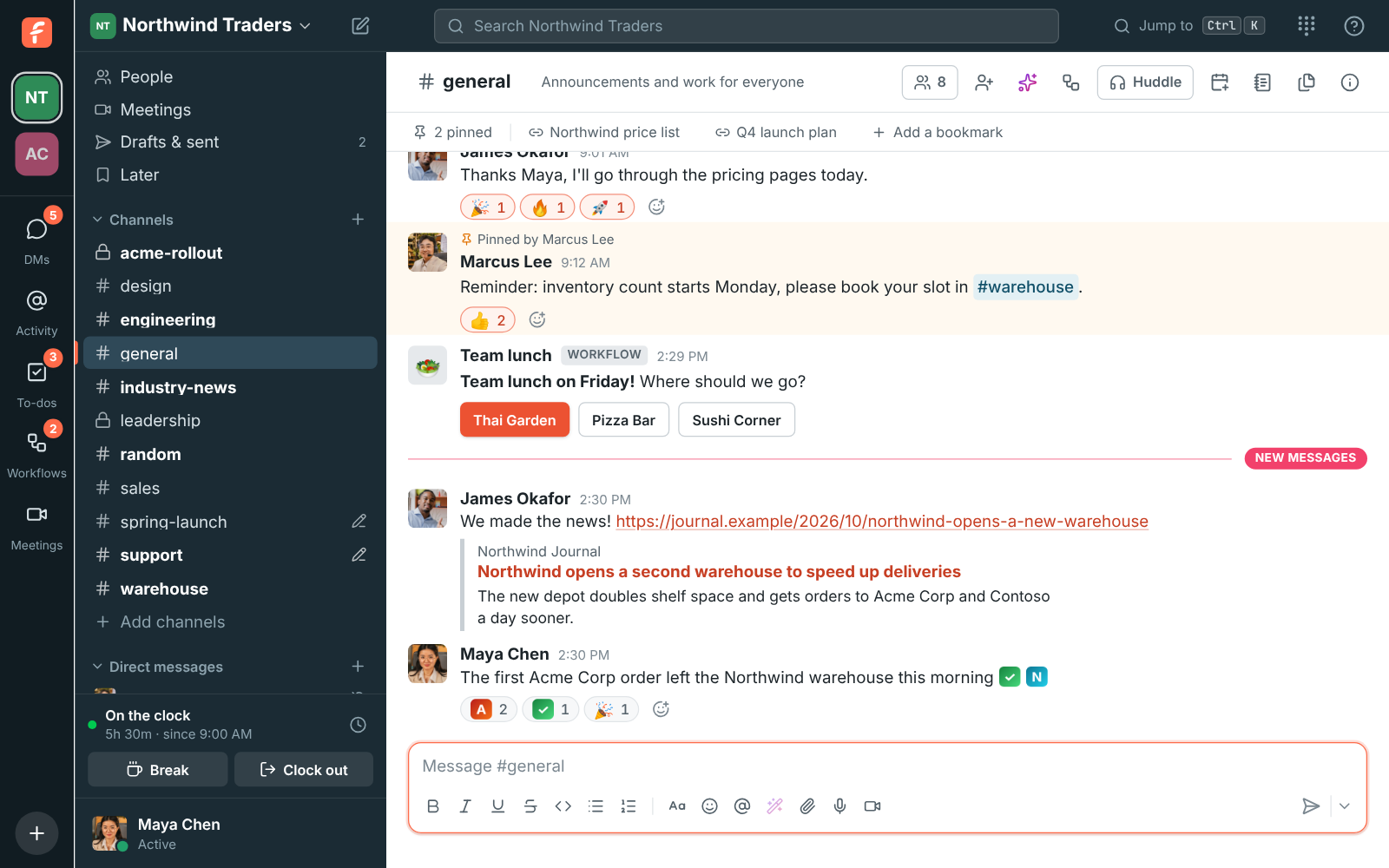
Section titled “Zoho CRM app”- Admins can connect Zoho CRM in Workspace settings → Integrations → CRM, whichever Zoho data
center your account is in. Freesbe then posts new deals, stage changes, won and lost deals, new
leads and new contacts into the channels you pick as they happen, shows a preview under Zoho CRM
links, finds records with
/zoho, and adds Log to Zoho CRM to every message’s ⋯ menu, which adds the message to a contact or lead as a note. See Zoho CRM.
Save messages for later, with reminders
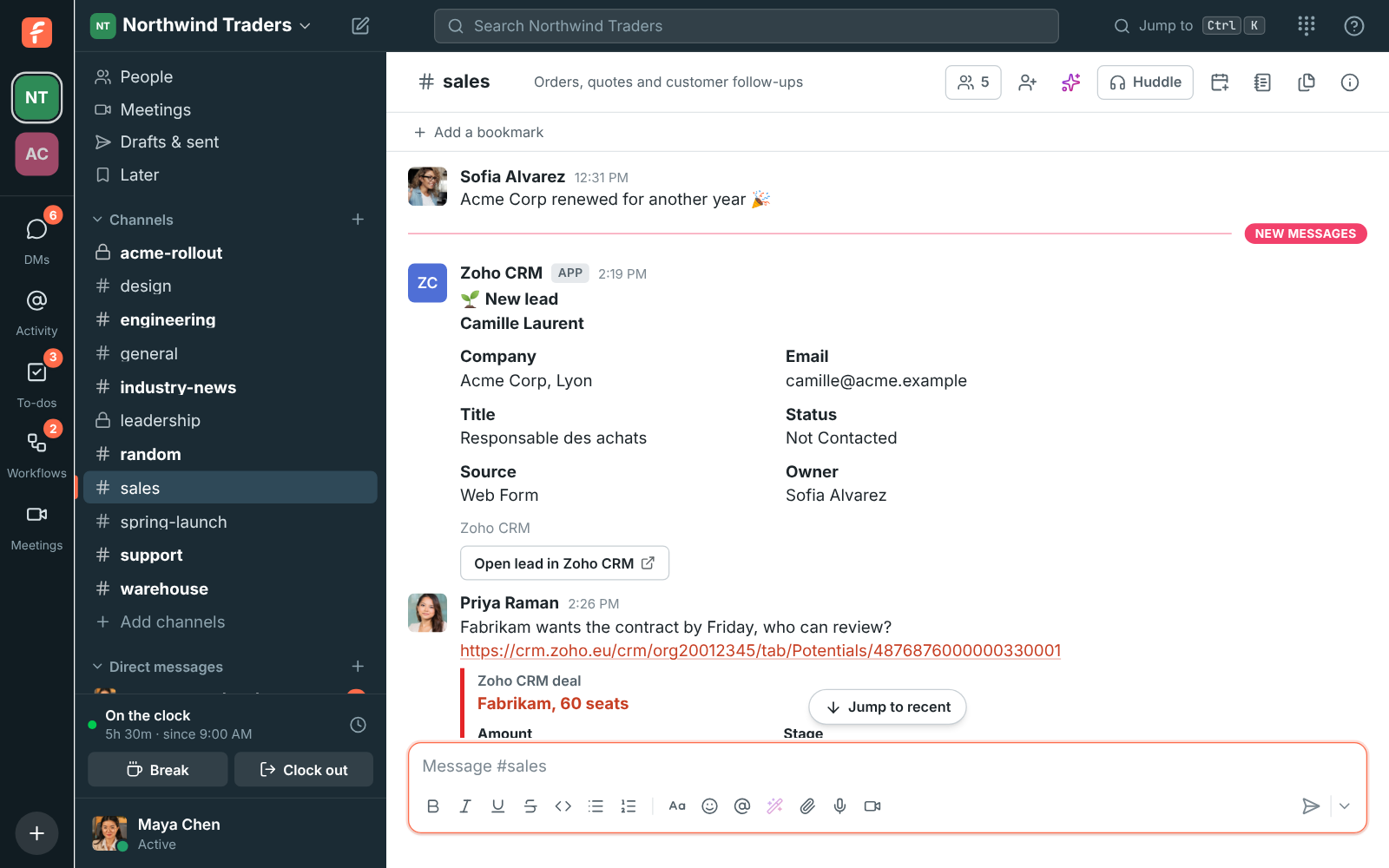
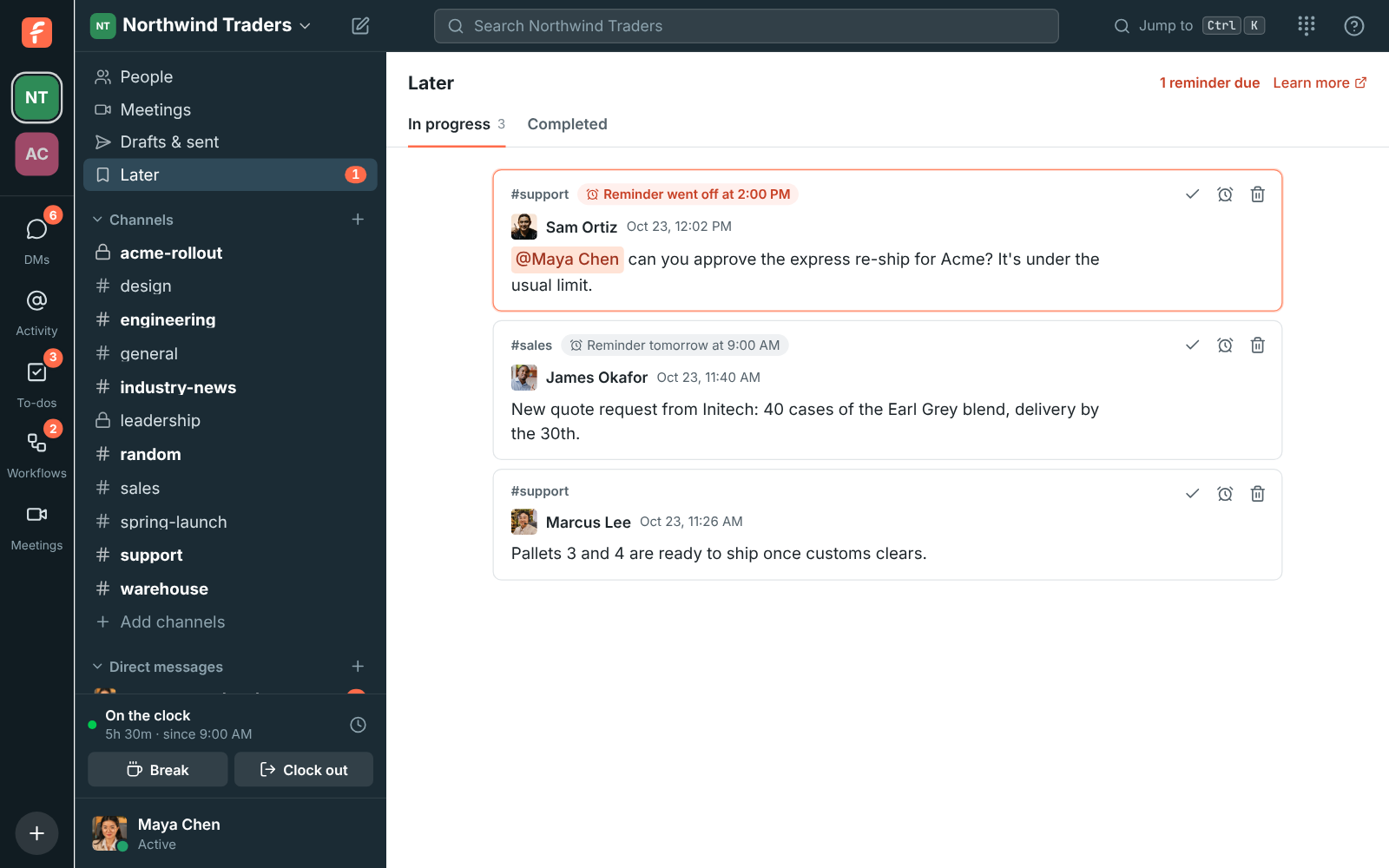
Section titled “Save messages for later, with reminders”- Click the bookmark on any message to keep it in Later, a new place in the sidebar that only you see. Mark things done as you go, and find them under Completed.
- More actions → Remind me about this brings a message back at the time you pick, with a notification on your computer or phone. See Save for later and reminders.
A Files tab in every conversation, and PDFs that open in the app
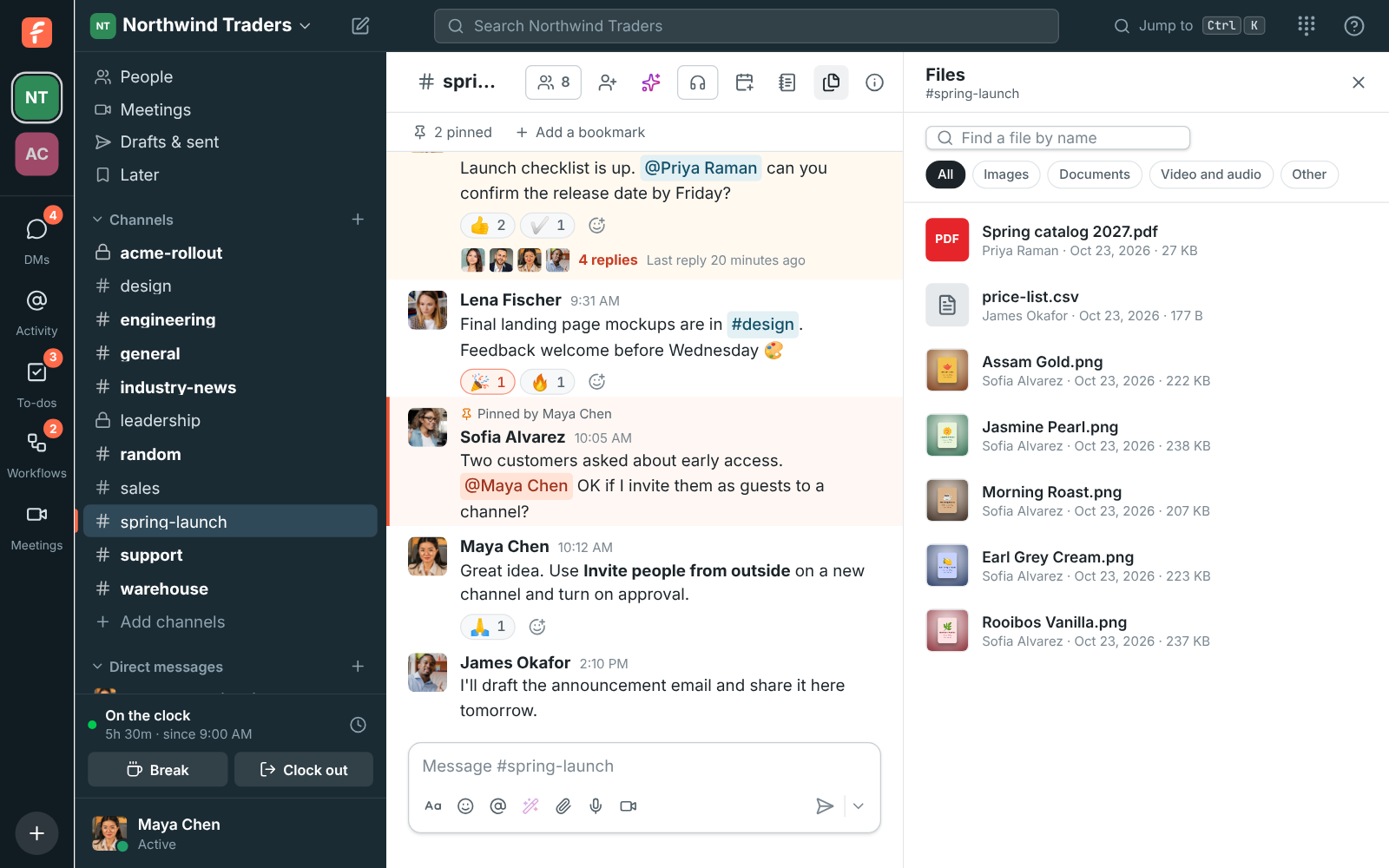
Section titled “A Files tab in every conversation, and PDFs that open in the app”- Click Files at the top of any channel or DM to see everything shared there, in threads too, newest first. Find a file by name, or show just images, documents, or video and audio. Show in conversation takes you to the message it came with.
- PDFs, text and code files, and CSV spreadsheets now open right in Freesbe when you click them, no download needed. See Files.
Sidebar sections
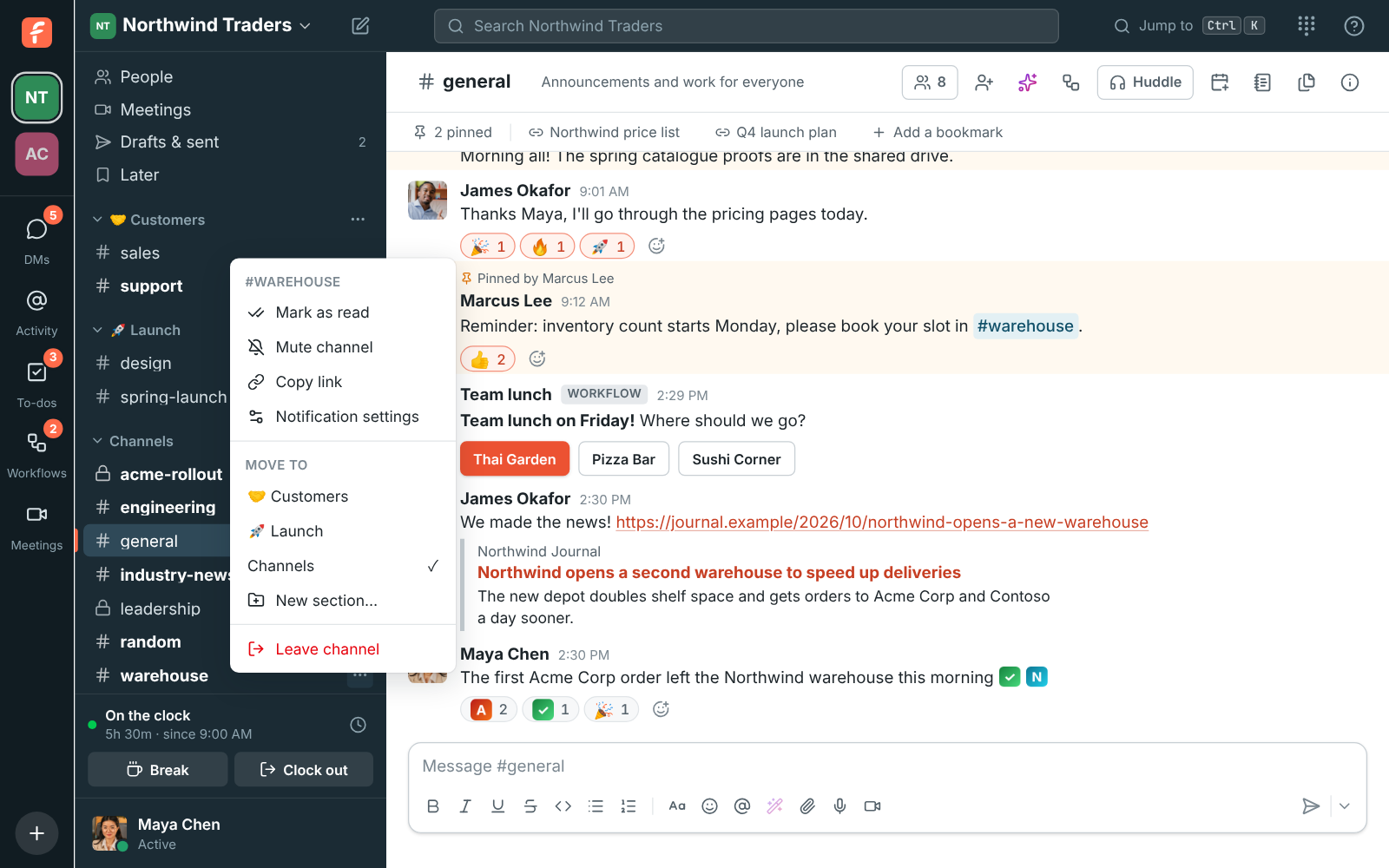
Section titled “Sidebar sections”- Group channels and DMs into sections of your own, like Customers or Launch: click + next to Channels and choose Create a section.
- Right-click a conversation, or use its ⋯, to move it to a section. Only you see your sections, on all your devices. See Sidebar sections.
A customer inbox, with a chat on your website and your support email
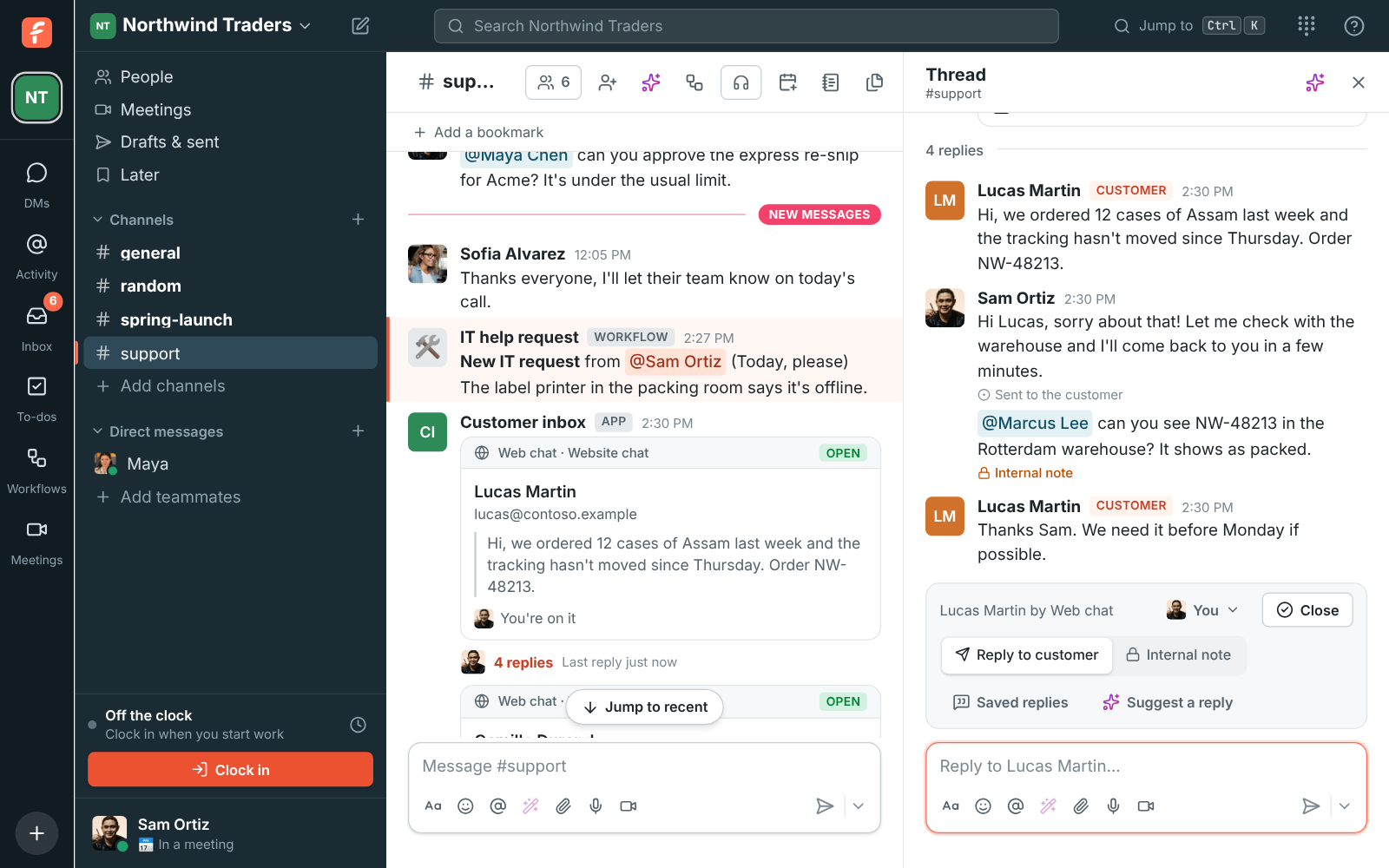
Section titled “A customer inbox, with a chat on your website and your support email”- Admins can put a chat on your website in Workspace settings → Integrations → Customer inbox: paste one line into your site, pick a channel, and every customer who writes gets their own thread there.
- Bring your support email into the same inbox: forward an address like support@ to the one Freesbe gives you, and every email lands in the channel. Replies go back by email, in the same email thread.
- Texts to your Freesbe numbers come into the customer inbox too: add a number in Workspace settings → Phone → Messaging, try it in test mode with Send a test text, then click Go live to answer customers’ texts from the thread.
- Reply in the thread and the customer gets it in the chat or by email. Switch to Internal note to talk it over with the team first, hand the conversation to someone, and close it when you’re done.
- Saved replies keep your team’s usual answers one click away, and Suggest a reply drafts an answer with AI from the conversation and your saved replies. See Customer inbox.
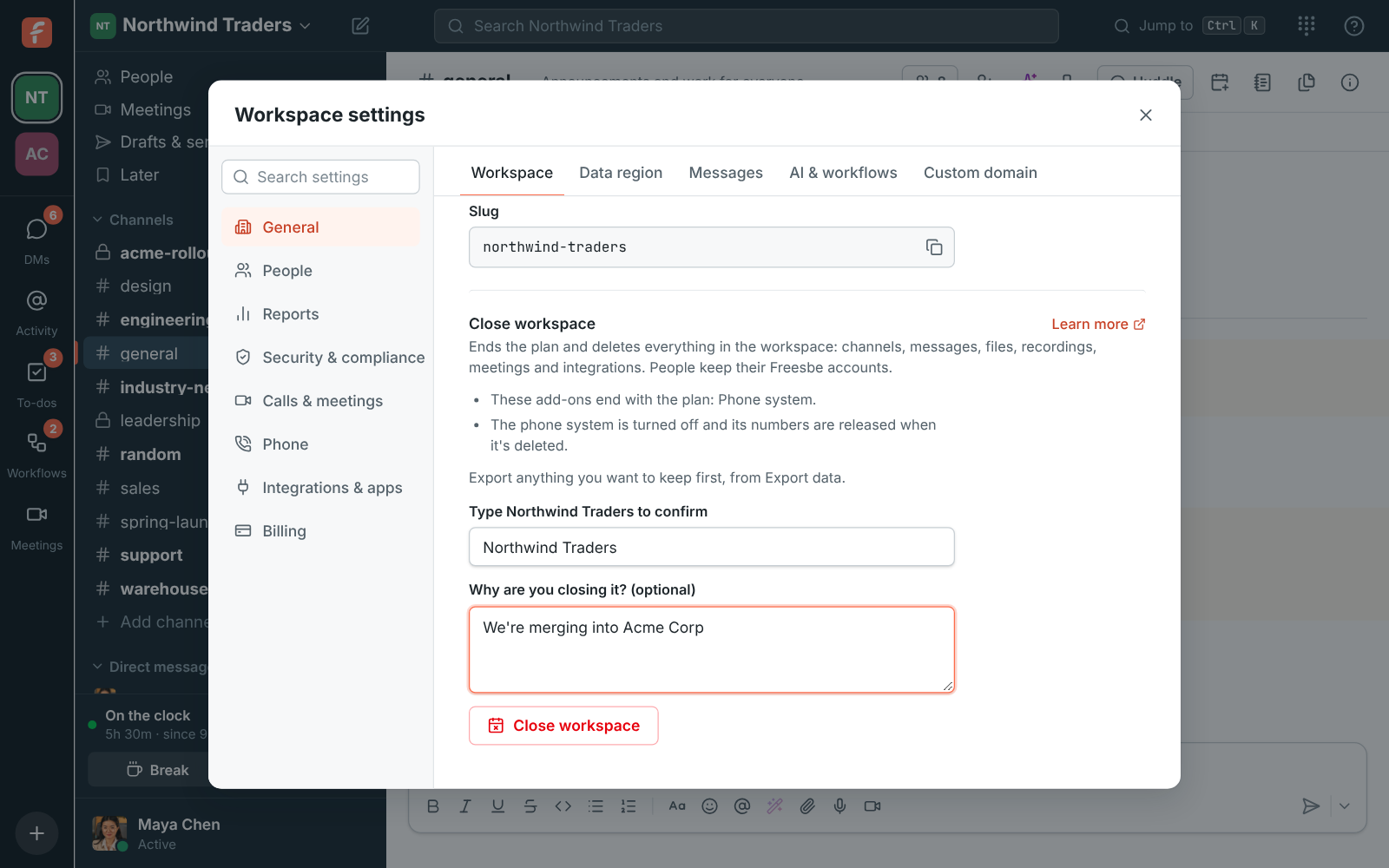
Close a workspace, with 30 days to change your mind
Section titled “Close a workspace, with 30 days to change your mind”- The owner can close a workspace in Workspace settings → Workspace → Close workspace. The plan stops renewing and the workspace keeps working until the period you paid for ends.
- Then it’s read-only for 30 days: everyone can still read and search, and admins can export everything. After that everything in it is deleted, and its invoices are kept as tax law asks.
- The owner can reopen it until then. See Close a workspace.
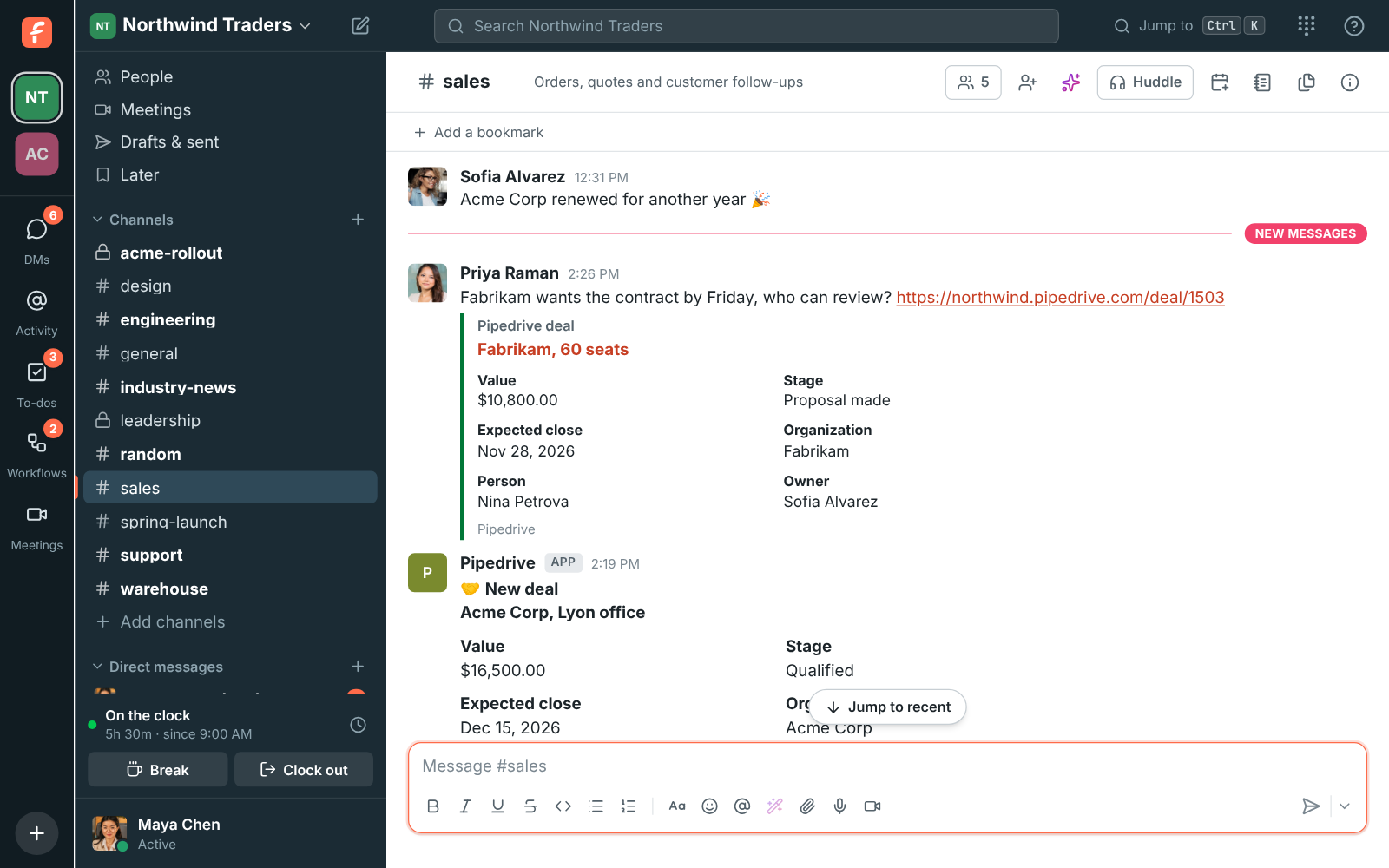
Pipedrive app
Section titled “Pipedrive app”- Admins can connect Pipedrive in Workspace settings → Integrations → CRM. Freesbe then posts new deals, stage changes, won and lost deals, and new leads into the channels you pick, as they happen, and shows a preview under Pipedrive links. See Pipedrive.
- Type
/pipedriveand a name to find a deal, person or organization, and choose Log to Pipedrive on any message to add it to a person as a note.
Shorter meeting links on meet.freesbe.net
Section titled “Shorter meeting links on meet.freesbe.net”- New meeting links are short and easy to read out, like
meet.freesbe.net/abc-defg-hij. Invite emails, calendar invites, reminders and Copy link all use them. See Meetings. - Links you already sent, like
app.freesbe.net/m/abc-defg-hij, keep working, and workspaces with their own domain keep giving guests links on it. - Clicking a
meet.freesbe.netlink in a channel or DM opens the meeting right in Freesbe. On an Android phone, the link offers Open in the Freesbe app or Continue in the browser.
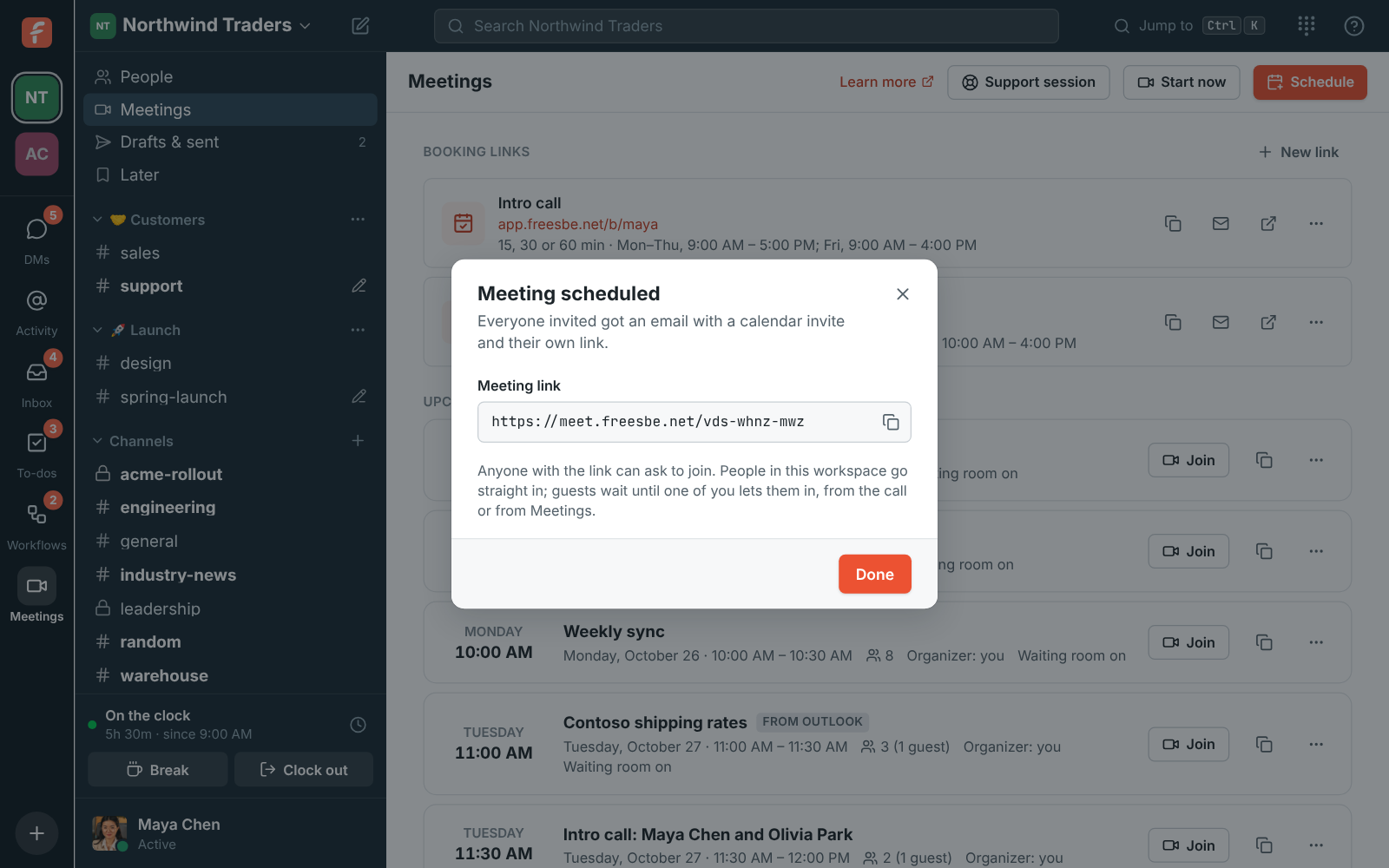
Salesforce app
Section titled “Salesforce app”- Admins on Corporate and Enterprise can connect Salesforce in Workspace settings →
Integrations → CRM. Freesbe then posts new opportunities, stage changes, won and lost
opportunities, new leads and new cases into the channels you pick, shows a preview under
Salesforce links, finds records with
/salesforce, and adds Log to Salesforce to every message’s ⋯ menu, which logs the message to a contact or lead as a completed task. See Salesforce.
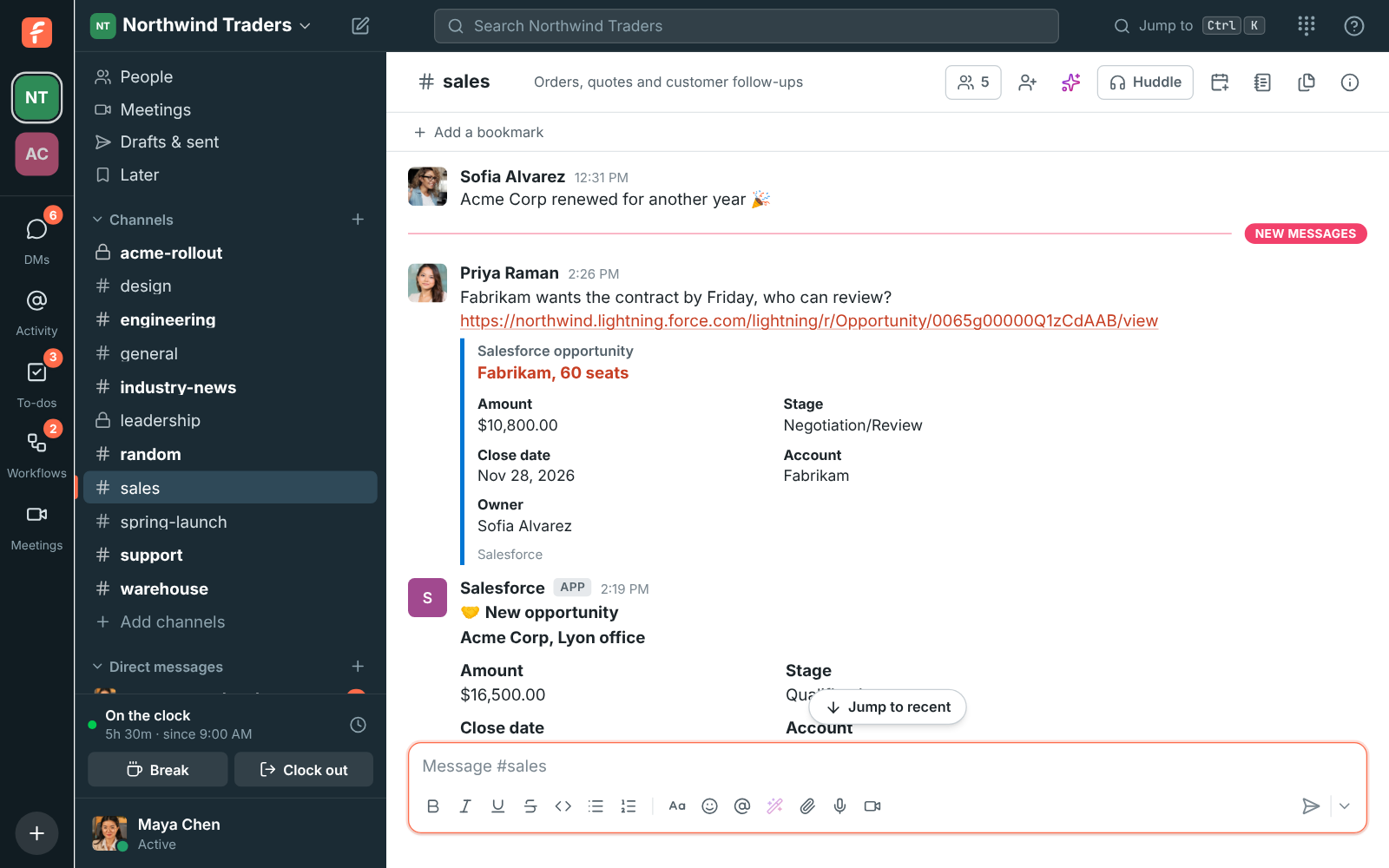
Delete your account, and hand a workspace to a new owner
Section titled “Delete your account, and hand a workspace to a new owner”- Delete your Freesbe account yourself in Preferences → Account → Delete account. You leave your workspaces and are signed out at once, and the account is deleted 30 days later. Sign in before then to keep it. Messages and files you shared stay in their workspaces as Former member. See Delete your account.
- Owners can hand their workspace to another admin or member: pick Owner in the role dropdown in Workspace settings → Members. See Hand the workspace to a new owner.
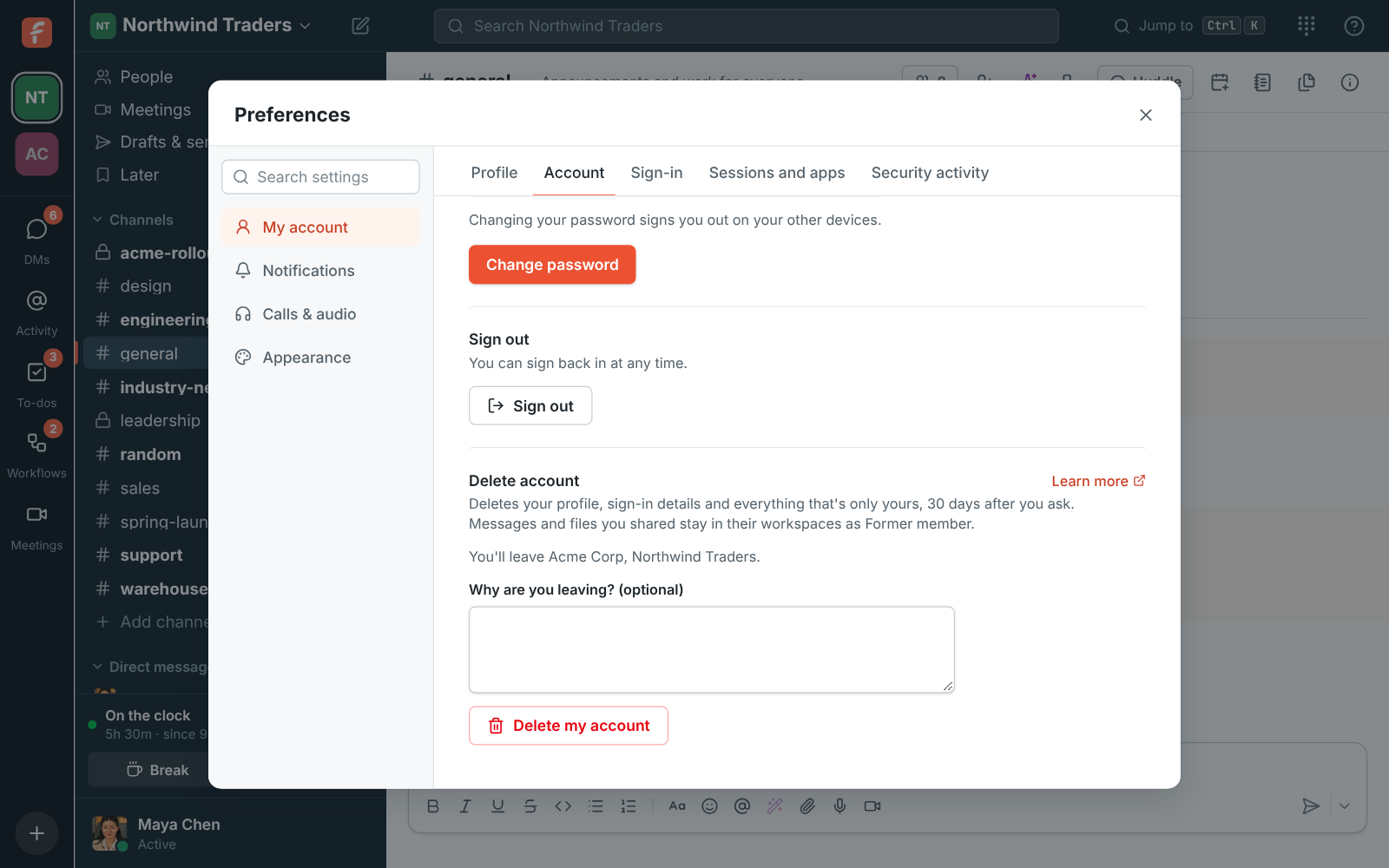
Your team joins with their work email, no invite needed
Section titled “Your team joins with their work email, no invite needed”- Admins can add the company’s email domains in Workspace settings → Email domains. Freesbe checks a TXT record in your DNS to make sure the domain is yours.
- From then on, anyone who signs up with a confirmed address at that domain, with a password, Google or Microsoft, sees your workspace under Join your team and is in with one click. No more chasing invite links for every new hire.
- Prefer to look first? Turn on An admin approves each person: they ask to join, admins get an email and let them in from the same page. Choose whether people join as members or admins. See Join by email domain.
More than one person can share in a meeting, and the microphone works on first join
Section titled “More than one person can share in a meeting, and the microphone works on first join”- In a meeting, several people can share their screens at once. The newest share goes up front, and a row under it shows every shared screen: click one to see it big. Before, only the first person’s screen showed, so a second share looked like it didn’t work. Recordings show the newest share too. See In the call.
- Recordings keep showing the shared screen while the recorder’s window is hidden or covered, for example behind the window they’re presenting.
- Joining a call for the first time on a new phone or browser, your microphone now works as soon as you allow it, with no need to reload the page.
- Copy call details in a meeting also lists the cameras and screens showing on your device.
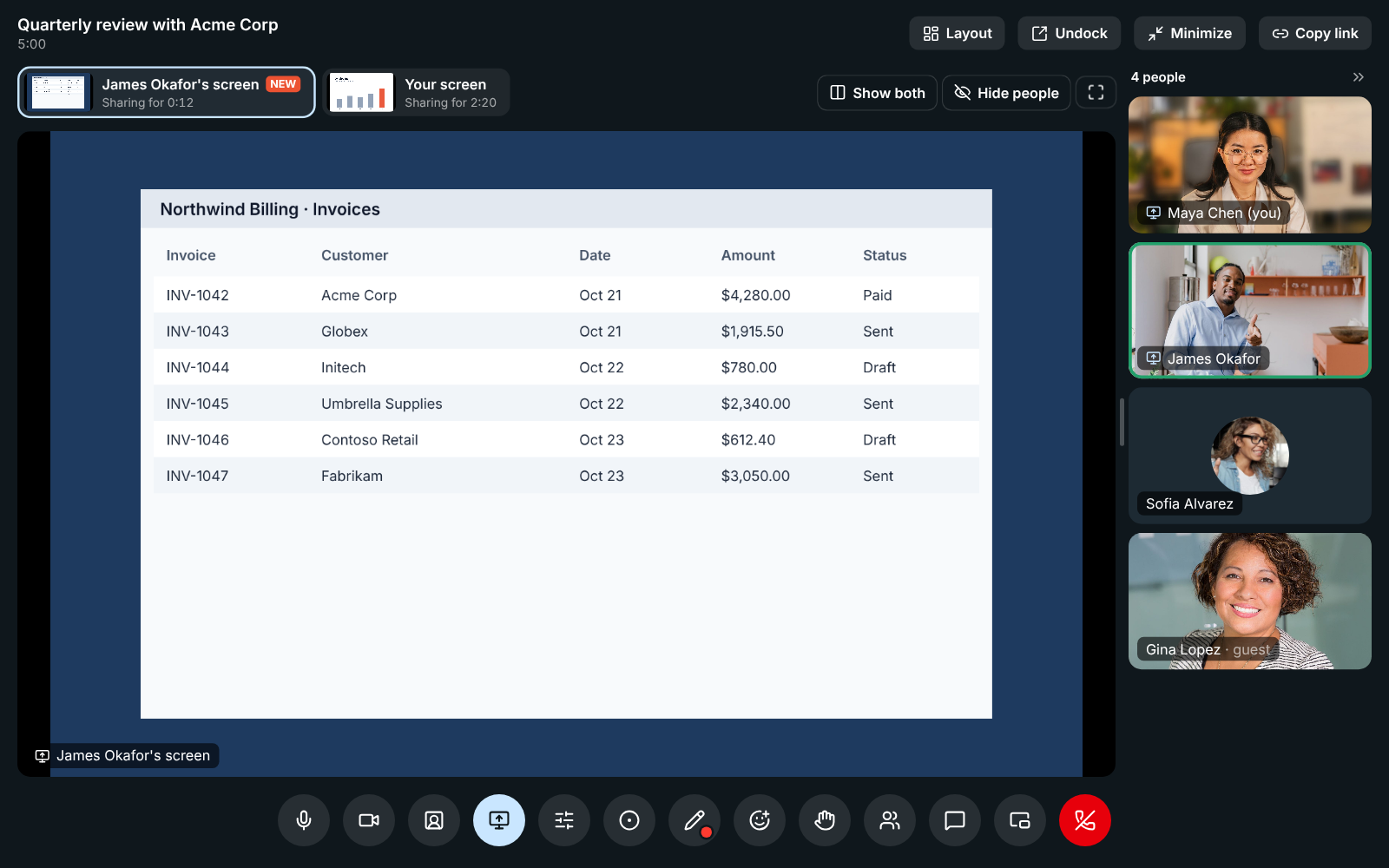
Any emoji as a reaction on your phone
Section titled “Any emoji as a reaction on your phone”- Pressing and holding a message in the mobile app now shows six quick reactions that fit any phone’s width, plus a smiley button at the end that opens every emoji, with search. Before, the row ran off the edge of the screen and there was no way to pick another emoji. See React, edit and delete.
- The bottom of the menu no longer sits under Android’s navigation buttons.

Add-ons, AI and every limit on the pricing page
Section titled “Add-ons, AI and every limit on the pricing page”- freesbe.net/pricing now shows the add-ons: the Phone system, with a local number per person included, and extra local and toll-free numbers at $5 a month each. It also says how adding and removing are billed.
- The plan comparison has an AI section: summaries, translations and writing help on every plan, and how many AI requests, transcripts and agent connections each plan includes.
- New freesbe.net/pricing/limits lists every limit of every plan in one table. See Plan limits.
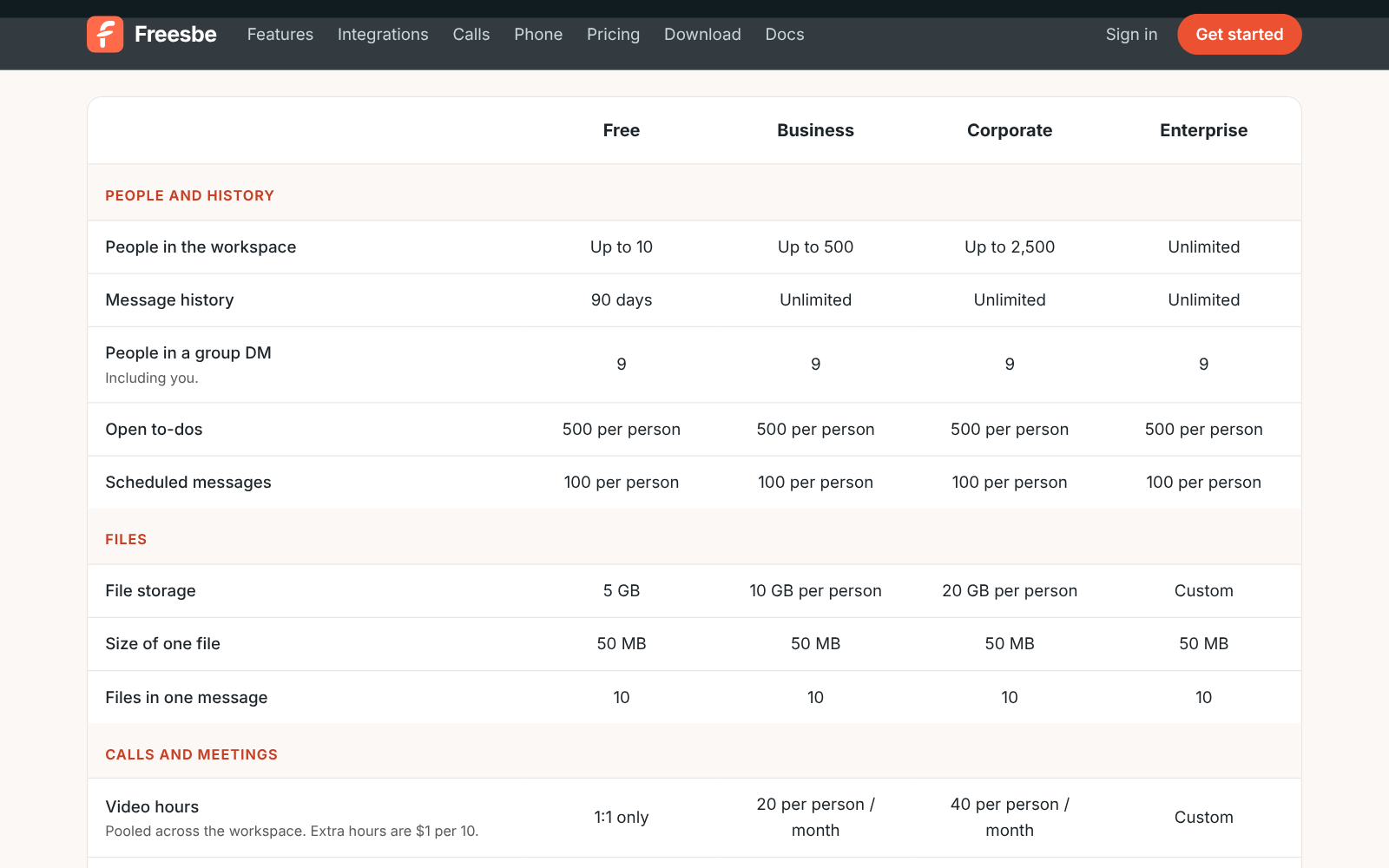
Make and take phone calls in Freesbe
Section titled “Make and take phone calls in Freesbe”- On a phone system from Freesbe, calls to your number now ring right in Freesbe, in the browser or the desktop app, with Answer and Decline and your ringtone. Calls from the dialpad go out from Freesbe too, with no phone or softphone to set up.
- During a call you can mute, put the caller on hold, press keys for menus and transfer the call to a colleague or another number. See Calls in Freesbe.
- The dialpad lists your calls from the last 30 days, with missed calls in red and call back one click away. See Your calls.
Everyone fits in the meeting, and clearer share and record buttons
Section titled “Everyone fits in the meeting, and clearer share and record buttons”- Meeting tiles now size themselves to the window, so everyone in a meeting shows in full without scrolling, names included. Two people sit side by side, four make a 2×2 grid, and the tiles shrink to fit as more people join.
- Share screen keeps the same icon and lights up while you’re sharing; click it again to stop. Everyone sees a screen icon next to the name of whoever is sharing. See In the call.
- The record button works the same way in meetings and huddles: it keeps its icon and lights up red while the call is being recorded.
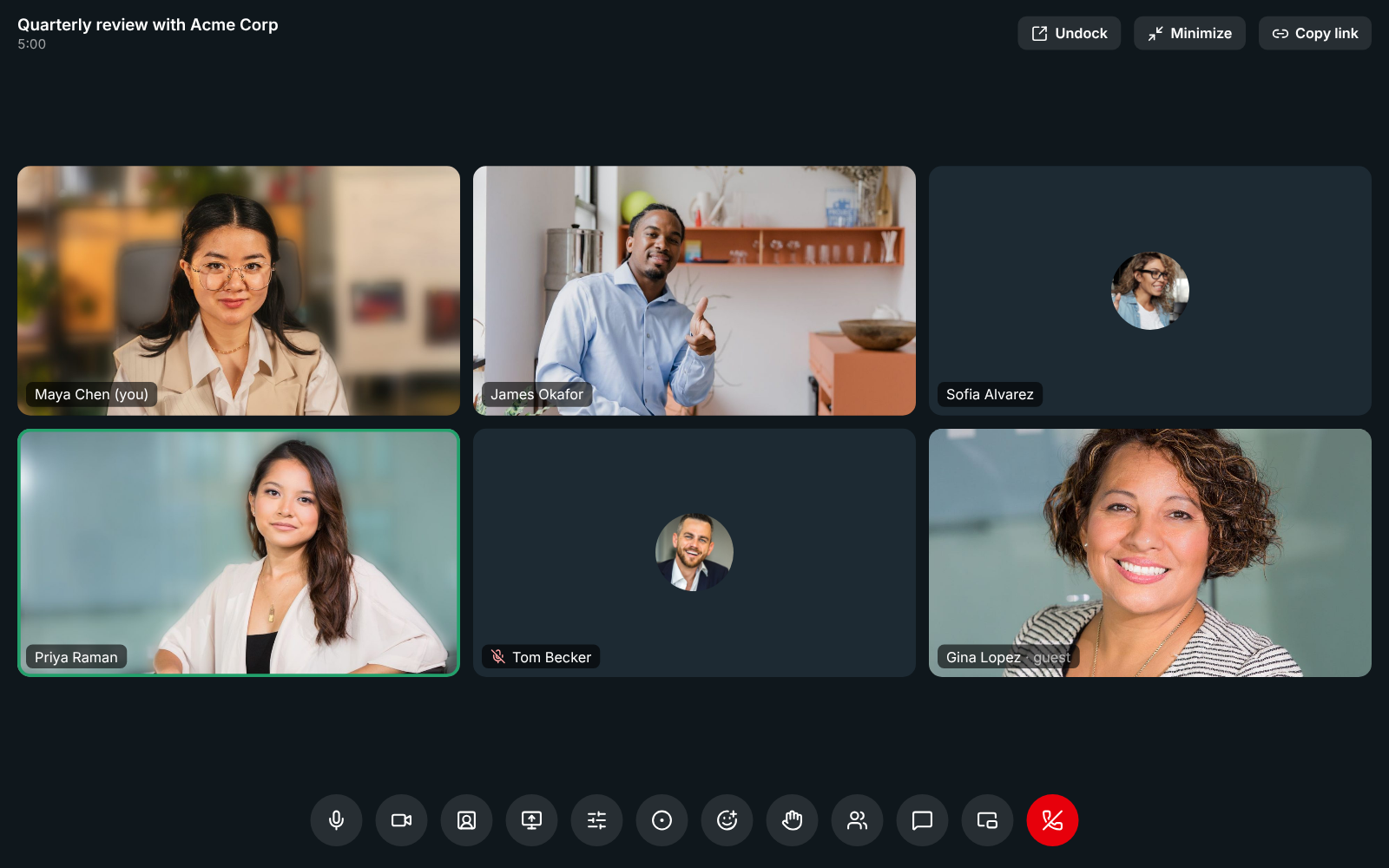
Shared meeting links open in Freesbe, with your picture on your tile
Section titled “Shared meeting links open in Freesbe, with your picture on your tile”- Clicking a meeting link that someone shared in a channel or DM now opens the meeting right in Freesbe, in the desktop app or the tab you’re in, and you join as yourself. Before, a link on your company’s own domain opened in the browser as a guest. See Meetings.
- In meetings, members’ tiles and the People list show their profile picture while their camera is off, as in huddles. Guests still show their initials.
Reactions that rise from the corner, each with its own move
Section titled “Reactions that rise from the corner, each with its own move”- Reactions in meetings and huddles now rise from the bottom corner of the call with the sender’s name under them, and pop up on that person’s tile so you can see whose they were.
- Each one moves its own way on the way up: the heart beats, the hands clap, the party popper bursts open, the laughing face shakes and the thumbs down dips. With reduced motion turned on, they line up in the corner and fade instead. See Reactions and raised hands.
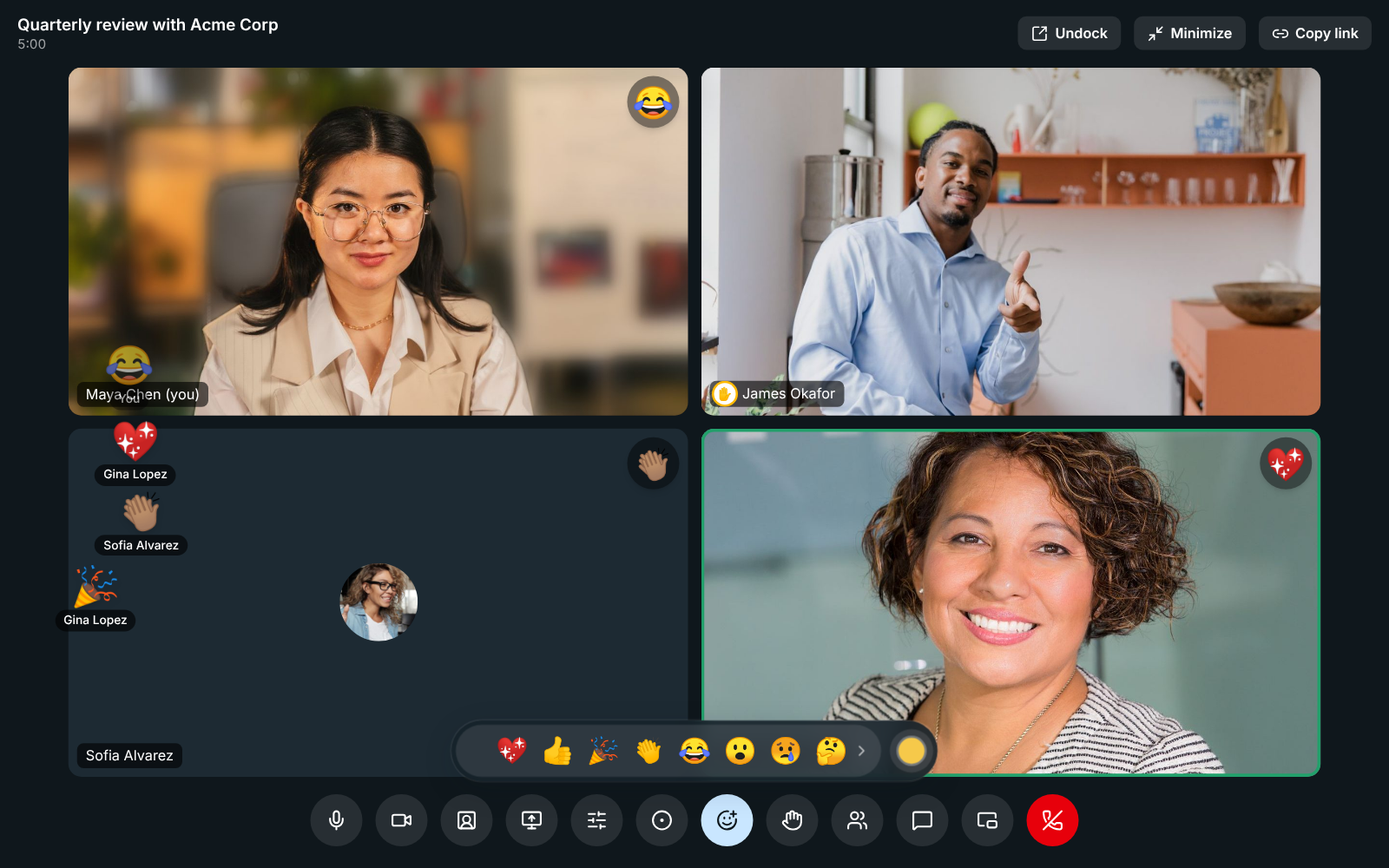
Recorded support sessions, with clearer consent before you take control
Section titled “Recorded support sessions, with clearer consent before you take control”- In a support session, the customer’s desktop app now says who is asking and for which company: You’re about to give Sam Ortiz from Northwind Traders control of your screen, with your custom domain when you have one. It spells out what they’ll be able to do, warns them to allow it only if they asked you for help, and says how to stop. Don’t allow is the default.
- The red bar names your company too, and when control ends the customer is told who had it and for how long. The Freesbe app on Android phones asks the same way.
- Support sessions are now recorded by themselves once the customer is in, wherever the workspace allows recordings, so you have the whole session to look back on. Nobody can stop the recording until the call ends. See Who can start one.
- Admins can open What they agreed to on a support session in the remote control log, to see the exact words the customer was shown and allowed. See What the customer is asked.
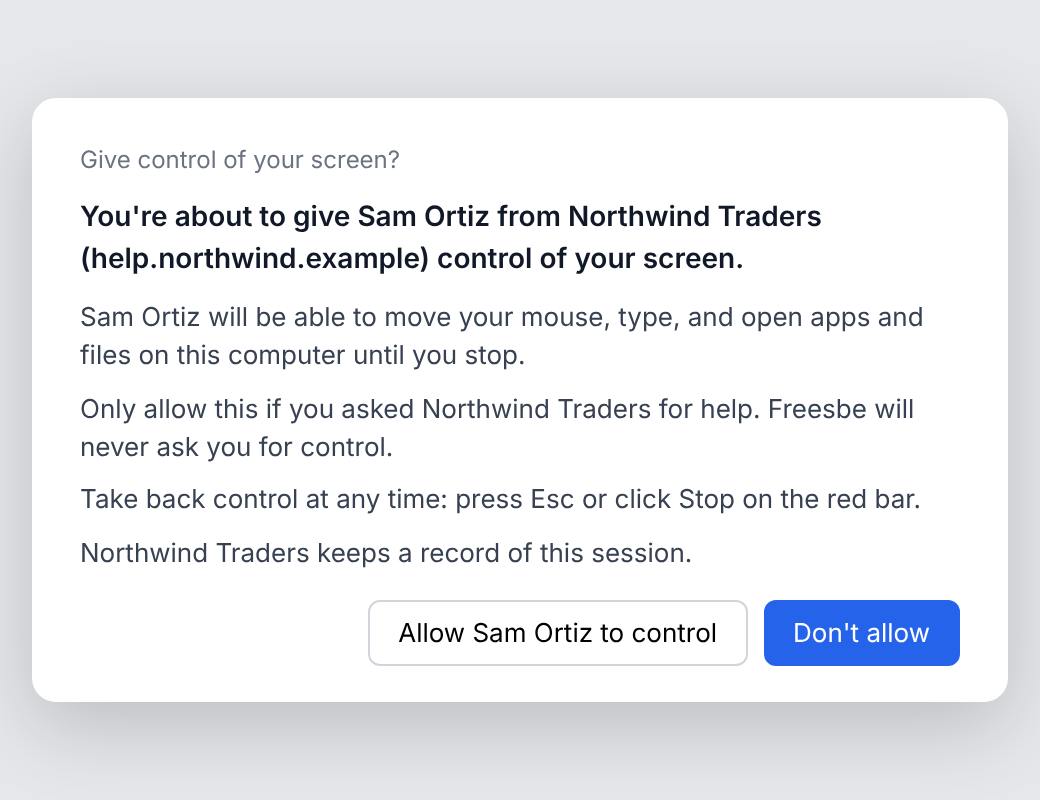
Export your data
Section titled “Export your data”- Owners and admins can download the workspace’s messages and files as a zip in Workspace settings → Export data, in Slack’s export format. Admins export public channels; owners on Corporate and Enterprise can include private channels and DMs, and every owner is told. Only the person who started it can download it, after confirming it’s them, and it’s deleted after 7 days. See Export your data.
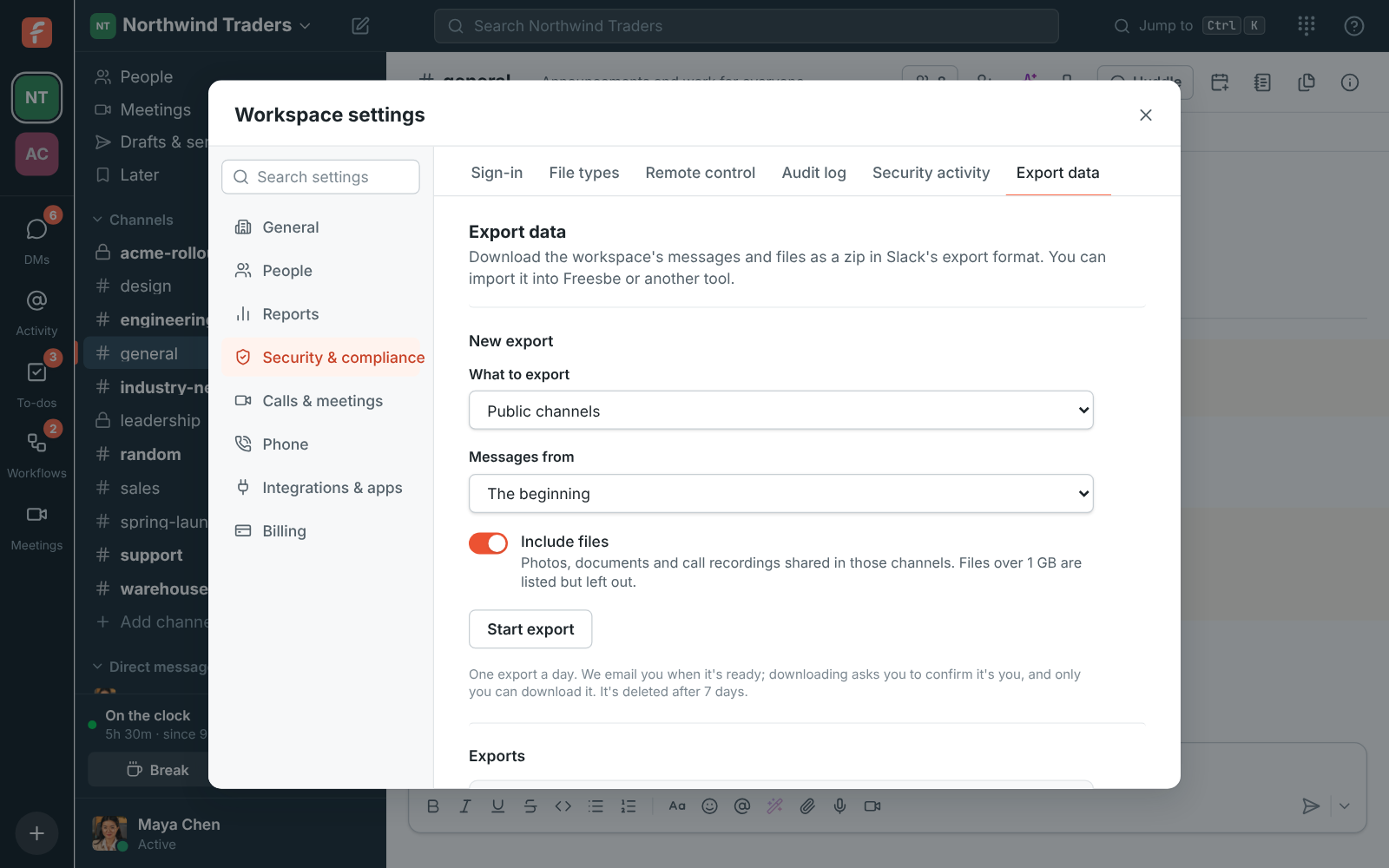
Choose where your data is stored
Section titled “Choose where your data is stored”- When you create a workspace, pick where its data is stored. The European Union and the United States are guaranteed: messages, files, recordings, transcripts and backups never leave the region. Asia-Pacific and Oceania keep your data close to your team, for speed. Freesbe preselects the one closest to you.
- Owners and admins see the region under Workspace settings → Workspace → Data region. See Data residency.
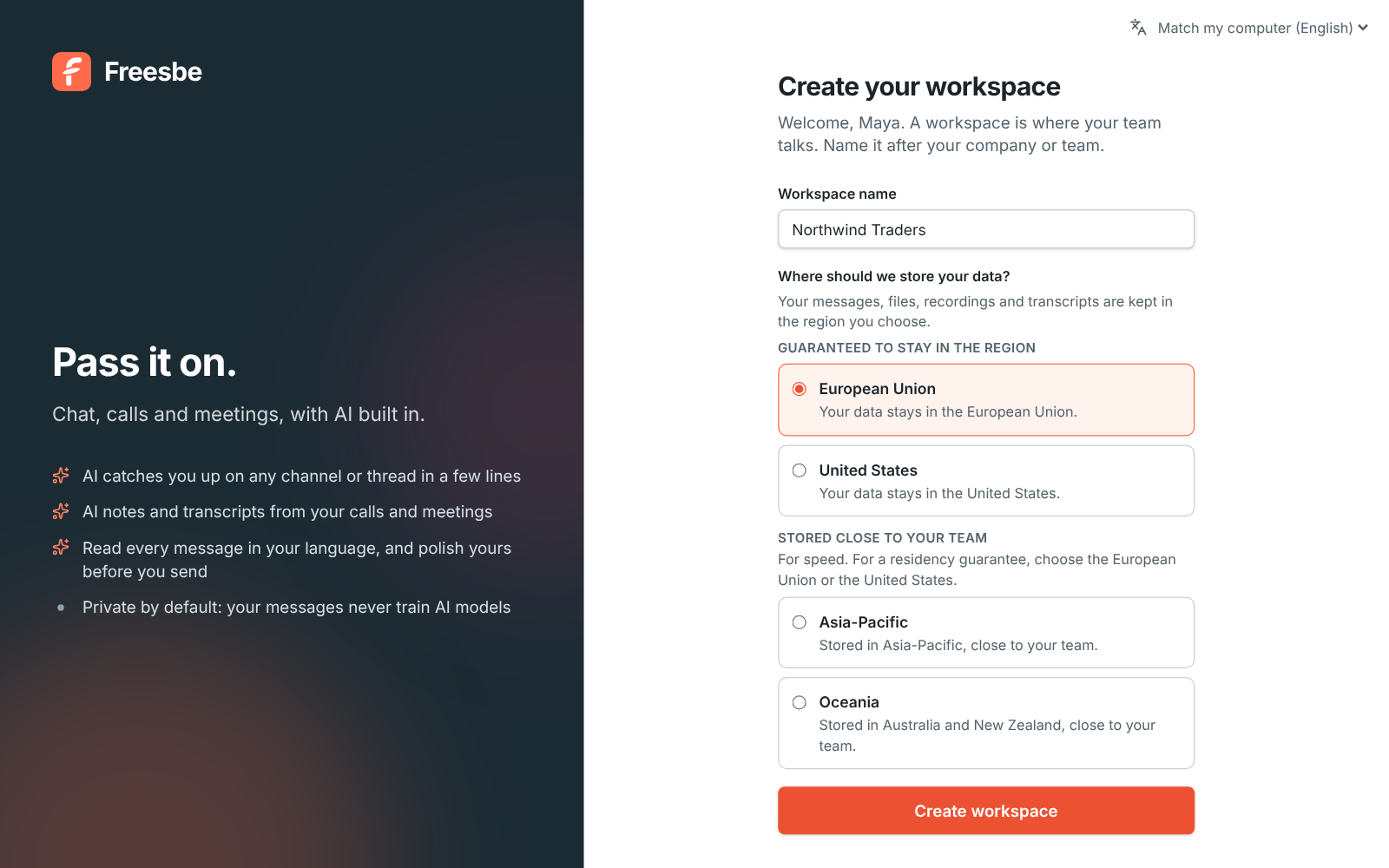
Audit log
Section titled “Audit log”- Workspace settings → Audit log shows what owners and admins changed, newest first: settings, roles, deactivations, invites, webhooks and apps, with who did it, when and from which internet address. Entries are kept for a year. See Audit log.
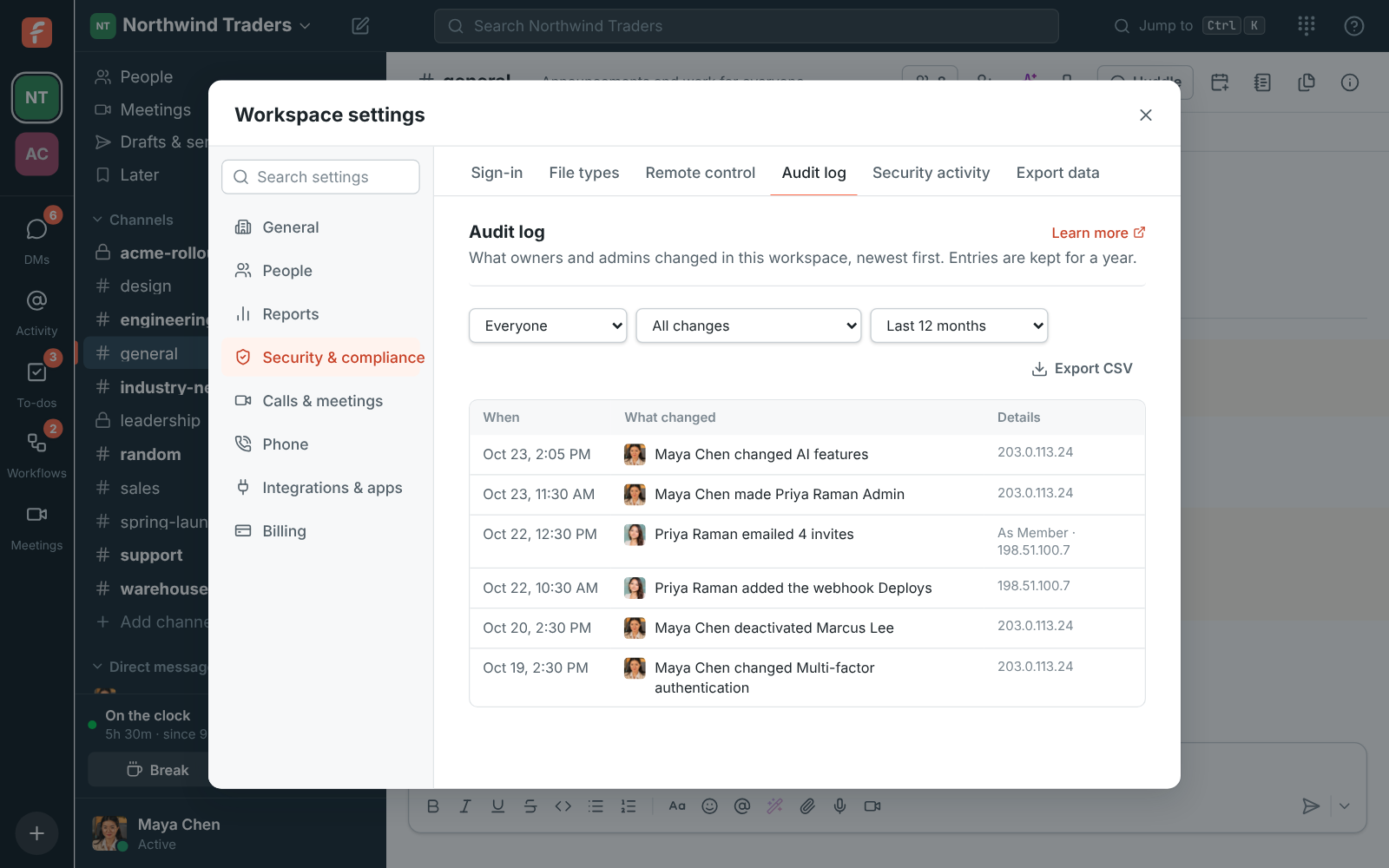
Reactions and raised hands in calls
Section titled “Reactions and raised hands in calls”- In a meeting, click Send a reaction under the call and tap 💖 👍 🎉 👏 😂 😮 😢 🤔 or 👎: it floats up over your tile for everyone in the call, guests included. Pick your skin tone with the round button beside the bar.
- Raise hand puts a ✋ on your tile and tells the others, without interrupting. Hosts can lower it for you from People. Huddles have both too, under Reactions and raise hand. See Reactions and raised hands.
Steadier meetings with more people
Section titled “Steadier meetings with more people”- In calls and meetings with several people, everyone’s voice comes through even while someone is rejoining or switching networks. Before, one person reconnecting could briefly cut out the others’ audio.
- If the connection drops, a meeting keeps trying to reconnect for up to 30 seconds before it gives up, so a short blip no longer takes you out of the call.
- If your connection to the call server stops working, the meeting starts it over by itself within about 20 seconds, without leaving the call. Before, the only fix was to leave and join again.
- The Freesbe app on your phone reconnects a meeting by itself after moving between Wi-Fi and mobile data, and keeps trying until the others can hear you. See If you can’t hear or be heard.
Chat and share files in meetings
Section titled “Chat and share files in meetings”- Meetings have a Chat button. Everyone in the call can write to each other and send files, guests from outside the workspace too, following the workspace’s file rules for guests. A badge counts new messages while the chat is closed, and the minimized meeting card has the button too.
- The chat is kept with the meeting: Chat on the meeting’s row under Meetings, and the recording’s page, show what was said and the files afterwards. See Meeting chat.
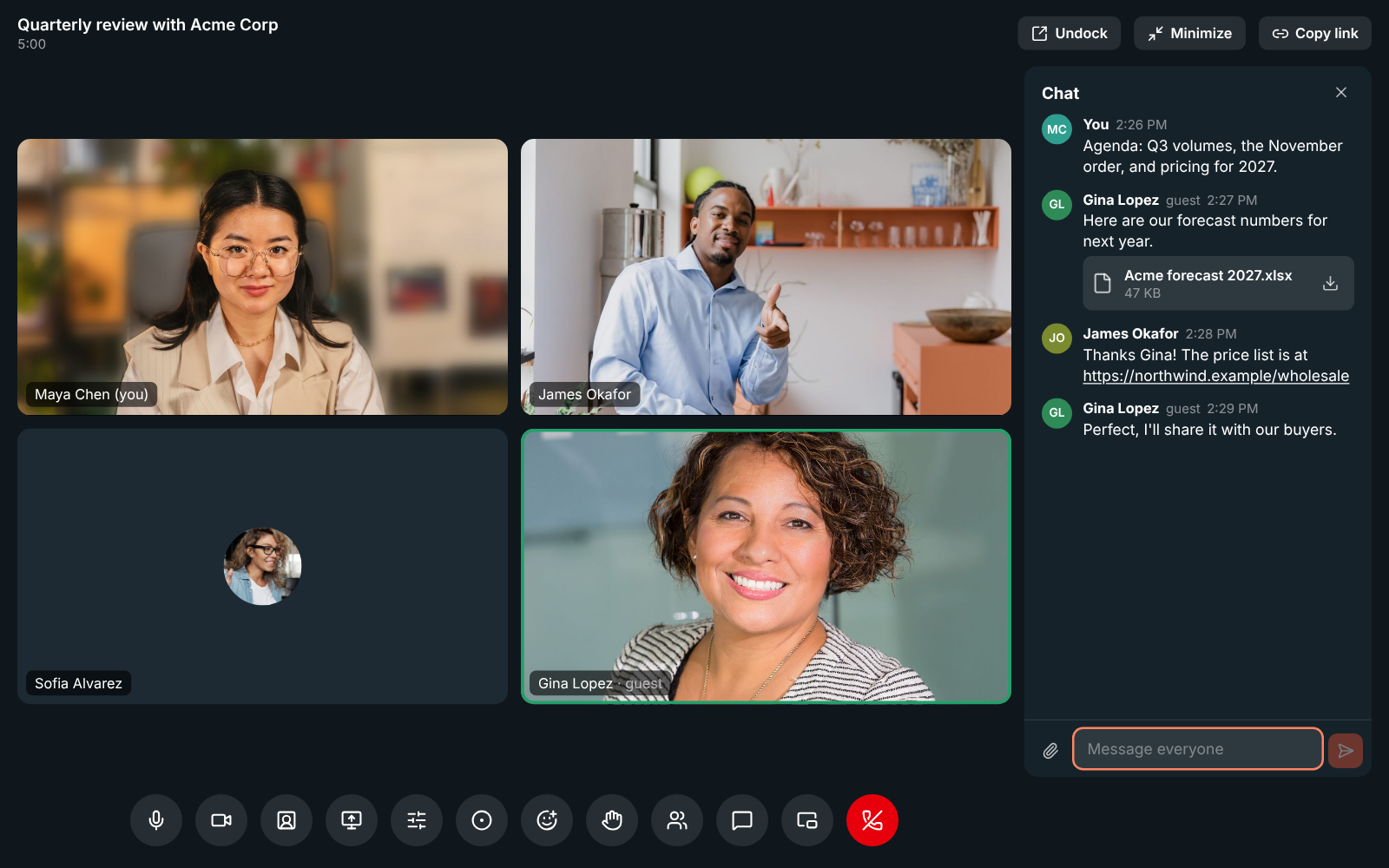
Usage shows channels, canvases and more against the plan
Section titled “Usage shows channels, canvases and more against the plan”- Workspace settings → Usage now lists how many channels, canvases, workflows, apps, webhooks, guest links and upcoming meetings the workspace has, against what its plan allows, and warns admins once one passes 80%. The limits are far above what a team of the plan’s size uses; archived channels don’t count, and nothing is ever removed at a limit. See Channels, canvases and more.
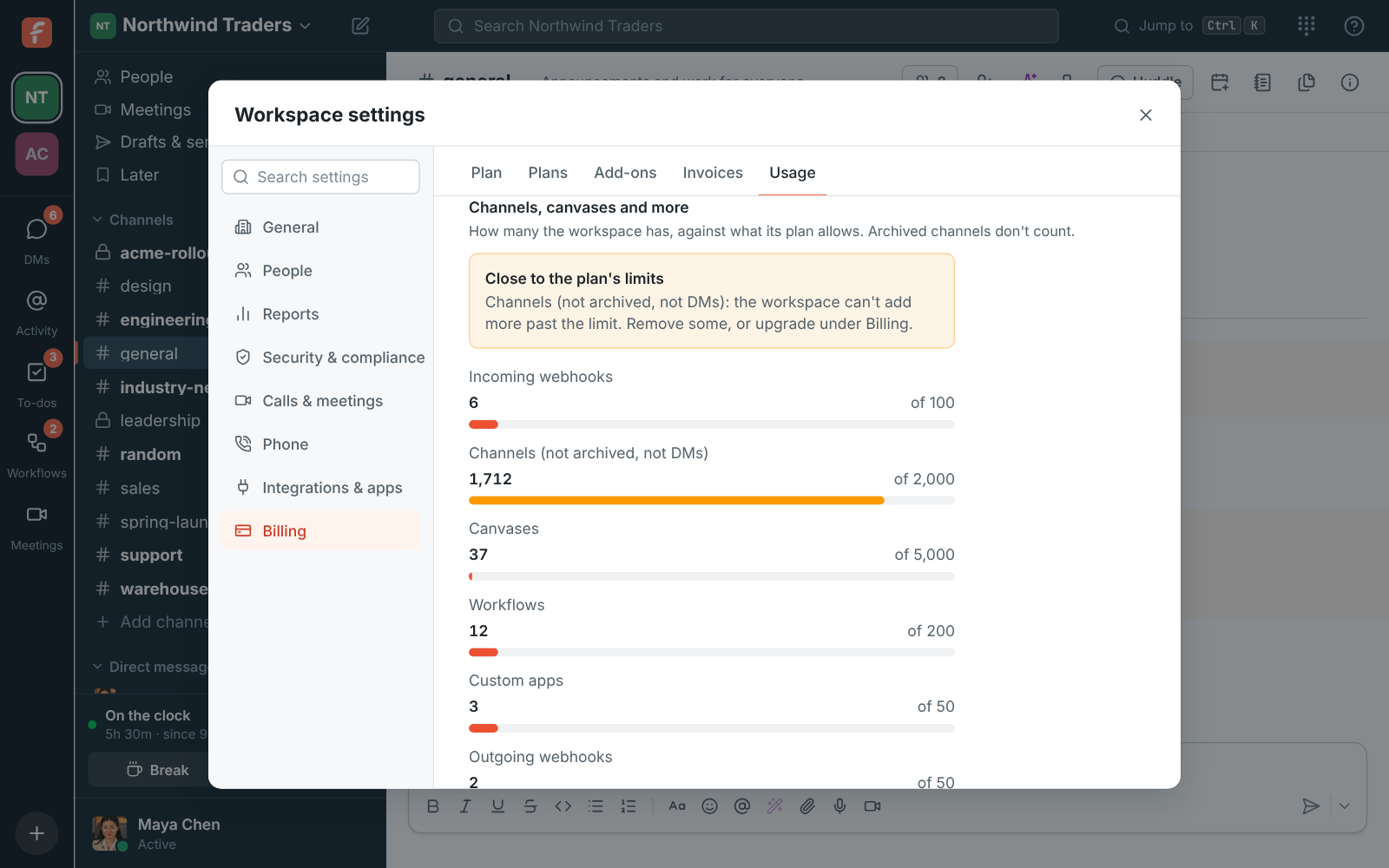
Search your settings
Section titled “Search your settings”- Workspace settings and Preferences have a Search settings box at the top of the list. Type a word like recordings, sso or sound and pick a result: Freesbe opens the right section, scrolls to the setting and highlights it. It works in all 25 languages, and English words find things too. Ctrl+F (⌘+F on a Mac) jumps to the box. See Find a setting.
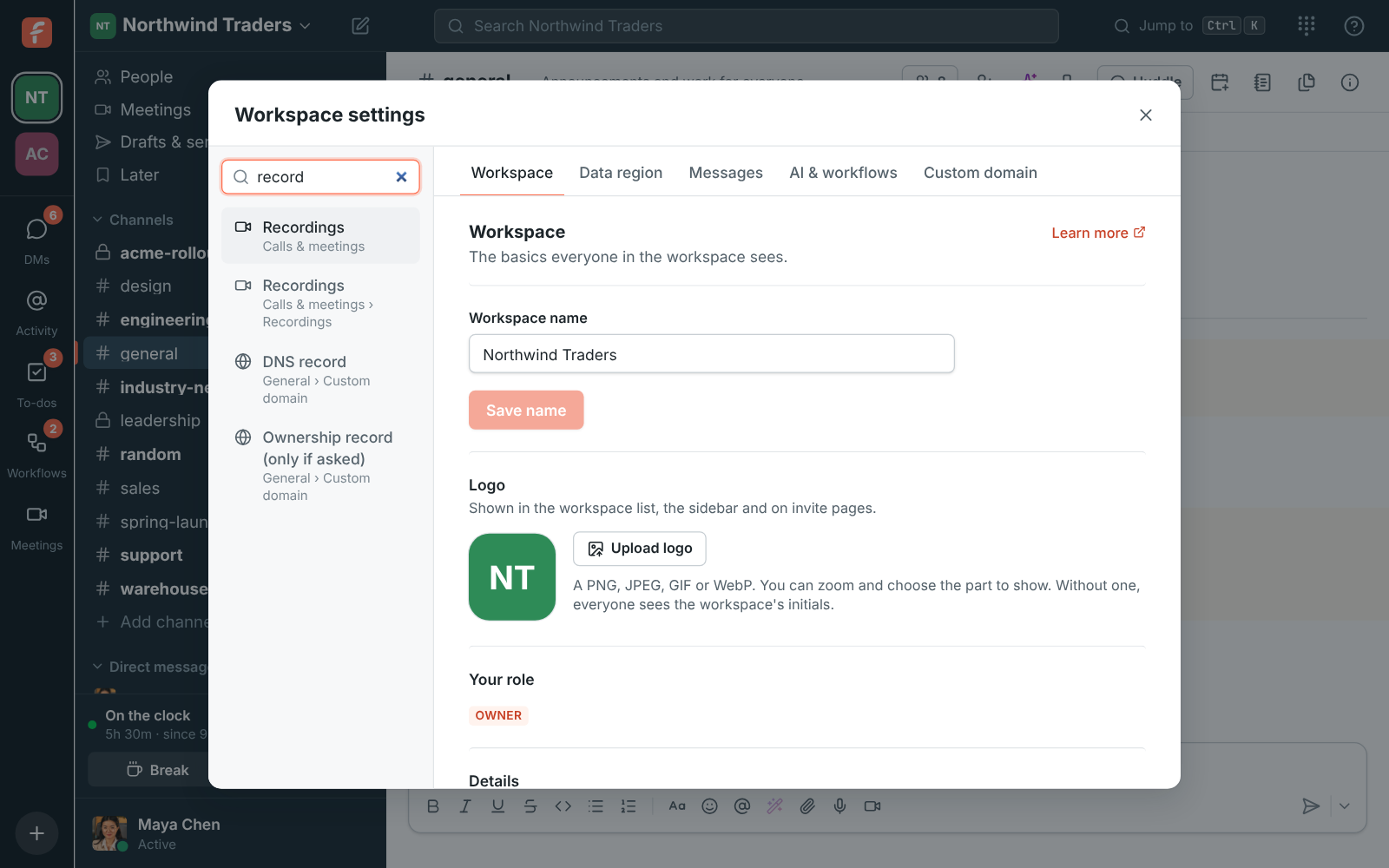
Take your profile picture with your camera or phone, and touch it up with AI
Section titled “Take your profile picture with your camera or phone, and touch it up with AI”- In Preferences → Profile, Take photo uses your computer’s camera, and Use phone shows a QR code that opens your phone’s camera with no app or sign-in. The photo comes back to your computer to crop.
- Then Improve with AI centres your face and fixes the light and colour, without redrawing you. Compare before and after with a slider and keep the one you like. See Your profile picture.
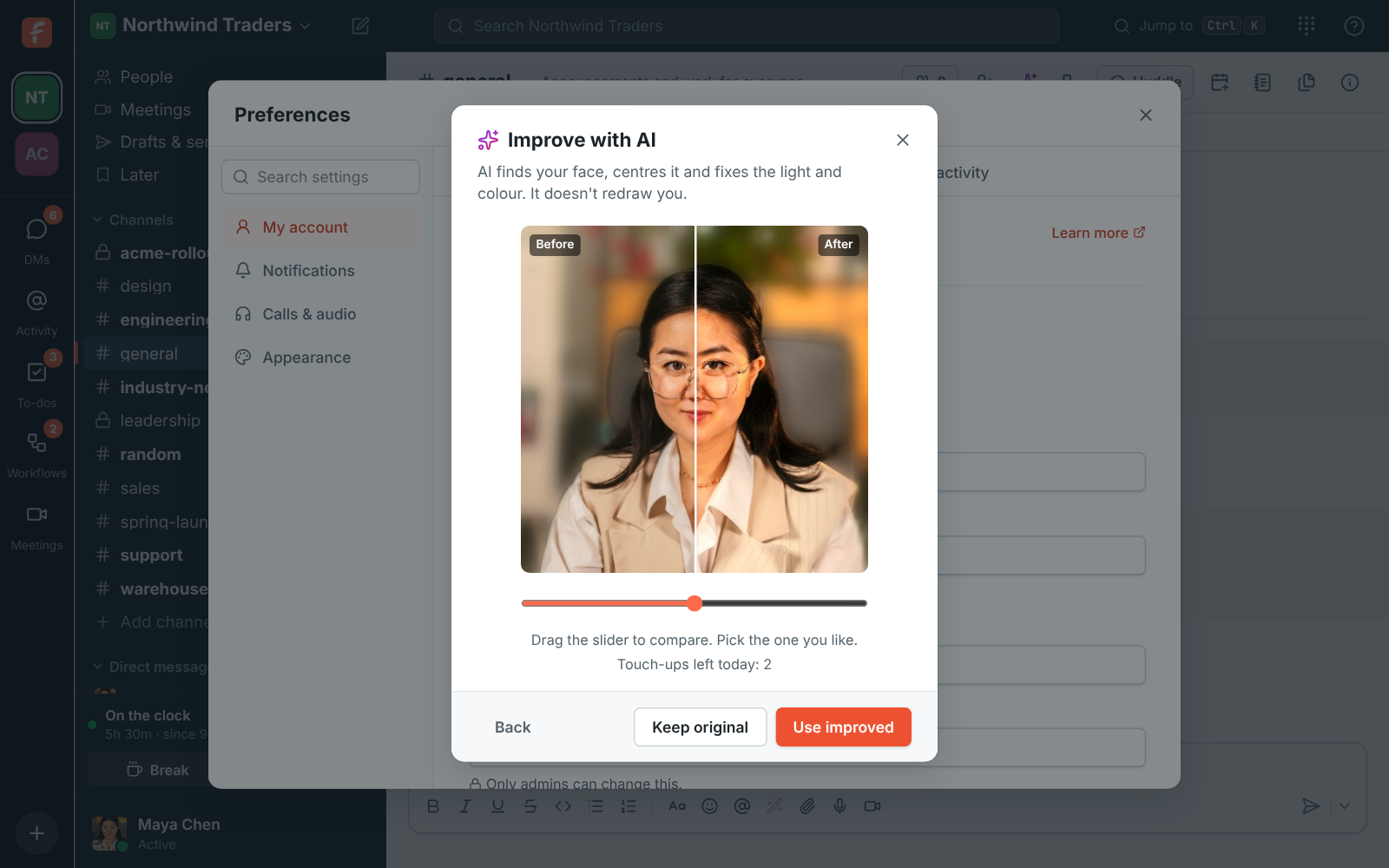
Zendesk
Section titled “Zendesk”- Connect Zendesk in Workspace settings → Integrations → Support to post new tickets, status changes and replies into the channels you pick, with Assign to me and Solve buttons. Pasted ticket links show as cards, and Create Zendesk ticket in a message’s menu turns any message into a ticket. See Zendesk.
Calendar app: your day, reminders and invitations
Section titled “Calendar app: your day, reminders and invitations”- Turn on the Calendar app in Preferences → Calendar and your Google Calendar or Outlook sends you a Your day agenda each morning, a reminder with a Join button before each meeting, and new invitations you can answer Yes, Maybe or No right in Freesbe. You pick the time, the reminder and whether weekends count. Admins can turn it off in Workspace settings → Integrations → Calendar. See Calendar app.
Work details on profiles
Section titled “Work details on profiles”- Profiles now show who someone is at work: Department, Location, Manager, Phone and Pronouns, plus the people who report to them. Fill yours in under Preferences → Profile. See See who someone is.
- Admins rename, reorder or hide these fields from guests, add their own (like Region or Start date) on paid plans, and fill in everyone at once from a spreadsheet. See Profile fields.
- The People directory shows each person’s department and location and can show one department at a time.
Zapier, Make and n8n
Section titled “Zapier, Make and n8n”- Admins can connect Zapier, Make or n8n in Workspace settings → Integrations → Automation. Flows start the moment someone posts, mentions the bot, reacts, shares a file, makes a channel, joins the workspace or schedules a meeting, and they can post messages, send DMs, react and make channels as the tool’s bot. Triggers listening shows what every flow is waiting for. See Zapier, Make and n8n.
AI help for to-dos
Section titled “AI help for to-dos”- Click AI under a to-do’s notes. Help me write turns the title into clear notes, Plan it breaks it into steps and finds the due date when the to-do says one, and Sum up the conversation adds what the message it came from and its thread say. You can also make the notes clearer or shorter. The answer appears as it’s written. In the mobile app, the same buttons are in the to-do editor. See Help with your to-dos.
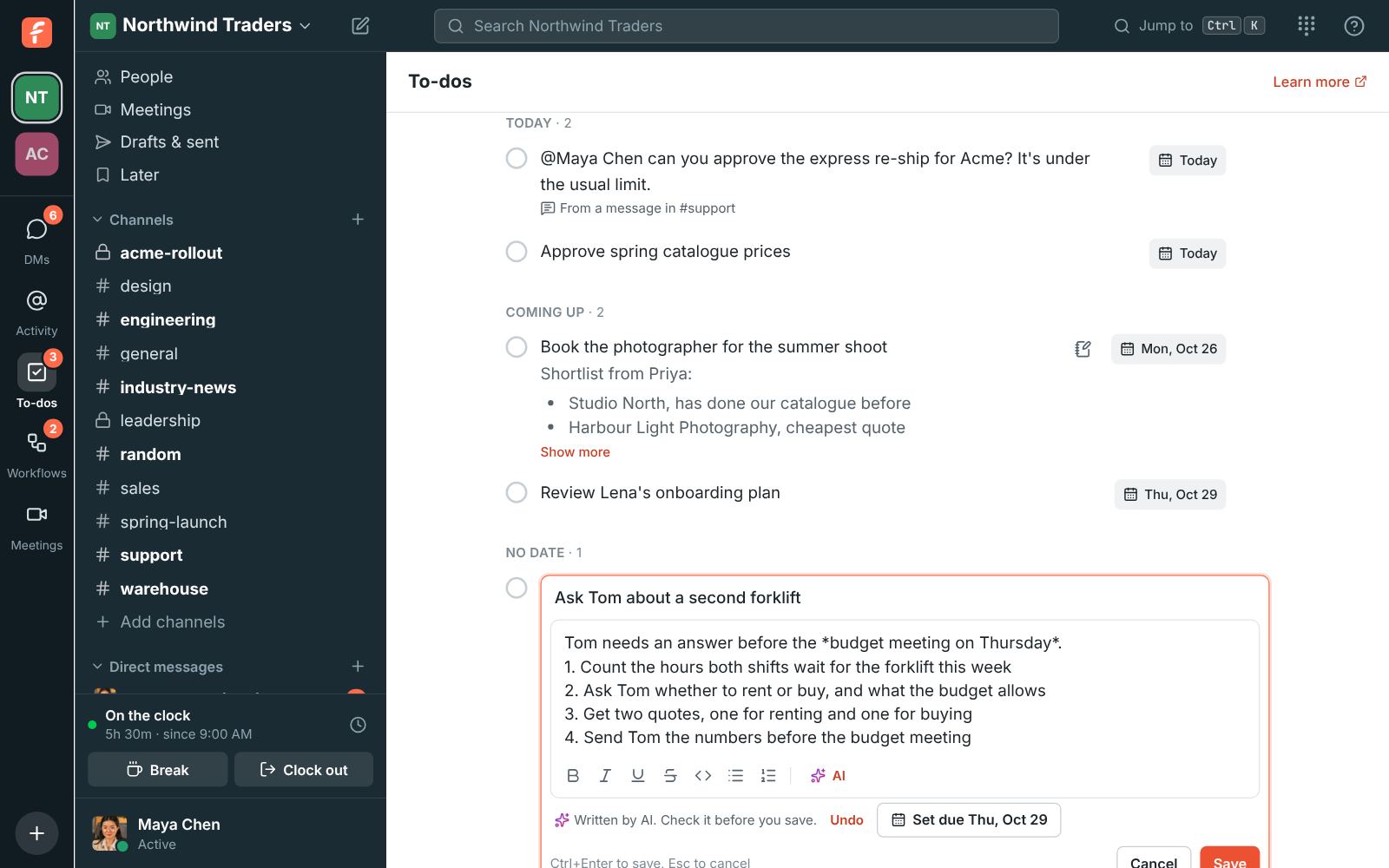
Add-ons and usage on the Billing page
Section titled “Add-ons and usage on the Billing page”- Admins of a paying workspace see Usage in (this month) on Workspace settings → Billing: how much of the plan’s monthly allowance is used, like AI requests and video hours, and what anything past it adds to the bill so far. Past the allowance, AI keeps working and the extra is billed at the start of next month. See Usage past what’s included.
- Extras bought on top of a plan show under Add-ons, where admins add, change or remove them. See Add-ons.
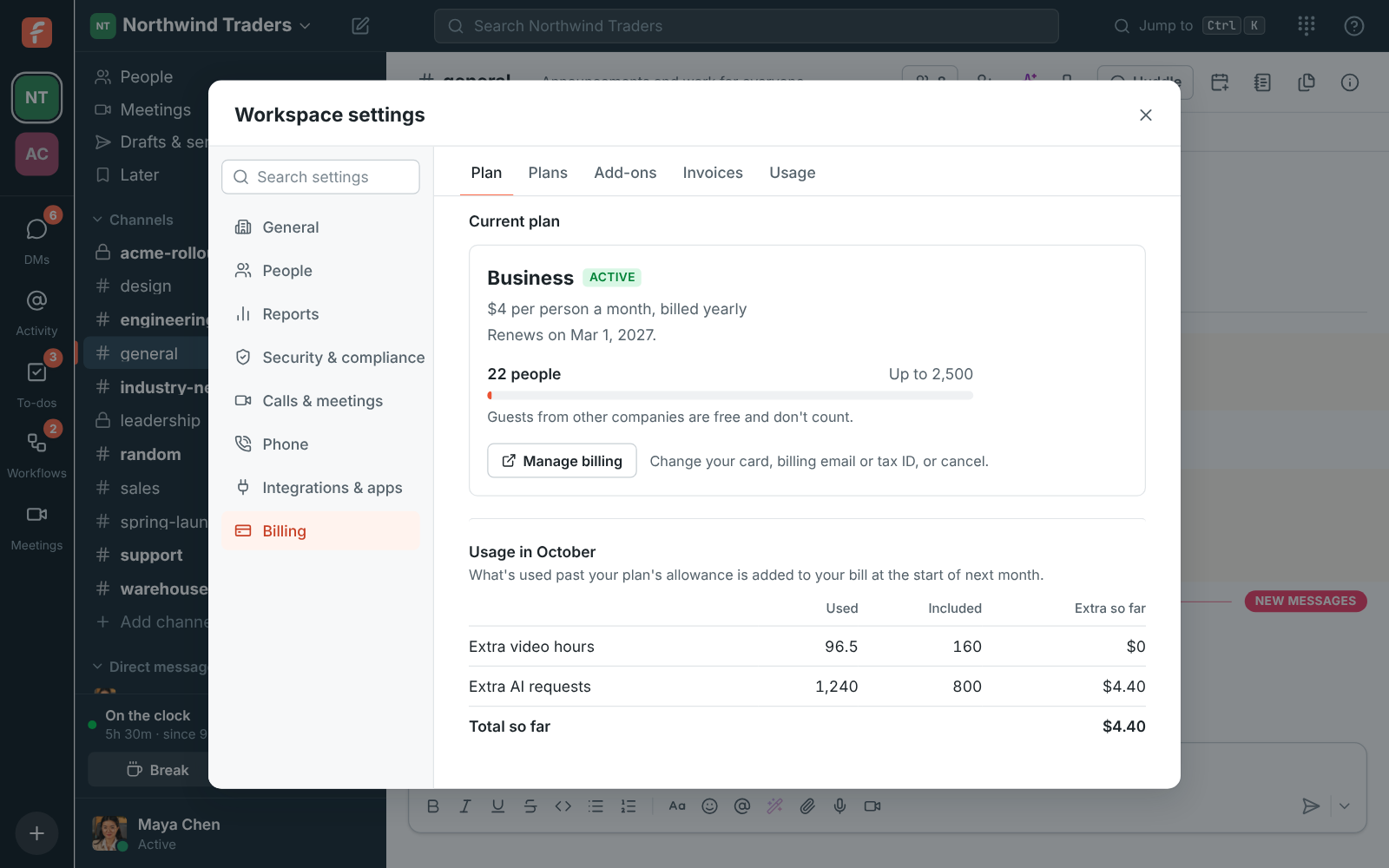
AI agents
Section titled “AI agents”- Connect Claude, ChatGPT, your code editor or any other AI tool that speaks MCP to Freesbe. Add
https://api.freesbe.net/mcpas a connector, pick a workspace and allow it. The agent acts for you, as its own bot with an AI agent badge, with only what you allowed. Admins choose who can connect agents, approve or block each one, limit what it may do, and see everything it did, in Workspace settings → AI agents. Reading, searching and posting tools follow over the next releases. See AI agents.
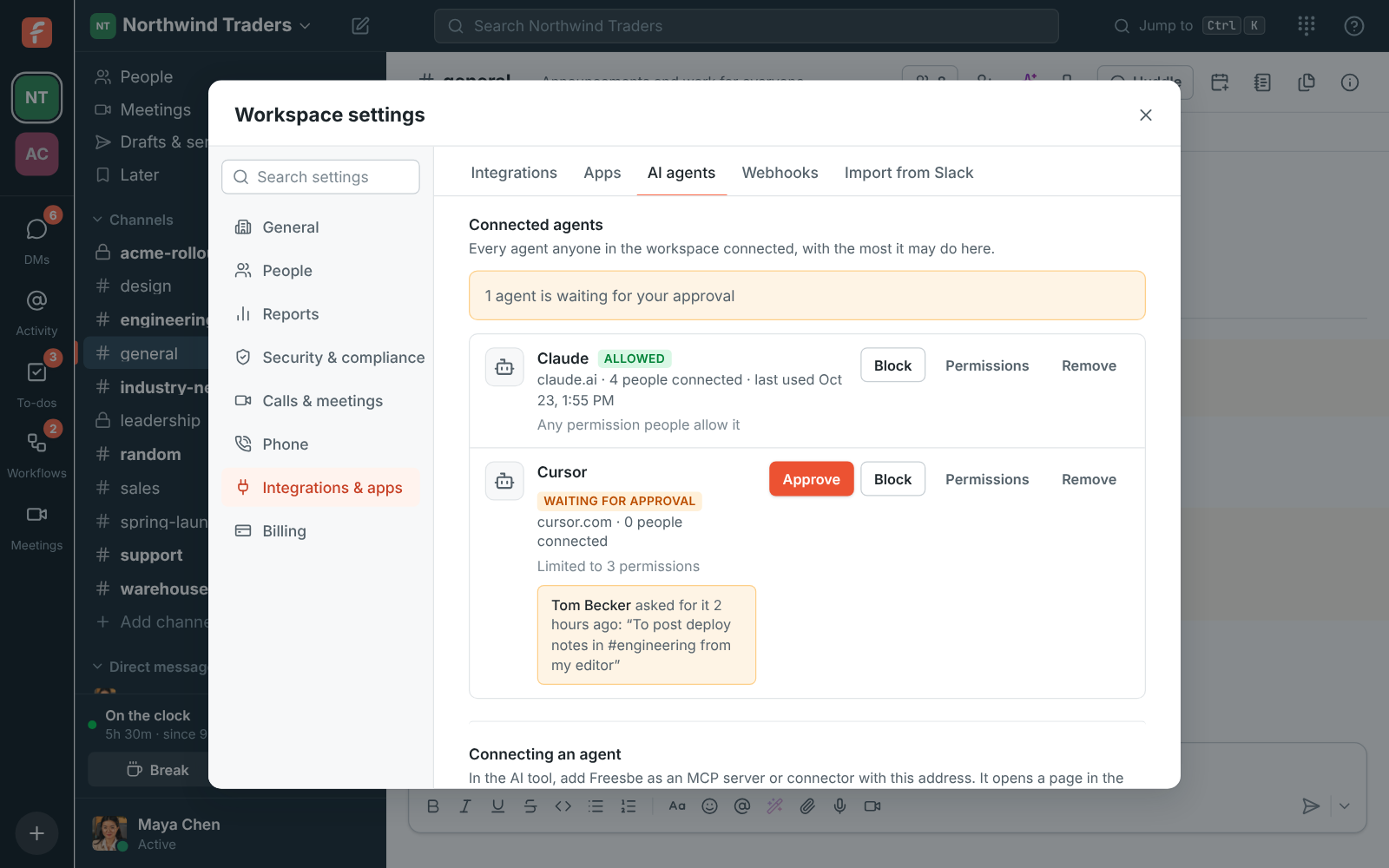
Choose who can stop recordings, and name co-hosts
Section titled “Choose who can stop recordings, and name co-hosts”- Admins choose who can start and stop recordings and transcripts in Workspace settings → Workspace → Who can start and stop recordings: everyone in the call, whoever started it plus hosts and co-hosts (the new default), or only hosts and co-hosts. Owners and admins always count as hosts, and guests can’t record.
- A call’s hosts can make someone a co-host: click their face on the huddle card, or … next to them under People in a meeting, and choose Make co-host. See Who can start and stop recordings.
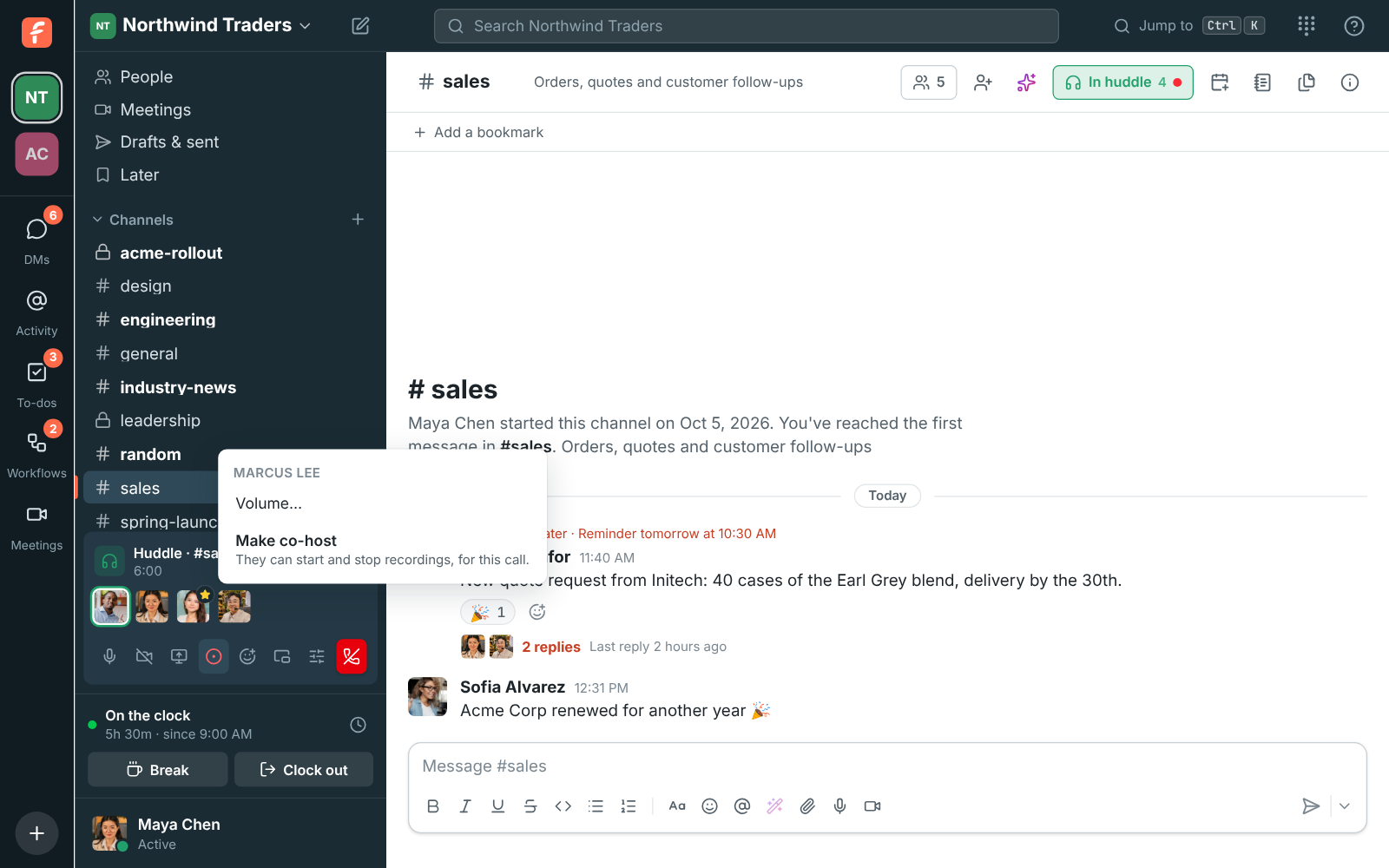
HubSpot app
Section titled “HubSpot app”- Admins can connect HubSpot in Workspace settings → Integrations → CRM. Freesbe then
posts new deals, stage changes, won and lost deals and new contacts into the channels you pick,
shows a preview under HubSpot links, finds contacts and deals with
/hubspot, and adds Log to HubSpot to every message’s ⋯ menu, which puts the message on a contact’s timeline. See HubSpot.
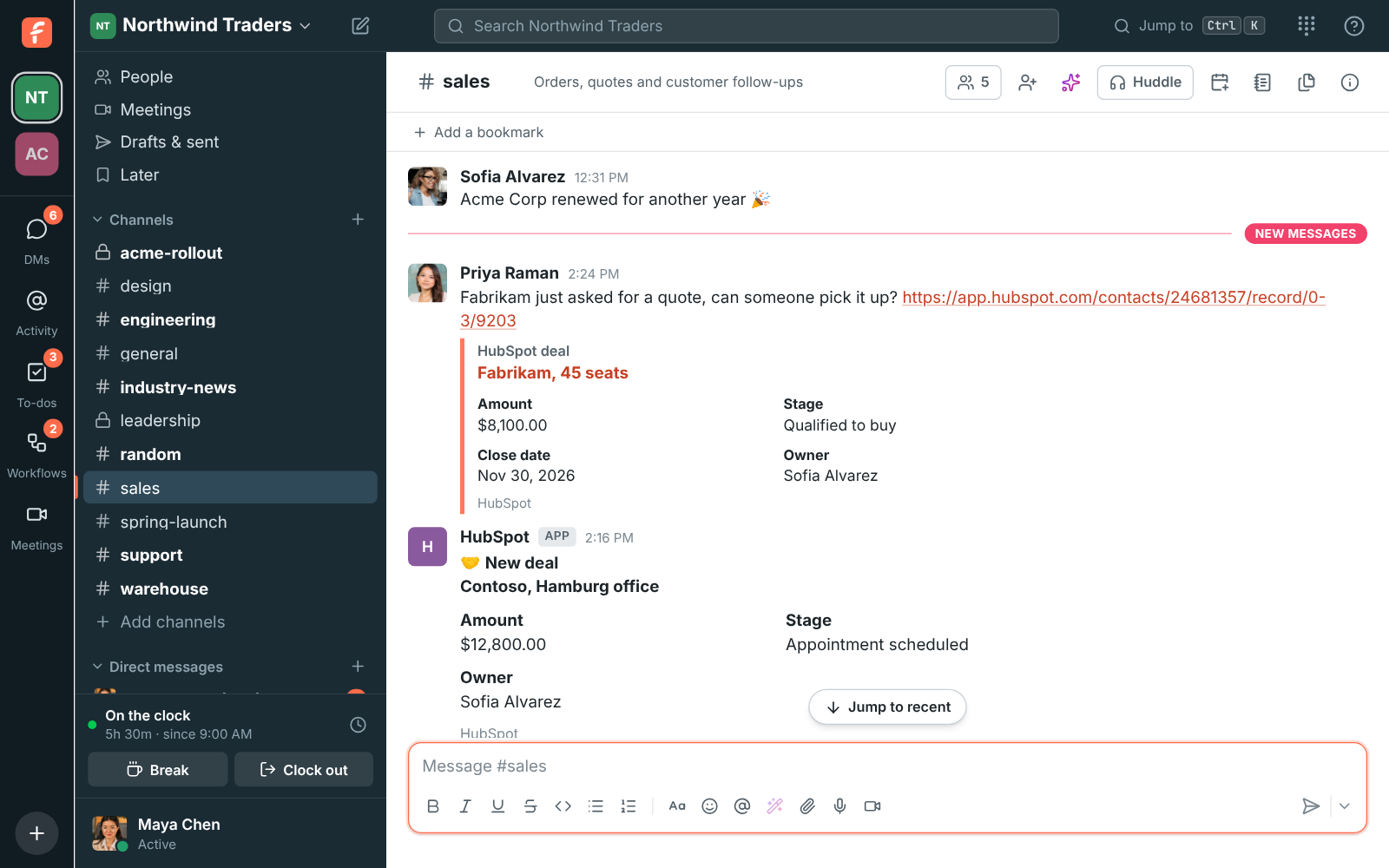
See who’s talking on every tile
Section titled “See who’s talking on every tile”- The green frame around the person talking now shows in full on every tile in meetings, huddles and the floating call window. It used to be cut off on the tiles at the left and right edges of a wide window. See In the call.
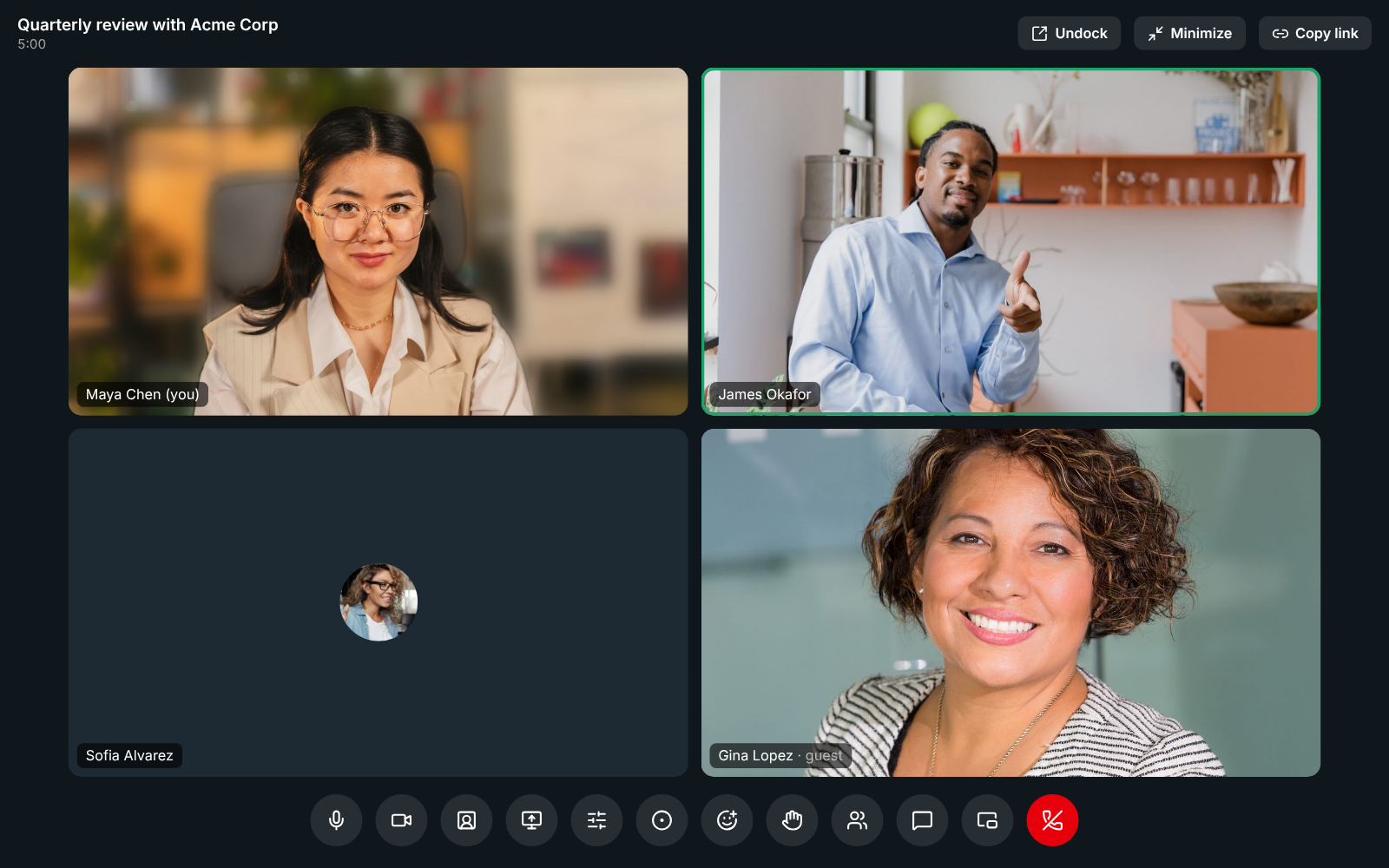
See what’s new after each update
Section titled “See what’s new after each update”- The first time you open Freesbe after an update, on the web, the desktop app or your phone, a What’s new in Freesbe card lists what changed since you last looked, with a picture or a short animation of each change and a Learn more link to the details. Got it puts it away until the next update.
- ? → What’s new in the top bar, or What’s new in your account menu next to Preferences (You → What’s new on the phone), shows the latest changes any time. See What’s new after an update.
- Follow Freesbe’s changes from a feed reader with the What’s new RSS feed.

Payment alerts from Mercury, Stripe and Airwallex
Section titled “Payment alerts from Mercury, Stripe and Airwallex”- Admins can connect a Mercury bank account, a Stripe account or an Airwallex account in Workspace settings → Integrations → Finance, and Freesbe posts deposits, payments, payouts, refunds and balances into the channel they pick, as cards with an Open in button. Choose which kinds of alerts to post and the smallest amount worth a message. See Payment alerts.
14 more languages
Section titled “14 more languages”- Freesbe now speaks 25 languages. New: Italian, Dutch, Polish, Turkish, Korean, Indonesian, Malay, Vietnamese, Thai, Ukrainian, Swedish, Czech, Romanian and traditional Chinese, in the web, desktop and mobile apps and in the emails Freesbe sends. See Language.
Bookers can reschedule or cancel
Section titled “Bookers can reschedule or cancel”- People who book through your booking link can now move or cancel the meeting themselves, from the Reschedule or cancel link in their invite email or on the confirmation page. They pick from the same free times, and you get an email either way. See When they need another time.
Try Business free for 14 days
Section titled “Try Business free for 14 days”- A workspace you create by signing up gets a free 14-day trial of Business, with no credit card: group video, meetings, recordings with AI notes, guests and more. It then moves to Free unless you choose a plan, and nothing is deleted. See Free trial.
Drafts & sent
Section titled “Drafts & sent”- Drafts and scheduled messages now share one page, Drafts & sent, under Meetings in the sidebar, with a tab for each and a new Sent tab: your own messages and replies, newest first. Click one to jump back to it. On the phone it’s under You → Drafts & sent. See Drafts & sent.
AI buttons stand out
Section titled “AI buttons stand out”- Every AI button now has purple-to-pink sparkles, in light and dark mode, so it’s easy to spot: channel and thread summaries, Improve writing and AI meeting notes. See AI summaries.
Faster AI summaries
Section titled “Faster AI summaries”- Summaries of busy channels are much quicker. Alerts and bot messages that repeat are read once, with how often they came, and the summary says which problems are still open.
- You see the summary as it’s written, after a short “Reading 240 messages…” while Freesbe reads.
- Freesbe keeps summaries. Asking again with nothing new is instant, and new messages are added to the kept summary instead of reading everything again. See AI summaries.
Meeting links open in the desktop app
Section titled “Meeting links open in the desktop app”- A meeting link, an invite or a link to a message that you open in your browser now goes to the desktop app when you have it, with Opening Freesbe… and a way to stay in the browser. Your choice is remembered, and you can change it in Preferences → Desktop app. Freesbe links posted in messages open right in the app instead of in your browser. See Open links in the app.
Read receipts
Section titled “Read receipts”- See who has read your messages: small pictures under the last message each person read, and Seen by 2 of 5 under your newest message, with their names when you hover. It updates live, on the web, the desktop app and phones.
- Admins turn them on in Workspace settings → Messages, for DMs and groups of up to 20 people or everywhere (big channels show a count, not names), and choose whether people can turn their own off. Off works both ways. See Read receipts.
Desktop app 0.1.6
Section titled “Desktop app 0.1.6”- The full screen button on a recording’s video now works in the desktop app. Before, it did nothing there, while it worked in a browser. The app updates itself; on a Mac, download the new version from the download page. See Recordings, transcripts and notes.
Meeting notes for your guests
Section titled “Meeting notes for your guests”- Admins can have a recorded meeting’s notes and transcript emailed to the guests from outside the workspace who joined with their invite link. Each guest gets a private link of their own, in their language, that works for 7 days (or what the admin picks) and can be revoked any time. See Share the notes with meeting guests.
Notes on to-dos
Section titled “Notes on to-dos”- To-dos now have a title and notes. Click a to-do to open the editor, and write as much as you need underneath: steps, links, @mentions, with the same formatting as messages. Long titles wrap instead of running off in one long line, and long notes fold under Show more. See Notes.
- Turning a long message into a to-do keeps the whole message in the notes.
- In the mobile app, tap a to-do and tap Edit to-do and notes.
Calls keep everyone’s sound flowing
Section titled “Calls keep everyone’s sound flowing”- In huddles and meetings, if someone’s audio stops reaching you, or your own audio didn’t get through after your network changed (a VPN turning on or off, Wi-Fi switching), Freesbe notices within seconds and fixes it without anyone leaving the call.
- New: Copy call details in Audio and video devices copies what your app is sending and receiving, so a sound problem can be tracked down. See If you can’t hear or be heard.
Drafts on every device
Section titled “Drafts on every device”- Anything you start typing and don’t send is now kept for your account, so a message you start on your computer is waiting on your phone, and the other way round.
- A new Drafts page, under Meetings in the sidebar, lists them all. Send one, finish it, edit it in place, schedule it for later or delete it. On the phone it’s under You → Drafts. Conversations with a draft show a pencil. See Drafts.
Pick several emoji at once
Section titled “Pick several emoji at once”- The emoji picker now stays open after you pick, in the message box and for reactions, so you can add a row of emoji or leave several reactions without reopening it. Close it with Done, Esc or a click outside. On your phone, the reactions at the top of a message’s menu work the same way. See Emoji.
Several pictures in one message
Section titled “Several pictures in one message”- Pick several pictures at once, drop them together, or paste one after another, and send them in one message. They show as a gallery, on the web, the desktop app and phones. Pasted screenshots get their own names, and you can paste while looking at the conversation, not only in the message box. See Files.
Music while you’re alone in a meeting
Section titled “Music while you’re alone in a meeting”- When you’re the only one in a meeting, before others join or after they leave, the workspace’s music on hold plays just for you, and stops as soon as someone joins. Pause it or pick another track under your tile. See While you’re alone in a meeting.
Search finds part of a word
Section titled “Search finds part of a word”- Search now finds what you type anywhere in a message, not just whole words: voice finds “invoice”, and list finds “checklist”. It works in Hebrew and Arabic too, where words often carry a prefix. Search also looks at the names of shared files. See What counts as a match.
Sign up on your own
Section titled “Sign up on your own”- Any team can now sign up at app.freesbe.net/signup and get a workspace on the Free plan, with no credit card and no invite needed. Confirm your email, name the workspace, then add your logo, invite your team and get the apps in three short steps. It works from the mobile app too. See Sign up your team.
- The sign-in and sign-up screens have a new look: Pass it on. Chat, calls and meetings, with AI built in. They show what AI does for you, and link to Freesbe, Inc.’s Privacy Policy, Terms of Service and Security pages.
Buttons and dialogs for apps
Section titled “Buttons and dialogs for apps”- Apps’ messages can have buttons that do something, such as Mark packed. The app can then change the message, answer you, or open a dialog. See Buttons.
- Apps can open dialogs to ask for what they need, with text, numbers, dates, choices and people, and check the answers before they’re sent. See Dialogs.
- They take Slack’s Block Kit buttons and modals, so a Slack app’s buttons and modals carry across.
Plans that keep up
Section titled “Plans that keep up”- The Billing page and freesbe.net/pricing now show each plan’s current price, limits and features as soon as they change. If you pay for a plan, you keep your price until you change plan. See Plans.
Slash commands and message actions for apps
Section titled “Slash commands and message actions for apps”- Apps can add slash commands, such as
/order 4512. Type/at the start of a message to see them. The app answers in the channel, or just to you, marked Only visible to you. See Slash commands. - Apps can add actions to a message’s ⋯ menu, such as Create order, which send the message to the app. See Message actions.
- Both come from the app’s manifest in Slack’s format, so a Slack app’s commands and message shortcuts carry across.
Approvals and choices in workflows
Section titled “Approvals and choices in workflows”- Workflows can ask for approval: one person or several, with reminders, and a time limit that rejects, approves or passes the request to someone else.
- If… otherwise… runs different steps depending on a decision, a form answer or anything else the workflow knows. Questions with buttons let a channel pick an answer in one click, and a step can set someone’s status.
- New triggers start a workflow when you clock in or out, someone books time with you, a meeting or huddle ends, you miss a call, or a to-do from another workflow is done.
- New templates for time-off requests, expense approvals, new bookings and missed calls. See Approvals.
Workflows
Section titled “Workflows”- Workflows take care of routine work: welcome people who join a channel, post a reminder on a schedule, collect requests with a form, or post what another tool sends to a webhook.
- They start from a button, a schedule, an emoji reaction, someone joining a channel, a message with certain words, or a webhook. Steps send messages and forms, add people to channels, give to-dos and wait, and later steps can use what earlier ones collected.
- Start from a template on the new Workflows page in the rail. Admins choose whether members or only admins can make them. See Workflows.
To-dos in the mobile app
Section titled “To-dos in the mobile app”- Press and hold a message in the mobile app and tap Add to to-dos to make a to-do from it, as ⋯ → Add to to-dos does on your computer.
- Your to-dos are under You → To-dos: add them, tick them off, give them a due date or delete them. See The mobile app.
Ramadan and Eid icons
Section titled “Ramadan and Eid icons”- The holiday icons now include a gold crescent moon on night blue for the month of Ramadan, Eid al-Fitr and Eid al-Adha. See Holiday icons.
Avatars stay next to the name
Section titled “Avatars stay next to the name”- In a long message, the sender’s picture now sits at the top, beside their name, instead of drifting down to the middle of the text.
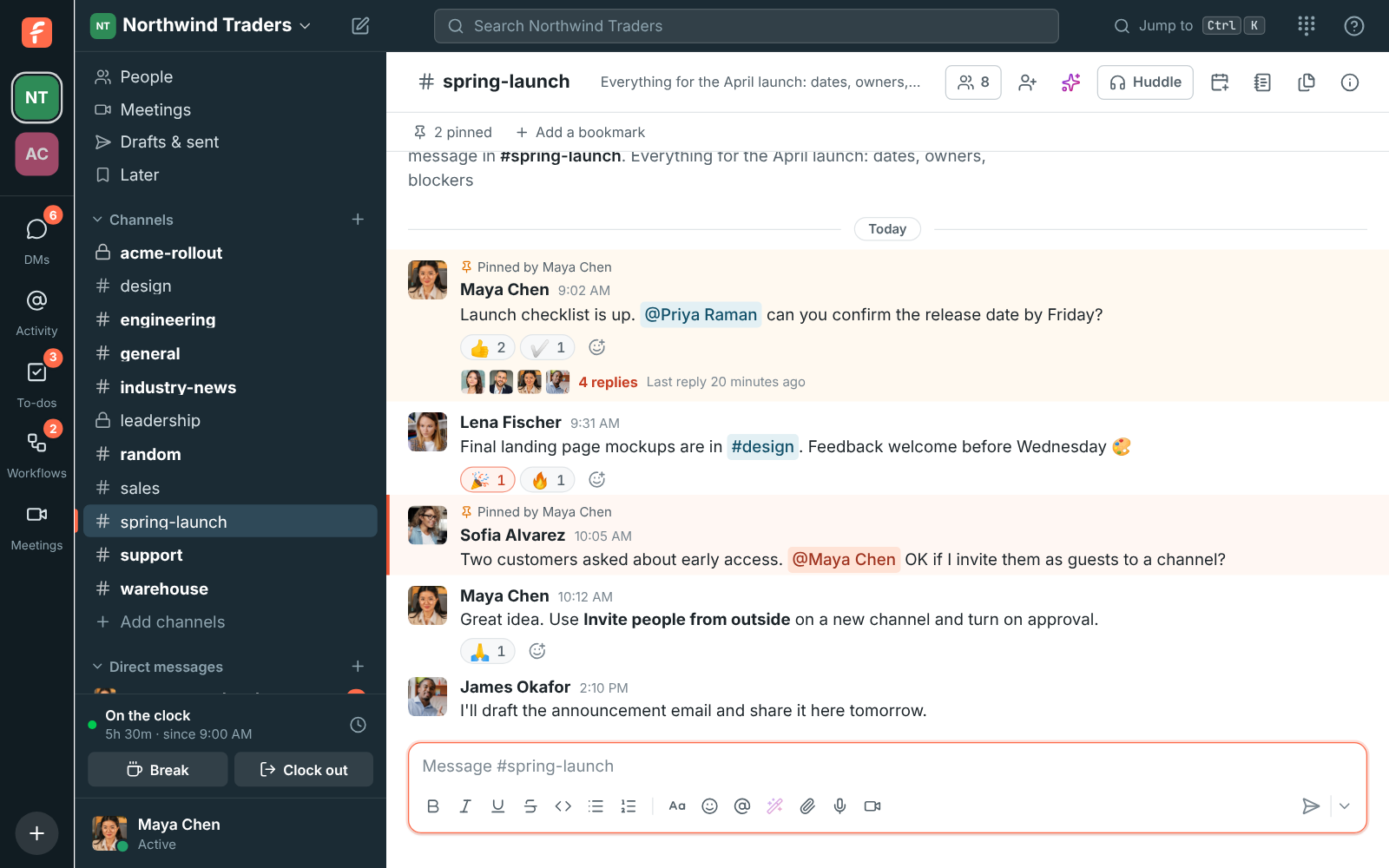
Events for apps, and 30 webhook events
Section titled “Events for apps, and 30 webhook events”- Apps can now hear about what happens: messages and reactions in channels their bot is in,
mentions of the app, channel changes, people joining, huddles, meetings and recordings. Set a
request URL and pick events when you edit an app, or paste a Slack manifest with
event_subscriptions. Freesbe sends them in Slack’s Events API format and signs them so Slack’s SDKs can check them. See Get events. - Outgoing webhooks grew from 8 events to 30, in groups: messages, channels, people, huddles and meetings, and the punch clock. See Outgoing webhooks.
- Connect your own tools with apps, in Workspace settings → Apps. Each app gets a bot that posts as itself, with an App badge, and a bot token that can only do what its scopes allow.
- Bring a bot you built for Slack: paste its app manifest and Freesbe maps Slack’s scopes.
- Bot tokens don’t expire and keep working when the workspace requires single sign-on or MFA, so they work as API keys. Apps can post cards with Slack Block Kit. See Apps.
Billing page for admins
Section titled “Billing page for admins”- Admins now have Workspace settings → Billing: the workspace’s plan, how many people count toward it, every plan’s price yearly and monthly, and invoices. Paid plans haven’t started yet, so nothing is limited for now. See Billing.
- Once paid plans open, admins upgrade from the same page through Stripe’s secure checkout, and Manage billing changes the card, billing details or plan. Seats follow the workspace on their own. See Pay for a plan.
Freesbe reloads itself after an update
Section titled “Freesbe reloads itself after an update”- When a new version of Freesbe goes live, the app in your browser and the desktop app show Freesbe has been updated and reload into it after ten seconds. Click Reload now to go straight away, or Snooze it for 15 minutes, an hour or four hours.
- It never reloads during a huddle, a meeting, an upload or a recording, or while you’re typing: it waits until you’re done. Anything you’d typed but not sent is still there afterwards. See Updates.
- The desktop app also installs a new version of itself as soon as it finds one when it starts, instead of asking, from version 0.1.5.
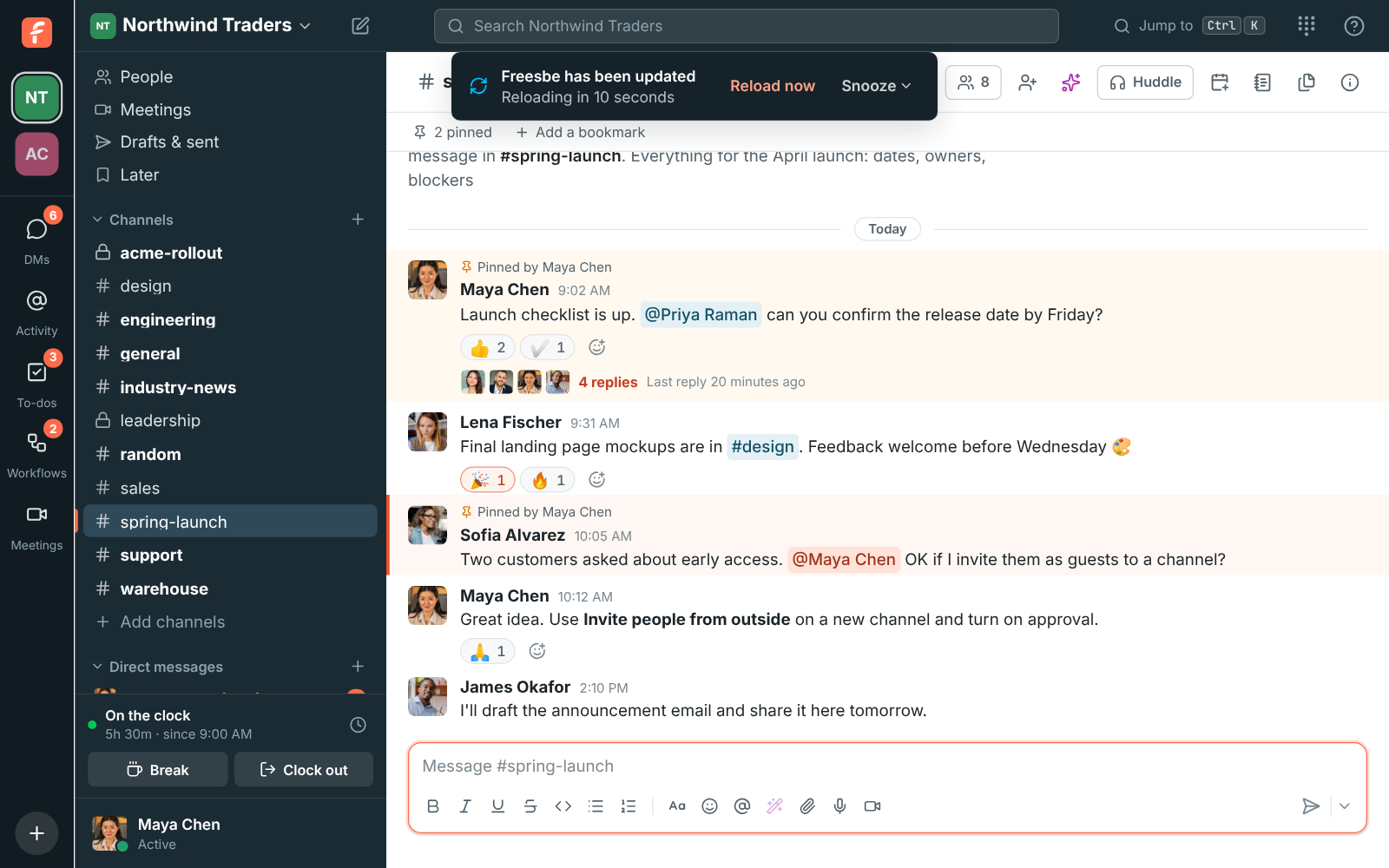
Music on hold for guests
Section titled “Music on hold for guests”- Guests waiting in a meeting’s lobby now hear soft music until they’re let in. They can pause it or pick another track.
- Admins choose the track guests hear first, or turn it off, under Workspace settings → Workspace → Music on hold. See Music on hold.
- A fifth track, Bossa, joins the waiting music in huddles too.
Canvases
Section titled “Canvases”- Every channel and DM now has a canvas: a shared document beside the conversation for notes, playbooks and FAQs. Click the canvas button at the top of the conversation to open it. Everyone in the conversation can edit it at the same time and sees each other’s cursors. See Canvases.
- Start an empty canvas from a template: a support playbook, an FAQ, an account plan, meeting notes or a project brief. See Start from a template.
Switch devices during a call
Section titled “Switch devices during a call”- Move a huddle or meeting between your phone, the desktop app and a browser without hanging up. Open Freesbe on the other device and choose Join here; the device you left hangs up on its own. See Move a huddle to another device and Move a meeting to another device.
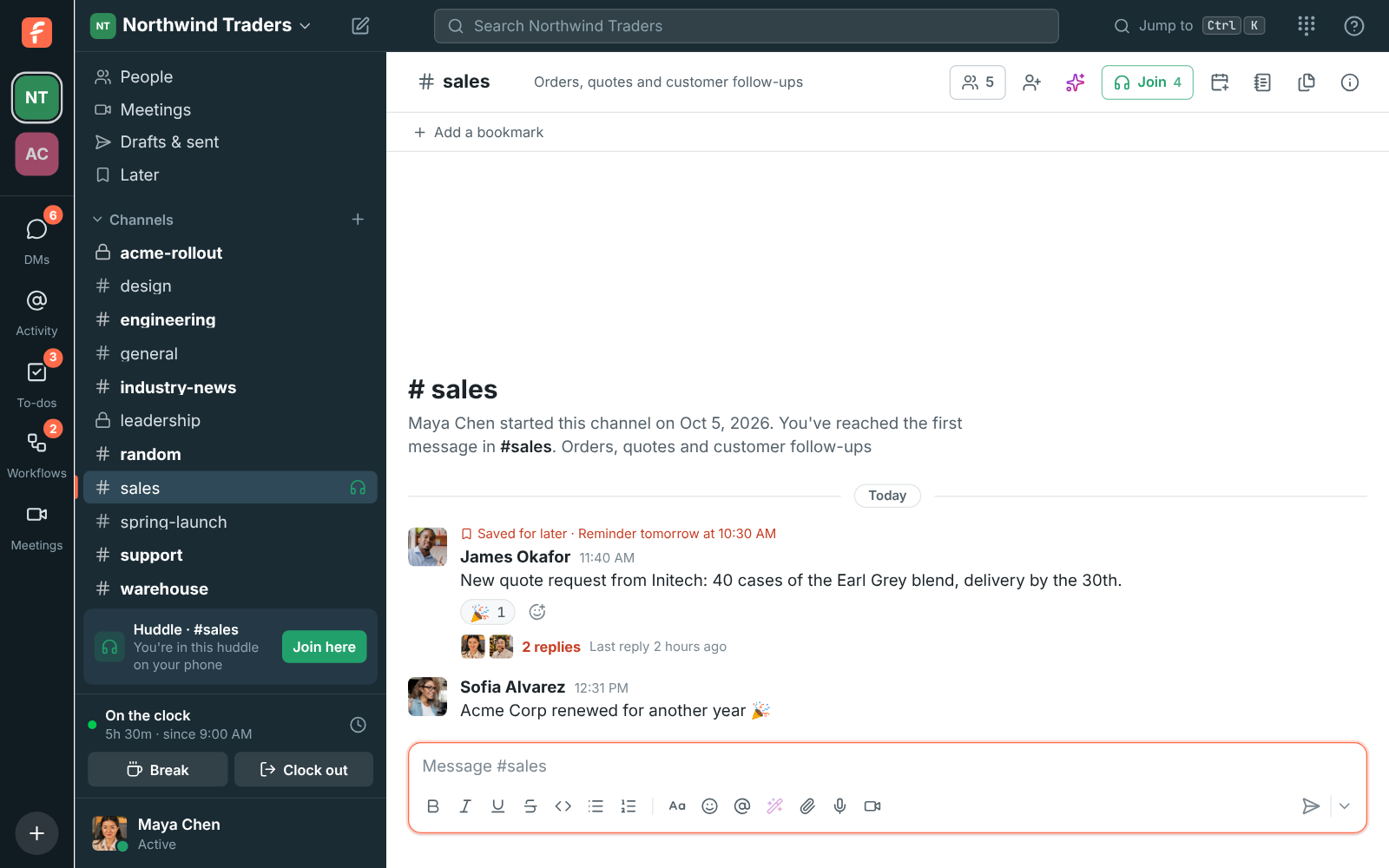
Meetings in the mobile app
Section titled “Meetings in the mobile app”- The mobile app has a Meetings tab: today’s and upcoming meetings, who’s in the call, and anyone waiting to join, with Admit and Deny. Start now starts a meeting from your phone. See The mobile app.
- Join a meeting from the tab or its link, with your microphone and camera on or off, and talk, share your camera or screen and let people in from the call.
- When a guest is waiting in a meeting you host, a card on your phone lets you admit them from anywhere in the app.
Zoom the desktop app in and out
Section titled “Zoom the desktop app in and out”- Press Ctrl (⌘ on a Mac) with + or -, or hold it and scroll the mouse wheel, to make everything in the desktop app bigger or smaller. Ctrl+0 goes back to actual size.
- Freesbe remembers the level, and Preferences → Desktop app has it too. Needs desktop app 0.1.5. See Zoom in and out.
Admins can delete any message
Section titled “Admins can delete any message”- Workspace owners and admins can delete anyone’s message, thread reply or app message from More actions → Delete message, in public channels and private channels they’re in. Everyone sees Message deleted by an admin in its place. See Deleting someone else’s message.
- A new Messages page in Workspace settings sets how long people can edit their messages, whether members can delete their own, and whether admins can delete anyone’s, with a log of every message admins deleted. See Messages.
Schedule messages
Section titled “Schedule messages”- Write a message now and send it later: click the arrow next to Send and pick later today, tomorrow morning, Monday morning or any time up to 120 days ahead. Works in channels, DMs and threads.
- Scheduled in the sidebar lists them, where you can send one now, reschedule, edit or delete it. See Schedule a message.
- In the mobile app, press and hold Send to schedule, and find them under You → Scheduled messages. See The mobile app.
Holiday icons
Section titled “Holiday icons”- The Freesbe icon in your browser tab, on freesbe.net and in the desktop app’s tray now dresses up for Thanksgiving, Hanukkah and Christmas, switching on its own on the right dates.
- Prefer the everyday icon? Turn off Preferences → Appearance → Holiday icons. See Holiday icons. The desktop app’s tray and window icon change from version 0.1.5.

Copy a picture without downloading it
Section titled “Copy a picture without downloading it”- A picture open full size now has a Copy button next to Download and Close. It puts the picture itself on your clipboard, ready to paste into another app. See Files.
- In the desktop app, right-click a picture for Copy Image, Save Image As… and Copy Image Address (desktop app 0.1.5 and later).
Edit and delete messages in the mobile app
Section titled “Edit and delete messages in the mobile app”- Press and hold a message in the mobile app to react, reply in a thread, copy its text or link, and edit or delete your own. Tap a reaction under a message to add yours. See The mobile app.
- Opening the app after a while no longer plays a sound for every message you missed. Only new messages make a sound, once for a burst.
AI summaries, translations and writing help
Section titled “AI summaries, translations and writing help”- Catch up fast: click the sparkles at the top of a channel or thread for a summary of what you missed, since you last read, or over the last day or week. Each point links to the message it came from.
- Read any message in your language: More actions → Translate.
- Polish a message before you send it: Improve writing under the message box fixes spelling and grammar, or makes it clearer, shorter, friendlier or more formal.
- Only you see what AI writes, and it only reads messages you can already see. Admins can turn it off in Workspace settings. See AI summaries, translations and writing help.
Cards from webhooks
Section titled “Cards from webhooks”- Incoming webhooks now show Slack Block Kit as a card, with headers, facts, images and link buttons, instead of plain text.
- They also take the cards tools send to Microsoft Teams (Adaptive Cards and Office 365 connector cards), so a tool set up for Teams can post to Freesbe with a new URL. See Cards.
Transcribe a huddle without recording it
Section titled “Transcribe a huddle without recording it”- A new Transcribe button in huddles writes the transcript and notes without recording a video. The notes are posted in the conversation when the huddle’s transcript stops.
- Admins can turn on Transcribe every huddle, so every huddle with two or more people gets notes without anyone asking. See Recordings, transcripts and notes.
Know when a guest is waiting
Section titled “Know when a guest is waiting”- When a guest waits in a meeting’s lobby and nobody from the workspace is in the call, the organizer and invited teammates get a card with Admit, Deny and Join, and a knock.
- Still waiting after 2 minutes: it knocks on every device and your phone gets a notification. After 5 minutes, hosts who are away get an email with a link to let them in.
- Admins can change both times or turn them off, and anyone can turn the email off. See Waiting room alerts.
Closing a picture no longer closes the app
Section titled “Closing a picture no longer closes the app”- A picture you open full size now has Download and Close in a bar at the bottom, with their names on them, instead of two small buttons next to the desktop app’s own window buttons. Press Esc or click beside the picture to close it.
- Dialogs in the desktop app open a little lower, so their close button never sits near the window’s close button. See The window.
- Tooltips near the top of the desktop app, such as Leave huddle, now open below their button instead of hiding under the window buttons.
Pin Freesbe to your taskbar or Dock
Section titled “Pin Freesbe to your taskbar or Dock”- The first time the desktop app opens on Windows or a Mac, it shows how to pin Freesbe to the taskbar and keep its tray icon showing, or keep it in the Dock. Apps can’t pin themselves, so it takes one right-click. See it again any time in Preferences → Desktop app. See The desktop app.
Audio and video clips
Section titled “Audio and video clips”- Record a short audio or video clip from the message box, up to 5 minutes. Video clips can show your camera, your screen, or your screen with your camera in a circle in the corner.
- Clips play right in the conversation, and so do other audio files now, with a play button and a bar to jump around. See Audio and video clips.
Freesbe in your phone’s browser
Section titled “Freesbe in your phone’s browser”- Phones and tablets no longer show Open in desktop app, since the desktop app can’t open there.
- Alerts for new messages stay on your computer while Freesbe is open there, even if you last used your phone’s browser. See Notifications.
Photos, files and screenshots in the mobile app
Section titled “Photos, files and screenshots in the mobile app”- Send photos, videos, camera shots and any file from the mobile app with the + next to the message box. Copied a screenshot? Tap Paste image. Pictures show in the conversation, and you can tap any file to open it. Messages you send show at once. See The mobile app.
- On Android, the conversation now moves up above the keyboard, so you can see what you type.
No more missing messages after sleep
Section titled “No more missing messages after sleep”- The conversation you have open now checks in with the server whenever the app reconnects, for example after your computer wakes up, and when you come back to the window. Messages that arrived while the connection was down show up without a reload. See Troubleshooting.
Meeting recordings, transcripts and AI notes
Section titled “Meeting recordings, transcripts and AI notes”- Record meetings, not just huddles: Record the meeting in the call. Meeting recordings are kept under Meetings → Recordings.
- Every recording gets a transcript with who said what, and notes: a summary, the decisions and the action items, with who they’re for. Add an action item to your to-dos in one click.
- Huddle notes are posted in the recording’s thread. Admins can turn transcripts off in Workspace settings. See Recordings, transcripts and notes.
Your logo on meeting links
Section titled “Your logo on meeting links”- Meeting links show your workspace’s logo beside the meeting’s title, time and organizer, also while guests wait to be let in. Workspaces without a logo show their initials. Booking pages show the logo bigger too. See Meetings.
Change who’s in a group DM
Section titled “Change who’s in a group DM”- Add people to a group DM, remove someone, or leave it, from the conversation’s details. People you add see the earlier messages; to keep those private, start a new group DM instead.
- See who’s active in a group DM: green dots on everyone’s picture at the top, “2 of 3 active”, and a dot on the group in the sidebar.
- The details of any DM now list everyone with their status and job title, and clicking a person opens their profile, with a back arrow to return. See Group DMs.
A clearer download page
Section titled “A clearer download page”- freesbe.net/download now shows the Windows, macOS and Linux logos, marks the desktop app as Beta, and lists the iPhone and Android apps as Coming soon. See The desktop app.
DMs, Activity and to-dos on the left
Section titled “DMs, Activity and to-dos on the left”- New buttons on the left of the window: DMs for every direct message, Activity for mentions and thread replies, To-dos for your own list, and Meetings. Each shows a count when something needs you.
- The + at the bottom starts a message, channel, meeting or to-do.
- Keep a private to-do list with due dates, and turn any message into a to-do with ⋯ → Add to to-dos. See DMs, Activity and to-dos.
- The dialpad button in the top bar now looks like a phone keypad.
Huddles on your phone
Section titled “Huddles on your phone”- Join or start a huddle from any channel or DM in the mobile app, and answer huddle calls from your phone. See Huddles in the mobile app.
- Mute, turn on your camera, see everyone’s cameras and shared screens, and on Android share your screen and pick the speaker, earpiece, headphones or a Bluetooth headset.
- On Android the call keeps going while you use other apps.
- With the app open, new messages play your phone’s notification sound and calls ring with your ringtone.
Support sessions
Section titled “Support sessions”- Help a customer from Meetings → Support session: you get a one-hour link and a code they can type at app.freesbe.net/join. They join without an account, and you let them in.
- The page they open shows your workspace’s name and logo and walks them through sharing their screen.
- If they join from the desktop app, click Request control to work their computer once they allow it. See Support sessions.
- Customers on Android join from the Freesbe app with the code, share their screen, and can let you control the phone, with Back, Home and Recent apps under their screen. See Help someone on an Android phone.
Freesbe on your phone
Section titled “Freesbe on your phone”- A Freesbe app for iPhone and Android is in testing, with your channels, DMs, threads, Activity and search. See The mobile app.
- Push notifications reach your phone while you’re away from your computer, by the same rules as desktop notifications, and Quiet mode pauses them for an hour.
- Sign in with a passkey on your phone, or add one from the app.
- Sign the app in by scanning a QR code: choose Sign in on your phone in your account menu on your computer. See Sign in with a QR code.
More room for your workspace name
Section titled “More room for your workspace name”- The sidebar is wider on larger windows, and long workspace names step down a size before they get cut off. Point at a cut-off name to see all of it. See The workspace name.
- In Hebrew and Arabic on Windows and Linux, the desktop app’s window buttons no longer cover the workspace name. See Desktop app.
Choose which file types people can share
Section titled “Choose which file types people can share”- Workspace settings has a new Security section with single sign-on, multi-factor authentication, remote control and the new File types rules.
- Pick what members and guests can share: any file, anything except programs and scripts, or only the kinds you pick. Guests can’t share programs and scripts unless you allow them.
- Freesbe checks every upload by its name and by what’s inside, so a program renamed to
report.pdfis caught. See File types.
Find Freesbe in search and AI assistants
Section titled “Find Freesbe in search and AI assistants”- freesbe.net and these docs now tell search engines and AI assistants what each page is about, with a sitemap at freesbe.net/sitemap.xml and a plain-text guide map at freesbe.net/llms.txt. See Ask your own AI assistant.
- Your workspace stays private: pages in the app, meeting links and booking links are never listed in search results.
Remote control
Section titled “Remote control”- Remote control: during a huddle, click Request control on a screen someone shares from the desktop app. Once they allow it, your mouse and keyboard work their computer, which is handy for IT help and supporting customers. They can take control back with Esc at any time, sessions are recorded where recordings are on, and admins see a log. Admins turn it on in Workspace settings → Security.
Side panels in a narrow desktop window
Section titled “Side panels in a narrow desktop window”- In the desktop app on Windows and Linux, a profile or other side panel opened in a narrow window no longer puts its close button under the window’s close button, which closed the window instead. Panels now open below the top bar. See The window.
Open in browser from the desktop app
Section titled “Open in browser from the desktop app”- Settings that only work in a web browser, like connecting a calendar, linking Google or Microsoft, or adding a passkey, now have a button in the desktop app that opens Freesbe in your browser at the right page in Preferences.
Freesbe in your language
Section titled “Freesbe in your language”- Freesbe now speaks 11 languages: English, Spanish, Chinese (simplified), Hindi, Arabic, Brazilian Portuguese, French, German, Japanese, Russian and Hebrew.
- It follows your computer’s language, and you can pick another in Preferences → Language.
- Hebrew and Arabic are fully right to left, including the desktop app’s menus.
Usage limits
Section titled “Usage limits”- Admins can see this month’s video and storage in Workspace settings → Usage. See Usage limits.
- When a workspace uses its monthly video allowance, cameras and screen sharing turn off until the 1st and the buttons say why. Voice calls keep working.
Keep chatting during calls
Section titled “Keep chatting during calls”- Minimize a meeting to keep using your channels and DMs while you’re in it. The call stays in a small card in the corner, and Open the meeting brings it back over the conversation. See Meetings.
- A huddle video made bigger now leaves the sidebar free, and shrinks back when you pick another conversation. See Huddles.
Notification sounds
Section titled “Notification sounds”- Pick from eight built-in notification sounds, or none, for your messages.
- Give a channel or DM its own sound from its details, and a person their own sound from their profile, so you know who’s messaging you before you look.
Dark mode everywhere
Section titled “Dark mode everywhere”- In the Mac desktop app, the theme you pick now also covers right-click and spelling menus and dialog boxes, so Dark on a light Mac no longer leaves light menus behind. System, the default, still follows your computer.
- A new Corporate plan for teams of up to 2,500, with required SSO, booking links on your own domain, recording retention rules and phone and chat support. Business is now for up to 500 people. See Plans.
Help inside the app
Section titled “Help inside the app”- A ? Help menu in the top bar with the help center, keyboard shortcuts, this page and support. See Getting help.
- Learn more links in Preferences, Workspace settings, Meetings and the invite dialogs open the matching guide.
- Ctrl+/ (⌘+/ on a Mac) shows every keyboard shortcut.
Security
Section titled “Security”- Admins can require multi-factor authentication for a workspace: a passkey, an authenticator app or an emailed code.
- Preferences → Account lists your sessions, so you can sign out a device you don’t recognize.
- Single sign-on with Google or Microsoft for a whole workspace.
Calls and meetings
Section titled “Calls and meetings”- Booking, guest meeting and invite links on your own domain, like
meetme.acme.com/dana, on the Corporate and Enterprise plans. - Pick your microphone, call speaker and ringtone speaker in Preferences → Audio.
- Calls float over other tabs and apps so you can keep an eye on them.
- Huddle recordings, when your admin turns them on.
- Scheduled meetings with a link anyone can open, email invites and a waiting room.
- Waiting music while you’re alone in a huddle, and a warning before a reload drops your call.
Working with others
Section titled “Working with others”- Invite guests from outside your organization into a single channel.
- Invite links show the workspace’s name and logo when you paste them into chat apps.
- Invite emails carry your workspace’s logo and links to the desktop app.
Desktop app and notifications
Section titled “Desktop app and notifications”- The desktop app updates itself, and asks before it installs an update.
- Unread counts on the tray, dock, taskbar and browser tab.
- Only the device you’re using alerts you for new messages, while calls ring everywhere.
- Answer or decline calls straight from the notification.
- The punch clock for clocking in and out, breaks and timesheets.
- Crop and zoom profile pictures and workspace logos.
Answers come from the Freesbe guides and are written by AI, so check the linked guide before relying on one. Please don't include personal details such as emails or passwords.